Automate Abandoned Cart Emails with n8n & RAG

Automate Abandoned Cart Emails with n8n & RAG

Imagine this: someone spends time browsing your store, adds a few products to their cart, then disappears. Frustrating, right? The good news is that you can win many of those customers back automatically with smart, personalized abandoned cart emails.

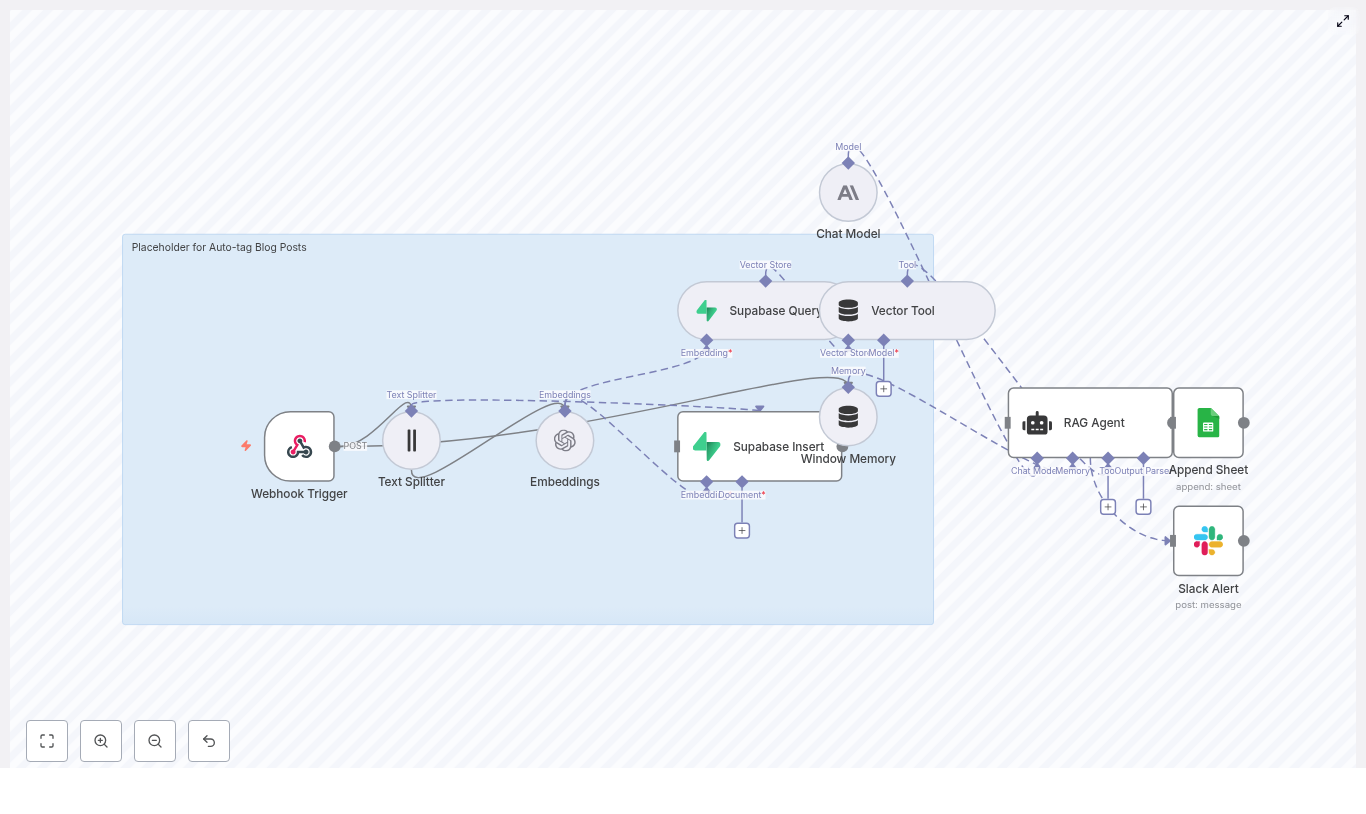
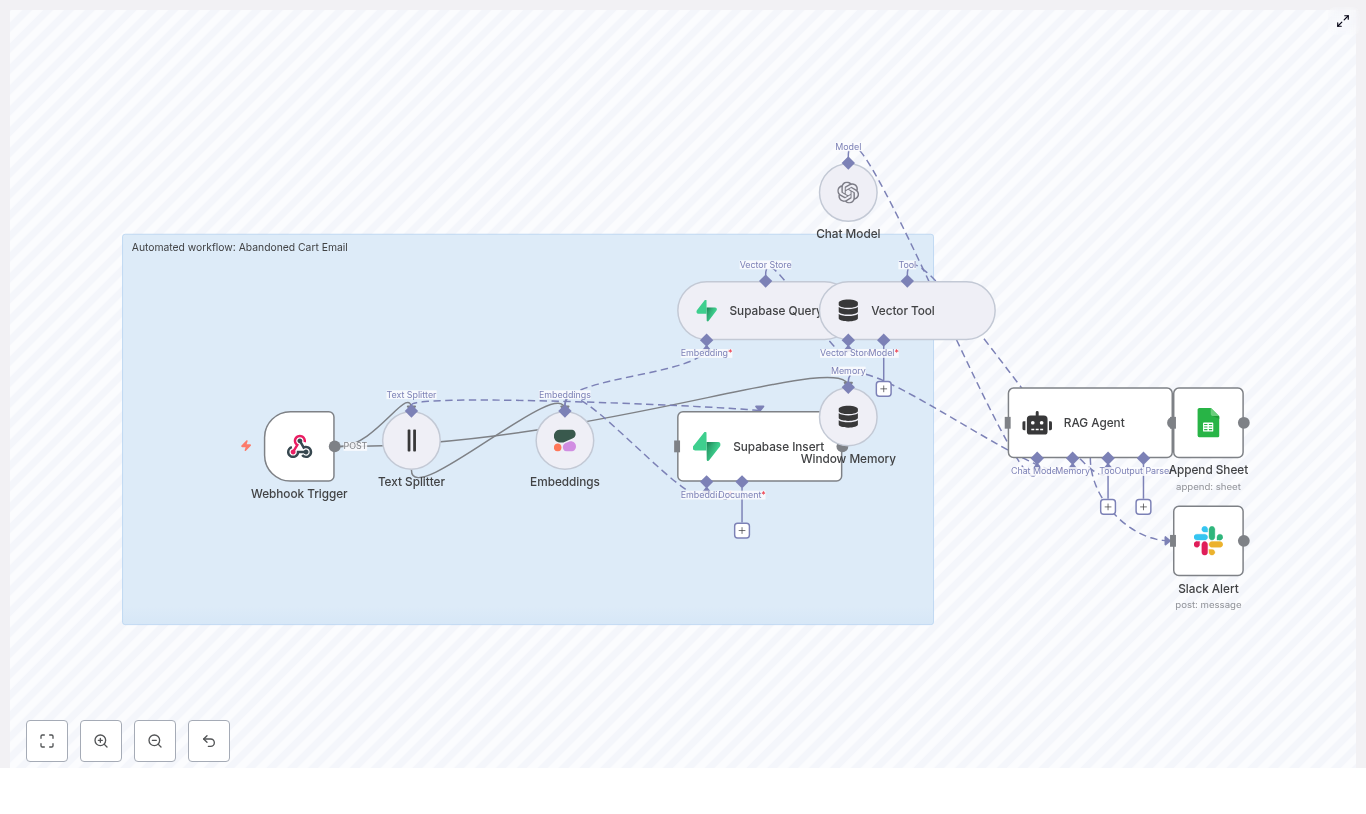
In this guide, we will walk through a complete n8n workflow that does exactly that. It uses embeddings, a vector store, and a RAG (Retrieval-Augmented Generation) agent to turn cart data into tailored email content. You get a production-ready flow that captures events, stores context, retrieves the right info, writes the email, and logs everything, all without building your own backend.

Grab a coffee, and let’s break it down step by step.

Why bother automating abandoned cart emails?

Abandoned cart emails are one of the most effective retention tools in ecommerce. People already showed intent by adding items to their cart, so a well-timed reminder can bring a surprising amount of that revenue back.

When you automate this with n8n, you:

  • React instantly when a cart is abandoned.
  • Stay consistent, instead of manually sending follow-ups.
  • Use customer and product context to personalize each message.

The result is usually better open rates, more clicks, and more completed purchases. And once it is set up, the system just runs in the background for you.

What this n8n workflow actually does

Let us start with the big picture. This workflow connects your store to a RAG-powered email generator and a few helpful tools for logging and alerts. End-to-end, it:

  • Receives an abandoned cart event via a Webhook Trigger.
  • Splits cart and product text into smaller chunks with a Text Splitter.
  • Creates semantic embeddings using Cohere (or another embedding provider).
  • Saves those embeddings in a Supabase vector store so they can be searched later.
  • Queries that vector store when it is time to generate an email and exposes it as a Vector Tool for the RAG agent.
  • Uses a Chat Model (like OpenAI Chat) plus Window Memory to keep short-term context.
  • Runs a RAG Agent to write personalized abandoned cart email copy.
  • Logs outcomes to Google Sheets for tracking and analysis.
  • Sends a Slack alert whenever something fails so you do not miss issues.

In other words, from the moment a cart is abandoned to the moment an email is written and logged, this workflow handles the entire journey.

When should you use this template?

This n8n template is ideal if:

  • You run an online store and want to recover more abandoned carts automatically.
  • You like the idea of AI-generated email copy, but still want it grounded in real product and customer data.
  • You prefer not to build and maintain a custom backend for handling events, vectors, and email generation.

If you are already using tools like Supabase, Cohere, OpenAI, Google Sheets, and Slack, this will plug nicely into your existing stack. Even if you are not, the template gives you a clear structure to follow.

How the core pieces fit together

Let us walk through the main nodes in the workflow and how they work together to create those emails.

1. Webhook Trigger: catching the abandoned cart

The whole flow starts with a Webhook Trigger node. You expose a POST endpoint, such as /abandoned-cart-email, and configure your store or analytics platform to call it whenever a cart is considered abandoned.

The webhook payload typically includes:

  • Customer ID and email address.
  • Cart items and item descriptions.
  • Prices and totals.
  • Timestamp or session info.

Keep this payload focused on what you need to personalize the email. The lighter it is, the easier it is to maintain and debug.

2. Text Splitter: preparing content for embeddings

Product descriptions or notes can get pretty long. To make them useful for semantic search, the workflow uses a Text Splitter node to break them into smaller chunks.

In this template, the Text Splitter is set up with:

  • Chunk size: 400 characters
  • Overlap: 40 characters

This overlap helps preserve sentence continuity between chunks. You can tune these values based on your content. Smaller chunks give you more precise vectors but can increase storage and retrieval costs.

3. Embeddings (Cohere): turning text into vectors

Once the text is split, each chunk is converted into an embedding using a semantic model. In the example, the workflow uses Cohere’s embed-english-v3.0 model.

Why embeddings? They let you search by meaning instead of exact keywords. That way, when your RAG agent needs context about a product or customer, it can find the most relevant chunks even if the wording is different.

When choosing an embedding provider, keep an eye on:

  • Cost per request.
  • Latency and performance.
  • Language coverage and model quality.

4. Supabase Insert: building your vector store

Next, those embeddings are stored in Supabase, acting as your vector database. The workflow inserts each embedding into a consistent index, for example "abandoned_cart_email".

Alongside the vector itself, you store useful metadata, such as:

  • product_id
  • item_name
  • price
  • cart_id

This metadata makes it easier to filter and audit later. You can see exactly which products and carts were involved in each email, and you can refine your retrieval logic over time.

5. Supabase Query & Vector Tool: retrieving the right context

When it is time to generate an email, the workflow queries that same index in Supabase to fetch the most relevant vectors for the current cart or customer.

Typically, you retrieve the top-k nearest vectors, where k is a small number like 3 to 8, so the prompt stays focused. The workflow then exposes this vector search as a Vector Tool to the RAG agent.

This lets the agent pull in:

  • Product details and descriptions.
  • FAQ content or support notes.
  • Relevant customer notes or history, if you store them.

Instead of guessing what to say, the agent can rely on real, retrieved context.

6. Window Memory: keeping short-term context

The Window Memory node helps the RAG agent remember recent interactions or events. This is useful when:

  • The same customer triggers multiple abandoned cart events.
  • You want the agent to stay aware of the last few steps in the flow.

By maintaining a limited window of past context, the agent can produce more coherent and consistent responses without overwhelming the model with too much history.

7. Chat Model & RAG Agent: writing the email

At the heart of the workflow is the Chat Model (for example, OpenAI Chat) combined with a RAG Agent. Here is what happens:

  • The Chat Model provides the language generation capability.
  • The RAG Agent pulls in relevant context from the vector store via the Vector Tool.
  • The agent uses a system message and prompt template to shape the final email.

A typical system message might be:

"You are an assistant for Abandoned Cart Email."

Then you give the agent a prompt that asks it to produce key elements like the subject line, preview text, HTML body, and a call to action.

8. Append Sheet (Google Sheets): logging everything

Once the email content is generated, the workflow appends a new row to a Google Sheet. This log might include:

  • The generated email content.
  • Status or outcome flags.
  • Any metrics or IDs you want to track.

This sheet becomes your lightweight analytics and audit trail. Over time, you can use it to track delivery, opens, clicks, and even recovered revenue tied to specific email variants.

9. Slack Alert: catching errors quickly

If something goes wrong, you do not want to find out days later. That is where the Slack node comes in.

On errors, the workflow posts a short alert to a channel like #alerts with key details about what failed, such as:

  • Credential issues.
  • Rate limit problems.
  • Malformed webhook payloads.

This way, you can jump in quickly, fix the problem, and keep your automation running smoothly.

A practical prompt template for your RAG Agent

Want consistent, conversion-focused copy? Here is a simple prompt structure you can adapt for the agent:

<system>You are an assistant for Abandoned Cart Email.</system>
<user>Generate an abandoned cart email for this customer:
- Customer name: {{customer_name}}
- Cart items: {{item_list}}
- Product highlights and context from vector store: {{retrieved_context}}
Return: subject, preview_text, body_html, recommended_cta, personalization_notes.
</user>

You can tweak the tone, brand voice, or formatting in this template, but the structure gives the model everything it needs to produce a complete email.

Best practices to get the most from this workflow

Once you have the basics running, a few small tweaks can make a big difference.

  • Tune retrieval size: Start by retrieving 3 to 8 top vectors. Too few and you might miss context, too many and the prompt can get noisy or expensive.
  • Chunking strategy: A chunk overlap around 10 percent is a good starting point. It helps preserve sentence flow across chunks.
  • Use metadata wisely: Store product metadata with embeddings so you can filter by category, price range, or in-stock status during retrieval.
  • Personalize thoughtfully: Use the customer’s first name and mention specific items from their cart to build trust and relevance.
  • Respect compliance: Include unsubscribe options, honor do-not-contact flags, and only store the PII you truly need.
  • Monitor performance: Log both successes and failures, and use Slack alerts to spot unusual error spikes early.
  • A/B test your copy: Try different subject lines and CTAs, record the variants in Google Sheets, and see what actually performs best.

Scaling and keeping costs under control

As volume grows, embedding and retrieval costs can add up. The good news is that they are fairly predictable, and you have several levers to optimize:

  • Cache static embeddings: Product descriptions rarely change. Embed them once and reuse the vectors instead of re-embedding every time.
  • Deduplicate content: Before inserting into the vector store, skip near-identical content to avoid unnecessary cost and clutter.
  • Use tiered models: Consider using a lower-cost embedding model for broad retrieval, then call a higher-end LLM only for final email generation.

With these strategies, you can scale your abandoned cart automation without nasty cost surprises.

How to test the workflow before going live

Before you flip the switch in production, it is worth running through a quick test checklist:

  1. Send a test POST request to the webhook with a sample cart payload.
  2. Check that text chunks are created and embeddings are successfully written to Supabase.
  3. Trigger the RAG agent flow and review the generated subject, preview text, and email body.
  4. Verify that a new row is appended to your Google Sheet and that Slack alerts fire correctly on simulated errors.

This gives you confidence that all the pieces are wired correctly before real customers hit the flow.

Subject line and CTA ideas to get you started

Stuck on copy ideas? Here are a few subject lines that mix urgency and relevance:

  • “[Name], your cart items are almost gone – save 10% now”
  • “Still thinking it over? Your [product] is waiting”
  • “Grab your [product] before it sells out”

For calls to action, keep it clear and aligned with what you want them to do. Examples include:

  • “Complete Your Purchase”
  • “Reserve My Items”
  • “View My Cart”

These are also great candidates for A/B tests inside your workflow.

Security and data privacy considerations

Because this workflow touches customer data and external APIs, it is important to treat security and privacy as first-class concerns.

  • Secure credentials: Store Supabase, Cohere, OpenAI, Google Sheets, and Slack credentials inside n8n’s credentials system, not in plain text.
  • Validate webhooks: Use HMAC signatures or signed payloads so your webhook only accepts legitimate requests.
  • Minimize PII in vectors: Avoid storing sensitive personal data in vector metadata, and apply retention policies that align with GDPR or other regional regulations.

With these safeguards in place, you can enjoy the benefits of automation without compromising trust.

Next steps: putting the template to work

Ready to turn this into a live, revenue-saving workflow?

  • Import the n8n workflow template into your own n8n instance.
  • Connect your credentials for Supabase, Cohere, OpenAI, Google Sheets, and Slack.
  • Send a few realistic test webhooks with real-world cart data.
  • Iterate on your prompt template, retrieval settings, and email tone until it matches your brand.
  • Start tracking results and run A/B tests on subject lines and CTAs.

Call to action: Want the ready-to-import workflow JSON and a production checklist? Grab the template and setup guide from our resources page, or reach out to our automation team if you would like a custom implementation tailored to your stack.
By combining n8n with vector search and RAG-powered content generation, you can send highly personalized abandoned cart emails at scale. Keep monitoring, testing, and iterating, and you will steadily increase the revenue you recover from carts that used to be lost.

Ad Campaign Performance Alert in n8n

Ad Campaign Performance Alert in n8n

Ever wished your ad campaigns could tap you on the shoulder when something’s off?

One day your ads are crushing it, the next day your CTR tanks, your CPA spikes, or conversions quietly slip away. If you are not watching dashboards 24/7, those changes can sneak past you and cost real money.

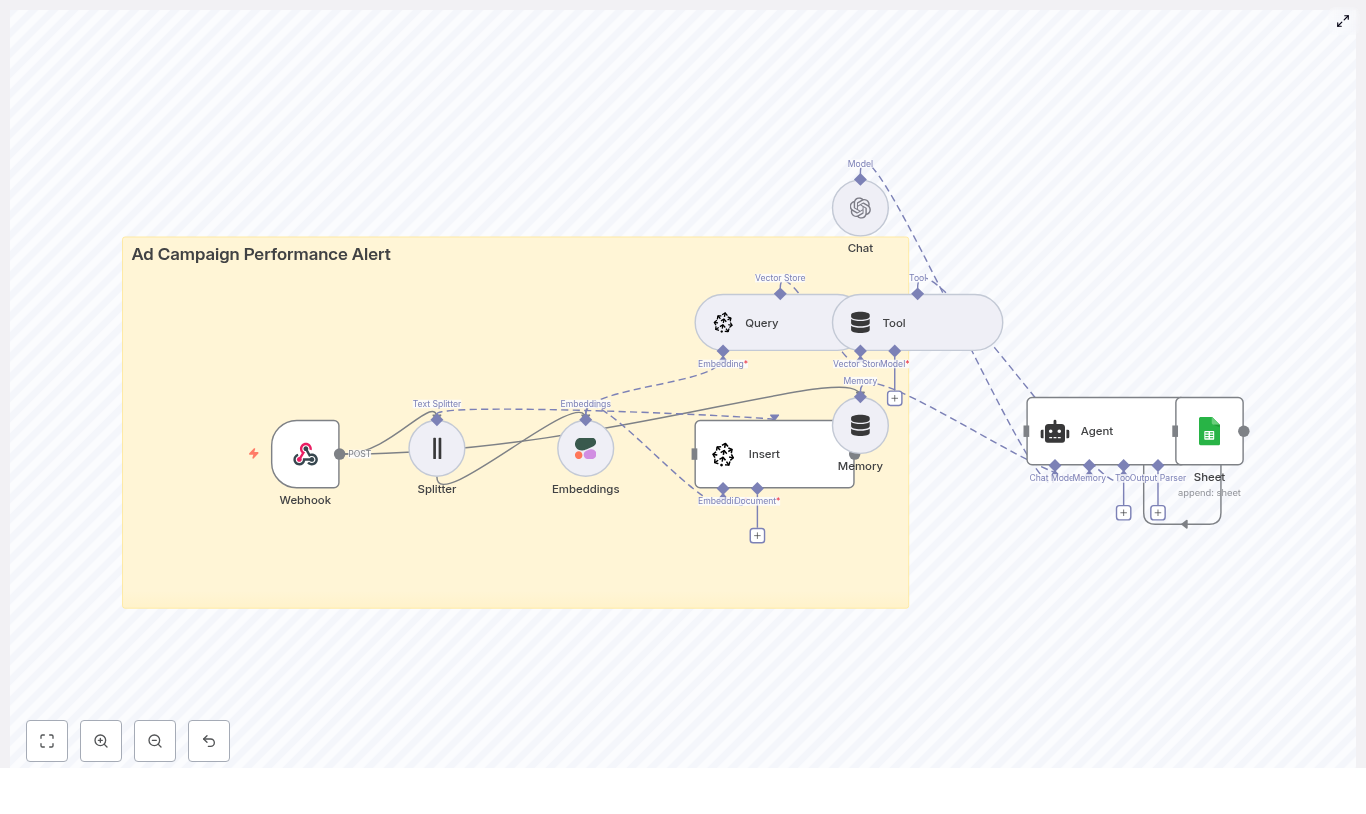
That is exactly where this Ad Campaign Performance Alert workflow in n8n comes in. It pulls in performance data through a webhook, stores rich context in a vector database (Pinecone), uses embeddings (Cohere) to understand what is going on, and then lets an LLM agent (OpenAI) explain what happened in plain language. Finally, it logs everything into Google Sheets so you have a clean audit trail.

Think of it as a smart assistant that watches your campaigns, compares them to similar issues in the past, and then tells you what might be wrong and what to do next.

What this n8n template actually does

At a high level, this automation:

  • Receives ad performance data via a POST webhook from your ad platform or ETL jobs.
  • Splits and embeds the text (like logs or notes) using Cohere so it can be searched semantically later.
  • Stores everything in Pinecone as vector embeddings with useful metadata.
  • Looks up similar past incidents when a new anomaly comes in.
  • Asks an OpenAI-powered agent to analyze the situation and suggest next steps.
  • Writes a structured alert into Google Sheets for tracking, reporting, and follow-up.

So instead of just seeing “CTR dropped,” you get a context-aware explanation like “CTR dropped 57% vs baseline, similar to that time you changed your creative and targeting last month,” plus concrete recommendations.

When should you use this workflow?

This template is ideal if you:

  • Manage multiple campaigns and cannot manually check them every hour.
  • Want to move beyond simple “if CTR < X then alert” rules.
  • Care about understanding why performance changed, not just that it changed.
  • Need a historical trail of alerts for audits, reporting, or post-mortems.

You can run it in real time for live campaigns, or feed it daily batch reports if that fits your workflow better.

Why this workflow makes your life easier

  • Automated detection – Campaign logs are ingested and indexed in real time so you do not need to babysit dashboards.
  • Context-aware analysis – Embeddings and vector search surface similar past incidents, so you are not starting from scratch every time.
  • Human-friendly summaries – The LLM explains likely causes and recommended actions in plain language.
  • Built-in audit trail – Every alert lands in Google Sheets for easy review, sharing, and analysis.

How the architecture fits together

Here is the core tech stack inside the template:

  • Webhook (n8n) – Receives JSON payloads with ad performance metrics.
  • Splitter – Breaks long notes or combined logs into manageable chunks.
  • Embeddings (Cohere) – Converts text chunks into vectors for semantic search.
  • Vector Store (Pinecone) – Stores embeddings with metadata and lets you query similar items.
  • Query & Tool nodes – Wrap Pinecone queries so the agent can pull relevant context.
  • Memory & Chat (OpenAI) – Uses an LLM with conversation memory to generate explanations and action items.
  • Google Sheets – Captures structured alert rows for humans to review.

All of this is orchestrated inside n8n, so you can tweak and extend the workflow as your needs grow.

Step-by-step: how the nodes work together

1. Webhook: your entry point into n8n

You start by setting up a POST webhook in n8n, for example named ad_campaign_performance_alert. This is the endpoint your ad platform or ETL job will send data to.

The webhook expects JSON payloads with fields like:

{  "campaign_id": "campaign_123",  "timestamp": "2025-08-30T14:00:00Z",  "metrics": {"ctr": 0.012, "cpa": 24.5, "conversions": 5},  "notes": "Daily batch from ad platform"
}

You can include extra fields as needed, but at minimum you want identifiers, timestamps, metrics, and any notes or anomaly descriptions.

2. Splitter: breaking big logs into bite-sized chunks

If your notes or logs are long, sending them as one big block to the embedding model usually hurts quality. So the workflow uses a character-based text splitter with settings like:

  • chunkSize around 400
  • overlap around 40

This splits large texts into overlapping chunks that preserve context while still being embedding-friendly. Short logs may not need much splitting, but this setup keeps you safe for bigger payloads.

3. Embeddings with Cohere: giving your logs semantic meaning

Each chunk then goes to Cohere (or another embeddings provider if you prefer). You use a stable embedding model and send:

  • The chunk text itself.
  • Relevant metadata such as campaign_id, timestamp, and metric deltas.

The result is a vector representation of that chunk that captures semantic meaning. The workflow stores these embedding results so they can be inserted into Pinecone.

4. Inserting embeddings into Pinecone

Next, the workflow writes those embeddings into a Pinecone index, for example named ad_campaign_performance_alert.

Each vector is stored with metadata like:

  • campaign_id
  • Date or timestamp
  • metric_type (CTR, CPA, conversions, etc.)
  • The original chunk text

This setup lets you later retrieve similar incidents based on semantic similarity, filter by campaign, or narrow down by date range.

5. Query + Tool: finding similar past incidents

Once a new payload is processed and inserted, the workflow can immediately query the Pinecone index. You typically query using:

  • The latest error text or anomaly description.
  • Key metric changes that describe the current issue.

The n8n Tool node wraps the Pinecone query and returns the top-k similar items. These similar incidents become context for the agent so it can say things like, “This looks similar to that spike in CPA you had after a landing page change.”

6. Memory & Chat (OpenAI): the brain of the operation

The similar incidents from Pinecone are passed into an OpenAI chat model with memory. This agent uses:

  • Current payload data.
  • Historical context from similar incidents.
  • Conversation memory, if you build multi-step flows.

From there, it generates a structured alert that typically includes:

  • Root-cause hypotheses based on what worked (or went wrong) in similar situations.
  • Suggested next steps, like pausing campaigns, shifting budget, or checking landing pages.
  • Confidence level and evidence, including references to similar logs or vector IDs.

The result feels less like a raw metric dump and more like a quick analysis from a teammate who remembers everything you have seen before.

7. Agent & Google Sheets: logging a clean, structured alert

Finally, the agent formats all that insight into a structured row and appends it to a Google Sheet, typically in a sheet named Log.

Each row can include fields such as:

  • campaign_id
  • timestamp
  • Current metric snapshot
  • alert_type
  • Short summary of what happened
  • Concrete recommendations
  • Links or IDs that point back to the original payload or vector entries

Example: what an alert row might look like

campaign_id | timestamp  | metric | current_value | baseline | alert_type | summary  | recommendations  | evidence_links
campaign_123 | 2025-08-30T14:00  | CTR  | 1.2%  | 2.8%  | CTR Drop  | "CTR dropped 57% vs baseline..." | "Check creative, audience change..."  | pinecone://...

This makes it easy to scan your sheet, filter by alert type or campaign, and hand off action items to your team.

How the alerting logic works

Before data hits the webhook, you will usually have some anomaly logic in place. Common approaches include:

  • Absolute thresholds For example, trigger an alert when:
    • CTR drops below 0.5%
    • CPA rises above $50
  • Relative change For example, alert when there is more than a 30% drop vs a 7-day moving average.
  • Statistical methods Use z-scores or anomaly detection models upstream, then send only flagged events into the webhook.

The nice twist here is that you can combine these rules with vector context. Even if the metric change is borderline, a strong match with a past severe incident can raise the priority of the alert.

Configuration tips & best practices

To get the most out of this n8n template, keep these points in mind:

  • Credentials Use n8n credentials for Cohere, Pinecone, OpenAI, and Google Sheets. Store keys in environment variables, not in plain text.
  • Metadata in Pinecone Always save campaign_id, metric deltas, and timestamps as metadata. This makes it easy to filter by campaign, date range, or metric type.
  • Chunking strategy Adjust chunkSize and overlap to match your log sizes. Short logs might not need aggressive splitting.
  • Retention policy Set up a strategy to delete or archive older vectors in Pinecone to manage cost and keep the index clean.
  • Cost control Batch webhook messages where possible, and choose embedding models that balance quality with budget.
  • Testing and validation Replay historical incidents through the workflow to check that:
    • Vector search surfaces relevant past examples.
    • The agent’s recommendations are useful and accurate.

Security & compliance: keep sensitive data safe

Even though embeddings are not reversible in the usual sense, they can still encode sensitive context. To stay on the safe side:

  • Mask or remove PII before generating embeddings.
  • Use tokenized identifiers instead of raw user IDs or emails.
  • Avoid storing raw user data in Pinecone whenever possible.
  • Encrypt your credentials and restrict Google Sheets access to authorized service accounts only.

Scaling the workflow as you grow

If your traffic grows or you manage lots of campaigns, you can scale this setup quite easily:

  • Throughput Use batch ingestion for high volume feeds and bulk insert vectors into Pinecone.
  • Sharding and segmentation Use metadata filters or separate indices per campaign, client, or vertical if you end up with millions of vectors.
  • Monitoring Add monitoring on your n8n instance for:
    • Execution metrics
    • Webhook latencies
    • Job failures or timeouts

Debugging tips when things feel “off”

If the alerts are not quite what you expect, here are some quick checks:

  • Log raw webhook payloads into a staging Google Sheet so you can replay them into the workflow.
  • Start with very small test payloads to make sure the splitter and embeddings behave as expected.
  • Verify Pinecone insertions by checking the index dashboard for recent vectors and metadata.
  • Inspect the agent prompt and memory settings if summaries feel repetitive or off-target.

Use cases & variations you can try

This template is flexible, so you can adapt it to different workflows:

  • Real-time alerts for live campaigns with webhook pushes from ad platforms.
  • Daily batch processing for overnight performance reports.
  • Cross-campaign analysis to spot creative-level or audience-level issues across multiple campaigns.
  • Alternative outputs such as sending alerts to Slack or PagerDuty in addition to Google Sheets for faster incident response.

Why this approach is different from basic rule-based alerts

Traditional alerting usually stops at “metric X crossed threshold Y.” This workflow adds:

  • Historical context through vector search.
  • Natural language analysis via an LLM agent.
  • A structured, auditable log of what happened and what you decided to do.

That combination helps your operations or marketing team react faster, with more confidence, and with less manual digging through logs.

Ready to try it out?

If you are ready to stop babysitting dashboards and let automation handle the first line of analysis, this n8n template is a great starting point.

To get going:

  1. Import the Ad Campaign Performance Alert template into your n8n instance.
  2. Add your Cohere, Pinecone, OpenAI, and Google Sheets credentials using n8n’s credential manager.
  3. Send a few test payloads from your ad platform or a simple script.
  4. Tune thresholds, prompts, and chunking until the alerts feel right for your workflow.

If you want help customizing the agent prompt, integrating additional tools, or scaling the pipeline, you can reach out for consulting or keep an eye on our blog for more automation templates and ideas.

n8n: Bank SMS Alerts to Telegram (RAG + Supabase)

n8n: Turn Bank SMS Alerts Into Smart Telegram Notifications (RAG + Supabase)

Imagine never having to dig through a messy SMS inbox again just to confirm a transaction, check a balance, or spot something suspicious. With the right automation, every bank SMS alert can turn into a structured, searchable, and enriched Telegram notification that you and your team can act on in real time.

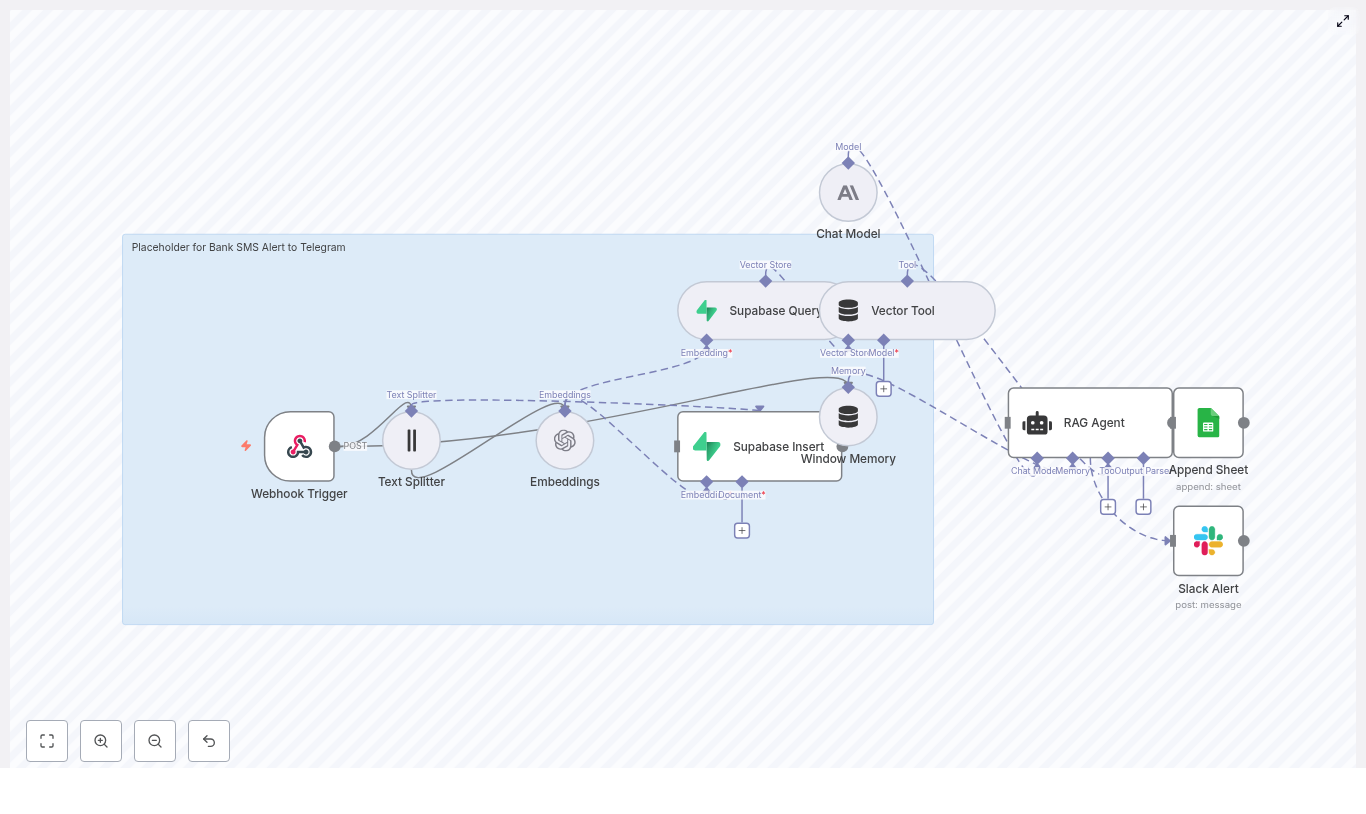
This guide walks you through an n8n workflow template that does exactly that. It receives bank SMS alerts through a webhook, splits and embeds the message content, stores vectors in Supabase, and uses a Retrieval-Augmented Generation (RAG) agent to enrich and log alerts. You will also see how to add error notifications via Slack and log events to Google Sheets.

More than just a tutorial, think of this as a starting point for a more focused, automated way of working. Once this workflow is in place, you free yourself from manual checks and open the door to deeper insights, fraud detection, and smarter decision making.

The Problem: Scattered SMS, Missed Signals, Constant Context Switching

Bank SMS alerts are valuable, but they often arrive at the worst possible moment. You might be in a meeting, working deeply on a project, or away from your phone. Over time, your SMS inbox becomes a long, unstructured list of messages that are hard to search and even harder to analyze.

Key challenges you might recognize:

  • Important transaction alerts get buried under other messages.
  • Reviewing past transactions means scrolling endlessly through SMS threads.
  • Teams cannot easily collaborate around alerts that live on one person’s phone.
  • Spotting anomalies or patterns is nearly impossible without structured data.

If this sounds familiar, you are not alone. The good news is that you do not have to stay stuck in this reactive mode. With n8n, Supabase, and a RAG workflow, you can transform these raw SMS alerts into a real-time, intelligent notification system.

The Mindset Shift: From Manual Monitoring To Automated Insight

Automation is not just about saving time. It is about upgrading how you work. Instead of checking SMS messages manually, you can:

  • Receive alerts in a centralized Telegram channel where your team can see and act on them.
  • Build a searchable history of transactions using embeddings and a vector database.
  • Use AI-powered enrichment to summarize transactions and highlight anomalies.
  • Log everything in Google Sheets for reporting, audits, or downstream workflows.

When you adopt this mindset, each workflow you build becomes a stepping stone toward a more focused, less interrupt-driven day. You stop reacting and start designing how information flows to you.

The Solution: An n8n Workflow Template For Bank SMS To Telegram

The template you are about to use connects SMS to Telegram through a RAG pipeline and Supabase vector store. It is designed to be practical, extensible, and easy to adapt to your own needs.

At a high level, the workflow does the following:

  • Receives SMS alerts via a Webhook Trigger.
  • Splits the SMS text into chunks using a Text Splitter.
  • Generates embeddings (OpenAI) for semantic understanding.
  • Stores vectors and metadata in a Supabase vector table.
  • Queries Supabase for related alerts and passes context to a RAG agent.
  • Uses a Chat Model (Anthropic or similar) to summarize and structure the alert.
  • Logs results to Google Sheets.
  • Sends Slack alerts if anything goes wrong.

This foundation gives you a robust, scalable way to manage financial alerts. From here, you can add Telegram delivery, fraud detection, dashboards, and more.

Architecture Overview: How The Pieces Work Together

To understand the power of this template, it helps to see how each component contributes to the end result.

  • Webhook Trigger – Receives incoming SMS payloads (HTTP POST) from your SMS provider or gateway.
  • Text Splitter – Splits longer SMS content into chunks for better embeddings.
  • Embeddings (OpenAI) – Converts text chunks into semantic vectors.
  • Supabase Insert & Query – Stores vectors and metadata, and retrieves relevant context.
  • Vector Tool (RAG) – Exposes the Supabase vector index to the RAG agent.
  • Window Memory – Keeps recent conversation history for richer responses.
  • Chat Model (Anthropic or similar) – Powers the reasoning and summarization.
  • RAG Agent – Combines retrieved context and model output to generate structured, enriched results.
  • Append Sheet (Google Sheets) – Logs alerts and parsed fields for analysis.
  • Slack Alert – Notifies you if the workflow encounters errors.

Together, these nodes form a complete path from raw SMS to intelligent, actionable data. Next, you will walk through the setup step by step so you can bring this architecture to life in your own n8n instance.

Step-by-Step: Building The Workflow In n8n

1. Start With The Webhook Trigger

Begin in your n8n instance, whether self-hosted or on n8n.cloud. Create a new workflow and add a Webhook Trigger node.

  • Set HTTP Method to POST.
  • Choose a path, for example /bank-sms-alert-to-telegram.

This webhook URL becomes the endpoint that your SMS gateway or forwarding service will call whenever a bank SMS arrives. It is the entry point to your new automated alerting system.

2. Add A Text Splitter For Flexible Message Lengths

Even though many bank SMS alerts are short, your workflow should be ready for longer messages, concatenated SMS, or extra metadata like merchant notes and tags. Add a Text Splitter node after the webhook.

Suggested settings:

  • chunkSize = 400
  • chunkOverlap = 40

These values help preserve context across chunks so your embeddings and downstream RAG logic remain accurate. You can adjust them later as you see how your real data behaves.

3. Generate Embeddings With OpenAI

Next, connect the Text Splitter to an Embeddings node. In the template, text-embedding-3-small from OpenAI is used.

  • Configure your OpenAI API credentials in the n8n credentials manager.
  • Select the embedding model (such as text-embedding-3-small).

Embeddings transform your text chunks into vectors that capture meaning instead of just keywords. This is what enables semantic search and context-aware responses later on.

4. Store Vectors In Supabase

Now it is time to persist your embeddings. Add a Supabase Insert node (or a custom HTTP Request node if you prefer managing the API manually).

  • Create or use a Supabase table configured as a vector store.
  • Choose an index name such as bank_sms_alert_to_telegram.
  • Store:
    • The original SMS message.
    • Metadata like phone number and timestamp.
    • The embedding vector itself.

By storing both vectors and metadata, you build a rich history of alerts that you can query for patterns, similar transactions, or suspicious behavior.

5. Query The Vector Store For Context

When a new SMS comes in, you can use a Supabase Query node to search for related past alerts or contextual documents.

  • Configure similarity search against your vector column.
  • Return the most relevant previous alerts based on the new message.

Feed these query results into a Vector Tool node, available through the n8n LangChain integration. This tool exposes the Supabase index as a retriever for your RAG agent, giving it historical context to work with.

6. Configure The Chat Model And RAG Agent

Now you bring intelligence into the flow. Add a Chat Model node. The template uses Anthropic, but you can also use OpenAI or another model supported by n8n LangChain.

Then configure a RAG Agent node and connect:

  • The Vector Tool for retrieval.
  • The Chat Model for reasoning and generation.
  • Window Memory to keep recent conversation context if needed.

Use a system prompt tailored to your use case, for example:

“You are an assistant for Bank SMS Alert to Telegram: summarize transaction, detect anomalies, and output structured fields for logging.”

This prompt guides the agent to produce concise, human-friendly summaries and structured fields like status, amount, and transaction ID.

7. Log Results And Handle Errors Gracefully

To turn this into a reliable system, you need logging and error handling.

First, connect the RAG Agent output to a Google Sheets Append node:

  • Log fields such as Status, Summary, Amount, Transaction ID, and Timestamp.
  • Use this sheet for reporting, audits, or additional automations.

Next, add an error handler branch for the RAG Agent and connect it to a Slack Alert node:

  • Send a Slack message whenever processing fails.
  • Include diagnostic details, but never include secrets or sensitive data.

With this setup, you not only gain insight from every alert, you also gain confidence that you will be notified if something breaks.

Node-by-Node: How Each Piece Supports Your Automation

Webhook Trigger

The Webhook Trigger node is your gateway from SMS to automation. It receives the incoming SMS payload from providers like Twilio, Nexmo, or your telco’s webhook integration.

For security, if your webhook is exposed publicly, consider:

  • API key headers.
  • HMAC signatures.
  • IP allowlists.

Text Splitter

The Text Splitter node ensures that even long or combined messages are handled effectively. By breaking messages into overlapping chunks, you keep semantic boundaries intact and reduce the risk of losing important context.

Embeddings

The Embeddings node converts text into vector space using a model like OpenAI’s text-embedding-3-small. These vectors enable:

  • Similarity searches across past alerts.
  • Context retrieval for the RAG agent.
  • Better understanding of transaction patterns over time.

Supabase Insert & Query

Supabase acts as your vector database in this template. With it you can:

  • Insert vectors along with metadata such as merchant, phone number, timestamp, or amount.
  • Query by similarity to find related messages, such as same merchant or similar amounts.
  • Use results to power enrichment and anomaly detection.

Window Memory & Vector Tool

The Window Memory node keeps track of recent interactions so the RAG agent can respond with awareness of previous messages in the same conversation.

The Vector Tool node exposes your Supabase index as a retriever so the agent can pull in domain-specific documents or earlier alerts and reason over them.

RAG Agent + Chat Model

The RAG Agent combines the retrieved context from Supabase with the reasoning power of the Chat Model. This enables it to:

  • Summarize each transaction in a clear, human-friendly way.
  • Detect potential anomalies, such as duplicate charges or unusually large amounts.
  • Produce structured output ready for logging and downstream processing.

Security & Best Practices For Financial Data

Because you are working with financial alerts, security is essential. Keep these practices in mind:

  • Avoid storing raw sensitive data unless you have proper encryption and compliance in place.
  • Redact or tokenize account numbers and personally identifiable information (PII).
  • Use HTTPS and webhook verification between your SMS provider and n8n, such as IP whitelisting or HMAC signatures.
  • Restrict access to Supabase using API keys and row-level security policies.
  • Store credentials in environment variables in n8n and rotate API keys regularly.
  • Retain only the minimum necessary data and purge old vectors if they are no longer needed.

Troubleshooting & Optimization Tips

As you experiment and improve the workflow, you might run into small issues. Here are some quick checks:

  • If embeddings fail, verify your OpenAI credentials and confirm the model name in n8n.
  • If Supabase inserts or queries fail, check CORS settings and database permissions.
  • If important context seems lost or duplicated, adjust the Text Splitter chunkSize and chunkOverlap.
  • Use the Slack Alert node to get immediate visibility into runtime errors, but avoid sending secrets or full payloads.

Each issue you solve makes your automation more resilient and prepares you to build even more advanced workflows.

Where To Go Next: Enhancements & Growth Ideas

Once this template is running, you have a solid foundation. From here, you can grow your automation in powerful ways:

  • Send alerts to Telegram by adding a Telegram node that posts enriched alerts directly to a channel or bot, with formatted amounts and inline buttons.
  • Add fraud detection by integrating a dedicated model that flags suspicious transactions and escalates to security teams.
  • Enrich metadata using fields like merchant name or geolocation to build smarter rules and correlation workflows.
  • Build a dashboard with tools like Grafana or Supabase Studio to review and search historical alerts using semantic search.

Each enhancement helps you move from simple notification handling toward a full financial intelligence layer powered by automation.

Sample Webhook Payload

Here is an example of the payload your webhook might receive from an SMS gateway:

{  "from": "+1234567890",  "to": "+1098765432",  "message": "Debited 500.00 USD at ACME Store on 2025-01-10. Balance: 1200.00 USD",  "timestamp": "2025-01-10T12:34:56Z"
}

You can use this sample to test your n8n workflow before connecting a live SMS provider.

Bringing It All Together: Your Next Step In Automation

This n8n template – Webhook → Text Splitter → Embeddings → Supabase → RAG Agent → Google Sheets / Slack – gives you a powerful starting point for real-time, enriched bank SMS alerting to Telegram.

It is flexible enough to grow with you, whether you want simple notifications, advanced fraud detection, multi-channel alerts, or full reporting dashboards. Most importantly, it helps you reclaim your attention by letting automation handle the repetitive monitoring work.

To get started:

  • Deploy the template in your n8n environment.
  • Secure your API keys and review your data handling practices.
  • Experiment with prompts, text splitting, and vector indexing strategies.
  • Test with sample SMS payloads, then connect your real SMS gateway.

Use this workflow as a foundation, then keep iterating. Each small improvement compounds into a smoother, more intelligent system that supports your personal or business growth.

Ready to automate more of your financial workflows? Spin up this template in your n8n instance, explore how it fits your processes, and do not hesitate to adapt it

Build a Discord Guild Welcome Bot with n8n & Weaviate

Build a Discord Guild Welcome Bot with n8n & Weaviate

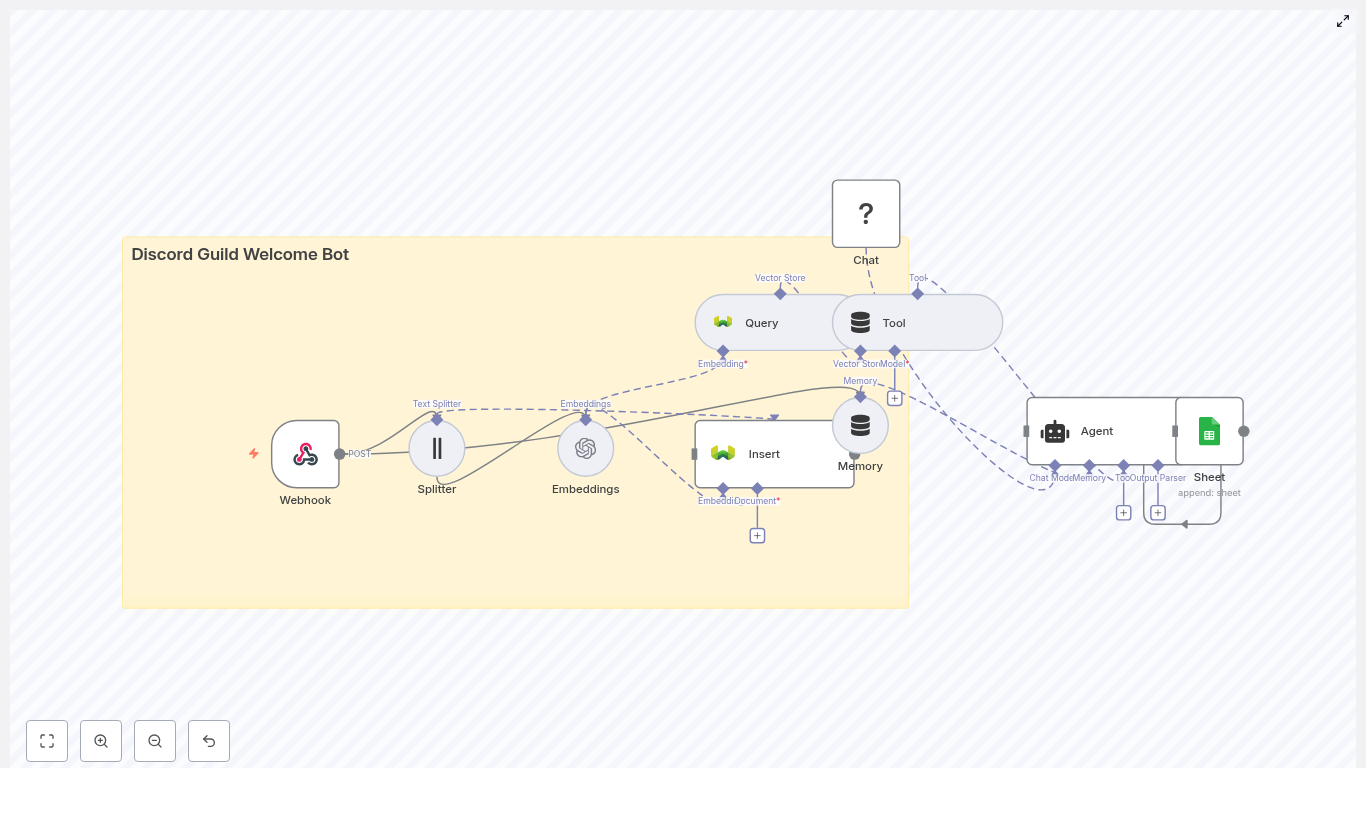
Automating welcome messages for new Discord guild members is a powerful way to create a friendly first impression and standardize onboarding. In this guide you will learn, step by step, how to build a smart Discord welcome bot using:

  • n8n for workflow automation
  • OpenAI embeddings for semantic search
  • Weaviate as a vector database
  • Hugging Face chat models for natural language
  • Google Sheets for logging and analytics

The workflow you will build listens to Discord events, processes and stores onboarding content as vectors, retrieves relevant context for each new member, generates a personalized welcome message, and logs the interaction for later review.


Learning Goals

By the end of this tutorial you should be able to:

  • Explain how embeddings and a vector store help create context-aware Discord welcome messages
  • Configure an n8n webhook to receive Discord guild member join events
  • Split long onboarding documents into chunks suitable for embedding
  • Store and query embeddings in Weaviate with guild-specific metadata
  • Use an agent pattern in n8n to combine tools, memory, and a Hugging Face chat model
  • Log each welcome event to Google Sheets for monitoring and analytics

Concepts You Need To Know

n8n Workflow Basics

n8n is a workflow automation tool that lets you connect APIs and services using nodes. Each node performs a specific task, such as receiving a webhook, calling an API, or writing to a Google Sheet. In this tutorial, you will chain nodes together to create a complete Discord welcome workflow.

Embeddings and Vector Stores

Embeddings are numerical representations of text that capture semantic meaning. Similar pieces of text have similar vectors. You will use OpenAI embeddings to convert guild rules, onboarding guides, and welcome templates into vectors.

Weaviate is a vector database that stores these embeddings and lets you run similarity searches. When a new member joins, the bot will query Weaviate to find the most relevant chunks of content for that guild.

Agent Pattern in n8n

The workflow uses an agent to orchestrate several components:

  • A tool for querying Weaviate
  • A memory buffer for short-term context
  • A chat model from Hugging Face to generate the final welcome text

This agent can decide when to call the vector store, how to use past context, and when to log events.

Why This Architecture Works Well

This setup lets your bot:

  • Reference current server information such as rules, channels, and roles
  • Handle multiple guilds with different onboarding content
  • Keep a short history of interactions to avoid repetitive messages
  • Log each welcome event to Google Sheets for transparency and analysis

Using embeddings and Weaviate gives you semantic recall of your latest docs, while the agent pattern provides flexibility in how the bot uses tools and context.


High-Level Architecture

Before you build the workflow, it helps to see how the pieces connect. The core components are:

  • Webhook (n8n) – receives Discord gateway events or events from an intermediary service
  • Text Splitter – breaks long onboarding texts into manageable chunks
  • Embeddings (OpenAI) – converts chunks into vectors
  • Weaviate Vector Store – stores embeddings and supports similarity search
  • Query Tool – exposes Weaviate queries as a tool the agent can call
  • Memory Buffer – stores short-term context for the agent
  • Chat Model (Hugging Face) – generates the welcome message
  • Agent – coordinates tools, memory, and the chat model
  • Google Sheets – logs each welcome event

Next, you will walk through each part in a teaching-friendly, step-by-step order.


Step 1 – Capture Discord Events with an n8n Webhook

1.1 Configure the Webhook Node

First, set up a Webhook node in n8n. This will be the entry point for your workflow whenever a new member joins a Discord guild.

You can either:

  • Send Discord gateway events directly to the n8n webhook, or
  • Use a lightweight intermediary such as a Cloudflare Worker or a minimal server that receives the Discord event, simplifies the payload, and forwards it to n8n

1.2 Example Payload

A simplified JSON body that your webhook might receive could look like this:

{  "guild_id": "123456789",  "user": {  "id": "987654321",  "username": "newcomer"  },  "joined_at": "2025-08-01T12:34:56Z"
}

Make sure your webhook is configured to parse this payload so the rest of the workflow can access guild_id, user.id, user.username, and joined_at.


Step 2 – Prepare Onboarding Content with a Text Splitter

2.1 Why Split Text?

Guild rules, welcome guides, or onboarding documents are usually longer than what an embedding model can handle at once. Splitting these documents into chunks makes them easier to embed and improves search quality.

2.2 Recommended Split Settings

Use a Text Splitter node in n8n to break your content into overlapping chunks. A good starting configuration is:

  • Chunk size: about 400 characters
  • Chunk overlap: about 40 characters

The overlap helps preserve context between chunks so that important sentences are not cut in a way that loses meaning. This leads to better semantic search results later when you query Weaviate.


Step 3 – Create Embeddings with OpenAI

3.1 Configure the Embeddings Node

Next, connect the Text Splitter output to an OpenAI Embeddings node.

  • Store your OpenAI API key in n8n credentials for security
  • Select a robust embedding model such as text-embedding-3-small or the latest recommended model in your account
  • Map each text chunk from the splitter node into the embeddings node input

The node will output vector representations for each chunk. These vectors are what you will store in Weaviate.


Step 4 – Store Embeddings in Weaviate

4.1 Designing the Weaviate Schema

Set up a Weaviate collection to store your guild onboarding content. For example, you might use an index name such as:

discord_guild_welcome_bot

Each document stored in Weaviate should include:

  • guild_id – to identify which guild the content belongs to
  • source – for example “rules”, “welcome_guide”, or “faq”
  • chunk_index – an integer to track the position of the chunk in the original document
  • The actual text content and its embedding vector

4.2 Inserting Data

Use an n8n node that connects to Weaviate and inserts each chunk plus its embedding into the discord_guild_welcome_bot index. Make sure your Weaviate credentials and endpoint are correctly configured in n8n.

Once this step is complete, your guild rules and onboarding docs are stored as searchable vectors.


Step 5 – Query Weaviate as a Tool for the Agent

5.1 When to Query

When a new member joins, the workflow needs to retrieve the most relevant content for that guild. You will configure a query node that runs a similarity search in Weaviate based on the guild ID.

5.2 Filtering by Guild

In your Weaviate query, use a metadata filter on guild_id to ensure that only content for the current guild is returned. This is crucial if you plan to support multiple guilds in the same Weaviate instance.

5.3 Expose the Query as a Tool

Wrap the Weaviate query in a tool that your agent can call. For example, the tool might be described as:

  • “Retrieve the top N relevant onboarding chunks for a given guild.”

The agent can then ask something like, “What should I mention in the welcome message for this guild?” and use the tool to get domain-specific context when needed.


Step 6 – Add a Memory Buffer for Context

6.1 Why Use Memory?

Short-term memory helps your bot avoid repetitive responses and maintain continuity in multi-step interactions, such as when a moderator follows up with the bot after the initial welcome.

6.2 What to Store

Configure a Memory Buffer in your agent setup to keep recent conversation snippets, such as:

  • The last welcome message sent
  • The new member’s primary role or tags

Keep the memory window small so it remains efficient but still useful for context.


Step 7 – Connect a Hugging Face Chat Model

7.1 Choosing a Model

Use a Hugging Face conversational model or any chat-capable model supported by n8n. The model will generate the final welcome message, using the retrieved context from Weaviate and the information from the webhook.

7.2 Prompting Strategy

Keep your prompts clear and instructive. You can use a system prompt pattern like this:

System: You are an assistant that writes warm, concise Discord welcome messages. 
Keep messages under 120 words and include the server's top 2 rules 
and a link to the #start-here channel when available.

User: New user data + retrieved context chunks

Assistant: [Polished welcome message]

Pass the context chunks, guild metadata (name, rules, onboarding links), and the new user information into the model. Your agent can also instruct the model to produce a source list or reference the chunks used, which is helpful if moderators review the message later.


Step 8 – Orchestrate with an Agent and Log to Google Sheets

8.1 Agent Flow in n8n

The agent node is responsible for coordinating the entire process. Its typical flow looks like this:

  1. Receive the webhook payload with guild_id, user.id, and user.username
  2. Call the Weaviate query tool if additional context is needed
  3. Consult the memory buffer for recent interactions
  4. Send all relevant data to the Hugging Face chat model to generate the welcome message
  5. Return the final message to be posted to Discord or passed to another system

8.2 Logging with Google Sheets

To keep an audit trail and enable analytics, add a Google Sheets node at the end of the workflow. Configure it to append a new row for each welcome event with fields such as:

  • Timestamp
  • guild_id
  • user_id
  • message_preview (for example, the first 80-100 characters of the welcome message)

This log will help you track bot activity, monitor message quality, and analyze onboarding trends over time.


Configuration Tips and Best Practices

  • Security: Never expose API keys in plain text. Use n8n credential stores and protect your webhook with a secret token or short-lived signature.
  • Rate limits: Respect Discord and external API rate limits. Batch operations where possible and implement retry or backoff strategies in n8n.
  • Guild filtering: Always filter Weaviate queries by guild_id so that content stays relevant and separated between servers.
  • Chunking strategy: Adjust chunk size and overlap for different content types. For example, rule-heavy or code-heavy docs may benefit from slightly different chunk settings than FAQ-style text.
  • Explainability: Store source chunk IDs or short excerpts alongside generated messages. This helps moderators understand why certain information was included.

Testing and Monitoring Your Workflow

Testing Steps

Before using the bot in a production guild, test it thoroughly:

  1. Use a sandbox or test guild and send sample webhook events to n8n
  2. Verify that the Text Splitter creates reasonable chunks
  3. Confirm that embeddings are being created and inserted into Weaviate correctly
  4. Check that Weaviate queries return relevant chunks for the test guild
  5. Run the agent end to end and inspect the generated welcome message
  6. Ensure that each event is logged correctly in Google Sheets

Ongoing Monitoring

Monitor your workflow logs for:

  • Failed API calls or timeouts
  • Embedding quality issues (for example, irrelevant chunks being returned)
  • Changes in guild rules or docs that require re-indexing or refreshing embeddings

Scaling and Advanced Extensions

  • Multi-guild support: Use separate Weaviate collections or metadata-scoped indices for each guild to keep queries fast and isolated.
  • Personalized welcomes: Incorporate roles, interests, or onboarding survey results to tailor messages to each new member.
  • Follow-up automation: Trigger delayed messages, such as a 24-hour check-in, using the same agent and memory setup.
  • Analytics: Use the Google Sheets log or export data to BigQuery to analyze acceptance rates, message edits, and moderator overrides.

Quick FAQ and Recap

What does this n8n workflow actually do?

It receives a Discord join event, retrieves relevant onboarding content from Weaviate using embeddings, generates a personalized welcome message with a Hugging Face chat model, and logs the interaction to Google Sheets.

Why use embeddings and Weaviate instead of static messages?

Embeddings and a vector store let the bot dynamically reference up-to-date rules, channels, and guild-specific documents, which makes welcome messages more accurate and context-aware.

Can this setup handle multiple Discord guilds?

Yes. By tagging content with guild_id and filtering queries accordingly, the same workflow can serve multiple guilds with different onboarding content.

How do I keep the bot’s knowledge current?

Whenever you update rules or onboarding docs, re-run the splitting and embedding steps for that guild and re-insert or update the vectors in Weaviate.

Where are events logged?

Each welcome event is appended to a Google Sheets spreadsheet with key fields like timestamp, guild ID, user ID, and a message preview.


Conclusion and Next Steps

By combining n8n with OpenAI embeddings, Weaviate, a Hugging Face chat model, and Google Sheets, you can build a smart, context-aware Discord welcome bot that scales across multiple guilds and remains easy to manage.

This architecture provides:

  • Semantic recall of your latest server documentation

Auto Reply to FAQs with n8n & Pinecone

Auto Reply to FAQs with n8n, Pinecone, Cohere & Anthropic

Imagine if your FAQ page could actually talk back to your users, give helpful answers, and never get tired. That is exactly what this n8n workflow template helps you do.

In this guide, we will walk through how the template uses n8n, Pinecone, Cohere, and Anthropic to turn your documentation into a smart, automated FAQ assistant. It converts questions into embeddings, stores them in Pinecone, pulls back the most relevant content, and uses a Retrieval-Augmented Generation (RAG) agent to answer with context. On top of that, it logs everything and alerts your team when something breaks.

We will cover what the workflow does, when to use it, and how each part fits together so you can confidently run it in production.

What this n8n FAQ auto-reply template actually does

At a high level, this template turns your existing FAQ or documentation into an intelligent auto-responder. Here is what it handles for you:

  • Receives user questions from your site, chat widget, or support tools via a webhook
  • Splits your FAQ content into smaller chunks for precise search
  • Uses Cohere to generate embeddings for those chunks
  • Stores and searches those embeddings in a Pinecone vector index
  • Uses a RAG agent with Anthropic’s chat model to craft answers from the retrieved content
  • Keeps short-term memory for follow-up questions
  • Logs every interaction to Google Sheets
  • Sends Slack alerts when something goes wrong

The result is a reliable, scalable FAQ auto-reply system that is far smarter than simple keyword search and much easier to maintain than a custom-coded solution.

Why use a vector-based FAQ auto-reply instead of keywords?

You have probably seen how keyword-based search can fail pretty badly. Users phrase questions differently, use synonyms, or write full sentences, and your system tries to match literal words. That is where vector search comes in.

With embeddings, you are not matching exact words. You are matching meaning. Vector search captures semantic similarity, so a question like “How do I reset my login details?” can still match an FAQ titled “Change your password” even if the wording is different.

By combining:

  • Pinecone as the vector store
  • Cohere as the embedding model
  • Anthropic as the chat model for answers
  • n8n as the orchestration layer

you get a production-ready RAG pipeline that can answer FAQs accurately, with context, and at scale.

When this template is a good fit

This workflow is ideal for you if:

  • You have a decent amount of FAQ or documentation content
  • Support teams are repeatedly answering similar questions
  • You want quick, accurate auto-replies without hallucinated answers
  • You care about traceability, logging, and error alerts
  • You prefer a no-code or low-code approach over building everything from scratch

It works especially well for web apps, SaaS products, internal IT helpdesks, and knowledge bases where users ask variations of the same questions all day long.

How the architecture fits together

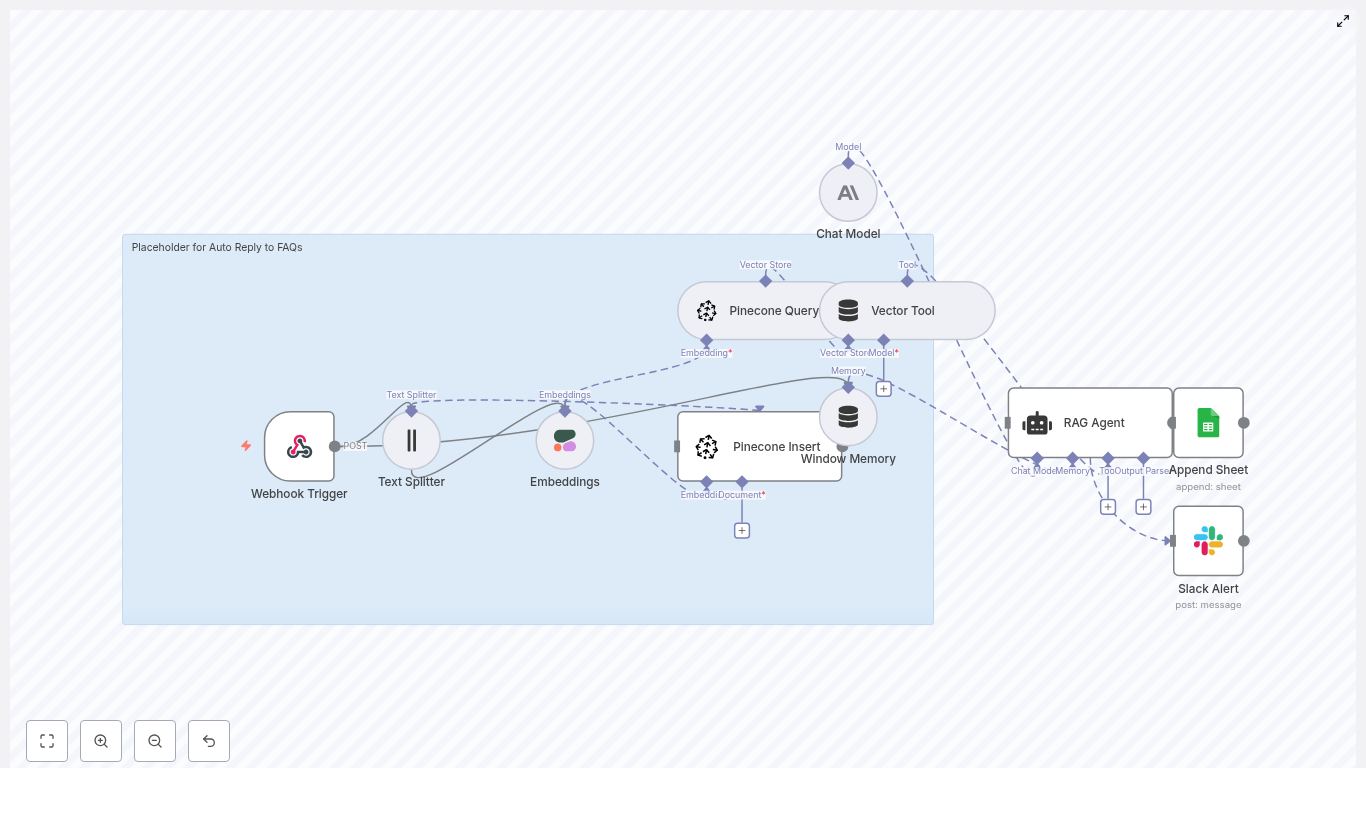
Let us zoom out for a second and look at the overall pipeline before diving into the steps. The template follows a clear flow:

  • Webhook Trigger – receives incoming user questions with a POST request
  • Text Splitter – chunks long FAQ docs into smaller pieces
  • Embeddings (Cohere) – turns each chunk into a vector
  • Pinecone Insert – stores those vectors and metadata in a Pinecone index
  • Pinecone Query + Vector Tool – searches for the best matching chunks when a question comes in
  • Window Memory – keeps a short history of the conversation
  • Chat Model (Anthropic) + RAG Agent – builds the final answer using retrieved context
  • Append Sheet (Google Sheets) – logs everything for review and analytics
  • Slack Alert – pings your team if the agent fails

Now let us walk through how each of these pieces works in practice.

Step-by-step walkthrough of the n8n workflow

1. Webhook Trigger: catching the question

The whole workflow starts with an n8n Webhook node. This node listens for POST requests from your website, chat widget, or support system.

Your payload should at least include:

  • A unique request ID
  • The user’s question text

This makes it easy to plug the workflow into whatever front-end you are already using, and it gives you a clean entry point for every conversation.

2. Text Splitter: chunking your FAQ content

Long FAQ pages or documentation are not ideal for retrieval as a single block. That is why the workflow uses a Text Splitter node to break content into smaller chunks.

A typical configuration is:

  • Chunk size of around 400 characters
  • Overlap of about 40 characters

This chunking improves precision during search. Instead of pulling back an entire page, the system can surface the most relevant paragraph, which leads to more focused and accurate RAG responses.

3. Generating embeddings with Cohere

Once you have chunks, the next step is to turn them into vectors. The template uses Cohere’s English embedding model, specifically embed-english-v3.0, to generate dense embeddings for each chunk.

Along with the embedding itself, you should attach metadata such as:

  • Source URL or document ID
  • Chunk index
  • The original text
  • Product or feature tags
  • Locale or language

This metadata is crucial later for filtering, debugging, and understanding where an answer came from.

4. Inserting vectors into Pinecone

Next, the workflow uses a Pinecone Insert node to store embeddings in a vector index, for example called auto_reply_to_faqs.

Best practice here is to:

  • Use a consistent namespace for related content
  • Store metadata like product, locale, document type, and last-updated timestamps
  • Keep IDs consistent so you can easily re-index or update content later

By including locale or product in metadata, you can later scope queries to, say, “English only” or “billing-related docs only”.

5. Querying Pinecone and using the Vector Tool

When a user question comes in through the webhook, the workflow embeds the question in the same way as your FAQ chunks, then queries Pinecone for the closest matches.

In this step:

  • The question is converted into an embedding
  • Pinecone is queried for the nearest neighbors
  • The Vector Tool in n8n maps those results into the RAG agent’s toolset

Typically you will return the top 3 to 5 matches. Each result includes:

  • The similarity score
  • The original text chunk
  • Any metadata you stored earlier

The RAG agent can then pull these chunks as context while generating the answer.

6. Window Memory: keeping short-term context

Conversations are rarely one-and-done. Users often ask follow-ups like “What about on mobile?” or “Does that work for team accounts too?” without repeating the full context.

The Window Memory node solves this by storing a short history of the conversation. It lets the model understand that the follow-up question is connected to the previous one, which is especially helpful in chat interfaces.

7. RAG Agent with Anthropic’s chat model

This is where the answer gets crafted. The RAG agent coordinates between the retrieved context from Pinecone and the Anthropic chat model to produce a final response.

You control its behavior through the system prompt. A good example prompt is:

“You are an assistant for Auto Reply to FAQs. Use only the provided context to answer; if the answer is not in the context, indicate you don’t know and offer to escalate.”

With the right instructions, you can:

  • Ask the model to cite sources or reference the original document
  • Tell it to avoid hallucinations and stick to the given context
  • Keep responses on-brand in tone and style

8. Logging to Google Sheets and sending Slack alerts

For observability and continuous improvement, the workflow logs each processed request to a Google Sheet. Useful fields to store include:

  • Timestamp
  • User question
  • Top source or document used
  • Agent response
  • Status or error flags

On top of that, a Slack Alert node is configured to notify your team if the RAG agent fails or if something unexpected happens. That way, you can quickly troubleshoot issues instead of discovering them days later.

Configuration tips and best practices

Here are some practical settings and habits that tend to work well in real-world setups:

  • Chunk size: 300 to 500 characters with about 10 to 15 percent overlap usually balances context and precision.
  • Embedding model: use a model trained for semantic search. Cohere is a great starting point, but you can experiment with alternatives if you want to trade off cost and relevance.
  • Top-k retrieval: start with k = 3. Increase if questions are broad or users need more context in responses.
  • Metadata: store locale, document type, product area, and last-updated timestamps. This helps with filtered queries and avoiding stale content.
  • System prompt: be explicit. Tell the model to rely on context, not invent facts, and to say “I don’t know” when the answer is missing.

Monitoring, costs, and security

Monitoring and cost awareness

There are three main cost drivers and monitoring points:

  • Embedding generation (Cohere) – used when indexing and when embedding new questions
  • Vector operations (Pinecone) – index size, inserts, and query volume all matter
  • LLM calls (Anthropic) – usually the biggest cost factor per response

To keep costs under control, you can:

  • Cache embeddings when possible
  • Avoid re-indexing unchanged content
  • Monitor query volume and set sensible limits

Security checklist

Since you may be dealing with user data or internal docs, security matters. At a minimum, you should:

  • Secure webhook endpoints with API keys, auth tokens, and rate limiting
  • Encrypt any sensitive metadata before inserting into Pinecone, especially if it contains PII
  • Use proper IAM policies and rotate API keys for Pinecone, Cohere, and Anthropic

Scaling and running this in production

Once you are happy with the basic setup, you can start thinking about scale and operations. Here are some features that help production workloads:

  • Batch indexing: schedule periodic re-indexing jobs so new FAQs or updated docs are automatically picked up.
  • Human-in-the-loop: flag low-confidence or out-of-scope answers for manual review. You can use this feedback to refine prompts or improve your documentation.
  • Rate limiting and queueing: use n8n’s queueing or an external message broker to handle traffic spikes gracefully.
  • Multi-lingual support: either maintain separate indexes per language or store locale in metadata and filter at query time.

Quick reference: n8n node mapping

If you want a fast mental model of how nodes connect, here is a simplified mapping:


Webhook Trigger -> Text Splitter -> Embeddings -> Pinecone Insert

Webhook Trigger -> Text Splitter -> Embeddings -> Pinecone Query -> Vector Tool -> RAG Agent -> Append Sheet

RAG Agent.onError -> Slack Alert  

Common pitfalls and how to avoid them

Even with a solid setup, a few common issues tend to show up. Here is how to stay ahead of them:

  • Hallucinations: if the model starts making things up, tighten the system prompt and remind it to use only the retrieved context. Tell it to explicitly say “I don’t know” when information is missing.
  • Stale content: outdated answers can be worse than no answer. Re-index regularly and use last-updated metadata to avoid serving old information.
  • Poor relevance: if results feel off, experiment with chunk sizes, try different embedding models, and test using negative examples (queries that should not match certain docs).

Wrapping up

By combining n8n with Cohere embeddings, Pinecone vector search, and a RAG agent powered by Anthropic, you get a scalable, maintainable way to auto-reply to FAQs with high relevance and clear traceability.

This setup reduces repetitive work for your support team, improves response quality for users, and plugs neatly into tools you already know, like Google Sheets and Slack.

Ready to try it out? Export the n8n template, plug in your Cohere, Pinecone, and Anthropic credentials, and start indexing your FAQ content. You will have an intelligent FAQ assistant running much faster than if you built everything from scratch.

If you want a more guided setup or a custom implementation for your documentation, our team can help with a walkthrough and tailored consulting.

Contact us to schedule a demo or request a step-by-step implementation guide tuned to your specific docs.

Find template details here: https://n8nbazar.ai/template/automate-responses-to-faqs

Auto Archive Promotions: n8n RAG Workflow Guide

Auto Archive Promotions: n8n RAG Workflow Guide

Imagine this: your marketing team has launched its fifth promo campaign this week, your inbox is a graveyard of “Final_Final_v7” docs, and someone just asked, “Hey, do we have the copy from that Valentine’s campaign in 2022?”

If your current system involves frantic searching, random spreadsheets, and mild existential dread, it might be time to let automation rescue you. That is exactly what the Auto Archive Promotions n8n workflow template is here to do.

This guide walks you through how the template works, how it uses RAG (Retrieval-Augmented Generation), OpenAI embeddings, Pinecone, Google Sheets, and Slack, and how to set it up in a way that stops repetitive archiving tasks from eating your soul.


What this n8n workflow actually does

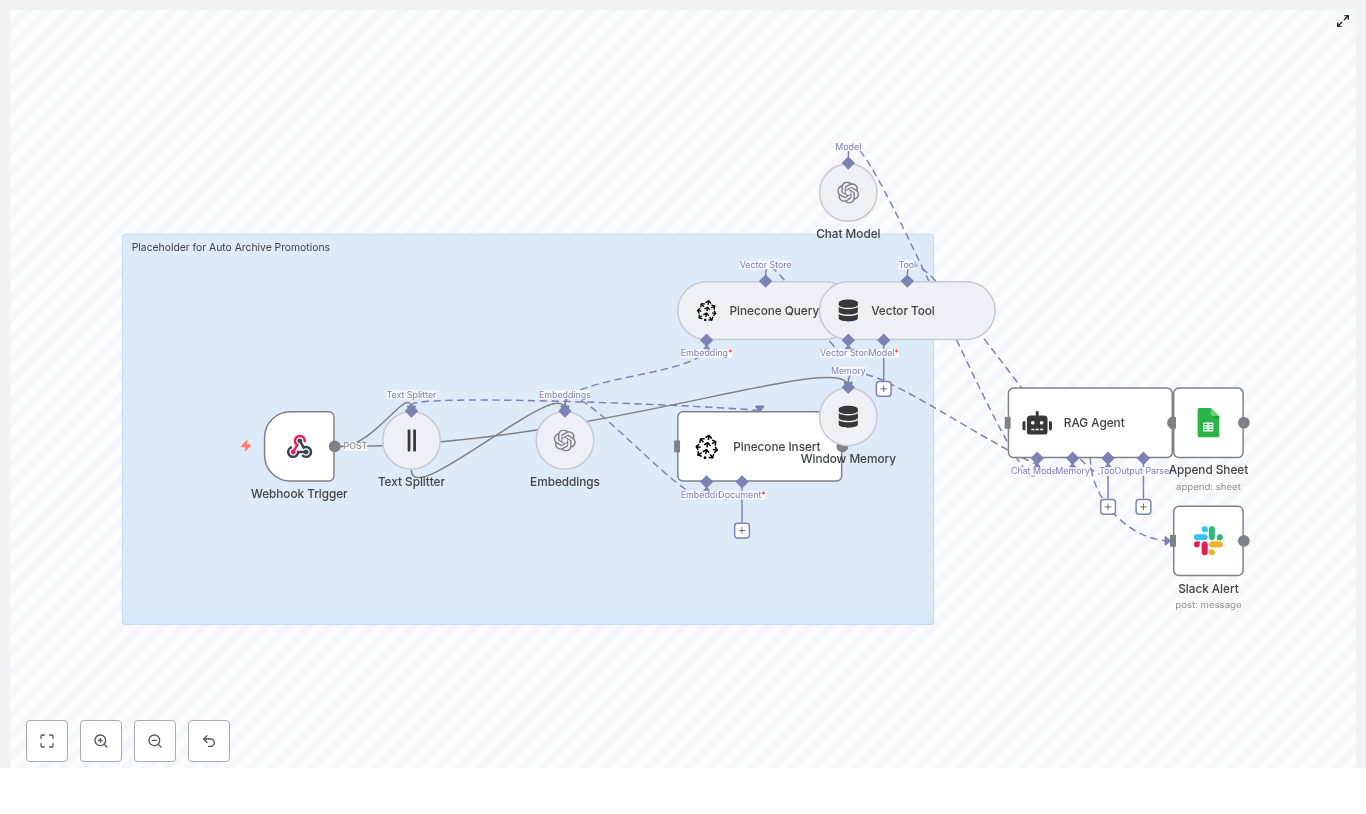
The Auto Archive Promotions workflow is built for teams that constantly produce promotional content like emails, social posts, and special offers. Instead of manually filing these into folders you will never open again, this workflow:

  • Ingests promotional content via a Webhook Trigger
  • Splits long text into smart chunks with a Text Splitter
  • Converts each chunk into OpenAI embeddings using text-embedding-3-small
  • Stores those vectors in a Pinecone index for semantic search
  • Uses a RAG Agent and Window Memory to answer questions about past promotions
  • Logs everything to Google Sheets for visibility
  • Sends Slack alerts if something breaks so you do not have to guess where it failed

The result: your promotional content becomes searchable, auditable, and reusable, without anyone having to copy and paste text into a spreadsheet at 6 p.m. on a Friday.


The tech behind the magic

Here are the core pieces that make the Auto Archive Promotions workflow tick:

  • n8n – the visual automation platform that orchestrates all the steps.
  • Webhook Trigger – receives promotion payloads via HTTP POST at a specific path.
  • Text Splitter – breaks long content into chunks (in this template: chunk size 400, overlap 40).
  • OpenAI Embeddings – uses the text-embedding-3-small model to turn text chunks into dense vectors.
  • Pinecone – the vector database that stores those embeddings in the auto_archive_promotions index.
  • RAG Agent – combines retrieved vectors with a chat model to answer context-rich questions.
  • Window Memory – keeps short-term conversational context for the RAG Agent.
  • Google Sheets – append-only log of processed promotions (sheet name: Log).
  • Slack – sends alerts to a channel like #alerts when something goes wrong.

How the Auto Archive Promotions workflow runs

Step 1: Promotions arrive via Webhook

Everything starts with a Webhook Trigger node in n8n.

  • The workflow listens for POST requests on the path auto-archive-promotions.
  • Your marketing system or ingestion pipeline sends promotion data, such as:
    • Subject or title
    • Body text
    • Metadata like IDs, dates, or campaign names

In other words, every time a new promotion is created, it can be automatically shipped to this endpoint instead of being lost in someone’s drafts folder.

Step 2: Text gets chopped into smart chunks

Promotional content is often longer than we remember when we wrote it. To handle this, the workflow uses a Text Splitter node.

  • Configured with:
    • chunkSize = 400 characters
    • chunkOverlap = 40 characters
  • The overlap keeps context flowing between chunks, so the model understands that “this offer” in one chunk still refers to the discount mentioned in the previous chunk.

This chunking step makes embeddings more accurate and retrieval far more useful later on.

Step 3: OpenAI turns text into embeddings

Each text chunk is then passed to the OpenAI Embeddings node using the model text-embedding-3-small.

  • The model converts each chunk into a dense vector that represents its semantic meaning.
  • These vectors are ideal for similarity search, which is what allows you to later ask things like “Show me promotions about free shipping” and get relevant results.

So instead of relying on simple keyword matches, your system can understand meaning, not just exact words.

Step 4: Vectors are stored in Pinecone

Once embeddings are generated, the workflow sends them to Pinecone.

  • Vectors and metadata are inserted into a Pinecone index named auto_archive_promotions.
  • Typical metadata includes:
    • Promotion ID
    • Source or channel
    • Date
    • A short snippet of the content for quick manual inspection

This is your long-term memory for promotional content, neatly indexed and ready for semantic search.

Step 5: RAG Agent answers questions using Pinecone

When someone needs information, the workflow does not just shrug and hand over a massive list of entries. Instead, it uses a combination of vector search and a RAG agent.

  • Pinecone Query retrieves the most relevant vectors for a given query.
  • A Vector Tool passes this retrieved context to the RAG Agent.
  • The RAG Agent uses:
    • The retrieved context from Pinecone
    • A chat model, such as an OpenAI chat model
    • Window Memory to keep short-term interaction context

The outcome: the agent can summarize campaigns, answer questions, and surface related promotions with relevant context, instead of giving you a random wall of text.

Step 6: Logging and alerts keep things sane

To avoid “black box” automation, the workflow keeps track of what it does and complains loudly when it cannot do it.

  • On success:
    • The workflow appends a row to a Google Sheet named Log.
    • The sheet ID is set in the Google Sheets node configuration.
    • You get an append-only audit trail of processed promotions.
  • On error:
    • Any node failure routes to a Slack Alert node.
    • A message is posted to a channel like #alerts with details about the error.
    • Your team can quickly triage issues instead of discovering them days later.

Configuration tips for better results

Once the workflow is running, a few tweaks can make it go from “works” to “actually helpful.”

Dial in your text splitting

  • For marketing copy, a chunk size between 300 and 500 characters with 20 to 50 characters overlap is usually a solid starting point.
  • The template uses 400 and 40, which is a good balance between context and efficiency.

Store meaningful metadata

  • Include details such as:
    • Promotion ID
    • Campaign name
    • Author or owner
    • Date
    • Content type (email, social, landing page, etc.)
  • Richer metadata makes it easier to filter, audit, and analyze promotions later.

Organize your Pinecone indexes

  • Use a dedicated Pinecone index per content domain, for example:
    • auto_archive_promotions for marketing content
    • Another index for support articles or documentation
  • This keeps vector search focused and prevents unrelated content from polluting results.

Handle rate limits gracefully

  • Configure rate limiting and retries in n8n for your embedding provider.
  • Use exponential backoff so your workflow does not panic when the API says “please slow down.”

Secure your webhook

  • Protect the Webhook Trigger so not just anyone can POST promotions.
  • Use:
    • Authentication tokens
    • IP allow-lists
    • Other security controls appropriate for your environment

Security and privacy considerations

Embeddings and vector stores may contain sensitive content, so treat them like any other system that stores marketing and customer data.

  • Avoid storing PII in plaintext either in vectors or metadata unless you have:
    • Clear retention policies
    • Encryption in place
  • Use scoped API keys for both Pinecone and OpenAI.
  • Rotate credentials regularly to reduce risk.
  • Follow your organization’s data governance and compliance rules.

Automation should save time, not create new security headaches.


Why this workflow is worth the setup

Once you have Auto Archive Promotions running, the benefits add up quickly:

  • Automated archival and audit trails for all promotional content.
  • Semantic search to quickly find past campaigns, messaging themes, or offers.
  • RAG-powered summarization and Q&A that helps marketing and compliance teams get answers without digging through folders.
  • Real-time alerts when the pipeline fails so engineers can fix issues before anyone notices missing data.

Instead of recreating similar promotions from scratch, you can reuse and refine what already worked.


How to extend the Auto Archive Promotions template

The template is intentionally modular, so you can bolt on more functionality as your needs grow.

  • Support attachments:
    • Extract text from PDFs or images before sending content to the Text Splitter.
    • Great for archiving promo decks, flyers, or visual assets with text.
  • Automated classification:
    • Add a classification step before indexing.
    • Tag promotions by:
      • Offer type
      • Channel
      • Urgency or priority
  • Versioning:
    • Store original content snapshots in an object store like S3.
    • Reference those snapshots from the vector metadata for full traceability.
  • Reporting:
    • Use the Google Sheets Log sheet as a data source for dashboards.
    • Track:
      • Volume of promotions over time
      • Top campaigns
      • Processing latency and failures

Troubleshooting: when automation gets grumpy

Issue: Missing vectors in Pinecone

If you are not seeing data where you expect it in Pinecone:

  • Verify that the Embeddings node is actually returning vectors.
  • Confirm the Pinecone Insert node is receiving both:
    • The vector
    • The associated metadata
  • Double check:
    • Pinecone credentials
    • Index name is exactly auto_archive_promotions

Issue: Webhook not receiving requests

If your promotions never seem to arrive in n8n:

  • Confirm your POST requests are targeting /auto-archive-promotions.
  • Make sure your n8n instance is reachable from the source system.
  • If you run n8n locally, expose it via a secure tunnel like ngrok for external systems.

Issue: RAG Agent gives irrelevant answers

When the agent starts hallucinating about campaigns you never ran, try:

  • Improving metadata richness so queries can be better filtered.
  • Increasing the number of candidate vectors returned in the Pinecone query.
  • Tuning the chunk overlap or chunk size for better context.
  • Checking the Window Memory to ensure it is not cluttered with outdated or irrelevant context.

Quick reference: workflow variables to verify

  • Webhook path: auto-archive-promotions
  • Text Splitter: chunkSize=400, chunkOverlap=40
  • Embeddings model: text-embedding-3-small
  • Pinecone index: auto_archive_promotions
  • Google Sheet: append to sheet named Log
  • Slack channel: #alerts

Wrapping up: from manual chaos to searchable history

The Auto Archive Promotions workflow shows how n8n, embeddings, vector stores, and RAG can team up to turn messy promotional content into a structured, searchable knowledge base.

By automating ingestion, indexing, and retrieval, you:

  • Cut down on manual busywork
  • Improve compliance and auditability
  • Unlock semantic search and AI-driven assistants for your marketing history

In short, you get to stop digging through old folders and start asking useful questions like “What promotions worked best for our last holiday campaign?” and actually get answers.

Try the template in your n8n instance

Ready to retire your “random promo archive” spreadsheet?

  • Set up your OpenAI and Pinecone credentials.
  • Configure your Google Sheets sheet ID for the Log sheet.
  • Secure the Webhook Trigger endpoint.

If you want help implementing this workflow, extending it with attachments or classification, or integrating it into your broader automation stack, reach out to our team or subscribe to our newsletter for more n8n and AI automation guides.

Automate POV Historical Videos with n8n

Automate POV Historical Videos with n8n: A Story of One Creator’s Breakthrough

By the time the third coffee went cold on her desk, Lena knew something had to change.

Lena was a solo creator obsessed with history. Her YouTube Shorts and TikTok feed were filled with first-person “guess the discovery” clips, each one a short POV glimpse into moments like the printing press, the light bulb, or the first vaccine. Viewers loved trying to guess the breakthrough, but there was a problem: every 25-second video took her hours to make.

She had to brainstorm a concept, write a script, prompt an image model until the visuals looked right, record and edit a voiceover, then manually stitch everything together in an editor. It was creative, yes, but it was also painfully slow. While she was polishing one video, other creators were publishing ten.

One night, after wrestling with yet another timeline in her editor, Lena stumbled across an n8n workflow template that promised something bold: fully automated POV historical shorts with AI-generated images, voiceover, and rendering, all orchestrated from a single Google Sheet.

This is the story of how she turned that template into her production engine, and how you can do the same.

The Problem: Creativity at War With Time

Lena’s format was simple but demanding. Each short followed a structure:

  • Five scenes, 5 seconds each, for a total of 25 seconds
  • POV visuals that stayed consistent across scenes (same hands, same clothing, same setting)
  • A voiceover that hinted at a historical discovery without giving it away

Her audience loved the suspense. They got detailed clues about a time period and setting, but the final reveal always came in the comments. Still, the manual production process meant she could only publish a few videos per week. She wanted dozens per day.

That is when she realized automation might be the only way to scale her creativity without burning out.

The Discovery: An n8n Workflow That Thinks Like a Producer

What caught Lena’s eye was a template that described almost exactly what she needed: a full pipeline that went from a simple topic in Google Sheets to a rendered vertical short.

The workflow combined several tools she already knew about, but had never wired together:

  • Google Sheets & Google Drive for orchestration and storage
  • n8n as the automation backbone
  • Replicate for AI image generation
  • OpenAI (or another LLM) for structured prompts and scripts
  • ElevenLabs for AI voiceovers
  • Creatomate for final video rendering

The promise was simple: once the pipeline was set up, she would only need to drop new topics into a spreadsheet. n8n would handle the rest.

Setting the Stage: How Lena Prepared Her Sheet and Schedule

Lena started with the least intimidating part: a Google Sheet.

She created columns for Theme, Topic, Status, and Notes. Her editorial guidelines looked like this:

  • Theme: Science History, Medical Breakthroughs, Inventions
  • Topic: Internal clue like “Printing Revolution – Gutenberg” (never shown to viewers)
  • Status: Pending / Generated / Published
  • Notes: Extra instructions such as “avoid modern faces” or “keep props period-accurate”

In n8n, she connected a Schedule Trigger to that sheet. Every hour, the workflow would wake up and look for rows where Status = Pending. Each of those rows represented a video idea. This meant non-technical collaborators, or even future interns, could queue videos just by adding rows.

The Rising Action: Teaching the Workflow to Write and Imagine

From Topic to Structured Scenes

Once the Schedule Trigger grabbed a “Pending” row, the real magic began. The workflow passed the Theme and Topic into a LLM prompt generator node, built with an OpenAI or Basic LLM Chain node in n8n.

Lena carefully designed the prompt so the LLM would return a structured output with five scene objects. Each scene had three parts:

  • image-prompt for Replicate
  • image-to-video-prompt with a short motion cue
  • voiceover-script for ElevenLabs

She learned quickly that consistency was everything. To keep the POV visuals coherent, every scene prompt repeated specific visual details. For example:

  • “Your ink-stained hands in a cream linen sleeve”
  • “The same linen cream shirt with rolled sleeves and a leather apron”

She made sure the LLM prompt always emphasized:

  • Visible body details like hands, forearms, fabric color, and accessories
  • The historical time period and cultural markers, such as “mid-15th century, Mainz, timber beams, movable type”
  • POV framing instructions like “from your torso level” or “POV: your hands”
  • Mood and textures such as candlelight, ink stains, parchment, wood grain
  • Camera motion hints like “slow push-in on hands” or “gentle pan across the printing press”

These details would later guide Replicate and Creatomate to keep the story visually coherent.

Splitting the Story Into Parallel Tasks

The LLM returned a neat block of structured data, but n8n still needed to treat each scene individually. Lena added a Structured Output Parser node to convert the LLM’s response into clean JSON that n8n could work with.

From there, she used a Split node. This was the turning point where the workflow stopped thinking of the video as one big chunk and started handling each scene as its own item. That split allowed n8n to generate images and audio in parallel, saving time and keeping the workflow modular.

The Turning Point: When AI Images and Voices Come Alive

Replicate Steps In: Generating POV Images

For each scene, n8n sent the image-prompt to Replicate using an HTTP Request node. Lena chose a model like flux-schnell and set the parameters recommended by the template:

  • Aspect ratio: 9:16 for vertical phone screens
  • Megapixels: 1 for fast drafts, higher for more fidelity
  • Num inference steps: low for speed, higher (around 20-50) for more detail

She noticed that if she forgot to repeat key POV details, the character’s hands or clothing sometimes changed between scenes. Whenever that happened, she went back to her prompt design and strengthened the recurring descriptors, using the exact same phrase each time, such as “linen cream shirt with rolled sleeves and leather apron.”

Waiting for Asynchronous Magic

Replicate did not return final images instantly. To handle this, Lena added a short Wait node, then a follow-up request to fetch the completed image URLs. Once all scenes had their URLs, n8n aggregated them into a single collection. Now the workflow had five image URLs ready to use.

Giving the Scenes a Voice with ElevenLabs

Next came the sound.

Lena configured a Loop in n8n to iterate over the five voiceover-script fields. For each script, an HTTP Request node called ElevenLabs and generated an MP3 file. She then uploaded each audio file to a specific folder on Google Drive, making sure the links were accessible to external services like Creatomate.

Timing was crucial. Every scene was exactly 5 seconds, so Lena aimed for voiceover scripts that would play comfortably in about 3.5 to 4 seconds. She kept each script to roughly 10-18 words, depending on the speaking rate, and used ElevenLabs voice controls to keep pacing and energy consistent across all five clips.

Whenever she saw black gaps or silent stretches in early tests, she knew the script was too long or too short. A quick adjustment to the word count or speaking speed fixed it.

Bringing It All Together: Creatomate Renders the Final Short

At this point, n8n had:

  • Five image URLs generated by Replicate
  • Five audio URLs from ElevenLabs, stored in Google Drive

The next step felt like assembling a puzzle.

Lena used n8n to merge these assets into a single payload that matched the expected format for Creatomate. The template she used in Creatomate was designed for vertical shorts: five segments, each 5 seconds long. Each segment received one image and one audio file.

With another HTTP Request node, n8n called Creatomate, passed in the payload, and waited for the final video render. When the job finished, Creatomate returned a video URL. n8n then updated the original Google Sheet row with:

  • The final video link
  • An updated Status (for example, from Pending to Generated)
  • Additional metadata like title and description

Automation Learns to Write Hooks: SEO and Titles on Autopilot

Lena wanted more than just a finished video. She needed titles and descriptions that would drive clicks and engagement without spoiling the mystery.

So she added another LLM node at the end of the workflow. Once the video was rendered, n8n sent the Theme, Topic, and a short summary of the scenes to the LLM and asked for:

  • A viral, curiosity-driven title that hinted at the discovery but did not reveal it
  • A short, SEO-friendly description that ended with a call to guess the discovery
  • Relevant hashtags, including #shorts and the theme keyword

The output went straight into the Google Sheet, ready to be copy-pasted into YouTube Shorts or TikTok. Lena no longer had to sit and brainstorm hooks for every upload.

Behind the Scenes: Trade-offs, Pitfalls, and Fixes

Balancing Quality, Speed, and Cost

As Lena scaled up production, she had to make decisions about quality and budget. She found that:

  • Higher megapixels and more inference steps improved image quality, but also increased cost and latency
  • Batching image and audio calls sped up throughput, but she had to watch API rate limits carefully
  • Storing intermediate assets in Google Drive made it easy to share and debug, but she needed to periodically delete old files to control storage costs

Common Issues She Ran Into

Inconsistent Character Details

Whenever hands or clothing looked different between scenes, she knew the prompts were too loose. The fix was always the same: repeat the exact same descriptive phrase for the recurring details in every scene prompt.

Black Gaps or Empty Frames

If Creatomate rendered black frames or cut off scenes early, it usually meant the voiceover duration did not match the scene length. Keeping scripts slightly under 4 seconds, and adjusting ElevenLabs pace, resolved this.

Rate Limits and Slow Runs

On days when she queued many videos, APIs like Replicate or ElevenLabs sometimes hit rate limits. She added Wait nodes and used polling with gentle backoff. Running image generation in parallel helped, as long as she kept batch sizes within the API’s comfort zone.

Lena’s Final Routine: From Idea to Automated Short

After a few iterations, Lena’s workflow settled into a simple rhythm. Her “to do” list for each new batch of videos looked like this:

  1. Confirm API keys and quotas for Replicate, ElevenLabs, Creatomate, and Google APIs
  2. Add a new row in Google Sheets with Theme, Topic, and Status set to Pending
  3. Run a quick test on a single scene if she changed prompt styles, to verify visual and audio consistency
  4. Tune voice pace and scene duration if she noticed any black frames or awkward pauses

Everything else happened automatically. The schedule trigger picked up new topics, the LLM generated structured prompts and scripts, Replicate and ElevenLabs created visuals and audio, Creatomate rendered the final vertical short, and the LLM wrote a title and description tailored for “guess the discovery” engagement.

Where She Took It Next

Once Lena trusted the pipeline, she started experimenting with upgrades:

  • Using higher resolution and subtle motion effects like parallax layers for a more polished look
  • Testing adaptive scripts that could add more clues based on viewer performance or comments
  • Planning to connect YouTube and TikTok APIs so n8n could upload and schedule posts automatically

What began as a desperate attempt to reclaim her time became a full production system that scaled her creativity instead of replacing it.

Your Turn: Step Into the POV

If you see yourself in Lena’s story, you are probably juggling the same tension between ambitious ideas and limited hours. This n8n template gives you a practical way out. You keep control of the creative direction, while the workflow handles the repetitive parts.

To recap, the pipeline you will be using:

  • Reads “Pending” topics from a Google Sheet via a Schedule Trigger
  • Uses an LLM to generate five scenes with image prompts, motion hints, and voiceover scripts
  • Splits scenes, calls Replicate for images, and waits for the final URLs
  • Loops through voiceover scripts, calls ElevenLabs for audio, and stores MP3s on Google Drive
  • Aggregates images and audio, then calls Creatomate to render a 25-second vertical POV short
  • Generates SEO-friendly titles and descriptions, updates your sheet, and marks the video as ready

Ready to scale your own historical POV shorts? Import the n8n template, connect your API keys, and start filling your Google Sheet with themes and topics. The workflow will handle the rest.

If you would like a copy of the prompt library and the Creatomate template that powered Lena’s transformation, subscribe to the newsletter or reach out for a starter pack and hands-on setup help.

Produced by a team experienced in automation and short-form video production. Follow for more guides on AI-driven content pipelines, n8n workflow templates, and scalable creative systems.

Auto-Tag Blog Posts with n8n, Embeddings & Supabase

How One Content Team Stopped Drowning In Tags With n8n, Embeddings & Supabase

By the time the marketing team hit their 500th blog post, Lena had a problem.

She was the head of content at a fast-growing SaaS company. Traffic was climbing, the editorial calendar was full, and the blog looked busy. But under the surface, their content library was a mess. Posts about the same topic had completely different tags. Some had no tags at all. Related posts never showed up together. Search results were weak, and the SEO team kept asking, “Why is it so hard to find our own content?”

Lena knew the answer. Manual tagging.

The pain of manual tags

Every time a new article went live, someone on her team had to skim it, guess the right tags, try to remember what they used last time, and hope they were consistent. On busy weeks, tags were rushed or skipped. On slow weeks, they overdid it and created more variants of the same idea.

The consequences were starting to hurt:

  • Taxonomy drifted, with multiple tags for the same topic
  • Discoverability suffered, since related posts were not linked together
  • Recommendation widgets pulled in random content
  • Editors spent precious time doing repetitive tagging instead of strategy

What Lena needed was simple in theory: a way to automatically tag blog posts in a consistent, SEO-friendly way, without adding more work to her already stretched team.

That is when she found an n8n workflow template that promised exactly that: auto-tagging blog posts using embeddings, Supabase vector storage, and a retrieval-augmented generation (RAG) agent.

The discovery: an automation-first approach

Lena had used n8n before for basic automations, but this template looked different. It was a complete, production-ready pipeline built around modern AI tooling. The idea was to plug it into her CMS, let it process every new article, and get consistent, high-quality tags back automatically.

The promise was clear:

  • Use semantic embeddings to understand content, not just keywords
  • Store vectors in Supabase for fast, reusable search
  • Use a RAG agent to generate tags that actually match the article
  • Log everything to Google Sheets, and alert on errors via Slack

If it worked, Lena would not just save time. She would finally have a consistent taxonomy, better internal linking, and smarter recommendations, all powered by a workflow she could see and control in n8n.

Setting the stage: connecting the CMS to n8n

The first step in the template was a Webhook Trigger. This would be the entry point for every new blog post.

Lena asked her developer to add a webhook call from their CMS whenever a post was published. The payload was simple, a JSON object that looked like this:

{  "title": "How to Build an Auto-Tagging Pipeline",  "content": "Full article HTML or plain text...",  "slug": "auto-tagging-pipeline",  "published_at": "2025-08-01T12:00:00Z",  "author": "Editor Name",  "url": "https://example.com/auto-tagging-pipeline"
}

The Webhook Trigger node in n8n listened for this event and expected fields like title, content, author, and url. For security, they configured authentication on the webhook and used a shared secret so only their CMS could call it.

Now, every new article would automatically flow into the workflow the moment it went live.

Rising action: teaching the workflow to “read”

Once Lena could send posts to n8n, the real challenge began. The workflow had to understand the content well enough to generate tags that made sense.

Breaking long posts into meaningful pieces

The template’s next node was the Text Splitter. Lena’s blog posts were often long, detailed guides. Sending the entire article as one block to an embedding model would be inefficient and less accurate, so the Text Splitter broke the content into smaller chunks.

The recommended settings in the template were:

  • Chunk size: 400 characters
  • Chunk overlap: 40 characters

This struck a balance between preserving context and keeping embedding costs under control. Overlap ensured that ideas crossing paragraph boundaries were not lost. Lena kept these defaults at first, knowing she could adjust chunk size later if latency or costs became an issue.

Turning text into vectors with embeddings

Next came the Embeddings node. This was where the workflow translated each text chunk into a semantic vector using a model like text-embedding-3-small.

For each chunk, the workflow stored important metadata alongside the vector:

  • The original text chunk
  • The post ID or slug
  • The position index, so chunks could be ordered
  • The source URL and publish date

To keep costs manageable, the template supported batching embeddings so multiple chunks could be processed in a single API call. Lena enabled batching to reduce the number of calls to the embedding API and keep the operation affordable as their content library grew.

The turning point: Supabase and the RAG agent take over

Once embeddings were generated, Lena needed a place to store and query them. This is where Supabase and the RAG agent came into play, turning raw vectors into useful context for tag generation.

Building a vector memory with Supabase

The template’s Supabase Insert node pushed each embedding into a Supabase vector index. The example index name was auto-tag_blog_posts, which Lena kept for clarity.

Her developer created a table with a schema that matched the template’s expectations:

  • id (unique)
  • embedding (vector)
  • text (original chunk)
  • post_id or slug
  • metadata (JSON)

The metadata field turned out to be especially useful. They used it to store language, content type, and site section, which later allowed them to filter vector search results and keep tag generation focused on relevant content.

Retrieving context with the Supabase Query + Vector Tool

When it was time to actually generate tags, the workflow did not just look at the current post in isolation. Instead, it queried the vector store for similar content, using the Supabase Query + Vector Tool node.

This node wrapped Supabase vector queries inside n8n, making it easy to retrieve the most relevant chunks. The template recommended returning the top K documents, typically between 5 and 10, so the RAG agent had enough context without being overwhelmed.

By pulling in related content, the workflow could suggest tags that matched both the article and the overall taxonomy of the blog.

Orchestrating intelligence with Window Memory, Chat Model, and RAG Agent

The heart of the system was the combination of Window Memory, a Chat Model, and the RAG Agent.

  • Window Memory preserved short-term context across the RAG run, so the agent could “remember” what it had already seen and decided.
  • The Chat Model, such as an Anthropic model, acted as the LLM that transformed retrieved context and article content into tag suggestions. It also validated tags against Lena’s taxonomy rules.
  • The RAG Agent orchestrated everything, from retrieval to reasoning to output parsing, ensuring the model had the right information at the right time.

To keep outputs consistent, Lena spent time refining the prompt. She used a structure similar to the template’s example:

System: You are an assistant that generates SEO-friendly tags for blog posts.
Instructions: Given the post title, a short summary, and retrieved context, return 3-7 tags.
Formatting: Return JSON like { "tags": ["tag1","tag2"] }
Avoid: Personal data, brand names unless present in content.

Inside the prompt, she also added guidance like:

“Return 3-7 tags balanced between broad and specific terms. Avoid duplicates and use lowercase, hyphenated two-word tags when appropriate.”

After a few iterations, the tags started to look uncannily like something her own team would have chosen on a good day.

Keeping score: logging, alerts, and control

Lena did not want a black box. She wanted visibility. The template addressed that too.

Logging results with Google Sheets

The workflow included an Append Sheet node that wrote each post and its generated tags to a Google Sheet. This gave Lena an audit trail where she could quickly scan outputs, spot patterns, and compare tags across posts.

It also turned into a training tool. New editors could see how the system tagged posts and learn the taxonomy faster.

Slack alerts for failures

Of course, no system is perfect. If the RAG agent failed, or if something went wrong upstream, the workflow sent a message to a designated Slack channel using a Slack Alert node.

This meant that instead of silently failing, the process raised a flag. Editors could then step in, review the post manually, and investigate what went wrong in the workflow.

Refining the system: best practices Lena adopted

Once the core pipeline was working, Lena started to refine it based on real-world usage. The template’s best practices helped guide those decisions.

Taxonomy and normalization

Lena and her team created a canonical tag list. They used the RAG agent to prefer existing tags when possible, and only introduce new ones when truly needed.

In a post-processing step, they normalized tags by:

  • Converting everything to lowercase
  • Applying consistent singular or plural rules
  • Removing duplicates and near-duplicates

This kept the tag set clean, even as the system processed hundreds of posts.

Managing cost and performance

Embeddings were the main recurring cost, so Lena applied a few strategies to keep spend in check:

  • Embed only new or updated content, not every historical post repeatedly
  • Use smaller embedding models for bulk operations where ultra-fine nuance was not critical
  • Cache frequently requested vectors and reuse them when re-running tags on the same content

These optimizations allowed the team to scale the system without blowing their budget.

Quality control and human-in-the-loop

Even with automation, Lena wanted human oversight. She set up a simple review routine:

  • Editors periodically reviewed the Google Sheet log for a sample of posts
  • A small set of “ground-truth” posts was used to measure tag precision and recall
  • Prompts were adjusted when patterns of weak or irrelevant tags appeared

Over time, the system’s output became more reliable, and the amount of manual correction dropped significantly.

When things go wrong: troubleshooting in the real world

Not every run was perfect. Early on, Lena ran into a few problems that the template’s troubleshooting guide helped her solve.

When no tags are generated

If a post went through the workflow and came back with no tags, Lena checked:

  • Whether the webhook payload actually contained the article content and reached the Text Splitter node
  • If the embeddings API returned valid vectors and the Supabase Insert succeeded
  • Whether the RAG agent’s prompt and memory inputs were correctly configured, sometimes testing with a minimal prompt and context for debugging

In most cases, the issue was a misconfigured field name or a small change in the CMS payload that needed to be reflected in the n8n workflow.

When tags feel off or irrelevant

Sometimes the system produced tags that were technically related but not quite right for the article. To fix this, Lena tried:

  • Increasing the number of retrieved documents (top K) from the vector store to give the agent more context
  • Refining the prompt with stricter rules and examples of good and bad tags
  • Filtering Supabase vector results by metadata such as language or category to reduce noise

Each small adjustment improved tag quality and made the output more aligned with the brand’s content strategy.

Looking ahead: extending the auto-tagging system

Once Lena trusted the tags, the workflow became more than a simple helper. It turned into a foundation for other features.

Using the same pipeline, her team started to:

  • Automatically update their CMS taxonomy with approved tags
  • Drive related-post widgets on the blog using shared tags
  • Feed tags into analytics to detect topic trends and content gaps
  • Experiment with an internal UI where editors could see tag suggestions and approve or tweak them before publishing

The original problem of messy, manual tags had transformed into a structured, data-driven content system.

Security and privacy in the workflow

Because the workflow relied on third-party APIs, Lena’s team took privacy seriously. Before sending content for embeddings, they made sure:

  • Personal data was removed or anonymized
  • Webhook endpoints were secured with shared secrets or JWTs
  • API keys and secrets were stored as environment variables and rotated regularly

This kept the system compliant with internal policies and external regulations while still benefiting from advanced AI tooling.

The resolution: from chaos to clarity

A few months after implementing the n8n auto-tagging template, Lena looked at the blog’s analytics dashboard with a sense of relief.

Tags were consistent. Related posts were actually related. Internal search surfaced the right content more often. The SEO team reported better visibility for key topics, and the editorial team had reclaimed hours each week that used to be spent on tedious manual tagging.

The workflow was not magic. It was a carefully designed system built with n8n, embeddings, Supabase vector storage, and a RAG agent, combined with thoughtful prompts, monitoring, and human oversight.

But to Lena and her team, it felt like magic compared to where they started.

Want to follow Lena’s path?

If you are facing the same tagging chaos, you can replicate this journey with your own stack.

To get started:

  • Clone the n8n auto-tagging template
  • Connect your OpenAI embeddings and Supabase credentials
  • Wire up your CMS to the workflow via a secure webhook
  • Run a few posts through the pipeline and review the tags in Google Sheets

From there, refine your prompt, tweak chunking sizes, and adjust your Supabase metadata filters until the tags feel right for your content.

Suggested next steps: connect your CMS webhooks, set environment variables for API keys, and run tests on a staging dataset before enabling production runs. If you need a checklist or a tailored implementation plan for your CMS, reach out to your team’s automation lead or create a simple internal doc that outlines your taxonomy rules, review process, and rollout plan.

Disaster API SMS: Automated n8n Workflow

Disaster API SMS: Automated n8n Workflow

Picture this: a major incident hits, your SMS inbox explodes, and you are stuck copying messages into spreadsheets, searching old threads, and trying to remember who said what three hours ago. Meanwhile, your coffee is cold and your patience is running on fumes.

That is exactly the kind of repetitive chaos this n8n workflow is built to eliminate. Instead of manually wrangling messages, it quietly ingests emergency SMS or API payloads, turns them into searchable vectors, and uses a RAG (Retrieval-Augmented Generation) agent to craft context-aware responses. It even logs everything and yells at you in Slack when something breaks. Automation: 1, tedious work: 0.

What this Disaster API SMS workflow actually does

This production-ready n8n template is designed for emergency and disaster-response scenarios where every message matters and every second counts. At a high level, the workflow:

  • Receives incoming SMS or POST requests via a webhook endpoint
  • Splits and embeds message content for efficient semantic search
  • Stores embeddings in a Supabase vector store for contextual retrieval
  • Uses a RAG agent (Anthropic chat model plus vector tool) to generate informed, context-aware responses
  • Appends outputs to Google Sheets for audit logging
  • Sends error alerts to Slack when something goes wrong

In other words, it takes raw emergency messages, makes them smart and searchable, and keeps a paper trail while you focus on actual decision making instead of copy-paste gymnastics.

High-level architecture (aka: what is under the hood)

Here is how the main building blocks fit together inside n8n:

  • Webhook Trigger – Listens for POST requests on the path /disaster-api-sms and captures incoming payloads.
  • Text Splitter – Breaks long messages into overlapping chunks for better embedding quality (chunkSize = 400, chunkOverlap = 40).
  • Embeddings (Cohere) – Uses embed-english-v3.0 to turn each chunk into a vector representation.
  • Supabase Insert – Stores those vectors in a Supabase vector index named disaster_api_sms.
  • Supabase Query + Vector Tool – Pulls the most relevant chunks back out when you need context and exposes them to the agent.
  • Window Memory – Keeps short-term conversation history so the agent does not forget what just happened.
  • Chat Model (Anthropic) – Generates responses using an Anthropic chat model.
  • RAG Agent – Orchestrates retrieval, memory, and generation with a system prompt tailored for Disaster API SMS.
  • Append Sheet – Writes agent outputs to a Google Sheet (for audits, reports, and “what did we decide?” questions).
  • Slack Alert – Sends concise error messages to your #alerts channel if any node fails.

Why use n8n for Disaster API SMS automation?

In disaster response, every incoming SMS or API call can contain something critical: location details, status updates, or requests for help. Manually tracking and searching all that is not only painful, it is risky.

This n8n template helps you:

  • Process messages in near real-time via webhooks
  • Store information in a way that is searchable by meaning, not just keywords
  • Generate context-aware responses using RAG, not just generic canned replies
  • Maintain audit logs automatically for post-incident reviews
  • Get alerted the moment something breaks instead of discovering it two hours later

If you are tired of being the human router for incoming messages, this workflow is your excuse to let automation take over the grunt work.

How the n8n workflow runs behind the scenes

Step 1: Incoming message hits the webhook

An SMS gateway or external service sends a POST request to the webhook path /disaster-api-sms. The Webhook Trigger node captures the entire payload, such as:

  • Message text
  • Sender ID
  • Timestamp
  • Any extra metadata your provider includes

This is the raw material that flows through the rest of the pipeline.

Step 2: Chunking and embedding the content

Long messages can be tricky for embeddings, so the workflow uses a Text Splitter node to divide the text into overlapping chunks:

  • chunkSize = 400 characters
  • chunkOverlap = 40 characters

Each chunk is passed into the Cohere Embeddings node using the embed-english-v3.0 model. The result is a set of vector embeddings that capture the semantic meaning of each piece of text. These vectors are then inserted into Supabase under the index name disaster_api_sms, which makes the messages searchable by similarity instead of just exact text matches.

Step 3: Retrieving context from Supabase

When you need to generate a response or analyze a message, the workflow uses the Supabase Query node to search for the most relevant chunks in the vector store. This query returns top-k similar embeddings and their associated content.

The Vector Tool node exposes this retrieved context to the RAG Agent as a tool it can call. That means the agent is not just guessing, it is actively looking up relevant information from your stored messages.

Step 4: RAG Agent crafts a context-aware response

Now the fun part. The RAG Agent pulls together:

  • The retrieved vectors from Supabase
  • Short-term conversation history from the Window Memory node
  • The Anthropic Chat Model for language generation

The agent is configured with a system prompt set to:

You are an assistant for Disaster API SMS

The inbound JSON payload is included in the prompt, so the agent knows exactly what kind of message it is dealing with. The result is a context-aware output that can be used for replies, summaries, or internal notes.

Step 5: Logging, auditing, and error alerts

Once the response is generated, the workflow uses the Append Sheet node to add a new row to a Google Sheet with the sheet name Log. This gives you a persistent audit trail of what came in and what the system produced.

If anything fails along the way, the workflow routes the error to the Slack Alert node. That node posts a concise error message to your #alerts channel so you can investigate quickly instead of wondering why things suddenly went quiet.

Setup checklist before importing the n8n template

Before you bring this workflow into your n8n instance, line up the following credentials and services. Think of it as the pre-flight checklist that saves you from debugging at midnight.

  • Cohere API key for the embed-english-v3.0 embeddings model
  • Supabase account with:
    • A service key
    • A vector-enabled table or index named disaster_api_sms
  • Anthropic API key for the Chat Model used by the RAG agent
  • Google Sheets OAuth2 credentials plus the target spreadsheet ID used by the Append Sheet node
  • Slack API token with permission to post to the #alerts channel
  • SMS gateway (for example Twilio) configured to send POST requests to your webhook URL
    You can optionally add a Twilio node to send programmatic SMS replies.

Security and reliability best practices

Emergency data is sensitive, and production workflows deserve more than “hope it works.” Here are recommended security and reliability practices for this Disaster API SMS setup:

  • Secure the public webhook by validating HMAC signatures, using secret tokens, or restricting allowed IP ranges from your SMS gateway.
  • Store all API keys and secrets in n8n credentials, not directly inside nodes or logs.
  • Redact or minimize sensitive PII before storing it as vectors. Embeddings are hard to reverse, but you should still treat them as sensitive.
  • Rate-limit inbound requests so sudden spikes do not overwhelm Cohere or your Supabase instance.
  • Enable retry and backoff for transient errors, such as network hiccups when connecting to Cohere or Supabase, and consider dead-letter handling for messages that repeatedly fail.

Scaling and cost considerations

Automation is great until the bill arrives. To keep costs under control while scaling your Disaster API SMS workflow, keep an eye on these areas:

  • Embedding calls – Cohere charges per token or embedding. Batch small messages when possible and avoid re-embedding content that has not changed.
  • Vector storage – Supabase costs will grow with the number of stored vectors and query volume. Use TTL or pruning policies to remove outdated disaster messages that are no longer needed.
  • LLM usage – Anthropic chat requests are not free. Cache RAG responses where appropriate and only call the model when you genuinely need generated output.
  • Parallelization – Use n8n concurrency settings to control how many embedding or query operations run at the same time so you do not overload external services.

Troubleshooting and monitoring the workflow

Things will occasionally break. The goal is to notice quickly and fix them without a detective novel worth of log reading.

  • Use n8n execution logs to inspect node inputs and outputs and pinpoint where a failure occurs.
  • Log key events, such as ingestion, retrieval, and responses, to a central location. Google Sheets, a database, or a dedicated logging service all work well for audits.
  • Watch Slack alerts from your #alerts channel for runtime exceptions, and integrate with PagerDuty or Opsgenie if you need full on-call escalation.

Customizing and extending your Disaster API SMS automation

Once you have the core workflow running, it is easy to extend it to match your exact operations. Some popular enhancements include:

  • Adding a Twilio node to send automatic SMS acknowledgments or follow-up messages.
  • Integrating other embedding providers such as OpenAI or Hugging Face, or using fine-tuned models for highly domain-specific embeddings.
  • Implementing more advanced retrieval patterns, for example:
    • Filtering by metadata
    • Restricting to a specific time window
    • Prioritizing messages based on location relevance
  • Building a dashboard that shows recent messages, response times, and overall system health.

Example: validating webhook requests

Before you let any incoming request into the rest of the flow, you can run a quick validation step. Here is a simple pseudo-code snippet that could be implemented in a pre-check node:

// Pseudo-logic executed in a pre-check node
if (!verifySignature(headers['x-signature'], body, SECRET)) {  throw new Error('Invalid webhook signature');
}
if (!body.message || body.message.length === 0) {  throw new Error('Empty message payload');
}
// Continue to Text Splitter and downstream nodes

This kind of guardrail helps ensure you are not wasting resources on junk or malformed requests.

Bringing it all together

The n8n Disaster API SMS workflow gives you a solid, production-ready foundation for handling emergency messages. It ingests SMS and API payloads, turns them into searchable embeddings, uses RAG for context-aware responses, and keeps everything logged and monitored.

Instead of juggling messages, spreadsheets, and ad hoc notes, you get a repeatable, auditable, and scalable automation pipeline that lets you focus on actual incident response.

Ready to ship it?

  • Import the template into your n8n instance
  • Connect your credentials for Cohere, Supabase, Anthropic, Google Sheets, and Slack
  • Run end-to-end tests using a test SMS or a curl POST to /webhook/disaster-api-sms

Want the template or help customizing it?

If you would like this workflow exported as a downloadable n8n file, or you need help tailoring it to your specific SMS provider, get in touch or subscribe for detailed setup guides, customization ideas, and troubleshooting tips. Your future self, who is not manually copying messages into spreadsheets, will be very grateful.