Build a Vehicle Telematics Analyzer with n8n

Build a Vehicle Telematics Analyzer with n8n

Imagine you are responsible for a fleet of vehicles and your telematics system is sending you an endless firehose of GPS data, engine codes, trip logs, and mysterious error messages that look like they were written by a very anxious robot. You copy, paste, search, scroll, repeat. Every. Single. Day.

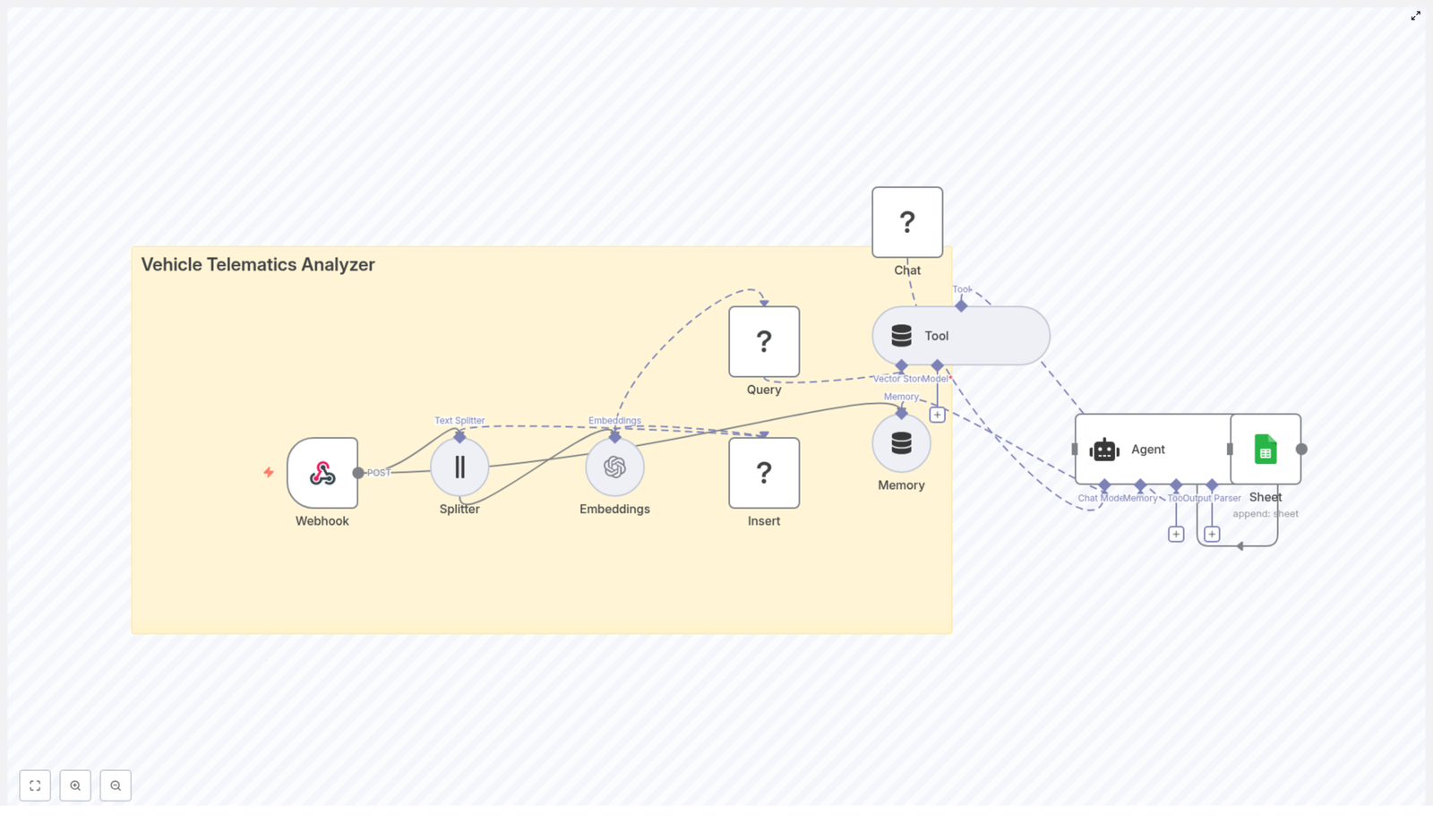
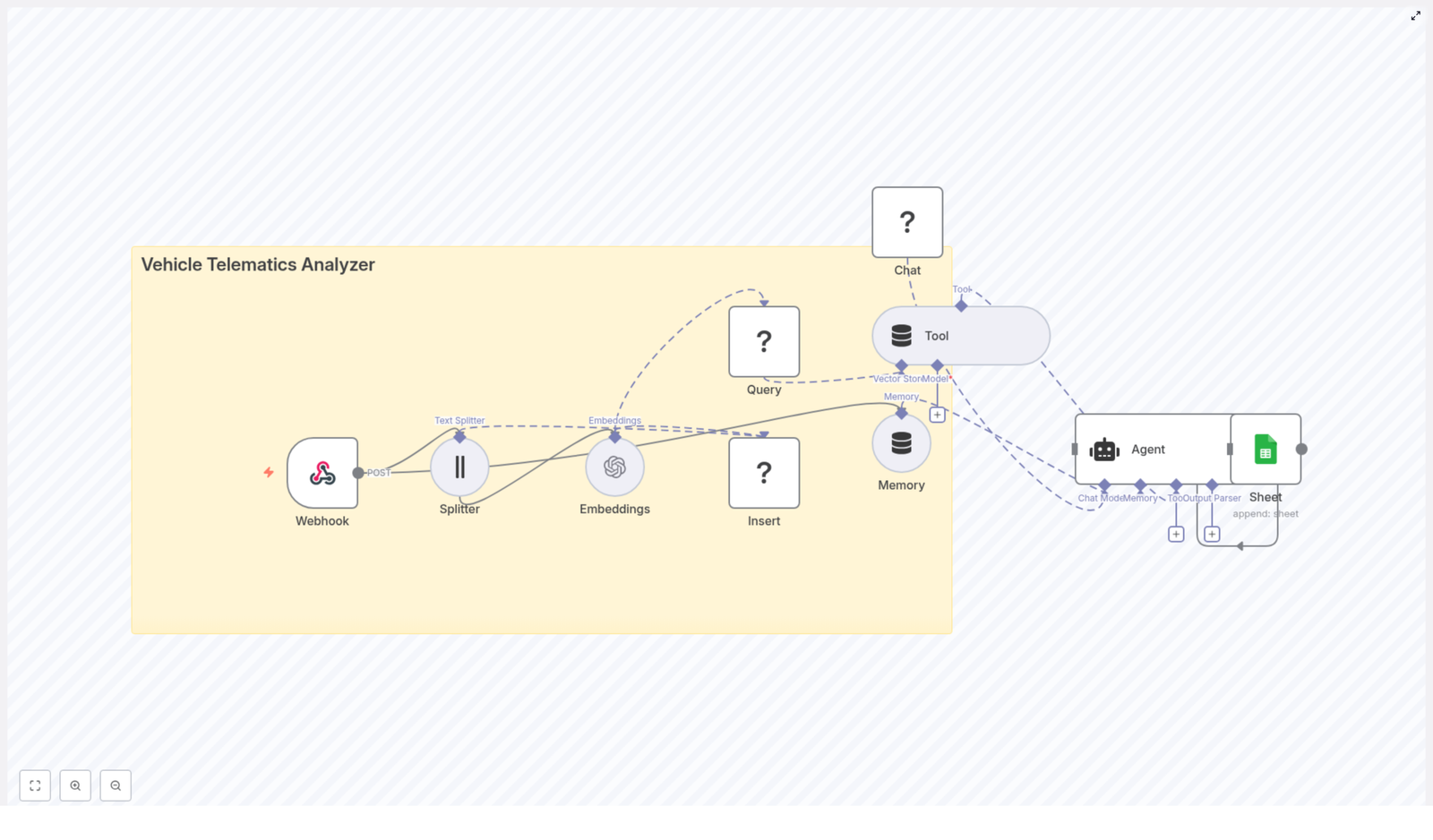
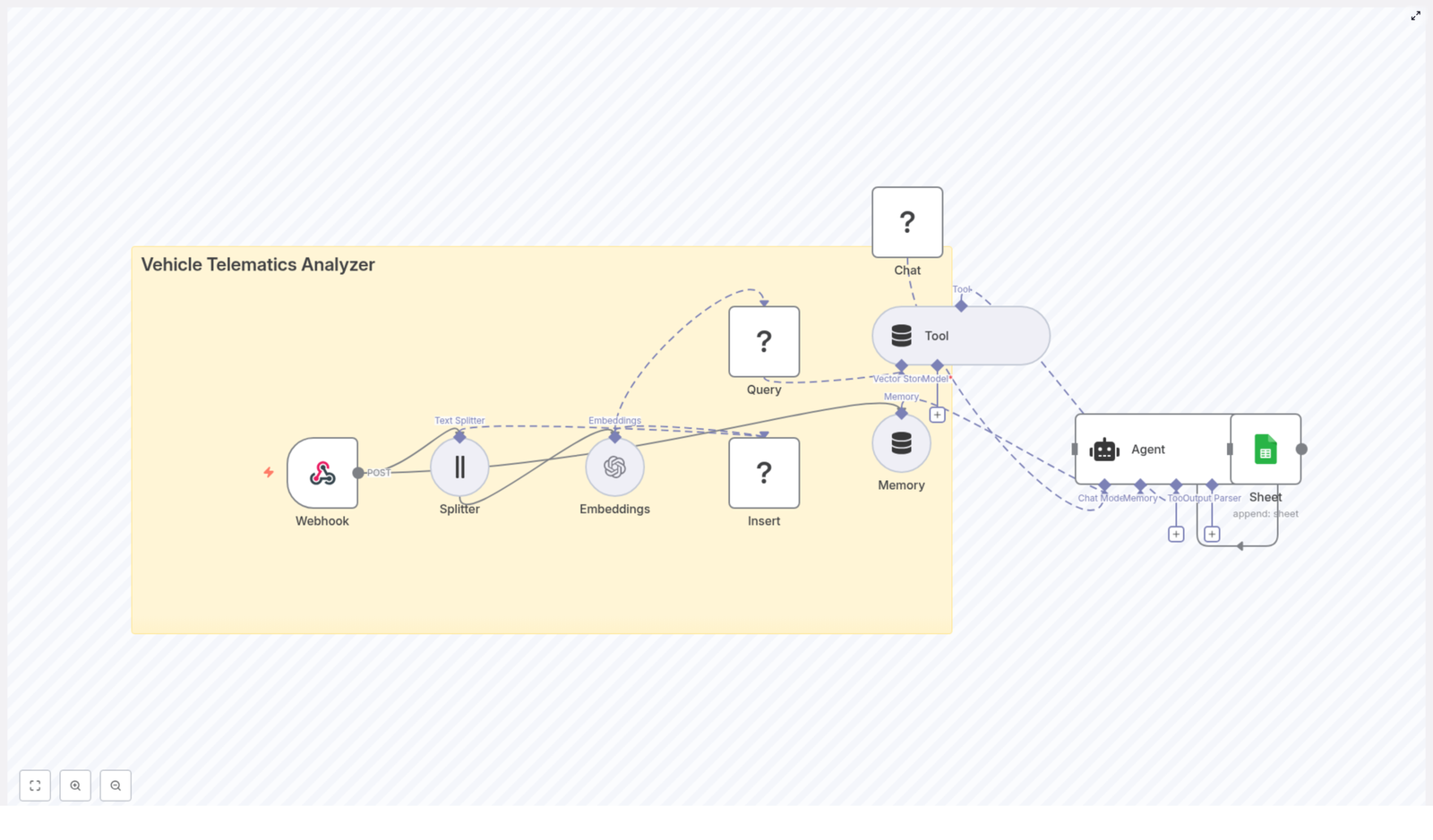
If that sounds familiar, this n8n workflow template is your new best friend. The “Vehicle Telematics Analyzer” workflow takes all that raw telemetry, slices it into useful pieces, stores it in a Redis vector database, and lets an AI agent make sense of it. It then logs the results neatly into Google Sheets so you can actually read what is going on without digging through a mountain of JSON.

In other words, you get to stop doing repetitive manual analysis and let automation handle the boring parts.

What this n8n Vehicle Telematics Analyzer actually does

This workflow is designed as an end-to-end telematics analysis pipeline. It:

  • Accepts telemetry data via a webhook (perfect for event-driven IoT setups).
  • Splits long logs into smaller text chunks for better semantic understanding.
  • Creates OpenAI embeddings for each chunk so you can run semantic search later.
  • Stores those vectors in a Redis vector index for fast similarity lookups.
  • Gives an AI agent a “tool” to query that Redis vector store for historical context.
  • Uses a Hugging Face chat model plus short-term memory to generate explanations, summaries, and recommended actions.
  • Logs key outputs into Google Sheets so humans can easily review alerts and insights.

The result is a workflow that turns raw, noisy telemetry into searchable, contextualized knowledge that your team (or other automations) can use for fleet management, predictive maintenance, and reporting.

Why this architecture works so well for telematics

Vehicle telematics data does not arrive in polite, tiny sentences. It shows up as long diagnostic dumps, event logs, and verbose error messages. This workflow architecture is tuned for two very common needs:

  • Fast ingestion of large telemetry batches via an HTTP webhook that accepts POST requests from your devices or broker.
  • Semantic retrieval and analysis so an agent can ask questions like “show me similar incidents” instead of you manually searching logs.

Some key advantages of this setup:

  • Webhook-based ingestion scales nicely as your devices or broker send JSON payloads with fields like vehicle_id, timestamp, GPS data, OBD-II codes, and human-readable logs.
  • Text chunking makes long logs searchable by splitting them into smaller segments so embeddings capture local context, for example one specific fault code with its surrounding text.
  • Redis vector store provides persistent, low-latency semantic search across historical data using an index such as vehicle_telematics_analyzer.
  • Agent-driven analysis uses a Hugging Face chat model plus tools and memory to generate structured outputs, explanations, and alerts.
  • Automated logging to Google Sheets gives you an easy audit trail and a quick way to review what the agent is doing over time.

How the workflow behaves from end to end

Here is the typical data journey, from “vehicle sends event” to “you have a neat row in a spreadsheet”:

  1. A telematics device sends a POST request with a JSON payload to the Webhook node.
  2. Any long text fields in that payload are split into overlapping chunks.
  3. Each chunk is converted into an embedding using OpenAI and then stored in Redis with metadata.
  4. Later, when an operator or rule needs context, the workflow runs a semantic query against Redis.
  5. The AI agent combines the retrieved chunks, its short-term memory, and the chat model to generate an explanation or suggested action.
  6. The final output is appended to a Google Sheet as a log entry or report.

Once this is in place, you can stop hunting through logs and start asking questions like “What has happened before when this engine code appeared?” and get meaningful answers.

Node-by-node tour of the Vehicle Telematics Analyzer

1. Webhook (POST) – the front door for your telemetry

The Webhook node is the workflow’s entry point. Configure it to accept POST requests from your telematics gateway, broker, or device fleet. The typical payload is a JSON object that can include:

  • vehicle_id
  • timestamp
  • GPS coordinates
  • OBD-II diagnostic codes
  • Human-readable logs or diagnostic text

Using a single webhook keeps things simple and fits nicely with event-driven IoT architectures where devices push events as they happen.

2. Splitter (Text Splitter) – turning walls of text into bites

Telematics logs and diagnostic dumps can be novel-length. The Text Splitter node breaks large text fields into smaller chunks so the embeddings can focus on local context instead of trying to understand everything at once.

In this template the settings are:

  • chunkSize: 400
  • chunkOverlap: 40

The overlap keeps some shared context between chunks, which helps when you later search for related incidents around a specific fault code or event.

3. Embeddings (OpenAI) – making your text machine-searchable

Each text chunk is passed to the Embeddings node, which uses the OpenAI embeddings integration. You will need to configure your OpenAI API key in n8n credentials.

The embeddings transform each chunk into a vector representation. These vectors allow semantic similarity search later, so you can find “things that mean roughly the same” instead of only matching exact keywords.

4. Insert (Redis Vector Store) – storing vectors with context

The next step is to persist those embeddings in Redis. The workflow uses a Redis vector index with a name such as vehicle_telematics_analyzer. Each vector is stored along with metadata like:

  • vehicle_id
  • timestamp
  • The original text chunk

Redis is used as a vector store so you can perform fast nearest-neighbor lookups based on semantic similarity, even as your dataset grows over time.

5. Query & Tool (Redis Vector Store Tool) – asking “what happened before?”

When the agent needs historical context, it uses the Redis Vector Store Tool. The Query node runs a semantic search against the Redis index, and the Tool node wraps this capability so the agent can call it as a tool.

For example, the agent might ask for “past incidents similar to this engine code” and receive the top-k most relevant chunks. It can then reason over these results together with its memory and the LLM’s understanding to produce a useful explanation or recommendation.

6. Memory (Buffer Window) – short-term brain for the agent

The Memory node uses a buffer window to store recent conversational or analysis history. This helps the agent keep track of follow-up questions and multi-step investigations.

If an operator asks “What caused this fault last time?” and then follows with “And how often has this happened in the last month?”, the memory buffer keeps the context so the agent does not forget what “this” refers to.

7. Chat (Hugging Face) – the language engine

The Chat node uses a Hugging Face conversational model that you configure with your Hugging Face API key. This model is responsible for generating human-readable outputs, such as:

  • Natural language summaries of incidents
  • Recommended actions or next steps
  • Structured responses that can be turned into incident objects

You can swap this model for a different provider or a custom fine-tuned model depending on your latency, quality, and cost preferences.

8. Agent – the conductor of tools, memory, and LLM

The Agent node is the orchestrator. It receives:

  • Results from the Redis vector store tool
  • Context from the memory buffer
  • Responses from the Chat LLM

Based on these, the agent decides what to do next, such as generating an incident report, summarizing likely causes, or preparing details that could feed into a maintenance ticket.

9. Sheet (Google Sheets) – your human-friendly logbook

Finally, the workflow sends relevant agent outputs to a Google Sheet using an append operation. This gives you:

  • A simple audit trail of what the agent has analyzed
  • A running log of alerts, suggested actions, and diagnostic summaries
  • A convenient starting point for reporting or sharing insights with non-technical stakeholders

What you can use this template for

Once this is wired up, you can apply it to several telematics scenarios without rewriting everything from scratch.

  • Driver behavior analysis: Correlate speed patterns, harsh braking, and driver-specific trends across trips using semantic search on historical logs.
  • Predictive maintenance: Look up past records related to current fault codes and get summaries of probable causes and recommended checks.
  • Compliance and audits: Maintain readable incident logs and summaries that are ready for regulatory or internal reporting.
  • Dispatch assistance: Provide dispatchers with context-aware recommendations for prioritizing repairs or rerouting vehicles based on historical incidents.

Quick setup guide: from zero to automated insights

Here is a simplified checklist to get the Vehicle Telematics Analyzer running in your environment.

Step 1 – Prepare your n8n environment

  • Install and secure your n8n instance, either self-hosted or using n8n cloud.
  • Expose the webhook endpoint over HTTPS so your devices can safely send POST requests.

Step 2 – Configure required credentials

  • OpenAI: Add your OpenAI API key for the Embeddings node.
  • Redis: Configure your Redis connection, including support for vector operations (Redis Vector Similarity or equivalent module).
  • Hugging Face: Set up your Hugging Face API key for the Chat node.
  • Google Sheets: Configure OAuth2 credentials so n8n can append rows to your chosen spreadsheet.

Step 3 – Redis index and splitter tuning

  • Create or confirm your Redis index name, for example vehicle_telematics_analyzer. Depending on your setup, the Insert node may be able to create it automatically.
  • Adjust the Text Splitter settings:
    • chunkSize: 400 is a solid default.
    • chunkOverlap: 40 keeps enough context between chunks.

    Tune these based on your typical log length and how detailed you want each chunk to be.

Step 4 – Pick models and watch costs

  • Choose an OpenAI embedding model that fits your budget and performance needs.
  • Decide which chat model to use for the Hugging Face node, especially if you want structured outputs.
  • Monitor costs for both embeddings and chat calls. If you ingest a lot of telemetry, consider batching embedding operations instead of embedding tiny events one by one.

Step 5 – Security, PII, and reliability

  • Strip or encrypt any personally identifiable information before storing data in Redis or logging to Google Sheets.
  • Restrict access to your n8n instance, Redis, and Sheets to authorized users and systems only.
  • Add monitoring and error handling nodes in n8n to retry failed steps and alert you when something breaks, so you are not debugging at 3 a.m.

Security, cost, and scaling: things to keep in mind

As useful as this pipeline is, it is not free or riskless. A few practical considerations:

  • Cost: OpenAI embeddings and LLM calls scale with volume. Batch embedding where possible to reduce overhead.
  • Scaling: Plan Redis capacity for both the size of your vector index and the expected query throughput. As your fleet grows, so do your vectors.
  • Security: Encrypt sensitive fields, manage access control carefully, and ensure your n8n instance is not exposed without proper protection.

Ideas for extending the workflow

Once the core template is in place, you can gradually add more automation to reduce manual work even further.

  • Connect to ticketing tools like Jira or Zendesk for automatic work order creation when certain conditions are met.
  • Feed summarized incidents into BI tools such as Grafana or Metabase to visualize semantic clusters and trends.
  • Swap the chat model for one that is optimized for structured outputs, for example automatically generating JSON incident objects.
  • Introduce anomaly detection or time-series rules that proactively trigger queries and agent analysis when metrics look suspicious.

Wrapping up

The n8n “Vehicle Telematics Analyzer” template gives you a complete pipeline to turn noisy telemetry into organized, searchable, and actionable insights. With a webhook, text splitter, OpenAI embeddings, Redis vector store, an agent with memory, and Google Sheets logging, you get a flexible architecture that works well for fleet management, maintenance automation, and operational reporting.

If you are tired of manually digging through logs, this workflow lets you offload the repetitive work to automation so you can focus on decisions instead of copy-paste.

Call to action: Spin up this template in your n8n instance, plug in your OpenAI, Redis, Hugging Face, and Google Sheets credentials, and point your telematics gateway to the webhook. Start turning raw telemetry into real insights. If you want help tailoring it to your fleet or expanding it with new features, reach out to us or subscribe for more step-by-step templates and consulting.
Build a Vehicle Telematics Analyzer with n8n

Build a Vehicle Telematics Analyzer with n8n

On a rainy Tuesday morning, Maya, an operations lead at a mid-size logistics company, watched yet another delivery van roll into the yard with its check-engine light on. The dashboard showed a cryptic diagnostic code. The driver shrugged. The maintenance team sighed. And Maya opened yet another spreadsheet, trying to piece together what had happened from scattered logs and vague trip notes.

Her fleet had hundreds of vehicles on the road. Each one streamed telematics data, but the information was scattered across tools and systems. She had logs, but not insight. She could see events, but not patterns. Every time a vehicle failed unexpectedly, it felt like a problem she should have seen coming.

One afternoon, while searching for a better way to make sense of all this data, Maya stumbled across an n8n workflow template that promised to turn raw telematics into actionable analysis. It combined webhook ingestion, OpenAI embeddings, a Redis vector store, LangChain-style tools, a Hugging Face chat model, and Google Sheets logging. The idea sounded ambitious, but exactly like what she needed.

The problem Maya needed to solve

Maya’s pain was not a lack of data. It was the inability to interrogate that data quickly and intelligently. She needed to answer questions like:

  • Why did a specific vehicle trigger a diagnostic trouble code yesterday?
  • Which vehicles showed similar hard-braking events in the past month?
  • Are there recurring patterns in catalytic converter faults across the fleet?

Her current tools could not perform semantic search or conversational analysis. Logs were long, messy, and often stored in different places. Whenever leadership asked for a quick explanation, Maya had to dig through JSON payloads, copy-paste diagnostics into documents, and manually correlate events across trips. It was slow, error-prone, and definitely not scalable.

The architecture that changed everything

The n8n-based Vehicle Telematics Analyzer template offered a different approach. Instead of treating telematics data as flat logs, it turned each piece of information into searchable, semantically rich vectors. It blended real-time ingestion with powerful retrieval and conversation-style analysis.

As Maya read through the template, a clear picture formed in her mind. The architecture was built around a simple but powerful flow:

  • A Webhook node received telematics POST requests from vehicles or gateways.
  • A Splitter node broke long logs or notes into smaller chunks.
  • An OpenAI Embeddings node converted text into vector embeddings.
  • An Insert node stored those vectors in a Redis Vector Store.
  • A Query node let an Agent fetch similar historical data.
  • LangChain-style tools and Memory helped the Agent reason over that context.
  • A Hugging Face chat model generated human-friendly explanations.
  • Finally, a Google Sheets node appended the results for audit trails and reporting.

This architecture balanced three things Maya cared deeply about: low-latency ingestion, deep semantic search, and clear, conversational summaries that non-technical stakeholders could read.

Why this workflow made sense to Maya

As she mapped the template to her daily challenges, the motivations behind this design became obvious:

  • Webhook-driven ingestion meant her vehicles could push data in real time without complex polling setups.
  • Text splitting and embeddings allowed long diagnostics and trip logs to be searched semantically, not just with exact keyword matches.
  • Redis as a vector store gave her fast, cost-effective similarity lookups, which mattered for hundreds of vehicles generating constant data.
  • LangChain-style tools and memory allowed an Agent to reason over past context and not answer every question in isolation.
  • Google Sheets logging gave her an easy audit trail that the ops team already knew how to use.

It was not just another dashboard. It was a workflow that could think with her data.

The day she wired her first telematics webhook

Maya decided to test the template with a subset of ten vehicles. Her first task in n8n was to create the entry point for all incoming data.

Configuring the Webhook

She opened n8n, added a Webhook node, and set it to accept POST requests. She gave it a clear endpoint path, something like:

/vehicle_telematics_analyzer

This endpoint would receive JSON payloads from her telematics gateway. A typical message looked like this:

{  "vehicle_id": "VEH123",  "timestamp": "2025-09-29T12:34:56Z",  "odometer": 12345.6,  "speed": 52.3,  "engine_rpm": 2200,  "diagnostics": "P0420 catalytic converter efficiency below threshold",  "trip_notes": "Hard braking event near exit 12"
}

For the first time, she had a single, structured entry point for all her telematics data inside n8n.

Breaking the noise into meaningful chunks

The next challenge was obvious. Some of her diagnostics and trip notes were long. Very long. If she tried to embed entire logs as single vectors, the context would blur and search quality would suffer.

Splitting long fields for better embeddings

Following the template, Maya connected a Splitter node right after the webhook. She configured it to process fields like diagnostics, trip_notes, or any combined log text.

She used these recommended settings:

  • chunkSize = 400 characters
  • chunkOverlap = 40 characters

This way, each chunk contained enough context to be meaningful, but not so much that important details got lost. The overlap helped preserve continuity across chunk boundaries.

Teaching the workflow to understand telematics

Once the text was split, it was time to make it searchable in a deeper way than simple keywords. Maya wanted to ask questions like a human and have the system find relevant events across the fleet.

Creating embeddings with OpenAI

She added an OpenAI Embeddings node that received each chunk from the splitter. For her use case, she chose a model from the text-embedding-3 family, such as text-embedding-3-small or text-embedding-3-large, depending on cost and accuracy needs.

Along with each embedding, she stored useful metadata, including:

  • vehicle_id
  • timestamp
  • the original text (diagnostic or note)

Now her telematics data was no longer just strings. It was a vectorized knowledge base that could power semantic search.

Building a memory for the fleet

Embeddings alone were not enough. Maya needed a place to store them that allowed fast similarity search. That is where Redis came in.

Inserting vectors into Redis

She connected a Redis Vector Store node and configured it to insert the embeddings into a dedicated index, for example:

vehicle_telematics_analyzer

She set the mode to insert so that each new payload from the webhook was appended in near real time. Over time, this index would become a rich, searchable memory of the fleet’s behavior.

Preparing semantic queries

To actually use that memory, Maya needed a way to query it. She added a Query node that could send query embeddings to Redis and retrieve the most similar chunks.

Then she wrapped this query capability as a Tool for the LangChain-style Agent. That meant the Agent could, on its own, decide when to call the vector store, pull relevant historical context, and use it while forming an answer.

Questions like “Why did vehicle VEH123 flag a DTC yesterday?” would no longer be blind guesses. The Agent could look up similar past events, related diagnostics, and trip notes before responding.

Giving the workflow a voice

Now Maya had ingestion, storage, and retrieval. The next step was turning that into explanations her team could actually read and act on.

Adding memory and a chat model

She introduced two more pieces into the workflow:

  • A Memory node that kept a short window of recent interaction history.
  • A Chat node powered by a Hugging Face chat model.

The Memory node ensured that if a fleet manager asked a follow-up question, the Agent would remember the context of the previous answer. The Hugging Face chat model transformed raw retrieval results into clear, conversational explanations. For production use, Maya chose a lightweight model to keep response times fast and costs under control.

The turning point: orchestrating the Agent

All the pieces were in place, but they needed a conductor. That role belonged to the Agent node.

Configuring the Agent and logging to Google Sheets

Maya configured the Agent node to:

  • Accept a query or analysis request.
  • Call the vector store Tool to retrieve relevant chunks from Redis.
  • Use Memory to keep track of recent interactions.
  • Pass the retrieved context to the Hugging Face chat model to generate a human-readable answer.

Finally, she connected a Google Sheets node at the end of the chain. Each time the Agent produced an analysis or alert, the workflow appended a row to a tracking sheet with fields like:

  • vehicle_id
  • timestamp
  • issue
  • recommended action

That sheet became her lightweight reporting and audit log. Anyone on the team could open it and see what the system had analyzed, why, and what it recommended.

How Maya started using it day to day

Within a week, Maya had the template running in a sandbox. She began feeding real telematics payloads and asking questions through the Agent.

Example use cases that emerged

  • Automatically generating root-cause suggestions for new diagnostic trouble codes (DTCs), based on similar past events.
  • Running semantic search over historical trip logs to find previous hard-braking events and correlating them with maintenance outcomes.
  • Letting fleet managers ask conversational questions, such as “Which vehicles showed recurring catalytic converter faults in the last 30 days?”
  • Sending on-call alerts with context-rich explanations, then logging those explanations in Google Sheets for later review.

It was no longer just data in, data out. It was data in, explanation out.

What she learned about tuning the workflow

As the pilot expanded, Maya refined the setup using a few best practices that made the analyzer more accurate and easier to operate.

Optimizing chunking and embeddings

  • She adjusted chunk size depending on the typical length of her diagnostics and logs. Smaller chunks improved recall but created more vectors to store and search.
  • She ensured each vector carried useful metadata like vehicle_id, timestamp, and GPS data where available. This let her filter retrieval results server-side before the Agent performed RAG-style reasoning.

Managing the vector store and retention

  • She partitioned her Redis indices, using a dedicated index such as vehicle_telematics_analyzer and considering per-fleet or per-customer namespaces for multi-tenant scenarios.
  • She set up retention and TTL rules for older vectors when storage and regulatory limits required it, keeping the most relevant time window hot while archiving older data.

Addressing security and privacy

  • She protected the webhook endpoint with tokens and validated payload signatures from her device gateways.
  • She encrypted Redis at rest and tightened network access so that only approved services could reach the vector store.
  • She reviewed payloads for sensitive information and avoided storing raw driver-identifying text unless absolutely necessary and permitted.

Scaling from ten vehicles to the entire fleet

As the pilot showed results, leadership asked Maya to roll the analyzer out across the full fleet. That meant thinking about scale and monitoring.

Planning for growth and reliability

  • She explored running Redis Cluster or moving to a managed vector database such as Pinecone or Weaviate for higher throughput.
  • She batched embedding calls and used asynchronous workers where needed to prevent webhook timeouts during peak load.
  • She added monitoring for queue lengths, embedding errors, and Agent latency, and set alerts on failed inserts to keep the search corpus complete.

The system moved from experiment to infrastructure. It was now part of how the fleet operated every day.

Where Maya wants to take it next

Once the core analyzer was stable, Maya began planning enhancements to make it even more proactive.

Next steps and enhancements on her roadmap

  • Integrating anomaly detection models that pre-score events so the workflow can prioritize high-risk telemetry.
  • Pushing critical alerts directly to Slack, PagerDuty, or SMS using n8n so on-call staff can respond in real time.
  • Building a dashboard that queries the vector store for patterns, such as recurring faults by vehicle or region, and visualizes them for leadership.
  • Experimenting with fine-tuned or domain-specialist LLMs to improve the quality and specificity of diagnostic explanations.

The outcome: from raw logs to reliable insight

Within a few months, the story in Maya’s fleet had changed. The check-engine light still came on sometimes, but now the maintenance team had a context-rich explanation waiting in their Google Sheet. Patterns that used to take days to uncover were visible in minutes.

The n8n-based Vehicle Telematics Analyzer had become a lightweight, extensible layer of intelligence on top of her existing telematics infrastructure. By combining webhook ingestion, smart chunking, OpenAI embeddings, a Redis vector store, and an Agent-driven analysis pipeline, she gained fast retrieval and conversational explanations, all backed by a simple audit trail.

If you are facing the same kind of operational fog that Maya did, you can follow the same path. Start small, with a few vehicles and a basic webhook. Then:

  • Create the webhook endpoint and connect your telematics gateway.
  • Wire in the splitter and embeddings nodes.
  • Insert vectors into your Redis index.
  • Configure the Agent, Memory, and Hugging Face chat model.
  • Log outputs to Google Sheets for visibility and iteration.

From there, you can refine chunk sizes, metadata, retention rules, and alerting until the analyzer feels like a natural extension of your operations team.

Call to action: Try this n8n workflow in a sandbox fleet project, then share your specific telemetry use case. With a solid template and a few targeted optimizations, you can improve cost, accuracy, and scale while turning raw telematics into real operational intelligence.

n8n MCP Server: Let Agents Run Your Workflows

n8n MCP Server: Let Agents Run Your Workflows

Looking to let an AI agent execute reliable, end-to-end automations in n8n instead of writing ad-hoc scripts? This guide documents an n8n workflow template that exposes your existing workflows as a managed MCP (Model-Connected Platform) server. It is designed for technical users who want precise control over which workflows an agent can see, how parameters are passed, and how executions are orchestrated.

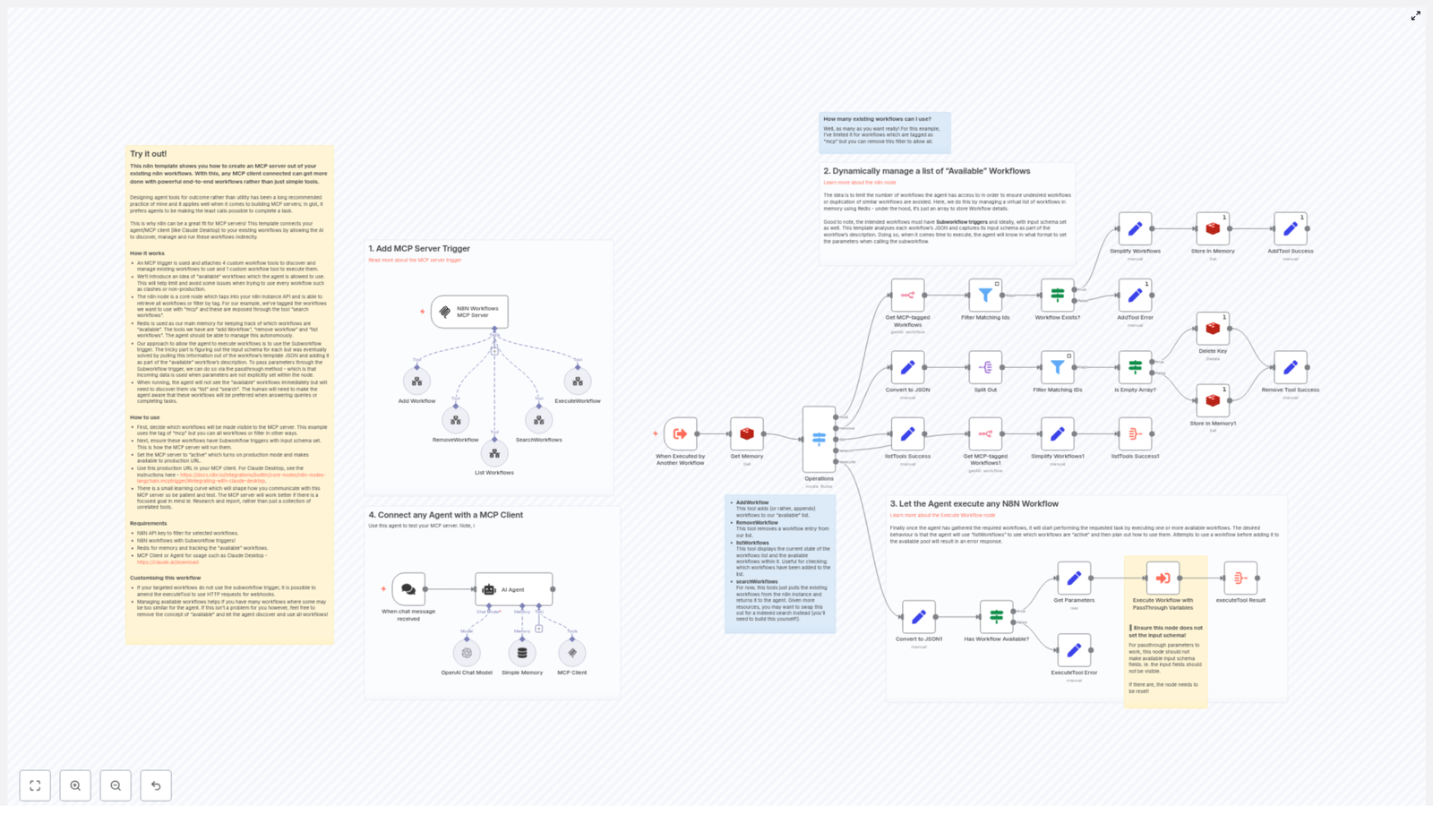
The template turns n8n into an MCP-compatible backend that an agent client (such as Claude Desktop) can connect to over SSE/webhooks. It uses Redis for lightweight memory, Subworkflow triggers for clean execution semantics, and a small, controlled toolset that the agent can call programmatically.


1. Conceptual Overview

1.1 What the template provides

This n8n template implements an MCP server pattern directly inside your n8n instance. It exposes a set of MCP tools that an AI agent can call to:

  • Discover candidate workflows in n8n, typically filtered by a tag such as mcp.
  • Maintain a curated list of workflows that are currently “available” to the agent.
  • Execute only those workflows that have been explicitly added to that available pool.

Instead of the agent inventing HTTP calls or arbitrary scripts, it uses your pre-built, tested n8n workflows as higher-level tools. This improves:

  • Reliability – workflows encapsulate tested business logic instead of free-form code.
  • Auditability – executions are visible in n8n logs and history.
  • Power – complex, multi-step flows (databases, transformations, emails, reports) are accessible via a single tool call.

1.2 Exposed MCP tools

The MCP server workflow exposes five tools to the agent:

  • searchWorkflows – query all candidate workflows, typically filtered by a tag such as mcp.
  • listWorkflows – list workflows currently registered in the agent’s “available” pool.
  • addWorkflow – add one or more workflows to the available pool.
  • removeWorkflow – remove specified workflows from the available pool.
  • executeWorkflow – execute a workflow from the available pool using passthrough input parameters.

These tools give the agent explicit control over which workflows it can use, while you retain the ability to constrain discovery and execution.


2. Architecture and Data Flow

2.1 Core components

Internally, the template relies on three main building blocks:

  • MCP Trigger – an n8n MCP trigger node that exposes the workflow as an MCP server endpoint over SSE/webhooks.
  • n8n Node – the built-in n8n node is used to query workflow metadata and retrieve workflow JSON, including tags and definitions.
  • Redis – a Redis instance stores the current list of workflows that are “available” to the agent. This acts as a simple memory and access-control layer.

Workflows that the agent can execute are expected to use a Subworkflow trigger. The template invokes them via the Execute Workflow node and relies on passthrough input behavior to forward parameters from the agent to the child workflow.

2.2 High-level flow

  1. The MCP client (for example Claude Desktop) connects to the n8n MCP trigger endpoint using a production URL.
  2. The MCP trigger exposes the five tools described above to the agent.
  3. When the agent calls searchWorkflows, the n8n node queries workflows (by tag or other criteria) and returns metadata.
  4. The agent uses addWorkflow / removeWorkflow to manipulate the Redis-backed list of available workflows.
  5. On executeWorkflow, the template checks that the target workflow is in the available pool, then calls it via Execute Workflow with passthrough inputs and returns the result back to the agent.

The workflow’s system prompt is tuned so that the agent prefers calling these tools instead of generating new scripts or raw HTTP calls.


3. Node-by-Node Functional Breakdown

3.1 MCP Server Trigger Node

Role: Entry point for all MCP interactions.

The MCP trigger node:

  • Exposes this n8n workflow as an MCP server endpoint over SSE or webhooks.
  • Publishes the server’s tool definitions (searchWorkflows, listWorkflows, addWorkflow, removeWorkflow, executeWorkflow).
  • Receives tool invocation requests from the MCP client and routes them through the rest of the n8n workflow.

Configuration notes:

  • Use a production-grade URL for the trigger endpoint, since the MCP client will connect to this URL directly.
  • Ensure your MCP client configuration (for example in Claude Desktop) references this endpoint and protocol correctly.

3.2 Workflow Discovery via n8n Node (searchWorkflows)

Role: Enumerate candidate workflows that can be exposed to the agent.

When the agent calls searchWorkflows, the template:

  • Uses the n8n node to list workflows from your n8n instance.
  • Filters workflows based on metadata, typically a specific tag such as mcp.
  • Fetches workflow JSON for each candidate to extract:
    • Workflow ID and name.
    • Description, derived from sticky notes or fields inside the workflow JSON.
    • Input schema, inferred from the Subworkflow trigger configuration.

The resulting metadata is returned to the agent, which can then decide which workflows to add to its available pool.

3.3 Redis-backed “Available Workflows” Pool

Role: Maintain a controlled list of workflows that the agent is allowed to execute.

The template uses Redis as a simple memory store to track which workflows are currently available to the agent. This design:

  • Prevents the agent from executing every workflow in your instance by default.
  • Allows you to keep experimental or duplicate flows hidden unless explicitly added.
  • Makes it easy to reset or adjust the pool without modifying individual workflows.

3.3.1 addWorkflow tool

When the agent calls addWorkflow:

  • The template validates the requested workflow IDs against the discovery results.
  • For each valid workflow, it:
    • Reads workflow JSON via the n8n node.
    • Extracts id, name, and description.
    • Derives an input schema from the Subworkflow trigger’s defined input fields.
    • Stores this metadata in Redis as part of the “available workflows” set or list.

The stored schema helps the agent understand which parameters are required when executing the workflow.

3.3.2 listWorkflows tool

When the agent calls listWorkflows, the template reads from Redis and returns the current contents of the available pool, including:

  • Workflow identifiers and names.
  • Descriptions to help the agent select an appropriate workflow.
  • Extracted input parameter names derived from the Subworkflow trigger.

3.3.3 removeWorkflow tool

removeWorkflow deletes specified workflows from the Redis-backed available pool. After removal, those workflows can no longer be executed via executeWorkflow until they are re-added.

3.4 Execution Path (executeWorkflow)

Role: Securely execute a selected workflow with passthrough parameters.

When the agent calls executeWorkflow with a workflow ID and parameters, the template:

  1. Validates availability:
    • Checks Redis to confirm the target workflow is present in the available pool.
    • If not present, returns an error response instructing the agent to add the workflow first.
  2. Invokes the workflow:
    • Uses the Execute Workflow node in n8n.
    • Configures the node to rely on passthrough variables instead of a fixed input schema.
    • Forwards the agent-provided parameters directly into the Subworkflow trigger of the target workflow.
  3. Returns results:
    • Collects the output from the executed workflow.
    • Sends the result back through the MCP trigger to the calling agent.

Critical configuration detail: The Execute Workflow node must not define an explicit input schema. If you add fields to the node’s input, n8n will stop using passthrough behavior and instead expect only those defined fields. This breaks the agent’s ability to send arbitrary parameter sets based on the Subworkflow trigger’s schema.


4. Configuration Requirements

4.1 Prerequisites

  • n8n instance with API access
    The built-in n8n node uses the n8n API to list workflows and retrieve workflow JSON. Ensure:
    • API access is enabled.
    • Credentials for the n8n node are configured with permissions to read workflows.
  • Workflows with Subworkflow triggers
    Any workflow that should be executable by the MCP server must:
    • Use a Subworkflow trigger as its entry point.
    • Define input fields in the Subworkflow trigger so the template can infer the input schema.
  • Redis instance
    A Redis server is required to store the list of available workflows.
    • Configure Redis credentials in n8n.
    • Ensure network connectivity from n8n to Redis.
  • MCP-capable agent client
    For example:
    • Claude Desktop configured to connect to the n8n MCP server endpoint.
    • Any other MCP client that supports custom MCP servers and SSE/webhooks.

4.2 System message and agent behavior

The template includes a system message tuned to:

  • Encourage the agent to call the provided MCP tools instead of inventing new scripts.
  • Guide the agent to:
    • Use searchWorkflows to discover capabilities.
    • Use addWorkflow and listWorkflows to manage access.
    • Use executeWorkflow to perform tasks.

5. Advanced Customization Options

5.1 Workflow discovery and tagging strategy

By default, the template filters candidate workflows using a tag such as mcp. You can customize this behavior to match your environment:

  • Change the tag – use a different tag to separate production-ready flows from experiments.
  • Remove the filter – expose all workflows for discovery, then rely on the available pool as the primary control mechanism.
  • Extend discovery logic – for example, implement:
    • Additional filters based on workflow name patterns.
    • Priority tags, categories, or indexed search logic.

5.2 Supporting non-Subworkflow targets

The template is optimized for workflows that use Subworkflow triggers, because they provide clean parameter handling and clear schemas. If some of your workflows are triggered differently, you can adapt the execution path:

  • Replace the Execute Workflow node with:
    • An HTTP Request node calling a workflow’s webhook endpoint.
    • Other integration nodes that trigger downstream systems on behalf of the agent.
  • Maintain the same validation and Redis-backed availability checks before calling external endpoints.

Note that without Subworkflow triggers, input schema extraction becomes less automatic. You may need to document expected inputs in workflow descriptions or notes and parse them manually.

5.3 Input schema and validation

The template attempts to infer the input schema for each workflow by reading its Subworkflow trigger definition. It extracts the names of required inputs and stores them alongside workflow metadata in Redis. This helps the agent:

  • Understand which parameters are required versus optional.
  • Construct correctly shaped tool calls when using executeWorkflow.

To improve schema clarity, you can:

  • Add short parameter descriptions in the workflow notes or description field.
  • Include example payloads or pseudo-JSON in the workflow description to guide the agent.
  • Optionally embed JSON Schema-like structures in descriptions, which the agent can interpret as guidance, even if the template does not formally enforce them.

6. Best Practices for Production Use

  • Expose only production-ready workflows
    Use tags and the available pool to ensure the agent does not accidentally run experimental or partially configured flows.
  • Document inputs clearly
    In each workflow:
    • Use sticky notes or descriptions to explain inputs and their semantics.
    • Provide example values where possible.
  • Monitor executions
    Regularly review:
    • n8n execution logs for workflows triggered via the MCP server.
    • Audit logs for destructive or sensitive operations.
  • Add extra safety for destructive actions
    For workflows that modify or delete data, consider:
    • Adding confirmation steps or guard conditions inside the workflow.
    • Requiring specific flags or parameters to be set before execution proceeds.

7. Troubleshooting and Edge Cases

7.1 Agent calls a workflow that is not in the available pool

Symptom: The agent attempts to execute a workflow and receives an error indicating it is unavailable.

Behavior: The template checks Redis before executing. If the workflow is not in the available pool, it returns an error message instructing the agent to add the workflow first.

Resolution:

  1. Call listWorkflows to inspect the current available pool.
  2. If the workflow is missing

Vehicle Telematics Analyzer with n8n & LangChain

Vehicle Telematics Analyzer with n8n & LangChain

Telematics systems generate a continuous stream of data: GPS traces, CAN bus events, OBD codes, alerts, and detailed driver behavior. On its own, this data is difficult to interpret. With the right automation workflow in n8n, you can turn that raw information into searchable knowledge, clear summaries, and actionable insights.

This guide walks you through a complete Vehicle Telematics Analyzer built with n8n, LangChain components, a Redis vector store, OpenAI embeddings, and Google Sheets logging. You will learn the concepts behind the workflow and how to use the template step by step.

Learning goals

By the end of this tutorial, you will know how to:

  • Explain the main components of an n8n-based telematics analyzer
  • Ingest telematics data into n8n using a Webhook
  • Split and embed text with OpenAI (or similar) to create vector representations
  • Store and query embeddings using a Redis vector index
  • Use LangChain tools, memory, and an agent to answer questions about your telemetry
  • Log analysis results automatically to Google Sheets
  • Tune performance, handle security and privacy, and troubleshoot common issues

Why build a telematics analyzer in n8n?

Fleet managers, telematics engineers, and IoT teams often face similar challenges:

  • Incident investigation – Quickly surface relevant historical telemetry when something goes wrong.
  • Maintenance planning – Detect anomalies and anticipate failures before they cause downtime.
  • Driver behavior analysis – Summarize trips and risky events to support coaching and compliance.
  • Automated reporting – Store summaries and logs in tools like Google Sheets for easy sharing.

The template described here turns n8n into a telemetry analysis assistant that can:

  • Ingest and store large volumes of telematics data
  • Perform semantic search over your historical records
  • Use an agent-driven language model to explain what happened and why
  • Automatically log results for audit and reporting

Concepts and architecture

Before walking through the workflow, it helps to understand the core building blocks used in n8n and LangChain.

Key components in the template

  • Webhook – Entry point that receives POST requests from telematics devices or upstream ingestion services.
  • Text Splitter – Breaks incoming payloads into manageable chunks to prepare them for embeddings.
  • Embeddings node – Uses OpenAI or another embeddings model to convert text chunks into numerical vectors.
  • Redis Vector Store (Insert & Query) – Stores and retrieves embeddings in a Redis index named vehicle_telematics_analyzer.
  • Tool – Wraps the vector store so the LangChain agent can call it as part of its reasoning process.
  • Memory – Keeps a short window of recent conversation or context to support multi-turn interactions.
  • Chat (LM) – A language model (for example, from Hugging Face) that generates explanations and summaries.
  • Agent – Orchestrates the language model, tools, and memory to answer questions and run analyses.
  • Google Sheets node – Appends analysis results and metadata into a spreadsheet for logging and reporting.

High-level data flow

At a high level, the Vehicle Telematics Analyzer works like this:

  1. Telematics events are sent to n8n through a Webhook.
  2. The raw payload is split into smaller text chunks.
  3. Each chunk is converted into an embedding vector and stored in Redis with metadata.
  4. When a user asks a question, the workflow queries Redis for the most relevant chunks.
  5. The LangChain agent uses these chunks, plus conversation memory, to produce an answer.
  6. The result is logged to Google Sheets for auditing and future reference.

Step-by-step: how the n8n workflow operates

Step 1 – Ingest telematics data via Webhook

The workflow starts with a Webhook node in n8n. Your telematics devices or upstream processing service send JSON payloads to this endpoint.

Typical fields might include:

  • GPS coordinates and timestamps
  • Event codes (for example harsh braking, speeding, idling)
  • Sensor readings and CAN bus events
  • OBD diagnostic trouble codes
  • Vehicle identifiers and driver information

Once the Webhook receives the data, it passes the payload into the rest of the workflow for processing and indexing.

Step 2 – Split the text for embeddings

Telematics events can be long or complex. To improve semantic search, the workflow uses a Text Splitter to break the incoming data into smaller pieces, often corresponding to events or paragraphs.

A recommended starting configuration is:

  • chunkSize: 400
  • chunkOverlap: 40

This setup helps:

  • Prevent truncation of long payloads
  • Keep related information together in each chunk
  • Improve retrieval accuracy when querying the vector store

Step 3 – Generate embeddings for each chunk

Next, each chunk is sent to an Embeddings node. This node uses an embeddings model such as OpenAI or a compatible alternative to convert text into high-dimensional vectors.

Along with the vector, the workflow stores useful metadata, for example:

  • vehicle_id
  • timestamp or range of timestamps
  • event_type or event code
  • Source or payload identifiers

This metadata is crucial for filtering and narrowing down search results later.

Step 4 – Insert embeddings into a Redis vector index

The workflow then uses an Insert operation to store these vectors in a Redis-backed vector store. The index is typically named vehicle_telematics_analyzer.

Redis provides:

  • Fast approximate nearest neighbor (ANN) search for semantic queries
  • Efficient storage of large numbers of vectors
  • Support for metadata-based filtering

This makes it ideal for retrieving relevant historical events when you ask questions about vehicle behavior or incidents.

Step 5 – Query the vector store and expose it as a tool

When a user or system sends a question to the workflow, the Query node searches the Redis index for the most semantically similar chunks.

Example query:

Why did vehicle 42 trigger a harsh braking event on May 12?

The Query node returns the closest matching chunks based on embeddings and optional metadata filters such as vehicle_id and time range.

To let the LangChain agent access these results dynamically, the vector store is wrapped in a Tool node. This tool becomes part of the agent’s toolkit so it can decide when to look up additional context from historical telemetry.

Step 6 – Agent reasoning with language model and memory

The core intelligence of the workflow lives in the Agent node. It coordinates three main elements:

  • Language model (Chat LM) – A model such as one from Hugging Face, used for natural language reasoning, explanation, and summarization.
  • Tools – In particular, the vector store tool that provides access to relevant telemetry chunks.
  • Memory – A windowed memory buffer that stores recent conversation turns or troubleshooting context.

The memory component is especially useful when:

  • Operators are investigating an incident over multiple questions
  • You want the agent to remember previous answers in a short session
  • You are iteratively refining a query or analysis

The agent uses the retrieved chunks plus the current question and memory to produce an answer, such as a root cause explanation, a trip summary, or recommended actions.

Step 7 – Log results to Google Sheets

Finally, the workflow uses a Google Sheets node to append a new row with:

  • The agent’s analysis or summary
  • Relevant timestamps
  • Identifiers such as vehicle or driver IDs
  • Suggested follow-up actions or notes

This creates a simple but effective audit trail for operators and makes it easy to build reports or dashboards using familiar spreadsheet tools.

Practical use cases for this template

Once your Vehicle Telematics Analyzer is running, you can support many operational scenarios:

  • Incident investigations Quickly retrieve historical telemetry that matches an incident pattern and generate a human-readable summary for safety or legal teams.
  • Maintenance predictions Combine sensor anomalies, OBD codes, and previous failure notes to flag vehicles that might need attention soon.
  • Driver coaching Aggregate harsh braking, acceleration, and cornering events, then turn them into personalized coaching notes for drivers.
  • Automated reports Produce daily or weekly summaries that are stored in Google Sheets for distribution to fleet managers and stakeholders.

Implementation tips and recommended settings

To get good results from the beginning, consider these practical recommendations:

  • Text splitter configuration Start with chunkSize = 400 and chunkOverlap = 40, then adjust based on your typical event size and verbosity.
  • Metadata design Store informative metadata like vehicle_id, ts, and event_type. This lets you filter queries quickly and narrow search results.
  • Embeddings model choice Use a stable embeddings model to maintain consistent semantic similarity over time. This is important for reliable search behavior.
  • Batching inserts Group multiple chunks into batches before inserting into Redis to reduce network overhead and improve throughput.
  • Caching frequent queries Cache common queries with a time-to-live (TTL) to reduce repeated embedding and retrieval costs.

Security, privacy, and compliance considerations

Telematics data often contains sensitive information such as location history and potentially identifiable driver data. Treat it carefully:

  • Encryption Use HTTPS for data in transit and enable encryption at rest (for example Redis encryption or disk encryption).
  • API key hygiene Rotate API keys regularly for OpenAI, Redis, Google Sheets, Hugging Face, and any other external services.
  • Data minimization Limit how long you store personally identifiable information. When possible, keep aggregated or anonymized records instead of raw data.
  • Access controls Set role-based access and audit logs in both n8n and Redis so you can track who accessed which data.
  • Regulatory compliance Ensure that your practices align with regional regulations such as GDPR or CCPA when handling driver and location data.

Performance tuning and scaling strategies

As your fleet grows, you may need to scale the analyzer. Here are some strategies:

  • Sharding Redis indices If you have high write or read throughput, consider sharding Redis indices by fleet, region, or business unit.
  • Asynchronous batching for embeddings Send chunks to the embeddings API in batches to smooth out rate spikes and reduce latency.
  • Vector store maintenance Monitor memory usage and plan for index compaction or tiered storage for older, less frequently accessed data.
  • Multi-stage pipelines Use a near real-time pipeline for alerts and a separate batch pipeline for deeper historical analytics.

Troubleshooting common issues

If the workflow is not behaving as expected, use these checks:

  • Irrelevant query results Increase chunkOverlap or try a higher quality embeddings model. Also verify that metadata filters are set correctly.
  • High operating costs Cache frequent queries, reduce how often you re-embed data that does not change semantically (for example static vehicle metadata), and batch operations.
  • Schema drift in incoming data If device payload formats change, add preprocessing or validation logic at the Webhook node to normalize fields before processing.

Getting started checklist

Use this checklist as a quick start guide to deploying the Vehicle Telematics Analyzer template:

  1. Deploy n8n and configure credentials for:
    • OpenAI (or equivalent embeddings provider)
    • Redis (for the vector store)
    • Hugging Face or another language model provider
    • Google Sheets (for logging)
  2. Import the Vehicle Telematics Analyzer template into your n8n instance.
  3. Configure your telematics platform to POST events to the n8n Webhook URL.
  4. Send a sample event end to end and verify that:
    • Embeddings are created and inserted into the Redis index
    • The agent can answer a basic query using that data
    • A new row is appended to Google Sheets with the analysis
  5. Iterate on your text chunk sizes, overlap, and embeddings model to optimize retrieval quality for your specific data.

Recap and next steps

This Vehicle Telematics Analyzer template combines n8n orchestration, semantic embeddings, a Redis vector store, and a LangChain agent to turn raw telematics data into a powerful knowledge and automation system.

With this setup you can support use cases such as:

  • Rapid incident response and investigation
  • Predictive maintenance and anomaly detection
  • Driver behavior analysis and coaching
  • Automated fleet reporting to Google Sheets

Ready to experiment? Import the template into n8n, connect your OpenAI and Redis keys, configure Google Sheets logging, and send a few sample telematics events. You will see how quickly you can start asking natural language questions about your fleet data and receiving clear, actionable answers.

If you need to adapt this pipeline for large fleets, stricter security requirements, or real-time alerting, you can extend the same architecture with additional n8n nodes and LangChain tools.

n8n Fact-Checking Workflow with Ollama & LangChain

Build an Automated Fact-Checking Workflow in n8n with Ollama and LangChain

In this tutorial-style guide you will learn how to build and understand an automated fact-checking workflow in n8n, powered by Ollama and LangChain. We will walk through the concepts, the nodes, and each step of the workflow so you can adapt it to your own editorial, moderation, or research processes.

Learning goals

By the end of this guide, you will be able to:

  • Explain how n8n, Ollama, and LangChain work together in a fact-checking pipeline.
  • Use a Code node in n8n to split long text into sentences while preserving dates and list items.
  • Configure a LangChain LLM node to call an Ollama model (for example, bespoke-minicheck) for per-sentence fact-checking.
  • Merge, filter, and aggregate model outputs into a clear summary report of potential factual errors.
  • Apply best practices and understand the limitations of automated fact-checking.

Core concepts: n8n, Ollama, and LangChain

Why these three tools work well together

This fact-checking workflow combines three main components, each solving a specific part of the problem:

  • n8n – A visual automation platform that lets you connect data sources, AI models, and post-processing steps using nodes and flows. It orchestrates the entire fact-checking pipeline.
  • Ollama – A system for running LLMs locally or at the edge. You can pull a specialized model such as bespoke-minicheck and run it close to your data for privacy and speed.
  • LangChain – A framework that helps you design prompts and structured LLM chains. Inside n8n, LangChain nodes make it easier to define how the model should behave and what output format it should return.

Together, they create a modular system where n8n handles workflow logic, LangChain manages prompts and structure, and Ollama performs the actual fact-checking inference.


What the n8n fact-checking workflow does

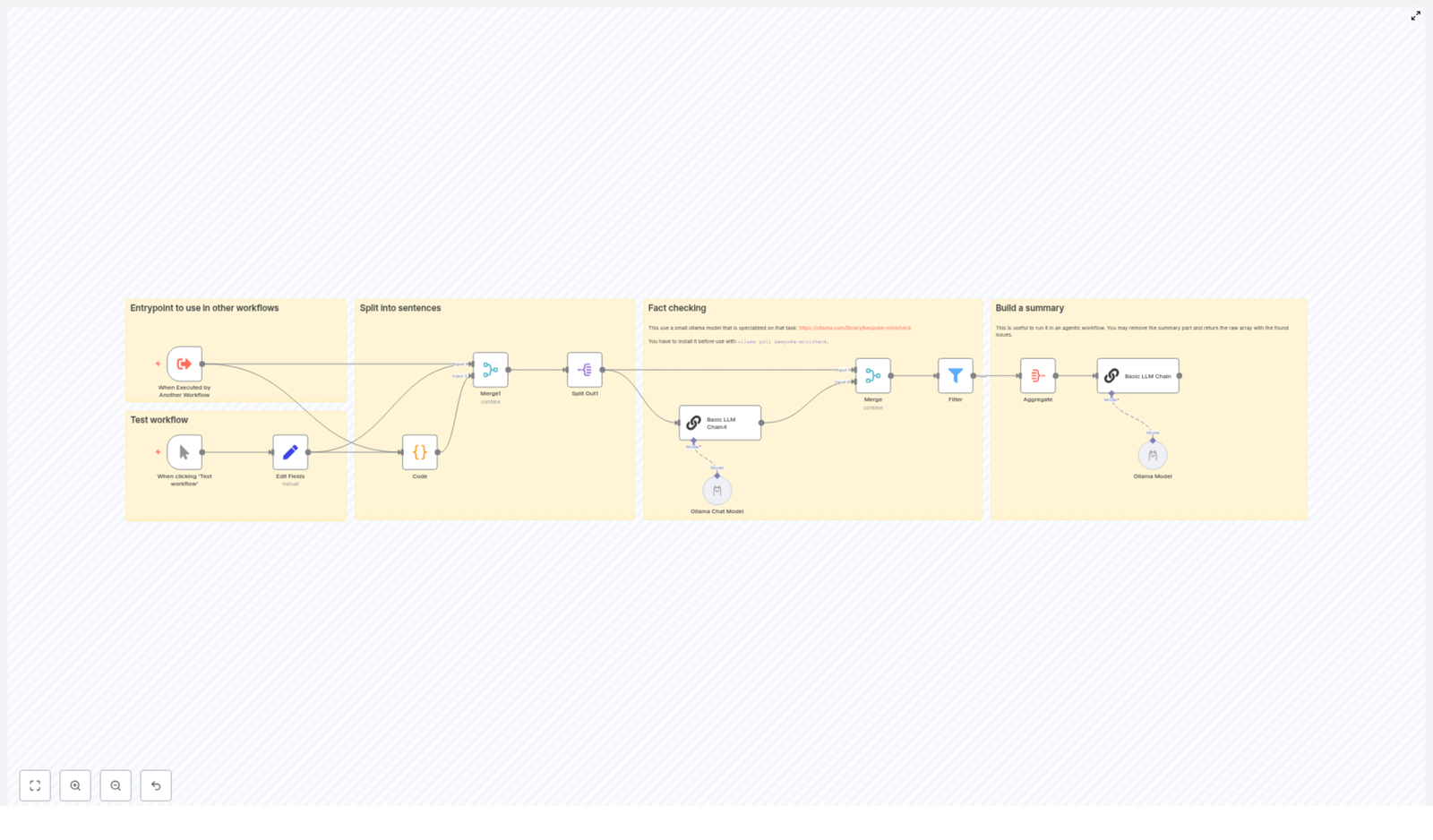
The template workflow is designed to take a block of text and highlight sentences that may contain incorrect factual statements. At a high level, it:

  • Receives text input (either manually or from another workflow).
  • Splits the text into individual sentences using a custom JavaScript function.
  • Preserves dates and list items so they are not broken apart incorrectly.
  • Processes each sentence through an Ollama model via a LangChain node.
  • Collects and filters the results to keep only sentences flagged as potentially incorrect.
  • Generates a structured summary report for editors or reviewers.

The end result is a scalable, transparent fact-checking assistant that you can plug into editorial pipelines, moderation queues, or research workflows.


Prerequisites

Before you build or use this workflow, make sure you have:

  • An n8n instance, either self-hosted or n8n cloud.
  • Ollama installed and configured if you are using local models. For example, to install the sample model:
    ollama pull bespoke-minicheck
  • Ollama credentials or access configured in n8n so the LangChain / Ollama node can call the model.
  • Basic JavaScript familiarity to understand or tweak the Code node used for sentence splitting.

Workflow architecture: Step-by-step overview

Let us look at the complete flow before we dive into each node. At a high level, the workflow follows these stages:

  1. Trigger – Start the workflow manually or from another workflow.
  2. Set input fields – Provide the text that you want to fact-check.
  3. Preprocess text – Use a Code node to split the text into clean sentences.
  4. Split into items – Convert the array of sentences into individual n8n items.
  5. Fact-check each sentence – Pass each sentence to a LangChain LLM node that calls an Ollama model.
  6. Merge and filter results – Combine model outputs, keep only problematic sentences.
  7. Aggregate into a report – Build a final summary of issues and recommendations.

Next, we will walk through each of these stages in more detail.


Stage 1: Trigger and input text

1. Trigger the workflow

The workflow typically starts with a Manual Trigger node while you are building and testing. In production, you might replace this with:

  • A webhook that receives text from an external system.
  • A schedule trigger that checks new content periodically.
  • Another workflow that passes text into this fact-checking pipeline.

2. Set the input text field

Next, you use a Set node (or a previous node) to provide the text that you want to check. The important part is that the text ends up in a known field, for example:

{  "text": "Your article or content block here..."
}

The Code node in the next step expects this field to be named text.


Stage 2: Sentence splitting with a Code node

Before we can send content to the model, we need to break it into manageable pieces. In this workflow, each sentence is treated as a separate claim.

Why custom sentence splitting is needed

A naive split on periods can cause problems. For example:

  • Dates like 12. März 2023 might be split into multiple fragments.
  • Numbered lists or bullet points might be broken incorrectly.
  • Abbreviations or punctuation can confuse a simple splitter.

To avoid this, the workflow uses a custom JavaScript function inside a Code node. It uses a regular expression that is tuned to:

  • Keep date-like tokens intact.
  • Ignore list bullets and hyphenated list items when splitting.
  • Return a clean array of sentences ready for LLM processing.

Code node: sentence splitter

Here is the code used in the template, formatted for clarity:

// Get the input text
const text = $input.item.json.text;

if (!text) {  throw new Error('Input text is empty');
}

function splitIntoSentences(text) {  const monthNames = '(?:Januar|Februar|März|April|Mai|Juni|Juli|August|September|Oktober|November|Dezember)';  const datePattern = `(?:\\d{1,2}\\.\\s*(?:${monthNames}|\\d{1,2}\\.)\\s*\\d{2,4})`;  const regex = new RegExp(`(?<=[.!?])\\s+(?=[A-ZÄÖÜ]|$)(?!${datePattern}|\\s*[-•]\\s)`, 'g');  return text.split(regex)  .map(sentence => sentence.trim())  .filter(sentence => sentence !== '');
}

const sentences = splitIntoSentences(text);
return { json: { sentences: sentences } };

What this code is doing

  • Input check - If text is missing, it throws an error so you can catch configuration issues early.
  • Date handling - The monthNames and datePattern variables define what a date looks like, for example 12. März 2023 or 12. 03. 2023.
  • Regex-based splitting - The regex splits only where:
    • There is a sentence-ending character (., !, or ?).
    • Followed by whitespace and an uppercase letter or the end of the string.
    • But not inside dates or right after list bullets such as - or .
  • Cleanup - The array is trimmed and empty entries are removed.

The Code node outputs a JSON object like:

{  "sentences": [  "First complete sentence.",  "Second complete sentence with a date like 12. März 2023.",  "Another sentence."  ]
}

Stage 3: Split sentences into individual items

After the Code node, all sentences are stored in a single array. To process each sentence independently with the LLM, you use a Split Out (or similar) node in n8n.

3. Split Out node

Configure the node to:

  • Take the sentences array from the previous node.
  • Create one n8n item per sentence.

Once this node runs, your workflow will have multiple items, each with a single sentence field. For example:

{ "sentence": "First complete sentence." }
{ "sentence": "Second complete sentence with a date like 12. März 2023." }
...

This item-per-sentence structure is ideal for calling an LLM, because it keeps the context small and focused.


Stage 4: Fact-checking with Ollama and LangChain

Now that each sentence is isolated, you can send them to an Ollama model using a LangChain LLM node in n8n.

4. Configure the LangChain LLM node

In this node, you typically:

  • Select the Ollama model backend, for example bespoke-minicheck.
  • Define a prompt template that receives the sentence as input.
  • Specify what kind of output you want (yes/no, explanation, or both).

A typical prompt conceptually might say:

  • Here is a single sentence that may contain factual claims.
  • Your task is to identify if the sentence is factually incorrect.
  • Return a clear, structured output, for example:
    • is_incorrect: yes/no
    • explanation: short text
  • Ignore opinions, jokes, and non-factual chatter.

This design gives you a consistent shape of data that can be processed automatically in later nodes.

Prompt design tips for reliable automation

  • Be explicit about format - Ask for a JSON-like or clearly structured response so you can parse it easily.
  • Focus on factual content - Instruct the model to ignore chit-chat, subjective opinions, or style comments.
  • Limit context - Send only one sentence or claim at a time. This reduces confusion and keeps the model focused.
  • Use a small deterministic model when possible - Something like bespoke-minicheck can offer more repeatable behavior for classification-style tasks.

Stage 5: Merge, filter, and aggregate results

Once the LangChain node has evaluated each sentence, you have one model response per item. The final step is to turn these per-sentence results into a human-friendly report.

5. Merge model outputs with original data

Use merge or mapping nodes in n8n to attach the model's response back to each sentence. After this step, each item might look like:

{  "sentence": "Example sentence.",  "is_incorrect": true,  "explanation": "The stated year is wrong based on known facts."
}

6. Filter to keep only problematic sentences

Next, apply a Filter node (or similar logic) to keep only items where the model indicates a potential issue, for example:

  • is_incorrect == true

This gives you a focused list of sentences that may need human review.

7. Aggregate into a summary report

Finally, use an Aggregate or similar node to combine all flagged sentences into a single structured object. You can then optionally pass this into another LangChain node to generate a nicely formatted summary.

A typical report might include:

  • Problem summary - Total number of sentences flagged as potentially incorrect.
  • List of incorrect statements - Each problematic sentence plus the model's explanation.
  • Final assessment - A short recommendation, such as:
    • Low severity - minor factual issues, needs quick edit.
    • High severity - major factual errors, requires full review.

Testing the workflow and best practices

How to test effectively

  • Start small - Use short, well-understood text samples when you first tune prompts and model settings.
  • Log intermediate outputs - Inspect:
    • The array of sentences from the Code node.
    • Each per-sentence response from the LangChain node.

    This helps you debug regex issues, prompt wording, or model behavior.

  • Iterate on prompts - Adjust the instructions until the model reliably distinguishes factual from non-factual content.

Operational best practices

  • Use deterministic settings where possible - Lower temperature or use a small classification-focused model like bespoke-minicheck for consistent results.
  • Keep humans in the loop - Treat the workflow as a triage system. Flag questionable statements for editorial review instead of automatically deleting or publishing content.
  • Scale carefully - When processing large volumes, batch requests and rate-limit calls to avoid overloading local models or GPU resources.

Limitations and ethical considerations

Automated fact-checking is powerful, but it is not perfect. You should be aware of its limitations and ethical implications.

  • False positives and false negatives - The model may sometimes flag correct statements or miss incorrect ones. Always include a human review step for important decisions.
  • Knowledge freshness - Models may not know the latest facts or may rely on outdated information. For time-sensitive or critical topics, consider augmenting with external knowledge sources.
  • Transparency - Be clear with your users or stakeholders that automated tools are involved in the review process, and explain how decisions are made.

Next steps: Extending the fact-checking workflow

Once the basic template is working, you can extend it in several directions:

  • Add source retrieval - Integrate web search or a private knowledge base to retrieve supporting documents and citations for each claim.
  • Use multi-model voting - Run the same sentence through multiple models and combine their outputs for higher confidence.
  • Build an editor UI - Create a simple interface where editors can:
    • Review flagged sentences.
    • Mark them as correct or incorrect.
    • Use this feedback later to fine-tune models or improve prompts.

Recap and FAQ

Quick recap

  • You built an n8n workflow that:

Music Playlist Mood Tagger with n8n & OpenAI

Music Playlist Mood Tagger with n8n & OpenAI

Imagine a music catalog that effortlessly understands how each track feels. Instead of scrolling endlessly or guessing what fits your mood, your playlists simply adapt. With a bit of automation, that vision is closer than it seems.

This guide walks you through a Music Playlist Mood Tagger built with n8n, OpenAI embeddings, Redis vector storage, and Google Sheets. You will see how to receive song metadata with a webhook, generate embeddings, store and query them by mood, and log everything for analysis – all without building a full backend.

More importantly, you will see how this workflow can become a stepping stone toward a more automated, focused way of working, where repetitive tagging is handled for you and you can spend your time on higher-value creative or strategic work.

The problem: manual mood tagging slows you down

Building mood-based playlists sounds simple until you try to maintain them at scale. Tagging songs one by one is slow, subjective, and hard to keep consistent across a large catalog. It is easy to fall behind and even easier to lose track of why a track was tagged a certain way.

Mood tagging matters because it shapes the experience your listeners have. Whether they need focus, chill, party, or melancholy vibes, they are really asking for a mood-aligned soundtrack. If you can deliver that reliably, you create deeper engagement and stronger loyalty.

This is where AI and automation step in. By converting lyrics, descriptions, and audio-derived metadata into vector embeddings, you can search and compare songs by mood with far more nuance than manual labels alone.

Mindset shift: from manual tasks to automated systems

Before we dive into the technical steps, it helps to adopt a simple mindset: every repetitive task is an opportunity to build a system that works for you. Instead of thinking “I need to tag these songs,” think “I am going to design a workflow that tags every song from now on.”

n8n is perfect for this shift. It lets you connect tools like OpenAI, Redis, and Google Sheets in a visual way. You do not need a full backend or a large engineering team. You only need the willingness to experiment, iterate, and gradually automate more of your process.

The Music Playlist Mood Tagger you are about to build is not just a one-off solution. It can become a reusable building block in your broader automation strategy for music analytics, recommendations, and content curation.

The big picture: how the n8n mood tagger workflow works

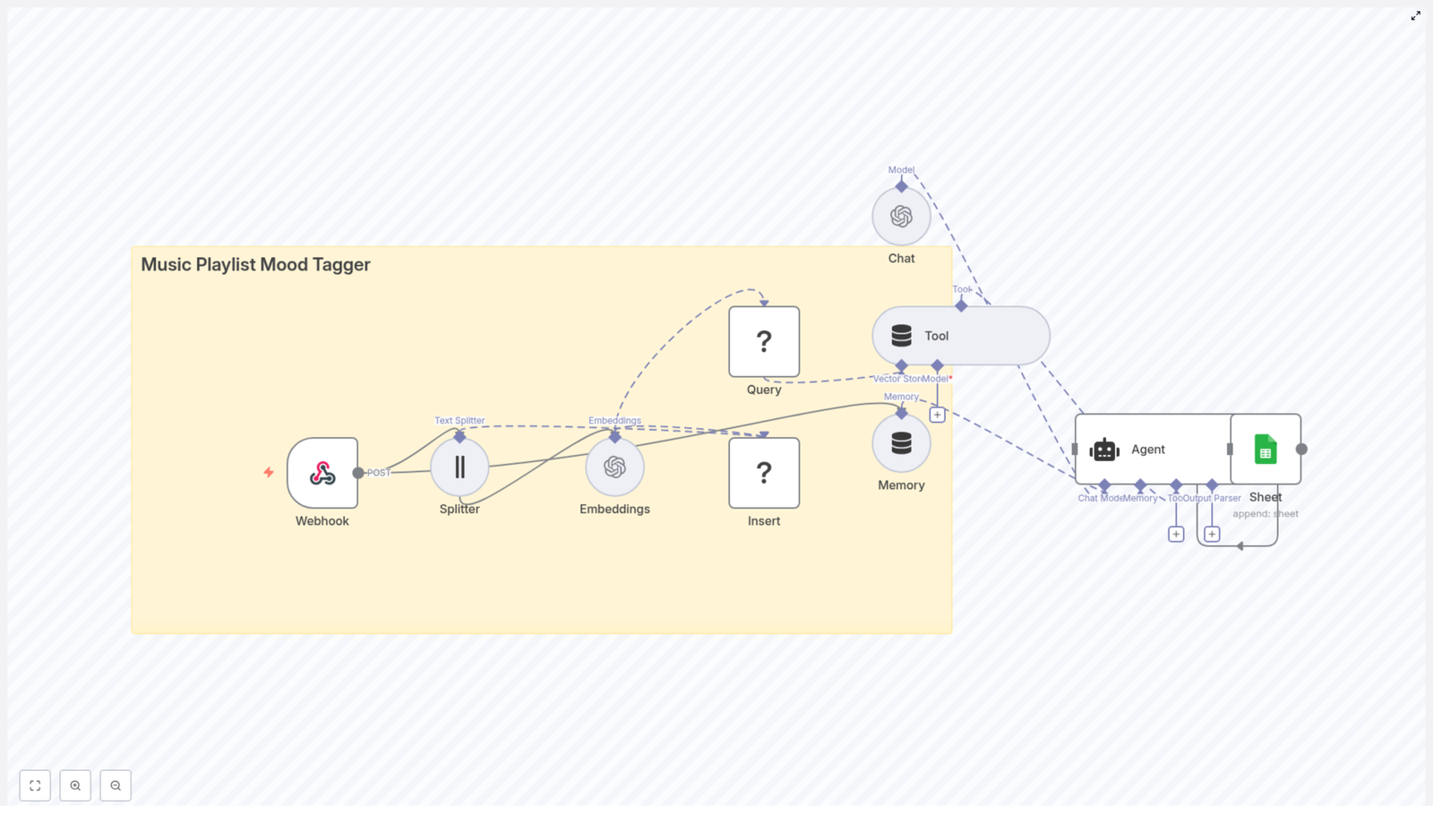
At a high level, the workflow looks like this:

  • A Webhook in n8n receives POST requests with track metadata.
  • A Text Splitter breaks long text like lyrics into chunks.
  • OpenAI Embeddings convert those chunks into high-dimensional vectors.
  • A Redis Vector Store saves those embeddings for fast similarity search.
  • Memory and Tool nodes give an Agent access to relevant context.
  • An Agent (Chat) turns vector search results into clear mood tags.
  • Google Sheets logs each decision for auditing and analytics.

This combination gives you a powerful, scalable mood tagging pipeline that you can extend over time. You are not just tagging tracks, you are building a foundation for smarter playlists, recommendation engines, and editor tools.

Step 1 – Receive track metadata with an n8n Webhook

Start by creating the entry point to your automated system.

In n8n, add a Webhook node and configure it to accept POST requests at a path such as:

/music_playlist_mood_tagger

This webhook will receive JSON payloads that describe each track. For example:

{  "title": "Aurora",  "artist": "Example Artist",  "lyrics": "A soft and drifting melody that feels like early morning...",  "audio_features": {"tempo": 72, "energy": 0.35}
}

You can connect this endpoint to streaming metadata pipelines, ingestion scripts, or even simple manual upload tools. From now on, every track that hits this webhook enters your automated mood tagging flow.

Step 2 – Split long text into manageable chunks

Lyrics and descriptions can be long. To help the embedding model capture context effectively, you will want to break them into smaller, overlapping pieces.

Add a Text Splitter node in n8n and configure it to slice long fields like lyrics or description into chunks. A common starting configuration is:

  • Chunk size: 400
  • Overlap: 40

This chunking strategy improves embedding quality and supports better contextual retrieval later. You can always tune these values as you test and refine your workflow.

Step 3 – Turn text into embeddings with OpenAI

Now it is time to convert those text chunks into embeddings that capture semantic meaning.

Add an OpenAI Embeddings node and send each chunk from the Text Splitter to this node. Select a model that is optimized for semantic similarity. The node will return a vector for each text chunk.

These vectors are the backbone of your mood tagging system. They allow you to compare songs, lyrics, and descriptions in a high-dimensional space where “similar” moods are close together.

Step 4 – Store embeddings in a Redis vector index

To make your system fast and scalable, you will store the embeddings in a Redis vector index.

Use the Redis Vector Store node and configure it with a dedicated index name, for example:

music_playlist_mood_tagger

Persist each embedding along with rich metadata, such as:

  • Track title
  • Artist
  • Chunk index
  • Original text snippet
  • A generated track-level ID

Saving this metadata is essential. It allows you to filter, explain, and audit results later. You are not just storing numbers, you are preserving the context behind every embedding.

Step 5 – Query Redis to find similar moods

When you want to predict the mood for a new track, you will repeat part of the process: create an embedding and then search for similar entries in Redis.

For a new track, combine a lyrics snippet with audio features encoded as text, then send this combined text through the OpenAI Embeddings node again. With the resulting embedding, use the Redis Vector Store node in Query mode to search for nearest neighbors in your index.

The query will return the most similar chunks and their metadata. These neighbors form the evidence your Agent will use to infer the track’s mood. This step is where your previous work pays off, since every past track contributes to better tagging for future ones.

Step 6 – Use an Agent to generate mood tags and log results

Now you bring everything together into a clear, actionable output.

Set up an Agent (Chat) node in n8n and connect it with:

  • Memory nodes to provide context about recent tracks and interactions.
  • Tool nodes that give the Agent access to the Redis vector search results.

The Agent can then read the neighbor metadata, summarize the patterns it sees, and propose one or more mood tags such as Chill, Energetic, Melancholic, or Uplifting, along with confidence scores.

Finally, connect a Google Sheets node to append each outcome. Log fields like:

  • Track ID and title
  • Suggested mood tags
  • Confidence scores
  • Key snippets used for the decision
  • Timestamps

This log becomes your audit trail, analytics source, and feedback loop for improving the system over time.

Designing a strong prompt for the Agent

The quality of your mood tags depends heavily on the instructions you give the Agent. A clear prompt keeps the output consistent and explainable.

Here is a sample instruction you can adapt inside your Agent node:

Given the following nearest-neighbor metadata and audio features, propose up to 3 mood tags with short justification and a confidence score (0-100). Prioritize emotional descriptors (energetic, calm, melancholic, uplifting, romantic, aggressive, relaxing).

Make sure the Agent receives both the source text snippets and the encoded audio features. This combination helps it capture not just lyrical content but also sonic character, leading to more accurate and transparent mood tags.

Best practices to get reliable mood tagging

To turn this workflow into a robust system, keep these recommendations in mind:

  • Normalize audio features: Convert numeric audio data into readable text like “tempo: 72, energy: low” so embeddings reflect both lyrics and sound.
  • Refine chunking: Adjust chunk size and overlap to balance completeness with context. Larger chunks capture more meaning, but too large can dilute focus.
  • Store rich metadata: Always save track-level IDs, timestamps, and original text in Redis so you can trace back how each mood tag was generated.
  • Respect rate limits: When processing large catalogs, batch embedding requests and implement backoff logic to stay within API limits.
  • Protect privacy: Do not send personally identifiable information to third-party APIs without proper consent and policies.

Scaling your mood tagging system

As your catalog grows, your workflow should be ready to grow with it. Redis vector indexes are designed to be fast and cost-effective at scale, and n8n lets you orchestrate more complex pipelines over time.

To scale further, you can:

  • Shard Redis or use a managed Redis offering with larger memory and vector index support.
  • Cache frequent queries in n8n memory or a CDN when appropriate.
  • Adopt asynchronous ingestion pipelines, so bulk imports do not block your webhook.

Each of these steps moves you from a helpful tool to a production-grade mood tagging platform that can support real-world workloads.

Troubleshooting and improving accuracy

As you experiment, you may run into issues. That is a normal part of building any automation. Use problems as signals for where to improve your system.

  • Empty query results: Confirm that embeddings are being inserted correctly and that the index name used for inserts matches the one used for queries.
  • Mood predictions feel off: Combine lyrics with audio features in your embedding text. Relying only on lyrics can miss important sonic mood cues.
  • API errors: Monitor OpenAI responses and add retry logic or error handling nodes in n8n so temporary issues do not break your pipeline.

Security and governance for your workflow

Even for creative use cases like music, security and governance matter.

Protect your n8n Webhook with a secret token or an IP allowlist to prevent unauthorized ingestion. Store sensitive credentials like OpenAI keys, Redis passwords, and Google Sheets tokens in environment variables inside n8n, not in plain text within nodes.

If your logs contain source text or user-related data, restrict access according to your privacy policies and regulatory requirements.

Real-world ways to extend this template

Once you have the core mood tagger running, you can expand it in many directions. Here are some practical extensions:

  • Dynamic playlist creation: Automatically build and refresh mood-specific playlists based on user preferences and similarity queries.
  • Hybrid recommendation engines: Combine mood vectors with collaborative filtering or user behavior data to power richer recommendations.
  • Editor review tools: Give music supervisors or curators a dashboard where they can review suggested moods, accept them, or make adjustments that feed back into your system.

Each extension builds on the same foundation you just created. Every improvement you make to this workflow can ripple across your entire music experience.

From template to transformation: your next steps

This Music Playlist Mood Tagger is more than a clever trick. It is a practical, extensible way to bring semantic mood tagging into your catalog using n8n, OpenAI embeddings, and Redis. By storing original snippets and metadata, you keep the system explainable. By using vector search, you keep it fast and scalable.

The real value comes when you treat this template as a starting point, not a finished product. You can:

  • Tune chunk sizes and overlap for your specific genre mix.
  • Refine the Agent prompt to match your brand voice or tagging taxonomy.
  • Add extra logging, dashboards, or approval steps for human review.

Every small iteration turns your workflow into a stronger ally in your day-to-day work, freeing you from repetitive tagging and giving you more time to focus on strategy, creativity, and growth.

Action step: Import the provided n8n workflow template, connect your OpenAI, Redis, and Google Sheets credentials, and start by POSTing a small batch of tracks. Review the mood tags, adjust your prompt or chunking strategy, and run another batch. Let experimentation guide you toward a setup that truly fits your catalog and your goals.

Build a RAG Chatbot with n8n, Supabase & Drive

How to Build a RAG Chatbot with n8n, Supabase and Google Drive

Imagine this: it is 4:55 p.m., someone pings you with “Where is the latest HR policy on remote work?” and you start the classic ritual of hunting through Google Drive folders, old PDFs, and that one spreadsheet named final-FINAL-v3.xlsx. Again.

If that scenario feels a bit too real, it is probably time to let a chatbot do the boring part for you. In this guide, we will walk through an n8n workflow template that turns your Google Drive docs into a Retrieval-Augmented Generation (RAG) chatbot backed by Supabase. You get instant, factual answers from your own documents, and you get to stop playing “Where did I save that file?” every day.

This article shows you how the template connects Google Drive, OpenAI embeddings, and a Supabase vector store to build a production-ready RAG pipeline for document ingestion, indexing, and secure chat via a webhook. You will see how each n8n node fits into the puzzle, how the data flows, and what to tweak for better results.

First things first: what is RAG, and why should you care?

Retrieval-Augmented Generation (RAG) is a simple but powerful idea. Instead of asking a language model to magically “know” everything, you give it a brain extension in the form of your own documents.

RAG has two main parts:

  • Retriever – runs vector search over your documents and finds the most relevant chunks.
  • Generator – a large language model that uses those chunks as context to answer questions.

So instead of the model guessing or hallucinating, it looks up the relevant pieces from your knowledge base and uses them to craft grounded, up-to-date responses. Think of it as “open book” mode for your chatbot.

What this n8n RAG template actually does

The provided n8n template is a complete, ready-to-use pipeline that connects:

  • Google Drive for document storage and updates
  • OpenAI embeddings to turn text into vectors
  • Supabase as a vector store for fast similarity search
  • A webhook that powers a secure chat interface

Under the hood, the workflow is split into two main sections:

  • RAG AI Agent with Chat Interface – handles incoming chat requests, retrieves relevant document chunks, and generates responses through a chat model.
  • Tool to Add a Google Drive File to Vector DB – ingests new or updated Drive files, extracts their text, splits it into chunks, embeds it, and stores it in Supabase.

Whether you are building an HR assistant, an internal knowledge base, or a support FAQ bot, this template gives you a production-ready structure that you can adapt to your use case.

Meet the key building blocks

Here is a quick tour of the most important nodes you will find in the template:

  • Webhook – exposes a POST endpoint that your frontend can call with a chat request.
  • Code node – validates JWTs (for example with AWS Cognito JWKS verification) and extracts user info.
  • If node – routes the request based on whether authentication passed or failed.
  • RAG Agent – uses a system prompt and an OpenAI chat model and calls the “Retrieve Documents” tool.
  • Supabase Vector Store – stores your document embeddings and returns the top K most relevant chunks.
  • Embeddings OpenAI – generates vector embeddings using the text-embedding-3-small model.
  • File Updated trigger + Download File – listens for changes in a Google Drive file and pulls the latest version.
  • Extractors (PDF / Excel / Docs) – handle text extraction from different file formats such as PDFs, XLSX, Google Docs, and plain text.
  • Text Splitter and Summarize nodes – split large documents into chunks and optionally summarize to reduce token usage.
  • Insert into Supabase Vectorstore – writes the embeddings and metadata into Supabase for fast retrieval.

How the magic happens: high-level data flow

The workflow really has two separate paths, which keeps things fast and tidy:

  • Document ingestion from Google Drive into the vector database.
  • Chat flow from a webhook request to a RAG-powered answer.

Let us walk through both, starting from the ingestion side so you know where your data goes.

From Google Drive to Supabase: document ingestion pipeline

Whenever a watched file in Google Drive is updated, the ingestion flow kicks in so your chatbot does not keep quoting last year’s policies.

Step-by-step ingestion flow

  1. File Updated trigger fires
    The workflow starts when a watched file changes in Google Drive. The trigger passes the file ID to the next node.
  2. Set File ID
    The file ID is captured and standardized for downstream nodes so every step knows exactly which file is being processed.
  3. Delete Old Doc Rows
    Any previous rows in Supabase for that file are deleted. This avoids duplicate chunks and keeps your vector store aligned with the latest version of the document.
  4. Download File
    The file is downloaded via the Google Drive API. For Google Docs, it is converted to plain text so it can be processed like any other document.
  5. Switch node to choose extractor
    Based on the file MIME type, the workflow routes the document to the correct extractor:
    • PDF extractor
    • Excel / XLSX extractor
    • Google Docs extractor
    • Plain text extractor
  6. Aggregate and optional Summarize
    The extracted text is combined in an Aggregate node, which is especially useful for multi-page or multi-sheet files. Optionally, a Summarize node condenses the content into smaller sections to reduce token usage later.
  7. Character Text Splitter
    The text is split into overlapping chunks using a character-based splitter. In the template, there is an overlap of around 200 characters so context is preserved between chunks and sentences are not cut off mid-thought.
  8. Embeddings OpenAI
    Each chunk is sent to the OpenAI embeddings model text-embedding-3-small. This turns your text into vectors that can be searched efficiently.
  9. Insert into Supabase Vectorstore
    The vectors, along with metadata such as file_id, chunk index, and original text or summary, are inserted into Supabase. This is what powers fast, accurate retrieval later on.

The result: every time your document changes, your vector store is refreshed automatically. No more manual re-indexing or “I forgot to update the bot” moments.

From chat message to grounded answer: the RAG chat flow

Now for the fun part: how a user question turns into a precise, document-backed answer.

Step-by-step chat flow

  1. Webhook receives the request
    Your frontend sends a POST request to the webhook endpoint with:
    • chatInput – the user’s question
    • Authorization header – a JWT for authentication
  2. Code node validates the JWT
    The Code node:
    • Fetches the JWKS from your identity provider
    • Converts the JWK to PEM
    • Verifies the JWT signature and claims
    • Returns user information if the token is valid
  3. If node checks authentication
    If the token is valid, the request continues. If not, the webhook responds with an error and the conversation ends there, politely but firmly.
  4. Edit Fields prepares the input
    The chat input is normalized and passed to the RAG AI Agent node in the clean format it expects.
  5. RAG AI Agent with system message
    The agent is configured with a system prompt that tells the model to:
    • Answer only based on retrieved handbook or document content
    • Say “I don’t know” if the answer is not present in the documents

    This keeps the model grounded and stops it from confidently inventing new company policies.

  6. Retrieve Documents from Supabase
    The agent calls the Retrieve Documents tool, which queries the Supabase vector store. In the template, it fetches the top K relevant chunks with topK = 6. These chunks are provided to the chat model as context.
  7. OpenAI Chat Model generates the answer
    With the retrieved chunks as context, the chat model produces a response that is grounded in your actual documents.
  8. Respond to Webhook
    The generated answer is returned to the client through the webhook. Your user gets a clear, context-aware reply, and you do not have to dig through Drive again.

Why this architecture works so well

This setup is not just convenient, it is also thoughtfully structured for performance and reliability.

  • Separate ingestion and query paths – document processing is handled independently from chat queries, which keeps latency low for users while heavy extraction and embedding work happens in the background.
  • Accurate, document-based answers – the chatbot responds based on your own content, which reduces hallucinations and keeps answers aligned with your policies and docs.
  • Automatic updates from Google Drive – when your Drive files change, the vectors are refreshed so the chatbot stays in sync with the latest version.
  • Secure access with JWT verification – the Code node validates tokens before exposing the agent, so only authorized users can query your knowledge base.
  • Extensible design – you can add more extractors, integrate other vector stores, or switch to alternative LLMs as your needs grow.

Configuration tips, best practices, and ways to avoid pain

Embeddings configuration

  • Use text-embedding-3-small (or a newer compatible model) for cost-effective embeddings that still perform well.
  • Clean your text before embedding. Remove headers, footers, repeated boilerplate, and unrelated noise that can confuse similarity search.

Chunking strategy

  • Keep an overlap between chunks, such as the 200-character overlap used in the template, so important context is not chopped off between segments.
  • Choose chunk sizes that play nicely with your model’s context window and token limits to get the best retrieval performance.

Security practices

  • Validate JWTs using your provider’s JWKS endpoint in the Code node, and verify both signatures and claims such as expiration and audience.
  • Protect your Supabase API keys and use row-level security policies to control who can access which data.
  • Log access and keep an audit trail for document fetches and re-indexing events so you can trace what happened if something looks off.

Scaling and reliability tips

  • Batch embedding generation when ingesting large numbers of documents to avoid unnecessary API overhead.
  • Queue heavy operations, such as huge PDFs, or run them on scheduled workers so they do not cause webhook timeouts.
  • Reindex or refresh embeddings regularly if the underlying content changes in meaning, such as policy updates or new product documentation.

Fixing common headaches

JWT verification keeps failing

If authentication is not working, check the following:

  • Make sure the Code node is using the correct JWKS URL from your identity provider.
  • Confirm that the token is actually being passed in the Authorization header.
  • Verify that the token has not expired and that the aud (audience) claim matches what your app expects.

Search results feel irrelevant

If the chatbot is pulling the wrong chunks, try:

  • Adjusting chunk size so each piece has enough context but is not overly large.
  • Removing repetitive boilerplate that can add noise to similarity search.
  • Increasing topK to retrieve more candidate chunks.
  • Adding metadata filters to the vector search query, such as restricting by document type, department, or date.

Long documents cause timeouts

When documents get huge, timeouts love to appear. To avoid that:

  • Process extraction and storage asynchronously instead of in a single request.
  • For Drive triggers, keep the initial webhook response short and offload heavy processing to a background worker or queue.

Ideas to extend and improve your RAG chatbot

  • Semantic search filters – add metadata like department, language, or effective date so you can do targeted retrieval.
  • Hybrid search – combine vector similarity with keyword or boolean queries for use cases where precision is critical.
  • Human feedback loop – let users or agents flag uncertain answers, then review and use that feedback to refine summaries or tweak retrieval weighting.

Example system prompt for your RAG agent

A short, strict system message keeps the model focused and grounded. Here is the example used in the template:

"You are a helpful HR assistant answering questions strictly based on the following handbook content. If the answer is not found, say you don't know."

You can adapt this to your own domain, but keep the same spirit: answer only from the provided context, and admit when the information is not there.

Where to go from here

This n8n template gives you an end-to-end pattern for building a secure, document-backed RAG chatbot. It handles:

  • Ingestion from Google Drive
  • Text extraction and optional summarization
  • Chunking and embedding generation
  • Vector indexing in Supabase
  • Chat queries via a token-verified webhook

Once configured, your chatbot becomes the coworker who actually knows where everything is stored and answers instantly, without complaining about repetitive questions.

Ready to deploy your new favorite coworker?

Here is a simple rollout plan:

  1. Deploy the template to your n8n instance.
  2. Connect your Google Drive and Supabase accounts.
  3. Run ingestion on one representative document.
  4. Ask three targeted questions to validate accuracy and coverage.

If you run into limits, confusing errors, or odd answers, collect the error logs or sample queries and share them. With those details, it is much easier to debug and optimize your pipeline, including prompt wording, retrieval settings, and access control rules.

n8n API Schema Crawler & Extractor

n8n API Schema Crawler & Extractor: Learn How to Automate API Documentation Discovery

Manually searching, scraping, and extracting API operations from documentation is slow, repetitive, and easy to get wrong. This n8n workflow template turns that entire process into an automated pipeline: it starts with web search, scrapes documentation pages, uses LLMs and semantic search to find REST endpoints, then generates a reusable JSON schema.

This guide explains how the template works in n8n, how each node contributes to the flow, and how to configure and scale it in practice. The goal is to help you understand the full architecture so you can run it as-is or adapt it to your own stack.


What you will learn

By the end of this tutorial-style walkthrough, you will be able to:

  • Explain why an automated API schema crawler is useful for engineering and security teams
  • Understand the three-stage architecture of the n8n workflow
  • Configure Stage 1 to discover and scrape API documentation pages
  • Use Stage 2 to extract REST endpoints with LLMs and a vector database
  • Generate a consolidated JSON schema of all discovered endpoints in Stage 3
  • Monitor, debug, and scale the workflow with proper error handling and cost controls
  • Apply security and compliance best practices when scraping and storing data

Why automate API schema discovery?

Many teams need a reliable inventory of REST endpoints for:

  • Integration projects and SDK generation
  • Security reviews and threat modeling
  • Maintaining an internal catalog of third-party or internal APIs

Doing this manually usually looks like:

  1. Searching a vendor site or multiple domains for API docs
  2. Clicking through pages to find references and examples
  3. Copying endpoints into a spreadsheet or document
  4. Trying to normalize naming, URLs, and descriptions by hand

This is time-consuming and hard to keep up to date. With n8n, you can automate this process and generate a structured API schema that you can reuse in code, documentation, or internal tools.

This template uses:

  • n8n as the orchestration and automation engine
  • Apify for Google search and web scraping
  • Google Gemini for classification, extraction, and embeddings
  • Qdrant as a vector store for semantic search
  • Google Sheets and Google Drive for lightweight storage and tracking

Workflow overview: three main stages

The n8n workflow is organized into three logical stages. Understanding these stages first will make the node-level walkthrough much easier.

  • Stage 1 – Research: Find likely API documentation pages and scrape their content.
  • Stage 2 – Extraction: Use semantic search and an LLM to identify API docs and extract REST endpoints.
  • Stage 3 – Generate: Convert all extracted operations into a consolidated JSON schema and store it.

Each stage uses a combination of n8n nodes, external services, and a shared data model (service name, URLs, metadata) to pass information forward.


Key components used in the n8n workflow

Before we dive into the stages, here is a quick summary of the main tools and services the workflow relies on.

Core services

  • n8n: Orchestrates the entire pipeline, controls branching, retries, and data flow between nodes.
  • Apify:
    • Fast Google search results actor for targeted web search.
    • Web scraper actor to fetch page titles and full page bodies.
  • Google Gemini:
    • Creates embeddings for semantic search in Qdrant.
    • Classifies which pages contain API documentation.
    • Extracts structured endpoint data from text.
  • Qdrant: Stores embeddings of scraped pages and enables semantic queries like “what APIs exist for X”.
  • Google Sheets and Google Drive:
    • Sheets act as a simple database for services, status flags, and extracted endpoints.
    • Drive stores final JSON schema files.

Stage 1 – Research: discover and scrape API documentation

Goal: For each target service, automatically find and scrape pages that are likely to contain API documentation.

1.1 Prepare the list of services in Google Sheets

The workflow typically starts from a Google Sheets table that contains one row per service. At minimum you should have columns such as:

  • Service name (for example: “Stripe”)
  • Domain (for example: “stripe.com”)
  • Status columns for each stage (for example: “Stage 1 Research”, “Stage 2 Extraction”, “Stage 3 Output File”)

In n8n, a Google Sheets node filters this table to select only the services that still need Stage 1 processing. This prevents re-running the research step for services that are already complete.

1.2 Build targeted Google search queries

Next, the workflow constructs a focused search query for each service. The query typically includes:

  • The normalized domain (for example: stripe.com instead of https://www.stripe.com/)
  • The service name
  • Keywords that suggest developer or API content, such as:
    • api
    • developer
    • reference
    • resource
  • Optional negative filters to avoid irrelevant pages, such as “help” or “support” sections

Tip: Use a query template in n8n that strips protocol, www, and trailing slashes from the domain. This keeps the search focused on the main site.

1.3 Fetch search results with Apify

The constructed query is sent to the Apify “fast Google search results” actor. In n8n, an HTTP Request node (or dedicated Apify node, if you use one) calls the actor and retrieves a list of search result items.

Typical filters applied at this step include:

  • Discarding non-HTML results (for example, images or PDFs if you choose not to process them)
  • Removing duplicate URLs
  • Keeping only results from the target domain or subdomains

1.4 Scrape candidate pages

For each remaining search result, the workflow triggers an Apify web scraper actor. It is configured to:

  • Capture the full HTML body or main text content of the page
  • Extract the page title
  • Ignore binary or media-only resources such as images and large PDFs to keep the vector store lean

To avoid rate limits and to respect site policies, the workflow can:

  • Batch URLs into groups
  • Use n8n’s built-in delays
  • Limit concurrency on the Apify side

1.5 Store documents in Qdrant

Each scraped page is then stored in Qdrant as a document with:

  • The page content (or text version)
  • Metadata such as:
    • Service name
    • URL
    • Page title
  • An embedding generated by Google Gemini, which is used for semantic search later

At the end of Stage 1, Qdrant contains a collection of documents per service that are likely to include API docs or related technical content.


Stage 2 – Extraction: identify API docs and pull out endpoints

Goal: From the scraped documents, automatically find API documentation and extract REST endpoints with their methods, URLs, and descriptions.

2.1 Run semantic searches in Qdrant

Instead of blindly parsing every document, the workflow uses semantic search in Qdrant to focus on the most relevant pages. Typical queries include:

  • “What are the core functionalities of this service?”
  • “What REST APIs exist for [service name]?”
  • “List the API endpoints or resources for this product.”

Because Qdrant stores embeddings generated by Google Gemini, it can return documents that are semantically related to APIs and developer references, even if the exact keywords differ.

2.2 Classify pages with Google Gemini

For each candidate document returned by Qdrant, the workflow calls Google Gemini to classify whether the page actually contains API schema or documentation. This classification step helps filter out:

  • Marketing pages
  • High-level product overviews
  • Generic help articles that do not define endpoints

The classification prompt can be kept simple, for example: “Does this page contain REST API documentation or endpoint definitions?”

2.3 Extract endpoints from API documentation pages

For documents that the classifier marks as containing API docs, the workflow uses another Google Gemini call configured as an “information extractor.” The prompt instructs the model to:

  • Scan the page for REST endpoints
  • Extract up to a fixed number of endpoints per page, for example 15
  • Return a structured list where each item includes:
    • resource
    • operation
    • description
    • url
    • method
    • documentation_url (the page where the endpoint is documented)

Best practice: Provide the exact JSON output schema and a few example outputs in the prompt. This significantly reduces hallucinations and formatting errors.

To control cost and output size, the workflow sets a per-document cap, such as “maximum 15 endpoints per page.”

2.4 Merge and deduplicate extracted operations

Once extraction is complete for all relevant documents of a service, n8n merges the resulting lists into a single collection of operations. Common deduplication rules include:

  • Consider two operations duplicates if they share the same HTTP method and URL
  • Prefer the record with a more complete or clearer description

The final deduplicated list of operations is then written to Google Sheets. Each row might contain one endpoint with its metadata, plus the associated service name.

2.5 Handling low-confidence results

To keep data quality high, you can implement a fallback strategy:

  • Ask the LLM to return a confidence score or use heuristic checks
  • Mark low-confidence extractions in a dedicated column in Sheets
  • Review or correct these rows manually before the next stage

Stage 3 – Generate: build and store the JSON schema

Goal: Convert the extracted endpoints for each service into a structured JSON schema file and upload it to storage.

3.1 Load extracted operations from Google Sheets

Stage 3 starts by reading all API operations for a given service from Google Sheets. Typically you filter by:

  • Service name
  • Stage 2 completion status

At this point, each row in Sheets represents one endpoint with fields like method, URL, description, and documentation URL.

3.2 Group operations by resource

The workflow then groups endpoints by resource. A simple approach is to derive a resource name from the path, for example:

  • /v1/users becomes the Users resource
  • /api/v2/invoices becomes the Invoices resource

Each resource is converted into a consistent object structure such as:

{  "resource": "Users",  "operations": [  {  "operation": "List users",  "description": "Retrieve a paginated list of users.",  "ApiUrl": "/v1/users",  "method": "GET",  "method_documentation_url": "https://example.com/docs/api/users#list"  },  ...  ]
}

n8n’s Code or Function nodes are often used here to transform the flat list into this nested structure.

3.3 Serialize and upload the JSON schema

After grouping, the workflow serializes the full schema object to JSON. It then uploads the file to a storage location such as:

  • Google Drive (commonly used in this template)
  • Or an S3-compatible bucket, if you adapt the workflow

A timestamped filename helps track versions, for example:

  • stripe-api-schema-2024-03-15.json

3.4 Update status in Google Sheets

Finally, the workflow writes back to Google Sheets to record:

  • The output file location or URL
  • The completion status of Stage 3
  • Any relevant notes (for example, number of endpoints discovered)

This closes the loop for a single service and makes it easy to see which services are fully processed.


Error handling and observability in the workflow

To run this in a production-like environment, you need visibility into what is happening at each step and a way to handle partial failures gracefully.

Use status columns in Sheets

Maintain separate status columns for each stage, for example:

  • Stage 1 Research: pending, running, complete, failed
  • Stage 2 Extraction: pending, running, complete, failed
  • Stage 3 Output File: pending, running, complete, failed

This lets you quickly identify where a service got stuck and rerun only the necessary stage.

Configure retries and “continue on error”

Some nodes are more likely to fail due to network or service issues, such as:

  • HTTP calls to Apify
  • Requests to Google Gemini
  • Writes to Qdrant or Google APIs

For these nodes, configure:

  • Retry counts and exponential backoff
  • “Continue on error” when safe, so other items can still be processed

Log failures and capture raw content

When scraping or extraction fails, it helps to store:

  • The URL that failed
  • The error message
  • Any raw page content that was retrieved

Some documentation pages rely heavily on JavaScript or require authentication. In those cases, manual inspection of raw content can guide you in adjusting the scraper configuration or adding authentication.


Scaling and cost considerations

As you scale this workflow to more services or larger documentation sites, most of the cost will come from embeddings and LLM calls.

Control document size and chunking

  • Limit the size of each document chunk passed to the embedding or extraction models.
  • The workflow typically splits content into chunks of about 50k characters or around 4k tokens, depending on the model.
  • Chunking keeps requests within model limits and avoids unnecessary token usage.

Automate Golf Bookings with n8n (Step-by-Step)

Automate Golf Bookings with n8n: A Step-by-Step Guide

This guide explains how to use an n8n workflow template to fully automate golf coaching and game booking requests. The workflow orchestrates Google Sheets, scheduled triggers, JavaScript Code nodes, and SMTP email delivery, with a strong focus on secure handling of sensitive data. It is intended for automation professionals, n8n power users, and operations teams who want a robust, repeatable booking process.

Overview of the Golf Auto Booking Workflow

The Golf Auto booking template automates the end-to-end process of generating and sending booking requests to a concierge or golf club. Instead of manually checking a spreadsheet and composing emails, the workflow:

  • Reads booking entries from a Google Sheet.
  • Applies timing logic to determine when a request should be sent.
  • Calculates a target booking date, typically the next Sunday or a date 5 days in the future.
  • Formats the date into a human-friendly string, for example 25th May 2025.
  • Builds personalized HTML email bodies for each person or family.
  • Sends the email from the relevant sender account via SMTP.

The result is a consistent, auditable, and low-maintenance automation that reduces manual effort and minimizes the risk of errors or missed bookings.

Core Architecture and Key Nodes

The workflow combines several n8n node types to implement scheduling, data access, business logic, and outbound communication. The main components are:

Triggering and Control

  • Schedule Trigger – Runs the workflow automatically based on a cron expression, for example every day at a specific time. The template is configured for the Asia/Kolkata timezone by default and can be adapted to any timezone as required.
  • Manual Trigger – Allows you to start the workflow on demand, which is useful for initial setup, debugging, and regression testing after changes.
  • If node – Evaluates conditions to determine whether a booking entry should be processed, for example whether the row was created on the current day or whether it has already been handled.

Data Storage and Mapping

  • Google Sheets (Read / Append) – Acts as the primary data store for booking requests. The workflow reads rows that contain new or pending bookings and can append metadata such as a processed timestamp or status flag.
  • Set / Edit Fields – Normalizes and maps fields from Google Sheets into a structure that downstream Code and Email nodes can consume. This is where you define which columns correspond to names, dates, coach fields, or card details (for the last 4 digits only).

Business Logic and Email Generation

  • Code nodes (JavaScript) – Implement the core logic:
    • Perform date arithmetic and timezone adjustments.
    • Calculate the booking date (for example 5 days from now or the next Sunday).
    • Format dates with ordinal suffixes (st, nd, rd, th) and readable month names.
    • Generate customized HTML email bodies for each individual or family, with variants for coaching sessions and general games.
  • Email Send (SMTP) – Sends the generated HTML emails to the concierge or club using the appropriate sender address. Each sender is configured with its own SMTP credential.

Date, Timezone, and Formatting Logic

Accurate date calculation is central to the workflow. The template uses a timestamp that represents a date 5 days in the future, typically stored in a field such as afterFiveDays. Code nodes convert this timestamp to a JavaScript Date object and then derive several values:

  • The correctly formatted day number with an ordinal suffix, for example 1st, 2nd, 3rd, 4th.
  • The full month name using the locale, for example May.
  • A final formatted string, for example 25th May 2025, which is embedded in the HTML email.

The workflow also includes logic to handle timezones, particularly to compute reference times such as 8:00 AM IST from UTC-based timestamps. This ensures that booking requests are aligned with the local time expectations of the club or concierge.

Example Date Formatting Function

The following sample function illustrates how the day suffix and month name are calculated in a Code node:

function formatDate(dateObj) {  const day = dateObj.getDate();  const month = dateObj.toLocaleString('default', { month: 'long' });  const j = day % 10, k = day % 100;  let suffix = 'th';  if (j === 1 && k !== 11) suffix = 'st';  else if (j === 2 && k !== 12) suffix = 'nd';  else if (j === 3 && k !== 13) suffix = 'rd';  return `${day}${suffix} ${month}`;
}

In the template, this logic is integrated into broader Code nodes that also compute values such as nextSundayISO and return the final formattedDate string to downstream nodes.

Personalized Email Composition and Delivery

The workflow is designed to handle multiple senders and recipient contexts. For example, it can send booking requests on behalf of different families or individuals such as Kalrav, Hima, Minaben, and Jasubhai. For each of these, there are two main variants:

  • Coaching session email – Includes a coach field and structured details relevant to a coaching booking.
  • General game email – Focuses on tee times and game details without a coach attribute.

Each relevant Code node returns a structured output that typically includes:

  • emailBody – The complete HTML body of the email, including the formatted date and any personalized fields such as names, phone numbers, or last 4 digits of a card.
  • formattedDate – The human-readable date string used inside the email.
  • nextSundayISO – An ISO-formatted date for internal use or logging.

The corresponding Email Send (SMTP) nodes then use these fields to send the email to the concierge address from the appropriate sender account. Each sender account is mapped to its own SMTP credential, which is configured in n8n’s credentials manager.

Step-by-Step Configuration Guide

To deploy and adapt the Golf Auto booking template in your own n8n environment, follow these steps.

1. Import and Inspect the Workflow

  1. Import the provided workflow JSON into your n8n instance.
  2. Open the workflow and review the high-level structure, including triggers, Google Sheets nodes, Code nodes, and Email Send nodes.

2. Configure Credentials

  1. Set up a Google Sheets OAuth2 credential with access to the workbook that stores your booking data.
  2. Configure SMTP credentials for each sender email account that will be used to send booking requests.
  3. Store all credentials in n8n’s credential manager, not in Code nodes or environment variables that are committed to source control.

3. Connect Google Sheets

  1. Open each Google Sheets node and specify:
    • The spreadsheet ID for your booking workbook.
    • The sheet name or gid where booking rows are stored.
  2. Ensure that column headers in the sheet match the expectations of the workflow, for example:
    • timestamp for the time the entry was created.
    • Columns for name, phone, coach, and any other required fields.
  3. If you plan to track processed bookings, verify that the node responsible for appending or updating rows is configured with the correct columns for status and processed timestamps.

4. Adjust Scheduling and Timezone Settings

  1. Open the Schedule Trigger node and edit the cron expression to match your operational schedule, for example daily at 7:00 AM local time.
  2. Review the workflow timezone setting. The template uses Asia/Kolkata by default. Change this to your primary timezone if required, and align any date calculations in Code nodes accordingly.

5. Customize Business Logic and Email Content

  1. Open the relevant Code nodes and adjust:
    • Names, family identifiers, and contact numbers.
    • Last 4 digits of the card used for identification (never full card numbers).
    • Preferred times, for example 8:00 am or 9:00 am.
    • Location text, coach names, and any other contextual information.
  2. Update the HTML structure in the email templates if you want to match a specific branding or format, while keeping the dynamic placeholders for formattedDate and other personalized fields.

6. Test and Validate

  1. Use the Manual Trigger to run the workflow with sample data.
  2. Inspect node outputs in the n8n execution view to confirm:
    • Google Sheets rows are read correctly.
    • Date calculations and formattedDate values are accurate.
    • HTML email bodies are generated as expected.
  3. Send test emails to a non-production address and verify rendering, personalization, and sender details.
  4. If you are appending data back to Google Sheets, confirm that processed rows are correctly updated and that duplicate processing is avoided.

Security and Privacy Best Practices

The workflow may handle personal and payment-related data, including cardholder names, last 4 digits of payment cards, and dates of birth. Automation professionals should treat this data carefully and apply security-by-design principles.

  • Limit stored card data – Never store full card numbers or CVV codes in Google Sheets or any plain-text system. Restrict storage to the last 4 digits only, and only if needed for identification.
  • Restrict access – Use least-privilege access for both the Google Sheets file and the n8n instance. Apply role-based access control so only authorized users can view or modify sensitive workflows and data.
  • Use PCI-compliant providers – For any transaction flows that touch payment data, integrate with PCI-compliant gateways or tokenization services. Do not handle full PAN or CVV in this workflow.
  • Protect credentials – Store SMTP and Google credentials in n8n’s credential manager or environment variables managed by your infrastructure. Never hard-code credentials in Code nodes or workflow parameters.
  • Comply with data protection laws – Review and comply with applicable regulations such as GDPR or regional privacy laws before storing or processing personal data. Define retention and deletion policies for booking data.

Troubleshooting and Operational Monitoring

When running this workflow in production, you will occasionally need to diagnose issues related to email delivery, date logic, or Google Sheets access. The following checks are recommended.

  • Email not sending
    • Verify that SMTP credentials are valid and active.
    • Confirm that the configured sender addresses are allowed by your email provider. Some providers restrict automated or scripted sending.
    • Check for rate limits or spam filters that might block outbound messages.
  • Incorrect date formatting or timing
    • Inspect the value of afterFiveDays and other date fields passed into the Code nodes.
    • Confirm that timezone settings in the workflow and in any date calculations are aligned.
    • Use the execution logs to view intermediate values like formattedDate and nextSundayISO.
  • Google Sheets errors
    • Check OAuth scopes to ensure the credential has read and write access to the target spreadsheet.
    • Verify the spreadsheet ID and sheet gid or name.
    • Confirm that the sheet has the expected header row and that column names match the workflow configuration.
  • Debugging logic issues
    • Use n8n’s execution logs to inspect JSON output at each node.
    • Temporarily add console.log-style debug statements inside Code nodes to surface critical values.

Extending and Scaling the Workflow

Once the base template is stable, you can extend it to support additional channels, approval flows, and monitoring capabilities. Some practical extensions include:

  • SMS confirmations – Integrate with Twilio or another SMS provider to send a confirmation message to the player after the email request is sent.
  • Approval steps – Add a Webhook-based approval flow or a simple UI step where a concierge or admin can confirm or reject a slot, then update the Google Sheet with a confirmation status.
  • Retry and error logging – Implement automatic retries for failed email sends and write failures to a dedicated sheet or logging system for manual review.
  • Calendar integration – Connect to Google Calendar or another calendar API to create actual events for each confirmed booking, ensuring end-to-end visibility for players and staff.

Conclusion and Next Steps

The Golf Auto booking template demonstrates how n8n can orchestrate scheduled triggers, Google Sheets, JavaScript logic, and SMTP to automate a real-world booking process. By standardizing date calculations, personalizing email content, and enforcing security best practices, the workflow delivers reliable and repeatable automation for golf clubs, concierges, and private groups.

To get started, import the template into your n8n instance, configure your Google Sheets and SMTP credentials, and run a manual test to validate the end-to-end flow. You can reuse the date-formatting function and HTML email patterns in your own workflows if you prefer to integrate this approach into a broader automation stack.

Need help tailoring this workflow to your club or team? Reach out or leave a comment and we will help you adapt the automation to your specific booking rules, data model, and infrastructure.

Automate Golf Booking with n8n & Google Sheets

Automate Golf Booking with n8n & Google Sheets

From Manual Chores To Effortless Golf Bookings

If you love golf but dread the constant back-and-forth of booking coaching sessions or tee times, you are not alone. Manually tracking dates, sending emails, double-checking card details and remembering who needs what booking each week can quietly eat up your energy and focus.

This is exactly where automation becomes a powerful ally. With a simple yet flexible n8n workflow, Google Sheets and SMTP email, you can turn a repetitive admin chore into a smooth, reliable system that runs in the background while you focus on your game, your work or your family.

In this article, you will walk through that journey. You will start with the problem, shift into what is possible with the right mindset, then explore a practical n8n template that automates golf bookings from end to end. Use this as a starting point to build your own automated ecosystem, one workflow at a time.

Why Automate Your Golf Bookings?

Every recurring task is an opportunity to reclaim time. Golf bookings are a perfect example. Once you automate them, you unlock:

  • Freedom from repetition – No more typing the same booking emails week after week.
  • Fewer mistakes – Standardized booking details reduce errors in dates, times or card-holder info.
  • Consistency for everyone – Family members or multiple players get the same quality of service, every time.
  • Scalability – As bookings grow, your workload does not. The workflow simply handles more data.

Instead of reacting to each booking need, you design a system once and let n8n take care of the rest. That shift from “doing” to “designing” is where real productivity and peace of mind begin.

Adopting An Automation Mindset

Before diving into nodes and code, it helps to approach this workflow with the right mindset:

  • Start small, think big – This golf booking flow might be your first step, but the same pattern can later power other automations for your home, work or club.
  • Iterate, do not aim for perfection – Launch a basic version, then refine date logic, email wording or sheet structure as you learn.
  • Let data guide improvements – As the workflow runs, your logs and sheets will show where to enhance timing, reliability or personalization.

With that mindset, the template below becomes more than a single-use tool. It becomes a building block in a growing automated workflow ecosystem.

The n8n Golf Booking Template At A Glance

This n8n workflow connects three main components:

  • Google Sheets as your booking log and trigger source.
  • n8n core nodes for scheduling, logic, transformation and code.
  • SMTP email nodes to send polished HTML booking requests to your concierge or club.

The flow reads booking triggers from your sheet, calculates the target booking date, builds a standardized HTML email with booking and card-holder details, and sends it automatically. You can run it on a schedule or on demand, and you can easily extend it for more people, more locations or different booking types.

Step 1 – Triggers That Respect Your Time

Schedule Trigger and Manual Trigger

The workflow usually starts with a Schedule Trigger node. You can configure it to run at a specific time each day, for example every morning, to check whether a new booking should be created. This keeps your bookings proactive and consistent.

Alongside that, a Manual Trigger is included for ad-hoc runs. If you want to test changes, or quickly send a one-off booking request, you can trigger the workflow whenever you like.

Together, these triggers give you both automation and control, so you are never locked into a rigid system.

Step 2 – Using Google Sheets As Your Booking Brain

Google Sheets (Read & Append)

Google Sheets acts as the central source of truth for your golf bookings. In this template, the sheet:

  • Stores your booking-tracking log and trigger data.
  • Provides the timestamp or conditions that tell n8n when to create a new booking.
  • Can record a timestamp after a booking is scheduled, so you avoid sending duplicates.

The workflow uses a Google Sheets node to read the latest rows, analyze whether a booking is due, then optionally append a new entry or timestamp once the booking email has been sent. This simple sheet-driven approach makes the system easy to inspect and modify without touching code.

Step 3 – Smart Date Logic That You Control

Code Nodes (JavaScript)

Accurate dates are the backbone of any booking automation. In this workflow, Code nodes with JavaScript handle all the date logic in one place so you can maintain and adjust it easily.

These nodes are used to:

  • Parse the spreadsheet timestamp and compute the difference in days from the current date.
  • Decide whether a booking should be created based on that difference.
  • Calculate the booking target date, such as an afterFiveDays date or the next Sunday, depending on your preference.
  • Set a fixed booking time, for example 8:00 AM or 9:00 AM local time, and convert it into an ISO timestamp for reliable storage and comparison.
  • Format the date into a friendly string like 25th May with the correct ordinal suffix (1st, 2nd, 3rd, 4th) and full month name for the email.
  • Construct the HTML email body, including booking and card-holder details, in a structured and reusable way.

By centralizing this logic in code nodes, you get a clear, maintainable place to fine-tune how and when your bookings are created without rewriting the rest of the flow.

Step 4 – Directing The Flow With Clear Decisions

If Node (Decision)

Not every run of the workflow should send an email. The If node acts as your decision gate.

For example, the workflow can:

  • Check the time difference between now and the last entry in the sheet.
  • Proceed only if that difference meets your criteria for creating a new booking.

This simple decision step prevents duplicate booking requests and ensures that every email sent has a clear purpose.

Step 5 – Preparing Clean, Reusable Data

Set Node (Edit Fields)

To keep your workflow organized, a Set (Edit Fields) node is used to shape and map data for the later steps. Here you can:

  • Store the computed booking date and time.
  • Define recipient email addresses.
  • Set placeholders for card-holder and verification details.

This makes your email nodes simpler, more readable and easier to duplicate when you want to support additional family members or booking types.

Step 6 – Sending Polished HTML Booking Emails

Email Nodes (SMTP)

Finally, one or more SMTP email nodes send your booking request to the concierge or club. The template:

  • Builds a consistent HTML email body using the values prepared in previous nodes.
  • Supports separate flows for coach and game bookings, so your messages stay clear and correctly labeled.
  • Allows multiple sender accounts, so you can send emails on behalf of different family members while keeping everything in one workflow.

Once set up, you can trust that every outgoing email includes the right details, formatting and tone without you typing a single line each time.

Designing The Email Experience

Sample Email Structure

The workflow constructs a structured HTML email so your concierge receives all the information needed in one clean message. A typical email includes:

  • Greeting and purpose – A short introduction that clarifies the email is a booking request.
  • Booking details – Coach or game type, date, time and location so there is no confusion.
  • Verification details – Card-holder name, last four digits, registered mobile and date of birth, with careful handling of sensitive information.
  • Closing and contact information – A polite sign-off and any additional contact details if needed.

You can easily customize the wording to match your personal style or your club’s standard format while keeping the structure intact.

Staying Secure While You Automate

Security & Privacy Best Practices

Because this workflow can include card-holder verification data, it is important to follow security best practices as you scale it:

  • Avoid full card numbers – Never store complete card numbers in Google Sheets or emails. Use only the last 4 digits for verification.
  • Protect sensitive credentials – Use secure vaults like environment variables, HashiCorp Vault or n8n credentials for SMTP logins and API keys.
  • Limit sensitive data in logs – Mask or redact personal information in logs or shared spreadsheets, especially if others have access.

By combining automation with thoughtful security, you create a system that is both powerful and trustworthy.

Scaling Your Workflow For Families, Teams Or Clubs

Scaling The Workflow

Once the basic flow is running smoothly, you can expand it to handle more people and more complexity without adding more manual work.

  • Multiple tabs or columns – Use a dedicated Google Sheet tab for each family member or booking type, or add columns to map recipient and booking type.
  • Parameterized settings – Make coach name, location and time configurable so different templates can share the same code nodes.
  • Resilient email delivery – Add retry logic or exponential backoff in case of SMTP failures, so temporary issues do not block bookings.
  • Audit-friendly logging – Log outgoing emails and responses, and store receipt IDs or timestamps in a hidden sheet column for easy tracking.

These enhancements turn a personal helper into a robust booking system that can support a household, a team or even a club.

Keeping Things Running Smoothly

Troubleshooting Tips

As you experiment and adapt this workflow, you might occasionally run into issues. Here are some focused checks to keep you moving forward:

  • Unexpected dates – If dates look off, double-check timezone handling in your code nodes. The sample workflow uses IST offset logic when scheduling bookings for 8:00 AM IST.
  • Email delivery problems – When emails do not send, review your SMTP credentials and the email node’s error messages. For Gmail, confirm that SMTP is allowed and that OAuth or app passwords are configured correctly.
  • Empty or incorrect sheet data – If Google Sheets returns empty rows, adjust the range configuration or use a fixed range so the workflow reads only valid data.

Each small fix you make increases your confidence and helps you build more advanced automations later.

Adapting The Template To Your Style

How To Adapt The Workflow

This template is intentionally flexible so you can shape it around your life and your club’s processes. Common customizations include:

  • Adjusting the trigger cadence – Edit the Schedule Trigger’s cron expression to run more or less frequently, or at times that fit your routine.
  • Adding more recipients – Duplicate the email nodes and map different sender credentials for each family member or player.
  • Switching data sources – Replace Google Sheets with Airtable, PostgreSQL or another datastore using the corresponding n8n integration nodes.

Every tweak you make teaches you more about n8n and sets you up to automate other parts of your personal or business workflows.

Your Next Step In The Automation Journey

Conclusion

Automating golf bookings with n8n, Google Sheets and SMTP email nodes is more than a convenience. It is a practical example of how you can move from manual repetition to intentional systems that support your goals.

With a few core building blocks – schedule triggers, sheet integrations, code nodes for date logic and structured email nodes – you create a reliable, repeatable booking process that can serve multiple people and booking types without extra effort each week.

Once you experience how much time and mental space this single workflow saves, you will start to see other areas of your life and work that are ready for automation too.

Start Automating Your Golf Bookings Today

Call To Action

If you want to explore this in your own setup, you do not have to start from a blank canvas. You can use the existing n8n template as a foundation, then customize it for your club, residence or family.

Need help tailoring it or integrating it into a larger system? Reach out for support or guidance, or download the example workflow and experiment at your own pace.

Take your first step now:

  • Export or prepare your Google Sheet with booking data.
  • Configure your SMTP credentials securely in n8n.
  • Paste and adapt the date-formatting code nodes from the template.
  • Run a manual test, verify the email output, then switch on the schedule.

Each run of this workflow is a reminder that your time is valuable and that automation can support the life and work you actually want to focus on.