Fix ‘Could not load workflow preview’ in n8n

Fix “Could not load workflow preview” in n8n (Without Losing Your Mind)

You sit down, coffee in hand, ready to admire your beautiful n8n workflow. You click to open it and instead of a glorious node diagram, you get:

“Could not load workflow preview. You can still view the code and paste it into n8n.”

Blank white panel. No nodes. No joy.

Annoying? Absolutely. Permanent? Usually not. This guide walks you through why this error appears, what is actually going wrong behind the scenes, and how to get your workflow preview working again so you can get back to automating away your repetitive tasks instead of troubleshooting them.

What this n8n error actually means

That “Could not load workflow preview” message is n8n’s polite way of saying:

“Something blew up while trying to render your workflow UI, but I am not going to tell you exactly what in this box. Please check somewhere else.”

In practice, it is a generic fallback when the frontend cannot render the workflow diagram. The workflow itself is often still usable, but one or more of these issues is getting in the way:

  • Broken or incompatible custom nodes bundled with the workflow, such as syntax or compile problems.
  • Node.js version mismatch between the environment that exported the workflow and the n8n instance where you are opening it.
  • Missing dependencies or peerDependencies required by a node, for example native modules or packages that need Node 18 or higher.
  • Corrupted or malformed workflow JSON, or unexpected fields n8n does not know what to do with.
  • Browser or server errors such as CORS issues, network failures, or server-side exceptions while generating the preview.

The good news is that almost all of these can be diagnosed with a bit of log-watching and version-checking.

Start here: quick checks before you dive deep

Before you start rebuilding half your stack, do a quick triage. These simple checks often reveal the problem immediately.

  • Open your browser developer tools with F12 and watch both Console and Network while loading the workflow preview. Note any red errors or failed requests.
  • Click the “view the code” link in the error message if available and inspect the exported workflow JSON for anything obviously strange.
  • Check your n8n server logs. Many preview failures are actually server-side errors that never show up in the UI.
  • Verify your Node.js version. A lot of modern dependencies now declare "engines": { "node": ">=18" }. If your n8n instance is still running on Node 16, you are likely to see runtime crashes.

If any of those already looks suspicious, you probably found your culprit. If not, keep going.

The usual suspect: custom nodes and dependency mismatches

In many cases this error shows up when a workflow uses custom nodes that bring their own set of dependencies and runtime requirements. For example, a package like n8n-nodes-mcp might depend on:

  • @langchain/core
  • @modelcontextprotocol/sdk
  • zod

These packages might:

  • Require Node.js 18 or newer to run correctly.
  • Include native bindings or peer dependencies that are not installed on your server.
  • Break if your TypeScript or ESM/CommonJS settings are different from what the custom node expects.

As a result, n8n tries to evaluate the custom node while rendering the preview, the module explodes, and the UI falls back to “Could not load workflow preview”.

How to fix custom node problems

  • Make sure your n8n server runs on the Node version required by your custom nodes. If the package.json says "node": ">=18", then n8n should be running on Node 18 or higher.
  • Reinstall and rebuild the custom node package with the same Node version used by n8n:
    npm ci
    # or
    npm install
    # then, if needed
    npm run build
    
  • If a dependency is ESM only, make sure the n8n process supports it, or bundle/convert it to CommonJS before publishing the custom node.

Once the custom node and runtime are on speaking terms again, the preview usually starts working without further drama.

Step-by-step rescue plan for a workflow that will not preview

If the quick checks did not immediately solve it, here is a more structured way to recover the workflow. Think of it as a mini incident response, but for your sanity.

1. Inspect the workflow JSON directly

First, grab the raw workflow data.

  • Use the “view the code” link from the error message or download the exported workflow JSON.
  • Open it in a text editor and look for:
    • Very large base64 blobs that might be causing memory issues.
    • custom or nodes fields that reference packages not installed in your n8n instance.

If you see references to custom node packages you do not have, that is a strong hint.

2. Reproduce and capture server-side errors

Next, you want to see what the server is complaining about while the preview fails.

On a Linux server, run n8n with logging visible:

NODE_ENV=production n8n
# or, if you run via Docker
docker logs -f <n8n-container-name>

Then try to open the workflow preview again and watch for stack traces or module errors. Match any failing module names with your package-lock.json or dependencies, especially those that specify "engines": { "node": ">=18" }.

3. Fix Node.js and dependency mismatches

If the logs show errors like:

  • SyntaxError: Cannot use import statement outside a module
  • ERR_REQUIRE_ESM

you are almost certainly dealing with an ESM vs CommonJS mismatch or an outdated Node.js runtime.

  • Option A (recommended): Upgrade the Node.js runtime used by n8n to meet the package requirements, for example Node 18+.
  • Option B: Rebuild your custom nodes so they:
    • Target CommonJS, or
    • Are bundled into a single compatible file using tools like Rollup or esbuild.

Once the runtime matches what the dependencies expect, those import errors should disappear.

4. Reinstall node modules for your custom nodes

If your workflow uses custom nodes, go to the root of the custom node project and reinstall dependencies cleanly:

npm ci
# or, if you prefer
npm install
# then build if you use TypeScript or bundling
npm run build

After the build completes, restart n8n so it can load the newly built node bundle.

5. Use manual import as a fallback

If the preview stubbornly refuses to load, the workflow itself can still often be imported and executed.

  • In the n8n UI, go to Workflows → Import and paste the JSON content directly.
  • Or use the CLI:
    n8n import:workflow --input=path/to/workflow.json

    (Exact command may depend on your n8n version.)

This does not fix the preview issue, but it lets you keep working with the automation while you sort out the environment.

For custom node developers: how to avoid breaking previews

If you are the one publishing custom nodes, you can save your users a lot of headache by making your package easier for n8n to run.

  • Document engine requirements clearly in your README and package.json, including Node.js version and any required npm packages.
  • Bundle heavy or runtime-only dependencies like SDKs or LangChain, or mark them as optional and explain how integrators should provide them.
  • Stick to one module system (ESM or CommonJS) and test the package in a fresh n8n instance before publishing it.
  • Provide a prebuilt JS distribution so users do not have to run a build step just to use your nodes.

Why the engines field matters so much

In the dependency list you shared, many modules declare:

"engines": { "node": ">=18" }

If n8n is running on Node 16, and the preview UI tries to evaluate nodes that rely on newer Node APIs, the process will crash or throw runtime errors. The fix is straightforward but important:

  • Run n8n on Node 18 or later, either by upgrading the host or using a container image with the correct Node version.

Once the Node engine matches what your dependencies expect, a lot of mysterious preview issues vanish.

Do not forget the browser: front-end checks

Sometimes the backend is fine and the problem lives entirely in your browser. Before you rewrite your workflow from scratch, check for client-side issues.

  • In DevTools → Network, look for failed requests when the preview loads, especially CORS related errors.
  • Disable browser extensions or open an incognito window to rule out extension interference.
  • Clear cache and reload the n8n UI to make sure you are not dealing with stale assets.

It is surprisingly common for a browser plugin to cause more trouble than all your Node dependencies combined.

Still stuck? What to collect before asking for help

If you have tried the steps above and the preview still will not cooperate, you will get better help if you come armed with a bit of diagnostic data.

Gather the following before posting in the n8n community or opening an issue in a custom node repository:

  • Browser console logs and any visible errors.
  • Server logs from the n8n process, including full stack traces.
  • The exported workflow JSON (with secrets removed or sanitized).
  • Your n8n version, Node.js version, and whether you are running via Docker or directly on the host.
  • A list of custom nodes you use and their package.json content, especially the engines and dependencies sections.

With that information, it is usually possible to pinpoint the exact module or version causing the preview to fail.

Checklist recap: turning “Could not load workflow preview” into “All good”

  1. Open browser console and n8n server logs to capture any errors.
  2. Confirm that your Node.js version matches dependency requirements, and upgrade to Node 18+ if needed.
  3. Reinstall and rebuild custom nodes, then restart n8n.
  4. If you use ESM-only dependencies, bundle them or publish CommonJS builds that n8n can require.
  5. If the preview still fails, import the workflow JSON manually via the UI or CLI so you can continue working.

Wrapping up

“Could not load workflow preview” looks intimidating, but it is usually just a symptom of something more mundane, like:

  • A Node.js version lagging behind modern dependencies.
  • A custom node that was built for a different environment.
  • A browser or network quirk blocking the preview request.

By checking logs, confirming your Node.js and dependency compatibility, and rebuilding or bundling any custom nodes, you can usually get the preview working again without sacrificing your entire afternoon to debugging.

If you would like a second pair of eyes on it, share your workflow JSON or the package.json of your custom node (especially the engine constraints), and you can get a tailored set of rebuild or packaging steps to make everything n8n friendly again.

Call to action: Have a stubborn workflow export or custom node repo? Share the details and get a step-by-step repair plan with example build commands so you can get back to automating repetitive work instead of repeating debugging steps.
Automate RSS News with n8n

Automate RSS News with n8n: How One Marketer Turned Chaos Into a Curated Trello Board

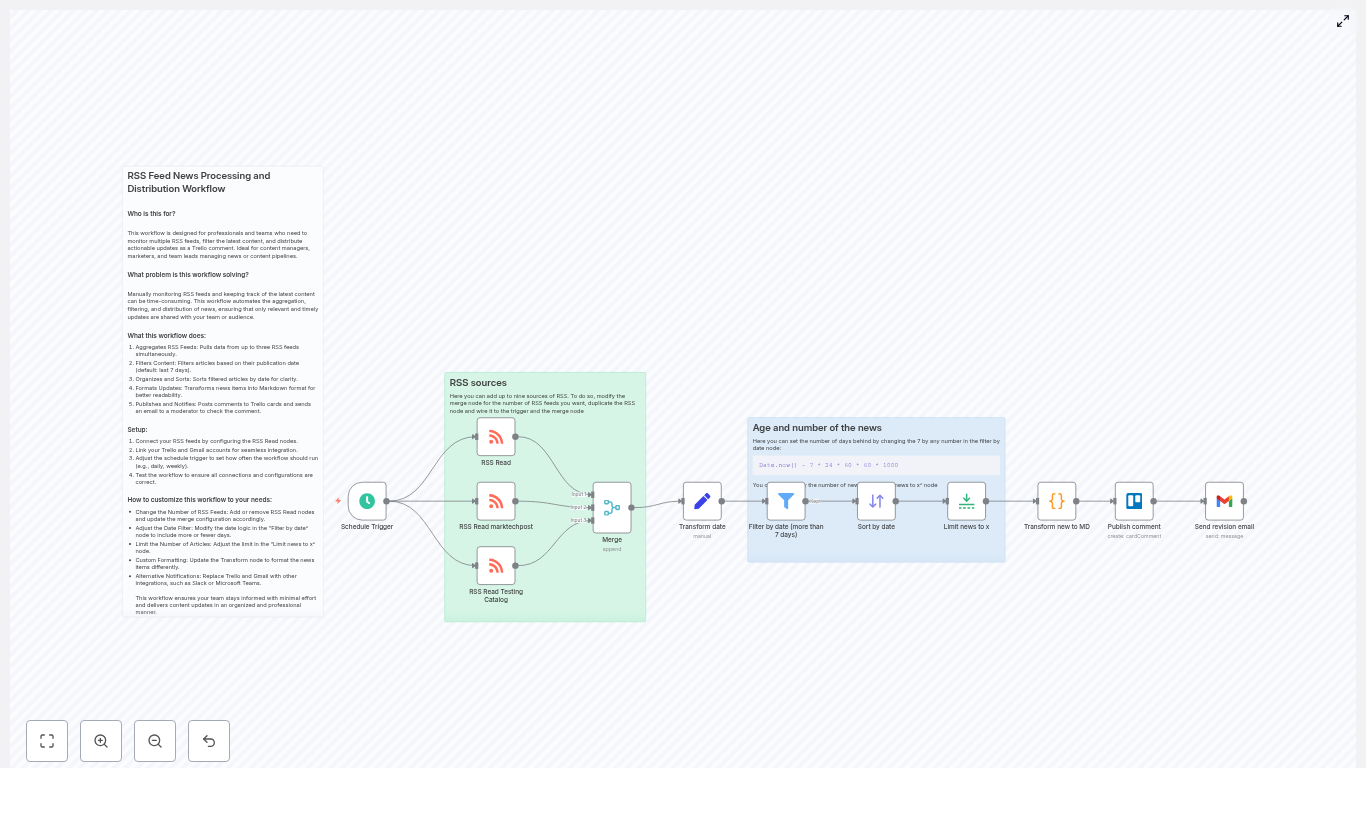
Multiple RSS feeds, endless browser tabs, and scattered notes can quietly drain hours from your week. This story follows a marketer who finally had enough, discovered an n8n workflow template, and turned that chaos into a clean Trello digest and instant review emails. Along the way, you will see exactly how the workflow is built, how each n8n node works, and how you can customize the same template for your own automation.

The problem: Too much news, not enough time

On Monday mornings, Emma, a content marketing manager at a B2B SaaS company, had a ritual she secretly hated.

She opened a dozen RSS feeds in different tabs, skimmed headlines for competitive updates, PR mentions, and industry news, then copied anything important into a Trello board for her team. Finally, she sent a quick email to her manager with a summary of what mattered.

It sounded simple. In reality, it was a mess.

  • Some feeds updated overnight, others barely moved for days.
  • Important stories slipped through when she got busy.
  • Her Trello comments were inconsistent and sometimes too long to be useful.
  • Her review email often went out late, which meant decisions were delayed.

Monitoring multiple RSS feeds manually was time-consuming and error-prone. Emma knew there had to be a better way to aggregate and filter news, then share it in a single place like Trello with an automatic email for review.

That is when she discovered an n8n template titled: Automate RSS feed updates to Trello.

The discovery: An n8n template that promised curated RSS digests

Emma had used n8n before for small automations, but this time she needed something robust. The template she found claimed to:

  • Aggregate multiple RSS feeds into one stream.
  • Filter items by date so only fresh news appeared.
  • Sort and limit items so the digest stayed readable.
  • Format everything into a Markdown summary.
  • Post that summary as a Trello comment.
  • Send a revision email through Gmail to whoever needed to review it.

It sounded like exactly what she needed. The catch: she had to understand how the workflow actually worked and make it fit her own setup.

So she imported the template into her n8n instance and started walking through it node by node.

Rising action: Building a reliable RSS automation in n8n

Scheduling the news run

The first node Emma saw was a Schedule Trigger. This node controlled when the entire workflow would run.

The template was set to run weekly at a specific hour. That was close to what she wanted, but her team needed more frequent updates.

Inside the Schedule Trigger, she saw she could choose:

  • Hourly runs for near real-time news.
  • Daily runs for a morning digest.
  • Weekly runs for long term overviews.
  • Custom cron expressions for fully tailored timing.

Emma set it to run every weekday morning, just before her team’s standup. That alone would save her from ever manually checking feeds before the meeting.

Connecting multiple RSS feeds

Next came a small cluster of RSS Read nodes. Each one represented a different feed: competitor blogs, industry news, and PR mention trackers.

The template included three RSS Read nodes, but Emma had more sources. The instructions were simple enough:

  • Duplicate an existing RSS Read node for each new feed.
  • Connect the new node to the Schedule Trigger.
  • Wire it into the Merge node that combined all feeds.
  • Increase the Merge node’s numberInputs to match the total count of RSS nodes.

For one stubborn feed with an SSL certificate issue, she noticed the ignoreSSL option in the RSS Read node. She enabled it as a temporary fix, making a note to ask the vendor to correct their SSL configuration later. The template recommended fixing SSL at the source whenever possible, which she kept in mind.

The turning point: From noisy feeds to a clean, curated stream

Merging and transforming the feed data

Once all the RSS nodes were wired up, they flowed into a Merge node. Emma realized this was where her scattered feeds finally became a single stream of articles.

The Merge node simply concatenated the inputs. After that, a Set node labeled something like “Transform date” took over. Inside, Emma found fields being standardized:

  • title and link were normalized.
  • isoDate was converted into a numeric timestamp using an expression like new Date($json.isoDate).getTime().

This timestamp conversion was crucial. Without it, comparing dates across different feeds would be inconsistent and unreliable.

Filtering out old news

Next, the flow passed through a Filter node. This was where Emma’s biggest headache – outdated content – was finally addressed.

The template used an expression similar to:

Date.now() - 7 * 24 * 60 * 60 * 1000

This kept only items from the last 7 days. For Emma, a week was perfect for her weekly overview, but her daily digest needed a tighter window.

She duplicated the workflow for her daily run and changed the Filter node’s rightValue expression to:

Date.now() - 3 * 24 * 60 * 60 * 1000

Now she had one version that looked back 3 days for daily monitoring and another that kept a 7 day view for broader analysis.

Sorting, limiting, and formatting the digest

Once filtered, the articles moved into a Sort node configured to sort by date in descending order. Newest first, exactly how her team liked to read updates.

After sorting, a Limit node capped the number of items. The template defaulted to 10 articles, which prevented Trello comments from becoming walls of text.

During testing, Emma followed a key best practice: she temporarily set the Limit to 3 items. That way, she could quickly see if the formatting, sorting, and posting worked correctly without flooding her Trello board.

Then came the part that made the digest truly readable. A Code node transformed the selected items into a compact Markdown summary. The output looked something like this:

- [Article title](https://example.com):  Article summary or snippet

- [Another title](https://example2.com):  Summary

This Markdown digest was short, scannable, and perfect for Trello comments. Emma liked Markdown, but she realized she could have changed the Code node to output HTML instead, or even include images and author names if she wanted richer formatting.

Resolution: Trello updates and revision emails on autopilot

Publishing to Trello and notifying by email

With the digest formatted, the workflow finally arrived at the output stage.

A Trello node took the Markdown block and posted it as a comment on a specific Trello card that her team used for “Industry & Competitor News.” Every time the workflow ran, that card received a fresh, clean list of recent articles.

Right after Trello, a Gmail node sent a short email to her manager. The message simply said that the Trello card had been updated and was ready for review. This separation meant:

  • The entire team could see the digest in Trello whenever they needed it.
  • A designated reviewer got a direct prompt in their inbox to quickly verify content quality.

If she ever wanted to change channels, she knew she could swap Trello or Gmail for Slack, Microsoft Teams, or an internal webhook. The structure of the workflow would stay the same, only the destination nodes would differ.

Customizing the workflow for different teams

Once the basic version worked, Emma started tweaking it for other use cases in her company.

  • Changing feeds: She duplicated RSS Read nodes and adjusted the Merge node’s input count to track new competitors and niche blogs.
  • Adjusting date windows: Different boards used different Filter expressions, such as 3 day or 7 day windows, depending on how fast the space moved.
  • Conditional routing: She added extra Filter nodes that looked at topics or categories, then routed articles to different Trello cards. PR mentions went to the comms board, research papers went to the product research board.
  • Switching channels: For one team, she replaced Gmail with a Slack node so notifications landed in a dedicated channel instead of email.

Within a week, what started as a single marketer’s pain point turned into a small internal news infrastructure.

Staying reliable: Best practices Emma learned along the way

As the automations grew, Emma picked up a set of best practices that kept her n8n workflows stable and maintainable.

  • Test with small limits: She always set the Limit node to 1 to 3 items when connecting new feeds or changing formatting, then increased it once everything looked right.
  • Respect rate limits: For Trello, Gmail, and any other APIs, she avoided overly frequent runs and made sure schedules did not hit service quotas.
  • Secure credentials: All credentials were stored in n8n’s encrypted credential manager, and API keys were rotated periodically.
  • Normalize inconsistent content: Some feeds lacked contentSnippet or had odd category fields. She added defensive logic in the Set and Code nodes to handle missing fields gracefully.
  • Log and retry on errors: She introduced error-handling nodes to send alerts when something failed and configured retries for transient issues.

When things break: Troubleshooting in the real world

Not everything worked perfectly the first time. Emma ran into a few common issues that you might face too.

No items returned from a feed

One day, a previously reliable RSS feed stopped returning items. To debug it, she:

  • Opened the RSS URL directly in her browser to confirm it was reachable.
  • Checked that the XML was valid and not returning an error page.
  • Verified whether the feed had become private or required authentication, then adjusted the RSS Read node configuration accordingly.

Date filters not behaving correctly

Another time, articles that were clearly older than a week slipped into the digest. The culprit was a nonstandard date field in one of the feeds.

She went back to the Transform date (Set) node and confirmed that the workflow was using:

new Date($json.isoDate).getTime()

For feeds that did not use isoDate, she mapped the correct date field instead. Once the timestamp conversion was fixed, the Filter node started behaving as expected.

Trello comments too long or badly formatted

On a particularly busy news day, the digest comment felt overwhelming. To fix that, she:

  • Reduced the Limit node to a smaller number of items.
  • Refined the Code node to shorten summaries, sanitize content, and ensure Markdown stayed clean.

Since Trello supports Markdown-like formatting but has limits, she always tested with representative content before rolling changes out to the team.

How other teams used the same n8n RSS automation

Once word spread, other departments started asking for their own versions of Emma’s workflow. The same n8n template powered several use cases:

  • Daily competitive intelligence digests for the marketing team, posted to Trello and copied into Slack.
  • PR monitoring boards where industry mentions and press hits were aggregated and routed to a review column.
  • Research update cards that collected new publications from multiple journals for the research lead to review weekly.

All of them started from the same core design: schedule, RSS Read, Merge, Transform, Filter, Sort, Limit, Markdown formatting, and then publish plus notify.

Your next step: Turn your RSS chaos into a curated workflow

If you recognize yourself in Emma’s story, juggling dozens of feeds and scrambling to keep your team informed, you can follow the same path.

  1. Import the n8n template into your own n8n instance.
  2. Connect your RSS feeds using individual RSS Read nodes.
  3. Update the Merge node’s numberInputs to match your feed count.
  4. Configure Trello and Gmail (or Slack, Teams, or webhooks) as your output channels.
  5. Run a manual execution with a small Limit to validate the results.
  6. Adjust date windows, formatting, and routing logic until the digest matches how your team actually works.

With a few careful tweaks, you can go from manual RSS monitoring to a fully automated, curated news flow that arrives on time, every time.

Automating RSS feed processing with n8n does more than save time. It guarantees that the right people see the right news in the right place, whether that is a Trello card, an email, or a Slack channel. Start with the template, iterate on the formatting and distribution channels, and shape an automation that fits your workflow perfectly.

Automate Birthday Reminders: Google Contacts to Slack

Automate Birthday Reminders from Google Contacts to Slack with n8n

On a rainy Tuesday morning, Mia, a people-ops manager at a fast-growing startup, opened Slack to a familiar ping:

“Did we forget Jordan’s birthday yesterday?”

Her heart sank. Again.

Between onboarding new hires, planning all-hands meetings, and juggling HR tools, Mia had no bandwidth left to manually track birthdays. She had them all neatly stored in Google Contacts, but that did not help when no one remembered to check. The team prided itself on a warm culture, yet important dates kept slipping through the cracks.

That afternoon, while looking for a better way to automate small HR tasks, Mia discovered an n8n workflow template that promised exactly what she needed: a simple, secure way to read birthdays from Google Contacts every morning and send a friendly reminder straight into a Slack channel.

She decided to give it one serious try.

The problem: birthdays slipping through the cracks

Mia’s challenge was not unique. Manual birthday tracking was:

  • Error-prone, since people forgot to check the calendar
  • Time-consuming, especially as the team grew
  • Scattered across spreadsheets, notes, and shared docs

Yet the impact of missing birthdays was real. Colleagues felt overlooked, and the team’s culture took a subtle hit each time a special day went unnoticed.

Mia already had the data in one place: Google Contacts. Her team already lived in Slack. What she lacked was a reliable bridge between the two. That is where n8n came in.

Discovering the n8n birthday reminder workflow

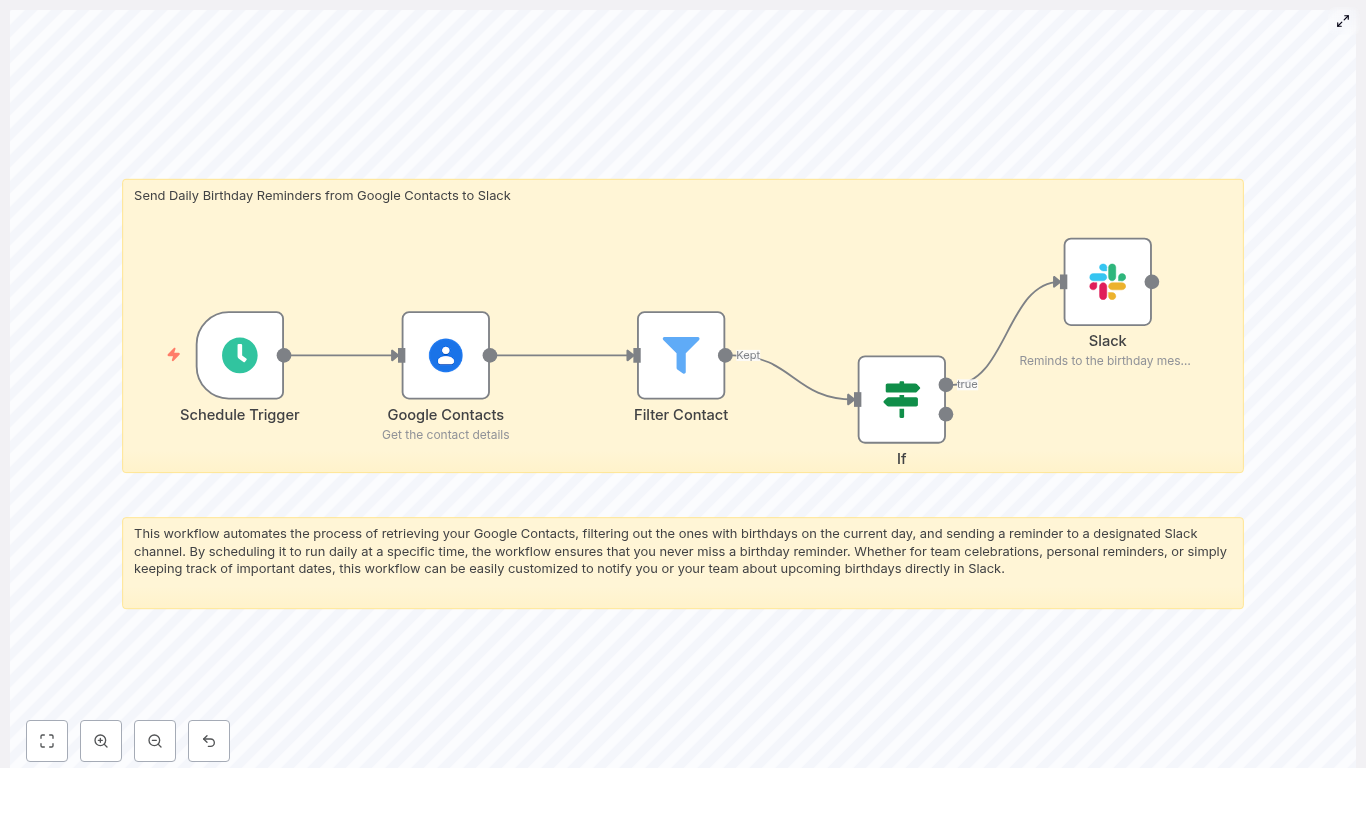
As Mia explored the n8n template, she realized it was not some heavyweight enterprise system. It was a lean workflow made of just a few nodes, each doing one clear job, chained together into a daily routine:

  • Schedule Trigger to run every morning
  • Google Contacts to fetch people and their birthdays
  • Filter Contact to remove entries without birthday data
  • If to check which birthdays match today
  • Slack to post a birthday reminder in a channel

The idea was simple: every day at a set time, n8n would wake up, pull contacts from Google, keep only those with birthdays, compare those dates to today, and then ping a Slack channel with a friendly message.

If it worked, Mia would never have to manually track birthdays again.

Rising action: Mia builds the workflow

Mia opened n8n and imported the template. The structure was already there, but she wanted to understand each step and adapt it to her team.

1. Setting the daily rhythm with Schedule Trigger

First, she dragged in the Schedule Trigger node and configured it to run once a day at 08:00, just before the team’s usual morning check-in.

She made sure to set the timezone to match her company’s location so that “today” in the workflow would always match “today” for the team. No one wanted a birthday message arriving at midnight or a day late.

2. Connecting to Google Contacts

Next, Mia added the Google Contacts node and set the operation to getAll. This way, the workflow could scan the full list of people without her needing to manually pick contacts one by one.

She configured the node to request the key fields she cared about:

  • names for display names
  • emailAddresses to identify people and personalize messages
  • birthdays to know when to send reminders
  • nicknames for a more informal tone in Slack

To avoid missing anyone, she enabled returnAll so the node would process the entire contacts list.

The only missing piece was authentication. Mia created Google OAuth credentials with the scope:

https://www.googleapis.com/auth/contacts.readonly

She saved them securely in n8n credentials, making sure consent and token refresh were set up so the integration would not silently expire. Now, n8n could safely read contacts without needing her intervention.

3. Filtering out contacts without birthdays

When Mia first ran the workflow in test mode, she saw that many contacts did not have birthday data at all, such as vendors or generic addresses.

So she added a Filter node. Its job was simple but important: keep only those contacts where the birthdays field was not empty. That way, n8n would not waste time processing irrelevant entries or risk posting blank messages to Slack.

This one step made the workflow cleaner and easier to reason about.

4. Matching birthdays to today’s date

The real turning point in Mia’s setup was the logic that decided whether a contact’s birthday was “today.”

In Google Contacts, birthdays are typically returned as an object that includes day and month, and sometimes the year. To compare that to the current date, Mia needed to transform each birthday into a simple string she could match against today.

Inside a Set or Function node, she used an expression similar to this pseudocode:

<!-- Example JavaScript expression inside a Set/Function node -->
const b = $json.birthdays; // depends on returned structure
// build month-day string for comparison, e.g. "04-15"
const month = String(b.month).padStart(2,'0');
const day = String(b.day).padStart(2,'0');
return month + '-' + day;

She then computed today’s date in the same MM-DD format in a prior node and stored it, for example as {{ $json.today }}. The If node compared each contact’s formatted birthday string to this “today” string.

If they matched, the contact passed through the “true” branch. Everyone else was ignored for that day.

5. Sending the birthday shoutout to Slack

With the logic in place, Mia turned to the final step: posting the reminder.

She added the Slack node and connected it using a Slack OAuth credential with the scopes her bot needed, such as:

  • chat:write
  • channels:read or groups:read, depending on the channel type

She picked a dedicated channel, #birthdays, and used its channel ID in the node configuration. Then she crafted a friendly message template using the contact’s name:

Today is {{ $json.name }}'s birthday! 🎉 Don't forget to wish them a happy birthday.

For future iterations she planned to use Slack Blocks for richer layouts with GIF prompts and emojis, but for now, a simple, clear message was enough.

Before going live, she made sure the Slack app was installed in the workspace and invited into the #birthdays channel so the bot could actually post there.

Authentication, permissions, and staying secure

As someone responsible for people’s data, Mia was careful about security and privacy from the start.

Google credentials

  • She used OAuth credentials with at least contacts.readonly.
  • Stored them in n8n’s credentials system, not in plain text.
  • Ensured token refresh was enabled so the workflow would not silently fail.

Slack app configuration

  • She created a Slack app and installed it into her workspace.
  • Assigned bot token scopes like chat:write and channels:read.
  • Added the OAuth token to n8n credentials.
  • Invited the bot to the private channels where it needed to post.

She also limited access to the n8n instance itself, using environment secrets and restricting who could view or edit workflow credentials. Birthdays are personal data, so she kept scopes minimal and masked any sensitive fields when sharing the workflow with colleagues.

The turning point: testing the workflow

With everything wired up, Mia felt a mix of excitement and anxiety. Would the workflow actually catch birthdays correctly?

She ran a simple test:

  1. Created a test contact in Google Contacts with today’s birthday.
  2. Triggered the workflow manually in n8n.
  3. Watched Slack.

A second later, a message appeared in #birthdays:

“Today is Test User’s birthday! 🎉 Don’t forget to wish them a happy birthday.”

It worked. The date formatting, the filters, the authentication, all of it clicked into place.

For the first time in months, Mia felt confident that no one on her team would be forgotten on their birthday.

Leveling up: customizations Mia added later

Once the basic flow was running smoothly, Mia started thinking about how to make the experience even better for her colleagues and for herself.

Multiple reminders for extra visibility

Some managers liked a heads up before the actual day. So Mia extended the workflow to send:

  • One reminder on the day itself
  • Another reminder 3 days before the birthday

To do this, she computed both today’s date and a future date (today + 3 days) in MM-DD format, then compared each contact’s birthday against both values. If either matched, n8n sent an appropriate Slack message.

Personalized Slack messages

Using the nickname and emailAddresses fields from Google Contacts, Mia tailored the copy to feel more human:

For example:

“It’s Alex (alex@example.com)’s birthday today – send them a GIF!”

This small touch made the shoutouts feel more personal and less like a generic bot announcement.

Grouping birthdays into a single digest

On some days, multiple teammates shared the same birthday. Instead of flooding the channel with separate messages, Mia adjusted the workflow to group all matches into an array and format a single digest message.

The result looked more like:

“Today we are celebrating: Alex, Jordan, and Priya! 🎉 Say happy birthday in the team channel.”

Behind the scenes, n8n collected all contacts with a matching date, then built a combined Slack block before posting.

Troubles along the way (and how she fixed them)

Not everything went smoothly on the first try. A few issues popped up as Mia tested with real data.

  • Birthday not detected
    Some contacts stored birthdays with a full date including year, others had only month and day. Mia adjusted her parsing logic to handle both formats so the workflow would always extract the correct month and day.
  • Missing permissions
    When messages stopped appearing, she checked OAuth scopes and token validity. Re-authorizing the Google and Slack connections usually solved it.
  • Slack message not posted
    A few private channels did not receive posts until she explicitly invited the bot into those channels and confirmed it had the right scopes.
  • Timezone mismatch
    At one point, birthdays appeared a day early for a colleague in another region. She verified that the Schedule Trigger timezone and her date calculations were using the same timezone to avoid off-by-one errors.

Real-world use cases Mia inspired

After the workflow proved itself, other teams across the company started copying it and adapting it to their needs. The same n8n birthday reminder pattern worked well for:

  • HR teams sending company-wide birthday shoutouts in a general channel
  • Small businesses acknowledging customer birthdays for better relationships
  • Individuals using n8n for personal reminders about family and friends

Each team tweaked the Slack messages, channels, and timing, but the backbone remained the same: Google Contacts as the source of truth, n8n as the automation engine, and Slack as the place where people actually see and act on the reminder.

The resolution: a small workflow with a big cultural impact

Weeks later, Mia noticed something subtle in her Slack workspace. The #birthdays channel was alive with GIFs, inside jokes, and warm messages. No one had to remember to check a calendar. The reminders were there every morning, quietly powered by n8n.

The workflow was:

  • Reliable, because it ran daily on a schedule
  • Secure, thanks to proper OAuth scopes and credential storage
  • Flexible, with options for pre-reminders, personalization, and grouped digests

Most importantly, it helped the team consistently recognize important dates without adding more manual work to anyone’s plate.

Try the same n8n workflow template for your team

If you want to recreate Mia’s success, you do not need to build everything from scratch. The n8n template already includes the core logic:

  • Daily Schedule Trigger
  • Google Contacts integration
  • Filtering and date matching
  • Slack notifications

All you have to do is plug in your own Google and Slack credentials, adjust the message copy, and set the schedule that fits your team.

Ready to try it? Import the template into n8n, connect your Google Contacts and Slack accounts, and enable the workflow. If you want help fine-tuning date formats, grouping multiple birthdays, or customizing Slack Blocks, subscribe to our newsletter or reach out for a step-by-step walkthrough.

Call-to-action: Import this workflow into n8n now and start sending automated birthday reminders to Slack. Stay in the loop by subscribing for more n8n automation tutorials and integrations.

Automate Uploads: Google Drive to TikTok, Instagram & YouTube

Automate Uploads: Google Drive to TikTok, Instagram & YouTube

Ever finished editing a video, felt proud for 3 seconds, then remembered you still have to upload it to TikTok, Instagram, YouTube, write descriptions, fix titles, and copy-paste the same text three times in a row? Yeah, that part is not the fun bit.

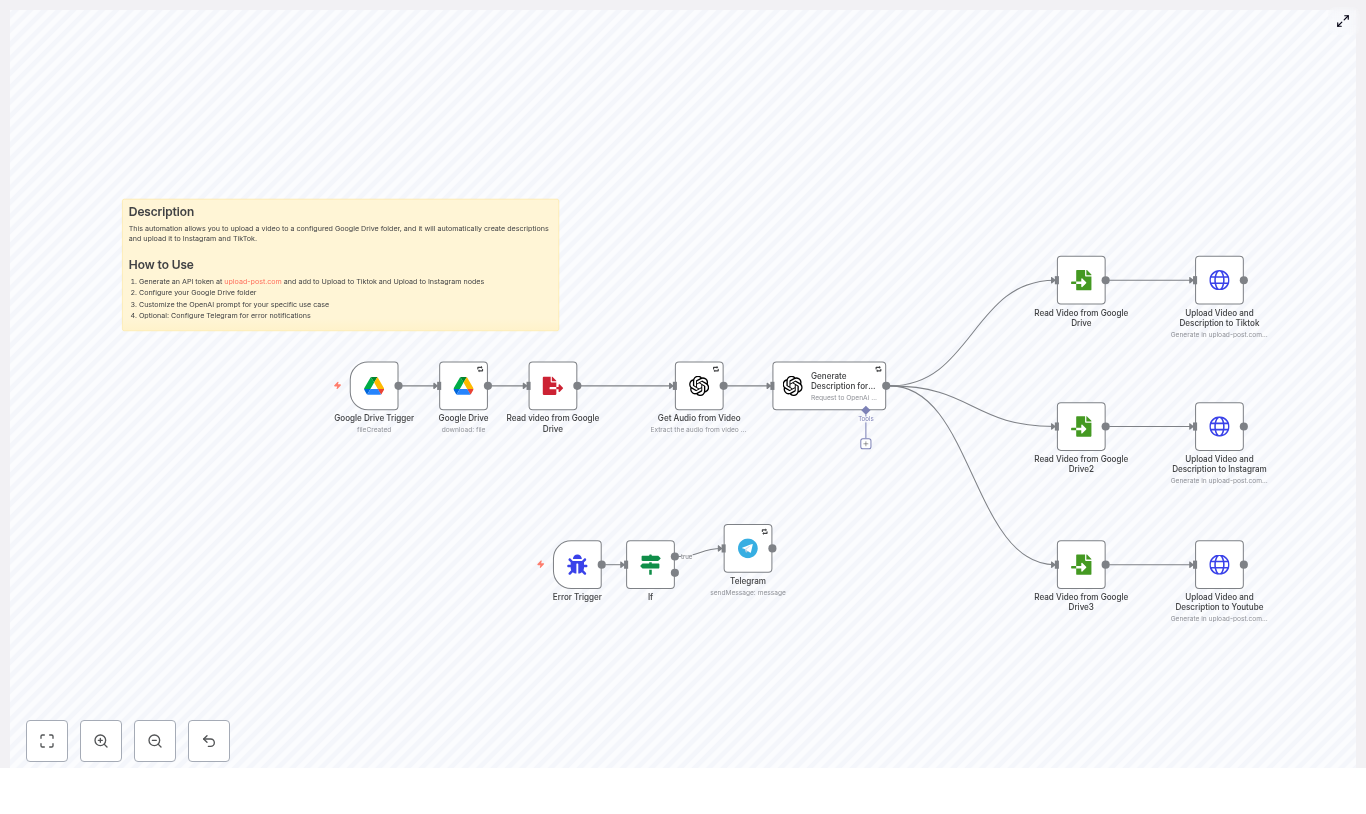
This n8n workflow template exists to rescue you from that repetitive upload grind. It watches a Google Drive folder, grabs new videos, pulls out the audio with OpenAI, auto-writes catchy descriptions, then uploads everything to TikTok, Instagram, and YouTube using the upload-post.com API. You get consistent metadata, hands-free publishing, and your brain back for actual creative work.

What this n8n workflow actually does

At a high level, this automation connects four main players: Google Drive, n8n, OpenAI, and upload-post.com. Together, they build a fully automated content pipeline that looks something like this:

  • Spot a new video in a specific Google Drive folder
  • Download and temporarily store the file
  • Extract and transcribe the audio with OpenAI
  • Use that transcript to generate platform-friendly titles and descriptions
  • Upload the video to TikTok, Instagram, and YouTube via upload-post.com
  • Ping you on Telegram if something breaks so you are not silently ghosted by your own automation

All of this runs inside n8n as a visual workflow template, so you can tweak steps, add logic, or bolt on extra nodes without rebuilding from scratch.

Tools and accounts you need before starting

Before you hit “import template” and expect magic, you will need a few basics set up:

  • n8n instance (cloud or self-hosted)
  • Google Drive account with OAuth credentials configured
  • OpenAI API key for transcription and description generation
  • upload-post.com account with an API token
  • Optional but recommended: a Telegram bot for error notifications

Once these are in place, you are ready to plug them into the workflow and let automation do the boring parts.

Inside the workflow: key building blocks

The template is made up of several n8n nodes that each handle a specific task. Here is what is going on under the hood:

  • Google Drive Trigger – Watches a specific folder for new video files.
  • Google Drive (download) – Downloads the new file once it appears.
  • Write/Read Binary File – Stores the video temporarily on disk and reads it back when needed.
  • OpenAI (transcription) – Extracts audio and converts speech to text.
  • OpenAI (description generation) – Turns the transcript into social media friendly titles and descriptions.
  • Read Binary nodes per platform – Load the video file for each upload request.
  • HTTP Request (upload-post.com) – Sends multipart/form-data POST requests to upload to TikTok, Instagram, and YouTube.
  • Error Trigger + Telegram – Monitors for workflow errors and alerts you when something fails.

Now let us walk through how to set everything up step by step.

Step-by-step setup guide

1. Set up the Google Drive trigger

The workflow starts with a Google Drive Trigger node that keeps an eye on a specific folder. Whenever you drop a new video into that folder, the automation wakes up and gets to work.

In the template, the trigger is configured with something like:

  • triggerOn: specificFolder
  • A folder ID such as 18m0i341QLQuyWuHv_FBdz8-r-QDtofYm (replace this with your own)

You can choose how it checks for new files:

  • Polling every minute for simple setups
  • Webhook-based triggers if your Google Drive integration supports it

Once configured, dropping a video into that folder becomes your new “publish everywhere” button.

2. Download the file and make it filesystem-friendly

Next, a Google Drive node with the download operation fetches the video contents. The workflow then uses Write Binary File to store the file temporarily, and later uses Read Binary File nodes to load it again for each platform upload.

To avoid your filesystem complaining about weird filenames, the template normalizes the filename by replacing spaces with underscores using a JavaScript expression:

={{ $json.originalFilename.replaceAll(" ", "_") }}

This helps prevent headaches when writing and re-reading the file from disk, especially on stricter environments where spaces are not welcome guests in filenames.

3. Extract audio and create a transcript with OpenAI

To generate descriptions that actually match what is said in the video, the workflow runs an audio extraction and transcription step. A node labeled Get Audio from Video sends the audio to OpenAI (or a compatible transcription model) and returns a transcript.

The transcript is exposed as item.json.text, which becomes the raw material for your social captions. No more guessing what you said in that clip from three weeks ago.

4. Let OpenAI write your titles and descriptions

With the transcript ready, another OpenAI node takes over and turns that text into a catchy, social-first description. The node uses a system instruction such as:

“You are an expert assistant in creating engaging social media video titles.”

The prompt includes both the transcript and some guidance, and it explicitly tells OpenAI to respond with only the description, no side comments or explanations. A simplified version of the prompt looks like this:

Audio: {{ $('Get Audio from Video').item.json.text }}
IMPORTANT: Reply only with the description, don't add anything else.

The output is then used as the title form field when sending data to upload-post.com for TikTok and Instagram.

YouTube is a bit stricter with title lengths, so the template trims the title to 70 characters:

.substring(0, 70)

That way your titles do not get abruptly chopped mid-sentence on YouTube.

5. Upload to TikTok, Instagram, and YouTube via upload-post.com

Once the video and description are ready, the workflow fires HTTP requests to the upload-post.com API. Each upload uses the HTTP Request node configured for multipart/form-data and sends everything to:

https://api.upload-post.com/api/upload

Key form fields include:

  • title – the generated description or title
  • platform[] – which platforms to publish to, such as tiktok, instagram, youtube
  • video – the binary video file field from the Read Binary node
  • user – your platform user identifier as expected by upload-post.com

Authentication is handled via an API key in the request header using n8n’s HTTP Header Auth credentials. For example:

  • Authorization: Apikey <token>

In the template, credentials may appear under names like Header Auth account or custom keys you define. Once this is connected, your video is pushed out to all selected platforms with a single workflow run.

Staying sane: error handling and monitoring

Automation is great until something fails silently and you realize a week later that nothing has been posting. To avoid that, the template includes built-in error handling.

  • An Error Trigger node listens for workflow failures.
  • An If node filters out specific issues like DNS or server offline errors if you want to ignore those temporary glitches.
  • A Telegram node sends you a notification for important failures so you can jump in and fix things.

This way, you get alerts when it matters, without being spammed every time the internet hiccups.

Best practices to keep your automation healthy

To make sure your multi-platform publishing machine runs smoothly, keep these tips in mind:

  • Credential security – Store your API keys and OAuth credentials in n8n’s credential manager, not directly inside node fields or plaintext values.
  • Safe filenames – Normalize filenames by handling spaces and special characters before writing to disk.
  • Rate limits and retries – Configure retryOnFail and waitBetweenTries for nodes that talk to external services like OpenAI or upload-post.com.
  • Platform-specific titles – Keep titles short for TikTok and Instagram, and slightly longer but still readable for YouTube. Truncation to 70 characters for YouTube is a good default.
  • Testing environment – Use a staging upload-post account or a test user configuration before pointing everything at your live channels.
  • Privacy – If your videos contain sensitive or private data, restrict Google Drive access and consider sanitizing transcripts before publishing.

Customizing the workflow for your brand

The template works out of the box, but you can easily adapt it to your content style and publishing needs. Common customizations include:

  • Adding thumbnail generation and passing that thumbnail to YouTube uploads, if supported by upload-post.com.
  • Upgrading the prompts to include branded hashtags, calls to action, or link placeholders.
  • Inserting moderation steps that run the transcript through a policy or compliance model before posting.
  • Adding conditional logic to post slightly different versions of the same video per platform, such as different crops or overlay text.

n8n gives you full control, so you can keep the core automation while fine-tuning the details.

Troubleshooting common issues

Things will occasionally go sideways. Here is a quick fix list for the most common problems:

  • Empty transcript – Check that the transcription node supports your video format and that the file actually contains audio.
  • Upload failures – Confirm your API key is valid, all required fields are present, and inspect the upload-post.com HTTP response for detailed error messages.
  • Permission errors – Verify that your Google Drive OAuth scopes allow read and download access, and double-check the folder ID in the trigger.
  • Filename not found – Make sure the temporary filename used in Write Binary and Read Binary nodes match, and normalize any characters that might break your filesystem.

Security and compliance checklist

Automating uploads does not mean forgetting about security. Keep an eye on:

  • Storing API keys securely in n8n and rotating them regularly.
  • Following platform terms of service when posting content via APIs.
  • Respecting regional privacy regulations such as GDPR or CCPA if user data appears in your videos or transcripts.
  • Limiting how long you store transcripts and considering encryption for temporary files on disk.

Wrapping up: from tedious uploads to one-click magic

This n8n workflow template shows how you can turn a repetitive, manual upload routine into a streamlined, multi-platform publishing system. It:

  • Detects new videos in a Google Drive folder
  • Uses OpenAI to extract context and generate descriptions
  • Publishes to TikTok, Instagram, and YouTube via upload-post.com
  • Handles errors and keeps you informed

Instead of juggling three upload screens and copy-pasting the same caption, you just drop a file into Drive and let automation do the heavy lifting.

Ready to automate? Import the template into your n8n instance, plug in your Google Drive, OpenAI, and upload-post.com credentials, and run a test with a sample video. Once it looks good, point it at your real content and enjoy having your time back.

Call to action: Try the workflow now: import the template into n8n, add your API keys and folder ID, then run it with a test video. Need help tuning the prompts, adding thumbnails, or extending the logic? Reach out for a quick consultation and we will help you tailor it to your brand.

Build an n8n Telegram AI Agent with OpenAI

Build an n8n Telegram AI Agent with OpenAI, Airtable & LangChain

Imagine having a smart study buddy or support assistant right inside Telegram, ready to understand both your texts and your voice notes. That is exactly what this n8n workflow template gives you: a Telegram AI agent that can listen, think, remember, and respond like a helpful assistant.

In this guide, we will walk through how the template works, when you might want to use it, and how to set it up step by step. We will keep all the technical bits accurate, but explain them in a friendly, practical way so you can actually ship this into your own Telegram chats.

What this n8n Telegram AI agent actually does

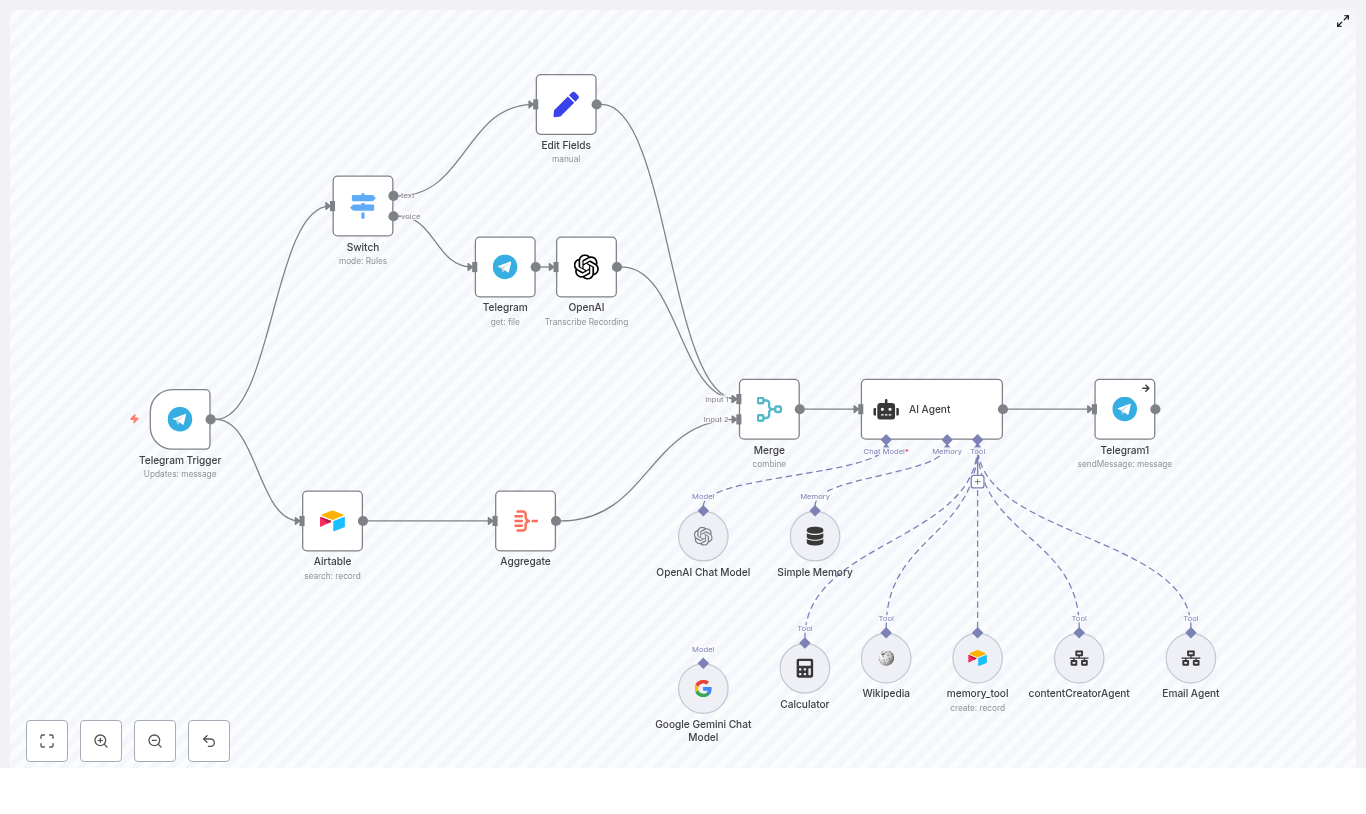
Let us start with the big picture. This n8n workflow connects Telegram, OpenAI, Airtable, and a LangChain-style agent so your bot can:

  • Accept both text and voice messages from Telegram users
  • Transcribe voice notes into text using OpenAI audio models (speech-to-text)
  • Store and recall memory in Airtable, both short-term and persistent
  • Use tools like a calculator, Wikipedia, and a content creator through a LangChain-style agent
  • Reply directly back to the user in the same Telegram chat

So whether you want a study assistant, a lightweight support bot, or a personal AI helper, this pattern gives you a solid, flexible starting point.

When should you use this workflow?

This template is a great fit if you:

  • Want a conversational Telegram bot that can handle both typing and voice notes
  • Need your bot to remember things between messages, like preferences or previous questions
  • Like the idea of an AI agent that can call tools such as a calculator or Wikipedia instead of trying to do everything in its head
  • Prefer using n8n as the central place to orchestrate APIs, logic, and data

If that sounds like your use case, let us look at how the whole thing is wired together.

How the architecture fits together

Here is the high-level flow of the n8n Telegram AI agent workflow:

  • Telegram Trigger – Starts every time a new Telegram message arrives, text or voice
  • Switch node – Checks if the message is text or a voice note and routes it accordingly
  • Telegram (get file) + OpenAI transcription – If it is a voice note, downloads the file and converts it to text
  • Set / Edit Fields – Normalizes everything into a single text field so the agent has one consistent input
  • Airtable + Aggregate + Merge – Pulls relevant memory from Airtable and merges it with the incoming message
  • AI Agent node (LangChain-style) – Uses tools, memory, and the message to decide what to say
  • Telegram sendMessage – Sends the AI’s reply back to the user in the same chat

Let us break this down into steps you can follow in n8n.

Step-by-step: building the Telegram AI agent in n8n

1. Set up your Telegram bot and trigger

First, you need a Telegram bot that n8n can talk to.

  • Open Telegram and chat with @BotFather
  • Create a new bot and copy the bot token BotFather gives you
  • In n8n, create Telegram credentials using that token
  • Add a Telegram Trigger node and configure it to receive Updates: message

From now on, whenever someone messages your bot, n8n will receive that message and kick off the workflow.

2. Use a Switch node to separate text and voice

Next, you want to treat text and voice messages slightly differently. That is where the Switch node comes in.

Configure the Switch node with rules that look for:

  • message.text for plain text messages
  • message.voice.file_id for voice messages

This way, text messages can go straight to the agent pipeline, while voice messages get routed through a download and transcription step first.

3. Download and transcribe Telegram voice messages

When the Switch detects a voice message, you will:

  • Add a Telegram node with resource: file to download the audio using the file_id
  • Pass that audio file into an OpenAI transcription node (or another speech-to-text provider if you prefer)

The transcription node returns text, so by the end of this branch you have a clear text version of what the user said in their voice note. That text will be used just like a normal text message.

4. Normalize the input and attach memory

Now you want to give the AI agent a clean, consistent input, no matter how the user contacted you.

Use a Set or Edit Fields node to create a unified payload, for example:

{  text: "…user message or transcript…" 
}

At the same time, you can pull in memory from Airtable:

  • Use an Airtable node to look up stored facts or short history for the current user or chat
  • Use Aggregate to combine or summarize any retrieved rows
  • Use a Merge node to combine the user’s current message with the relevant memory context

The goal is simple: when the AI agent runs, it sees both the latest user message and any useful background information.

5. Configure the LangChain-style AI Agent node

The heart of the workflow is the AI Agent node, which behaves like a LangChain-style agent inside n8n. This is where you tell the AI who it is, what tools it can use, and how it should respond.

Set up the AI Agent node with:

  • System message and role instructions Define the agent’s role, such as a study assistant or helpful mentor. Describe:
    • What it is good at
    • Which tools it can call
    • The tone and format of its responses
  • Language model credentials Connect your OpenAI credentials. You can also plug in a Gemini model if your setup supports it.
  • Tool connectors Add tools the agent can call, such as:
    • Calculator
    • Wikipedia
    • Airtable memory creator
    • contentCreatorAgent
    • Email Agent

    These tools are exposed to the agent so it can decide when to use them.

  • Memory buffer Configure a memory buffer keyed by the Telegram chat id. This keeps conversations coherent across multiple messages for each user.

The result is an AI agent that does not just respond blindly, but can think with context, call tools when needed, and remember what was said before.

6. Send the AI’s reply back to Telegram

Finally, take the output from the AI Agent node and connect it to a Telegram sendMessage node.

  • Map the agent’s reply text to the text field
  • Map the correct chat id from the incoming Telegram message so the reply shows up in the right conversation

Once this is wired up, you can message your bot on Telegram and watch it answer using the tools and memory you configured.

Prompt engineering and configuration tips

To get the most out of this Telegram AI agent workflow, a few configuration details make a big difference.

  • System message Be explicit about the agent’s role. For example, if it is a study assistant, tell it:
    • How to explain concepts
    • When to use tools like the calculator or Wikipedia
    • What tone to use (friendly, concise, detailed, etc.)
  • Memory size Keep Airtable memory entries short, ideally one-liners. Use:
    • The agent’s internal memory buffer for short-term session context
    • Airtable for long-term facts or preferences that should persist
  • Tool access rules Consider when the agent should call external tools. If it calls them too often, you might:
    • Increase latency for users
    • Increase your API costs

    You can shape this behavior in the system prompt.

  • Session key Use the Telegram chat id as the key for memory entries. This makes sure user A never sees user B’s context or history.

Security, privacy, and cost considerations

Security & privacy

Because this workflow touches user messages and external APIs, it is worth tightening up a few basics.

  • Store all API keys, such as OpenAI, Airtable, and Telegram, in n8n credentials. Avoid hardcoding secrets directly inside nodes.
  • Be careful with personally identifiable information (PII) in Airtable. If you must store sensitive data, consider encryption or avoid saving it altogether.
  • If you do not want the bot open to everyone, add a simple whitelist check in the workflow so only specific user ids can interact with it.

Costs

LLM and transcription calls are powerful, but they are not free. To keep costs under control:

  • Be mindful of how often you call transcription or the language model, especially for long or non-critical messages
  • Monitor token usage and consider summarizing or compressing long histories before sending them to the model
  • Use conditional logic in n8n to skip heavy operations when they are not needed

Troubleshooting common issues

If something does not work the first time, here are a few places to check.

  • Audio files not downloading Verify:
    • Your Telegram node credentials are correct
    • The audio file size is within Telegram’s limits and supported by your transcription provider
  • Poor transcription quality Confirm the audio format is supported and, if possible, pre-process audio:
    • Normalize volume levels
    • Reduce background noise
  • Mapping or data errors Use the n8n Execution log to inspect each node’s input and output. This is very helpful for catching wrong JSON paths, such as an incorrect reference to the Telegram chat id.
  • Too many or slow LLM calls Add conditions to throttle calls. For quick, low-stakes answers, you might:
    • Use simpler prompt templates
    • Cache common responses

Scaling and production deployment

Once your Telegram AI agent works nicely for a few users, you might want to move it into a more robust setup.

For production use, consider:

  • Running n8n in a managed environment or container with persistent storage
  • Using a queue or worker pattern for heavy tasks like transcription so they do not block other flows
  • Enabling retries and dead-letter handling for temporary API failures
  • Adding monitoring and alerts for failed executions so you can catch issues early

Advanced ideas to upgrade your Telegram AI agent

Once the basic workflow is live, you can gradually layer on more capabilities.

  • Add a simple authentication or permission model so only certain users can run specific commands
  • Introduce text-to-speech (TTS) so the bot can respond with voice messages as well as text
  • Schedule periodic summarization of long chat histories and store condensed notes in Airtable to save tokens
  • Integrate more tools, such as:
    • Calendar or scheduling APIs
    • Knowledge bases or documentation search
    • CRMs or ticketing systems for support workflows

Wrapping up

This n8n Telegram AI agent template gives you a practical, extensible blueprint for building a smart bot that:

  • Understands both text and voice messages
  • Uses OpenAI to transcribe and respond intelligently
  • Stores memory in Airtable to keep conversations coherent
  • Calls tools like calculators, Wikipedia, and content creators through a LangChain-style agent

Whether you are building a study companion, a lightweight support bot, or a personal AI helper, this workflow lets you move from idea to working prototype quickly, and then scale it as you go.

Ready to try it? Export the n8n workflow, connect your Telegram, OpenAI, and Airtable credentials, and send a few messages to your bot. Start simple, then iterate on prompts, tools, and memory as you see how users interact.

Call to action

If this guide helped you understand how to build a Telegram AI agent in n8n, consider subscribing for more tutorials on n8n automation and AI integrations. Need help implementing or customizing this workflow for your own use case? Reach out for a consultation or a professional setup, and we can help you get from idea to production.


Keywords: n8n, Telegram bot, OpenAI transcription, LangChain, Airtable memory, workflow automation, voice messages, Telegram AI agent, n8n templates.

Buffer Telegram Messages to AI Agent with n8n & Supabase

Buffer Telegram Messages to an AI Agent with n8n and Supabase

Picture this: you are trying to talk to a Telegram bot like a normal person. You type one sentence, hit send. Then another thought pops up. Send. Oh wait, one more detail. Send. Before you know it, you have fired off six short messages in a row, and the poor bot is trying to answer each one separately like an over-caffeinated goldfish.

That is exactly the kind of chaos this n8n workflow template is designed to fix. Instead of treating every tiny message as a separate question, we buffer your Telegram messages in Supabase, wait a moment for you to finish typing, then send one combined prompt to an AI agent (OpenAI + LangChain). The result: a single, coherent reply that actually understands what you meant, not what you typed in a hurry.

In this guide you will:

  • See why buffering Telegram messages improves chatbot UX and AI response quality.
  • Learn how n8n, Supabase, and OpenAI fit together in this workflow.
  • Set up the Supabase table schema and key n8n nodes.
  • Get configuration tips, security notes, and some advanced ideas to level up your bot.

Why bother buffering Telegram messages at all?

Modern messaging apps basically train us to type like we are live streaming our thoughts. That is great for humans, not so great for AI models that expect a clear, complete prompt.

When your bot replies to every tiny fragment separately, you get:

  • Fragmented answers that do not fully address the whole question.
  • Higher token usage, since each message triggers a separate AI call.
  • A choppy user experience that feels more like spam than conversation.

By buffering messages for a short window and combining them into one conversation turn, you get:

  • More coherent AI responses since the model sees the full context at once.
  • Lower token usage because related text is sent in a single request.
  • Simple control over the typing window (for example 5-15 seconds) so you can tune responsiveness vs. completeness.

In other words, a tiny wait buys you a big upgrade in conversation quality.

How the n8n Telegram buffer workflow works

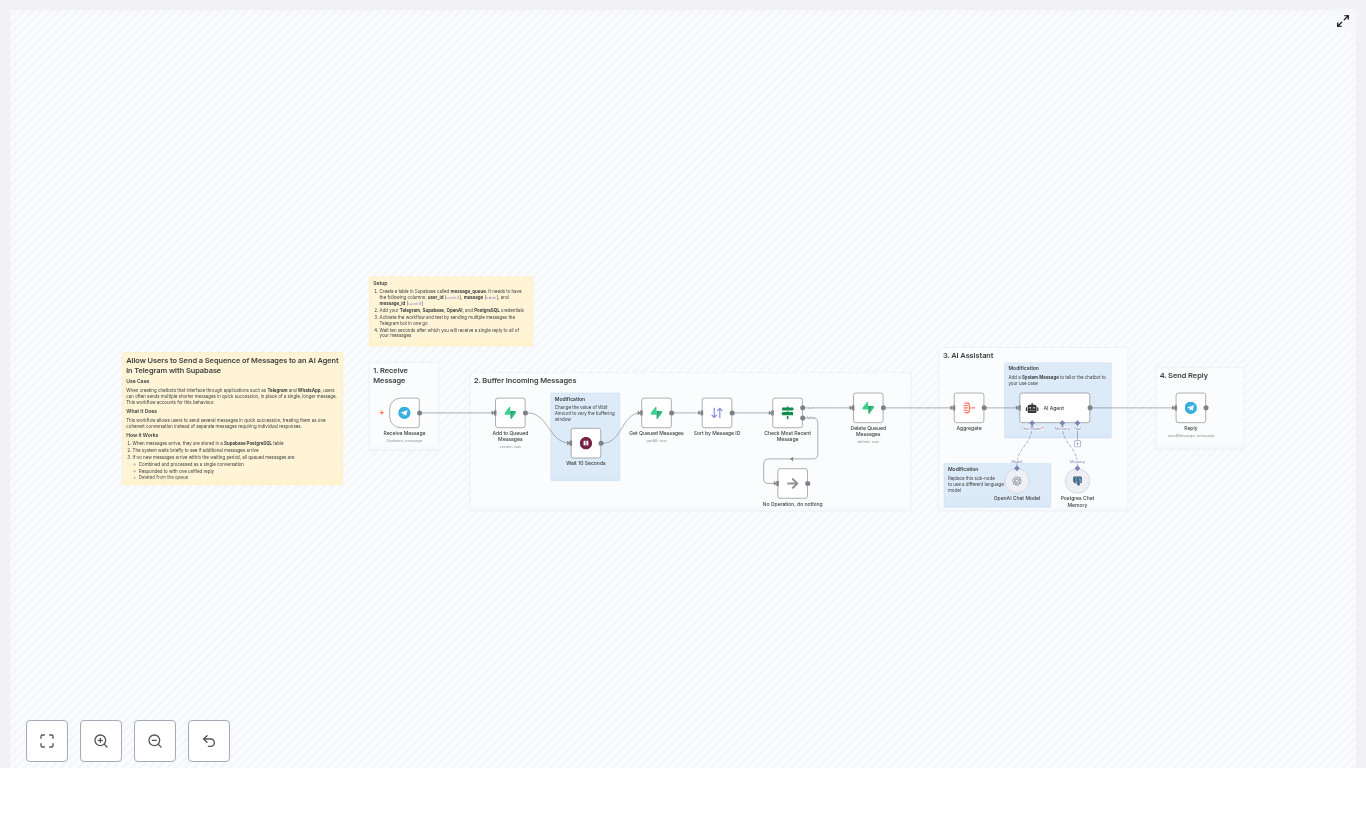
At a high level, n8n acts as the conductor, Supabase as the message queue, and OpenAI as the brain. Here is the cast:

  • Telegram Trigger node – Listens for incoming user messages.
  • Supabase (Postgres) table – Stores each message in a message_queue.
  • Wait node – Pauses briefly to collect rapid-fire messages.
  • Get / Sort nodes – Fetch and order messages by message_id.
  • Aggregate node – Joins multiple fragments into one prompt.
  • OpenAI (Chat) node + LangChain agent – Generates the AI reply.
  • Reply node – Sends one unified response back to Telegram.
  • Delete node – Cleans up processed rows from Supabase.

The whole flow looks like this in plain language:

  1. Telegram sends a message to your bot.
  2. n8n drops it into a Supabase queue.
  3. n8n waits a few seconds to see if more messages arrive from the same user.
  4. All queued messages for that user are fetched, sorted, and combined.
  5. The big combined prompt goes to OpenAI via a LangChain agent.
  6. The AI sends back a single answer, which is delivered to the user.
  7. Supabase rows are deleted so the queue stays clean.

Step 1: Create the Supabase message queue table

First, you need a place to store those rapid-fire Telegram messages while the user is still typing. In Supabase (Postgres), create a table called message_queue using this schema:

CREATE TABLE message_queue (  id serial PRIMARY KEY,  user_id bigint NOT NULL,  message text NOT NULL,  message_id bigint NOT NULL,  created_at timestamp with time zone DEFAULT now()
);

CREATE INDEX ON message_queue (user_id, message_id);

A few key details:

  • user_id groups messages by Telegram chat, so each user has their own queue.
  • message_id preserves the original order of messages from Telegram.
  • The index on (user_id, message_id) keeps fetch operations fast, even when your bot is popular.

Step 2: Build the n8n workflow

1. Receive messages with the Telegram Trigger node

The workflow kicks off with a Telegram Trigger node. Configure it with your bot credentials and webhook. Whenever a user sends a message, this node outputs a message object that includes:

  • chat.id (used as user_id)
  • message_id
  • text (the actual message)

This is your raw material for the queue.

2. Queue the message in Supabase

Next, use a Supabase node (or a generic Postgres node configured for Supabase) to insert the message into message_queue. For each incoming Telegram message, store:

  • user_id – from chat.id
  • message – from the message text
  • message_id – from Telegram’s message_id

This effectively builds a short-lived queue of consecutive messages for each chat.

3. Add a Wait node to create the buffer window

Now comes the magic pause. Insert a Wait node after the Supabase insert. Set a delay, for example:

  • 5-10 seconds for mobile users who type fast.
  • Up to 15 seconds if you expect longer multi-part questions.

During this buffer window, any additional messages from the same user_id continue to be inserted into message_queue. The user experiences a small delay, but they get a single, well-formed answer instead of a dozen half-baked ones.

4. Fetch and sort the queued messages

Once the wait is over, use a Supabase or Postgres node to:

  • Select all rows from message_queue for the current user_id.
  • Order them by message_id so they match the original Telegram order.

You can optionally use created_at as a secondary sort key if you want a fallback for ordering.

5. Avoid race conditions with an IF node

There is a subtle edge case: what if a new message sneaks in after the Wait node started, but before you fetched the queue? To avoid processing the same batch multiple times, add an IF node that:

  • Checks whether the last message_id in the queue matches the message_id that triggered the workflow.
  • If it does match, proceed with aggregation and reply.
  • If it does not match, you know another workflow run will handle the latest batch, so you can safely skip to the end.

This simple check prevents duplicate replies and other race-condition headaches.

6. Aggregate the messages into a single prompt

Now use the Aggregate node to join all message fragments into one text block. A common pattern is to:

  • Concatenate the message fields.
  • Separate them with newlines or spaces, for example: message1\nmessage2\nmessage3.

The result is a single prompt that captures the user’s entire thought process, not just the last sentence they typed.

7. Send the combined prompt to OpenAI via LangChain

With the aggregated text ready, pass it to an OpenAI (Chat) node configured with a model like gpt-4o-mini or another supported chat model.

For more context-aware bots, you can also:

  • Use a LangChain agent in n8n to handle tool use and more complex logic.
  • Attach a Postgres chat memory node so the AI has persistent conversation memory beyond the current buffered turn.

The AI model receives the full aggregated prompt and returns a single, coherent reply.

8. Reply on Telegram and clean up the queue

Finally, use a Telegram Reply node to send the AI-generated response back to the user as one message. No more spammy multi-replies, just a clean, thoughtful answer.

After sending the reply, run a Delete operation on message_queue to remove all processed rows for that user_id. This keeps the queue fresh and prevents old messages from leaking into future turns.

Configuration tips for a smooth experience

  • Buffer window timing
    The Wait node is your main UX dial. Start with 5-10 seconds and adjust based on feedback. Too short and you still get fragmented prompts. Too long and users might think the bot fell asleep.
  • Deduplicate repeated fragments
    If users can resend the same message or if your client occasionally retries, consider adding a hash column (for example, a hash of user_id + message + message_id) to detect and skip duplicates before inserting.
  • Maintain correct ordering
    Always sort by message_id. Keep the data type as bigint in both Supabase and n8n to avoid wonky ordering or type mismatches. Use created_at only as a backup.
  • Manage rate limits and tokens
    Aggregation usually reduces API calls and token usage, but if your bot sees heavy traffic, still monitor:
    • OpenAI rate limits
    • Total token usage per conversation
    • n8n workflow execution load
  • Error handling
    Add a retry or dead-letter path for:
    • Supabase insert or delete failures
    • OpenAI API errors or timeouts

    This keeps your bot from silently failing when the network has a bad day.

Security and privacy considerations

You are storing user messages in Supabase, so treat them with the respect they deserve:

  • Limit retention
    Use a scheduled job, background task, or a TTL-like mechanism to delete old rows from message_queue. The queue is meant to be short-lived, not an eternal archive.
  • Encrypt sensitive data
    If messages can contain personal or confidential information, consider encrypting sensitive fields at rest according to your privacy policy or compliance needs.
  • Protect credentials
    Store n8n, Supabase, and OpenAI credentials securely, restrict access, and rotate API keys regularly. A well-behaved bot does not leak secrets.

Advanced ideas to level up your Telegram bot

  • Custom system prompts
    Add a system message in the OpenAI prompt to control the bot’s tone, style, or length of responses. For example, make it concise, friendly, or domain-specific.
  • Swap language models
    You are not locked into a single model. Use other OpenAI models, Azure OpenAI, or any compatible model supported by n8n, as long as it works with the chat node.
  • Show a “bot is typing” indicator
    While the AI is thinking, you can send a Telegram “chat action” to show that the bot is typing. This makes the short wait feel intentional instead of broken.
  • Session memory for longer conversations
    Combine the buffered prompt with a Postgres memory node so your bot remembers context across multiple turns. This is especially useful for support flows or multi-step tasks.

Troubleshooting common issues

  • Messages are missing
    Check your Supabase insert node and logs. Make sure:
    • user_id and message_id are saved correctly.
    • The correct table (message_queue) and schema are used.
  • Messages are out of order
    Verify that:
    • Your Sort node uses the correct message_id field.
    • The data type is bigint in both n8n and Supabase.
  • Duplicate replies appear
    Double check:
    • The IF node correctly compares the last message_id in the queue with the trigger message_id.
    • The delete operation on message_queue only runs once per processed batch.

Putting it all together: from noisy chat to smooth AI replies

This pattern is deceptively simple but very powerful. By buffering Telegram messages in Supabase, then aggregating them before sending to an AI agent, you:

  • Turn chaotic multi-message bursts into clean, single-turn prompts.
  • Improve response quality and coherence for your Telegram bot.
  • Reduce API calls and token overhead.

To get started:

  1. Import the n8n workflow template.
  2. Create the message_queue table in Supabase using the SQL above.
  3. Add your Telegram, Supabase, and OpenAI credentials in n8n.
  4. Activate the workflow.
  5. Test it by sending a flurry of short messages to your bot and watch them come back as one unified reply after the buffer delay.

Call to action: Import this template into your n8n instance and connect it to a sample Telegram bot. If you want help with multi-lingual support, richer memory, or enterprise-grade retention and compliance, reach out to us or subscribe for detailed tutorials and deep dives.

Automate Blog Writing with n8n: Full Workflow Guide

Automate Blog Writing with n8n: Full Workflow Guide

Publishing consistent, high-quality blog posts takes a lot of time and energy. This step-by-step guide shows you how to use an n8n workflow template to automate most of that work, from AI writing and image generation to internal linking and email delivery.

You will learn how each node in the workflow contributes to the final article, how it connects with tools like Google Sheets and Replicate, and how to keep the whole system optimized for SEO, quality, and reliability.

What you will learn in this guide

  • How the n8n automated blog writer workflow is structured from start to finish
  • What each key node does and how data flows between them
  • How to generate AI-written sections, introductions, and conclusions in HTML
  • How to automatically add internal and external links for SEO
  • How to generate and embed a featured image with Replicate
  • How to send the finished draft via Gmail for human review
  • Best practices, troubleshooting tips, and ideas for scaling the template

Why automate blog writing with n8n?

An automated blog workflow in n8n lets you:

  • Save time by removing repetitive writing and formatting tasks
  • Keep a consistent publishing schedule across your blog
  • Standardize structure, headings, and links for better SEO
  • Free up your team to focus on strategy, promotion, and editing instead of drafting

When built carefully, automation does not replace editorial judgment. Instead, it creates a repeatable pipeline that produces solid first drafts you can refine and approve.

Concept overview: How the n8n blog writer template works

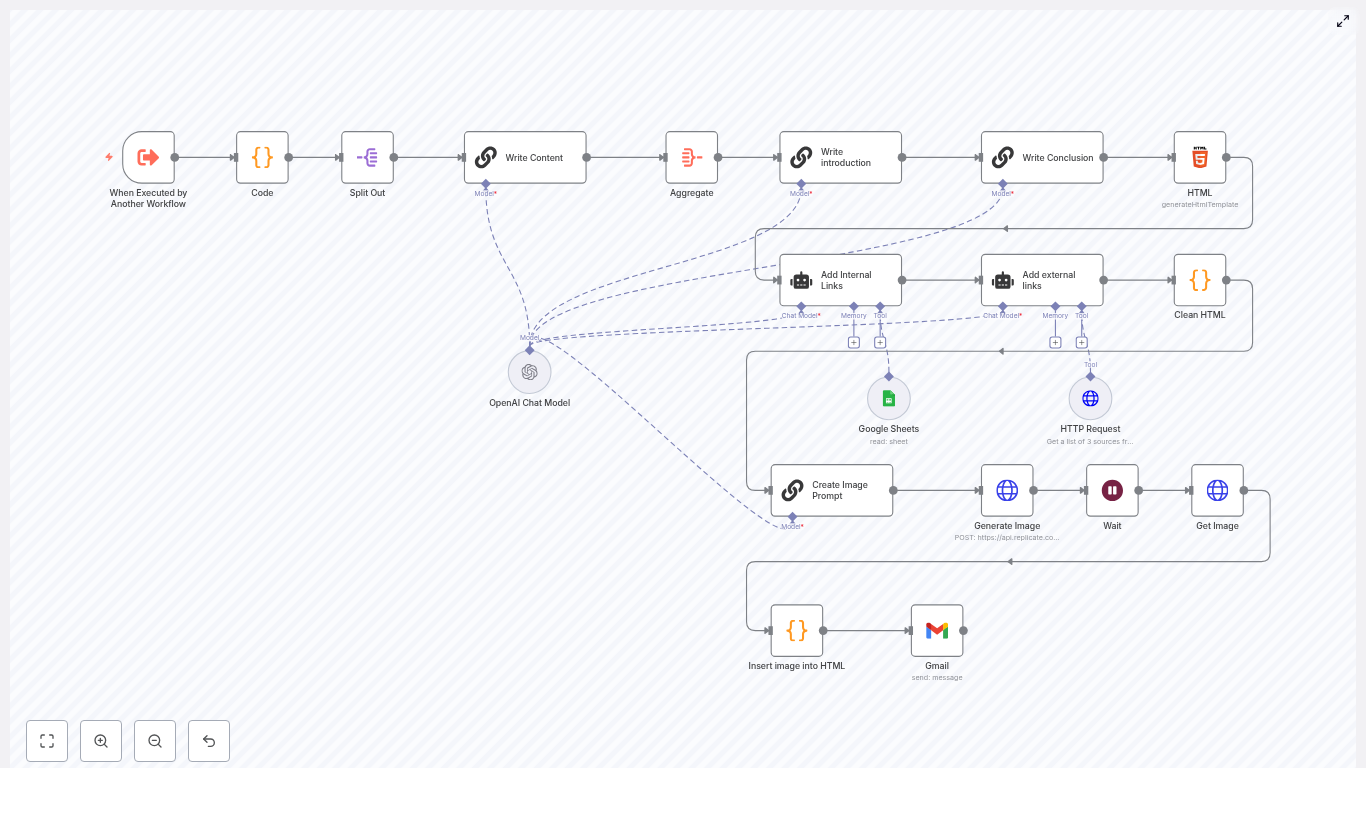
At a high level, the workflow turns a title and outline into a ready-to-review blog post. It does this by chaining together several types of nodes:

  • Input and preparation – receive a title and outline, then structure them for processing
  • Section writing – use an LLM to write each H2 section in HTML
  • Assembly – combine all sections and generate an introduction and conclusion
  • SEO enhancements – add internal links from Google Sheets and external references from a research tool
  • Image generation – create a featured image with Replicate and embed it in the HTML
  • Delivery – send the final draft via Gmail to an editor or publisher

Key capabilities of the workflow

  • Splits an outline into individual H2 sections
  • Writes each section with an AI model via a dedicated node
  • Aggregates all sections into a single HTML article
  • Generates an introduction and conclusion tailored to the content
  • Adds contextual internal and external links for SEO and credibility
  • Builds a custom image prompt, calls Replicate, and embeds the image
  • Sends the finished HTML draft through Gmail for human review

Understanding the main nodes in the workflow

1. Execute Trigger and Code node – starting the workflow

The workflow usually starts with an Execute Workflow trigger that is called by another n8n workflow. That parent workflow passes in two key pieces of information:

  • The blog post title
  • The outline, typically a list of H2 headings separated by new lines

A Code node is used immediately after the trigger. Its job is to:

  • Receive the raw title and headings
  • Split the outline on line breaks
  • Clean up whitespace and empty lines
  • Convert the headings into a structured array for later nodes

This preparation step ensures that each H2 can be processed independently in a predictable way.

2. Split Out and Write Content nodes – generating sections

After the outline is structured, a Split Out node takes the array of headings and processes them one by one. For each heading, the workflow runs a Write Content AI node, typically configured with an LLM model.

Inside the Write Content node, you usually:

  • Pass the current H2 heading as the main topic
  • Include the full outline and title in the prompt for context
  • Ask the model to write a focused section in HTML (for example, with <h2> and <p> tags)
  • Specify tone, reading level, and instructions to avoid repetition

This pattern provides several benefits:

  • Each section is written with the same tone and structure
  • You can easily regenerate or tweak a single section without rewriting the whole post
  • Debugging is simpler because each H2 is handled separately

3. Aggregate, Introduction, and Conclusion nodes – assembling the article

Once all sections are written, an Aggregate node collects them back into a single item. At this point, you have the core body of the article, but you still need a strong opening and closing.

Two additional AI nodes are used:

  • Introduction node – generates a hook that explains what the reader will learn, usually 100-150 words
  • Conclusion node – summarizes key points and includes a call to action, also around 100-150 words

Both nodes should be given:

  • The title
  • The complete outline
  • The generated sections

That context helps the model write an introduction and conclusion that feel connected to the rest of the article.

4. Internal and external links nodes – adding SEO value

Next, the workflow enriches the content with links.

Internal links are handled by an Add Internal Links node that uses a Google Sheets node as a data source. The Google Sheet typically contains:

  • Existing post titles
  • URLs
  • Target keywords or topics

The workflow looks up relevant posts and adds 1-2 contextual internal links per H2 section, but only where a natural anchor phrase already exists. This keeps the content readable and avoids forced links.

External links are generated by another AI or research agent that queries an external source tool, such as Perplexity. This node:

  • Searches for 2-3 credible external references related to the topic
  • Returns URLs and suggested anchor text
  • Injects links into places where the anchor text already appears in the copy

These external citations support SEO and help build reader trust, as long as you verify the quality of the sources.

5. Image generation nodes – creating a featured image with Replicate

The workflow also generates a featured image. It starts with a Create Image Prompt node that builds a detailed text prompt based on the article topic. Common rules include:

  • No people or faces
  • No overlaid text
  • Visual style that fits your brand or blog theme

This prompt is sent to Replicate via an HTTP node or a dedicated integration. Replicate generates an image and returns a URL. The workflow then:

  • Retrieves the image URL
  • Builds an <img> HTML block with alt text
  • Inserts the image before the second H2 section in the article

Placing the image near the top of the content improves visual appeal and can boost click-through rates and social sharing.

6. Gmail node – delivering the draft for review

After the content, links, and image are in place, the workflow cleans the HTML. This often includes:

  • Removing stray line breaks
  • Normalizing spacing and tags

Finally, a Gmail node sends the compiled HTML as an email to an editor or publishing inbox. This acts as a human-in-the-loop step so someone can review, edit, and schedule the post before it goes live.

Step-by-step: Running the automated blog workflow in n8n

Step 1: Provide the title and outline

Start by triggering the workflow and passing in:

  • The blog title
  • An outline where each H2 is on its own line

The initial Code node will:

  • Split the outline into an array of headings
  • Remove empty lines and trim whitespace
  • Prepare the data so each H2 can be processed separately later

Step 2: Generate AI-written sections

Next, the Split Out node iterates through each heading. For every H2:

  1. The current heading is passed into the Write Content AI node
  2. The node calls your chosen LLM with a prompt that includes the title and full outline
  3. The LLM returns a section of HTML, usually with a heading and several paragraphs

In your prompt, be explicit about:

  • Desired length and structure
  • Avoiding repetition across sections
  • Maintaining a consistent tone and reading level

Step 3: Build the introduction and conclusion

After all sections are generated, they are reassembled with an Aggregate node. Then:

  • An AI node creates a concise introduction (about 100-150 words) that previews what the article covers
  • Another AI node writes a conclusion of similar length that recaps key points and includes a clear call to action

You can instruct the model to use specific hooks, such as questions or short stories, and to align the CTA with your business goals.

Step 4: Add internal and external links

With the full article text ready, the workflow enhances it for SEO.

For internal links:

  1. The workflow queries a Google Sheet that lists your existing posts
  2. It finds posts that match the topics of each section
  3. It adds 1-2 links per H2 only where a natural anchor phrase already exists

For external links:

  1. A research or AI node calls a tool like Perplexity to find reputable sources
  2. It selects 2-3 high-quality URLs relevant to the article
  3. It inserts links where the suggested anchor text already appears in the content

Both types of links are added carefully to avoid over-optimization or awkward phrasing.

Step 5: Generate and embed the featured image

Now the workflow focuses on visuals:

  1. The Create Image Prompt node builds a descriptive prompt based on the title and main topic
  2. The prompt is sent to Replicate, which returns an image URL
  3. An <img> tag is created with that URL and suitable alt text
  4. The tag is injected into the HTML just before the second H2 section

Make sure your prompt clearly states that the image should avoid people and text, and specify any style guidelines you prefer.

Step 6: Finalize the HTML and send via Gmail

In the final step:

  • The workflow cleans up the HTML output to remove extra line breaks or unwanted formatting
  • The compiled article, including introduction, sections, conclusion, links, and image, is passed to a Gmail node
  • The Gmail node sends the draft to your editorial inbox or a specific reviewer

This built-in review step is essential for maintaining quality and editorial control, even in a highly automated pipeline.

Best practices for quality and SEO

  • Use clear, descriptive headings and include your primary keyword in at least one H2
  • Limit internal links to 1-2 per H2 and make sure the anchor text reads naturally
  • Check external sources for credibility and avoid low-quality or spammy domains
  • Keep introductions and conclusions concise, around 100-150 words for readability
  • Always keep a human review step before publishing to catch errors and refine tone

Troubleshooting common issues

LLM output is repetitive or off-topic

If sections feel too similar or drift away from the main topic:

  • Refine your prompts to reference the full outline and ask for unique examples in each section
  • Specify a target reading level and tone
  • Include explicit constraints about what the model should avoid repeating

Image generation fails in Replicate

If Replicate returns errors or no image:

  • Check the prompt formatting and remove unsupported characters
  • Verify that the aspect ratio and parameters are valid for the chosen model
  • Confirm that the content does not violate model or platform restrictions
  • Add retries and exponential backoff to your HTTP request nodes to handle temporary issues

Internal or external links do not fit the content

If a suggested link feels forced:

  • Skip adding the link if there is no natural anchor text already present
  • Avoid creating artificial phrases just to insert a link
  • Manually review a sample of automated links to ensure they are contextually relevant

Security, privacy, and compliance considerations

When connecting n8n to third-party AI and image services, keep data protection in mind:

  • Do not send sensitive or personally identifiable information in prompts
  • Store API keys securely in n8n credentials instead of hard-coding them
  • Use least-privilege access for all integrated services
  • Log only non-sensitive metadata for auditing and monitoring

Optimization tips for performance and cost

  • Cache responses for repeated prompts to reduce API calls and costs
  • Use smaller, cheaper models for routine sections and reserve more powerful models for introductions and conclusions
  • Document and version control your prompts and node configurations so you can iterate safely
  • Keep a human-in-the-loop approval gate before publishing to avoid unreviewed AI hallucinations

When and how to scale this template

This n8n template works well for solo creators and content teams. You can extend it by:

  • Adding scheduling nodes to publish on a fixed cadence
  • Connecting directly to your CMS (WordPress, Ghost, or a headless CMS) to create drafts automatically
  • Integrating analytics tools to track performance of published posts
  • Expanding the image generator to create multiple sizes for social media cards and previews

Recap and next steps

With this n8n workflow, you can automate most of the blog creation process while keeping quality and control:

  • AI writes the sections, introduction, and conclusion based on your outline
  • Internal and external links are added for SEO and credibility
  • Replicate generates a featured image that is embedded directly in the HTML
  • The final draft is emailed via Gmail for human review and scheduling

By combining clear prompts, careful linking rules, and a mandatory editorial review, you can safely accelerate your content strategy without sacrificing standards.

Ready to try it? Clone the template, connect your APIs, and run a test post this week. If you want help tailoring the workflow to your CMS or editorial process, reach out to our team.

Contact us to customize your

Automate Blog Writing with n8n, LangChain & OpenAI

Automate Blog Writing with n8n, LangChain & OpenAI

Turn simple prompts into polished, SEO-ready blog posts using an n8n workflow template powered by a LangChain AI Agent, OpenAI, and a handy memory buffer. Fewer repetitive tasks, more actual thinking.

Imagine never writing another first draft by hand

You open your laptop, stare at a blinking cursor, and think, “I really should write that 1,500-word post about automation.” Then you remember you still need to brainstorm titles, structure H2s, keep SEO rules in mind, and somehow sound like a human. Again.

That is where this n8n workflow template strolls in like a very organized intern who never gets tired. It takes your topic, asks the right questions, plans the structure, writes a draft, and can even send everything off to your CMS or editor. You still stay in control, but you no longer have to do the same boring steps on loop.

Why automate blog writing in the first place?

Content demand keeps growing, but headcount and budget usually do not. Teams want consistent, search-optimized articles, yet nobody wants to spend their life copying outlines into docs or checking if the primary keyword made it into the H2s.

Automating blog writing with n8n, LangChain, and OpenAI helps you:

  • Skip repetitive setup tasks and get to a solid first draft faster
  • Apply the same SEO and formatting rules every single time
  • Reuse prompts, workflows, and logic instead of reinventing the wheel per article
  • Plug into your existing CMS or publishing pipeline without manual copy-paste

Done right, automation does not replace your editorial judgment, it just removes the tedious parts so you can focus on ideas, nuance, and final polish.

What this n8n blog-writing workflow actually does

This example n8n workflow template wires together a few key nodes so your blog creation process behaves like a small, polite content robot:

  • Chat Trigger – collects your topic, keywords, tone, and length
  • LangChain-based AI Agent – acts as the “SEO strategist” brains of the operation
  • OpenAI Chat Model – generates titles, outlines, and the blog draft
  • Window Buffer Memory – remembers recent conversation context so nothing important gets lost
  • Call n8n Workflow Tool – hands the finished draft to another workflow for publishing or review

How the pieces talk to each other

  1. You send a topic or partial brief through the Chat Trigger.
  2. The AI Agent applies its system message (for example, “behave like a master SEO strategist”), refines the brief, and decides when it is time to write.
  3. The OpenAI Chat Model creates titles, H2 headings, and full draft content.
  4. The Window Buffer Memory keeps recent messages so the agent can iterate on titles, outlines, or sections without forgetting previous decisions.
  5. Once the draft looks good, the Call n8n Workflow Tool triggers a downstream workflow to save, review, or publish the article.

The result is a reliable, repeatable content pipeline instead of a chaotic mix of docs, sticky notes, and “I’ll finish that later.”

Quick-start setup guide in n8n

Let us walk through the main pieces you need to configure in n8n to get this blog-writing workflow running. You can reuse the same pattern for other content tasks or different models.

Step 1: Capture your brief with a Chat Trigger

The Chat Trigger node is your front door. It receives incoming prompts and instructions from you or your team. Configure it to collect the key details the workflow needs to produce a good post, such as:

  • topic
  • primary_keyword
  • audience/tone
  • word_count_estimate

Think of it as a mini brief form. The better the inputs, the less your future self has to fix.

Step 2: Set up the LangChain AI Agent

Next, use an agent node that supports LangChain-style behavior. This is where you define your content brain. Provide a system message that sets expectations, for example:

You are a master SEO strategist. I will provide a topic for a blog post. Help refine the blog post title and required H2s. Once approved, start writing the blog post.

Within this agent, define responsibilities such as:

  • Reviewing and refining the user brief so it is specific enough
  • Proposing several title options plus a set of H2 headings
  • Asking follow-up questions if the brief is vague or missing details
  • Calling the writing tool once the outline is approved and ready

This keeps your workflow from jumping straight into a full draft before the structure and SEO angle are nailed down.

Step 3: Connect an OpenAI Chat Model

Now connect the agent to an OpenAI-compatible chat model. Configure the messages so the model receives:

  1. The system prompt that defines the SEO strategist role
  2. The user’s brief, including the primary keyword and any constraints
  3. Agent prompts that request specific outputs like outlines, intros, or full sections

Typical flow looks like this:

  • Agent refines the title and H2 outline
  • Once approved, the agent asks the model for the introduction, body sections under each H2, and a conclusion

To keep quality and cost under control, use these tuning tips:

  • Set temperature between 0.2 and 0.6 for a mix of creativity and predictability
  • Increase max tokens enough to cover the full draft, especially for longer posts
  • For very long articles, generate them in sections to avoid hitting token limits

Step 4: Add Window Buffer Memory for context

The Window Buffer Memory node stores the recent conversation so the agent does not forget what you already agreed on. It is like a short-term memory for your workflow that tracks titles, outlines, and earlier decisions.

Configure the window length to the number of recent messages you want to keep, for example 10. This helps the agent iterate on drafts or headings without re-asking the same questions or drifting away from the original plan.

Step 5: Trigger a downstream workflow when the draft is done

Once the agent decides the draft is complete, use the Call n8n Workflow Tool to start a second workflow. That is where all the “after writing” tasks live, such as:

  • Saving the draft to Google Docs, Notion, or a headless CMS
  • Running grammar and plagiarism checks
  • Sending the draft to an editor or reviewer
  • Scheduling publication with metadata like meta title, description, and slug

This separation keeps your main content workflow focused on creation, while a dedicated pipeline handles quality checks and publishing.

Keeping things safe, accurate, and SEO friendly

Build in editorial guardrails

Even the smartest workflow should not publish directly to your blog without a human looking at it. Keep a mandatory review step in your downstream workflow so editors can catch:

  • Hallucinated facts or outdated information
  • Problematic or off-brand language
  • Inconsistent claims or missing context

Use system prompts and validators to reduce these issues, and if your policy requires it, add a step that tags or flags outputs as “AI-generated.”

Enforce SEO and content quality rules

To keep your content optimized, bake SEO rules right into the agent’s system prompt. For example, require that every post includes:

  • A meta description
  • An SEO title around 50 to 60 characters
  • Headers that include the primary keyword where appropriate
  • Suggested internal and external links

In the downstream workflow, you can also run an automated readability check, such as Flesch-Kincaid or a similar score, to make sure your content is not written like a legal contract.

Watch rate limits and costs

Language models are powerful, but they are not free. To keep API usage under control:

  • Batch or chunk generation for longer posts
  • Cache repeated content where it makes sense
  • Use the agent and Window Buffer Memory to avoid unnecessary calls until the outline is final

That way your automation saves both time and budget instead of quietly inflating your bill.

Testing, monitoring, and improving your workflow

Once your n8n blog-writing workflow is live, treat it like a product, not a one-off experiment. Add logging and light testing so you can track what is working and what needs tuning.

Key metrics to keep an eye on

  • Draft acceptance rate by editors
  • Average number of edits per article
  • Organic traffic and keyword rankings for published posts
  • API calls and cost per published article

Adjust system prompts, temperature, memory window length, and outline rules over time. Small tweaks can significantly improve quality and reduce the amount of manual cleanup needed.

A compact example prompt and flow

Here is a concise JSON-style prompt you can use when calling the agent for a new article:

{  "system": "You are a master SEO strategist. Produce 3 title options and a suggested H2 outline that targets the primary keyword.",  "user": {  "topic": "How to automate blog writing",  "primary_keyword": "automate blog writing",  "audience": "marketing managers",  "desired_length": "1200-1500"  }
}

After you approve the outline, have the agent generate the full draft in sections: introduction, each H2 section, then the conclusion. This makes it much easier to review and edit progressively instead of wrestling with a giant wall of text.

Where to go from here

Automating blog creation with n8n, a LangChain AI Agent, and OpenAI gives you a scalable content engine that still respects editorial quality. Start small with the workflow pattern in this template:

  • Collect structured briefs with the Chat Trigger
  • Refine titles and outlines using the AI Agent
  • Store context in Window Buffer Memory
  • Generate drafts through the OpenAI Chat Model
  • Hand everything off to a downstream workflow for checks and publishing

Try it on a single topic first, then iterate on prompts, memory settings, and SEO rules until your first-draft acceptance rate climbs and your editors stop complaining about repetitive fixes.

Call to action: Want to move even faster? I can generate ready-to-import JSON for the n8n nodes, a tested system prompt pack, or a starter downstream workflow for publishing to WordPress. Tell me which one you want to build first and we will take it from there.

Published by an automation and AI content specialist. Always follow best practices, keep humans in the loop, and let the robots handle the boring parts.

AI Agent to Chat with Airtable (n8n + OpenAI)

AI Agent to Chat with Airtable: Build a Smarter, More Focused Workflow with n8n + OpenAI

Imagine talking to your Airtable data like you talk to a teammate. No more digging through views, building complex filters, or exporting to spreadsheets. With a single message, you ask a question and get back exactly what you need – summaries, charts, maps, and insights that help you act faster.

This is what an AI chat agent for Airtable makes possible. Using an n8n workflow template powered by OpenAI, you can turn natural language questions into precise Airtable searches, filters, and visualizations. In this guide, you will walk through the journey from manual data wrangling to conversational data access, and see how this template can become a foundation for a more automated, focused way of working.

From Manual Filters To Conversational Insight

Most teams already rely on Airtable to store business-critical information. Product catalogs, orders, leads, support tickets, projects, campaigns – they all live there. The challenge is not storing the data, it is turning that data into answers quickly.

Without automation, you might find yourself:

  • Clicking through multiple views and filters to answer simple questions
  • Exporting CSVs into spreadsheets to run basic calculations
  • Copying and pasting data into other tools to create charts or maps
  • Losing time context-switching between tools and tabs

These tasks are important, but they are not the best use of your focus or creativity. An AI agent changes the dynamic. Instead of you adapting to the tool, the tool adapts to you.

Shifting Your Mindset: Let the Agent Do the Heavy Lifting

Building an AI agent for Airtable is not just a technical exercise. It is a mindset shift. You are moving from “I need to build a view for this” to “I will just ask a question.”

With a conversational AI agent connected to Airtable, you can:

  • Turn natural-language questions into Airtable searches and filters
  • Automatically aggregate, count, and summarize records
  • Generate visual outputs like maps and charts on demand
  • Keep context across multiple questions in the same conversation

Instead of manually configuring filters every time, you describe what you want: “Show me orders where Status is Shipped in March” or “Find tickets mentioning timeout or error with priority greater than 3.” The agent translates those requests into Airtable formulas and API calls for you.

This template is a practical way to start thinking in terms of automation-first workflows. You do not have to reinvent your entire system. You can start with one workflow, see the impact, then expand.

Meet Your New Workflow: n8n + OpenAI + Airtable

The provided n8n workflow template orchestrates a full conversational agent around your Airtable data. It is designed to be modular, safe, and extensible, so you can adapt it to your needs as you grow.

At a high level, the workflow connects four key pieces:

  1. A chat entry point that receives user messages
  2. An AI agent powered by OpenAI that interprets intent and chooses tools
  3. Specialized tools and sub-workflows that talk to Airtable and other APIs
  4. Code and visualization helpers that transform raw data into insights

Let us walk through the main components so you can see how everything fits together and where you can customize and extend it.

Core Components of the n8n AI Agent Workflow

1. Chat Trigger: The Conversation Starting Point

The journey begins when a user sends a message. The Chat Trigger node in n8n:

  • Starts the workflow whenever a new chat message arrives
  • Captures the message content
  • Includes a session identifier so the agent can maintain conversational context

This context is what allows the agent to understand follow-up questions like “What about last month?” without you repeating all the details.

2. AI Agent (OpenAI): The Brain of the Operation

The AI agent node, backed by OpenAI, is responsible for understanding what the user wants and deciding what to do next. It:

  • Interprets the user’s message and intent
  • Chooses which tools to call, such as search, code, or map generation
  • Builds structured requests to Airtable and other services
  • Uses a memory buffer to store recent conversation history for coherent follow-ups

Instead of you manually choosing views or writing formulas, the agent uses the available tools and your Airtable schema to construct the right queries on the fly.

3. Tools and Sub-workflows: Your Agent’s Skill Set

The power of this template comes from a set of reusable tools that the agent can call whenever needed. Each tool focuses on a specific task:

  • Get list of bases – Retrieves all available Airtable bases so the user can select the correct one. This is especially helpful if your organization has multiple bases for different teams or products.
  • Get base schema – Fetches table and field definitions so the agent knows exactly which fields exist and what types they are. This is essential for building accurate filters and queries.
  • Search records – Sends search requests to the Airtable API using formulas or filters generated by the agent. This is where natural language is turned into precise Airtable filter formulas.
  • Process data with code – Runs custom logic for aggregations, math operations, or transforming data into formats suitable for charts or images. This helps ensure numerical accuracy and flexible post-processing.
  • Create map image – Uses Mapbox to convert geolocation fields into a static map image link, enabling quick geographic visualizations of your Airtable records.

Each of these tools is a building block. You can use them as-is, combine them in new ways, or add your own tools as your automation needs expand.

Turning Natural Language Into Airtable Filters

One of the most transformative aspects of this workflow is its ability to convert free-text filter descriptions into valid Airtable formula filters. This is what allows you to speak in plain language while still getting precise results.

The workflow uses a staged approach to generate robust filters:

  1. Fetch the table schema so the agent knows the exact field names and data types it can work with.
  2. Send a structured prompt to OpenAI that describes Airtable formula best practices and examples, such as:
    • Using SEARCH(LOWER(...)) for case-insensitive text matching
    • Combining conditions with AND() and OR()
    • Handling date comparisons and type-specific checks
  3. Validate and merge the generated formula into the HTTP request body sent to the Airtable API.

This approach helps ensure that:

  • Filters are syntactically correct and aligned with Airtable’s formula language
  • Text comparisons are case-insensitive when needed
  • Field types are respected, so numeric and date fields are handled properly

The result is a workflow that reliably turns “Find tickets mentioning timeout or error and priority greater than 3” into a working Airtable formula without manual intervention.

Quick Setup: From Template to Working AI Agent

You do not need to start from scratch. The provided n8n template gives you a ready-made foundation that you can adapt in minutes. Here is how to get it running:

  • Clone the workflow into your n8n instance or import the template directly.
  • Update the credentials:
    • OpenAI API key
    • Airtable token
    • Optional Mapbox public key if you want map visualizations
  • Confirm base_id and table_id values, or rely on the Get list of bases tool to let users choose the base interactively.
  • Start with simple test queries, such as “Show me orders where Status = Shipped in March.”
  • Enable pagination and set sensible limits for large datasets so the workflow remains fast and reliable.

Once the basics are in place, you can iterate. Try different prompts, add new tools, and refine the system message or schema prompts to better match your business logic.

Working Safely: Best Practices for Reliable Automation

As you give an AI agent more power over your data, it becomes even more important to design for safety, clarity, and control. This template already bakes in good practices, and you can strengthen them further as you grow.

Data Minimization and Field Exposure

  • Expose only the minimum necessary fields to the agent.
  • Avoid including sensitive or confidential fields in conversations if they are not needed for the query.

Logging and Observability

  • Log user queries, generated filters, and returned record IDs.
  • Use these logs for auditing, debugging, and improving prompts or tool behavior over time.

Model Control and Prompt Safety

  • Limit the OpenAI model scope with a clear and controlled system message.
  • Reduce prompt injection risk by validating outputs against strict JSON schemas when possible.
  • Keep the agent’s capabilities focused and predictable.

Accurate Calculations and Aggregations

  • Use the dedicated code tool node for arithmetic, aggregations, and chart preparation.
  • Avoid relying on the language model itself to compute numbers.

These practices help you build an AI agent that is not only powerful but also trustworthy, auditable, and compliant.

Troubleshooting and Fine-tuning Your Agent

As you experiment and expand the workflow, you may run into common issues. These are not roadblocks, they are opportunities to tune your system and deepen your understanding.

Incorrect Filter Syntax

If the Airtable API returns an error, inspect the generated filter formula. Common adjustments include:

  • Wrapping text comparisons with SEARCH and LOWER for case-insensitive matches
  • Using VALUE() when comparing numeric values stored as text

Missing Fields in the Schema

Always fetch the table schema before generating filters. If a field is missing from the schema, the agent might reference a non-existent column, which will cause failures. Ensuring the schema is fresh and accurate helps the agent build valid queries every time.

Handling Large Result Sets

When working with large tables:

  • Set a default limit on the number of records returned.
  • Ask for explicit user confirmation before fetching all records.
  • Use pagination and aggregation to reduce payload sizes and keep responses fast.

Seeing It in Action: Example User Journeys

To understand the impact on your day-to-day work, it helps to see how typical flows feel when powered by this AI agent.

1. Sales Summary in Seconds

User: “Show me total revenue for Q2 by region.”

Agent actions:

  • Retrieve the schema to understand which fields represent revenue, dates, and regions
  • Search or filter records for Q2
  • Send the matching records to the code node to sum revenue and group by region
  • Return a table of totals, along with an optional map image to visualize performance by region

What might have taken several exports and pivot tables becomes a single conversation.

2. Support Ticket Investigation

User: “Find tickets mentioning ‘timeout’ or ‘error’ and priority > 3.”

Agent actions:

  • Generate an Airtable formula using SEARCH for case-insensitive substring matching
  • Combine conditions with AND and OR so both text and priority filters apply
  • Return the matching records and a short summary of counts or trends

Instead of building a complex filter manually, you describe the problem, and the agent does the rest.

Extending the Template as Your Automation Matures

This workflow is not a closed box. It is a starting point you can grow with. As your confidence and needs evolve, you can extend the template in powerful ways.

  • Role-based access control so only certain users can view specific fields or tables.
  • Webhook triggers that notify Slack or email when the agent finds critical records, such as high-priority tickets or overdue tasks.
  • Scheduled reports that run the same prompts automatically on a schedule and upload CSV results to cloud storage.

Each extension brings you closer to a fully automated, insight-on-demand environment where your team spends more time making decisions and less time preparing data.

Security and Compliance for Production Data

When you connect AI to live business data, security is non-negotiable. This template can fit into a secure, compliant environment when you follow a few essential guidelines.

  • Mask or redact PII before sending content to the OpenAI API if that data is not strictly needed for the query.
  • Use environment secrets in n8n for all keys and tokens, and avoid hardcoding credentials in shared workflows.
  • Maintain an audit trail of model prompts, generated filters, and actions for regulatory and internal compliance.

These practices help you scale your AI usage without compromising trust or governance.

Your Next Step: Turn Curiosity Into Automation

This n8n workflow template brings together a conversational AI agent, Airtable, and optional Mapbox visualization to make data exploration intuitive and fast. With schema-aware filter generation, dedicated code tools for accurate math, and modular tools for maps and more, it gives non-technical users a powerful new way to interact with data.

Most importantly, it is a stepping stone. You can start small, automate a single repetitive reporting task, then gradually build a richer AI-powered layer on top of your Airtable bases.

Ready to try it?

  • Import the workflow into your n8n instance.
  • Add your OpenAI and Airtable credentials, plus Mapbox if you want maps.
  • Run a few test queries and see how it changes the way you think about your data.

From there, keep iterating. Adjust prompts, refine safety rules, add new tools, and let your workflow evolve with your business.

Want support tailoring it to your specific base and logic, or need a security review before going live? Reach out for a guided setup and customization so you can move faster with confidence.

Send Telegram Messages with n8n Webhook

Send Telegram Messages with n8n Webhook

Integrating Telegram with n8n through a webhook is an efficient way to centralize alerts, notifications, and operational messages. This guide presents a compact, production-ready n8n workflow that accepts an HTTP request, forwards the payload to a Telegram chat, and returns a structured confirmation response. It is designed for automation engineers and operations teams who want a reliable, low-maintenance pattern for sending messages to Telegram from any external system.

Use Case and Value Proposition

n8n is an open-source automation platform that enables you to orchestrate APIs and services using visual workflows. Telegram offers a robust bot API that is widely adopted for operational alerts and lightweight chatbots. When combined via an HTTP webhook in n8n, you can:

  • Expose a simple HTTP endpoint that any system can call.
  • Forward message content directly into a Telegram chat or group.
  • Return a clear, human-readable confirmation to the calling system.

This pattern is particularly effective for:

  • Cron jobs and scheduled scripts that need to push status updates.
  • CI/CD pipelines that should notify teams on build or deploy events.
  • Monitoring and alerting tools that integrate via webhooks.
  • Internal tools that require fast, no-code notification routing.

What the Workflow Delivers

The template implements a minimal, yet complete, integration between an HTTP endpoint and Telegram. Specifically, it:

  • Listens for an HTTP GET request on a defined webhook path.
  • Reads a query parameter from the request and uses it as the Telegram message text.
  • Sends the message to a preconfigured Telegram chat ID using a bot credential.
  • Builds a friendly confirmation string that includes the Telegram recipient name and the message content.
  • Returns this confirmation as the HTTP response to the webhook caller.

This structure keeps the workflow small and maintainable while still being suitable for production use.

Prerequisites

Before importing and running the workflow, ensure you have:

  • An operational n8n instance, either cloud-hosted or self-hosted.
  • A Telegram bot token created via @BotFather.
  • The numeric chat ID for the Telegram user or group that should receive messages.
  • Basic familiarity with n8n concepts such as nodes, credentials, and expressions.

Architecture Overview

The workflow is intentionally minimal, with three core nodes that handle the complete request lifecycle:

  1. Webhook node – Exposes an HTTP endpoint and passes incoming parameters into the workflow.
  2. Telegram node – Uses the Telegram API credential to send the message to a specific chat ID.
  3. Set node – Constructs a human-readable response string that is returned to the original caller.

The Webhook node triggers the workflow, the Telegram node performs the outbound API call, and the Set node formats the final output. The workflow is configured so that the HTTP response is driven by the last node in the chain.

Workflow Template JSON

You can import the following JSON directly into n8n to create the workflow template:

{  "id":"5","name":"bash-dash telegram","nodes":[{"name":"Webhook","type":"n8n-nodes-base.webhook","position":[450,450],"webhookId":"b43ae7e2-a058-4738-8d49-ac76db6e8166","parameters":{"path":"telegram","options":{"responsePropertyName":"response"},"responseMode":"lastNode"},"typeVersion":1},{"name":"Set","type":"n8n-nodes-base.set","position":[850,450],"parameters":{"values":{"string":[{"name":"response","value":"=Sent message to {{$node[\"Telegram\"].json[\"result\"][\"chat\"][\"first_name\"]}}: \"{{$node[\"Telegram\"].parameter[\"text\"]}}\""}]}},"options":{}},"typeVersion":1},{"name":"Telegram","type":"n8n-nodes-base.telegram","position":[650,450],"parameters":{"text":"={{$node[\"Webhook\"].json[\"query\"][\"parameter\"]}}","chatId":"123456789","additionalFields":{}},"credentials":{"telegramApi":"telegram_bot"},"typeVersion":1}],"active":true,"settings":{},"connections":{"Set":{"main":[[]]},"Webhook":{"main":[[{"node":"Telegram","type":"main","index":0}]]},"Telegram":{"main":[[{"node":"Set","type":"main","index":0}]]}}}

Important: Update the following before using in production:

  • chatId – Replace 123456789 with your actual Telegram chat ID.
  • credentials – Point to your own Telegram bot credential in n8n.
  • path – Adjust the webhook path if you want a custom endpoint.
  • Query parameter name – This example expects a query parameter called parameter that contains the message text.

Detailed Node Configuration

1. Telegram Credential Setup

First configure secure access to the Telegram API:

  • In n8n, navigate to Credentials and create a new Telegram credential.
  • Provide the bot token obtained from @BotFather.
  • Assign a clear name, for example telegram_bot, so it is easy to reference in workflows.
  • Ensure the credential is stored securely and never commit the token to version control or share it in logs.

2. Webhook Node – HTTP Entry Point

Next, define the inbound interface that external systems will call:

  • Method: GET (you can also use POST later if you prefer JSON bodies).
  • Path: telegram or another unique path, for example alerts-telegram.
  • Response Mode: Last Node so that the response from the Set node is returned to the caller.
  • Response Property Name: set to response in the node options, which aligns with the Set node configuration.

For the basic template, the incoming message text is read from the query parameter parameter, for example:

?parameter=Hello%20from%20n8n

3. Telegram Node – Message Dispatch

The Telegram node is responsible for sending the actual message to your chat:

  • Text: Use an expression that references the query parameter from the Webhook node:
    = {{$node["Webhook"].json["query"]["parameter"]}}
  • ChatId: Set the numeric chat ID of the user or group you want to notify.
  • Credentials: Select the Telegram credential you created, for example telegram_bot.
  • Additional Fields: Leave empty for this simple use case or extend later for more advanced Telegram features.

When executed, this node uses the Telegram API to send the text content to the specified chat, and the API response becomes available to downstream nodes.

4. Set Node – HTTP Response Formatting

The Set node prepares a concise and informative message for the HTTP response. Configure it as follows:

  • Add a new string field named response.
  • Use this expression as the value:
    =Sent message to {{$node["Telegram"].json["result"]["chat"]["first_name"]}}: "{{$node["Telegram"].parameter["text"]}}"

This expression reads the recipient’s first name from the Telegram API response and the original message text from the Telegram node parameters, then combines them into a human-readable confirmation string. Because the Webhook node is configured with Response Mode: Last Node and responsePropertyName: response, this string is returned to the caller as the HTTP response body.

End-to-End Execution Flow

Once all nodes are configured and the workflow is active, the execution sequence is:

  1. An external system sends an HTTP request to the n8n webhook URL.
  2. The Webhook node parses the query parameter and passes it to the Telegram node.
  3. The Telegram node sends the message to the configured chat ID and exposes the result payload.
  4. The Set node constructs the final confirmation string using data from the Telegram node.
  5. The webhook returns this confirmation to the original HTTP caller.

Triggering and Testing the Webhook

After activating the workflow, you can test it with a simple curl command:

curl 'https://your-n8n-instance/webhook/telegram?parameter=Hello%20from%20n8n'

Expected behavior:

  • The configured Telegram chat receives the message Hello from n8n.
  • The HTTP response contains a confirmation similar to: Sent message to John: “Hello from n8n”, where John is taken from the chat.first_name field in the Telegram API response.

For local development or non-public environments, you can use a tunneling solution such as ngrok to expose your n8n instance temporarily for testing.

Troubleshooting and Diagnostics

If the integration does not behave as expected, validate the following:

  • Telegram credentials: Confirm that the bot token is correct and that the bot is active.
  • Chat ID: Ensure you are using the correct ID:
    • For direct user chats, use the user’s numeric Telegram ID.
    • For groups, invite the bot to the group and obtain the group ID.
  • Node execution logs: In n8n, inspect the execution data for the Telegram node to review the raw Telegram API response and identify potential errors.
  • Network reachability: Verify that the system sending the webhook can access the n8n instance URL and that there are no firewall or DNS issues.

Security Best Practices for Webhook to Telegram

When exposing webhooks that can trigger outbound messages, security and access control are critical. Consider the following measures:

  • Webhook authentication: Protect the endpoint using a secret token or parameter, for example: ?token=abc123. Validate this token within the workflow before sending any Telegram messages.
  • Transport security: Serve your n8n instance over HTTPS to protect credentials and message content in transit.
  • Least privilege for bots: Limit the permissions of the Telegram bot to only what is required for your use case.
  • Credential hygiene: Rotate Telegram bot tokens periodically and revoke any token that might be exposed or compromised.

Advanced Enhancements and Extensions

Once the basic pattern is in place, you can extend the workflow to support more complex automation scenarios:

  • Use POST and JSON payloads: Switch the Webhook node to POST and parse JSON bodies to handle richer message structures, attachments, or metadata.
  • Rich Telegram messages: Utilize Telegram node additional fields to send images, enable Markdown formatting, or include inline keyboards.
  • Structured API responses: Extend the Set node (or replace it with a Function/FunctionItem node) to return structured JSON responses tailored to the calling system.
  • Error handling and retries: Add IF nodes, error branches, or dedicated logging workflows to capture failures, retry transient errors, or store error details in a database.
  • Multi-tenant support: Parameterize chatId by looking it up from a datastore based on an incoming token, username, or system identifier, allowing a single webhook to route messages to multiple destinations.

Summary

This three-node n8n workflow provides a clean, production-ready pattern for sending Telegram messages via a webhook. It is well suited for alerting, operational notifications, and lightweight chatbot interactions. By importing the template, configuring your Telegram credential and chat ID, and applying basic security measures, you can have a robust Telegram notification endpoint running in minutes.

Next step: Import the template into your n8n instance, map it to your own Telegram bot and chat, and trigger the webhook from one of your existing systems. For more automation patterns and advanced n8n workflows, consider exploring additional templates and recipes tailored to your stack.