Automate Twitter Banner with n8n Workflow

Automate Twitter Banner with n8n Workflow

Imagine this: you hit a new follower milestone, feel that rush of joy, then remember you should update your Twitter banner to show off those shiny new avatars. You open your design tool, drag images around, export, upload, repeat. By the third time, it feels less like “celebrating community” and more like “intern work you forgot to outsource.”

Good news: n8n is that intern. Except it never sleeps, never complains, and actually remembers the right image size.

With this n8n workflow template, you can automatically:

  • Grab your newest followers from Twitter
  • Download their profile images in high resolution
  • Resize and crop those avatars into neat circles
  • Place them on a custom banner background
  • Upload the final banner straight to your Twitter profile

All of that, without you opening a single design tool. Let’s walk through what this workflow does, how it works, and how to tweak it so your banner updates itself while you focus on more interesting things than cropping images.

Why turn your Twitter banner into an automation playground?

Automating your Twitter banner with n8n is perfect if you:

  • Want your profile to look fresh without manually editing images every time
  • Love celebrating new followers but hate repetitive design tasks
  • Run a brand, community, or creator account that highlights audience growth

This workflow keeps your banner dynamic and engaging, so visitors instantly see that your account is active and community focused, without you spending time doing the same edits over and over.

What this n8n Twitter banner workflow actually does

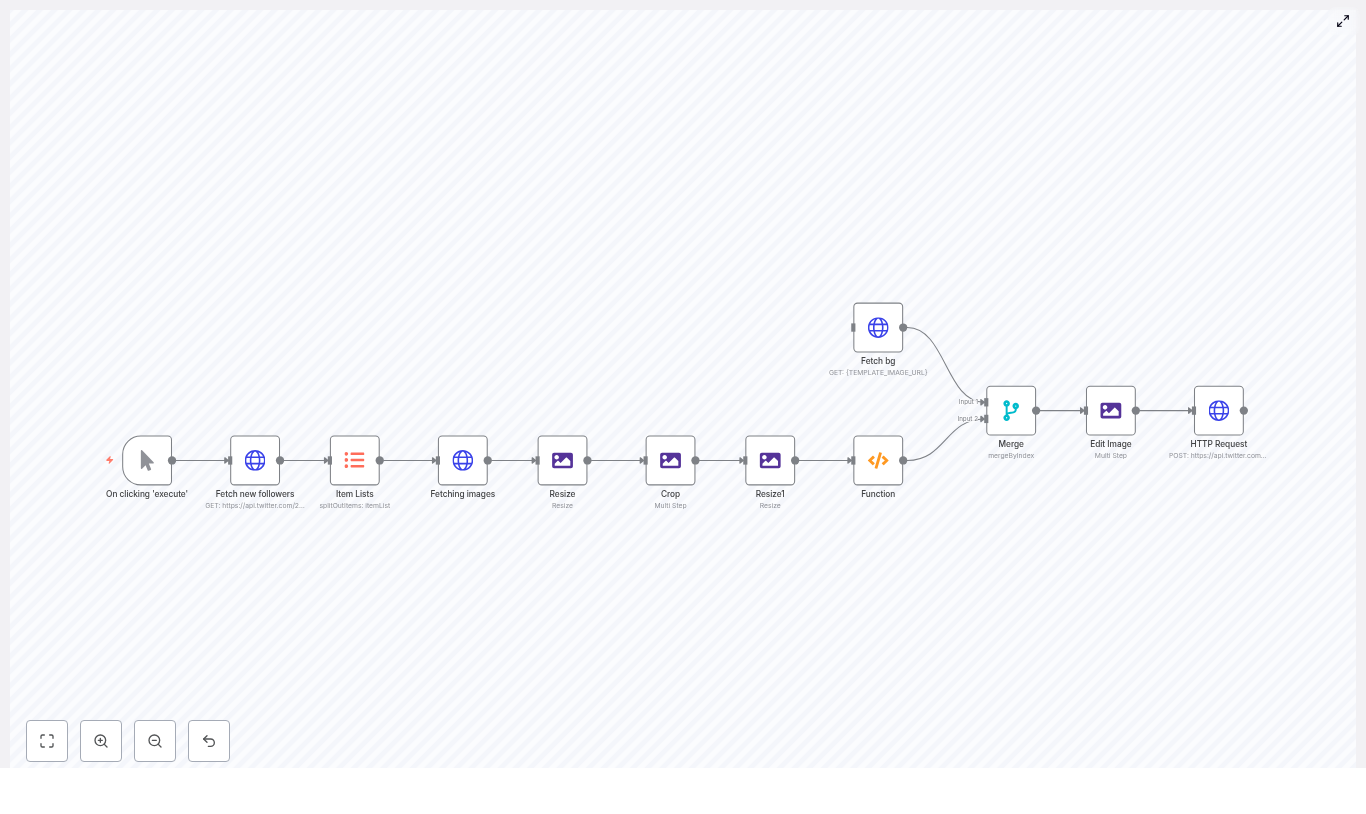
Here is the high level flow of the template:

  • Trigger the workflow manually, on a schedule, or via webhook
  • Fetch new followers using the Twitter API v2
  • Split the follower list into individual items for processing
  • Download each avatar and upgrade it to a higher resolution
  • Resize and crop avatars into circles
  • Fetch a background banner template image
  • Merge avatars onto that background at specific coordinates
  • Upload the final composite as your Twitter banner using the Twitter API v1.1

Under the hood, this involves a neat mix of HTTP Request, Edit Image, Merge, Function, and trigger nodes. Let’s break it down in a friendly way, so you know exactly what each part is doing.

Step by step setup guide (with minimal pain)

1. Choose how the workflow starts: Manual, Cron, or Webhook

The template uses a Manual Trigger node by default. This is ideal when you are first testing:

  • Run the workflow manually inside n8n

Once everything looks good, you can swap this node for:

  • Cron node – run daily, weekly, or at any interval you like
  • Webhook node – trigger from an external event or another system

That way your banner can quietly update itself on a schedule without you lifting a finger.

2. Fetch your newest followers with Twitter API v2

Next up is an HTTP Request node that talks to the Twitter API v2:

GET /2/users/{YOUR_USER_ID}/followers?user.fields=profile_image_url&max_results=3

Key details:

  • profile_image_url provides the avatar URL for each follower
  • max_results controls how many avatars you want to show in your banner
  • Use header authentication with a Bearer token or another supported method

This node pulls in a list of your latest followers plus their profile image URLs, which is the raw material for your banner magic.

3. Turn the follower list into individual items (Item Lists)

The response from Twitter is a list. The Item Lists node splits that list into separate items so that each follower becomes its own execution path.

Why this matters: each avatar gets processed individually. That means you can download, resize, and crop every image cleanly before merging them back together later.

4. Download and upgrade avatar images

Another HTTP Request node fetches each follower’s avatar. Twitter gives you a default size labeled normal, which is fine for browsing, but not ideal for clean design. The workflow upgrades that URL to a larger square image by swapping out the size:

={{$json["profile_image_url"].replace('normal','400x400')}}

This gives you a higher resolution image, which you can then safely downscale in n8n without everything turning into pixel soup.

5. Resize and crop avatars into circles

Next, a set of Edit Image nodes handle the cosmetic surgery:

  • Resize each avatar to a consistent size, for example 200×200
  • Create a transparent canvas
  • Draw a circular mask
  • Composite the avatar into that circular mask

The result: clean, circular avatars that are ready to be overlaid on your banner background. No jagged edges, no weird shapes.

6. Final resize and gather avatars with a Function node

Once the avatars are circular, the workflow:

  • Resizes them again to their final banner size, for example 75×75 pixels
  • Uses a Function node to collect all the avatar binaries into a single item

The Function node code looks like this:

const binary = {};
for (let i=0; i < items.length; i++) {  binary[`data${i}`] = items[i].binary.avatar;
}

return [  {  json: {  numIcons: items.length,  },  binary,  }
];

This consolidates multiple avatar files into one item with binary properties named data0, data1, and so on. That makes it much easier to composite all avatars onto the background in a single Edit Image step later.

7. Fetch your banner background image

Now for the stage where your avatars will perform. Another HTTP Request node downloads the banner background or template image.

Use a hosted URL or CDN location and replace the placeholder {TEMPLATE_IMAGE_URL} in the template with your real image URL. This background is the base canvas on which all avatars will be placed.

8. Merge avatars and background together

The Merge node (set to merge by index) combines:

  • The item containing all the avatar binaries (data0, data1, …)
  • The item containing the background image

After this step, the Edit Image node receives a single item that includes both the background and all the avatar binaries, which is exactly what it needs to build your final banner.

9. Composite avatars onto the banner

The next Edit Image node performs the compositing. The template uses three example composites with coordinates like:

  • data0 at positionX 1000, positionY 375
  • data1 at positionX 1100, positionY 375
  • data2 at positionX 1200, positionY 375

You can adjust:

  • The coordinates to match your design layout
  • The sizes to fit your banner proportions

Keep in mind that a typical Twitter banner safe area is around 1500×500 or larger. Use a canvas that fits Twitter’s upload requirements and test to make sure important content does not get cropped on different devices.

10. Upload the finished banner to Twitter

Once the masterpiece is ready, a final HTTP Request node uploads it using the Twitter API v1.1 endpoint:

POST account/update_profile_banner.json

Configuration details:

  • The endpoint expects multipart-form-data
  • The template sends the banner binary as banner:bg
  • Authentication uses OAuth1 with user context

Make sure your OAuth1 credentials are properly set up in n8n and that the app has permission to update the account profile. After this node runs successfully, your Twitter banner updates automatically.

Twitter authentication and permissions in n8n

This workflow talks to two different Twitter API versions, each with its own requirements:

  • Twitter API v2 for fetching followers
    • Typically uses a Bearer token
    • Configured via HTTP Header Auth in n8n
  • Twitter API v1.1 for uploading the banner
    • Uses OAuth 1.0a with user context
    • Configured as an OAuth1 credential in n8n

Best practices:

  • Store tokens only in the n8n credentials store
  • Never hard code secrets directly in node parameters
  • Ensure your Twitter developer app has the right scopes, including permission to write profile data

Customizations, tweaks, and mild overachieving

Once the base workflow is running, you can customize it to match your brand and style.

Adjust how many avatars you show

  • Change max_results in the v2 followers request
  • Update composite steps and coordinates in the Edit Image node to match that count

Design safely for different devices

  • Twitter crops banners differently on desktop and mobile
  • Keep important avatars and text near the center area
  • Test your banner on multiple devices and screen sizes

Keep image quality sharp

  • Fetch higher resolution avatars such as 400×400
  • Downscale inside n8n rather than upscaling tiny images
  • Use consistent sizing so the layout looks clean

Handle errors gracefully

  • Add a Set or If node to deal with missing or invalid avatar URLs
  • Use a fallback image if a user has no profile picture
  • Pick a Merge node mode that matches the number of avatars you expect

Respect API rate limits

  • Monitor rate limits for both v2 and v1.1 endpoints
  • Add scheduling or simple rate limiting logic if needed
  • Avoid hammering the API every few seconds just because you can

Troubleshooting common issues

If something looks off, here are some quick checks before blaming the robots.

  • Blank banner after upload
    • Verify the HTTP Request node that uploads the banner points to the correct binary property
    • In the template this is banner:bg
  • Authentication failures
    • Recreate and test your OAuth1 credentials
    • Confirm tokens are valid and the app has profile write access
  • Avatars appear in the wrong place or wrong size
    • Tweak the composite coordinates and sizes in the Edit Image node
    • Preview images locally to fine tune the layout
  • Missing avatars
    • Some users do not have profile images or have invalid URLs
    • Add checks and a default placeholder avatar in your template

Security and best practices

  • Keep all Twitter credentials in the n8n credentials store, not in plain text
  • Only display public profile images, respect follower privacy, and avoid including any private data
  • Do not run the automation so frequently that it looks spammy or violates Twitter policies

From repetitive chore to automated celebration

This n8n workflow turns a tedious, repetitive design task into a hands off way to celebrate your audience. Instead of opening a graphics editor every time you gain followers, you can let n8n quietly:

  • Pull in new followers
  • Build a clean banner with their avatars
  • Upload it to Twitter for you

With a little tuning of positions, sizes, and schedule, your profile banner becomes a living, automated shoutout board for your community.

How to get started:

  1. Import the workflow into n8n
  2. Fill in your Twitter credentials and template image URL
  3. Run a few manual tests to confirm everything looks right
  4. Swap the Manual Trigger for a Cron or Webhook if you want it fully automated

Call to action: Import the workflow, customize the banner template, and automate your Twitter presence – start celebrating new followers automatically today!
Build a Podcast Show Notes Generator with n8n

Build a Production-Grade Podcast Show Notes Generator with n8n and LangChain

Automating podcast show notes is one of the highest leverage workflows for content operations teams. It reduces manual effort, improves SEO performance, and enforces a consistent structure across episodes. This guide explains how to implement a robust podcast show notes generator in n8n using LangChain tools, Cohere embeddings, a Supabase vector store, and an OpenAI-powered agent.

The result is a production-ready pipeline that ingests podcast transcripts and outputs structured, SEO-optimized show notes that can be logged in Google Sheets or published directly to your CMS.

Use Case and Business Value

Why automate podcast show notes?

Manual creation of show notes does not scale. As episode volume and transcript length grow, human-only workflows become slow, inconsistent, and error-prone. An automated n8n workflow addresses these challenges by:

  • Reducing time-to-publish: Generate show notes immediately after transcripts are available.
  • Improving SEO: Enforce consistent keyword usage, headings, and summaries across all episodes.
  • Increasing accessibility: Automatically produce timestamps, highlights, and resource lists.
  • Enabling scale: Handle multiple shows and long-form content without additional headcount.

For teams managing multiple podcasts or large content libraries, this workflow becomes a reusable asset that standardizes show notes generation across the entire portfolio.

High-Level Architecture

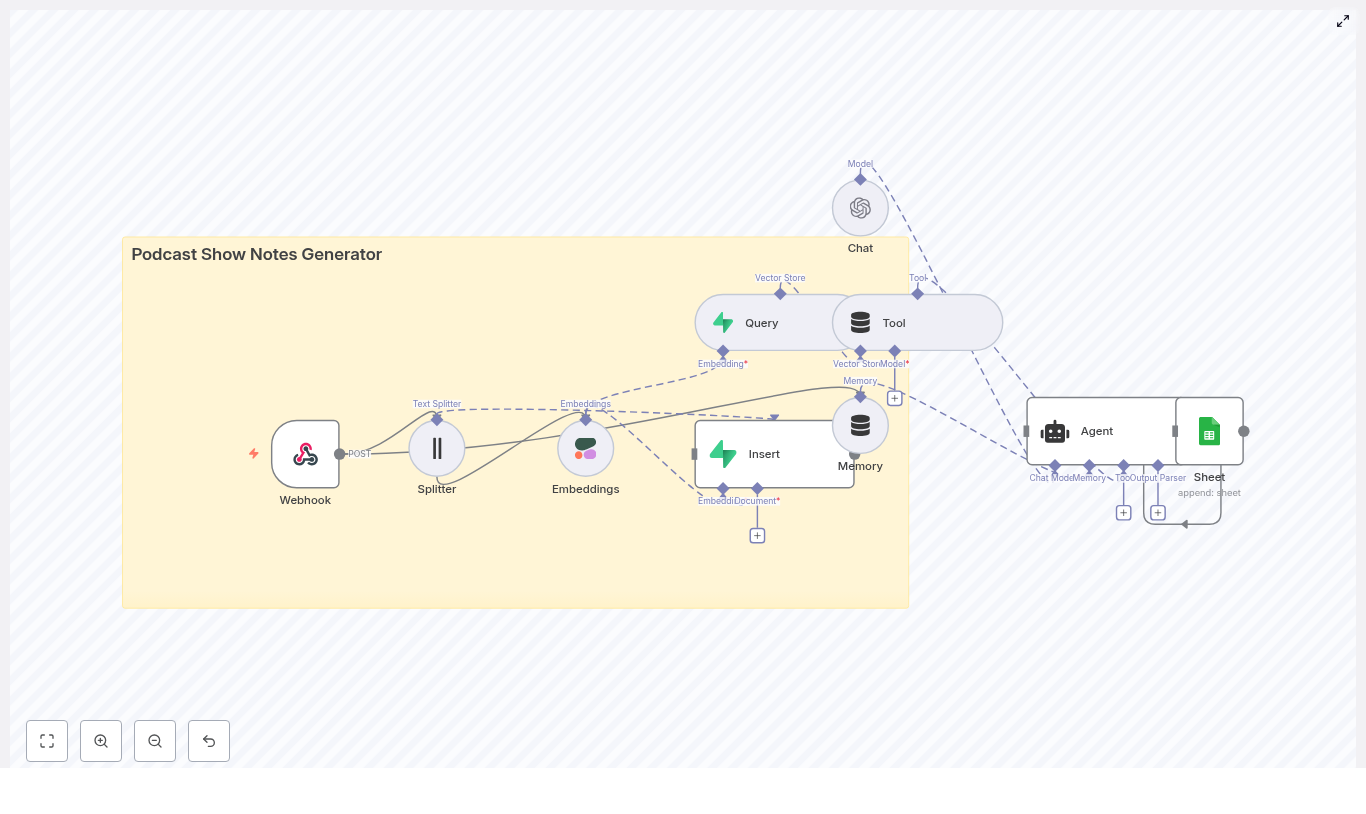
The n8n template follows a retrieval-augmented generation pattern. At a high level, the workflow:

  • Accepts podcast transcripts and metadata via a Webhook.
  • Splits transcripts into manageable text chunks.
  • Generates semantic embeddings for each chunk using Cohere (or an alternative model).
  • Stores embeddings and metadata in a Supabase vector store.
  • Uses a LangChain agent with tools and memory on top of OpenAI to assemble structured show notes.
  • Persists the final output to Google Sheets or your CMS via API.

Conceptually, the workflow aligns with the following node sequence:

Webhook → Text Splitter → Embeddings → Supabase Insert → Vector Query Tool → Agent (with Memory + Chat Model) → Google Sheets / CMS

Memory and chat model nodes supply episode-level context, while the vector store provides relevant transcript segments to the agent, which then composes high-quality show notes.

Prerequisites and Environment Setup

Before importing or configuring the template, ensure the following components are available:

  • n8n instance (self-hosted or n8n cloud).
  • OpenAI API key for the language model used by the agent.
  • Cohere API key for embeddings, or an alternative such as OpenAI embeddings if you prefer a single vendor.
  • Supabase project configured with a vector-enabled table for storing embeddings and metadata.
  • Google Sheets account with OAuth credentials if you intend to log outputs there.
  • Podcast transcript as plain text or JSON, including optional timestamps and episode metadata.

Core Workflow Design in n8n

1. Ingestion via Webhook

Begin by adding a Webhook node in n8n. Configure it to accept POST requests at a path such as /podcast_show_notes_generator.

Typical payload fields include:

  • title (episode title)
  • episode_number
  • host and guest information
  • transcript (full text or JSON structure)
  • timestamps or segment markers (optional)

This node becomes the primary integration point for your existing tooling, such as transcription services or internal content pipelines.

2. Transcript Chunking with a Text Splitter

Large transcripts must be divided into smaller segments before generating embeddings. Add a Text Splitter node and configure it with parameters such as:

  • Chunk size: 400-600 characters
  • Chunk overlap: 40-80 characters

These values strike a balance between preserving semantic coherence and controlling embedding costs. Overlap is important to avoid splitting sentences or losing context at boundaries. Experiment within this range to match your average transcript length and desired granularity.

3. Generating Embeddings with Cohere

Next, route the chunks into a Cohere embeddings node. Each chunk should produce a vector representation suitable for semantic search and retrieval. If you prefer to standardize on OpenAI, you can substitute an OpenAI embeddings node without changing the overall architecture.

Alongside the embedding, maintain metadata that will be stored in Supabase, for example:

  • episode_id or episode_number
  • chunk_text
  • start_time and end_time (if derived from timestamps)
  • Tags such as guest, topic, or segment_type

This metadata is critical for downstream retrieval and for generating accurate timestamped highlights.

4. Vector Storage in Supabase

Create a vector-enabled table in Supabase with columns for:

  • id
  • episode_id
  • embedding (vector field)
  • chunk_text
  • start_time, end_time
  • Optional metadata fields such as guest, tags, or topics

Use an Insert node in n8n to write each embedding and its associated metadata to this table. Supabase then acts as your semantic retrieval layer whenever the agent needs context to draft the show notes.

5. Query Tools for Retrieval-Augmented Generation

When you are ready to generate show notes, the agent must access the most relevant parts of the transcript. Configure a Query node that performs a vector similarity search against the Supabase table.

Wrap this query logic as a Tool that the LangChain agent can invoke. Key configuration points:

  • Filter by episode_id to restrict results to the current episode.
  • Return top-k chunks, for example k = 5-10, to supply a rich yet focused context window.
  • Include chunk_text and timestamps in the response.

This retrieval step is what enables the agent to reference specific moments in the conversation and generate accurate summaries, highlights, and links.

6. Memory and Chat Model Configuration

To improve coherence across the generated show notes, configure a memory buffer (for example, windowed memory) in n8n. Store information such as:

  • Host and guest names
  • Series or show theme
  • Episode-level metadata and recurring segments

Connect a Chat node using an OpenAI model as the language model for the agent. The combination of:

  • Episode memory
  • Retrieved transcript chunks from the vector store
  • Structured instructions in the prompt

allows the agent to produce a well-organized show notes document that includes summaries, key takeaways, timestamps, and resources.

7. Prompt Engineering for Structured Show Notes

Prompt design is critical for consistent output. Define a prompt template that specifies the desired sections and formatting. A typical structure might include:

  • Episode Title
  • Short Summary (2-3 sentences)
  • Key Takeaways (3-6 bullet points)
  • Timestamps & Highlights (time → short description)
  • Links & Resources mentioned
  • SEO Keywords (optional list)

Provide the agent with:

  • Episode metadata (title, host, guest, episode number).
  • Retrieved transcript chunks from Supabase.
  • Clear instructions on output format, for example HTML or Markdown.

This ensures the generated show notes are immediately usable in your publishing workflow without heavy post-processing.

Output and Integration Options

Google Sheets as a Lightweight CMS

The reference template writes the final show notes and associated metadata to Google Sheets using a dedicated node. This is useful when:

  • You want a simple internal log of all generated notes.
  • Non-technical stakeholders need easy access and review capabilities.
  • You plan to connect Sheets to other tools or reporting dashboards.

Publishing Directly to a CMS

Alternatively, you can replace or extend the Sheets output with calls to your CMS:

  • WordPress REST API
  • Ghost or other headless CMS APIs
  • Custom internal publishing systems

In such cases, the agent can be instructed to output Markdown or HTML that aligns with your CMS templates, including headings, lists, and embedded links.

Operational Best Practices

Improving Output Quality

  • Optimize chunking parameters: Avoid cutting sentences in half. Adjust chunk size and overlap until chunks align with natural language boundaries.
  • Align embedding and language models: When possible, use embeddings that are well aligned with your chosen LLM to improve retrieval quality.
  • Preserve timestamps: Store start_time and end_time with each chunk so the agent can generate precise timestamped highlights.
  • Use controlled prompts: Provide explicit section headings and few-shot examples to stabilize structure across episodes.
  • Implement rate limiting: Queue or throttle incoming transcripts to avoid API throttling, especially during batch imports.

Security and Privacy Considerations

Podcast transcripts often contain personally identifiable information or sensitive topics. Treat them accordingly:

  • Secure the webhook using authentication mechanisms such as HMAC signatures, API keys, or OAuth.
  • Encrypt data at rest in Supabase and restrict access to the vector store to service accounts or tightly scoped roles.
  • Limit logging: Avoid logging full transcripts or embeddings in publicly accessible logs.

Scaling and Cost Management

Embedding generation and LLM calls are the primary cost drivers. To manage cost at scale:

  • Batch operations: Batch transcripts or chunk processing where possible to reduce overhead and API calls.
  • Cache embeddings: Do not regenerate embeddings for unchanged transcripts.
  • Use tiered models: Apply smaller, cheaper embedding models for ingestion and reserve larger LLMs for the final composition step when quality matters most.

Testing and Continuous Improvement

Before deploying to production, thoroughly test the workflow using representative transcripts. Validate:

  • Timestamp accuracy: Check that highlights map correctly to the episode timeline.
  • Summary quality: Ensure the short summary captures the main themes without hallucinations.
  • Key takeaway relevance: Confirm that bullet points are actionable and reflect the actual conversation.
  • SEO alignment: Verify that important keywords appear naturally in titles, headings, and body text.

Iterate on the prompt based on editorial feedback. Small adjustments to wording, section ordering, or examples can significantly improve consistency and perceived quality.

Prompt Template Example

The following skeleton illustrates how you might structure the agent prompt within n8n:

<Episode Metadata>
Title: {{title}}
Host: {{host}}
Guest: {{guest}}

<Context: Retrieved transcript chunks>
{{chunks}}

<Instructions>
1. Write a 2-3 sentence summary of the episode.
2. Provide 4 bullet key takeaways that reflect the most important insights.
3. Generate a timestamped highlights list (time → short note) using the provided timestamps.
4. List any resources, tools, or links mentioned in the conversation.
5. Output the final result in Markdown with clear headings and bullet lists.

Adapt this template to match your brand voice, formatting standards, and CMS requirements.

Future Enhancements and Extensions

Once the core show notes generator is stable, you can extend the workflow to cover additional content operations:

  • Social content generation: Automatically create social posts or newsletter snippets from the generated show notes.
  • Audio-aware timestamps: Integrate speech-to-text alignment or audio processing to refine timestamps at the sentence level.
  • Multilingual support: Use translation tools and multilingual embeddings to generate show notes in multiple languages.
  • Editorial review UI: Surface generated notes in an internal editor so hosts or producers can make quick adjustments before publishing.

Conclusion and Next Steps

By combining n8n, LangChain tooling, Cohere embeddings, and Supabase vector storage, you can implement a scalable podcast show notes generator that replaces hours of manual work with a repeatable, high-quality automation. The reference template encapsulates a practical n8n workflow that you can import, audit, and adapt to your own stack. It covers ingestion via webhook, transcript splitting, embeddings, vector storage, retrieval-augmented generation with an agent, and output to Google Sheets or your CMS.

To get started, import the n8n template, configure your API keys, and run a test transcript through the pipeline. From there, refine prompts, memory behavior, and integration endpoints until the workflow fits seamlessly into your content operations.

Call to action: Try the n8n podcast show notes template today, connect your OpenAI, Cohere, Supabase, and Google accounts, and generate your first episode’s show notes in minutes. For help with custom prompts, editorial rules, or CMS integration, reach out for a tailored implementation or prompt tuning engagement.

Keywords: podcast show notes generator, n8n, LangChain, Cohere embeddings, Supabase, podcast automation, vector store, retrieval augmented generation.

Calorie Tracker Backend: Food Image Analysis

Calorie Tracker Backend: Food Image Analysis with OpenAI Vision and n8n

Turning a simple photo of a meal into structured nutrition data is a powerful way to improve any calorie tracking app. Instead of asking users to type every ingredient and portion, you can let them take a picture and let automation do the rest.

This guide explains, step by step, how an n8n workflow template uses OpenAI Vision and LLM parsing to analyze meal images and return clean JSON nutrition data. You will see how each node works, how the data flows through the system, and what to consider when using this in production.

What you will learn

By the end of this tutorial-style walkthrough, you will understand how to:

  • Design an image-based food analysis backend in n8n
  • Receive meal photos through a secure webhook
  • Call the OpenAI Vision API to analyze food images
  • Parse and validate the AI response into strict JSON using LLM tools
  • Return a predictable nutrition payload to your frontend or API client
  • Handle uncertainty, errors, and non-food images safely

Why use image-based food analysis in a calorie tracker?

Manual food logging is one of the main reasons users abandon calorie tracking apps. Image-based analysis reduces this friction and increases the amount of nutrition data you can capture.

With an automated backend that can read meal photos, you can provide:

  • Fast and consistent estimates of calories and macronutrients
  • Structured JSON output that is easy to store, query, and analyze
  • Confidence and health scoring that helps users interpret results

The n8n workflow template described here follows a pattern you can reuse in many AI automation projects: accept input, invoke a model, parse the result, and return a stable JSON response.

High-level workflow overview

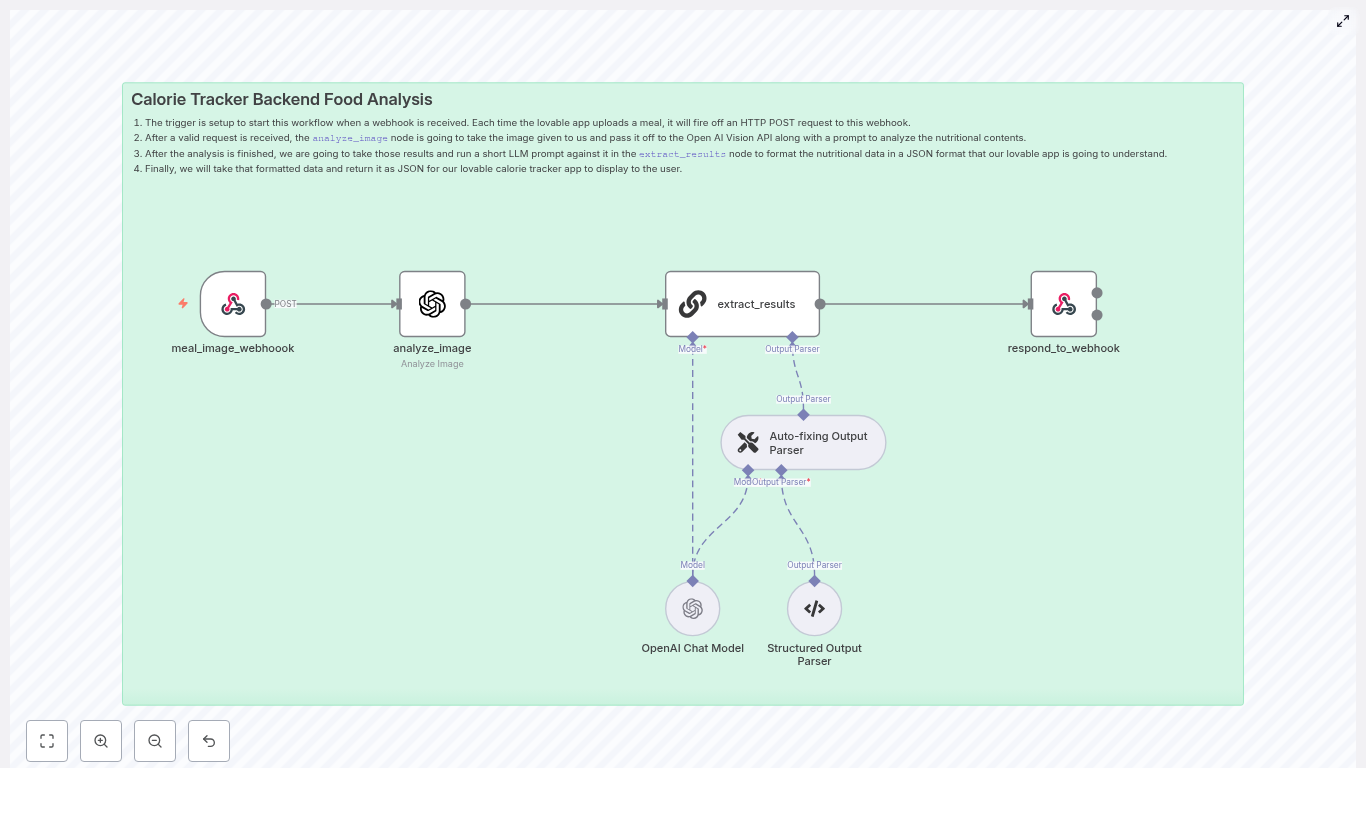
The calorie tracker backend template in n8n is a linear pipeline with a few key validation and parsing steps. At a high level, it works like this:

  1. Webhook receives the meal image from your app.
  2. Analyze Image node sends the image to OpenAI Vision with a nutrition-focused prompt.
  3. Extract Results node uses an LLM and output parsers to convert the raw analysis into strict JSON.
  4. Respond to Webhook returns the final JSON payload to the client.

Next, we will walk through each node in the n8n workflow and see exactly how they work together.

Step-by-step: building the n8n workflow

Step 1: Accepting meal images with the Webhook node

Node: meal_image_webhook

The Webhook node is the public entry point of your calorie tracker backend. Your mobile or web app sends an HTTP POST request to this endpoint whenever a user uploads a meal photo.

What the Webhook receives

The webhook can accept:

  • A base64-encoded image in the request body
  • A multipart form upload with an image file

How to configure the Webhook in n8n

  • Set the HTTP method to POST.
  • Configure authentication, for example:
    • API keys in headers
    • Signed URLs or tokens
  • Map the incoming image field (base64 string or file) to a known property in the workflow data.

Tip for production: Log the incoming payload or metadata in a temporary store for debugging, but avoid keeping images or any personal information longer than necessary unless you have user consent.

Step 2: Analyzing the food image with OpenAI Vision

Node: analyze_image

Once the image is available, the workflow passes it to a node that calls the OpenAI Vision API. This is where the core food recognition and nutrition estimation takes place.

Designing an effective prompt for nutrition analysis

The accuracy and usefulness of the output depend heavily on your prompt. In the template, the prompt is crafted to guide the model through a clear reasoning process:

  • Assign a role and mission, for example:
    • “You are a world-class AI Nutrition Analyst.”
  • Ask for intermediate steps so the model does not skip reasoning:
    • Identify food components and ingredients
    • Estimate portion sizes
    • Compute calories, macronutrients, and key micronutrients
    • Assess the overall healthiness of the meal
  • Handle non-food images explicitly by defining a specific error schema the model should return if the image does not contain food or is too ambiguous.

In n8n, you pass the image from the webhook node into the OpenAI Vision node, along with this prompt. The node returns a free-form text response that describes the meal, estimated nutrition values, and reasoning.

Step 3: Converting raw AI output into strict JSON

Node: extract_results

The response from OpenAI Vision is rich but not guaranteed to be in the exact JSON format your app needs. To make the data safe to consume, the workflow uses another LLM step configured to enforce a strict schema.

How the Extract Results node works

The template uses an LLM node with two important parser tools:

  • LLM prompt for structured output
    • The prompt instructs the model to transform the raw Vision analysis into a specific JSON structure.
    • You define the exact fields your app expects, such as mealName, calories, protein, confidenceScore, and more.
  • Auto-fixing Output Parser
    • Automatically corrects minor schema issues, for example:
      • Missing optional fields
      • Small formatting deviations
  • Structured Output Parser
    • Enforces data types and required fields.
    • Prevents the model from returning unexpected keys or formats that could break your application.

The result of this node is a clean, validated JSON object that your frontend or API clients can rely on.

Step 4: Returning the final JSON to the client

Node: respond_to_webhook

The last step is to send the structured nutrition data back to the caller that triggered the webhook. This is handled by the Respond to Webhook node.

Configuring the response

  • Set the response body to the JSON output from the extract_results node.
  • Use Content-Type: application/json so clients know how to parse the response.
  • Optionally add caching headers or ETag headers if you want clients to cache results.

At this point, your n8n workflow acts as a full backend endpoint: send it a meal photo, and it returns structured nutrition data.

Understanding the nutrition JSON output

After the parsing and validation steps, the backend returns a predictable JSON payload. The exact schema is up to you, but a conceptual example looks like this:

{  "mealName": "Chicken Caesar Salad",  "calories": 520,  "protein": 34,  "carbs": 20,  "fat": 35,  "fiber": 4,  "sugar": 6,  "sodium": 920,  "confidenceScore": 0.78,  "healthScore": 6,  "rationale": "Identified grilled chicken, romaine, and dressing; assumed standard Caesar dressing amount. Portions estimated visually."
}

In this example:

  • mealName is a human-readable description of the dish.
  • calories, protein, carbs, fat, fiber, sugar, and sodium are numeric estimates.
  • confidenceScore indicates how certain the model is about the identification and portion sizes.
  • healthScore gives a simple 0-10 style rating of meal healthiness.
  • rationale explains how the model arrived at its estimates, which can be helpful for debugging or user transparency.

Handling uncertainty, errors, and non-food images

No vision model can perfectly estimate portion sizes or ingredients from every photo. It is important to make uncertainty explicit in your API design so your frontend can communicate it clearly to users.

Key design considerations

  • confidenceScore
    • Use a value from 0.0 to 1.0.
    • Lower scores mean the model is less sure about what it sees or about the portion sizes.
  • healthScore
    • Use a simple scale such as 0-10.
    • Base it on factors like:
      • Processing level of the food
      • Macronutrient balance
      • Estimated sodium and sugar levels
  • Deterministic error response
    • Define a standard JSON object for non-food or ambiguous images.
    • For example, set confidenceScore to 0.0 and include a clear error message field.

By keeping errors and low-confidence cases structured, you avoid breaking client code and can gracefully prompt users for more information when needed.

Production tips for a robust calorie tracker backend

Security and validation

  • Protect the webhook with:
    • API keys or tokens in headers
    • Signed URLs that expire after a short time
  • Validate uploaded images:
    • Check content type (for example, image/jpeg, image/png).
    • Enforce reasonable file size limits.
  • Log inputs and responses for debugging, but avoid:
    • Storing personally identifiable information without consent
    • Keeping images longer than necessary

Rate limits and cost control

Vision and LLM calls are more expensive than simple API or database operations, so it helps to optimize usage:

  • Batch or queue requests where it makes sense for your UX.
  • Consider a lightweight first-pass classifier to detect obvious non-food images before calling OpenAI Vision.
  • Monitor your usage and set limits or alerts to avoid unexpected costs.

Testing and calibration

To improve accuracy over time, treat the system as something you calibrate, not a one-time setup.

  • Collect a set of human-labeled meal photos with known nutrition values.
  • Compare model estimates against these ground truth labels.
  • Tune prompts, portion-size heuristics, and health scoring rules.
  • Use human-in-the-loop review for edge cases or for training a better heuristic layer.

Extending your n8n calorie tracking system

Once your per-image analysis is stable and reliable, you can add more features around it:

  • Historical nutrition logs
    • Store each meal’s JSON output in a database.
    • Use it for personalization, daily summaries, and long-term trend analysis.
  • Barcode scanning integration
    • Combine image-based analysis with barcode data for packaged foods.
    • Pull exact nutrition facts from a product database when available.
  • Healthier swap suggestions
    • Use the healthScore and nutrient profile to suggest simple improvements.
    • For example, smaller portion sizes, dressing on the side, or alternative ingredients.

Common pitfalls to avoid

  • Assuming perfect portion size accuracy
    • Always communicate that values are estimates.
    • Use the confidenceScore to show uncertainty.
  • Skipping schema validation
    • LLM outputs can drift from the desired format.
    • Rely on structured parsers and auto-fixers so your app does not break on unexpected responses.
  • Ignoring edge cases
    • Mixed plates, heavily obscured items, or unusual dishes can confuse the model.
    • Consider asking the user a follow-up question or offering a manual edit option when confidence is low.

Recap and next steps

This n8n workflow template shows how to convert meal photos into structured nutrition data using a clear, repeatable pattern:

  1. Webhook receives the image.
  2. OpenAI Vision analyzes the food and estimates nutrition.
  3. An LLM node converts the raw analysis into strict JSON using structured parsers.
  4. The workflow returns a predictable JSON response to your client.

With proper error handling, confidence scoring, and security measures, this approach can power a scalable and user-friendly calorie tracker backend.

Ready to try it in your own project? Clone the n8n template, connect it to your app, and test it with a set of labeled meal images. Iterate on your prompts and parsers until the output fits your product’s needs. If you need a deeper walkthrough or a starter repository, you can subscribe or reach out to our team for a tailored implementation plan.

Author: AI Product Engineering Team • Keywords: calorie tracker backend, food image analysis, OpenAI Vision, n8n, webhook, nutrition API

AI Sales Agent Workflow with n8n & MCP

AI Sales Agent Workflow with n8n & MCP: Turn Detailing Inquiries into Booked Jobs

Imagine this: someone messages your shop on WhatsApp asking about ceramic coating, another pings you on Instagram about window tint, and a third sends a voice note on Facebook about Paint Protection Film. Instead of juggling replies and scribbling notes, an AI sales agent quietly picks up every message, qualifies the lead, saves their info, and books a consultation for you.

That is exactly what this n8n workflow template does. It connects WhatsApp, Facebook Messenger, Instagram, and web chat with an AI agent, Airtable CRM, and a calendar booking sub-agent. The stack is:

  • n8n for automation and workflow orchestration
  • MCP Airtable tools for CRM actions
  • OpenAI for the conversational AI agent
  • Airtable as your contact and opportunity database
  • Calendar agent to handle scheduling

If you run an automotive detailing shop that sells PPF, ceramic coating, and tint, this setup gives you a production-ready pattern to capture, qualify, and book leads automatically.

Why this workflow is a great fit for detailing shops

Most busy shops run into the same three headaches:

  • Inconsistent lead qualification – some leads get detailed answers, others get a quick reply or no follow up at all.
  • Messy or missing CRM data – contact details live in random DMs, spreadsheets, or not at all.
  • Friction in booking – lots of back-and-forth to find a time, or the conversation simply dies before a consultation is scheduled.

This n8n + MCP workflow attacks all three at once. Every inbound message is:

  1. Captured from the channel (WhatsApp, Facebook, Instagram, web chat)
  2. Routed and normalized so the AI can understand it
  3. Handled by an AI agent that follows a clear state machine
  4. Synced to Airtable as structured Contact and Opportunity records
  5. Connected to a calendar sub-agent that books consultations

The result is faster replies, fewer missed opportunities, and a clean CRM record for every conversation. You get more booked consultations without living in your inbox or DMs.

What the AI sales agent actually does

At the heart of this template is the AI agent built with n8n, LangChain, and OpenAI. Think of it as a digital sales rep that follows a playbook instead of winging it.

Finite state flow: how the conversation stays on track

The agent runs as a finite state machine with four main stages:

  • INITIAL – Greet the user and figure out what they need.
  • QUALIFYING – Ask short, focused questions to understand goals (protection vs appearance, service interest, etc.).
  • CONTACT_COLLECTION – Collect name and email when needed, without being annoying or repetitive.
  • SCHEDULING – Ask for a preferred date and time, then call the calendarAgent to book the consultation.

Each message from the user moves the conversation from one state to the next in a predictable way. No random tangents, no weird loops, just a clean flow from “Hi, I have a question” to “Your consultation is booked.”

Knowledge that is accurate and on-brand

The AI agent uses a dedicated knowledge vector store for technical and sales content. That means it can:

  • Explain the difference between PPF, ceramic coating, and window tint
  • Educate customers on benefits and use cases
  • Avoid guessing prices or inventing policies

Because you control the knowledge base, the AI sticks to approved information and avoids discussing sensitive topics like pricing unless you allow it.

How messages from different channels are handled

Let us talk about the front door of this automation: the channel triggers. The template supports:

  • WhatsApp Business Cloud
  • Facebook Messenger
  • Instagram messaging
  • Web chat

Channel triggers and webhooks

Each channel has its own webhook or platform node inside n8n. When a new message arrives, the workflow:

  1. Captures the event from WhatsApp, Facebook, Instagram, or chat
  2. Normalizes the data into a standard payload with fields like text, sessionId, and extraPrompt
  3. Passes that normalized payload to the AI agent so it can respond consistently across channels

Text, audio, and unsupported media

Not every message is a simple text. The workflow routes messages through a switch node that checks the type:

  • Text – Goes straight to the AI agent for processing.
  • Audio (for example WhatsApp voice notes) – The file is downloaded, transcribed to text, then fed into the same qualification flow.
  • Unsupported media – The user gets a short, polite reply asking them to send their question in text.

The agent also respects channel-specific context. For example, on WhatsApp you already have the user’s phone number, so the flow skips asking for it again. That small detail reduces friction and speeds up the path from inquiry to booking.

Deep dive: MCP Airtable CRM integration

Now, what happens behind the scenes with your CRM? This is where the MCP Airtable tools come in, using a discovery-first pattern.

crmAgent and tools: how records stay linked

The workflow uses MCP Airtable tools to perform CRM actions like creating or updating:

  • Contact records
  • Opportunity records

The pattern looks like this:

  1. Discovery first – Check memory for baseId and tableId. If they are missing or outdated, call List_Resources or read/list endpoints to refresh them.
  2. Execute_Tool – Use Execute_Tool to create or update the Contact and Opportunity records with the right IDs.
  3. Store the Contact recordId – After creating a Contact, the returned recordId is stored in memory. This is critical so that when you create an Opportunity, it can be linked back to the correct Contact.

That record linking is what lets you see the full story of each lead: where they came from, what they asked about, and whether they booked.

Calendar agent: from chat to confirmed consultation

Once the AI agent reaches the SCHEDULING state, it hands things off to a dedicated calendarAgent.

How booking works

The calendarAgent expects two main inputs:

  • Attendee email
  • Start time in ISO 8601 format

The AI agent asks the user for their preferred date and time, converts that into a precise ISO 8601 timestamp, and then calls the calendarAgent. After a successful booking, the flow:

  1. Creates or updates an Opportunity in Airtable
  2. Sets the Opportunity status to “Meeting Booked”
  3. Links the Opportunity to the Contact using the stored recordId

From the customer’s point of view, it feels like a smooth chat conversation. For you, it is a fully tracked lead in your CRM with a confirmed time on your calendar.

Designing the AI state machine for messaging channels

Messaging channels reward short, focused messages. The workflow is designed with that in mind.

Best practices baked into the template

  • Single-question messages – Each AI message focuses on one clear question instead of a long paragraph.
  • Under 160 characters – Responses are kept concise for SMS-style and chat-friendly formatting.

Here is how the states typically behave:

  • INITIAL – Greet the user and ask how you can help. If they already mention a specific service like “ceramic coating,” the agent keeps the reply relevant without overcomplicating it.
  • QUALIFYING – Ask a single question to understand whether they care more about protection, appearance, or both. Use the knowledge store to give short, educational replies when needed.
  • CONTACT_COLLECTION – Only ask for name and email when the user is ready to book and the channel has not already provided that info. For WhatsApp, phone number is already there, so you skip that ask.
  • SCHEDULING – Ask for specific date and time preferences, then pass ISO-formatted timestamps to the calendarAgent. Once booked, the CRM Opportunity is updated accordingly.

Implementation checklist: what you need to set up

Setting this up is straightforward if you follow a checklist. Here is the sequence you will want to work through:

  • Provision WhatsApp Business Cloud, create a Facebook app, and configure Instagram messaging webhooks. Test that incoming events reach n8n.
  • Configure n8n webhooks and channel-specific Set nodes to normalize payloads into consistent fields like text, sessionId, and extraPrompt.
  • Set up your OpenAI model and vector store for technical_and_sales_knowledge so the AI only uses your authorized content when answering service questions.
  • Integrate MCP Airtable tools and implement the discovery-first Execute_Tool pattern to safely store and reuse baseId, tableId, and recordId values.
  • Create the calendar sub-agent that accepts an attendee email and ISO 8601 start time and returns a booking confirmation.
  • Test the full journey end-to-end: audio transcription, Contact creation, calendar booking, and Opportunity creation with proper linking.

Operational tips and debugging tricks

Once things are live, a few habits will save you a lot of time when something goes wrong.

  • Log tool outputs at every Execute_Tool step so you can see Airtable errors directly in n8n.
  • If Execute_Tool fails, call List_Resources to refresh baseId and tableId, then retry the operation.
  • Keep a memory cache for baseId, tableId, and contact.crmRecordId to avoid repeated discovery calls and to keep flows snappy.
  • Monitor calendarAgent responses and double-check timezone handling when converting user preferences into ISO timestamps.

Security, privacy, and compliance considerations

Automating sales conversations means handling personal data, so a bit of care goes a long way.

  • Collect only what you need – If WhatsApp already gives you a phone number, do not ask for it again unless there is a clear reason.
  • Secure your credentials – Store OpenAI, Airtable, and platform webhook keys in n8n’s environment-level credentials, not hard-coded in nodes.
  • Consent and transparency – Add simple consent language if you are storing customer data in Airtable or sending calendar invites.
  • Limit sensitive details – Keep calendar invite descriptions clean and avoid including diagnostic or overly detailed notes about the vehicle or customer.

What to measure: KPIs for your AI sales agent

To know if the workflow is actually helping your business, track a few key metrics:

  • Lead response time – Average time from inbound message to the AI’s first reply.
  • Contact collection rate – Percentage of qualified leads who provide name and email.
  • Consultation booking rate – Percentage of qualified leads that turn into scheduled consultations.
  • Conversion to paid job – How many consultations turn into paying work, tracked in your CRM after the appointment.

These numbers tell you where to tweak the copy, the questions, or the scheduling logic to improve performance.

Real-world example: from Instagram DM to booked install

Here is how a typical conversation might look in practice:

  1. A user messages your Instagram account asking about ceramic coating for their new car.
  2. The channel trigger in n8n captures the DM and passes it to the AI agent.
  3. The agent greets them, briefly explains the benefits of ceramic coating using your knowledge store, and asks a simple qualifying question.
  4. Once the user shows interest in booking, the agent asks for their first name and email (since Instagram does not provide that automatically).
  5. The workflow creates a Contact in Airtable and stores the recordId.
  6. The agent asks for a preferred date and time, converts it to ISO 8601, and calls the calendarAgent to schedule a consultation.
  7. After the booking is confirmed, the workflow creates an Opportunity in Airtable, sets the status to “Meeting Booked,” and links it to the Contact.

From your side, you see a new event on your calendar and a fully populated CRM record, without touching a keyboard. No manual copy-paste, no forgotten follow ups, just more PPF, coatings, and tinting jobs coming through the door.

Next steps: get this n8n workflow running for your shop

If you like the idea of turning your DMs into an organized, automated sales funnel, you do not have to build it from scratch. This exact workflow can be adapted to your shop’s services, tone of voice, and knowledge base.

We can:

  • Export and deploy the n8n workflow for your environment
  • Connect it to your Airtable base
  • Customize the knowledge vector store to match your service descriptions and policies
  • Tune the conversation flow to match how you like to sell

Ready to automate your lead flow? Book a free consultation, and we will review your current lead channels, then design a tailored automation plan that turns more messages into booked consultations.

When you are ready, reach out and we will help you deploy this n8n + MCP sales agent so your shop can focus on installs instead of inboxes.

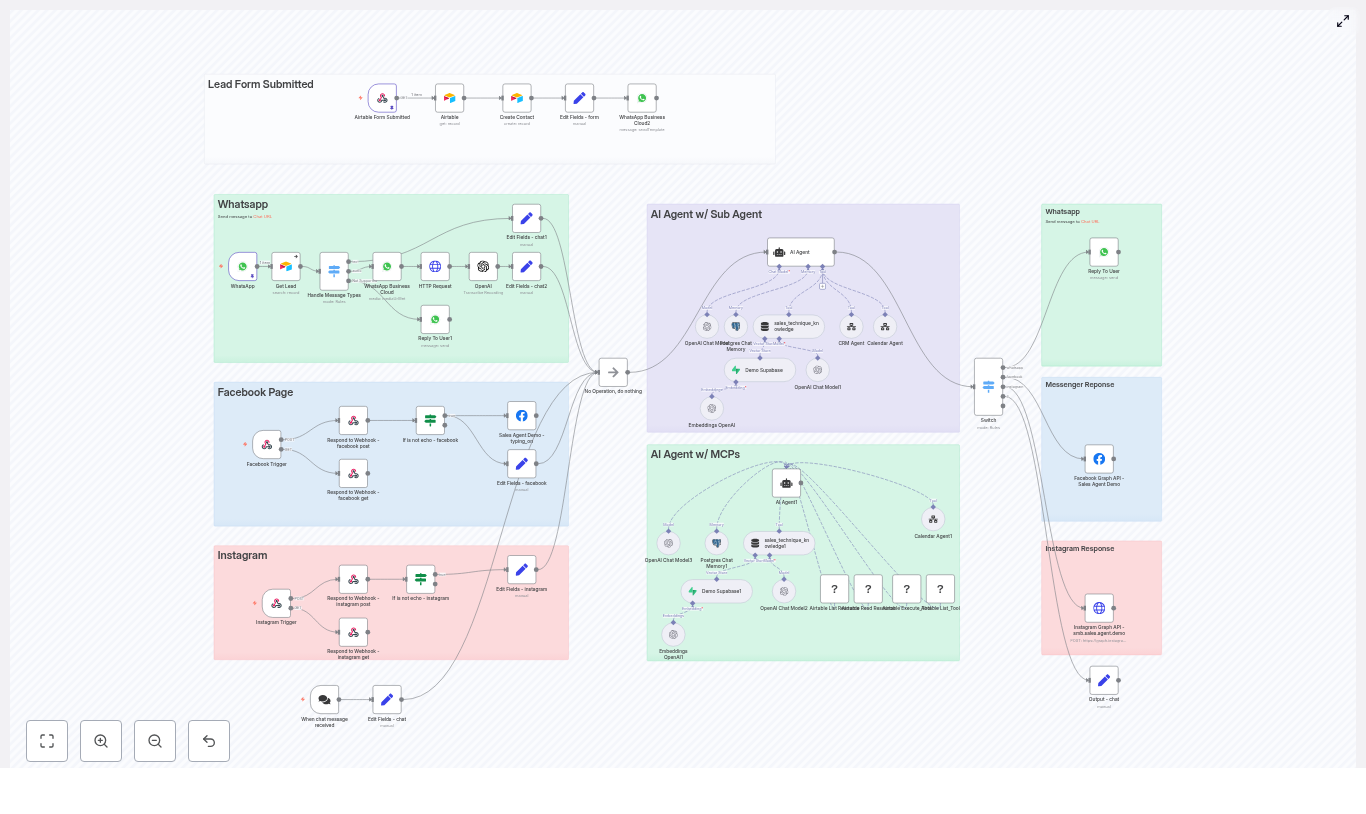
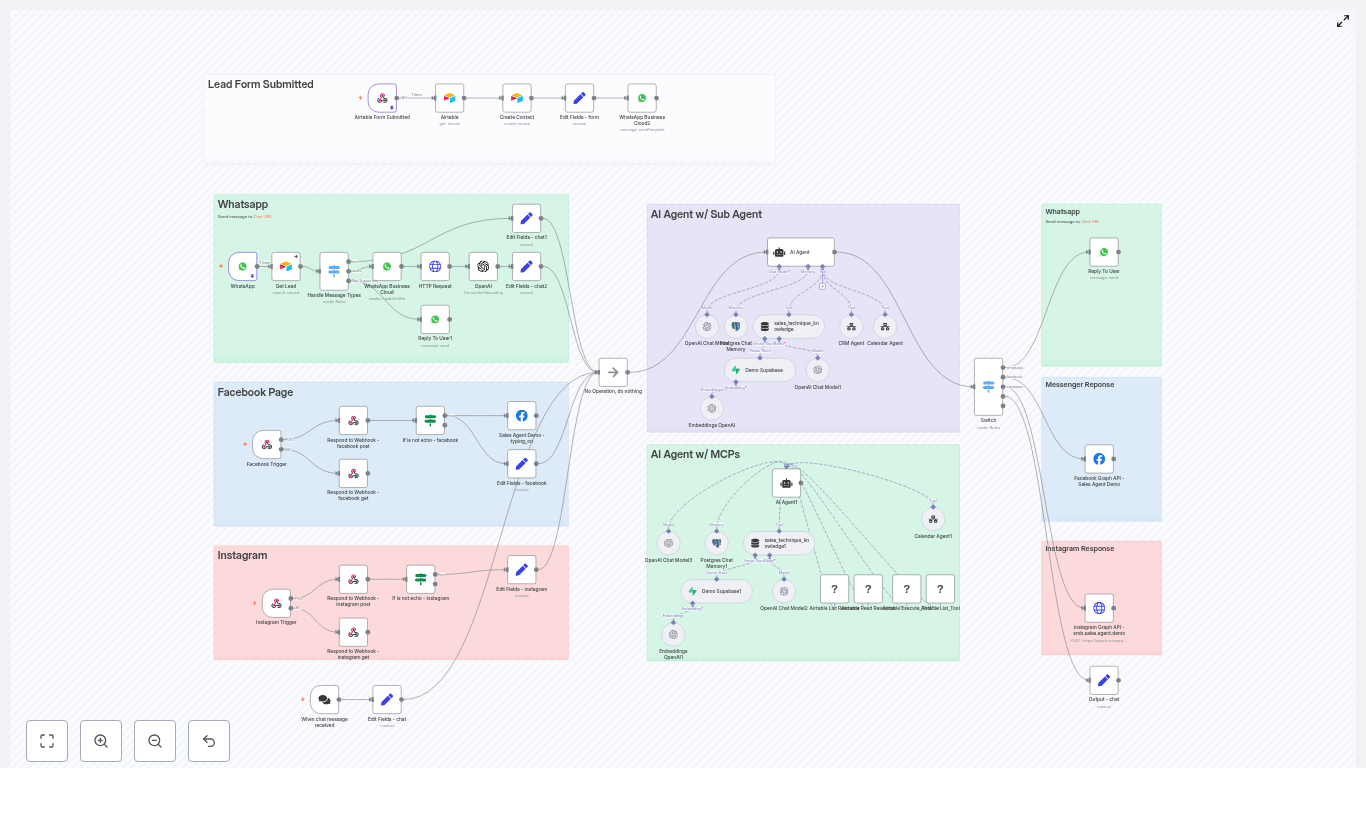
Screenshot caption: High-level n8n workflow showing channel triggers (WhatsApp, Facebook, Instagram), message routing, AI agent nodes, MCP Airtable tools, and calendar agent integrations.

Convert PDF to PDF/A in n8n (ConvertAPI Guide)

Convert PDF to PDF/A in n8n with ConvertAPI

This guide explains how to implement an n8n workflow that downloads a PDF file, converts it to the PDF/A archival format using ConvertAPI, and persists the converted document to disk. It is written for users who already understand basic n8n concepts and want a clear, technical reference for configuring each node, managing credentials, and handling typical edge cases.

1. Workflow overview

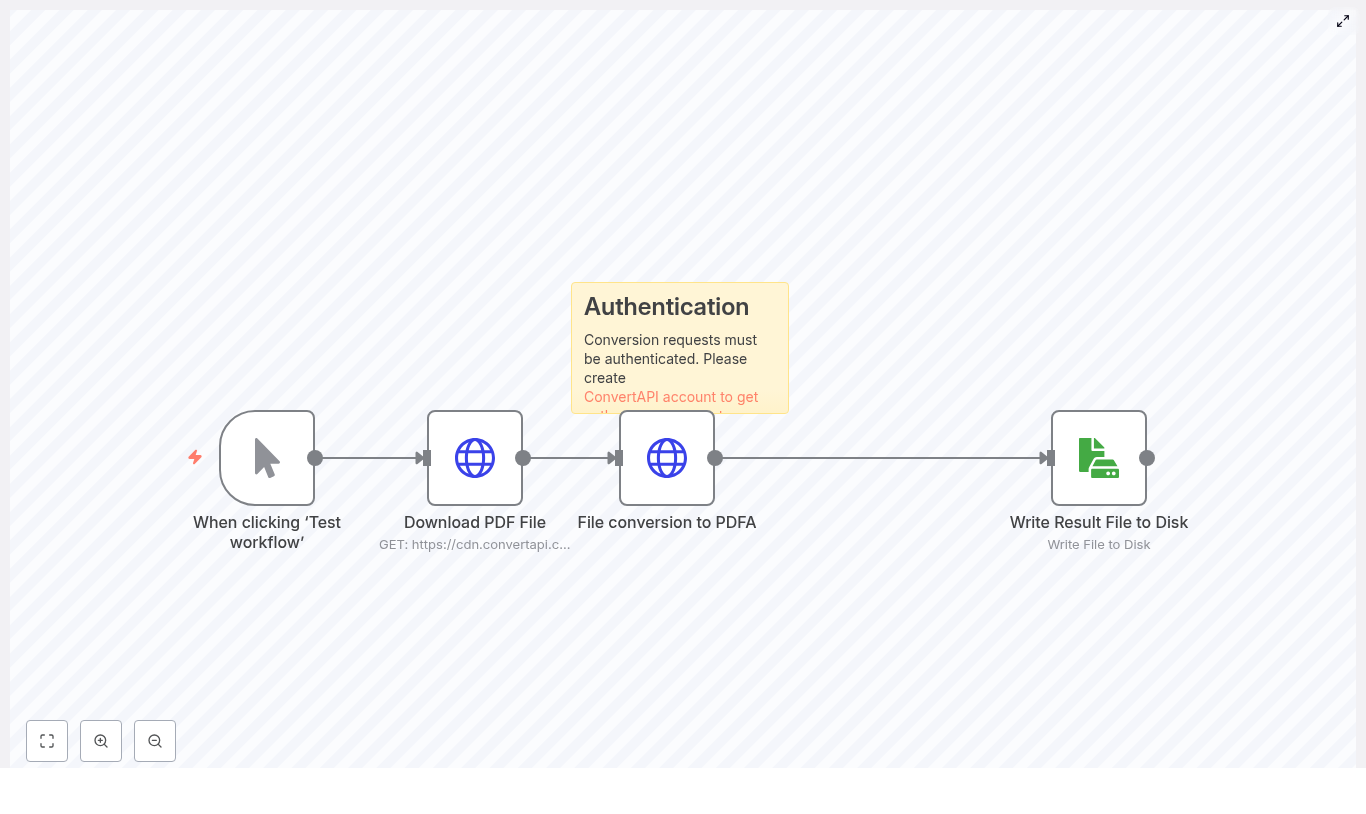
The workflow is intentionally minimal so it can serve as a reusable template or building block in larger automations. The execution pipeline is:

  • Manual Trigger – starts the workflow for interactive testing.
  • HTTP Request (Download PDF File) – retrieves a sample PDF as binary data.
  • HTTP Request (ConvertAPI) – submits the PDF to ConvertAPI and receives a PDF/A-compliant file.
  • Read/Write File (Write Result File to Disk) – writes the converted binary data to the local filesystem.

In the original template, a sticky note is included in the editor to remind you that all ConvertAPI requests must be authenticated with your API secret.

2. Use case and context

2.1 Why convert PDF to PDF/A?

PDF/A (Portable Document Format – Archival) is an ISO-standardized subset of PDF designed for long-term document preservation. It embeds fonts, avoids external dependencies, and restricts features that could break future rendering, such as:

  • External content references.
  • Encryption that may not be supported in the future.
  • Dynamic content that depends on external resources or scripts.

Converting documents to PDF/A is common in:

  • Regulated industries and compliance workflows.
  • Legal and court-document systems.
  • Archives, libraries, and records management platforms.

Integrating ConvertAPI with n8n lets you automate this conversion so that incoming PDFs are normalized to a compliant archival format before storage.

3. Architecture and data flow

3.1 Logical architecture

At a high level, the workflow implements this sequence:

  1. Trigger: Manual execution in the n8n editor, useful for development and testing.
  2. Input acquisition: Fetch an example PDF via HTTP GET.
  3. Transformation: Send the PDF as multipart form-data to ConvertAPI’s /convert/pdf/to/pdfa endpoint.
  4. Output persistence: Save the returned binary content to a file on disk.

3.2 Binary data handling in n8n

The workflow relies on n8n’s binary data support:

  • The first HTTP Request node stores the downloaded file in a binary property named data.
  • The ConvertAPI HTTP Request node reads that data property and sends it as the file field in a multipart/form-data body.
  • The ConvertAPI response is also handled as binary and passed to the Read/Write File node.

Ensuring that the binary property name is consistent (data in this example) is critical for the nodes to interoperate without additional mapping.

4. Prerequisites

  • An operational n8n instance (either n8n Cloud or self-hosted).
  • A ConvertAPI account with an API secret.
    Create or access your account at https://www.convertapi.com/a/signin.
  • Working knowledge of:
    • Configuring HTTP Request nodes in n8n.
    • Handling binary data properties in workflows.

5. Node-by-node configuration

5.1 Manual Trigger node

The Manual Trigger node is used purely for testing and development. It has no parameters that require configuration for this template.

  • Node type: Manual Trigger
  • Usage: Start the workflow interactively using Execute Workflow or Test Workflow in the n8n editor.

In production, you would typically replace this with an event-based trigger, such as a Webhook or a file-based trigger.

5.2 HTTP Request: Download PDF file

This node retrieves a demo PDF file and stores it as binary data for downstream processing.

5.2.1 Core configuration

Node: HTTP Request
Operation / Method: GET
URL: https://cdn.convertapi.com/public/files/demo.pdf
Response Format: File (binary)

In the node settings:

  • Set Method to GET.
  • Set URL to https://cdn.convertapi.com/public/files/demo.pdf (or your own PDF URL in a real workflow).
  • Set Response Format to File or Binary depending on your n8n version labels.

By default, n8n will store the response binary data in a property such as data. Verify in the node output that the binary property is indeed named data, because the ConvertAPI node will reference that property.

5.2.2 Binary property naming

If you change the binary property name in this node, you must update the file field configuration in the ConvertAPI HTTP Request node to match. The template assumes:

  • Binary property name: data

5.3 HTTP Request: Convert PDF to PDF/A via ConvertAPI

This node submits the downloaded PDF to ConvertAPI and receives a converted PDF/A document as binary data.

5.3.1 Endpoint and method

Node: HTTP Request
URL: https://v2.convertapi.com/convert/pdf/to/pdfa
Method: POST

Set:

  • Method to POST.
  • URL to https://v2.convertapi.com/convert/pdf/to/pdfa.

5.3.2 Request body and file mapping

Configure the node to send a multipart/form-data request:

Content-Type: multipart/form-data
Body Parameters:  - file: form binary data (inputDataFieldName = data)  - PdfaVersion: pdfa

In n8n:

  • Set Content Type to multipart/form-data.
  • Add a body field named file and configure it as Binary data (or Form-Data: File depending on your UI).
  • For that field, set Binary Property or inputDataFieldName to data, which is the property created by the previous node.
  • Add a standard body parameter named PdfaVersion with a value such as pdfa as in the example template. The exact supported values depend on ConvertAPI’s documentation.

This configuration ensures the PDF is uploaded as a file field and that ConvertAPI receives the requested PDF/A version parameter.

5.3.3 Authentication with ConvertAPI

ConvertAPI requires authentication using your secret. The template uses query-string authentication, but header-based authentication is also possible, depending on your preference and ConvertAPI’s API options.

  • Authentication mode: Query Auth credential in n8n.
  • Query parameter: Secret=YOUR_SECRET.

In practice, you can:

  • Append ?Secret=YOUR_SECRET directly to the endpoint URL, or
  • Use n8n’s credential system with a Query Auth credential that automatically injects Secret into the query string.

The template includes a sticky note in the editor reminding you to configure this authentication and to keep your ConvertAPI secret confidential.

5.3.4 Response handling

Response Format: file (binary)
Header: Accept: application/octet-stream

Configure:

  • Response Format to File or Binary, so n8n treats the ConvertAPI response as binary data.
  • Add a header Accept: application/octet-stream to instruct ConvertAPI to return the converted file as a binary stream.

After successful execution, this node will output a binary property (again typically named data) that contains the PDF/A file.

5.4 Read/Write File: Write result file to disk

The final node writes the converted PDF/A file to local storage.

5.4.1 Core configuration

Node: Read/Write File
Operation: write
File Name: document.pdf
Data Property Name: =data

Configure:

  • Operation to write.
  • File Name to the desired output path and file name, for example document.pdf. Adjust the path syntax according to your n8n environment and filesystem.
  • Data Property Name to =data, referencing the binary property from the ConvertAPI node output.

Once the workflow completes, you will have a local file named document.pdf that is expected to comply with PDF/A, subject to the options you passed to ConvertAPI.

6. JSON template summary

The referenced workflow template contains the following sequential chain:

  1. Manual Trigger
  2. Download PDF File (HTTP Request)
  3. File conversion to PDFA (HTTP Request to ConvertAPI)
  4. Write Result File to Disk (Read/Write File)

All nodes are connected linearly, passing a single item with binary data between them. The sticky note in the template is a reminder about setting up ConvertAPI authentication.

7. Testing and validation

7.1 Running the workflow

  1. Open the workflow in the n8n editor.
  2. Ensure your ConvertAPI credentials are correctly configured.
  3. Click Execute Workflow or Test Workflow to run it via the Manual Trigger node.
  4. Inspect the execution log to confirm that all nodes execute successfully.

7.2 Verifying PDF/A compliance

After the workflow finishes, validate the resulting file:

  • Open the generated document.pdf in a PDF viewer that supports PDF/A inspection, such as Adobe Acrobat or specialized archival tools.
  • Optionally use an external PDF/A validator, for example:
    • Online PDF/A validation services.
    • Command-line tools like veraPDF.

Visual inspection plus standards validation is recommended, especially if you use the workflow in regulated environments.

8. Error handling and operational tips

8.1 Handling HTTP errors

  • Monitor HTTP status codes from both HTTP Request nodes.
  • If you see 4xx or 5xx responses from ConvertAPI, inspect the response body for the error message or code.
  • Ensure that:
    • The Secret query parameter or header is present and correct.
    • The requested endpoint URL is accurate.
    • The input file is valid and reachable.

8.2 Binary vs JSON response issues

If ConvertAPI returns HTML or JSON instead of a binary file:

  • Confirm that the Accept header is set to application/octet-stream.
  • Verify that the Response Format is configured as File or Binary in the HTTP Request node.
  • Check for error messages in the response body which may indicate invalid parameters or authentication issues.

8.3 Workflow-level error routing

For more robust automation, consider:

  • Adding a Fail node or IF node after the ConvertAPI request to branch on unsuccessful status codes.
  • Routing failures to notification channels such as email, Slack, or other messaging integrations.
  • Configuring retries or alternative flows for transient network errors.

8.4 Timeouts and large files

  • Set appropriate timeouts on HTTP Request nodes for larger PDFs to prevent premature termination.
  • Be aware of any file-size limits or timeout constraints documented by ConvertAPI.

9. Automation patterns and extensions

9.1 Replacing the manual trigger

Once you are satisfied with the test workflow, you can replace the Manual Trigger with other triggers to build a fully automated PDF-to-PDF/A pipeline:

  • Webhook Trigger – accept PDF uploads from external applications or services.
  • File-watch or storage triggers – trigger when a file is added to a folder (local, S3, Google Drive, etc.).

9.2 Downstream storage options

Instead of writing to local disk, you can:

  • Store the converted file in Amazon S3 or other object storage.
  • Upload to Google Drive or another cloud storage provider.
  • Push the file into a CMS or document management system via its API.

9.3 Batch processing

To process multiple PDFs:

  • Use SplitInBatches to iterate over a list of files, sending each one through the ConvertAPI node.
  • Combine this with directory listing or storage listing nodes to automatically process all PDFs in

n8n AI Agent: OpenAI + SerpAPI + Memory Workflow

Automate intelligent, context-aware conversations and real-time search with this production-ready n8n workflow template. It connects an n8n AI Agent to an OpenAI Chat Model, SerpAPI for web search, and a Simple Memory buffer so your chatbot can remember prior messages and fetch live data on demand. This guide explains the architecture, node configuration, credential setup, and recommended practices for building a robust automation that scales.

Architecture overview

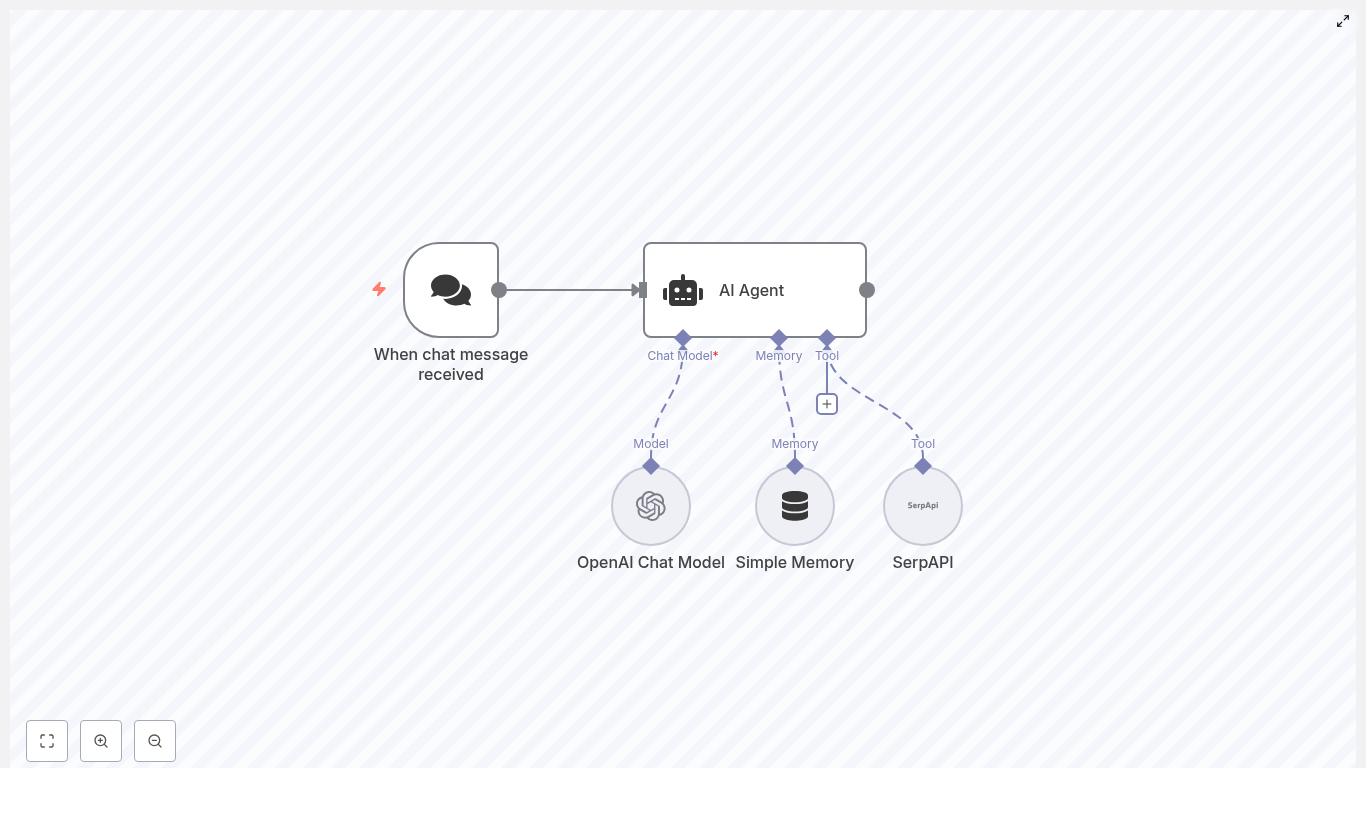
This workflow combines several n8n AI components into a compact but highly capable automation. At a high level, it consists of:

  • Chat trigger / webhook – receives incoming user messages from your chat channel.
  • AI Agent – orchestrates the language model, memory, and external tools.
  • OpenAI Chat Model – generates natural-language responses and interprets intent.
  • Simple Memory – stores short-term conversational context and user data.
  • SerpAPI – performs web searches for current information and external resources.

The AI Agent node sits at the center of the workflow. It uses the OpenAI Chat Model for reasoning and response generation, consults Simple Memory for contextual continuity, and selectively invokes SerpAPI when a query requires fresh, external data.

Why combine AI Agent, OpenAI, SerpAPI, and memory in n8n?

Modern automation teams expect chatbots to do more than static FAQ responses. They must understand context, act on up-to-date information, and be maintainable within an automation platform. This design delivers:

  • Context-aware behavior – Simple Memory preserves recent turns and user attributes so the agent can reference prior messages and personalize replies.
  • Real-time information retrieval – SerpAPI provides live web search results when the agent detects questions that depend on current facts, URLs, or news.
  • Advanced language capabilities – OpenAI models handle complex instructions, summarization, and nuanced conversation flows.
  • No-code orchestration – n8n’s visual workflow builder lets you extend, monitor, and maintain the logic without custom backend code.

This combination is particularly suited to automation professionals who need a repeatable pattern for AI-powered chat that can be integrated into broader workflows, CRMs, or internal tools.

Key workflow components

Chat trigger: entry point for user messages

The workflow starts with the When chat message received node. This node can operate as a webhook or a native chat integration trigger, depending on the channel you use. Typical configurations include:

  • Slack or Microsoft Teams bots
  • Telegram or other messaging platforms
  • Custom web chat widgets posting to an n8n webhook

Configure this node so that each incoming message is normalized into a consistent structure that the AI Agent can consume, including user identifiers, message text, and any metadata you need for routing or personalization.

AI Agent: orchestration and decision logic

The AI Agent node is responsible for:

  • Receiving the user message from the trigger
  • Calling the configured OpenAI Chat Model
  • Reading from and writing to the Simple Memory node
  • Invoking SerpAPI as a tool when a web search is appropriate

Within the agent configuration, you define the system instructions, tool usage policies, and how memory is applied. The agent effectively becomes the control plane that decides when to answer directly, when to consult memory, and when to query the web.

OpenAI Chat Model: language understanding and response generation

The OpenAI Chat Model node provides the core LLM capabilities. In n8n, you authenticate this node using your OpenAI API key and choose a model that matches your performance and cost requirements. Common choices include:

  • gpt-4o-mini for cost-efficient, responsive interactions
  • gpt-4 or gpt-4o for higher quality responses and complex reasoning

This node is then referenced by the AI Agent as its primary language model. You can fine-tune parameters such as temperature and max tokens depending on how deterministic or creative you want responses to be.

Simple Memory: short-term conversational context

The Simple Memory node acts as a lightweight, windowed memory buffer. It stores recent conversational turns or key-value pairs about the user, for example:

  • Previous questions and answers
  • Declared preferences or locations
  • Session-specific metadata

Configure the memory node to:

  • Define the memory window size (number of recent entries to retain)
  • Specify which fields from incoming messages should be stored
  • Control how memory is passed back into the AI Agent as context

This approach avoids uncontrolled context growth and provides a predictable, manageable state for your agent.

SerpAPI: web search tool for live data

SerpAPI is integrated as a tool that the AI Agent can call when it determines that a query requires up-to-date information. Typical use cases include:

  • Checking current regulations, pricing, or incentives
  • Retrieving URLs and documentation from the public web
  • Confirming recent events or time-sensitive facts

Within n8n, you configure the SerpAPI node with your API key and any default search parameters such as region or language. The AI Agent is then granted access to this node as a tool, allowing it to dispatch search queries programmatically.

Step-by-step configuration

1. Import the workflow template

Begin by importing the provided JSON template into your n8n instance, or recreate the structure manually. Ensure the connections are set up so that:

  • The When chat message received node feeds into the AI Agent.
  • The AI Agent is connected to the OpenAI Chat Model, Simple Memory, and SerpAPI nodes.

This wiring allows the agent to treat the model, memory, and search as coordinated resources.

2. Configure the chat trigger node

In the When chat message received node:

  • Set up the webhook URL or enable the specific chat integration you are using.
  • Configure any required authentication or signing secrets.
  • Normalize the payload so the message text and user identifiers are clearly mapped to fields the agent will consume.

Verify that test messages from your chat platform appear in n8n executions before proceeding.

3. Set up OpenAI credentials and model

Next, configure the OpenAI Chat Model node:

  • Create a new OpenAI credential in n8n and store your API key securely.
  • Select the preferred chat model (for example gpt-4o-mini, gpt-4, or gpt-4o).
  • Adjust model parameters such as temperature and maximum tokens according to your use case.

Once configured, reference this node in the AI Agent as its language model.

4. Integrate SerpAPI for live search

To enable web search:

  • Register with SerpAPI and obtain your API key.
  • In n8n, create a SerpAPI credential and assign the key.
  • Add a SerpAPI node to the workflow and connect it to the AI Agent as a tool.

Within the agent configuration, expose this node under a clear tool name such as web_search. The agent will call it only when its instructions indicate that a live lookup is required.

5. Configure Simple Memory behavior

For the Simple Memory node:

  • Set the memory window size to control how many recent messages or entries are retained.
  • Define which parts of each message (for example user message, agent reply, user ID) are stored.
  • Ensure that the memory output is correctly passed back into the AI Agent node as context.

Careful configuration here ensures your agent has enough context to be helpful without accumulating excessive or sensitive data.

6. Finalize AI Agent configuration

Within the AI Agent node, link all components:

  • Set the Chat Model node as the agent’s language model.
  • Specify the Simple Memory node as the memory store.
  • Register the SerpAPI node as a tool for web search.

Then define the core behavior:

  • Provide a clear system prompt describing the agent’s role, tone, and decision rules.
  • Set fallback messages for cases where tools fail or responses must be constrained.
  • Specify tool usage policies, for example: only call SerpAPI when the user asks about current events, recent regulations, or specific URLs.

Example: agent prompt and tool strategy

The following example illustrates how to instruct the agent to use memory and SerpAPI effectively:

System: You are an assistant that answers user questions. Use the web_search tool (SerpAPI) only when you need current facts, URLs, or to confirm recent events. Keep responses concise.

User message: "What's the latest on solar panel incentives in California?"

Agent: Check memory for user's location. If no location, ask a clarifying question. Then call web_search with query: "California solar panel incentives 2025". Summarize top results and provide sources.

This pattern demonstrates a best practice: consult memory first, then use tools selectively, and always summarize external results instead of returning raw search output.

Representative use cases

  • Customer support chatbots that combine historical conversation context with real-time product information or order tracking.
  • Sales assistants that remember lead details, recall prior interactions, and pull pricing or competitive data from the web.
  • Internal knowledge helpers for knowledge workers who need quick access to public documentation, standards, or news.
  • Educational bots that track learner progress, recall previous topics, and surface current learning resources or references.

Operational best practices

Secure handling of API keys

Store OpenAI and SerpAPI keys exclusively in n8n’s encrypted credentials store. Avoid logging raw credentials or exposing them in node output. Restrict access to credentials based on roles and environments.

Memory management and retention

Unbounded memory can lead to performance, cost, and compliance issues. To manage this effectively:

  • Use a sliding window to retain only the most relevant recent messages.
  • Consider summarization steps if conversations become long but key context must be preserved.
  • Apply retention policies or disable memory for highly sensitive workflows.

Tool usage governance

Each web search introduces latency and additional cost. To control usage:

  • Specify explicit rules in the system prompt about when SerpAPI may be called.
  • Optionally add a simple intent classifier or heuristic node to pre-filter which messages should trigger a search.
  • Monitor search frequency and adjust prompts or thresholds as needed.

Handling rate limits and failures

Both OpenAI and SerpAPI enforce rate limits and may occasionally return errors. To maintain reliability:

  • Implement retry logic with exponential backoff in n8n where appropriate.
  • Design graceful degradation paths, such as responding with: “I can’t fetch that right now, but I can provide a general summary instead.”
  • Log errors and track failure patterns so you can adjust model choices, quotas, or usage patterns.

Troubleshooting and diagnostics

  • Node not executing: Confirm the webhook URL is correctly configured in your chat platform and that the When chat message received node is being triggered in n8n.
  • Memory not applied: Ensure the AI Agent is explicitly connected to the Simple Memory node and that memory keys are being written and read correctly.
  • Empty SerpAPI results: Verify your SerpAPI credentials, inspect the query parameters (region, language, query string), and test the same query directly in SerpAPI.
  • Slow response times: Switch to a faster model, limit unnecessary tool calls, or consider asynchronous patterns where the bot acknowledges the request and follows up once the search completes.

Security, privacy, and compliance

When capturing user data in memory or logs, align the workflow with relevant regulations such as GDPR or CCPA. Recommended actions include:

  • Defining explicit data retention periods and automating deletion where required.
  • Providing users with a way to request deletion of stored context or to view what is stored.
  • Avoiding or masking sensitive PII unless it is strictly necessary and properly protected.

n8n’s infrastructure and credential management capabilities should be combined with your organization’s security policies for a compliant deployment.

Scaling, monitoring, and observability

As usage grows, treat this workflow as a production service:

  • Monitor API consumption and set budgets or alerts for OpenAI and SerpAPI usage.
  • Use n8n execution logs to track performance, failures, and atypical patterns.
  • Optionally integrate with observability tools such as Prometheus or Sentry to capture metrics and error traces for advanced monitoring.

Advanced customization ideas

  • Persistent user profiles: Connect a database node (for example Postgres or MongoDB) to store long-term user attributes beyond the Simple Memory window.
  • Pre-processing and intent detection: Add a validation or classification layer that normalizes inputs and detects intent before passing messages to the AI Agent.
  • Multi-tool agents: Extend the agent with additional tools such as internal knowledge-base search, calendar access, or ecommerce APIs.
  • Memory summarization: Introduce summarization steps that compress long conversations into concise notes, which are then stored as memory instead of raw transcripts.

Conclusion and next steps

By connecting an n8n AI Agent with the OpenAI Chat Model, SerpAPI, and Simple Memory, you create a flexible conversational automation that understands context and retrieves live information when needed. This pattern is well suited for support, sales, internal tools, and educational assistants that must operate reliably at scale.

Get started now: import the template into your n8n instance, configure your OpenAI and SerpAPI credentials, and run a few end-to-end tests from your chat channel. Iterate on the system prompt, memory window, and tool policies based on real user interactions.

Implementation tip: begin with a small memory window and a single, clearly defined web-search rule. As you observe behavior and gather logs, refine the agent’s instructions and gradually introduce more advanced logic.

Build a Slack AI Bot in n8n with Google Gemini

Build a Slack AI Bot in n8n with Google Gemini

Imagine opening Slack in the morning and finding routine questions already answered, teammates guided, and ideas drafted before you even start typing. That is the power of a simple, well-designed automation. This n8n workflow template is not just a technical setup, it is a small but meaningful step toward reclaiming your time, focusing your energy, and building a more automated, intentional way of working.

In this guide, you will walk through a complete journey: starting from the problem of constant Slack interruptions, shifting into a mindset of automation and leverage, then using a practical n8n template to build a Slack AI assistant powered by Google Gemini and LangChain. By the end, you will have a working Slack bot that keeps short-term memory, responds naturally, and becomes a foundation you can keep improving over time.

The problem: Slack pings, context switching, and lost focus

Slack is where conversations happen, but it is also where focus goes to die. Repetitive questions, status updates, and quick “how do I…” messages slowly eat away at your day. You know some of these could be automated, but building a bot can feel like a big project.

The reality is that you do not need a massive system to start winning back time. A single, focused workflow that listens to Slack, routes questions to an AI assistant, remembers the recent conversation, and sends a clear response back can already transform how you and your team work.

Shifting the mindset: from manual replies to automated assistance

Automation is not about replacing you, it is about amplifying you. When you connect Slack, n8n, and an LLM like Google Gemini, you create a supportive layer that handles the repetitive and predictable, so you can focus on the strategic and creative.

Think of this template as a starting point:

  • A place to test ideas safely and quickly
  • A way to build confidence with AI-driven workflows
  • A foundation you can extend into richer automations and tools

Once you have this Slack bot running, you will start to see new opportunities everywhere: onboarding assistants, internal knowledge helpers, automation coaches, and more. You are not just building a bot, you are building your automation muscle.

The core idea: a conversational Slack AI bot in n8n

This template shows a practical architecture that balances speed, context, and flexibility. At a high level, the workflow does the following:

  • Receives a Slack POST webhook at a public HTTPS endpoint
  • Routes the incoming message to a LangChain Agent powered by Google Gemini
  • Uses a Window Buffer Memory to keep short-term conversation context
  • Sends a polished AI response back to the Slack channel

The result is a responsive Slack assistant that:

  • Understands recent messages instead of replying in isolation
  • Uses a modern LLM for natural, helpful responses
  • Can be extended with tools, knowledge bases, and custom logic over time

Why this n8n architecture works so well

This specific structure is designed to be both powerful and approachable. It combines key n8n and LangChain components into a simple, repeatable pattern:

  • Webhook node captures Slack messages through a public HTTPS endpoint that Slack can call.
  • Agent node orchestrates prompts, tools, and logic using LangChain’s agent framework.
  • Google Gemini Chat model delivers high quality chat completions for natural conversation.
  • Window Buffer Memory keeps recent messages in a rolling window so the bot remembers context.
  • Slack node posts the AI response back to the originating Slack channel.

This architecture is intentionally modular. Each part can be swapped, tuned, or extended, which makes it a great stepping stone for your broader automation journey.

What you need before you start

To follow along and use the template, make sure you have:

  • An n8n instance reachable via HTTPS
    • Self-hosted with a proper certificate, or
    • Exposed via a reverse proxy or HTTPS tunnel
  • A Slack app configured to send events or outgoing webhooks to your n8n endpoint
  • Access to Google Gemini (or another LLM) and the API credentials configured in n8n’s LangChain nodes
  • n8n’s LangChain integration enabled, with Agent and Memory nodes available

Once these pieces are in place, you are ready to turn a basic Slack message into an intelligent conversation.

Understanding the example workflow at a glance

The provided template includes the following main nodes, from left to right in your n8n editor:

  • Webhook to receive message
    • HTTP POST endpoint path: /slack-bot
  • Agent
    • Receives the incoming text, applies a system prompt, and orchestrates the AI call
  • Google Gemini Chat Model
    • The LLM that generates the conversational reply
  • Window Buffer Memory
    • Stores recent conversation items keyed by a session identifier
  • Send response back to Slack channel
    • A Slack node that posts the AI answer back to the original channel

Now let us walk through how to configure each part, step by step, and see how it all comes together.

Step 1: Configure the Webhook node as your Slack entry point

Your journey starts with a single HTTPS endpoint. This is how Slack reaches your n8n workflow.

  • Set the Webhook node’s HTTP method to POST.
  • Choose a path, for example: /slack-bot.
  • Ensure the endpoint is available over HTTPS. Slack will not accept plain HTTP.

If you are testing locally, you can use a tool like ngrok or another secure tunnel to expose your local n8n instance as a public HTTPS URL.

In the Webhook node parameters:

  • Set HTTP Method to POST.
  • Set responseData to an empty string if you prefer not to send a direct HTTP reply to Slack.

This approach lets the workflow process the message and then send a new Slack message later, which helps avoid Slack timing out while the AI is generating a response.

Step 2: Accept and parse Slack’s payload cleanly

Slack sends message data to your webhook as a JSON payload. In this template, the workflow expects fields like:

  • body.text – the message content
  • body.user_name – the Slack username
  • body.channel_id – the channel where the message was posted

A typical payload for an outgoing webhook might look like this:

{  "token": "abc123",  "team_id": "T123",  "channel_id": "C123",  "user_name": "alice",  "text": "Can you help automate my report?"
}

Make sure your Slack app is configured to send the fields you need. If your app uses the newer event-based approach, Slack will nest information inside an event object. In that case, you will need to adjust the JSON references in n8n to match the actual structure.

This is a great moment to pause, inspect the incoming payload in n8n’s execution logs, and confirm that your field mappings are correct. Getting this right early makes the rest of your automation journey smoother.

Step 3: Connect and shape the LangChain Agent

The Agent node is where your Slack bot starts to feel like a real assistant. It receives the text from Slack, applies a system message, and coordinates the call to Google Gemini and the memory.

In the template, the Agent’s system message is:

You are Effibotics AI personal assistant. Your task will be to provide helpful assistance and advice related to automation and such tasks.

You can keep this as is or adapt it to match your company voice and purpose. For example, you can make it more focused on internal processes, customer support, or technical guidance.

Configuration steps:

  • Pass the incoming Slack text as the user message to the Agent, for example: {{$json.body.text}}
  • Connect the Google Gemini Chat Model node to the Agent as the language model.
  • Attach the Window Buffer Memory node so the Agent can recall recent messages.

At this point, you have an AI brain wired up to your Slack messages. Next, you will shape how that brain thinks and remembers.

Step 4: Configure the Google Gemini Chat Model

Google Gemini is the LLM that powers your bot’s responses. In n8n, you use the LangChain-powered Google Gemini Chat model node to define how it behaves.

  • Select the desired model, for example: models/gemini-1.5-flash-latest (as used in the template).
  • Adjust key parameters such as:
    • Temperature for creativity vs consistency
    • Max tokens for response length
    • Other hyperparameters as needed for your use case

Then, in the Agent node configuration, make sure the Gemini node is set as the ai_languageModel connection. This tells the Agent which model to call when it needs a reply.

Over time, you can tune these settings as you observe how your bot responds. Shorter, more focused answers for quick support, or more exploratory replies for brainstorming and automation advice.

Step 5: Add Window Buffer Memory for conversational context

To make your Slack bot feel less like a one-off responder and more like a true assistant, it needs memory. The Window Buffer Memory node provides a rolling context window that stores recent messages for each conversation.

In the template, the configuration looks like this:

sessionKey: ={{ $('Webhook to receive message').item.json.body.token }}
sessionIdType: customKey
contextWindowLength: 10

This means:

  • Each chat session is keyed by Slack’s token field (or another unique identifier you choose).
  • The memory keeps up to the last 10 messages in context.

You are free to change the session key to better match your needs. Common options include:

  • User ID for user-specific conversations
  • Channel ID for channel-wide shared context
  • A combination of user and workspace IDs for multi-tenant scenarios

This small piece of configuration is what turns a static Q&A bot into a conversational partner that remembers what just happened.

Step 6: Post the AI result back to Slack

Slack expects responses quickly. Interactive responses need to come back within about 3000 ms. Instead of trying to push the AI reply into the original HTTP response, this template takes a more reliable approach: it sends a new Slack message once the AI answer is ready.

In the Slack node:

  • Use the channel_id from the webhook payload to post back into the correct channel.
  • Build a message template that includes both the original user text and the AI answer. For example:
{{ $('Webhook to receive message').item.json.body.user_name }}: {{ $('Webhook to receive message').item.json.body.text }}

Effibotics Bot: {{ $json.output.removeMarkdown() }}

Additional settings:

  • Set sendAsUser to a bot name or use a Slack bot token with the proper scopes, such as chat:write.
  • Enable markdown formatting if you want richer responses.

With this in place, your users will see a clear, friendly reply in Slack, as if they were chatting with a real teammate dedicated to automation support.

Keeping your automation safe: security and best practices

As you build more powerful automations, security and reliability become essential. Even at this early stage, it is worth setting good habits.

  • Always use HTTPS for webhook endpoints
    • Use public tunnels like ngrok or a properly configured reverse proxy.
  • Store API keys and tokens in n8n credentials, not in plain workflow parameters.
  • Validate incoming Slack requests by verifying Slack request signatures.
  • Monitor and rate-limit usage for both Slack and LLM calls to manage cost and prevent abuse.
  • Scrub or redact sensitive data before sending it to third-party LLMs if your policies require it.

These practices protect your users, your data, and your future automations as you scale.

Growing beyond the basics: extending your Slack AI bot

Once your first version is running, you will likely see new possibilities. This architecture is intentionally extensible, so you can evolve it as your needs grow.

Here are some ideas to build on this template:

  • Add tools to the Agent
    • Calendar lookups for scheduling
    • Database fetches for internal data
    • Ticket creation in your support or issue tracking system
  • Introduce long-term knowledge
    • Connect a vector database for retrieval-augmented generation (RAG)
    • Store documentation, FAQs, or playbooks for richer answers
  • Refine session handling
    • Change the session key to combine user and workspace IDs
    • Design multi-tenant or multi-team experiences
  • Add command logic
    • Implement slash commands to trigger specific automations
    • Apply rate limits or usage rules per user or channel

Each improvement builds on the same core pattern: Slack message in, Agent plus memory and tools, then Slack message out. The more comfortable you get with this pattern, the faster you can ship new automations.

When things go wrong: troubleshooting with confidence

No automation journey is perfectly smooth. When something does not work as expected, use these checks to quickly get back on track:

  • Slack rejects your webhook
    • Confirm the endpoint is public and reachable over HTTPS.
    • Use ngrok or similar tools and check their logs to verify delivery.
  • Missing or unexpected fields
    • Inspect the raw Slack payload in n8n.
    • Update your JSON references to match the keys Slack actually sends.
  • Slow AI responses
    • Reduce the model’s max tokens.
    • Adjust temperature for more concise answers.
    • Pre-process or shorten prompts before sending them to the LLM.
  • Memory not behaving as expected
    • Confirm that sessionKey resolves to a stable, unique value for each chat session.
    • Check that the Window Buffer Memory node is correctly connected to the Agent.

Build an n8n Price Watcher: Automated Price Alerts

Build an n8n Price Watcher: Automated Price Alerts

Imagine never having to refresh a product page again to see if the price finally dropped. Instead of chasing discounts or manually checking your favorite items, you can let automation quietly do the work in the background while you focus on higher value tasks.

This guide shows you how to set up an n8n price watcher that automatically checks product pages, records historical prices, and emails you when a better price appears. It is simple enough for small projects, yet powerful enough to become the foundation of a more advanced price monitoring system for your personal life or your business.

From manual checking to automated clarity

Most of us start the same way: open a tab, check the price, close the tab, repeat later. It is repetitive, easy to forget, and not the best use of your time or attention.

Automation changes that pattern. Instead of constantly reacting, you can create a system that:

  • Watches prices for you on a regular schedule
  • Remembers what prices used to be
  • Notifies you only when something meaningful changes

That is exactly what this n8n workflow does. It runs on a schedule, scrapes product pages using HTTP requests and CSS selectors, saves prices to a local JSON file, and sends you email alerts when a lower price is detected or when something looks off and needs manual attention.

Mindset: Start small, automate boldly

This template is not just a price tracker. It is a practical, real-world example of how you can use n8n to reclaim time and mental energy. By setting up one focused automation like this, you begin building the skills and confidence to automate more of your daily work.

Think of it as a stepping stone:

  • Today: track a few products and get email alerts
  • Next: send notifications to Slack, Discord, or Telegram
  • Later: store long-term price history, build dashboards, or integrate with your own tools

You do not need to design a perfect system on day one. Start with this template, get it working, then iterate and grow it as your needs evolve.

What this n8n price watcher actually does

The workflow runs on a schedule (every 15 minutes by default) and follows a simple but powerful loop:

  • Loads a list of products you want to watch, including URL, CSS selector, and currency
  • Fetches each product page with an HTTP Request node
  • Extracts the price from the HTML using the HTML Extract node and a CSS selector
  • Normalizes the price string, converts it to a number, and checks if it is valid
  • Reads previously saved prices from a JSON file at /data/kopacky.json
  • Compares the new price to the stored one
  • If the price dropped, updates the saved file and sends a “better price” email
  • If the price cannot be parsed, sends an “incorrect price” email so you can adjust the selector or URL

This pattern is approachable for beginners and reliable for small to medium use cases. It uses only core n8n building blocks like scheduling, HTTP requests, HTML extraction, JavaScript functions, conditional branching, file operations, and email notifications.

Step 1: Schedule your automation with Cron

Cron node

The journey starts with the Cron node, which triggers your workflow automatically.

In the example, the Cron node is configured to run every 15 minutes. You can adjust this interval depending on how frequently prices change and how politely you want to treat the target websites.

  • Shorter intervals: faster reaction to price drops, higher load on remote servers
  • Longer intervals: lighter load, but slower detection of changes

Choose a schedule that fits your goals and respects the websites you are monitoring.

Step 2: Define what you want to watch

The changeME FunctionItem node

The changeME node is where you define your watchlist. It is a FunctionItem node that returns an array of objects, each object representing a product you want to track. Every item contains:

  • slug – a short identifier for the product
  • link – the product URL
  • selector – a CSS selector that points to the price element
  • currency – for example EUR, USD, etc.

Example entry:

{ 'slug': 'kopacky', 'link': 'https://www.example.com/product', 'selector': '.prices > strong > span', 'currency': 'EUR' }

To add a new product to watch, you simply append another object with the correct selector and link. This makes your automation flexible and easy to extend as you discover more items you want to monitor.

Step 3: Iterate over your watchlist

initItem and the iterator pattern

To process each product one by one, the workflow uses a small iterator pattern based on static workflow data with getWorkflowStaticData('global'). The initItem node picks the current product from the watchlist and passes it along to the next nodes.

This approach lets you:

  • Loop through multiple products in a controlled way
  • Reuse the same logic (fetch, extract, compare) for every watched item
  • Keep the workflow structure clear and maintainable

Step 4: Fetch and extract the price

fetchWeb + HTML Extract

Once a product is selected, the fetchWeb node performs an HTTP request to retrieve the product page HTML as text. Then the HTML Extract node applies the CSS selector defined in your watchlist to find the price element.

Choosing the right selector is crucial for reliable automation. Use your browser DevTools (Elements panel) to:

  • Inspect the price element
  • Test potential CSS selectors in the console
  • Prefer stable attributes like IDs or data attributes over auto-generated class names

If the site renders content with JavaScript (for example, many single page apps), a static HTTP request may return HTML without the price. In those cases, consider using a headless browser solution like Puppeteer or Playwright, or look for an official API endpoint if one is available.

Step 5: Turn text into a clean price

getActualPrice FunctionItem

Raw HTML often includes currency symbols, spaces, and different decimal separators. The getActualPrice node is a FunctionItem that normalizes the extracted string and converts it into a usable number.

Example logic:

var price = String(item.price).replace(",", ".");
price = parseFloat(price);
item.priceExists = (price > 0 ? true : false);
item.price = price;

This function:

  • Converts the extracted value to a string
  • Replaces comma decimals with dots
  • Parses the result as a float
  • Sets priceExists to indicate if the result looks like a valid price

You can further strengthen this normalization with a slightly more robust pattern:

let raw = String(item.price);
raw = raw.replace(/[^0-9,\.\-]/g, ''); // keep digits, comma, dot, minus
raw = raw.replace(',', '.');
const price = parseFloat(raw);
item.price = price;

This reduces the chance of NaN values and helps keep your workflow resilient across different stores and formats.

Step 6: Decide what happens next with IF nodes

Conditional logic and notifications

Once you have a normalized price, the workflow uses several IF nodes to choose the right path:

  • Price cannot be parsed: The workflow sends a NotifyIncorrectPrice email. This is your signal to review the selector, check the page, or update the configuration.
  • Price exists: The workflow proceeds to compare it with saved data.
  • Price decreased: If the new price is lower than what is stored, the workflow sends a NotifyBetterPrice email and updates the saved file with the new value.

This branching logic keeps your inbox focused. You only receive messages when something meaningful happens: either a new opportunity (better price) or a signal that your automation needs a quick manual tweak.

Step 7: Store and compare prices over time

Reading and writing the JSON file

To remember past prices, the workflow uses file-based storage in a JSON file located at /data/kopacky.json. It relies on:

  • readBinaryFile to load the existing data
  • moveBinaryData to convert file content into JSON
  • writeBinaryFile to save updated data back to disk

A helper function node, updateSavedItems1, handles the logic of:

  • Loading the saved items
  • Finding the matching product by slug or identifier
  • Updating the record if the new price is lower
  • Returning the oldPrice so it can be included in your email notification

This gives you a lightweight historical record and enables meaningful comparison without needing a full database from day one.

Step 8: Craft meaningful price alerts

Sample HTML email template

When a better price is detected, the workflow sends an HTML email using the NotifyBetterPrice node. Here is an example template used in the workflow:

<h2>New price: {{$node["getActualPrice"].json["price"]}} {{$node["initItem"].json["currency"]}}</h2>
Pôvodná cena bola: {{$node["updateSavedItems1"].json["oldPrice"]}} {{$node["initItem"].json["currency"]}}<br>
URL: {{$node["initItem"].json["link"]}}

You can customize this template to match your brand voice, add styling, or include additional context like timestamps or product names.

Improving reliability: from experiment to trusted system

Error handling and resilience tips

As you rely more on your n8n price tracker, a few reliability practices will help it run smoothly:

  • Rate limiting: Space out requests to avoid being blocked. Increase the Cron interval or add a small delay between requests.
  • Retries: Enable retries in the HTTP Request node for transient network errors.
  • Selector quality: Keep an eye on “incorrect price” emails and refine selectors to keep these alerts rare.
  • Proxies: Consider using proxies if you monitor many targets or encounter IP throttling.
  • Compliance: Always respect robots.txt and the terms of service of the sites you track.

Security and operational notes

  • Store SMTP credentials securely using n8n credentials, never hardcode them in nodes.
  • Protect your n8n instance with authentication if it is accessible from the internet.
  • Back up your data file or, for more durability, use an external database so you do not lose history during upgrades or migrations.

Scaling your automation as your needs grow

File storage is perfect for a handful of products or a personal project. As your ambitions grow, you can evolve this template into a more advanced monitoring system.

Enhancement ideas

  • Use a database: Move from JSON file storage to Postgres, MySQL, Airtable, Google Sheets, or Firebase for better scalability and querying.
  • Track full history: Store each price check with a timestamp so you can build charts and analyze trends over time.
  • Expand notification channels: Send alerts to Slack, Discord, Telegram, or SMS in addition to email.
  • Persistent storage in production: If running n8n in Docker, mount a volume for /data or use a persistent volume in your deployment platform.
  • Headless browser support: For heavy client-side rendered pages, integrate a headless browser node like Puppeteer to capture fully rendered HTML.

Each improvement builds on the same core workflow you are setting up now. You do not have to redesign from scratch, you just extend what already works.

How to add a new product to your watchlist

Once the workflow is running, expanding it is straightforward. Here is a simple process you can repeat anytime:

  1. Edit the changeME node and add a new object with slug, link, selector, and currency.
  2. Use your browser DevTools to validate the CSS selector and ensure the HTTP Request node returns HTML that contains the price.
  3. Trigger the workflow manually in n8n to test the new product and confirm that notifications and file updates behave as expected.

With this pattern, you can grow your watchlist in minutes, not hours.

Turn this template into your next automation milestone

This n8n price watcher is a practical, low-cost automation that fits hobby projects, small online stores, and personal shopping lists. More importantly, it is a hands-on demonstration of what n8n can do for you:

  • Schedule tasks with Cron
  • Fetch data from the web with HTTP Request
  • Extract structured information with HTML Extract and CSS selectors
  • Transform data using JavaScript in FunctionItem nodes
  • Branch logic with IF nodes
  • Persist information with file operations
  • Stay informed with email notifications

Once you have this workflow running, you will have a working example you can copy, adapt, and extend for countless other automations.

Next steps:

  • Add your first few items to the watchlist in the changeME node
  • Configure your SMTP credentials in n8n
  • Run the workflow and watch your first automated price alerts arrive

From here, you can experiment: send alerts to Slack, store data in Airtable, or build a full price history dashboard. Let this template be the first of many workflows that free up your time and help you focus on what matters most.

n8n Sales Agent with MCP: Automated Lead-to-Booking Flow

How Maya Built a 24/7 Sales Agent in n8n – And Stopped Losing Leads

Maya was tired.

As the marketing lead for a fast-growing detailing studio, her days were a blur of WhatsApp pings, Instagram DMs, Facebook messages, chat widget conversations, and Airtable form submissions. Every channel brought in potential customers asking about PPF, ceramic coating, or tinting. Every message felt urgent. And every delay in replying felt like money slipping away.

She knew the pattern. If she or the sales team did not respond within a few minutes, the prospect would move on to a competitor. Calendar links got lost in chat threads. Contact details were scattered across spreadsheets and half-filled CRM records. Even when someone was clearly ready to book, it took multiple back-and-forth messages to confirm a time.

One Monday morning, after finding three unread DMs from the weekend that were now stone cold, Maya decided something had to change. That decision led her to n8n, AI agents, and a sales automation template that would quietly turn her chaotic messaging inbox into a clean lead-to-booking pipeline.

The Problem: Too Many Channels, Not Enough Hands

Maya mapped out her reality:

  • Leads arrived from WhatsApp, Facebook Messenger, Instagram, a website chat widget, and Airtable forms.
  • Every conversation started from scratch, with repetitive questions about services and pricing.
  • Contact details were often incomplete or missing, which made follow-up unreliable.
  • Calendar bookings were manual, inconsistent, and occasionally double-booked.
  • Her Airtable CRM was always a few steps behind real conversations.

She did not want a clunky chatbot that annoyed people. She wanted a smart, patient sales assistant that could greet visitors, qualify them, capture their details, and book consultations while keeping everything in sync with Airtable and her calendar.

That is when she found an n8n workflow template called “Sales Agent with MCP: Automated Lead-to-Booking Flow”. It promised exactly what she needed: a complete automation that would take an incoming message and turn it into a qualified lead, a CRM record, and a scheduled consultation.

The Vision: A Conversational Sales Agent, Not Just a Bot

As Maya dug into the template, she realized it was not just a collection of nodes. It was a designed sales agent, powered by AI and structured around a clear conversation state machine. The goal was simple:

Give modern buyers instant, helpful responses, while freeing the human sales team to focus on high-value conversations.

The architecture behind this was surprisingly elegant and gave Maya a clear mental model to work with.

Behind the Scenes: How the n8n Sales Agent Is Structured

Multiple Entry Points, One Standard Conversation

The first thing Maya noticed was how the workflow handled entry points. Instead of building five different automations, the template connected all her channels into a single standardized flow.

Each trigger node – WhatsApp, Facebook Messenger, Instagram, web chat widget, and Airtable form – did one job: receive the raw payload and sanitize it. The workflow then converted that payload into a consistent format and passed it to the AI sales agent. No matter where a lead came from, the agent saw the same structured data and responded accordingly.

The AI Agent Core: A Brain With Clear States

At the center of the workflow sat the AI agent, built using LangChain and OpenAI. Instead of freeform chat, it followed a strict state machine that kept conversations focused and predictable:

  • INITIAL
  • QUALIFYING
  • CONTACT_COLLECTION
  • SCHEDULING
  • FOLLOW_UP

The agent had access to a curated knowledge base called technical_and_sales_knowledge that contained all the product and service details. It did not query external sources mid-conversation. That meant consistent, accurate messaging about PPF, ceramic coating, tinting, and any other service Maya added to the knowledge store.

Two specialized sub-agents handled external operations:

  • crmAgent used MCP tools to talk to Airtable.
  • calendarAgent managed scheduling through a dedicated workflow.

The main AI agent only called these tools once the conversation reached the right state, which kept the flow logical and easy to debug.

The First Run: Watching the Conversation States in Action

Maya decided to test the workflow as if she were a new lead. She opened the chat widget on her own site and typed a simple message:

“Hi, I’m interested in ceramic coating for my new car.”

INITIAL: A Friendly Start

The agent greeted her warmly and asked how it could help. Because she had already mentioned “ceramic coating”, the agent acknowledged the specific service and moved smoothly into qualification without repeating obvious questions.

QUALIFYING: Smart, Focused Questions

Now the agent started asking short, single questions. It wanted to know:

  • Her goal: protection, appearance, or both.
  • Basic vehicle details when relevant.
  • Clarification on the exact service she had in mind.

Every answer was reflected back with concise, conversational messages, each under about 160 characters. No long walls of text, no confusing lists. Just one question at a time, pulled from the approved technical_and_sales_knowledge source so the benefits and explanations stayed accurate and on-brand.

CONTACT_COLLECTION: Turning a Conversation Into a Lead

Once Maya, now in the role of the prospect, clearly indicated she wanted to book, the agent shifted gears. It asked for her first name and email address.

The template handled a clever exception here. If the lead came from WhatsApp, the workflow assumed contact details were already available from the platform, so it skipped redundant questions. For chat, Instagram, Facebook, and forms, it asked directly.

As soon as those details were captured, the agent quietly called the crmAgent using MCP tools. Behind the scenes, it created or updated a Contact record in Airtable. The returned record ID was stored in memory as contact.crmRecordId, ready to be used later when creating an Opportunity.

SCHEDULING: From Interest to Calendar Booking

With a contact safely stored in Airtable, the agent moved to the scheduling phase. It asked for preferred dates and times, again with focused prompts.

When Maya replied with a specific time, the agent invoked the calendarAgent, passing two key pieces of data:

  • The attendee email.
  • The desired start time in ISO 8601 format.

Once the calendar workflow confirmed the booking, the system created a new Opportunity record in Airtable and linked it back to the Contact using the stored crmRecordId. In a few messages, the journey had gone from casual inquiry to a fully logged, scheduled consultation.

FOLLOW_UP: Clear Confirmation and Next Steps

The agent then confirmed the date and time in the chat and told Maya that a calendar invite would arrive by email. It wrapped up with a polite closing and any final instructions.

What struck Maya was how human the flow felt. There was no sense of being pushed through a rigid script. Yet behind the scenes, every step was tracked, every record updated, and every booking tied to a real contact in Airtable.

The MCP and Airtable Layer: Keeping Data Clean and Reliable

Once the basic experience worked, Maya looked closer at the Airtable integration. The template used MCP tools to keep calls efficient and robust.

How the MCP (Airtable) Strategy Works

The workflow followed a few important rules:

  • Use discovery tools like list_resources and read_resource only when needed, not on every call.
  • Store baseId and tableId mappings in memory so repeated calls could skip discovery.
  • Use Execute_Tool for actual data operations such as create_record and update_records.
  • Always save returned record IDs, especially contact.crmRecordId, so Opportunities could be linked back to Contacts.

This strategy made the workflow faster and more resilient. If something changed in Airtable, the discovery tools could be re-run and memory updated, without rewriting the whole automation.

Guardrails: Knowledge, Communication, and Error Handling

As a marketer, Maya cared a lot about tone, accuracy, and reliability. The template gave her clear guardrails she could trust.

Strict Knowledge and Communication Rules

The AI agent was only allowed to pull service details from the curated vector store technical_and_sales_knowledge. That prevented it from making up features or pricing based on internet guesses.

Communication rules were equally specific:

  • Keep messages concise, similar to SMS length.
  • Avoid lists in customer-facing replies.
  • Ask one question at a time to reduce friction and keep engagement high.

These constraints helped the agent feel more like a professional sales assistant and less like a verbose chatbot.

Error Handling and Retries

Maya knew that real-world automations break. APIs change, fields get renamed, tools occasionally fail. The template addressed this with a clear retry strategy.

If a tool call like Execute_Tool failed, the agent would:

  • Re-run discovery tools to refresh base and table IDs.
  • Update its memory with the new mappings.
  • Retry the data operation.

Failures were logged and surfaced to admins when retries did not solve the problem. That meant Maya could see what went wrong and fix it, instead of silently losing leads.

The Turning Point: From Manual Chaos to Measurable Flow

After a week of testing, Maya was ready to go live. Before flipping the switch on all channels, she walked through a deployment checklist built into the template.

Testing the Full Lead-to-Booking Journey

She verified that:

  • Every trigger worked as expected: WhatsApp, Facebook, Instagram, chat widget, and Airtable form submissions.
  • The full booking flow completed successfully and calendar invites were delivered to the email provided by the user.
  • Airtable Contact records were created or updated with correct fields.
  • Opportunity records were properly linked to the right Contact via the stored record ID.
  • Simulated tool failures triggered retry logic and alerts.
  • Localized or malformed inputs were handled gracefully with clarifying prompts.

Only after those tests passed did she connect the workflow to her production accounts.

Living With the Automation: Monitoring and Optimization

In the first month, Maya watched the numbers closely. The template made it easy to instrument the workflow and track key metrics.

Metrics That Mattered

She monitored:

  • Lead volume by channel, so she could see which platforms were actually driving conversations.
  • Time-to-contact, now measured in seconds instead of hours.
  • Conversion rate from initial conversation to booked consultation.
  • Tool error rates, to catch integration issues early.
  • No-show rates after booking, which helped refine reminder strategies.

Using these insights, she tweaked prompts, shortened some qualification steps, and adjusted calendar availability to better match when leads were most active.

Privacy, Compliance, and Trust

Maya also had to satisfy internal policies and regional data rules. The template aligned well with that responsibility.

The workflow was designed to:

  • Collect only the minimum personal data needed to schedule and follow up.
  • Store limited PII in Airtable and calendar tools, with clear mapping.
  • Inform users when a calendar invite or follow-up message would be sent.

Because she knew exactly what data was captured and where it went, she could confidently document the process for her leadership team and legal advisors.

When Things Go Wrong: Troubleshooting in the Real World

Over time, a few issues did crop up, but the template had already anticipated the most common ones.

Typical Failures Maya Encountered

  • Calendar bookings failing due to malformed ISO timestamps or missing attendee emails.
  • CRM operations failing when Airtable base or table IDs changed and the cached mappings became stale.

The included troubleshooting tips guided her through quick fixes:

  • For calendar issues, she checked the ISO 8601 format and ensured the email field was always available before calling calendarAgent.
  • For CRM issues, she triggered a List_Resources call to refresh IDs, then used Read_Resource to confirm field names before retrying create_record or update_records.

Because those steps were part of the documented strategy, she did not have to reverse engineer the workflow every time something changed.

The Resolution: A Sales Agent That Never Sleeps

A few months after launch, Maya looked back at her original problem. The late-night DMs were still coming in. WhatsApp was still buzzing. Instagram followers still wanted quick answers about coatings and tinting.

The difference was that she no longer had to be the one glued to every channel.

The n8n sales agent greeted leads instantly, qualified their needs, collected their contact details, created Airtable records, and booked consultations on the team calendar. Her sales reps spent more time in actual conversations with high-intent prospects and less time chasing basic information.

The automation was not just a chatbot. It was a production-ready pattern built on:

  • Clear conversational states.
  • Strong tool orchestration with MCP and Airtable.
  • Defensible memory management for IDs and mappings.
  • Robust error handling and monitoring.

Most importantly, it was reliable and auditable. Every appointment and every opportunity had a clear trail from the first “Hi” in chat to the booked consultation in the calendar.

Your Next Step: Put This n8n Sales Agent to Work

If you see yourself in Maya’s story, you do not need to design this from scratch. The n8n template she used is ready to plug into your own stack and adapt to your services.

Here is how to get started:

  • Download the n8n template and import it into your n8n instance.
  • Connect your channels: WhatsApp, Facebook Messenger, Instagram, chat widget, and Airtable forms.
  • Link your Airtable base and calendar system using the MCP strategy outlined above.
  • Test the full flow end-to-end, including edge cases and error paths.
  • Launch gradually, monitor metrics, and refine prompts and availability.

Within days, you can have your own AI-powered sales agent converting incoming messages into booked consultations, without adding headcount or sacrificing response quality.

Call to action: Download the n8n template, connect your channels, and schedule a free setup consultation to tailor this lead-to-booking automation to your business.

n8n + LINE Message API: Reply & Push Guide

n8n + LINE Messaging API: Reply & Push Technical Guide

Learn how to integrate the LINE Messaging API with n8n to automatically reply to incoming messages using replyToken and to push outbound messages to specific users. This guide walks through a ready-to-use n8n workflow template, explains the difference between Reply and Push APIs, and covers configuration, testing, and security considerations.

1. Technical Overview

This workflow template connects LINE Messaging API events to n8n so you can:

  • Reply with replyToken when LINE sends a message event to your webhook.
  • Push messages to a known LINE user ID (UID) on demand from n8n.

The implementation uses only standard n8n nodes and the official LINE HTTP endpoints, so it can be deployed on any n8n instance (self-hosted or cloud) without custom code.

2. Workflow Architecture

The template is composed of two logical flows that share the same LINE channel credentials:

2.1 Inbound flow – Reply using replyToken

  1. Webhook from Line Message (Webhook node) Receives HTTP POST requests from LINE Messaging API.
  2. If (event type check) Filters incoming events so only message events are processed.
  3. Line: Reply with token (HTTP Request node) Calls /v2/bot/message/reply with the replyToken from the webhook payload.

2.2 Outbound flow – Push message to a known UID

  1. Manual Trigger Starts the workflow manually from within the n8n editor for testing.
  2. Edit Fields (Set node) Injects a line_uid field into the item for use in the push request.
  3. Line: Push Message (HTTP Request node) Calls /v2/bot/message/push with the specified line_uid.

Both flows rely on the same Channel Access Token for authentication against the LINE Messaging API.

3. Prerequisites & LINE Channel Setup

3.1 Create a Messaging API channel

In the LINE Developers Console, create a new Messaging API channel. From the channel settings, obtain:

  • Channel Access Token A long-lived token used as a Bearer token in the Authorization header for all HTTP calls to LINE.
  • Channel Secret A secret used to validate the X-Line-Signature header on incoming webhook requests.

3.2 Configure webhook URL in LINE console

Once your n8n Webhook node is configured (see below), set the webhook URL in the LINE Developers Console to:

{YOUR_N8N_PUBLIC_URL}/{WEBHOOK_PATH}

For local development, use ngrok or a similar tunneling tool to expose your local n8n instance. The public ngrok URL should be used as {YOUR_N8N_PUBLIC_URL}.

4. Node-by-Node Breakdown

4.1 Webhook from Line Message (Webhook node)

This node is the entry point for all LINE events.

  • HTTP Method: POST
  • Path: e.g. 638c118e-1c98-4491-b6ff-14e2e75380b6 (You can use any unique path; just ensure it matches what is configured in the LINE console.)

LINE sends a JSON structure that includes an events array. The workflow assumes at least one event is present and accesses the first element via:

$json.body.events[0]

4.1.1 Typical event payload structure

Although the full payload is not reproduced here, the workflow accesses the following keys:

  • body.events[0].type – event type, for example "message"
  • body.events[0].replyToken – token used for the Reply API
  • body.events[0].message.text – text content of the incoming message
  • body.events[0].source.userId – LINE UID of the sender

4.2 If node – Filter event type

The If node ensures that only message events are passed to the Reply API logic. This avoids running reply logic for follow, unfollow, join, postback, or other event types.

The condition is configured as:

Condition: {{$json.body.events[0].type}} == "message"

Items that match the condition go to the true branch and are processed by the Reply HTTP Request node. Items that do not match can be ignored or routed elsewhere, depending on how you extend the workflow.

4.3 Line: Reply with token (HTTP Request node)

This node calls the LINE Reply API to send an immediate response to the user who triggered the event.

4.3.1 HTTP configuration

Method: POST
URL: https://api.line.me/v2/bot/message/reply
Headers:  Authorization: Bearer {CHANNEL_ACCESS_TOKEN}
Content-Type: application/json

4.3.2 JSON body in the workflow

The template uses n8n expressions to map the incoming replyToken and message text into the reply:

{  "replyToken": "{{ $('Webhook from Line Message').item.json.body.events[0].replyToken }}",  "messages": [  {  "type": "text",  "text": "收到您的訊息 : {{ $('Webhook from Line Message').item.json.body.events[0].message.text }}"  }  ]
}

Key points:

  • replyToken is short-lived It can only be used once and must be used quickly after the event is received. If it expires or is used twice, the API will return an error.
  • Message format The messages array follows LINE’s standard message object schema. Here it sends a single text message that echoes the user input.

4.4 Manual Trigger node

The Manual Trigger node is used purely for testing the Push API flow from the n8n editor. It does not receive data from LINE directly. When you click “Test workflow”, this node emits a single empty item that is then enriched by the Set node.

4.5 Edit Fields (Set node)

The Set node is used to add a field containing the target user’s LINE UID:

  • Field name: line_uid
  • Value: a sample UID or an expression, for example: Uxxxxxxxxxxxxxxxxxxxxxxxxxxxxxxxx

In production, you would typically populate line_uid from a database, Google Sheets, or from previously stored webhook data.

4.6 Line: Push Message (HTTP Request node)

This node sends proactive messages to users using the LINE Push API.

4.6.1 HTTP configuration

Method: POST
URL: https://api.line.me/v2/bot/message/push
Headers:  Authorization: Bearer {CHANNEL_ACCESS_TOKEN}
Content-Type: application/json

4.6.2 JSON body in the workflow

{  "to": "{{ $json.line_uid }}",  "messages": [  {  "type": "text",  "text": "推播測試"  }  ]
}

Important details:

  • to field Must contain a valid LINE UID that is associated with your channel. The template reads it from $json.line_uid, which is set in the previous node.
  • Message content Currently a static text message ("推播測試"). You can replace this with expressions or variables from earlier nodes.

4.6.3 Obtaining the LINE UID

To get a user’s UID, you can:

  • Extract it from webhook events: $json.body.events[0].source.userId
  • Use LINE Login flows where applicable to retrieve user identifiers.

Always handle UIDs as personal data. Obtain consent before storing them and avoid exposing them in logs or public endpoints.

5. Configuration & Credentials in n8n

5.1 Storing the Channel Access Token

For security, do not hard-code the Channel Access Token in node parameters. Instead:

  • Create an HTTP Request credential or use environment variables in n8n.
  • Reference the token via n8n’s credential system in the HTTP Request nodes.

5.2 Webhook URL and path alignment

Ensure that:

  • The Webhook node path (for example 638c118e-1c98-4491-b6ff-14e2e75380b6) matches the path appended to your n8n public URL.
  • The resulting full URL is exactly the same as the one configured in the LINE Developers Console.

5.3 replyToken vs Push API usage

  • Reply API Used for immediate, event-driven responses. Requires replyToken from the current event and must be called within a short time window.
  • Push API Used for proactive messages that are not directly tied to a specific incoming event. Requires the user’s UID and appropriate channel permissions.

6. Security & Best Practices

  • Verify incoming webhooks Use the X-Line-Signature header and your Channel Secret to validate that requests actually come from LINE. Implement this verification in a Code node or external reverse proxy if needed.
  • Protect credentials Store the Channel Access Token and Channel Secret in n8n credentials or environment variables. Avoid committing them to version control or exposing them in logs.
  • Handle UIDs as sensitive data Treat LINE UIDs as personal identifiers. Do not expose them publicly and ensure any persistence complies with your privacy policy and user consent.
  • Respect messaging policies Use the Reply API for direct responses to user actions. Use the Push API only when you have explicit permission to send users proactive notifications.

7. Testing & Troubleshooting

7.1 Webhook not firing

If the Webhook node does not receive events:

  • Confirm the webhook URL in the LINE Developers Console exactly matches your n8n Webhook URL and path.
  • If running n8n locally, ensure ngrok (or similar) is active and that you updated the LINE console with the current public URL.
  • Check that the webhook is enabled in the LINE channel settings.

7.2 Reply not delivered

If the Reply API call fails or messages do not appear in LINE:

  • Verify that you are using the exact replyToken from the current event payload.
  • Inspect the HTTP Request node’s response body in n8n for error codes such as expired token, invalid access token, or rate limiting.
  • Ensure the Reply HTTP Request node is only executed once per incoming event.

7.3 Push API errors

If the Push API returns an error:

  • Confirm that the to field contains a valid and correct LINE UID.
  • Check that your channel is allowed to send push messages and is not restricted by account or plan limitations.
  • Review the error message returned by LINE in the HTTP Request node’s response for more detail.

8. Reference: JSON Bodies Used in the Template

8.1 Reply node JSON body

{  "replyToken": "{{ $('Webhook from Line Message').item.json.body.events[0].replyToken }}",  "messages": [  {  "type": "text",  "text": "收到您的訊息 : {{ $('Webhook from Line Message').item.json.body.events[0].message.text }}"  }  ]
}

8.2 Push node JSON body

{  "to": "{{ $json.line_uid }}",  "messages": [  {  "type": "text",  "text": "推播測試"  }  ]
}

9. Common Use Cases for This Template

  • Auto-reply confirmations Send instant acknowledgements such as “order received” or “appointment booked” whenever a user messages your LINE bot.
  • Customer support triage Automatically reply with basic information or routing questions before handing off to a human agent.
  • Event-driven notifications Trigger push messages to known users when external events occur, such as system alerts or CRM updates.
  • Keyword-based chatbots Use n8n logic and external APIs to respond differently based on message content, while still using the Reply and Push APIs.

10. Advanced Customization Ideas

Once the base template is working, you can extend it in several directions:

  • Richer event handling Enhance the If node or add additional logic to distinguish between text, images, stickers, and other message types.
  • Persistence layer Connect a database or Google Sheets node to store user UIDs, preferences, and interaction history.
  • Advanced message formats Integrate LINE Rich Messages or Flex Messages to provide more sophisticated UI elements in replies and push messages.

For deeper API details and rate limits, refer to the official LINE Messaging API documentation. You can also explore n8n community examples for additional LINE integration patterns.

Conclusion & Next Steps

By combining n8n with the LINE Messaging API