Hotel Review Sentiment with n8n & Pinecone

Hotel Review Sentiment with n8n & Pinecone

Imagine waking up, opening your laptop, and instantly seeing what guests really think about your hotel – neatly organized, scored, and ready to act on. No more copying reviews into spreadsheets or manually tagging them as positive or negative.

That is exactly what this n8n workflow template helps you do. It takes raw hotel reviews, turns them into vectors with Hugging Face embeddings, stores them in Pinecone, runs an AI agent to classify sentiment, then logs everything in Google Sheets for easy tracking and reporting.

In this guide, we will walk through what the template does, when you would want to use it, and how each part of the workflow fits together. Think of it as your low-code starter kit for hotel review sentiment analysis.

Why bother automating hotel review sentiment?

If you manage or support a hotel brand, you probably already know the pain: reviews are everywhere, and reading them one by one just does not scale.

Automated hotel review sentiment analysis helps you:

  • Spot problems early – noisy rooms, rude staff, bad Wi-Fi, you name it.
  • Track guest satisfaction trends over time, per hotel or per region.
  • Prioritize responses so your team focuses on the most urgent or negative feedback first.
  • Keep tagging consistent instead of relying on different people interpreting reviews differently.

This template uses a vector-based approach instead of simple keyword matching. That means you get:

  • Semantic search – it understands that “air conditioner too loud” is similar to “noisy AC.”
  • Context-aware classification – it can weigh mixed feedback like “great staff but terrible breakfast.”
  • Fast retrieval across thousands of reviews stored in Pinecone.

If you are dealing with more than a handful of reviews a day, this kind of automation quickly goes from “nice to have” to “how did we ever live without this?”

What this n8n template actually does

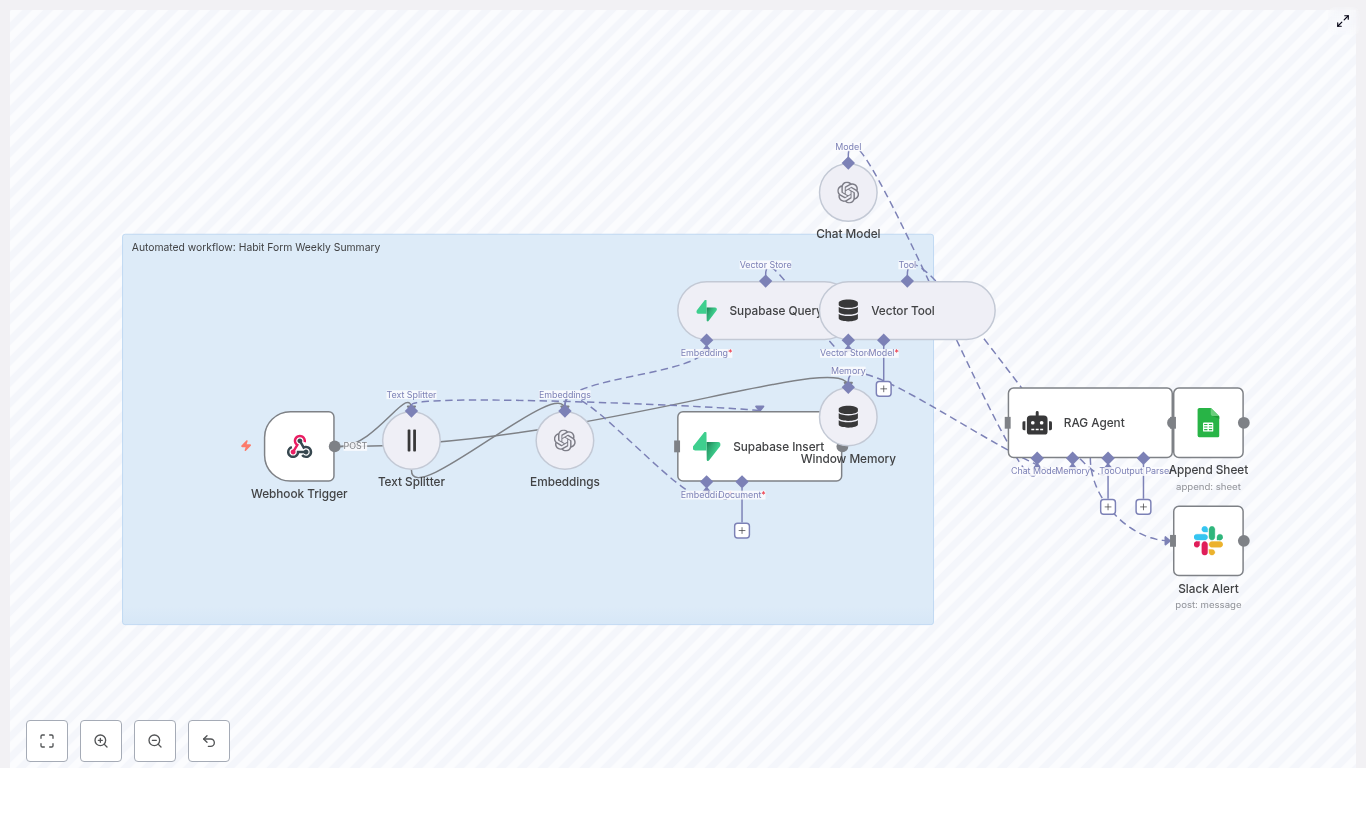
Let us start with the big picture before diving into each step. The workflow is an end-to-end pipeline that:

  1. Receives hotel reviews through a Webhook.
  2. Splits long reviews into smaller chunks with a Splitter.
  3. Creates vector embeddings using Hugging Face.
  4. Stores those vectors and metadata in a Pinecone index.
  5. Uses Pinecone as a vector store tool that the agent can query.
  6. Keeps context using memory so the agent can reason better.
  7. Runs a Hugging Face language model to analyze sentiment.
  8. Lets an Agent orchestrate all this and output structured sentiment results.
  9. Logs everything into Google Sheets for reporting and auditing.

So from a single incoming review, you end up with:

  • A sentiment label like Positive, Neutral, or Negative.
  • A numeric sentiment score between 0 and 1.
  • Key highlights like “noisy AC” or “amazing staff.”

All of this is done automatically through n8n, Hugging Face, and Pinecone, with minimal manual setup.

Step-by-step: how the workflow is wired together

1. Webhook – where your reviews enter the system

The workflow starts with a Webhook node. This is the public endpoint that receives reviews via HTTP POST requests, typically in JSON format. You can send data from your booking system, review scraper, or internal tools.

A simple JSON payload might look like this:

{  "review_id": "12345",  "hotel_id": "H-234",  "text": "The room was clean but the AC was noisy at night.",  "rating": 3
}

It is a good idea to:

  • Use authentication like an API key or secret.
  • Restrict access to your internal network or trusted services.
  • Validate incoming payloads so you are not storing junk or malformed data.

2. Splitter – breaking reviews into manageable chunks

Next up is the Splitter node. Its job is to cut longer reviews into smaller pieces so the embedding model can better capture local context.

The template uses these defaults:

  • chunkSize = 400 characters
  • chunkOverlap = 40 characters

For typical hotel reviews, chunk sizes in the 200 to 400 character range work nicely. If you are processing long survey responses or multi-paragraph feedback, you might want to increase the chunk size.

The overlap is important because it helps preserve context between chunks. Without overlap, a sentence split in half could lose meaning. With a small overlap, the model still “sees” enough surrounding text to understand what the guest is saying.

3. Embeddings – turning text into vectors with Hugging Face

Once the text is chunked, the Embeddings (Hugging Face) node generates vector representations for each chunk. These vectors are what Pinecone uses for similarity search and semantic retrieval.

In this template, you will typically use a sentence-transformers model such as:

  • all-MiniLM variants or similar

They are a good balance of speed and cost, which matters in production. If you need more domain-specific understanding for hospitality, you can look into:

  • Fine-tuning a model on your own review data.
  • Using a larger model for more nuance, at a higher cost.

Make sure your Hugging Face API key is set correctly in n8n and that the model name is valid.

4. Pinecone index – storing vectors with useful metadata

Now that you have embeddings, the Insert (Pinecone) node saves them into a Pinecone index.

You will want to create an index, for example:

hotel_review_sentiment

Along with the vector, store relevant metadata such as:

  • review_id
  • hotel_id
  • rating
  • A short text snippet or the full chunk

Why store metadata? It lets you:

  • Filter by specific hotels, time ranges, or ratings.
  • Run segmented analysis, like “show me all negative reviews for Hotel H-234 in the last 30 days.”

Make sure the index name, API key, and region in n8n match what you created in Pinecone.

5. Query + Tool – using Pinecone as a vector store

When you want to analyze or revisit a review, the workflow uses the Query (Pinecone) node together with a Tool node. This combination lets the agent search for semantically similar chunks inside Pinecone.

The result is that your AI agent can:

  • Look up related reviews that mention similar issues.
  • Pull in context from past feedback when analyzing a new review.

This is the “memory” of your review history, but stored efficiently as vectors.

6. Memory – keeping conversational context

The Memory (Buffer) node helps preserve recent context for the agent. If your workflow involves multiple steps of reasoning or follow-up questions, this memory node keeps track of what has already been discussed or analyzed.

For simple one-off sentiment classification, it is mostly about consistency. For more advanced workflows, it allows richer, more contextual conversations with your review data.

7. Chat (Hugging Face LM) – the language model brain

Next, the Chat (Hugging Face LM) node is the actual language model that reads the review text, considers the rating, and helps classify sentiment.

It is guided by a prompt that tells it exactly what to do and how to format its output. A simplified example prompt might look like this:

Classify the sentiment of the following hotel review. Return JSON with keys: sentiment, score (0-1), highlights.

Review: "{{text}}"

Consider the rating if available: {{rating}}

The model then returns structured data like:

  • sentiment: Positive / Neutral / Negative
  • score: A confidence score between 0 and 1
  • highlights: Key issues or praise points

Before you store any output, it is smart to validate and sanitize the JSON so a formatting hiccup does not break your pipeline.

8. Agent – orchestrating tools, memory, and the model

The Agent node is where everything comes together. It coordinates:

  • The vector store tool that queries Pinecone.
  • The memory buffer that holds context.
  • The Chat LM that does the actual reasoning.

The agent uses these components to produce a final, structured sentiment analysis for each review. This is what you ultimately log and report on.

9. Google Sheets – logging results for reporting

Finally, the Sheet (Google Sheets) node appends the sentiment results to a sheet that behaves like a simple log or CSV file.

This gives you:

  • An auditable record of what the system decided for each review.
  • A quick way to filter and sort by sentiment, score, hotel, or date.
  • A data source that can feed into BI tools or dashboards.

For more advanced analytics, you can later swap or add destinations like:

  • BigQuery or another data warehouse.
  • SQL databases.
  • Dashboards in Looker, Metabase, or similar tools.

How inference and review lookup actually work

Let us zoom in on what happens when you want to analyze or look up a review.

  1. The review text is embedded and stored as vectors in Pinecone.
  2. When you trigger analysis or search, the Query (Pinecone) node finds similar chunks.
  3. The Agent uses those results plus the language model to generate a consolidated sentiment view.

This setup means you can do things like:

  • Find all reviews that mention “noisy AC,” even if guests phrase it differently.
  • See how often the same issue appears across locations.
  • Combine historical context with new reviews for richer insights.

Ideas to customize and extend the template

Once you have the basic pipeline running, you can start tailoring it to your operations. Here are a few ideas:

  • Aspect-based sentiment
    Go beyond “overall sentiment” and extract categories like cleanliness, staff friendliness, breakfast quality, Wi-Fi, or noise levels.
  • Active learning loop
    Periodically sample low-confidence reviews, have a human label them, and use that feedback to refine prompts or models.
  • Ticketing integration
    Automatically create tasks in your ticketing tool whenever a negative review is detected for a specific hotel.
  • Dashboarding
    Build a dashboard showing sentiment trends per hotel, top recurring complaints, and average time to resolution.

Cost, performance, and best practices

Most of your cost will come from:

  • Embedding calls to Hugging Face.
  • Language model calls for sentiment classification.
  • Vector storage and queries in Pinecone.

To keep things efficient and affordable:

  • Batch embeddings when possible and avoid re-embedding the same text repeatedly.
  • Use smaller embedding models for bulk processing, and reserve larger LMs for more complex reasoning.
  • Configure retention policies in Pinecone, such as time-to-live, if you do not need to keep every review forever.

On the compliance side, remember to:

  • Strip or anonymize personally identifiable information (PII) before storage.
  • Encrypt sensitive metadata where required.
  • Review your data flows against privacy regulations in your region.

Troubleshooting common issues

If something goes wrong, it is usually one of a few predictable culprits. Here is a quick checklist.

  • Embeddings failing?
    Check your Hugging Face API key, ensure the model name is correct, and confirm you are not hitting token or rate limits.
  • Pinecone insert or query errors?
    Verify the index name, API key, and region settings. Also check Pinecone dashboards for rate limits or timeouts.
  • Agent returns broken or inconsistent JSON?
    Tighten the prompt, include explicit output format examples, and add a JSON schema validation step before writing to Sheets.

Deployment checklist for production use

Before you roll this out to your whole hotel portfolio, run through this quick deployment checklist:

  1. Store all API keys and secrets securely in the n8n credentials manager.
  2. Test the workflow with a representative dataset, then run a small real-world batch.
  3. Set up monitoring and alerts for node errors, API quotas, and timeouts.
  4. Document the agent prompt you are using and keep versioned copies for reproducibility.

When this template is a great fit

You will get the most value from this n8n template if:

  • You manage one or more hotels or hospitality brands.
  • You receive reviews from multiple sources and channels.
  • You want consistent, scalable sentiment analysis without building everything from scratch.
  • You like the idea of a low-code workflow that you can tweak and extend over time.

It is flexible enough for experimentation but solid enough to form the backbone of a production sentiment pipeline.

Wrapping up

This n8n workflow template gives you a practical, low-code way to turn unstructured hotel reviews into structured, actionable insights. By combining text splitting, Hugging Face embeddings, Pinecone vector search, and an AI agent, you get a system that:

  • Understands context instead of just counting keywords.
  • Scales to thousands of reviews.
  • Integrates cleanly with your existing tools and operations.

Ready to see it in action? Clone the template into your n8n instance, plug in your Hugging Face, Pinecone,
Build an HOA Fee Analyzer with n8n & Weaviate

Build an HOA Fee Analyzer with n8n & Weaviate

This guide walks you through how to build an automated HOA fee analyzer using n8n, Hugging Face embeddings, a Weaviate vector store, Anthropic chat agents, and Google Sheets.

The goal is to help you turn dense HOA documents into searchable, structured knowledge, then use that knowledge to answer questions, calculate fees, and log results automatically.


What You Will Learn

By the end of this tutorial, you will be able to:

  • Explain the core concepts behind an HOA Fee Analyzer built in n8n
  • Set up an n8n workflow that ingests HOA documents through a Webhook
  • Split long documents into chunks and generate embeddings with Hugging Face
  • Store and query vectors in Weaviate for semantic search
  • Use an Anthropic chat agent to answer HOA fee questions using a vector tool
  • Log query results and insights into Google Sheets for reporting and audits
  • Apply basic security, testing, and optimization practices to your workflow

Why Build an HOA Fee Analyzer?

HOA documents are packed with details: fee schedules, special assessments, reserve guidelines, and maintenance responsibilities. Reading them manually for every property or client is slow and error prone.

An HOA Fee Analyzer helps you:

  • Automate document ingestion so PDFs or text can be processed as soon as they arrive
  • Convert text into embeddings so you can use semantic search instead of keyword matching
  • Expose a conversational interface where users can ask natural language questions
  • Log results to Google Sheets for audits, compliance, and downstream workflows

This is valuable for homeowners, real estate professionals, and property managers who need quick, reliable answers about HOA fees and rules.


Concepts & Architecture

How the n8n HOA Analyzer Fits Together

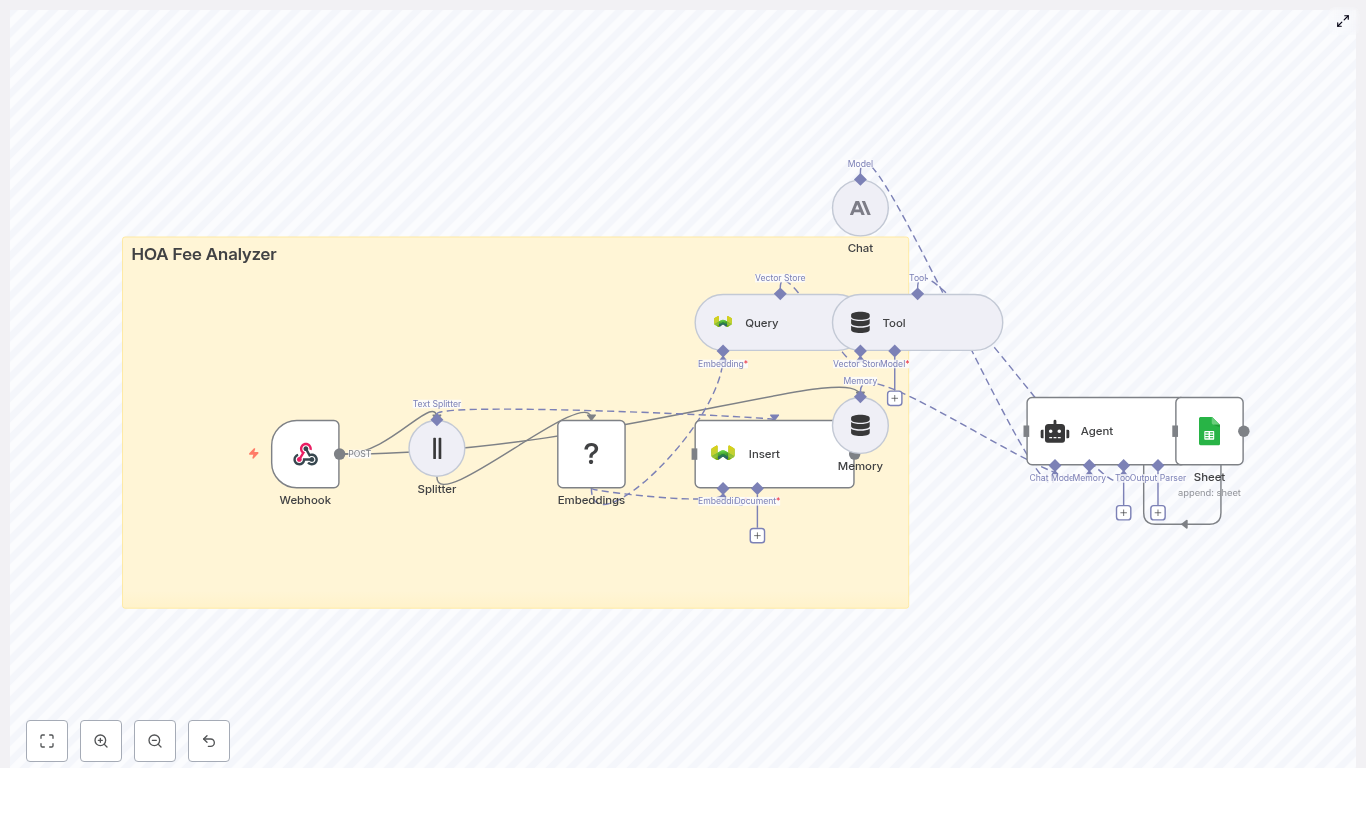
At a high level, the workflow looks like this:

  1. A Webhook in n8n receives HOA documents or extracted text.
  2. A Text Splitter breaks long documents into smaller chunks.
  3. Hugging Face Embeddings convert each chunk into a numeric vector.
  4. Weaviate stores these vectors and associated metadata.
  5. An Anthropic chat agent uses a vector Tool to query Weaviate.
  6. Google Sheets records results for tracking and reporting.

Core Components in the Workflow

  • n8n Webhook – Receives POST requests with HOA text, PDF-extracted content, or URLs, along with metadata like property ID and HOA name.
  • Text Splitter – Splits long text into chunks (with overlap) to keep context while avoiding very long passages.
  • Hugging Face Embeddings – Transforms each text chunk into a vector representation suitable for semantic search.
  • Weaviate vector store – Stores embeddings and metadata, and supports similarity search queries.
  • Anthropic chat agent – Receives user questions, calls the Weaviate query tool, and synthesizes clear answers.
  • Google Sheets – Logs queries, computed fee insights, and document references for auditing and analytics.

Step-by-Step: Building the HOA Fee Analyzer in n8n

This section walks through the workflow in the order you would typically build it in n8n.

Step 1 – Configure the Webhook in n8n

Start by creating a Webhook node in n8n that will receive your HOA data.

What the Webhook should accept:

  • Raw text from an HOA document
  • Text extracted from a PDF
  • A URL that your pipeline will use to fetch the document content

Recommended metadata fields:

  • Property ID
  • HOA name
  • Upload or ingestion date

This metadata ensures that every document and every answer can be traced back to its source.

Step 2 – Split Long HOA Documents into Chunks

Most HOA documents are long and cover many topics. Before generating embeddings, you should split them into smaller sections.

Use n8n’s Text Splitter node and configure it as follows:

  • Choose a strategy:
    • Character-based splitting, or
    • Sentence-based splitting
  • Set a chunk size, for example 400 characters
  • Set an overlap, for example 40 characters, to preserve context between chunks

Splitting prevents the embedding model from handling overly long passages, which can reduce retrieval quality. Smaller chunks with slight overlap usually lead to more precise answers.

Step 3 – Generate Embeddings with Hugging Face

Next, add a Hugging Face embeddings node (or another embeddings provider) to your n8n workflow.

For each text chunk:

  1. Send the chunk to the embedding model.
  2. Receive a numeric vector representation of that chunk.

Model selection tips:

  • Choose a compact transformer-based model if you need a balance of speed and semantic quality.
  • Consider cost if you plan to embed large volumes of documents.

These embeddings are what Weaviate will use later for semantic similarity search.

Step 4 – Store Text & Vectors in Weaviate

Once you have embeddings, you can store them in a Weaviate collection (index).

For each chunk, insert:

  • The original chunk text
  • Metadata such as:
    • Document ID
    • Page number (if available)
    • HOA name
    • Property ID
  • The embedding vector

Good metadata design is critical. It allows you to:

  • Filter by specific HOAs or properties
  • Limit results to documents within certain dates
  • Support faceted search across multiple HOAs

Step 5 – Add a Weaviate Query Tool for Retrieval

Now that your data is in Weaviate, you need a way to retrieve relevant chunks for each question.

In the same n8n workflow, add a query node that:

  1. Accepts a user query or question from the agent.
  2. Uses Weaviate to perform a top-K nearest neighbor search based on embeddings.
  3. Returns:
    • The matching chunk text
    • The associated metadata

These results are then passed to the Anthropic agent so that it can construct an answer and reference specific parts of the HOA document.

Step 6 – Integrate an Anthropic Chat Agent

Next, add an Anthropic chat model node to act as the agent that interacts with users and the vector store.

Configure the agent with two main capabilities:

  1. Tool calling: The agent should be able to call your Weaviate query node as a Tool whenever it needs information from the HOA documents.
  2. Short-term memory: Maintain context within a session so the agent can handle follow-up questions.

Prompt template suggestions:

  • Instruct the agent to cite sources by including document IDs, page numbers, or HOA names in its answers.
  • Ask it to compute fee totals when requested, such as:
    • Monthly versus annual fee breakdowns
    • Average monthly HOA fees across documents
  • Tell it to request clarification if the question is ambiguous or the documents appear inconsistent.

The result is a conversational interface that can answer questions like “What are the recurring HOA fees for this property?” using the indexed document content.

Step 7 – Log Outcomes to Google Sheets

Finally, add a Google Sheets node to log the results of each interaction or analysis.

When the agent finishes a task, such as calculating HOA fees or identifying a special assessment, append a new row that includes:

  • The original user query
  • The agent’s parsed result or summary
  • The related document ID or HOA name
  • A timestamp of when the analysis was performed

This creates an auditable trail that you can use for:

  • Compliance and audits
  • Reporting for clients or internal teams
  • Triggering downstream workflows like billing, notifications, or escalations

Security, Data Privacy, and Governance

Because HOA documents may contain sensitive or personal information, you should design your n8n workflow with security in mind.

  • Encrypt data in transit and at rest:
    • Use TLS for webhooks and API calls.
    • Ensure storage solutions encrypt data at rest where possible.
  • Limit data retention:
    • Define how long you keep documents and embeddings.
    • Periodically purge expired entries from Weaviate.
  • Harden integrations:
    • Use dedicated service accounts and scoped API keys for Google Sheets.
    • Rotate credentials regularly.
  • Sanitize inputs:
    • Validate and sanitize user input to avoid injection attacks.
    • Restrict the file types and sources accepted by your Webhook.

Testing & Validation

Before you rely on your HOA Fee Analyzer in production, you should test it with realistic documents.

Build a Test Dataset

Include a variety of HOA materials, for example:

  • Fee schedules and dues tables
  • Meeting minutes that mention assessments
  • Reserve studies and financial summaries

Example Validation Questions

Use your agent to answer questions such as:

  • “List all recurring HOA fees and their frequency (monthly, quarterly, annual).”
  • “Are there any special assessments between [DATE1] and [DATE2]? If yes, what are the amounts and what do they cover?”
  • “Summarize maintenance responsibilities for owners versus the HOA in plain language.”

Measure and Tune Performance

Check both the retrieval and the final answers:

  • Evaluate precision and recall of the retrieved chunks from Weaviate.
  • Adjust:
    • Chunk size and overlap in the Text Splitter
    • The embedding model used
    • The K value, which controls how many neighbors are returned for each query

Iterate until the analyzer consistently returns accurate and complete information.


Optimization Tips for n8n & Weaviate

Once your workflow is working, consider these optimizations for performance and cost.

  • Cache common answers:
    • Use an n8n memory node to store frequently asked questions and computed results.
    • This reduces repeated calls to Weaviate and the language model.
  • Use metadata filters:
    • In Weaviate queries, filter by HOA name, property ID, or document date.
    • This narrows the search space and can improve both speed and relevance.
  • Batch inserts:
    • When ingesting many documents, batch embeddings into bulk insert operations.
    • This reduces API overhead and speeds up indexing.
  • Monitor costs:
    • Track embedding and language model usage.
    • Use smaller, cheaper models for embeddings and reserve more capable models for the agent when necessary.

Example Prompts for Your Anthropic Agent

Here are some starting prompts you can provide to users or bake into your UI. Customize them for your own HOA datasets.

  • “Find and list recurring HOA fees for [HOA_NAME]. Include frequency and any conditional triggers.”
  • “Does this HOA document include any special assessments between [DATE1] and [DATE2]? If yes, provide amounts and scope.”
  • “Summarize maintenance responsibilities for owners versus the HOA in plain language.”

These prompts guide the agent toward structured, actionable outputs that are easy to log in Google Sheets and share with stakeholders.


Deployment & Next Steps

Move from Prototype to Production

After testing and tuning, deploy your n8n workflow to a production environment.

Typical next steps include:

  • Connecting the Webhook to frontend forms where users upload HOA documents
  • Integrating with an ingestion pipeline for bulk document uploads
  • Scheduling regular ingestion for newly updated HOA documents

Add Notifications and Alerts

To make the analyzer more proactive, consider adding notification steps in n8n, for example:

  • Send an email or Slack message when:
    • A large special assessment is detected
    • There are amendments to fee structures
    • Reserve requirements are missing or appear insufficient

Recap & FAQ

Quick Recap

  • You built an HOA Fee Analyzer using:
    • n8n for orchestration
    • Hugging Face embeddings for vectorization
    • Weaviate as a vector store for semantic search
    • An Anthropic agent for conversational reasoning
    • Google Sheets for logging and reporting
  • The workflow:
    • Ingests HOA documents via Webhook
    • Splits and embeds text
    • Stores and queries vectors in Weaviate
    • Uses an agent to answer questions and compute fees
    • Logs outcomes in Google Sheets for auditability

Frequently Asked Questions

Can I use a different embeddings provider instead of Hugging Face?

Yes. While this guide uses Hugging Face embeddings, you can replace that node with another provider as long as it outputs vectors that are compatible with your Weaviate configuration.

What if my HOA documents are PDFs?

You can extract text from PDFs using a separate step or service,

Automate Blood Test Email Alerts with n8n

Automate Blood Test Email Alerts with n8n

Every day, medical teams are flooded with lab data that could change a patient’s life if it reached the right person at the right moment. Yet, too often, those results sit in inboxes or systems, waiting for someone to notice.

Automation gives you a different path. Instead of chasing data, you can design workflows that quietly work in the background, highlight what matters, and give your team time to focus on care, strategy, and growth.

This guide walks you through a production-ready n8n workflow template, “Blood Test Email Alert”. It turns incoming blood test data into contextual alerts using embeddings, a Supabase vector store, a Retrieval-Augmented Generation (RAG) agent, and integrations with Google Sheets and Slack. Think of it as a practical first step toward a more automated, calmer, and more effective healthcare workflow.

From data overload to meaningful alerts

Blood test pipelines generate huge volumes of structured and semi-structured data. Without automation, it is easy to miss patterns, delay follow-ups, or lose context in long reports.

By introducing an n8n workflow at this stage, you are not just adding a tool, you are reshaping how your team interacts with information. A well-designed automation can:

  • Detect important anomalies or patterns in blood test data
  • Provide concise, contextual summaries for clinicians using Retrieval-Augmented Generation (RAG)
  • Log decisions in Google Sheets for auditability and traceability
  • Send real-time alerts to teams via Slack or email so nothing critical slips through

The result is more than faster notifications. It is a foundation for a scalable, reliable, and transparent alerting system that grows with your organization.

Adopting an automation-first mindset

Before diving into nodes and settings, it helps to approach this template with the right mindset. You are not just “setting up a workflow”, you are:

  • Designing a repeatable process that protects your time and attention
  • Building a reusable pattern for other medical automations
  • Creating a documented, auditable path from raw data to decisions

Start simple, then iterate. Use this blood test alert workflow as your first building block. Once it is in place, you can extend it to other lab results, notification channels, or approval flows with far less effort.

How the n8n blood test alert workflow fits together

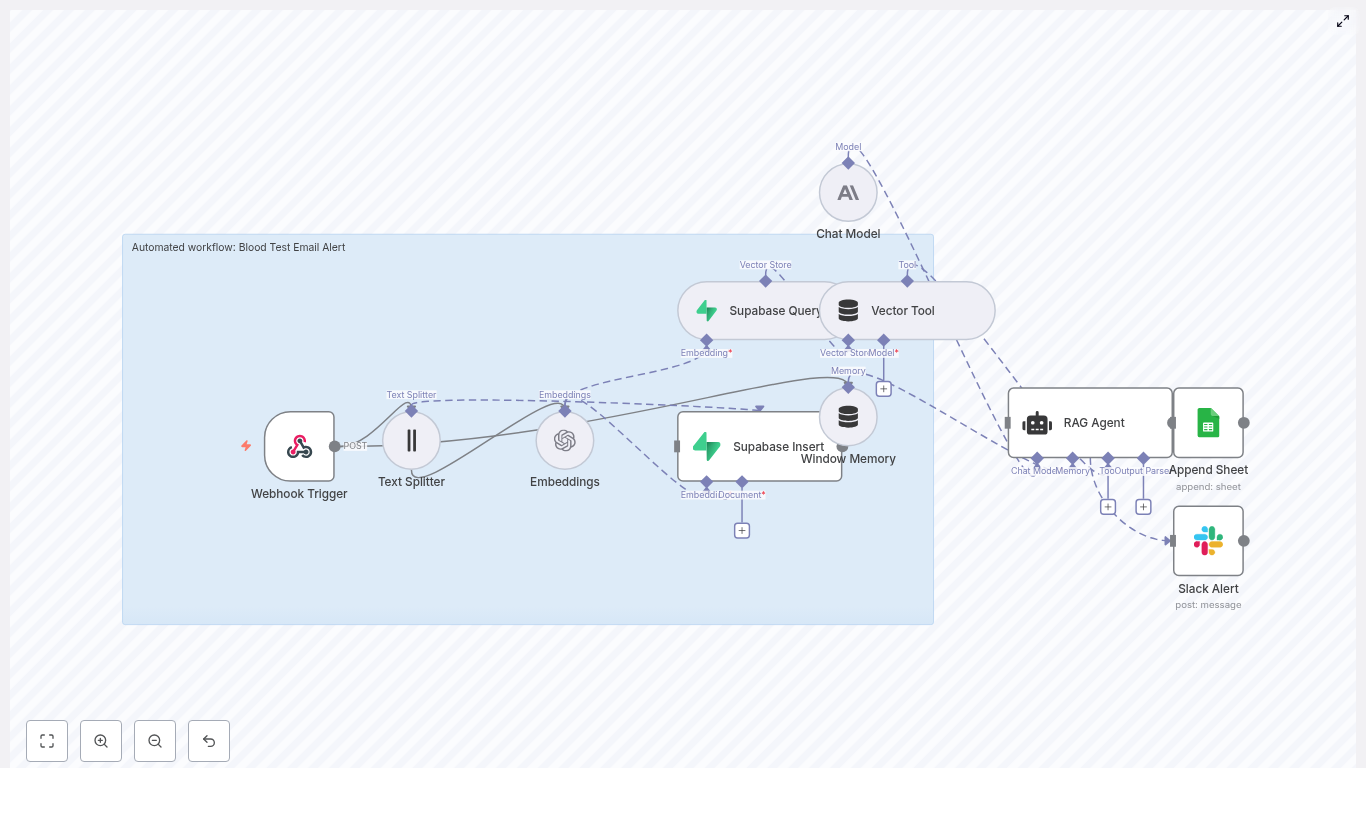
At a high level, this n8n template connects a few powerful components so they act like a single, intelligent assistant for lab results:

  • Webhook Trigger receives incoming blood test data
  • Text Splitter prepares long reports for embedding
  • Embeddings (OpenAI) convert text into vectors
  • Supabase Vector Store stores and retrieves those vectors
  • Vector Tool (LangChain) exposes the vector store to the agent
  • Window Memory keeps short-term conversational context
  • Chat Model (Anthropic) acts as the LLM for reasoning
  • RAG Agent combines context, memory, and prompts to decide alert status
  • Append Sheet (Google Sheets) logs outputs for audits
  • Slack Alert notifies your team on workflow failures

Together, these nodes transform raw JSON into a clear, contextual decision: whether to alert, why, and how to record it.

Step-by-step journey through the workflow

1. Webhook Trigger – where the data journey begins

The workflow starts with a Webhook Trigger node:

  • Endpoint: POST /blood-test-email-alert

This endpoint ingests raw payloads from labs, EHRs, or ingestion systems. It is your workflow’s front door. In production, make sure to:

  • Validate and sanitize incoming JSON
  • Allow only trusted sources, using tokens or an IP allowlist

Once this is in place, every blood test report that hits this endpoint can automatically move into your review and alerting process.

2. Text Splitter – preparing reports for smart retrieval

Long medical reports can be difficult for models to handle efficiently. The Text Splitter node solves this by breaking the report into overlapping chunks:

  • ChunkSize: 400
  • ChunkOverlap: 40

This chunking step improves embedding quality and ensures the RAG agent can retrieve specific passages without hitting token limits. In practice, this means more accurate context and better, more focused summaries.

3. Embeddings (OpenAI) – turning text into vectors

Next, each chunk is passed to the Embeddings node using OpenAI:

  • Model: text-embedding-3-small

Each chunk is converted into a vector representation. These vectors are then sent to Supabase for indexing. You can adjust the embedding model later if you want to balance cost and performance differently, but this model is a solid default for many use cases.

4. Supabase Insert and Supabase Query – storing and retrieving context

The workflow uses two Supabase nodes to manage your medical text embeddings:

  • Supabase Insert: indexes new documents into the blood_test_email_alert index
  • Supabase Query: runs similarity searches to retrieve the most relevant chunks

When a new blood test report arrives, the Insert node stores its embeddings in the Supabase vector store. When the RAG agent needs context to reason about a new result, the Query node fetches the closest matches. This is what lets the agent ground its decisions in concrete, previously indexed information.

5. Vector Tool and Window Memory – giving the agent tools and memory

To make the RAG agent more capable, the workflow connects:

  • Vector Tool (LangChain): exposes the Supabase vector store as a tool the agent can call
  • Window Memory: keeps recent messages and context available across steps

These pieces help the agent behave more like a thoughtful assistant instead of a one-off responder. It can pull in relevant background information and remember what it has already considered in the current interaction.

6. Chat Model and RAG Agent – turning data into decisions

At the heart of the workflow is the combination of:

  • Chat Model (Anthropic): the language model responsible for reasoning
  • RAG Agent: which orchestrates memory, tools, and context

The agent uses a system prompt to stay focused:

“You are an assistant for Blood Test Email Alert”

Using this prompt, the retrieved context from Supabase, and the window memory, the RAG agent produces clear, actionable output, such as:

  • Whether an alert should be sent
  • The reasoning behind that decision
  • A concise summary suitable for email or internal review

This is where your workflow starts to feel transformative. Instead of a raw report, you get a structured, explainable decision that your team can trust and audit.

7. Append Sheet (Google Sheets) – building your audit trail

Every decision needs a record. The Append Sheet node sends the final status and agent output into a Google Sheet named “Log”.

  • Use a stable SHEET_ID for production
  • Ensure the sheet has appropriate columns for status, reasoning, timestamps, and identifiers

This log becomes your lightweight audit trail, which is especially helpful for compliance, quality checks, and continuous improvement. Over time, you can analyze this data to refine prompts, thresholds, or escalation rules.

8. Slack Alert (on error) – never miss a failure

Automation is powerful, but only if you know when something goes wrong. The workflow includes a Slack Alert node on the onError path.

  • All failures trigger a message to #alerts
  • The error payload is included so engineers can quickly investigate

This safety net means you can scale your automation with confidence, knowing that silent failures are far less likely.

Configuration tips for a smooth deployment

To bring this template to life in your environment, configure a few key elements:

  • Store all API keys as credentials in n8n:
    • OpenAI
    • Supabase
    • Anthropic
    • Google Sheets
    • Slack
  • Create the Supabase table and vector index in advance:
    • indexName: blood_test_email_alert
  • Set the Webhook path to blood-test-email-alert and secure it using tokens or an allowlist
  • For Google Sheets, use a service account or OAuth credentials and verify that the “Log” sheet is ready for production data
  • If your stack is not HIPAA compliant, disable or secure PHI-containing payloads, redact patient identifiers, or process data only in compliant environments

Spending a bit of time on this setup phase pays off later with a stable, maintainable automation that you can build on confidently.

Testing your n8n blood test alert workflow

Before you rely on this workflow in production, walk through a simple test journey:

  1. Send a test POST request to your webhook URL with a representative blood test report JSON.
  2. Verify that the Text Splitter creates multiple chunks and that embeddings are generated.
  3. Check Supabase to confirm that:
    • Embeddings are inserted into the blood_test_email_alert index
    • A Supabase Query returns relevant passages for the RAG agent
  4. Open your “Log” Google Sheet and confirm that the agent’s status and explanation are appended as new rows.
  5. Simulate failures, such as:
    • Sending an invalid payload
    • Temporarily removing an API key

    and check that Slack posts alerts to #alerts.

Once these tests pass, you have a reliable baseline. From there, you can iterate on prompts, thresholds, or additional logic to better match your team’s workflow.

Security and compliance considerations

Blood test data often counts as protected health information (PHI). Treating it carefully is non-negotiable. If you handle PHI in this workflow:

  • Use a HIPAA-compliant stack and sign BAAs with vendors where required
  • Minimize stored PHI in vector stores or avoid storing direct identifiers altogether
  • Encrypt data at rest and in transit, and rotate secrets regularly
  • Limit access to logs and keep an audit trail, for example, using the Google Sheets “Log”

By designing with security in mind from the start, you can scale your automation without sacrificing trust or compliance.

Scaling and optimizing your workflow over time

Once your blood test alert automation is running smoothly, you can refine it for performance and cost efficiency.

  • Batch embeddings to improve throughput and reduce API calls
  • Tune chunk size and overlap based on average report length and complexity
  • Implement rate limiting to protect downstream APIs and avoid quota exhaustion
  • Monitor Supabase storage and periodically prune or archive old vectors that are no longer needed

These optimizations help your workflow stay fast, predictable, and affordable as volumes grow.

Example: minimal webhook payload

Here is a simple JSON payload you can use to test your webhook:

{  "patient_id": "anon-12345",  "report_text": "Hemoglobin: 13.2 g/dL\nWBC: 6.1 x10^9/L\nComments: Results within normal range"
}

Start with a minimal example like this, then gradually move toward more complex, real-world reports once you are confident the pipeline is working.

Turning this template into your automation foundation

This n8n template is more than a one-off blood test notifier. It is a flexible foundation for automated medical alerts that are:

  • Context-aware, thanks to embeddings, a vector store, and RAG
  • Auditable, with every decision logged in Google Sheets
  • Integrated into your team’s daily tools through Slack and email

By implementing it, you take an important step toward an automation-first workflow where repetitive tasks are handled for you, and your team can focus on high-value work and patient care.

From here, you can:

  • Extend the same pattern to other lab tests or clinical reports
  • Add approval steps or routing rules based on severity
  • Experiment with different prompts or models to improve summaries

Next steps: start small, then build your automation ecosystem

You do not need to automate everything at once. Start with this template, prove the value, and grow from there.

Here is a simple action plan:

  1. Deploy the template in n8n.
  2. Connect your OpenAI, Supabase, Anthropic, Google Sheets, and Slack credentials.
  3. Run a few test payloads and validate the end-to-end flow.
  4. Review your Google Sheets logs and Slack alerts, then refine prompts or thresholds.
  5. Prepare for production by aligning with your local healthcare data regulations and compliance needs.

As you gain confidence, use the same approach to automate more of your workflows, from intake forms to discharge summaries and beyond.

Call to action: Download this n8n template, test it with sample data, and subscribe for weekly automation guides and best practices to secure and scale your healthcare automations. Each small automation you ship today becomes a building block for a more focused, resilient, and efficient operation tomorrow.

If you have questions or need a custom implementation, share your environment details and we can help you adapt the workflow to your specific requirements.

Build a Harvest Logbook with n8n & Pinecone

How a Tired Farm Manager Turned Chaos Into a Smart Harvest Logbook With n8n & Pinecone

The Problem That Started In The Packing Shed

By the end of every harvest day, Lena dreaded the paperwork more than the picking.

She managed a mid-sized orchard that had slowly turned into a data nightmare. Harvest dates lived in one spreadsheet, field notes in a notebook, weather observations in a shared chat, and lab reports in random PDFs. When the owner asked simple questions like:

  • “How did the East Orchard perform last August compared to this year?”
  • “Can we find all harvests where we saw bruising issues?”

Lena would sigh, open three different tools, and try to piece things together. It took hours, sometimes days.

What she really wanted was a single, intelligent harvest logbook that would:

  • Capture every harvest in a structured way
  • Remember long, messy notes from the field
  • Let her search old records by meaning, not just exact words
  • Feed everything into a Google Sheet the team already used

One evening, while searching for ways to automate her harvest tracking, she stumbled across an n8n workflow template that promised exactly that. It combined webhooks, OpenAI embeddings, Pinecone, LangChain text splitting, memory, an agent, and Google Sheets into a single flow.

Lena decided to try it. That decision quietly changed how her farm handled data.

Discovering the “Harvest Logbook” Workflow

The template was called a Harvest Logbook with n8n & Pinecone. Instead of being a simple how-to, Lena saw it as a potential storyline for her data problems: incoming harvests would be captured, cleaned, enriched, and stored in one place, with semantic search on top.

At a high level, the workflow promised to:

  • Accept structured or free-form harvest notes through a webhook
  • Split long text into smaller chunks so that embeddings stayed accurate
  • Generate OpenAI embeddings and store them as vectors in Pinecone for semantic retrieval
  • Use a lightweight agent plus short-term memory to enrich or reformat data
  • Append clean, structured rows to a Google Sheet called “Log”

In other words, it could turn her chaotic notes into a searchable, structured harvest history.

Setting The Stage: What Lena Needed Before Automation

Before she could bring this workflow to life, Lena had to gather a few building blocks. The template relied on several external services, so she made a checklist on a sticky note and worked through it one by one.

Preparing The External Services

She created or confirmed:

  • OpenAI (or compatible embeddings provider) An API key for generating text embeddings.
  • Pinecone An account plus an index named harvest_logbook. She noted she could rename it later, as long as she updated the Insert and Query nodes in n8n.
  • Google Sheets A Google Sheet to act as the central logbook, with an ID she copied to a safe place, and Sheets API credentials with write access.
  • Hugging Face (or another LLM provider) An API key for the Chat node in the template. She learned that n8n would also let her swap this out for OpenAI or another supported LLM if she preferred.

Importing The Workflow: The First Turning Point

With the accounts ready, Lena opened n8n and imported the JSON template. On the canvas, the workflow looked like a map of her future harvest process. Each node represented a step she used to handle manually.

Understanding The Main Nodes Through Lena’s Eyes

She zoomed in and walked through each piece:

  • Webhook The entry point that receives POST requests at /harvest_logbook. This would be where her harvest app, mobile form, or simple script would send the daily data.
  • Splitter A character-based text splitter using chunkSize: 400 and overlap: 40. It would break long notes into overlapping pieces so the embeddings stayed meaningful.
  • Embeddings A node that called OpenAI to turn each text chunk into a vector representation.
  • Insert (Pinecone) The step that wrote those vectors into the harvest_logbook index in Pinecone.
  • Query (Pinecone) & Tool Components that allowed an agent to perform semantic search over her historical harvest notes.
  • Memory A buffer window memory that kept short-term context so the agent could handle follow-up questions or multi-step enrichment.
  • Chat A language model node (Hugging Face by default in the template) that powered the agent’s reasoning and text generation.
  • Agent The orchestrator that combined inputs, called tools when needed, and produced the final structured record.
  • Google Sheets The final destination that appended a row to a sheet named Log in her harvest spreadsheet.

Connecting The Credentials

Next came the slightly nerve-racking part: credentials. One by one, Lena opened each node that needed secure access and wired it up.

  • Embeddings node She selected her OpenAI API credentials.
  • Insert & Query nodes She connected Pinecone API credentials tied to the harvest_logbook index.
  • Chat node She chose her Hugging Face key, noting that she could later switch to another LLM node if she wanted.
  • Google Sheets node She authorized OAuth2 credentials with write access to her sheet.

n8n showed green checkmarks, and the tension eased. The pieces were in place.

Watching The Data Flow For The First Time

To test the workflow, Lena crafted a sample JSON payload that looked suspiciously like a real day’s harvest.

The Test Payload

{  "date": "2025-08-10",  "field": "East Orchard",  "crop": "Apples",  "weight_kg": 1250,  "notes": "Harvest morning: slight bruising on some top fruit, humidity 65%..."
}

She sent a POST request to the /harvest_logbook webhook and then watched the nodes light up in sequence.

What Happened Behind The Scenes

  1. Webhook receives the payload The JSON arrived with date, field, crop, weight, and a block of notes.
  2. Splitter breaks down the notes If the notes field was long, the character-based splitter divided it into overlapping chunks using chunkSize=400 and chunkOverlap=40. This ensured that no single chunk was too long for reliable embeddings.
  3. Embeddings node vectorizes each chunk For every text chunk, the OpenAI embeddings model produced a vector representation.
  4. Insert node stores vectors in Pinecone Those vectors were inserted into the harvest_logbook index, ready for future semantic search.
  5. Query & Tool nodes offer semantic lookup If the agent needed to reference similar past entries, it could query Pinecone via a vector-store tool.
  6. Memory keeps short-term context Recent conversation context and queries were preserved in a buffer window memory, so the agent could respond more intelligently across steps.
  7. Agent compiles the final record Using the incoming payload, optional Pinecone lookups, and the LLM, the agent shaped the data into a clean, structured row.
  8. Google Sheets appends the row Finally, the row landed in the Log sheet in Google Sheets, instantly available to the whole farm team.

For the first time, Lena saw her harvest data flow from a simple POST request into a structured log and a semantic index without manual typing.

Fine-Tuning: When Real-World Notes Meet Chunk Sizes

Once the initial thrill faded, Lena realized that not all her notes looked like the example. Some were just a single line, others were multi-page lab reports.

Adjusting Chunking & Embeddings For Her Farm

She returned to the Splitter and Embeddings configuration:

  • For short notes like “Good color, no pests” she found the default chunkSize=400 more than enough. She even experimented with increasing it for slightly better efficiency.
  • For very long lab reports and detailed field inspections, she considered reducing chunkSize so that each chunk stayed coherent and embeddings remained meaningful.

She also noted that she could switch the embeddings model in the Embeddings node by changing the model field. Newer models might improve semantic search, but she kept an eye on potential cost differences.

Making The Logbook Truly Hers

Once the workflow was stable, Lena wanted the Google Sheet to reflect the way her farm actually worked. That meant reshaping columns and choosing her preferred AI providers where it made sense.

Customizing The Google Sheets Layout

Inside the Google Sheets node, she saw that the operation was set to append rows to a sheet named Log. She updated:

  • documentId to point to her main harvest spreadsheet
  • The field mappings so columns appeared in the order her team expected, such as Date, Field, Crop, Weight (kg), Notes, and any additional fields she wanted

Choosing Her Preferred Models

  • Embedding model In the Embeddings node, she tried alternative models by changing the model field, balancing quality and cost.
  • Language model for the agent Although the template used Hugging Face in the Chat node, she experimented with swapping it for another LLM supported by n8n, updating the Agent’s input so it used the new node.

Keeping The System Fast, Safe, And Affordable

As the team started to rely on the Harvest Logbook daily, Lena realized that operational details mattered just as much as the first setup.

Best Practices She Adopted

  • Rate limits On busy harvest days, she configured batching or throttling for incoming webhooks to avoid hitting API rate limits for embeddings and Pinecone inserts.
  • Cost control She monitored how many embedding calls were made and adjusted chunkSize or sampling frequency when needed, especially for very long notes.
  • Data retention With long-term storage in mind, she looked at Pinecone’s index TTL options and planned periodic exports of older vectors to align with farm data retention policies.
  • Validation She added schema validation to the webhook input, so malformed payloads would not end up as broken rows in the sheet.
  • Security She secured the webhook with an API key header, ensured OAuth scopes for Google Sheets were minimal, and limited access to credentials in n8n.

When Things Broke, The Workflow Helped Her Debug

Not every test went perfectly. A few early runs surfaced issues that could have derailed the project if she had not known where to look.

Troubleshooting Moments

  • Missing credentials When a node silently failed, she checked n8n’s credential manager and found one API key had expired. Reconnecting fixed it immediately.
  • No vectors in Pinecone On another day, she saw that nothing was appearing in the harvest_logbook index. The culprit was a small mismatch in the index name in the Insert node. Once corrected, vectors started flowing again. She also checked logs for any payload size issues.
  • Rows not appearing in Google Sheets When the sheet stopped updating, she discovered that the OAuth token had expired and needed to be refreshed, and that she still had edit permission on the document.

Beyond Logging: How Lena Expanded The Workflow

With the core Harvest Logbook stable, Lena started to see new possibilities. The combination of n8n, Pinecone, embeddings, and Google Sheets gave her a platform, not just a log.

Semantic Search For Past Harvests

She built a simple UI that sent queries to Pinecone, using the same harvest_logbook index. Now she could ask:

  • “Show me harvests with bruising issues similar to today.”
  • “Find entries where humidity was high during apple harvests.”

The system would pull back semantically similar notes, even if the exact wording differed.

Analytics And Alerts

  • Analytics Periodically, she exported the Google Sheet and ran time-series analysis: yield by field, pest note frequency, and weather patterns versus quality.
  • Alerting She extended the workflow so that the Agent could trigger Slack or email alerts in special cases, such as weight dropping below a target threshold or repeated mentions of a disease.

The Resolution: From Scattered Notes To A Living Harvest Memory

By the end of the season, Lena’s biggest surprise was not how much data she had, but how usable it had become.

The Harvest Logbook n8n template had quietly transformed her process:

  • Every harvest, large or small, flowed through a single webhook.
  • Long, messy notes were split, embedded, and stored in Pinecone for semantic search.
  • An agent with short-term memory enriched and formatted the data.
  • Google Sheets became a clean, central log that the entire team trusted.

Instead of chasing scattered records, Lena could now ask smarter questions and get meaningful answers in seconds. The workflow was modular, easy to tweak, and ready to grow with the farm’s needs.

Start Your Own Harvest Logbook Journey

If you see your own farm or agritech project in Lena’s story, you can follow the same path:

  1. Prepare your OpenAI or compatible embeddings provider, Pinecone index, Google Sheet, and LLM credentials.
  2. Import the Harvest Logbook workflow into n8n.
  3. Connect your credentials, adjust chunking and column layout, and run a test POST.
  4. Iterate on models, security, and cost controls as your data grows.

Call to action: Ready to automate your harvest tracking and unlock semantic search over your field notes? Deploy this n8n template today, and if you need help tailoring it to your farm’s schema or building a search UI, email our team or book a consultation. We can guide you from first test payload to a fully operational harvest intelligence system.

Automate Habit Form Weekly Summaries with n8n

Automate Habit Form Weekly Summaries with n8n: A Story About Saving Time, Sanity, and Data

By Thursday afternoon, Mia had already written three weekly habit summaries for her coaching clients. Two more were waiting in her inbox, and another would arrive before the end of the day. Each one meant copying notes from a form, skimming through daily entries, trying to spot patterns, and then writing a thoughtful recap with a few actionable tips.

She believed in the power of weekly reflection. Her clients loved seeing trends in their habits. But the process was slow, repetitive, and full of tiny opportunities for mistakes. A missed note here, a misread date there, or simply the fatigue of writing similar summaries over and over again.

That Thursday, staring at yet another Habit Form submission, Mia finally asked herself: “Why am I doing this manually when I already use n8n for half my business?”


The Problem: Manual Habit Summaries That Do Not Scale

Mia’s coaching business relied heavily on a simple idea: every week, clients submitted a Habit Form with daily notes about what they did, how they felt, and what got in their way. Mia would then send them a weekly summary that:

  • Highlighted their wins and consistent behaviors
  • Surfaced issues or skipped habits
  • Suggested 1 or 2 actionable tips for the next week

Her clients saw real progress. But as her client list grew, so did the time she spent:

  • Manually reading each Habit Form submission
  • Copying content into a document or spreadsheet
  • Trying to remember what happened last week for that same client
  • Writing a unique, human-sounding summary from scratch

It was valuable work, but deeply repetitive. And it was exactly the kind of work that an automation-friendly mind like Mia’s knew could be improved.

She had heard of Retrieval-Augmented Generation (RAG), vector databases, and embeddings, but had never tied them all together for her own workflow. That changed when she decided to build an automated Habit Form Weekly Summary using n8n, OpenAI embeddings, Supabase vector storage, and Google Sheets.


The Breakthrough Idea: Let Automation Handle the First Draft

Mia did not want to remove herself from the process. She wanted a smart assistant that could:

  • Receive Habit Form data automatically
  • Store context in a structured, searchable way
  • Generate a concise, AI-written weekly summary using RAG
  • Log all summaries to Google Sheets for tracking
  • Alert her on Slack if anything went wrong

Her role would shift from “manual writer” to “editor and strategist.” The heavy lifting of reading and summarizing would be handled by an n8n workflow

So she opened her n8n canvas and started designing what would become her favorite automation: the Habit Form Weekly Summary n8n workflow.


The Architecture Behind Mia’s Automated Habit Summary

Before touching any node, Mia sketched out the high-level architecture. She wanted a clear flow from raw form data to polished weekly insights. The core pieces looked like this:

  • Webhook Trigger to receive Habit Form POST payloads
  • Text Splitter to chunk long notes
  • OpenAI Embeddings to convert text into vectors
  • Supabase Insert & Query to store and retrieve relevant context
  • Window Memory & Vector Tool to provide context to a RAG agent
  • Chat Model + RAG Agent to generate the weekly summary
  • Append to Google Sheets to keep a log of all generated summaries
  • Slack Alert to notify her if the workflow failed

With the blueprint ready, she started building, one node at a time.


Rising Action: Building the n8n Workflow Step by Step

1. Capturing the Habit Form Data with a Webhook

The first thing Mia needed was a way to get Habit Form submissions into n8n. She created a Webhook Trigger node and configured it to accept a POST request on the path:

/habit-form-weekly-summary

Her habit-tracking form now sent payloads like this directly into n8n:

{  "userId": "123",  "weekStart": "2025-08-25",  "entries": [  {"day": "Monday", "note": "Walked 30 minutes"},  {"day": "Tuesday", "note": "Skipped workout"}  ]
}

Because she cared about security and data integrity, she:

  • Validated the incoming JSON payload
  • Added authentication using a Bearer token or secret query key
  • Restricted which systems were allowed to call the webhook

With that, every new weekly Habit Form submission would trigger the automation.

2. Preparing Text for Embeddings with a Text Splitter

Some of Mia’s clients wrote short, bullet-like notes. Others treated the form like a journal. Long reflections could easily overwhelm a single embedding and hurt retrieval.

To keep things accurate, she added a Text Splitter node. She used a character-based approach with settings like:

  • chunkSize = 400
  • overlap = 40

This meant that long notes would be broken into overlapping chunks, each small enough to capture local meaning. The result was better embeddings and more precise context when the RAG agent later searched for relevant information.

3. Turning Notes Into Vectors with OpenAI Embeddings

Next, Mia connected those chunks to an OpenAI Embeddings node. She chose a model like text-embedding-3-small to convert each piece of text into a fixed-length vector.

For every chunk, she stored important metadata alongside the vector:

  • userId
  • weekStart
  • day
  • Original text content

She knew this metadata would be crucial later. It would let her filter by user and week, making sure the RAG agent only looked at the right entries when generating a weekly summary.

4. Storing and Retrieving Context with Supabase Vector Storage

To persist the embeddings, Mia used Supabase as her vector store. She created a dedicated index in a vector table, for example:

indexName: habit_form_weekly_summary

Her workflow now did two important things with Supabase:

  • Insert new embeddings into the vector table after each form submission
  • Query Supabase later to retrieve the top-k most relevant chunks for a specific userId and weekStart

She made sure to:

  • Use the same embedding model for both insertion and query
  • Filter queries by metadata, such as userId and weekStart
  • Limit the number of retrieved chunks to keep the prompt efficient

At this point, Mia had a searchable memory of her clients’ weekly habit entries, ready to be used by AI.

5. Supplying Context with Window Memory and a Vector Tool

The next challenge was giving the RAG agent access to both short-lived context and long-term stored data. For that, Mia combined two n8n features:

  • Window Memory to preserve recent conversational or operational context
  • Vector Tool to wrap the Supabase query results as a tool the agent could call

The Window Memory made sure the agent could “remember” what had already been discussed in the flow, while the Vector Tool gave it direct access to the retrieved habit entries. Together, they provided the RAG agent with everything it needed to produce a coherent, grounded weekly summary.

6. Generating the Weekly Summary with a Chat Model and RAG Agent

Now came the heart of the system. Mia created a Chat Model node using an OpenAI model such as gpt-4o or gpt-4, depending on availability. She then wrapped it in a RAG Agent configuration so it could:

  • Use the Vector Tool to fetch relevant chunks
  • Leverage Window Memory for short-term context
  • Produce a structured, human-friendly summary

She spent time crafting the system prompt, because she knew prompt engineering would make or break the usefulness of the summaries. A version she liked looked something like this:

You are an assistant for Habit Form Weekly Summary. Using the retrieved entries, generate a concise, human-friendly weekly summary with highlights, consistency notes, and an actionable tip.

Later, she refined it using best practices:

  • Defined role and output format clearly, such as:
    “Produce a 5-sentence weekly summary with 1-2 actionable tips.”
  • Restricted retrieval to the same user and week using metadata filters (userId + weekStart)
  • Optionally asked the agent to return source excerpts or chunk IDs for auditability
  • Set a maximum token or character limit so the summary would fit cleanly into a Google Sheets cell

She also experimented with a 3-part output structure:

  • Highlights
  • Issues
  • Recommendations

When she finally hit “Execute” on the workflow, the RAG agent read the retrieved entries and produced something like this:

Highlights: 5/7 walks completed; notable consistency on mornings. Missed Tuesday and Thursday workouts. Suggestion: schedule a 20-minute morning walk alarm and set an accountability reminder on mid-week. Consider replacing one long session with two shorter sessions if time is constrained.

Mia smiled. It was exactly the kind of feedback she used to write by hand.

7. Logging Everything in Google Sheets

She did not want these summaries to disappear into email threads. She wanted a simple, auditable log of every weekly summary, accessible at a glance.

So she added an Append to Google Sheets node. Each time the RAG agent produced a summary, n8n would append a new row to her “Habit Weekly Log” sheet with columns such as:

  • userId
  • weekStart
  • generatedSummary
  • timestamp

Google Sheets became her lightweight analytics and audit layer. She could filter by client, compare weeks, and quickly spot patterns across her entire coaching practice.

8. Staying in Control with Slack Alerts on Error

Automation is only helpful when you know it is working. To avoid silent failures, Mia created an onError path in her n8n workflow.

If anything went wrong at runtime, an Slack Alert node would send a message to her #alerts channel with:

  • A short description of the error
  • A reference ID or execution URL
  • Enough context to find the problematic payload

This gave her peace of mind. She could let the system run in the background, knowing she would be notified if a summary failed to generate.


Behind the Scenes: Prompt Engineering and RAG Best Practices

As Mia refined her n8n workflow, she realized that small changes in prompt design or retrieval setup had a big impact on summary quality. She adopted a few core best practices:

  • Clear system messages
    She always defined the agent’s role and output format. For example:
    “You are a habit coach assistant. Produce a concise weekly summary with 1 short highlights paragraph, 1 issues paragraph, and 1-2 actionable tips.”
  • Strict metadata filters
    She limited retrieval to the same userId and weekStart so the agent never mixed up different clients or weeks.
  • Optional source excerpts
    When auditability mattered, she had the agent return chunk IDs or brief excerpts, so she could trace which notes influenced each summary.
  • Length control
    She set a max token or character limit, keeping summaries readable and avoiding oversized Google Sheets cells.

These adjustments turned the RAG agent from “pretty good” into “reliably useful” for her coaching workflow.


Security, Monitoring, and Scaling as the Client List Grows

As more clients joined, Mia started thinking like a systems architect as much as a coach. She made sure her habit form weekly summary automation was secure and scalable.

Securing the Workflow

  • Protected the webhook with authentication, rate limiting, and IP restrictions where possible
  • Used Supabase Row-Level Security (RLS) to ensure that vector records were isolated per user
  • Relied on scoped API keys that only had access to the specific embeddings table

Monitoring and Cost Control

  • Enabled n8n execution logs to inspect runs and debug issues
  • Set up alerts for failed runs so she would never miss a broken summary
  • Kept an eye on OpenAI usage and defined cost thresholds

Scaling Vector Storage

When she thought about future growth, she prepared strategies such as:

  • Sharding vector indexes by user cohort or date range
  • Archiving older embeddings to reduce index size and query latency

Her workflow was no longer just a clever shortcut. It was an automation she trusted to grow with her business.


Testing, Edge Cases, and Getting the Details Right

Before fully handing over weekly summaries to automation, Mia stress-tested the workflow. She sent a variety of payloads through the webhook:

  • Very short notes and very long reflections
  • Mixed-length inputs with some days empty and others verbose
  • Edge cases like empty entries, unusual characters, or malicious text
  • High concurrency tests simulating multiple clients submitting at once

For each run, she compared the AI-generated summary to a human-written version. When the AI missed nuances or overemphasized minor details, she adjusted:

  • The prompt wording
  • The number of retrieved chunks
  • The structure of the summary output

After a few iterations, she reached a point where the AI’s summaries were so close to her own that she often only made small tweaks before sending them to clients.


The Turning Point: How Mia’s Week Changed

Two weeks after deploying the n8n Habit Form Weekly Summary workflow, Mia opened her calendar and noticed something unusual. She had free time on Friday afternoons.

Before, Fridays were for catching up on habit summaries she had not written yet. Now, by the time Friday rolled around, n8n had already:

  • Received each client’s Habit Form payload via webhook
  • Generated embeddings with OpenAI
  • Stored and queried context in Supabase using vector search
  • Run a RAG agent to produce a concise weekly summary
  • Appended the result to her Google Sheets log
  • Kept her posted via Slack if anything broke