Automate Leave Requests with n8n Workflows

Automate Leave Requests with n8n Workflows

Handling employee leave requests by hand can be slow, inconsistent, and difficult to track. In this step-by-step guide you will learn how to use an n8n workflow template to automate leave requests using files, external triggers, and a GraphQL API.

This tutorial is written in a teaching-first style. We will start with what you are going to learn, explain the concepts behind each n8n node, then walk through the workflow step by step, and finish with best practices, testing tips, and a short FAQ.

What you will learn

By the end of this guide you will be able to:

  • Trigger an n8n workflow from another workflow using the Execute Workflow Trigger node.
  • Read and parse JSON files from disk to collect leave request data.
  • Optionally run cleanup shell commands safely.
  • Merge data from multiple nodes so you can build a complete payload.
  • Send a GraphQL mutation to create a leave request in your HR system.
  • Apply best practices for validation, error handling, security, and testing.

Why automate leave requests with n8n?

Manual leave management often involves emails, spreadsheets, and copy-paste work. This leads to:

  • Time-consuming data entry.
  • Higher risk of mistakes in dates, types, or employee details.
  • Inconsistent records across systems.

By automating leave requests in n8n you can:

  • Reduce manual input by reading data from files or other systems.
  • Standardize how leave data is formatted and submitted.
  • Speed up the process of creating requests in your HR backend via GraphQL.

The template you will work with connects file processing, command execution, and a GraphQL API into one reusable n8n workflow.

Concept overview: how the workflow fits together

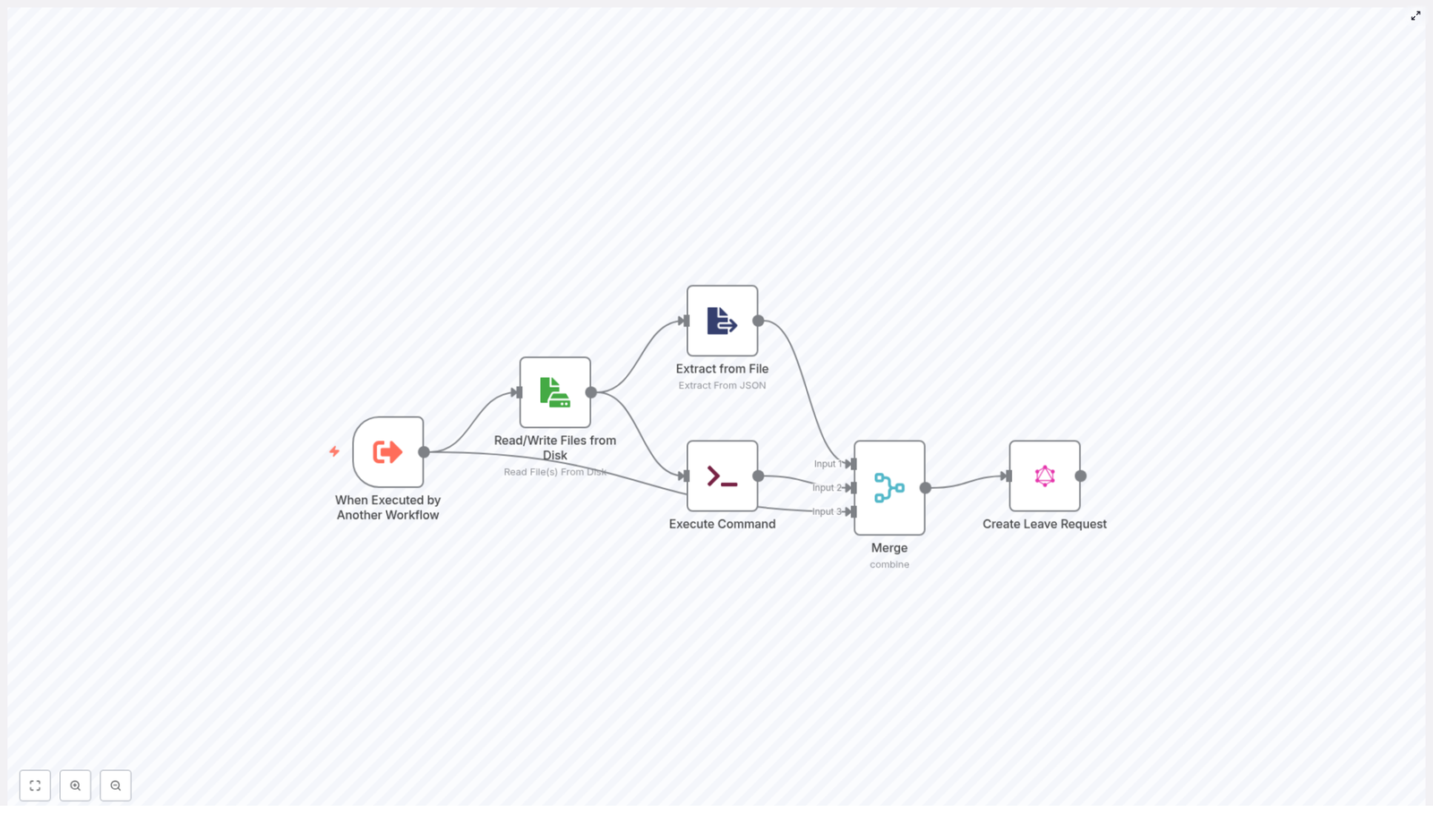
Before we dive into configuration, it helps to understand the big picture. The example n8n workflow follows this general flow:

  1. Trigger – The workflow is started by another workflow using Execute Workflow Trigger.
  2. File read – A JSON file on disk is read to obtain payload and metadata.
  3. JSON extraction – The JSON content is parsed and specific fields are extracted.
  4. Optional cleanup – A shell command removes temporary files if needed.
  5. Merge data – Data from the trigger, file, and command are merged into a single item.
  6. GraphQL request – A GraphQL mutation creates a leave request in the HR system.

In n8n terms, this means you will use the following key nodes:

  • Execute Workflow Trigger
  • Read/Write Files from Disk
  • Extract from File (Extract From JSON)
  • Execute Command
  • Merge
  • GraphQL

Step 1 – Configure the Execute Workflow Trigger

Purpose of this node

The Execute Workflow Trigger node lets other workflows call this leave-request workflow. It makes the workflow reusable and easy to integrate into different automation scenarios, such as:

  • A form submission workflow that passes leave details.
  • A system that exports leave data to a file and then calls this workflow.

What to configure

In the Execute Workflow Trigger node, define the inputs you expect to receive. Typical fields include:

  • filename – Name or path of the session or payload file.
  • type_of_leave – For example SICK, VACATION, etc.
  • start_time – Start date or datetime of the leave.
  • end_time – End date or datetime of the leave.
  • leave_length – For example FULL_DAY or HALF_DAY.

These inputs keep the workflow flexible. If a calling workflow already knows some of these values, it can pass them directly. If not, they can be taken from the file later.

Step 2 – Read the leave data file from disk

Why read from disk?

Many systems export data into files, for example as JSON on a shared volume. The Read/Write Files from Disk node lets your workflow consume these files reliably. In this template it is used to read a JSON file that contains session data or a packaged payload for the leave request.

Key configuration details

In the Read/Write Files from Disk node:

  • Set the node to read mode.
  • Use a dynamic fileSelector value so the node can:
    • Default to a known session filename, or
    • Use the incoming $json.filename from the trigger, if provided.

This approach lets the same workflow handle different files without changing the node each time.

Step 3 – Extract structured data from the JSON file

What this node does

Once the file is read, you have raw JSON content. The Extract from File (Extract From JSON) node parses this JSON and extracts the fields you care about, for example:

  • Employee email address.
  • Authentication token.
  • Arrays or nested objects with additional employee data.

How it feeds the GraphQL mutation

The output of this node becomes the source for your GraphQL variables. For instance, you might extract:

  • data[0].email for the employee identifier.
  • token for the Authorization header.

Make sure the fields you extract match the structure of your JSON file. If your file format changes, adjust this node accordingly.

Step 4 – (Optional) Execute a cleanup command

Why use Execute Command?

Temporary files can accumulate over time. The Execute Command node lets you run shell commands so you can clean up files after they have been processed. A common example is removing a session file.

Example cleanup command

An example command used in this pattern is:

rm -rf {{ $json.fileName }}

This removes the file whose name is provided in the JSON data. You can adapt this to your environment, for instance by using a safer command or a specific directory path.

Safety considerations

Use this node carefully:

  • Always validate file paths before deletion to avoid removing unintended files.
  • Restrict the command to a controlled directory where temporary files are stored.
  • Consider making cleanup conditional, for example only after successful GraphQL calls.

Step 5 – Merge data from trigger, file, and command

Role of the Merge node

By this point, you may have:

  • Data from the original trigger (type_of_leave, start_time, etc.).
  • Parsed JSON data from the file (email, token, additional metadata).
  • Optional information from the Execute Command node (such as command output or status).

The Merge node combines these streams into one unified item that you can send to the GraphQL node.

Common configuration

In the example workflow, the Merge node uses the combineByPosition mode. That means:

  • Item 1 from one input is merged with item 1 from the other input.
  • Item 2 is merged with item 2, and so on.

This works well when each branch produces the same number of items and they align logically. If your data shape differs, consider other merge modes that n8n provides, such as merging by key or keeping all items.

Step 6 – Create the leave request with a GraphQL mutation

What the GraphQL node does

The final step is to send a GraphQL mutation to your HR backend to actually create the leave request. The GraphQL node lets you define the mutation and pass variables dynamically from the merged data.

Example mutation

Here is a sample mutation used in the workflow:

mutation CreateLeaveRequest($input: CreateLeaveRequestInput!, $condition: ModelLeaveRequestConditionInput) {  createLeaveRequest(input: $input, condition: $condition) {  adjustment_type  comment  employeeLeaveRequestsId  end_time  employee { first_name last_name }  leave_length  start_time  type  id  }
}

Dynamic variables configuration

In the variables section of the GraphQL node, you can build the input object using n8n expressions. For example:

"type": $json?.type_of_leave || "SICK",
"start_time": $json?.start_time || "",
"end_time": $json?.end_time || "",
"leave_length": $json?.leave_length || "FULL_DAY",
"employeeLeaveRequestsId": Array.isArray($json?.data) && $json.data.length > 0 && $json.data[0]?.email ? $json.data[0].email : $json?.email || ""

This configuration:

  • Uses type_of_leave from the payload, or defaults to "SICK" if none is provided.
  • Sets start_time and end_time from the payload, or uses empty strings as fallbacks.
  • Defaults leave_length to "FULL_DAY" when not specified.
  • Derives employeeLeaveRequestsId from data[0].email if available, otherwise falls back to $json.email or an empty string.

Authentication with Authorization header

For secure access to your HR API, configure the GraphQL node to send an Authorization header. Typically this token is:

  • Read from the parsed JSON file, or
  • Passed in from the triggering workflow.

Use n8n credentials or environment variables wherever possible instead of hard-coding tokens directly in the node.

Best practices for this n8n leave request workflow

Validate inputs early

  • At the trigger stage, check that required fields such as start_time, end_time, and an employee identifier are present.
  • Use an IF node or a dedicated validation step to stop execution when critical data is missing.

Handle files and commands safely

  • Sanitize file paths before reading or deleting files.
  • Avoid overly broad commands like rm -rf / or patterns that could remove unintended directories.
  • Limit the workflow to a controlled directory for temporary files.

Improve observability and error handling

  • Log key events, such as file read success, JSON parse success, and GraphQL call status.
  • Use the Error Workflow feature or dedicated error handling branches to catch failures.
  • Include clear error messages and context in logs for faster debugging.

Protect secrets and configuration

  • Store API endpoints, tokens, and other sensitive values in n8n credentials or environment variables.
  • Avoid committing secrets to version control or embedding them in node parameters.

Document and version your workflow

  • Add comments to nodes to explain their role in the leave request process.
  • Maintain versions so you can roll back if a change introduces issues.

Testing and validation checklist

Always test your leave automation workflow in a safe environment before going live. Here is a structured way to validate it.

Set up test data

  • Create sample session or payload files with realistic employee data.
  • Include different leave types and date ranges, for example full-day and half-day scenarios.
  • Simulate the calling workflow that triggers this one with test inputs.

What to verify

As you run test executions in n8n, confirm that:

  • The file is correctly located and read.
  • The JSON is parsed without errors and the expected fields are extracted.
  • The merged data going into the GraphQL node contains all required fields.
  • The HR backend receives the correct GraphQL payload and creates the leave request.

Common edge cases to test

  • Missing or malformed JSON file – What happens if the file is not found or contains invalid JSON?
  • Incorrect or expired auth token – Does the workflow surface a clear error when the GraphQL request is unauthorized?
  • Half-day or unusual leave lengths – Do values like HALF_DAY work correctly in your backend?
  • Overlapping dates – How does your HR system respond if a new request overlaps with existing leave?
  • Cleanup commands – Are files removed only after successful processing, and never before?

Error handling patterns you can add

To make the workflow more robust, consider adding these patterns:

  • Catch or IF node for required fields
    Add a branch that checks for required data. If fields like employeeLeaveRequestsId or start_time are missing, stop the workflow or route to an error-handling path.
  • Failure notifications
    Send an email or Slack message when something fails. Include:
    • The reason for the failure (for example GraphQL error message).
    • The raw payload or key fields that caused the issue.
  • Retry logic for transient errors
    For network hiccups or temporary API issues, implement retries with delays or exponential backoff instead of failing immediately.

Security considerations for HR data

Leave requests contain personal data, so security is important.

  • Protect files at rest
    Encrypt files where possible and limit access to directories used by the workflow.
  • Use scoped tokens
    Configure API tokens with only the permissions needed to create leave requests, not full administrative access.
  • Mask sensitive logs
    Avoid logging full authentication tokens or complete payloads that contain personally identifiable information. Use partial logging or redaction.

Extending the workflow: approvals and notifications

Once the basic leave creation flow is working, you can extend it into a more complete HR automation:

  • Add an approval step
    After creating the leave request via GraphQL, insert an approval process that updates the request status in your HR system.
  • Notify employees and managers
    Send confirmation emails or Slack messages to the employee and their manager when a request is created or approved.
  • Sync leave balances
    Trigger another workflow to update leave balances or accruals after a request is approved.

Quick recap

This n8n workflow template helps you:

  • Receive leave request data from other workflows or files.
  • Read and parse JSON content from disk.
  • Option

Automate Monthly Expense Reports with n8n & Weaviate

Automate Monthly Expense Reports with n8n & Weaviate

On the last working day of every month, Lena, a finance operations manager at a fast-growing startup, dreaded opening her laptop. It was not the numbers that bothered her. It was the chaos behind them.

Receipts arrived through email, chat, and shared folders. Expense notes were copy-pasted into spreadsheets. Managers pinged her on Slack asking, “Is my team over budget?” and “Can you see why travel costs jumped last month?” Every month, Lena spent hours stitching together raw data into something that resembled a monthly expense report.

What she really needed was a way to turn all that unstructured expense data into searchable, contextual insights, and to keep a clean, auditable log without manual effort. That is when she discovered an n8n workflow template that combined OpenAI embeddings, Weaviate, LangChain RAG, Google Sheets, and Slack alerts into a single automated pipeline.

The pain of manual monthly expense reports

Lena’s process looked like this:

  • Collect exported CSVs and scattered notes from different tools
  • Copy and paste descriptions into a central sheet
  • Manually tag vendors, categories, and “suspicious” expenses
  • Write short summaries for leadership about spikes and trends

It was slow, error-prone, and almost impossible to scale as the company grew. She knew that automation could help, but previous attempts had only moved the problem around. Scripts helped import data, yet they did not make the information easier to search, understand, or summarize.

What Lena wanted was a workflow that could:

  • Reduce repetitive work and human error
  • Turn messy, free-text expense notes into searchable, contextual data
  • Automatically log every processed expense in a central sheet
  • Trigger alerts when something failed instead of silently breaking
  • Enable RAG (retrieval-augmented generation) queries so she could ask, “Why did travel increase in September?” and get a clear explanation

After some research, she landed on n8n and a specific workflow template that promised exactly that: an automated Monthly Expense Report pipeline powered by embeddings and a vector database.

The discovery: an n8n template built for expense automation

Lena found a template titled “Automate Monthly Expense Reports with n8n & Weaviate.” Instead of a simple import script, it described a complete flow, from data ingestion to storage, retrieval, and alerting.

At a high level, the workflow did four things:

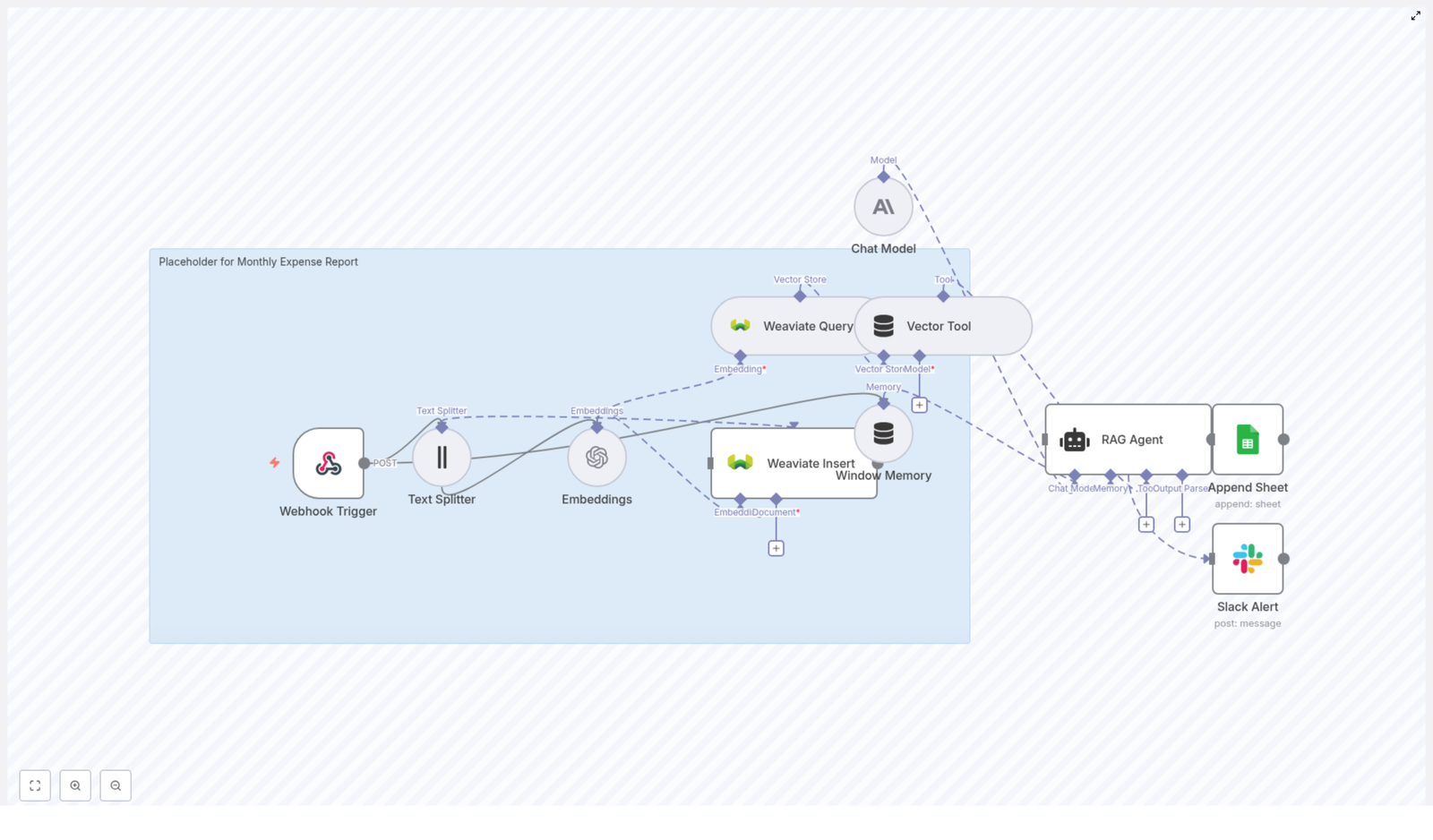
  1. Received raw expense payloads through a webhook
  2. Transformed and embedded the text using OpenAI embeddings
  3. Stored everything in Weaviate as a vector index with rich metadata
  4. Used a RAG agent with a chat model to summarize and explain expenses, while logging results to Google Sheets and sending Slack alerts on errors

For Lena, this meant she could stop wrestling with spreadsheets and start asking questions of her expense data like it was a living knowledge base.

Inside the workflow: how the pieces fit together

Before she imported anything, Lena wanted to understand how the n8n workflow actually worked. She opened the JSON template in n8n and saw a series of connected nodes, each with a clear responsibility.

The core nodes that power the pipeline

Here is what she found in the template:

  • Webhook Trigger – Receives monthly expense payloads via POST requests. This is the entry point for each transaction.
  • Text Splitter – Breaks long expense descriptions into smaller chunks so that embedding them is more efficient and accurate.
  • Embeddings – Uses OpenAI, for example text-embedding-3-small, to generate vector embeddings for each chunk of text.
  • Weaviate Insert – Stores those embeddings plus metadata into a Weaviate vector index named monthly_expense_report.
  • Weaviate Query + Vector Tool – Retrieves relevant context from Weaviate for downstream RAG operations.
  • Window Memory – Maintains short-term conversational context so the RAG agent can remember previous turns in an interaction.
  • Chat Model (Anthropic) – Provides the language model that actually writes summaries and explanations based on retrieved context.
  • RAG Agent – Orchestrates retrieval from Weaviate and the chat model to produce structured outputs, such as expense summaries or decisions.
  • Append Sheet (Google Sheets) – Appends the final status and processed results into a Google Sheet called Log for audit and reporting.
  • Slack Alert – Sends an alert to Slack if the workflow hits an error path so Lena knows something went wrong immediately.

It was not just an integration. It was a small, specialized system for financial data that could grow with her company.

Rising action: from idea to working automation

Convinced this could solve her monthly headache, Lena decided to deploy the workflow in stages. She wanted to see a single expense travel through the system, from raw JSON to a logged and summarized record.

Step 1 – Deploy n8n and import the template

Lena already had an n8n cloud account, but the same steps would work for self-hosted setups. She imported the provided JSON workflow into n8n, which instantly created all the required nodes and connections.

The template exposed a webhook with a path similar to:

POST /monthly-expense-report

She made sure this path matched the outbound configuration of her existing expense tool. This webhook would be the gateway for every new transaction.

Step 2 – Wire up the credentials

To bring the workflow to life, Lena had to connect it to the right services. In n8n’s credentials section, she added:

  • OpenAI API key for generating embeddings
  • Weaviate API details, including endpoint and API key where required
  • Anthropic API credentials for the chat model (or any compatible chat model she preferred)
  • Google Sheets OAuth2 account so the workflow could append rows to the Log sheet
  • Slack API token so error alerts could be sent to a dedicated finance-ops channel

With credentials in place, the pieces were connected, but not yet tuned for her data.

Step 3 – Tuning the Text Splitter and embeddings

Lena noticed that some expense notes could be long, especially for complex travel or vendor explanations. The template’s Text Splitter node used:

  • chunkSize: 400
  • chunkOverlap: 40

For her typical notes, that was a good starting point. She kept those defaults but made a note that she could adjust them later if notes became longer or shorter on average.

For the embedding model, she chose text-embedding-3-small, as suggested by the template. It provided a strong balance between cost and quality, which mattered since her company processed many transactions each month.

Step 4 – Setting up the Weaviate index and metadata

The next step was making sure Weaviate could act as a reliable vector store for her expense data. She created a Weaviate index called:

monthly_expense_report

Then she confirmed that the workflow was sending not just the embeddings but also detailed metadata. For each document, the workflow included fields such as:

  • Transaction ID
  • Vendor
  • Amount
  • Date
  • Original text or notes

This structured metadata would let her filter expenses by date range, vendor, or amount when running RAG queries later.

Step 5 – Shaping the RAG agent’s behavior

Finally, Lena customized the RAG agent. The default system message in the template was:

“You are an assistant for Monthly Expense Report”

She expanded it to include specific rules, such as:

  • How to format summaries for leadership reports
  • What to do if an expense is greater than a certain threshold, for example: “If expense > $1000 flag for review”
  • Privacy and data handling constraints, so the model would not reveal sensitive information inappropriately

With the agent configured, she was ready for the turning point: sending a real expense through the workflow.

The turning point: sending the first expense

To test the template, Lena used a simple example payload that matched the format expected by the webhook:

{  "transaction_id": "txn_12345",  "date": "2025-09-01",  "vendor": "Office Supplies Co",  "amount": 245.30,  "currency": "USD",  "notes": "Bulk order: printer ink and paper. Receipt attached."
}

She sent this payload to the webhook URL from a simple HTTP client. Then she watched the workflow run in n8n’s visual editor.

Here is how the flow unfolded:

  1. The Webhook Trigger received the JSON payload.
  2. The Text Splitter broke the notes field into chunks suitable for embedding.
  3. The Embeddings node generated vector embeddings for each chunk using OpenAI.
  4. The Weaviate Insert node stored the embeddings and metadata in the monthly_expense_report index.
  5. The RAG Agent queried Weaviate for context and used the chat model to compose a summary and decision about the expense.
  6. The Append Sheet node wrote the final status and summary to the Google Sheet named Log.
  7. If any node had failed along the way, the Slack Alert node would have sent an error message to her team’s channel.

The run completed successfully. In her Google Sheet, a new row appeared with the transaction details and a clear, human-readable explanation. Monthly expense reporting was no longer a manual puzzle. It was starting to look like a system she could trust.

Living with the workflow: best practices Lena adopted

Over the next few weeks, Lena relied on the workflow every time a new batch of expenses came in. As she used it, she refined a few best practices.

  • Metadata is crucial. She made sure to store structured metadata in Weaviate, such as dates, vendors, and amounts. This allowed her to filter and query precisely, for example “show all expenses from Vendor X in Q3” or “list all transactions over $2000.”
  • Cost monitoring. She kept an eye on embedding and LLM usage. For large batches, she batched embeddings where possible and stuck with efficient models like text-embedding-3-small.
  • Error handling. She used n8n’s onError connections so that if OpenAI, Weaviate, or Google Sheets had an issue, the workflow would both send a Slack alert and log the error status in the sheet for later review.
  • Rate limits and retries. She configured retry and backoff strategies in n8n for transient API failures, which reduced manual intervention and kept the pipeline stable.
  • Security. She stored API keys securely, used least-privilege service accounts for Google Sheets, and configured proper access controls for Weaviate to protect financial data.
  • Data retention. Together with compliance, she defined how long to keep raw receipts and embeddings and made sure the system could delete user data if needed.

When things go wrong: troubleshooting in the real world

No workflow is perfect on day one. As the company scaled, Lena ran into a few common issues, which she learned to fix quickly.

Embeddings not inserting into Weaviate

Once, she noticed that new expenses were not showing up in Weaviate. The fix was straightforward:

  • She checked that the Weaviate endpoint URL and API key in n8n’s credentials were correct.
  • She verified that the monthly_expense_report index existed and that the data schema matched the fields being inserted.

RAG agent returning irrelevant summaries

Another time, summaries felt too generic. To improve accuracy, she:

  • Refined the system message and prompts with more explicit instructions.
  • Added metadata filters to the Weaviate query so the agent only retrieved context from the relevant subset of expenses.
  • Increased the number of context documents returned to the model, giving it more information to work with.

Google Sheets append failures

On a different day, rows stopped appearing in her Log sheet. Troubleshooting showed that:

  • The spreadsheet ID and sheet name needed to match exactly, including the sheet name Log used in the template.
  • The OAuth token for Google Sheets had to have permission to edit the document.
  • The Append Sheet node’s field mapping had to align with the sheet’s columns.

With these checks in place, the workflow returned to its reliable state.

Growing beyond the basics: extensions Lena considered

Once the core pipeline was stable, Lena started thinking about what else she could automate using the same pattern.

  • Receipt OCR. Automatically extract text from attached receipt images using OCR and store the full text in Weaviate for richer context.
  • Suspicious expense flags. Automatically flag expenses that look suspicious based on amount, vendor, or pattern, and open a ticket in a helpdesk system.
  • Monthly summaries. Send monthly summaries to stakeholders via email or Slack, including key KPIs and anomaly detection results.
  • Role-based approvals. Integrate an approval flow where high-value expenses require manager sign-off before being fully logged.

The template had become more than a one-off automation. It was now the backbone of a scalable finance workflow.

Security and compliance in a finance-first workflow

Because expense data often includes personally identifiable information, Lena worked closely with her security team to make sure the setup was compliant.

  • They enforced encrypted storage for all API keys and secrets.
  • They used least-privilege service accounts for Google Sheets, so the workflow could only access what it needed.
  • They configured access controls and network restrictions for Weaviate, limiting who and what could query financial data.
  • They defined data retention policies and ensured there was a clear way to delete user data if required by regulation or internal policy.

With these safeguards, leadership felt comfortable relying on the automated pipeline for month-end reporting.

The resolution: a calmer month-end and a smarter expense system

By the time the next quarter closed, Lena noticed something new: she was no longer dreading the last day of the month. Instead of chasing receipts and fixing broken spreadsheets, she was reviewing clean logs in Google Sheets, asking targeted questions through the RAG agent, and focusing on analysis instead of data entry.

The combination of n8n, Weaviate, and LLMs had turned raw expense data into a searchable, auditable knowledge base. The template she had imported was not just a convenience, it was a repeatable system that any finance team could adapt.

Automate Intercom User Creation with n8n

Automate Intercom User Creation with n8n

Every time you create a user in Intercom by hand, you are spending energy on work a workflow could handle for you. Copying details, checking for typos, making sure everything is consistent – it all adds up and pulls your focus away from higher value work.

With n8n, you can turn that repetitive task into a reliable, automated system. One simple workflow can capture a trigger, map your fields, and create Intercom users in a consistent, scalable way. This guide walks you through that journey: from the pain of manual work, to a more automated mindset, to a ready-to-use n8n workflow template that you can import, adapt, and grow with.

From manual busywork to focused growth

Manual Intercom user creation does not just cost time, it fragments your attention. Every time you jump into Intercom to add a user, you interrupt your flow and increase the chance of mistakes.

Automating Intercom user creation with n8n helps you:

  • Eliminate data entry errors and avoid duplicate user accounts
  • Onboard customers faster and more consistently
  • Keep user metadata synced across tools and systems
  • Trigger follow-up messages and onboarding flows automatically

Instead of worrying about whether you created that user correctly, you can trust your workflow to do it the same way every time. That frees you to focus on strategy, product, and relationships, not on clicking through forms.

Adopting an automation-first mindset

Building this workflow is more than a one-off integration. It is a small but powerful step toward an automation-first way of working.

Each time you replace a manual task with an n8n workflow:

  • You reclaim minutes or hours that you can reinvest in deeper work
  • You standardize processes so your team can rely on them
  • You create building blocks that can be reused and expanded later

The Intercom user creation flow in this guide is intentionally simple. It is designed to be a starting point you can build on: connect real triggers, add more fields, introduce checks, or expand into full onboarding sequences. Think of it as your first step toward a more automated, calm, and scalable workflow system.

What this n8n workflow template does for you

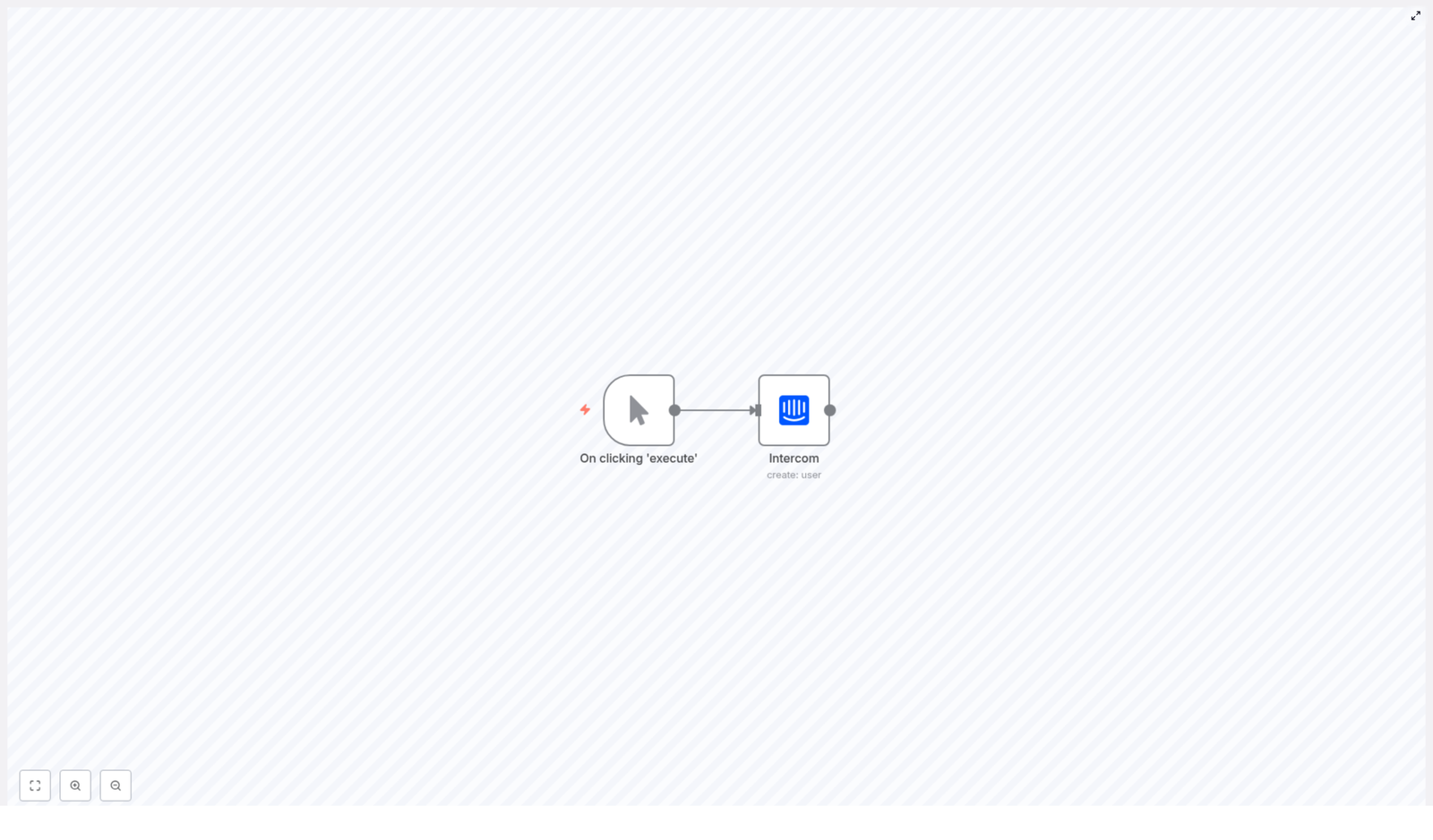
The workflow you will build (or import) has a clear purpose: create a new Intercom user whenever the workflow runs.

In its basic form, it uses:

  • A Manual Trigger node to start the workflow (perfect for testing and learning)
  • An Intercom node configured with the create operation and user object

By the end of this guide you will know how to:

  • Configure the Intercom node in n8n correctly
  • Map user fields such as email, name, and custom attributes
  • Test your automation and troubleshoot common issues

From there, you can replace the manual trigger with real data sources like forms, CRMs, billing tools, or webhooks, and let Intercom user creation run on autopilot.

What you need before you start

To follow along and use the template, make sure you have:

  • An n8n instance (cloud or self-hosted)
  • An Intercom account with API access (an admin role may be required)
  • Your Intercom API access token (generated in your Intercom workspace)

Once these are ready, you are only a few clicks away from your first automated Intercom user creation flow.

Designing your first Intercom user automation in n8n

Let us walk through building the workflow step by step. Even if you plan to import the template directly, understanding these steps will help you customize and extend it later.

Step 1 – Add a trigger to start the workflow

Begin with a simple trigger so you can focus on the Intercom logic first:

  • Add a Manual Trigger node to the canvas.
  • Use it while testing so you can run the workflow on demand.

Later, you can swap this trigger for something that mirrors your real process, such as:

  • An HTTP Request or Webhook node that receives data from a signup form
  • A connection to Stripe, your CRM, or another system that produces user data

Starting manually gives you clarity and confidence before you connect real-world inputs.

Step 2 – Add and configure the Intercom node

Next, bring Intercom into the flow:

  • Drag an Intercom node onto the canvas.
  • Connect it to the Manual Trigger node.
  • Set the operation to create and the object to user.

Intercom requires at least one identifier to create a user. This is usually:

  • email or
  • user_id

Choose the identifier type that matches how you identify users in your Intercom workspace and across your systems. Consistency here will help you avoid duplicates later.

Step 3 – Connect your Intercom credentials

To let n8n talk to Intercom securely:

  • Open the Intercom node’s Credentials section.
  • Enter or select your Intercom access token.
  • If you do not have a token yet, generate a personal access token in your Intercom workspace under the developer or API settings.

Once credentials are set up, n8n can call the Intercom API on your behalf, and your workflow becomes a trusted bridge between your systems and your Intercom workspace.

Step 4 – Map user fields and attributes

This is where your workflow starts to reflect your real data model. In the Intercom node parameters, map the fields you want to send.

Typical fields include:

  • identifierType: email or user_id
  • idValue: the actual email address or unique ID
  • additionalFields:
    • name
    • phone
    • companies
    • custom attributes
    • signed_up_at
    • last_seen_at

If you are receiving JSON input from a previous node (for example a webhook), you can use expressions to populate these fields dynamically. For instance, you might set:

identifierType: email
idValue: {{$json["email"]}}

Using expressions instead of hardcoded values is a key mindset shift. It turns your workflow into a reusable template that automatically adapts to each incoming user.

Step 5 – Test and validate your workflow

Now it is time to see your automation in action:

  • Click Execute Workflow or run the Manual Trigger.
  • Send a test user through the flow.
  • Check the Intercom node’s output for a successful API response.
  • Open your Intercom workspace and confirm that the new user appears with the expected attributes.

Once this works with a manual trigger, you have a solid foundation. From here, you can connect real triggers, enrich your data, and gradually automate more of your user lifecycle.

Ready-made n8n workflow template you can import

If you want to move faster, you can start from a minimal JSON workflow instead of building from scratch. The template below uses a Manual Trigger node and an Intercom create user node. You can import it directly in n8n and then adjust the fields, credentials, and triggers to match your environment.

{  "id": "91",  "name": "Create a new user in Intercom",  "nodes": [  {  "name": "On clicking 'execute'",  "type": "n8n-nodes-base.manualTrigger",  "position": [600, 250],  "parameters": {}  },  {  "name": "Intercom",  "type": "n8n-nodes-base.intercom",  "position": [800, 250],  "parameters": {  "idValue": "",  "identifierType": "email",  "additionalFields": {}  },  "credentials": {  "intercomApi": "YOUR_INTERCOM_CREDENTIALS"  }  }  ],  "active": false,  "connections": {  "On clicking 'execute'": {  "main": [  [  {  "node": "Intercom",  "type": "main",  "index": 0  }  ]  ]  }  }
}

Import this JSON into n8n using the import dialog, plug in your own Intercom credentials, and start experimenting. Each small tweak brings you closer to a workflow that fits your exact process.

Troubleshooting – turning issues into improvements

Every automation journey involves a bit of debugging. When something does not work on the first try, it is an opportunity to strengthen your workflow.

Authentication errors (401 or 403)

If the Intercom node returns a 401 or 403 error:

  • Double-check that the access token in your credentials is correct.
  • Verify that the token has the required scopes or permissions in Intercom.
  • Regenerate the personal access token in Intercom if needed and update it in n8n.

Duplicate users in Intercom

Intercom identifies users primarily by user_id or email. To avoid duplicates:

  • Use the same identifierType consistently across all workflows.
  • Consider adding a step before creation to search for existing users via Intercom and only create a new user if none is found.

Missing required fields

Some Intercom workspaces enforce specific required attributes or validations. If you see errors about missing fields:

  • Review your Intercom workspace settings and any custom validation rules.
  • Ensure that all required attributes are included in additionalFields in the Intercom node.

Each fix you apply makes your workflow more resilient and reusable across future projects.

Best practices for reliable Intercom automation

To turn this basic flow into a dependable part of your stack, keep these best practices in mind:

  • Use expressions instead of hardcoding
    Map values from previous nodes dynamically, such as {{$json["email"]}}, so your workflow adapts to each input.
  • Validate data early
    Check email format and required fields before calling the Intercom API to reduce errors and retries.
  • Log responses and errors
    Store API responses and failures so you can audit user creation and reprocess any that failed.
  • Respect rate limits
    If you are importing large user lists, add pacing or batching to avoid hitting Intercom’s API limits.
  • Stay compliant with privacy rules
    Only send user data you are allowed to store, and make sure you have consent to sync information into Intercom.

These patterns help you build workflows that you can trust at scale, not just for a single test run.

Advanced ways to level up this workflow

Once the basic automation is working, you can turn it into a more powerful system that supports your growth.

  • Search before create
    Use an Intercom search request to check if a user already exists, then conditionally create or update the user.
  • Add retry logic
    Introduce a retry mechanism for transient API failures so temporary network issues do not result in lost users.
  • Call additional Intercom endpoints
    Use the HTTP Request node to reach Intercom endpoints that are not yet covered by the built-in n8n Intercom node.

Each enhancement turns a simple user creation flow into a robust onboarding and lifecycle engine.

Where this template fits in your stack

Automated Intercom user creation is a flexible building block you can use in many scenarios, such as:

  • Onboarding new customers right after a signup form is submitted or a purchase is completed
  • Keeping user records synced between your CRM, billing system, and Intercom
  • Importing users in bulk after a migration or system change

Start with this template, then connect it to the tools you already rely on. Over time, it can become the bridge that keeps your customer data aligned across your entire ecosystem.

Next steps – build your own automated foundation

Automating Intercom user creation with n8n is a small project with a big impact. It cuts manual work, improves data consistency, and gives you a repeatable process that can grow with your business.

Begin with the simple manual trigger workflow, then gradually:

  • Replace the manual trigger with real data sources such as webhooks, CRMs, or billing tools
  • Add richer field mappings and custom attributes
  • Introduce error handling, retries, and pre-checks for existing users

Try it now: Import the sample workflow into your n8n instance, configure your Intercom credentials, and execute the workflow. Watch a new user appear in Intercom automatically, then iterate from there.

If you want guidance adapting this to your specific systems, you can lean on the n8n community or the Intercom API documentation for advanced attributes and patterns. Automation is a journey, and each workflow you build makes the next one easier.

If you prefer a ready-to-use solution or expert support, you can also collaborate with an automation engineer or specialist to accelerate your setup and integrate this pattern across your stack.

Build an MES Log Analyzer with n8n & Weaviate

Build an MES Log Analyzer with n8n & Weaviate

Picture this: it is 3 AM, the production line is down, alarms are screaming, and you are staring at a wall of MES logs that looks like the Matrix had a bad day. You copy, you paste, you search for the same five keywords again and again, and you swear you will automate this someday.

Good news: today is that day.

This guide walks you through building a scalable MES Log Analyzer using n8n, Hugging Face embeddings, Weaviate vector search, and an OpenAI chat interface. All tied together in a no-code / low-code workflow that lets you spend less time fighting logs and more time fixing real problems.


What this MES Log Analyzer actually does

Instead of forcing you to rely on brittle keyword searches, this setup converts your MES logs into embeddings (numeric vectors) and stores them in Weaviate. That means you can run semantic search, ask natural questions, and let an LLM agent help triage incidents, summarize issues, and suggest next steps.

In other words, you feed it noisy logs, and it gives you something that looks suspiciously like insight.

Why go vector-based for MES logs?

Traditional log parsing is like CTRL+F with extra steps. Vector-based search is closer to: “Find me anything that sounds like this error, even if the wording changed.” With embeddings and Weaviate, you get:

  • Contextual search across different log formats and languages
  • Faster root-cause discovery using similarity-based retrieval
  • LLM-powered triage with conversational analysis and recommendations
  • Easy integration via webhooks and APIs into your existing MES or logging stack

All of this is orchestrated in an n8n workflow template that you can import, tweak, and run without writing a full-blown backend service.


How the n8n workflow is wired

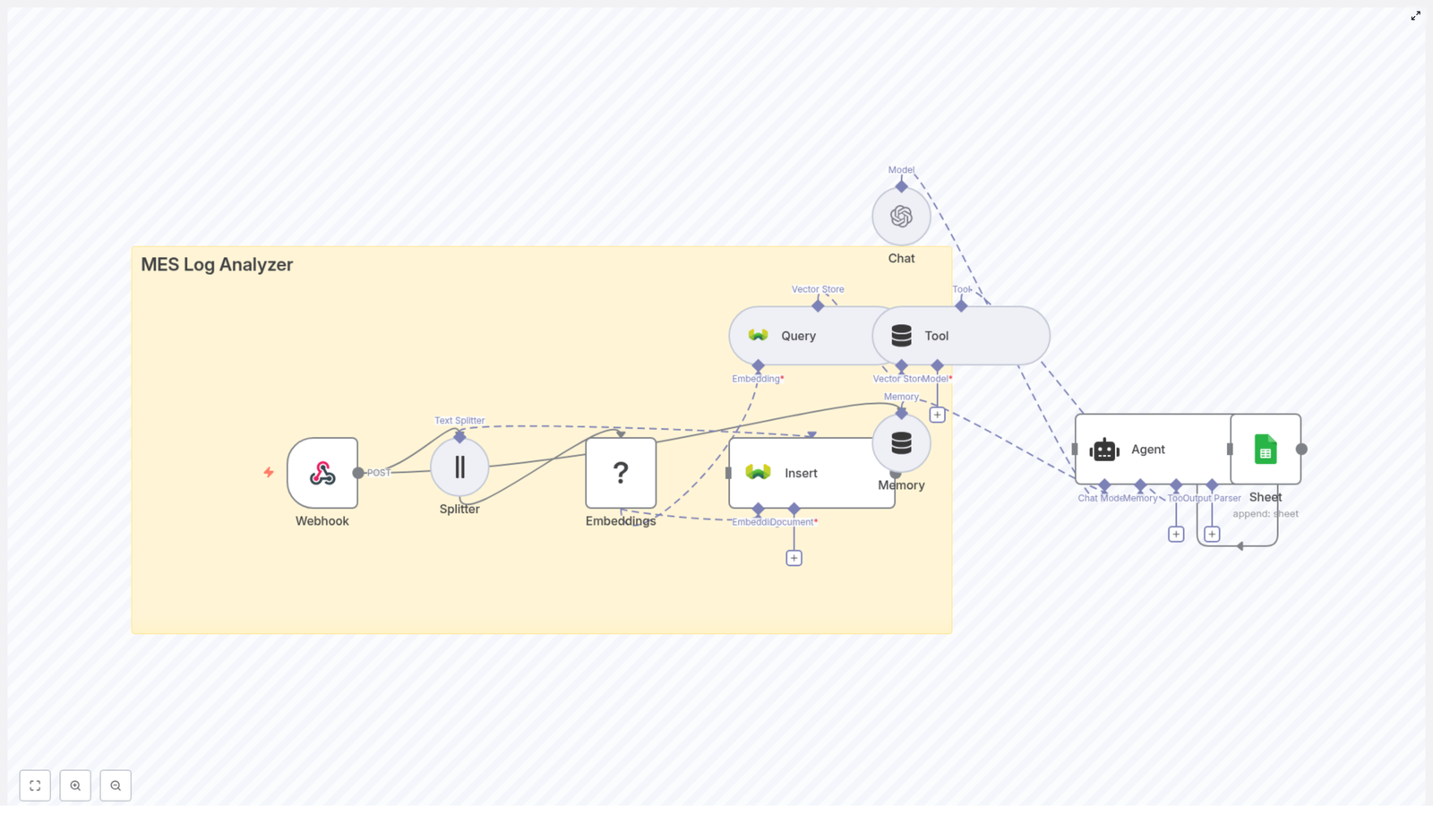
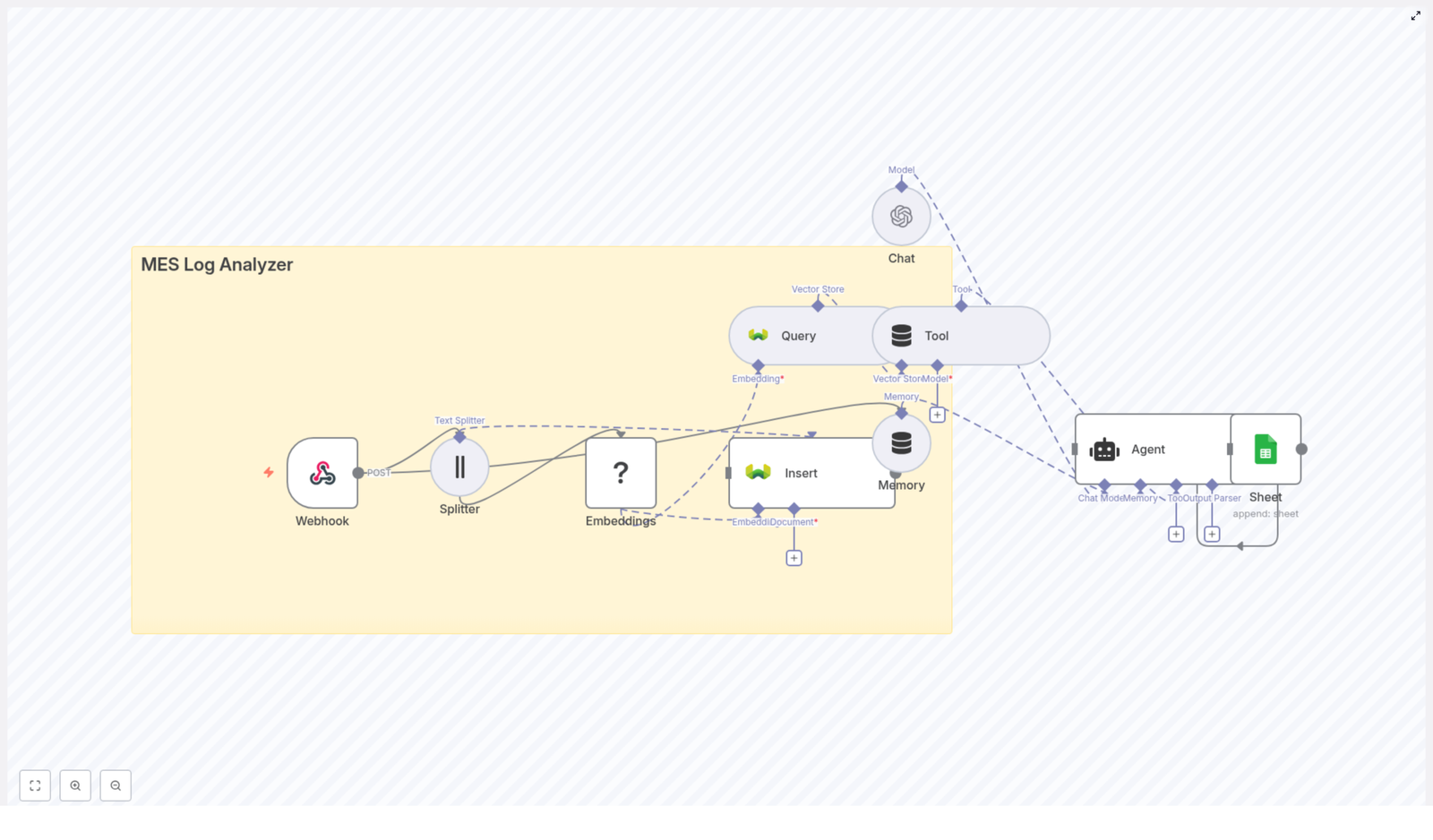
The n8n template implements a full pipeline from raw MES logs to AI-assisted analysis. At a high level, the workflow:

  • Receives logs via an n8n Webhook node
  • Splits big log messages into smaller chunks for better embeddings
  • Embeds each chunk using a Hugging Face model
  • Stores those embeddings and metadata in a Weaviate index
  • Queries Weaviate when you need semantic search
  • Uses a Tool + Agent so an LLM can call vector search as needed
  • Maintains memory of recent context for better conversations
  • Appends outputs to Google Sheets for reporting and audit

So instead of manually digging through logs, you can ask something like “Show me similar incidents to yesterday’s spindle error” and let the workflow do the heavy lifting.


Quick-start: from raw logs to AI-powered insights

Here is the simplified journey from MES log to “aha” moment using the template.

Step 1 – Receive logs via Webhook

First, set up an n8n Webhook node to accept POST requests from your MES, log forwarder (like Fluentd or Filebeat), or CI system. The payload should include key fields such as:

  • timestamp
  • machine_id
  • component
  • severity
  • message

Example JSON payload:

{  "timestamp": "2025-09-26T10:12:34Z",  "machine_id": "CNC-01",  "component": "spindle",  "severity": "ERROR",  "message": "Spindle speed dropped below threshold. Torque spike detected."
}

Once this webhook is live, your MES or log forwarder can start firing data into the workflow automatically. No more copy-paste log archaeology.

Step 2 – Split large log messages

Long logs are great for humans, not so great for embeddings. To fix that, the template uses a Text Splitter node that breaks big messages into smaller, overlapping chunks.

The recommended defaults in the template are:

  • chunkSize = 400
  • chunkOverlap = 40

These values work well for dense technical logs. You can adjust them based on how verbose your MES messages are. Too tiny and you lose context, too huge and the embeddings get noisy and inefficient.

Step 3 – Generate embeddings with Hugging Face

Each chunk then goes to a Hugging Face embedding model via a reusable Embeddings node in n8n. You plug in your Hugging Face API credential, choose a model that fits your latency and cost needs, and let it transform text into numeric vectors.

Key idea: pick a model that handles short, technical logs well. If you want to validate quality, you can test by computing cosine similarity between logs you know are related and see if they cluster as expected.

Step 4 – Store vectors in Weaviate

Next, each embedding plus its metadata lands in a Weaviate index, for example:

indexName: mes_log_analyzer

The workflow stores fields like:

  • raw_text
  • timestamp
  • machine_id
  • severity
  • chunk_index

This structure gives you fast semantic retrieval plus the ability to filter by metadata. You get the best of both worlds: “find similar logs” and “only show me critical errors from a specific machine.”

Step 5 – Query Weaviate and expose it as a tool

When you need to investigate an incident, the workflow uses a Query node to search Weaviate by embedding similarity. Those query results are then wrapped in a Tool node so that the LLM-based agent can call vector search as part of its reasoning process.

This is especially useful when the agent needs to:

  • Look up historical incidents
  • Compare a new error with similar past logs
  • Pull in supporting context before making a recommendation

Step 6 – Memory, Chat, and Agent orchestration

On top of the vector search, the template layers a simple conversational agent using n8n’s AI nodes:

  • Memory node keeps a short window of recent interactions or events so the agent does not forget what you just asked.
  • Chat node uses an OpenAI model to compose prompts, interpret search results, and generate human-readable analysis.
  • Agent node orchestrates everything, deciding when to call the vector search tool, how to use memory, and how to format the final answer or trigger follow-up actions.

The result is a workflow that can hold a brief conversation about your logs, not just spit out raw JSON.

Step 7 – Persist triage outputs in Google Sheets

Finally, the agent outputs are appended to Google Sheets so you have a simple reporting and audit trail. You can:

  • Track incidents and suggested actions over time
  • Share triage summaries with non-technical stakeholders
  • Feed this data into BI dashboards later

If Sheets is not your thing, you can swap it out for a database, a ticketing system, or an alerting pipeline. The template keeps it simple, but n8n makes it easy to plug in whatever you already use.


Key configuration tips for a smoother experience

1. Chunk sizing: finding the sweet spot

Chunk size matters more than it should. Some quick rules of thumb:

  • Too small: you lose context and increase query volume.
  • Too large: embeddings become noisy and inefficient.

Start with the template defaults:

  • chunkSize = 400
  • chunkOverlap = 40

Then tune based on the average length and structure of your logs.

2. Choosing the embedding model

For MES logs, you want a model that handles short, technical text well. Once you pick a candidate model, sanity check it by:

  • Embedding logs from similar incidents
  • Computing cosine similarity between them
  • Verifying that related logs cluster closer than unrelated ones

If similar incidents are far apart in vector space, it is time to try a stronger model.

3. Designing your Weaviate schema

A clean Weaviate schema makes your life easier later. Include fields such as:

  • raw_text (string)
  • timestamp (date)
  • machine_id (string)
  • severity (string)
  • chunk_index (int)

Enable metadata filters so you can query like:

  • “All ERROR logs from CNC-01 last week”

Then rerank those by vector similarity to the current incident.

4. Prompts and LLM safety

Good prompts turn your LLM from a chatty guesser into a useful assistant. In the Chat node, include clear instructions and constraints, for example:

Analyze these log excerpts and provide the most likely root cause, confidence score (0-100%), and suggested next steps. If evidence is insufficient, request additional logs or telemetry.

Also consider:

  • Specifying output formats (for example JSON or bullet points)
  • Reminding the model not to invent data that is not in the logs
  • Including cited excerpts from the vector store to reduce hallucinations

What you can use this MES Log Analyzer for

Once this workflow is running, you can start using it in several practical ways:

  • Automated incident triage Turn raw logs into suggested remediation steps or auto-generated tickets.
  • Root-cause discovery Find similar past incidents using semantic similarity instead of brittle keyword search.
  • Trend detection Aggregate embeddings over time to detect new or emerging failure modes.
  • Knowledge augmentation Attach human-written remediation notes to embeddings so operators get faster, richer answers.

Basically, it turns your log history into a searchable knowledge base instead of a graveyard of text files.


Scaling, performance, and not melting your infrastructure

As log volume grows, you might want to harden the pipeline a bit. Some scaling tips:

  • Batch embeddings if your provider supports it to reduce API calls and cost.
  • Use Weaviate replicas and sharding for high-throughput search workloads.
  • Archive or downsample older logs so your vector store stays lean while preserving representative examples.
  • Add asynchronous queues between the webhook and embedding nodes if you experience heavy peaks.

Handled correctly, the system scales from “a few machines” to “entire factories” without turning your log analyzer into the bottleneck.


Security and data governance

MES logs often contain sensitive information, and your compliance team would like to keep their blood pressure under control. Some best practices:

  • Mask or redact PII and commercial secrets before embedding.
  • Use private Weaviate deployments or VPC networking, not random public endpoints.
  • Rotate API keys regularly and apply least-privilege permissions.
  • Log access and maintain an audit trail for model queries and agent outputs.

That way, you get powerful search and analysis without leaking sensitive data into places it should not be.


Troubleshooting common issues

Things not behaving as expected? Here are some quick fixes.

  • Low-quality matches Try increasing chunkOverlap or switching to a stronger embedding model.
  • High costs Batch embeddings, reduce log retention in the vector store, or use a more economical model for low-priority logs.
  • Agent hallucinations Feed more relevant context from Weaviate, include cited excerpts in prompts, and tighten instructions so the model sticks to the evidence.

Next steps and customization ideas

Once the core template is running, you can extend it to match your environment.

  • Integrate alerting Push high-severity or high-confidence matches to Slack, Microsoft Teams, or PagerDuty.
  • Auto-create tickets Connect to your ITSM tool and open tickets when the agent’s confidence score is above a threshold.
  • Visualize similarity clusters Export embeddings and render UMAP or t-SNE plots in operator dashboards.
  • Enrich vectors Add sensor telemetry, OEE metrics, or other signals to power multimodal search.

This template is a solid foundation, not a finished product. You can grow it alongside your MES environment.


Wrapping up: from noisy logs to useful knowledge

By combining n8n, Hugging Face embeddings, Weaviate, and an OpenAI chat interface, you can turn noisy MES logs into a searchable, contextual knowledge base. The workflow template shows how to:

  • Ingest logs via webhook
  • Split and embed messages
  • Store vectors with metadata in Weaviate
  • Run semantic search as a tool
  • Use an agent to analyze and summarize issues
  • Persist results to Google Sheets for reporting

Whether your goal is faster incident resolution or a conversational assistant for operators, this architecture gives you a strong starting point without heavy custom development.

Ready to try it? Import the n8n template, plug in your Hugging Face, Weaviate, and OpenAI credentials, and point your MES logs at the webhook. From there, you can tune, extend, and integrate it into your existing workflows.

Call to action: Import this n8n template now, subscribe for updates, or request an implementation guide tailored to your MES environment.

Resources: n8n docs, Weaviate docs, Hugging Face embeddings, OpenAI prompt best practices.

Chat with Files in Supabase Using n8n & OpenAI

AI Agent to Chat With Files in Supabase Storage (n8n + OpenAI)

In this guide you will learn how to build an n8n workflow that turns files stored in Supabase into a searchable, AI-powered knowledge base. You will see how to ingest files, convert them to embeddings with OpenAI, store them in a Supabase vector table, and finally chat with those documents through an AI agent.

What you will learn

  • How the overall architecture works: n8n, Supabase Storage, Supabase vector tables, and OpenAI
  • How to build the ingestion workflow step by step: fetch, filter, download, extract, chunk, embed, and store
  • How to set up the chat path that retrieves relevant chunks and answers user questions
  • Best practices for chunking, metadata, performance, and cost control
  • Common issues and how to troubleshoot them in production

Why build this n8n + Supabase + OpenAI workflow

As teams accumulate PDFs, text files, and reports, finding the exact piece of information you need becomes harder and more expensive. Traditional keyword search often misses context and subtle meaning.

By converting document content into vectors (embeddings) and storing them in a Supabase vector table, you can run semantic search. This lets an AI chatbot answer questions using the meaning of your documents, not just the exact words.

The n8n workflow you will build automates the entire pipeline:

  • Discover new files in a Supabase Storage bucket
  • Extract text from those files (including PDFs)
  • Split text into chunks that are suitable for embeddings
  • Generate embeddings with OpenAI and store them in Supabase
  • Connect a chat trigger that retrieves relevant chunks at query time

The result is a reliable and extensible system that keeps your knowledge base up to date and makes your documents chat-friendly.

Architecture overview

Before we go into the workflow steps, it helps to understand the main components and how they fit together.

Core components

  • Supabase Storage bucket – Holds your raw files. These can be public or private buckets.
  • n8n workflow – Orchestrates the entire process: fetching files, deduplicating, extracting text, chunking, embedding, and inserting into the vector store.
  • OpenAI embeddings – A model such as text-embedding-3-small converts each text chunk into a vector representation.
  • Supabase vector table – A Postgres table (often backed by pgvector) that stores embeddings along with metadata and the original text.
  • AI Agent / Chat model – Uses vector retrieval as a tool to answer user queries based on the most relevant document chunks.

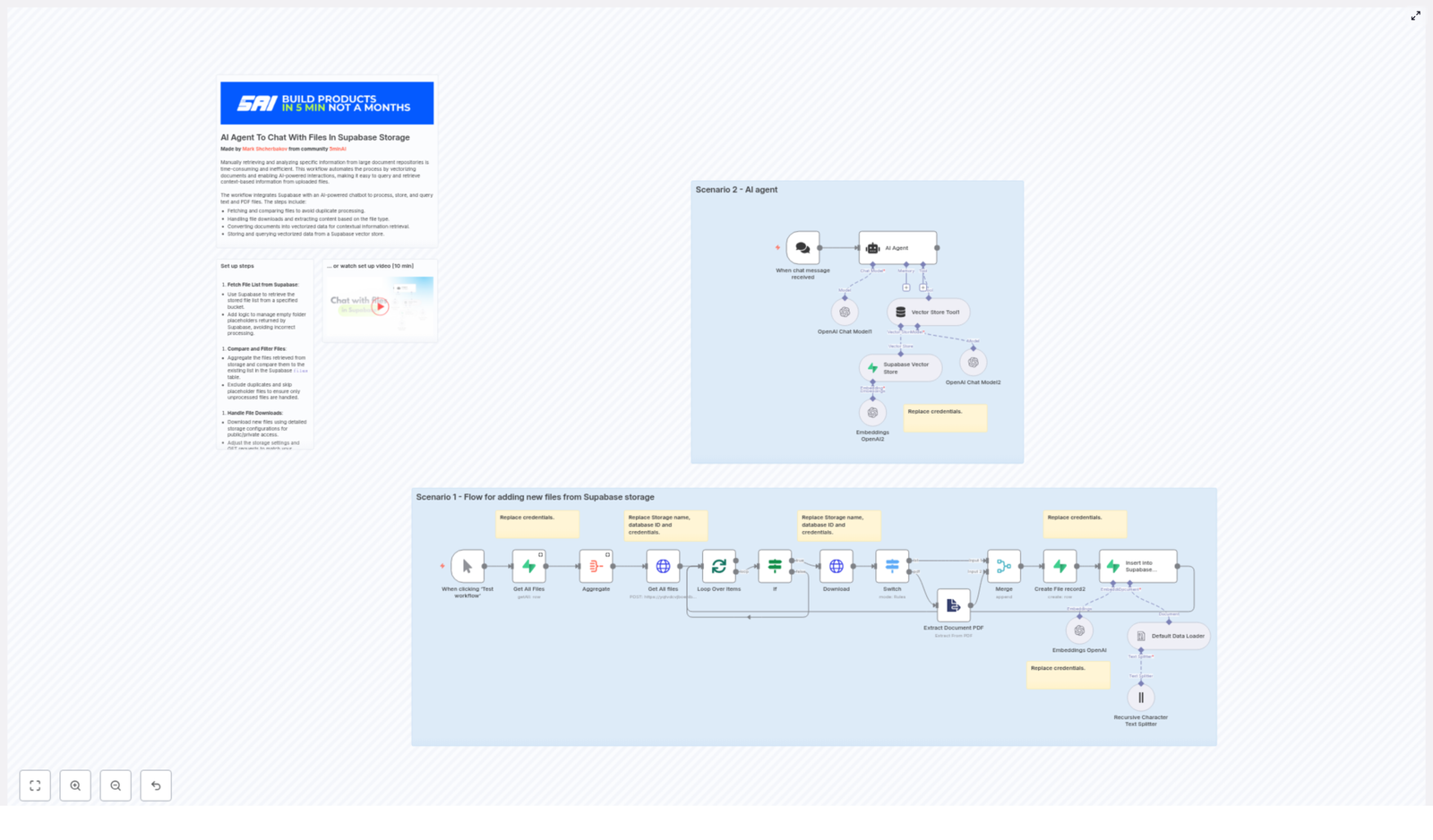
Two main paths in the workflow

  1. Ingestion path – Runs on a schedule or on demand to process files:
    • List files in Supabase Storage
    • Filter out already processed files
    • Download and extract text
    • Split into chunks, embed, and store in Supabase
  2. Chat / Query path – Triggered by a user message:
    • Receives a user query (for example from a webhook)
    • Uses the vector store to retrieve top-k relevant chunks
    • Feeds those chunks plus the user prompt into a chat model
    • Returns a grounded, context-aware answer

Step-by-step: building the ingestion workflow in n8n

In this section we will go through the ingestion flow node by node. The goal is to transform files in Supabase Storage into embeddings stored in a Supabase vector table, with proper bookkeeping to avoid duplicates.

Step 1 – Fetch file list from Supabase Storage

The ingestion starts by asking Supabase which files exist in your target bucket.

  • Call Supabase Storage’s list object endpoint:
    • HTTP method: POST
    • Endpoint: /storage/v1/object/list/{bucket}
  • Include parameters such as:
    • prefix – to limit to a folder or path inside the bucket
    • limit and offset – for pagination
    • sortBy – for example by name or last modified

In n8n this can be done using an HTTP Request node or a Supabase Storage node, depending on the template. The key outcome is a list of file objects with their IDs and paths.

Step 2 – Compare with existing records and filter files

Next you need to ensure you do not repeatedly embed the same files. To do that, you compare the storage file list with a files table in Supabase.

  • Use the Get All Files Supabase node (or a database query) to read the existing files table.
  • Aggregate or map that data so you can quickly check:
    • Which storage IDs or file paths have already been processed
  • Filter out:
    • Files that already exist in the files table
    • Supabase placeholder files such as .emptyFolderPlaceholder

After this step you should have a clean list of new files that need to be embedded.

Step 3 – Loop through files and download content

The next step is to loop over the filtered file list and download each file.

  • Use a batching mechanism in n8n:
    • Example: set batchSize = 1 to avoid memory spikes for large files.
  • For each file:
    • Call the Supabase GET object endpoint to download the file content.
    • Ensure you include the correct authentication headers, especially for private buckets.

After this step you have binary file data available in the workflow, typically under something like $binary.data.

Step 4 – Handle different file types with a Switch node

Not all files are handled the same way. Text files can be processed directly, while PDFs often need a dedicated extraction step.

  • Use a Switch node (or similar branching logic) to inspect:
    • $binary.data.fileExtension
  • Route:
    • Plain text files (for example .txt, .md) directly to the text splitting step.
    • PDF files to an Extract Document PDF node to pull out embedded text and, if needed, images.

The Extract Document PDF node converts the binary PDF into raw text that can be split and embedded in later steps.

Step 5 – Split text into chunks

Embedding entire large documents in one go is usually not practical or effective. Instead, you split the text into overlapping chunks.

  • Use a Recursive Character Text Splitter or a similar text splitter in n8n.
  • Typical configuration:
    • chunkSize = 500 characters (or roughly 400-800 tokens)
    • chunkOverlap = 200 characters

The overlap is important. It preserves context across chunk boundaries so that when a single chunk is retrieved, it still carries enough surrounding information to make sense to the model.

Step 6 – Generate embeddings with OpenAI

Now each chunk of text is sent to OpenAI to create a vector representation.

  • Use an OpenAI Embeddings node in n8n.
  • Select a model such as:
    • text-embedding-3-small (or a newer, compatible embedding model)
  • For each chunk:
    • Send the chunk text to the embeddings endpoint.
    • Receive a vector (array of numbers) representing the semantic meaning of the chunk.
  • Attach useful metadata to each embedding:
    • file_id – an ID that links to your files table
    • filename or path
    • Chunk index or original offset position
    • Page number for PDFs, if available

This metadata will help you trace answers back to specific documents and locations later on.

Step 7 – Insert embeddings into the Supabase vector store

With embeddings and metadata ready, the next step is to store them in a Supabase table that supports vector search.

  • Use a LangChain vector store node or a dedicated Supabase vector store node in n8n.
  • Insert rows into a documents table that includes:
    • An embedding vector column (for example a vector type with pgvector)
    • Metadata stored as JSON (for file_id, filename, page, etc.)
    • The original document text for that chunk
    • Timestamps or other audit fields

Make sure that the table schema matches what the node expects, especially for the vector column type and metadata format.

Step 8 – Create file records and bookkeeping

After successfully inserting all the embeddings for a file, you should record that the file has been processed. This is done in a separate files table.

  • Insert a row into the files table that includes:
    • The file’s storage_id or path
    • Any other metadata you want to track (name, size, last processed time)
  • This record is used in future runs to:
    • Detect duplicates and avoid re-embedding unchanged files

How the chat / query path works

Once your documents are embedded and stored, you can connect a chat interface that uses those embeddings to answer questions.

Chat flow overview

  1. Trigger – A user sends a message, for example through a webhook or a frontend that calls your n8n webhook.
  2. Vector retrieval – The AI agent node or a dedicated retrieval node:
    • Uses the vector store tool to search the documents table.
    • Retrieves the top-k most similar chunks to the user’s question.
    • Typical value: topK = 8.
  3. Chat model – The chat node receives:
    • The user’s original prompt
    • The retrieved chunks as context
  4. Answer generation – The model composes a response that:
    • Is grounded in the supplied context
    • References your documents rather than hallucinating

This pattern is often called retrieval-augmented generation. n8n and Supabase provide the retrieval layer, and OpenAI provides the language understanding and generation.


Setup checklist

Before running the template, make sure you have these pieces in place.

  • n8n instance with:
    • Community nodes enabled (for LangChain and Supabase integrations)
  • Supabase project that includes:
    • A Storage bucket where your files will live
    • A Postgres table for vectors, such as documents, with a vector column and metadata fields
    • A separate files table to track processed files
  • OpenAI API key for:
    • Embedding models
    • Chat / completion models
  • Supabase credentials:
    • Database connection details
    • service_role key with least-privilege access configured
  • Configured n8n credentials:
    • Supabase credentials for both Storage and database access
    • OpenAI credentials for embeddings and chat

Best practices for production use

To make this workflow robust and cost effective, consider the following recommendations.

Chunking and context

  • Use chunks in the range of 400-800 tokens (or similar character count) as a starting point.
  • Set overlap so that each chunk has enough self-contained context to be understandable on its own.
  • Test different sizes for your specific document types, such as dense legal text vs. short FAQs.

Metadata and traceability

  • Include detailed metadata in each vector row:
    • file_id
    • filename or storage path
    • Page number for PDFs
    • Chunk index or offset
  • This makes it easier to:
    • Show sources to end users
    • Debug incorrect answers
    • Filter retrieval by document or section

Rate limits and reliability

  • Respect OpenAI rate limits by:
    • Batching embedding requests where possible
    • Adding backoff and retry logic in n8n for transient errors
  • For large ingestion jobs, consider:
    • Running them during off-peak hours
    • Throttling batch sizes to avoid spikes

Security and access control

  • Store Supabase service_role keys securely in n8n credentials, not in plain text nodes.
  • Rotate keys on a regular schedule.
  • Use Supabase Row Level Security (RLS) to:
    • Limit which documents can be retrieved by which users or tenants

Cost management

  • Embedding large document sets can be expensive. To manage costs:
    • Only embed new or changed files.
    • Use a lower-cost embedding model for bulk ingestion.
    • Reserve higher-cost, higher-quality models for critical documents if needed.

Convert Email Questions to SQL with n8n & LangChain

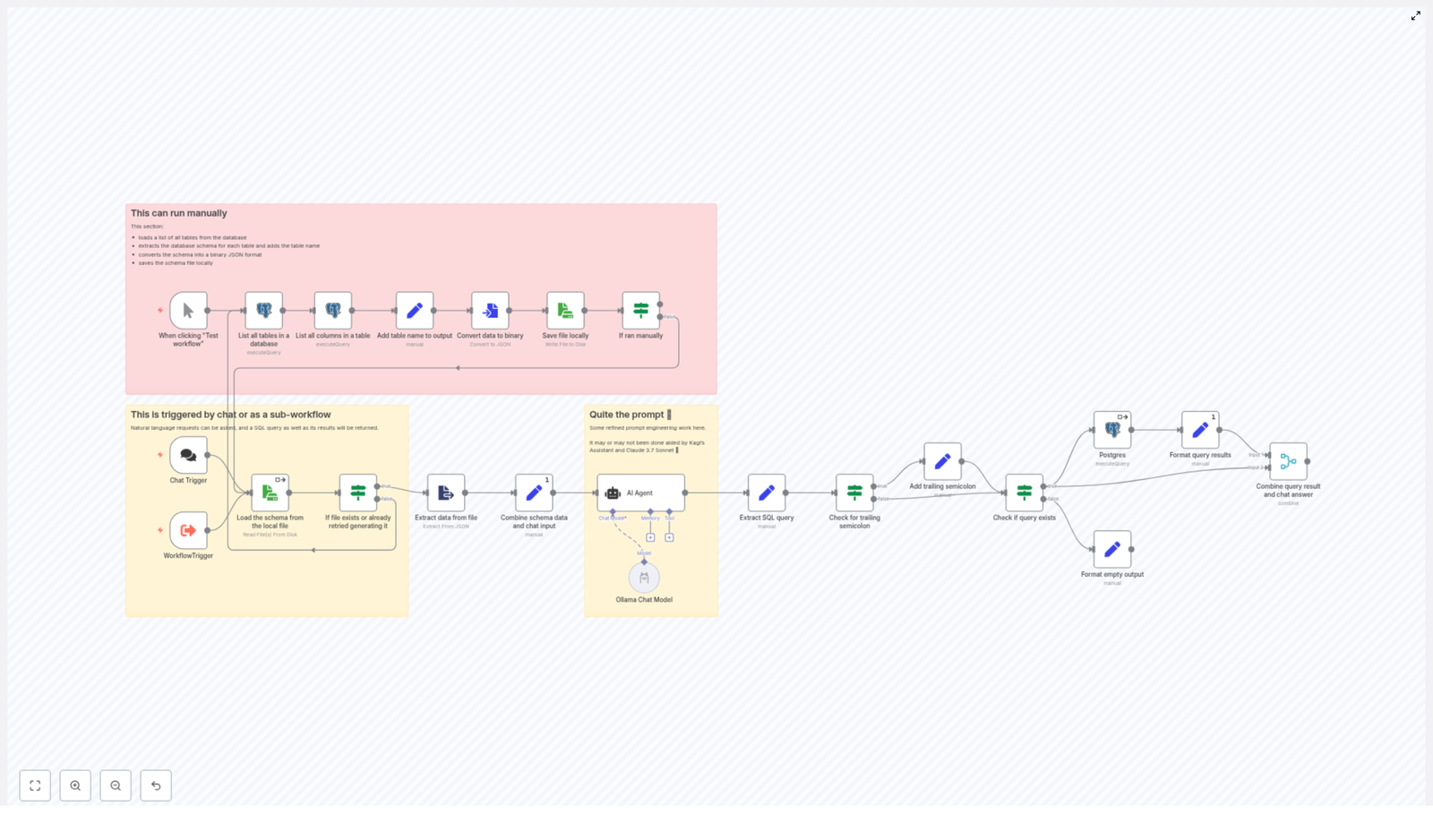
Convert Natural-Language Email Questions into SQL with n8n and LangChain

Imagine asking, “Show me last week’s budget emails” or “Pull up everything in thread 123” and getting an instant answer, without ever touching SQL. That is exactly what this n8n workflow template helps you do.

In this guide, we will walk through a reusable n8n workflow that:

  • Takes a plain-English question about your emails
  • Uses an AI agent (LangChain + Ollama) to turn it into a valid PostgreSQL query
  • Runs that SQL against your email metadata
  • Returns clean, readable results

All of this happens with strict schema awareness, so the AI never invents columns or uses invalid operators. Let us break it down in a friendly, practical way so you can plug it into your own n8n setup.

When Should You Use This n8n + LangChain Workflow?

This workflow is perfect if:

  • You have a PostgreSQL database with email metadata (subjects, senders, dates, threads, attachments, and so on).
  • People on your team are not comfortable writing SQL, but still need to search and filter emails in flexible ways.
  • You want natural-language search over large email archives without building a full custom UI.

Instead of teaching everyone SELECT, WHERE, and ILIKE, you let them type questions like a normal person. The workflow quietly handles the translation into safe, schema-respecting SQL.

Why Not Just Let AI “Guess” the SQL?

It is tempting to throw a model at your problem and say, “Here is what I want, please give me SQL.” The catch is that a naive approach often:

  • References columns that do not exist
  • Uses the wrong operators for data types
  • Generates unsafe or destructive queries

This workflow solves those headaches by:

  • Extracting the real database schema and giving it to the model as ground truth
  • Using a strict system prompt that clearly defines what the AI can and cannot do
  • Validating the generated SQL before it ever hits your database
  • Executing queries only when they are syntactically valid and safe

The result is a more predictable, reliable, and audit-friendly way to use AI for SQL generation.

High-Level Overview: How the Workflow Works

The n8n workflow is split into two main parts that work together:

  1. Schema extraction – runs manually or on a schedule to keep an up-to-date snapshot of your database structure.
  2. Runtime query handling – kicks in whenever someone asks a question via chat or another trigger.

Here is the basic flow in plain language:

  1. Grab the list of tables and columns from PostgreSQL and save that schema as a JSON file.
  2. When a user asks a natural-language question, load that schema file.
  3. Send the schema, the current date, and the user question to a LangChain agent running on Ollama.
  4. Get back a single, raw SQL statement from the AI, then clean and verify it.
  5. Run the SQL with a Postgres node and format the results for the user.

Let us go deeper into each part and the key n8n nodes that make it all work.

Part 1: Schema Extraction Workflow

This part runs outside of user requests. Think of it as preparing the map so the AI never gets lost. You can trigger it manually or set it on a schedule whenever your schema changes.

Key n8n Nodes for Schema Extraction

  • List all tables in the database
    Use a Postgres node to run:
    SELECT table_name FROM INFORMATION_SCHEMA.TABLES WHERE table_schema = 'public';
    This gives you the list of all public tables that the AI is allowed to query.
  • List all columns for each table
    For every table returned above, run another query to fetch metadata like:
    • column_name
    • data_type
    • is_nullable
    • Whether it is an array or not

    Make sure you also include the table name in the output so you can reconstruct the full schema later.

  • Convert to JSON and save locally
    Once you have all tables and columns, merge them into a single JSON structure. Then use a file node to save it somewhere predictable, for example:
    /files/pgsql-{workflow.id}.json
    This file becomes the source of truth that you pass to the AI agent.

After this step, you have a neat JSON snapshot of your database schema that your runtime workflow can quickly load without hitting the database every time.

Part 2: Runtime Query Workflow

This is the fun part. A user types something like “recent emails about projects from Sarah with attachments” and the workflow turns it into a useful SQL query and a readable response.

Runtime Path: Step-by-Step

  • Trigger (chat or workflow)
    The workflow starts when someone sends a natural-language question via an n8n Chat trigger or another custom trigger.
  • Load the schema from file
    Use a file node to read the JSON schema you saved earlier. This gives the model an exact list of allowed tables, columns, and data types.
  • AI Agent (LangChain + Ollama)
    Pass three key pieces of information to the LangChain agent:
    • The full schema JSON
    • The current date (useful for queries like “yesterday” or “last week”)
    • The user’s natural-language prompt

    The agent is configured with a strict system prompt that tells it:

    • What tables and columns exist
    • Which operators to use for each data type
    • That it must output only a single SQL statement ending with a semicolon
  • Extract and verify the SQL
    Parse the AI response to:
    • Pull out the raw SQL string
    • Confirm that it is the right kind of statement (for example, a SELECT)
    • Ensure it ends with a semicolon; if not, append one
  • Postgres node
    Feed the cleaned SQL into a Postgres node. This node runs the query against your database and returns the rows.
  • Format the query results
    Finally, turn the raw rows into something friendly: a text summary, a markdown table, or another format that fits your chat or UI. Then send that back to the user.

From the user’s perspective, they just asked a question and got an answer. Behind the scenes, you have a carefully controlled AI agent and a safe SQL execution path.

Prompt Engineering: Getting the AI to Behave

The system prompt you give to LangChain is the heart of this setup. If you get this right, the agent becomes predictable and safe. If you are too vague, it will start improvising columns and structures that do not exist.

What to Include in the System Prompt

Here are the types of constraints that work well:

  • Embed the exact schema
    Put the JSON schema in a code block so the model can only reference what is listed. This is your “do not invent anything” anchor.
  • Whitelist specific metadata fields
    For example, you might explicitly state that only fields like emails_metadata.id and emails_metadata.thread_id are valid in certain contexts.
  • Operator rules per data type
    Spell out which operators to use for each type, such as:
    • ILIKE for text searches
    • BETWEEN, >, < for timestamps and dates
    • @> or ANY for arrays
    • Explicit handling for NULL checks
  • Strict output rules
    Be very clear, for example:
    • “Output ONLY the raw SQL statement ending with a semicolon.”
    • “Do not include explanations or markdown, only SQL.”
    • “Default to SELECT * FROM unless the user asks for specific fields.”

These instructions drastically reduce hallucinations and make it much easier to validate and execute the generated SQL.

Example Prompts and SQL Outputs

Here are two concrete examples to show what you are aiming for.

User prompt: “recent emails about projects from Sarah with attachments”

SELECT * FROM emails_metadata
WHERE (email_subject ILIKE '%project%' OR email_text ILIKE '%project%')
AND email_from ILIKE '%sarah%'
AND attachments IS NOT NULL
ORDER BY date DESC;

User prompt: “emails in thread 123”

SELECT * FROM emails_metadata
WHERE thread_id = '123';

Notice how these queries:

  • Use ILIKE for text searches
  • Respect actual column names like email_subject, email_text, email_from, attachments, and thread_id
  • End with a semicolon as required

Keeping Things Safe: Validation and Guardrails

Even with a strong prompt, it is smart to layer in extra safety checks inside n8n.

Recommended Safety Checks

  • Column name validation
    Before executing the SQL, you can parse the query and compare all referenced columns to your saved schema JSON. If anything is not in the schema, reject or correct the query.
  • Block destructive queries
    If you want this to be read-only, you can:
    • Reject any non-SELECT statements in your validation step
    • Or use a PostgreSQL user with read-only permissions so even a rogue query cannot modify data
  • Limit result size
    To avoid huge result sets, you can:
    • Enforce a default LIMIT if the user did not specify one
    • Or cap the maximum allowed limit
  • Log generated queries
    Store every generated SQL statement along with the original prompt. This helps with debugging, auditing, and improving your prompt over time.

Testing and Debugging Your Workflow

Once everything is wired up, it is worth spending a bit of time testing different scenarios so you can trust the system in production.

  • Start with simple questions
    Try prompts like “emails received yesterday” and inspect both the SQL and the returned rows to ensure they match your expectations.
  • Refresh the schema after changes
    Whenever you add or modify tables and columns, run the schema extraction section manually or via a scheduled trigger so the JSON stays current.
  • Tighten the prompt if it invents columns
    If you see made-up fields, adjust the system prompt with stronger negative instructions and examples of what is not allowed.
  • Test edge cases
    Ask for:
    • Date ranges, like “emails from last month”
    • Array filters
    • Null checks

    Confirm that the operators and conditions are correct.

Ideas for Extending the Workflow

Once the basic version is running smoothly, you can start layering on more features.

  • Field selection
    Teach the agent to return only specific columns when users ask, for example “show subject and sender for yesterday’s emails.”
  • Pagination
    Add OFFSET and LIMIT support so users can page through results like “next 50 emails.”
  • Conversational follow-ups
    Keep context between queries. For example, after “show me last week’s emails” the user might say “only from last month” or “just the ones from Sarah” and you can refine the previous query.
  • Audit dashboard
    Build a small dashboard that displays:
    • Generated queries
    • Response times
    • Error rates

    This helps you monitor performance and usage patterns.

Why This Pattern Is So Useful

At its core, this n8n + LangChain workflow gives non-technical users a safe way to query email metadata in plain English. The key ingredients are:

  • An authoritative, extracted schema that the model must follow
  • A carefully crafted system prompt that locks down behavior and output format
  • Validation logic that inspects the generated SQL before execution
  • A read-only Postgres user or other safeguards for extra protection

The nice thing is that this pattern is not limited to email. You can reuse the same idea for support tickets, CRM data, analytics, or any other structured dataset you want to expose through natural language.

Ready to Try It Yourself?

If this sounds like something you want in your toolkit, you have a couple of easy next steps:

  • Implement the schema extraction flow in your own n8n instance.
  • Set up the LangChain + Ollama agent with the prompt rules described above.
  • Wire in your Postgres connection and test with a few simple questions.

If you would like a bit of help, you have options. I can:

  • Provide a step-by-step checklist you can follow inside n8n, or
  • Share a cleaned n8n JSON export that you can import and customize

Just decide which approach fits you better and have your Postgres schema handy. With that, it is straightforward to adapt the system prompt and nodes to your specific setup.

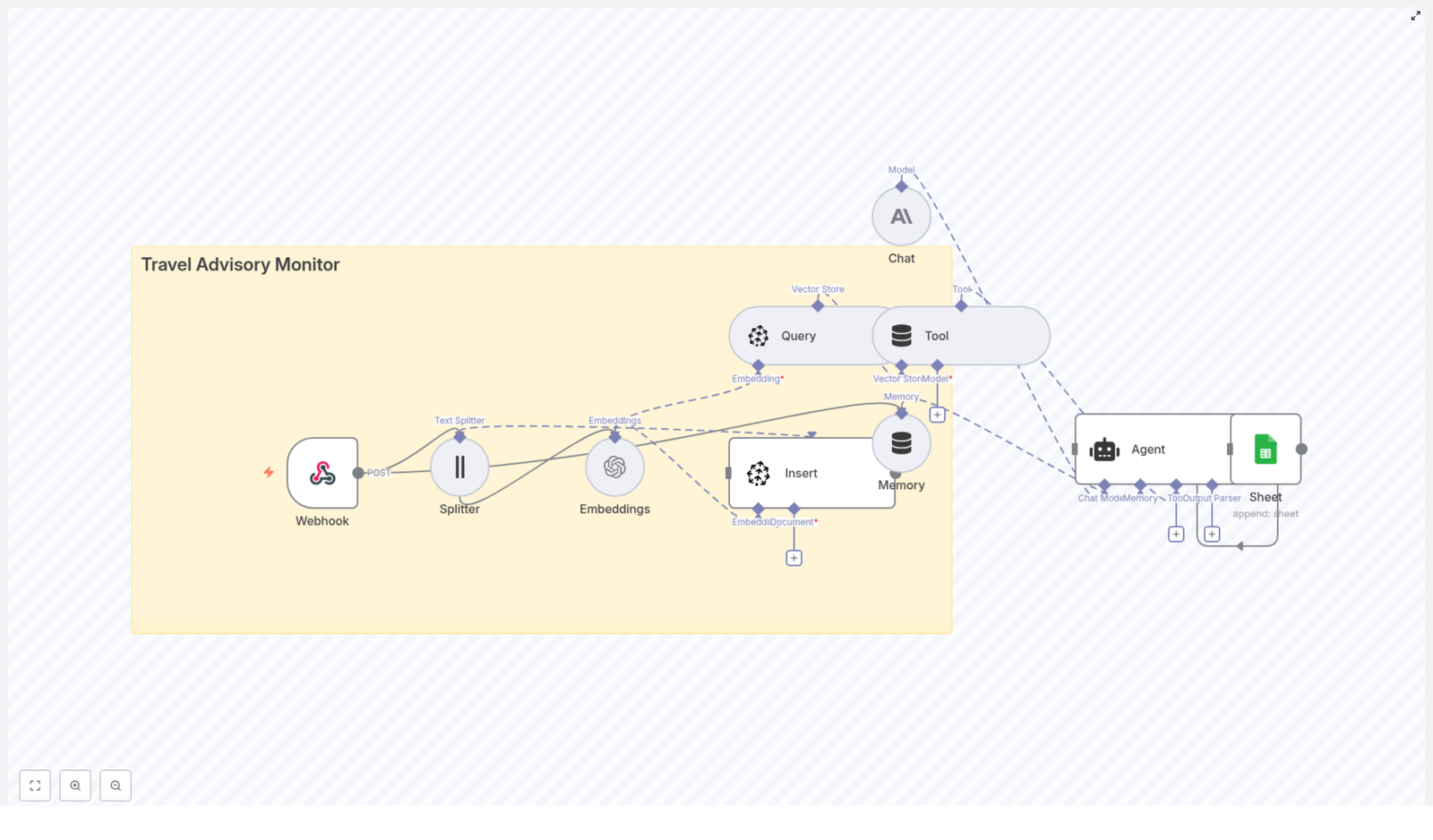
Build a Travel Advisory Monitor with n8n & Pinecone

Build a Travel Advisory Monitor with n8n & Pinecone

Managing travel advisories at scale requires a repeatable pipeline for ingesting, enriching, storing, and acting on new information in near real-time. This reference-style guide explains a production-ready n8n workflow template that:

  • Accepts advisory payloads via a webhook
  • Splits long advisories into smaller text chunks
  • Generates vector embeddings using OpenAI or a compatible model
  • Persists vectors and metadata in a Pinecone index
  • Queries Pinecone for contextual advisories
  • Uses an LLM-based agent (for example Anthropic or OpenAI) to decide on actions
  • Appends structured outputs to Google Sheets for audit and reporting

The result is an automated Travel Advisory Monitor that centralizes intelligence, accelerates response times, and produces an auditable trail of decisions.


1. Use case overview

1.1 Why automate travel advisories?

Organizations such as government agencies, corporate travel teams, and security operations centers rely on timely information about safety, weather, strikes, and political instability. Manual monitoring of multiple advisory sources is slow, hard to standardize, and prone to missed updates.

This n8n workflow automates the lifecycle of a travel advisory:

  • Ingest advisories from scrapers, RSS feeds, or third-party APIs
  • Normalize and vectorize the content for semantic search
  • Enrich and classify with an LLM-based agent
  • Log recommended actions into Google Sheets for downstream tools and audits

2. Workflow architecture

2.1 High-level data flow

The template implements the following logical stages:

  1. Webhook ingestion A public POST endpoint receives advisory JSON payloads.
  2. Text splitting Long advisory texts are segmented into overlapping chunks to improve embedding and retrieval quality.
  3. Embedding generation Each chunk is embedded using OpenAI or another embedding provider. Metadata such as region and severity is attached.
  4. Vector storage in Pinecone The resulting vectors and metadata are inserted into a Pinecone index named travel_advisory_monitor.
  5. Semantic query Pinecone is queried to retrieve similar advisories or relevant context for a given advisory or question.
  6. Agent reasoning An LLM-based chat/agent node evaluates the context and produces structured recommendations (for example severity classification, alerts, or restrictions).
  7. Logging to Google Sheets The final structured output is appended to a Google Sheet for later review, reporting, or integration with alerting systems.

2.2 Core components

  • Trigger: Webhook node (HTTP POST)
  • Processing: Text splitter, Embeddings node
  • Storage: Pinecone Insert and Query nodes
  • Reasoning: Tool + Memory, Chat, and Agent nodes
  • Sink: Google Sheets Append node

3. Node-by-node breakdown

3.1 Webhook node (HTTP POST endpoint)

The Webhook node acts as the external entry point for the workflow.

  • Method: Typically configured as POST
  • Payload format: JSON body containing advisory text and relevant fields (for example ID, source, country, region, severity, timestamps)
  • Security:
    • Use an API key in headers or query parameters, or
    • Use HMAC signatures validated in the Webhook node or a subsequent Function node

Only authenticated sources such as scrapers, RSS processors, or third-party APIs should be allowed to post data. Rejecting unauthorized requests at this layer prevents polluting your vector store or logs.

3.2 Text splitter node

Advisory text can be lengthy and exceed optimal embedding input sizes. The text splitter node segments the content into smaller, overlapping chunks.

  • Typical configuration:
    • Chunk size: around 400 characters
    • Overlap: around 40 characters
  • Rationale:
    • Improves semantic embedding quality by focusing on coherent fragments
    • Respects model input constraints
    • Maintains context continuity through overlap

The node outputs multiple items, one per chunk, which downstream nodes process in a loop-like fashion.

3.3 Embeddings node (OpenAI or similar provider)

The Embeddings node converts each text chunk into a numerical vector representation suitable for similarity search.

  • Provider: OpenAI or another supported embedding model
  • Key parameters:
    • Embedding model name (must match Pinecone index dimensionality)
    • Text input field (the chunked advisory text)
  • Metadata:
    • Source URL
    • Timestamp or published_at
    • Country and region tags
    • Severity level
    • Original advisory ID
    • Original text snippet

Storing rich metadata with each vector enables efficient filtering at query time, for example by country, severity threshold, or source system.

3.4 Pinecone Insert node (vector store write)

The Insert node writes vectors and their metadata into a Pinecone index.

  • Index name: travel_advisory_monitor
  • Configuration:
    • Vector dimensionality must match the selected embedding model
    • Optional use of namespaces or metadata filters to partition data (for example by region or client)
  • Responsibilities:
    • Persist advisory vectors for long-term semantic search
    • Associate each vector with the advisory metadata

This node is responsible only for write operations. Query operations are handled separately by the Pinecone Query node.

3.5 Pinecone Query node (vector store read)

The Query node retrieves vectors similar to a given advisory or search query.

  • Typical query inputs:
    • Embedding of the current advisory, or
    • Embedding of a natural language question, such as "Which advisories mention port closures in Costa Rica?"
  • Filtering:
    • Metadata filter examples:
      • country = "Costa Rica"
      • severity >= 3
    • Combining semantic similarity with filters yields highly targeted context

The results from this node are passed to the agent so it can reason over both the new advisory and relevant historical context.

3.6 Tool + Memory nodes

The Tool and Memory nodes integrate the vector store and recent conversation context into the agent workflow.

  • Tool node:
    • Exposes Pinecone query capabilities as a tool the agent can call
    • Allows the LLM to fetch relevant advisories on demand
  • Memory node:
    • Maintains a short-term buffer of recent advisories and agent interactions
    • Prevents prompt overload by limiting the memory window
    • Ensures the agent is aware of prior actions and decisions during a session

3.7 Chat & Agent nodes

The Chat and Agent nodes handle reasoning, classification, and decisioning.

  • Chat node:
    • Uses an LLM/chat model such as Anthropics models or OpenAI Chat
    • Consumes advisory text and retrieved context as input
  • Agent node:
    • Defines system-level instructions and policies
    • Example tasks:
      • Classify advisory severity
      • Recommend travel restrictions or precautions
      • Identify whether to trigger alerts
      • Draft an email or notification summary
    • Configured to return structured JSON, which is critical for downstream parsing

Ensuring predictable JSON output is important so that the Google Sheets node can map fields to specific columns reliably.

3.8 Google Sheets node (Append)

The Google Sheets node serves as a simple, human-readable sink for the final results.

  • Operation: Append row
  • Typical columns:
    • Timestamp
    • Advisory ID
    • Summary
    • Recommended action or classification
    • Distribution list or target recipients

Because Sheets integrates with many tools, this log can drive further automation such as Slack alerts, email campaigns, or BI dashboards.


4. Step-by-step setup guide

4.1 Prerequisites and credentials

  1. Provision accounts Ensure you have valid credentials for:
    • OpenAI or another embeddings provider
    • Pinecone
    • Anthropic or other LLM/chat provider (if used)
    • Google Sheets (OAuth credentials)
  2. Create the Pinecone index In Pinecone, create an index named travel_advisory_monitor:
    • Set vector dimensionality to match your chosen embedding model
    • Choose an appropriate metric (for example cosine similarity) if required by your setup
  3. Import the n8n workflow Load the provided template JSON into n8n and:
    • Connect your Embeddings credentials
    • Configure Pinecone credentials
    • Set Chat/LLM credentials
    • Authorize Google Sheets access
  4. Secure the webhook Implement an API key check or HMAC verification either:
    • Directly in the Webhook node configuration, or
    • In a Function node immediately after the Webhook
  5. Run test advisories POST sample advisory payloads to the webhook and verify:
    • Vectors are inserted into the travel_advisory_monitor index
    • Rows are appended to the designated Google Sheet
  6. Refine agent prompts Update the Agent node instructions to encode your organization’s policies and escalation rules, such as:
    • Severity thresholds for alerting
    • Region-specific rules
    • Required output fields and JSON schema

5. Configuration notes & tuning

5.1 Chunking strategy

  • Recommended starting range:
    • Chunk size: 300 to 500 characters
    • Overlap: 10 to 50 characters
  • Considerations:
    • Shorter chunks provide more granular retrieval but can lose context
    • Larger chunks preserve context but may reduce precision

5.2 Metadata hygiene

Consistent metadata is critical for reliable filtering and analytics.

  • Always include structured fields such as:
    • country
    • region
    • severity
    • source
    • published_at
  • Use consistent naming conventions and value formats

5.3 Rate limits and batching

  • Batch embedding requests where possible to:
    • Reduce API calls and costs
    • Stay within provider rate limits
  • Use n8n’s built-in batching or queuing logic for high-volume workloads

5.4 Vector retention and lifecycle

  • Define a strategy for older advisories:
    • Archive or delete low-relevance or outdated vectors
    • Keep the Pinecone index size manageable for performance

5.5 Prompt and agent design

  • Provide the agent with:
    • A concise but clear system prompt
    • Explicit reasoning steps such as:
      1. Classify severity
      2. Recommend actions
      3. Return structured JSON
  • Limit the context window to essential information to keep responses consistent and auditable

6. Example use cases

  • Corporate travel teams Automatically generate alerts when a traveler’s destination shows increased severity or new restrictions.
  • Travel agencies Maintain a centralized advisory feed to inform booking decisions and trigger proactive customer notifications.
  • Risk operations Detect early signals of strikes, natural disasters, or political unrest and receive triage recommendations.
  • Media and editorial teams Enrich coverage with historical advisory context to support more informed editorial decisions.

7. Monitoring, scaling, and security

7.1 Observability

Track key metrics across the workflow:

  • Webhook traffic volume and error rates
  • Embedding API failures or timeouts
  • Pinecone index size, query latency, and insert errors
  • Google Sheets write failures or rate limits

7.2 Scaling strategies

  • Partition Pinecone indexes by region or use namespaces per client
  • Apply batching and throttling in n8n to smooth ingestion spikes

7.3 Security considerations

  • Store all API keys and secrets in environment variables or n8n’s credential store
  • Restrict webhook access using:
    • IP allowlists
    • API keys or tokens

MES Log Analyzer: n8n Vector Search Workflow

MES Log Analyzer: n8n Vector Search Workflow Template

Manufacturing Execution Systems (MES) continuously generate high-volume, semi-structured log data. These logs contain essential signals for monitoring production, diagnosing incidents, and optimizing operations, but they are difficult to search and interpret at scale. This reference guide describes a complete MES Log Analyzer workflow template in n8n that uses text embeddings, a vector database (Weaviate), and LLM-based agents to deliver semantic search and contextual insights over MES logs.

1. Conceptual Overview

This n8n workflow implements an end-to-end pipeline for MES log analysis that supports:

  • Real-time ingestion of MES log events through a Webhook trigger
  • Text chunking for long or multi-line log entries
  • Embedding generation using a Hugging Face model (or compatible embedding provider)
  • Vector storage and similarity search in Weaviate
  • LLM-based conversational analysis via an agent or chat model
  • Short-term conversational memory for follow-up queries
  • Persistence of results and summaries in Google Sheets

The template is designed as a starting point for production-grade MES log analytics in n8n, with a focus on semantic retrieval, natural-language querying, and traceable output.

2. Why Use Embeddings and Vector Search for MES Logs?

Traditional keyword search is often insufficient for MES environments due to noisy, heterogeneous log formats and the importance of context. Text embeddings and vector search provide several advantages:

  • Semantic similarity – Retrieve log entries that are conceptually related, not just those that share exact keywords.
  • Natural-language queries – Support questions like “Why did machine X stop?” by mapping the question and logs into the same vector space.
  • Context-aware analysis – Summarize incident timelines and surface likely root causes based on similar past events.

By embedding log text into numeric vectors, the workflow enables similarity search and contextual retrieval, which are critical for incident triage, failure analysis, and onboarding scenarios.

3. Workflow Architecture

The workflow template follows a linear yet modular architecture that can be extended or modified as needed:

MES / external system  → Webhook (n8n)  → Text Splitter  → Embeddings (Hugging Face)  → Weaviate (Insert)  → Weaviate (Query)  → Agent / Chat (OpenAI) + Memory Buffer  → Google Sheets (Append)

At a high level:

  • Ingestion layer – Webhook node receives MES logs via HTTP POST.
  • Preprocessing layer – Text Splitter node segments logs into chunks suitable for embedding.
  • Vectorization layer – Embeddings node converts text chunks into dense vectors.
  • Storage & retrieval layer – Weaviate nodes index and query embeddings with metadata filters.
  • Reasoning layer – Agent or Chat node uses retrieved snippets to answer questions and summarize incidents, with a Memory Buffer node for short-term context.
  • Persistence layer – Google Sheets node records results, summaries, and audit information.

4. Node-by-Node Breakdown

4.1 Webhook Node – Log Ingestion

Role: Entry point for MES logs into n8n.

  • Method: HTTP POST
  • Typical payload fields:
    • timestamp
    • machine_id
    • level (for example, INFO, WARN, ERROR)
    • message (raw log text or multi-line content)
    • batch_id or similar contextual identifier

Configuration notes:

  • Standardize the event schema at the source or in a pre-processing step inside n8n to ensure consistent fields.
  • Implement basic validation and filtering in the Webhook node or immediately downstream to drop malformed or incomplete events as early as possible.

Edge cases:

  • Events missing required fields (for example, no message) should be discarded or routed to an error-handling branch.
  • Very large payloads might need upstream truncation policies or batching strategies before they reach this workflow.

4.2 Text Splitter Node – Chunking Log Content

Role: Break long or multi-line log messages into manageable text segments for embedding.

Typical parameters:

  • chunkSize: 400 characters
  • chunkOverlap: 40 characters

Behavior: The node takes the message field (or equivalent text payload) and produces a list of overlapping chunks. Overlap ensures that context spanning chunk boundaries is not lost.

Considerations:

  • For very short log lines, chunking may produce a single chunk per entry, which is expected.
  • For extremely verbose logs, adjust chunkSize and chunkOverlap to balance context preservation with embedding performance.

4.3 Embeddings Node (Hugging Face) – Vector Generation

Role: Convert each text chunk into a numeric vector suitable for vector search.

Configuration:

  • Provider: Hugging Face embeddings node (or a compatible embedding service).
  • Model: Choose a model optimized for semantic similarity, not classification. The exact model selection is up to your environment and constraints.

Data flow: Each chunk from the Text Splitter node is sent to the Embeddings node. The output is typically an array of vectors, one per chunk, which will be ingested into Weaviate along with the original text and metadata.

Trade-offs:

  • Higher quality models may increase latency and cost.
  • On-prem or private models may be preferable for sensitive MES data, depending on compliance requirements.

4.4 Weaviate Insert Node – Vector Store Indexing

Role: Persist embeddings and associated metadata into a Weaviate index.

Typical configuration:

  • Class / index name: for example, mes_log_analyzer
  • Stored fields:
    • Vector from the Embeddings node
    • Original text chunk (raw_text or similar)
    • Metadata such as:
      • timestamp
      • machine_id
      • level
      • batch_id

Usage: Rich metadata enables precise filtering and scoped search, for example:

machine_id = "MX-101" AND level = "ERROR"

Edge cases & reliability:

  • Failed inserts should be logged and, if necessary, retried using n8n error workflows or separate retry logic.
  • Ensure the Weaviate schema is created in advance or managed through a separate setup process so that inserts do not fail due to missing classes or field definitions.

4.5 Weaviate Query Node – Semantic Retrieval

Role: Retrieve semantically similar log snippets from Weaviate using vector similarity.

Query modes:

  • Embedding-based query: Embed a user question or search phrase and use the resulting vector for similarity search.
  • Vector similarity API: Directly call Weaviate’s similarity search endpoint with a vector from the Embeddings node.

Filtering options:

  • Time window (for example, last 30 days based on timestamp)
  • Machine or equipment identifier (for example, machine_id = "MX-101")
  • Batch or production run (batch_id)
  • Log level (level = "ERROR" or "WARN")

Performance considerations:

  • If queries are slow, check Weaviate’s indexing configuration, replica count, and hardware resources.
  • Limit the number of returned results to a reasonable top-k value to control latency and reduce token usage in downstream LLMs.

4.6 Agent / Chat Node (OpenAI) – Contextual Analysis

Role: Use retrieved log snippets as context to generate natural-language answers, summaries, or investigative steps.

Typical usage pattern:

  • Weaviate Query node returns the most relevant chunks and metadata.
  • Agent or Chat node (for example, OpenAI Chat) is configured to:
    • Take the user question and retrieved context as input.
    • Produce a structured or free-form answer, such as:
      • Incident summary
      • Likely root cause
      • Recommended next actions

Memory Buffer: A Memory Buffer node is typically connected to the agent to maintain short-term conversational context within a session. This allows follow-up queries like “Show similar events from last week” without re-specifying all parameters.

Error handling:

  • If the agent receives no relevant context from Weaviate, it should respond accordingly, for example by stating that no similar events were found.
  • Handle LLM rate limits or timeouts using n8n retry options or alternative paths.

4.7 Google Sheets Node – Persisting Insights

Role: Append structured results to a Google Sheet for traceability and sharing with non-technical stakeholders.

Common fields to store:

  • Incident or query timestamp
  • Machine or line identifier
  • Summarized incident description
  • Suspected root cause
  • Recommended action or follow-up steps
  • Reference to original logs (for example, link or identifier)

Use cases:

  • Audit trails for compliance or quality assurance.
  • Shared incident dashboards for maintenance and operations teams.

5. Configuration & Credential Notes

To use the template effectively, you must configure the following credentials in n8n:

  • Hugging Face (or embedding provider) credentials for the Embeddings node.
  • Weaviate credentials (URL, API key, and any TLS settings) for both Insert and Query nodes.
  • OpenAI (or chosen LLM provider) credentials for the Agent / Chat node.
  • Google Sheets credentials with appropriate access to the target spreadsheet.

After importing the workflow template into n8n, bind each node to the appropriate credential and verify connectivity using test operations where available.

6. Best Practices for Production Readiness

6.1 Metadata Strategy

  • Index rich metadata such as machine, timestamp, shift, operator, and batch to enable fine-grained filtering.
  • Use consistent naming and data types across systems to avoid mismatched filters.

6.2 Chunking Strategy

  • Keep chunks short enough for embeddings to capture context without exceeding model limits.
  • Avoid overly small chunks that fragment meaning and reduce retrieval quality.

6.3 Embedding Model Selection

  • Evaluate models on actual MES data for semantic accuracy, latency, and cost.
  • Consider private or on-prem models for sensitive or regulated environments.

6.4 Retention & Governance

  • Define retention policies or TTLs for vector data if logs contain PII or sensitive operational details.
  • Archive older embeddings or raw logs to cheaper storage when they are no longer needed for real-time analysis.

6.5 Monitoring & Observability

  • Track ingestion rates, failed Weaviate inserts, and query latency.
  • Monitor for data drift in log formats or embedding quality issues that may degrade search relevance.

7. Example Use Cases

7.1 Incident Search and Triage

Operators can query the system with natural-language prompts such as:

“Show similar shutdown events for machine MX-101 in the last 30 days.”

The workflow retrieves semantically similar log snippets from Weaviate, then the agent compiles them into a contextual response including probable root causes and timestamps.

7.2 Automated Incident Summaries

During an error spike, the agent can automatically generate a concise incident summary that includes:

  • What occurred
  • Which components or machines were affected
  • Suggested next steps
  • Confidence indications or qualitative certainty

This summary is then appended to a Google Sheet for review by the maintenance or reliability team.

7.3 Knowledge Retrieval for Onboarding

New engineers can ask plain-language questions about historical incidents, for example:

“How were past temperature sensor failures on line 3 resolved?”

The workflow surfaces relevant past events and their resolutions, reducing time-to-resolution for recurring issues and accelerating onboarding.

8. Troubleshooting Common Issues

8.1 Low-Quality Search Results

  • Review chunkSize and chunkOverlap settings. Overly small or large chunks can harm retrieval quality.
  • Verify that the embedding model is suitable for semantic similarity tasks.
  • Ensure metadata filters are correctly applied and not excluding relevant results.
  • Consider additional preprocessing, such as:
    • Removing redundant timestamps inside the message field.
    • Normalizing machine IDs to a consistent format.

8.2 Slow Queries

n8n: GitHub Release to Slack Automation

GitHub Releases to Slack with n8n: A Simple Automation You’ll Actually Use

Ever shipped a new release on GitHub, told yourself you’d “announce it in Slack in a minute,” then got distracted and forgot? You’re not alone.

This n8n workflow template quietly solves that problem for you. It listens for GitHub release events in a specific repository and automatically posts a nicely formatted message in a Slack channel. No copy-pasting, no missed updates, no “oops, I forgot to tell the team.”

In this guide, we’ll walk through what the workflow does, when it’s useful, how to set it up in n8n, and a few ideas to customize it for your own team.

What This n8n GitHub-to-Slack Workflow Actually Does

The template, called Extranet Releases, connects GitHub and Slack so your team is always up to date on new releases.

Here is what it handles for you:

  • Watches a specific GitHub repository: Mesdocteurs/mda-admin-partner-api.
  • Listens for release events: whenever a new release is created or updated.
  • Pulls key details from the GitHub payload:
    • Release tag name
    • Release body / changelog
    • Link to the release page (html_url)
  • Posts a Slack message in the #extranet-md channel with all those details.

Once it is active, every new release on that repo quietly triggers a Slack notification. You just keep shipping, and your team stays informed.

Why Bother Automating GitHub Release Announcements?

You might be thinking, “I can just paste the link into Slack myself.” Sure, you can. But will you always remember?

Manual announcements tend to be:

  • Slow – people might wait hours before hearing about a release.
  • Inconsistent – sometimes you include the changelog, sometimes you forget.
  • Error-prone – copy the wrong tag, miss the link, or post in the wrong channel.

With n8n handling it, you get:

  • Instant notifications as soon as a release is created.
  • Consistent formatting every single time.
  • No-code / low-code setup that you can easily extend later.

And since this is n8n, you are not locked into just Slack. You can plug in filters, email, Jira, or anything else you like as your workflow grows.

Under the Hood: The Two Main Nodes in This Workflow

This template is intentionally simple. It uses just two core nodes in n8n:

1. GitHub Trigger Node

This is where everything starts. The GitHub Trigger node listens for events from a specific repository using the GitHub API.

In this template, it is configured as follows:

  • Owner: Mesdocteurs
  • Repository: mda-admin-partner-api
  • Events: release

Whenever a release event happens, GitHub sends a payload that includes details like:

  • Tag name
  • Release body (your changelog)
  • Release URL
  • Author and other metadata

That payload is what the next node uses to build the Slack message.

2. Slack Node

Once n8n receives the GitHub event, the Slack node composes and sends the message into your chosen channel.

In the template, the Slack node is set up with:

  • Channel: extranet-md
  • As user: true
  • Text: an n8n expression that pulls values from the GitHub Trigger node

The message text uses an expression like this:

=New release is available in {{$node["Github Trigger"].json["body"]["repository"]["full_name"]}} !
{{$node["Github Trigger"].json["body"]["release"]["tag_name"]}} Details:
{{$node["Github Trigger"].json["body"]["release"]["body"]}}

Link: {{$node["Github Trigger"].json["body"]["release"]["html_url"]}}

In plain language, that expression says: “Look at the JSON from the GitHub Trigger node, grab the repository name, tag, body, and URL, and drop them into this Slack message.” That way, every notification is always up to date with the latest release info.

When This Workflow Is Especially Useful

This kind of GitHub to Slack automation fits nicely into a few common scenarios:

  • Partner-facing releases
    You ship new integration APIs or admin portals and want partners to know as soon as something new is available.
  • Internal release visibility
    Backend or frontend teams can see what is going to production without digging through GitHub.
  • Triggering follow-up work
    You can use the release event to kick off other processes, like updating documentation, dashboards, or tickets.

If your team ever asks “Is this live yet?” this workflow is an easy win.

How to Import and Turn On the Workflow in n8n

Ready to try it? Here is how to get the Extranet Releases workflow running in your own n8n instance.

  1. Open n8n and import the workflow
    Go to Workflows > Import in your n8n UI and paste the JSON for the Extranet Releases template.
  2. Set up your credentials
    You will need:
    • A GitHub API credential
      Use OAuth or a personal access token with appropriate repo webhook / read permissions.
    • A Slack API credential
      Typically a bot token with chat:write and channels:read (or the equivalent scopes you need).
  3. Attach the credentials to the nodes
    In the workflow editor, make sure:
    • The GitHub Trigger node uses your Github API credential.
    • The Slack node uses your Slack credential (for example the one associated with the extranet-md bot).
  4. Activate the workflow
    Once everything is wired up, click Activate. From that point on, n8n will listen for GitHub release events on the configured repository.

Testing: Make Sure Everything Works Before Relying On It

Before you trust this workflow for production announcements, it is worth giving it a quick test.

  • Create a release in GitHub
    In the configured repository, create a draft or full release. You can also re-tag and publish an existing one if you prefer.
  • Check your webhook setup
    If your GitHub Trigger relies on webhooks, confirm that the n8n webhook URL is correctly registered in your GitHub repo settings and is reachable from GitHub.
  • Review n8n execution logs
    Open the workflow executions in n8n and verify that:
    • The GitHub Trigger receives the payload.
    • The Slack node runs without errors.
  • Look in Slack
    Head to the #extranet-md channel and check that a message appeared with:
    • The correct repository name
    • The release tag
    • The changelog text
    • A link to the GitHub release page

Make It Your Own: Customizations and Enhancements

The template is intentionally minimal so you can easily extend it. Once the basic GitHub to Slack flow is working, here are some ideas to level it up.

1. Improve Slack Message Formatting

Plain text is fine, but you can go further. Try:

  • Using Slack Block Kit for sections, headings, and buttons.
  • Adding attachments that highlight breaking changes or key features.
  • Making the release link a clear call-to-action button.

All of this can be done directly in the Slack node by switching the message type and adjusting the JSON structure.

2. Add Filters and Conditional Logic

Maybe you do not want notifications for every single release. You can easily add an If node between GitHub and Slack to:

  • Send messages only for published releases.
  • Filter by tag patterns, such as only tags starting with v (for example v1.2.3).
  • Ignore pre-releases or drafts.

This keeps your Slack channels focused on the releases that truly matter to your audience.

3. Send Notifications to Multiple Channels or Tools

Different teams might need different levels of detail. You can:

  • Add more Slack nodes to post tailored messages to different channels, such as engineering, product, or partners.
  • Connect an Email node to send summary emails for important releases.
  • Use Jira or other issue-tracking nodes to update tickets when a release goes live.

All of this can branch from the same GitHub Trigger event.

4. Attach or Link to Release Artifacts

If you publish assets with your releases, you can pull those in too. For example:

  • Use the GitHub API node or an HTTP Request node to fetch release assets.
  • Include download links in your Slack message.
  • Store files in internal storage or other systems and share the links with your team.

This is especially handy if your releases include binaries, installers, or documentation bundles.

Security Tips, Reliability, and Troubleshooting

Since this workflow touches both GitHub and Slack, it is worth setting it up securely and knowing where to look if something breaks.

  • Use least-privilege credentials
    Create a GitHub token that is scoped only to the repositories and events you need.
  • Protect your n8n instance
    If you expose webhooks to GitHub, secure n8n behind a firewall, VPN, or reverse proxy where possible.
  • Add retry logic
    Configure error handling or retry behavior on the Slack node for transient network issues.
  • Check Slack permissions
    If messages do not show up, verify:
    • The Slack app has permission to post in the target channel.
    • The bot user is invited to that channel.
  • Review GitHub webhook logs
    In your GitHub repository settings, look at the webhook delivery logs to confirm:
    • Events are being sent.
    • n8n is returning a successful HTTP status code.

Putting It All Together

Automating GitHub release announcements with n8n is a small change that removes a recurring manual task, reduces missed communications, and gives your team immediate visibility into what is shipping.

The Extranet Releases template is a lightweight starting point that you can set up in minutes:

  • Import the JSON template into your n8n instance.
  • Connect your GitHub and Slack credentials.
  • Activate the workflow and publish a test release.

Watch your Slack channel fill with clean, consistent release messages, then tweak the formatting or add filters so it fits your exact workflow.

Want to try it now? Import the template, create a test release on GitHub, and see the Slack notification appear. From there you can experiment with Block Kit formatting, conditional logic, or extra integrations like email or Jira.

If you would like help adapting this workflow to your organization, adding attachments, or building more advanced automations around releases, feel free to reach out or drop a comment. It is a simple automation, but it can become the backbone of a very tidy release process.

n8n Chatbot for Orders: LangChain + OpenAI POC

n8n Chatbot for Orders: LangChain + OpenAI POC

This guide teaches you how to build a proof-of-concept (POC) conversational ordering chatbot in n8n using LangChain-style nodes and OpenAI. You will learn how each node in the workflow works together so you can understand, customize, and extend the template with confidence.

What you will learn

By the end of this tutorial, you will be able to:

  • Explain how a conversational ordering chatbot works inside n8n
  • Use the n8n chat trigger to start a conversation with users
  • Configure an AI Agent powered by OpenAI and LangChain-style tools
  • Use memory, HTTP requests, and a calculator inside an AI-driven workflow
  • Handle three core flows: viewing the menu, placing orders, and checking order status
  • Apply best practices for configuration, testing, and security

Why build this n8n chatbot POC?

Conversational ordering systems can increase conversions and make customer interactions smoother. Instead of building a full backend application, you can use n8n with LangChain-style tools and OpenAI to quickly prototype an intelligent assistant.

This POC focuses on a simple pizza-ordering assistant called Pizzaro. It is intentionally easy to extend and demonstrates how to:

  • Use OpenAI for natural language understanding
  • Maintain short-term memory across messages
  • Connect to external services using HTTP endpoints
  • Perform simple calculations such as totals or quantity checks

What the workflow can do

The final n8n workflow supports three main user scenarios:

  • Menu inquiries – When a user asks what is available, the assistant calls a product endpoint and returns up-to-date menu details.
  • Placing an order – When a user specifies their name, pizza type, and quantity, the assistant confirms the order, calls an order webhook, and provides a friendly confirmation.
  • Order status requests – When a user asks about an existing order, the assistant calls an order status endpoint and returns information like order date, pizza type, and quantity.

Concepts and architecture

Before we walk through the steps, it helps to understand the core components used in this POC.

Main building blocks in n8n

  • When chat message received – A chat trigger node that exposes a webhook and starts the workflow whenever a user sends a message.
  • AI Agent – The orchestrator of the conversation. It uses a system prompt and a set of tools (nodes) to decide what to do next.
  • Chat OpenAI – The language model node that generates responses and interprets user intent.
  • Window Buffer Memory – A memory node that stores recent messages so the agent can maintain context.
  • Get Products – An HTTP Request node that fetches the current menu from a product endpoint, for example GET /webhook/get-products.
  • Order Product – An HTTP Request node that creates a new order using a POST request, for example POST /webhook/order-product.
  • Get Order – An HTTP Request node that retrieves order status, for example GET /webhook/get-orders.
  • Calculator – A tool node that performs arithmetic operations used by the agent when it needs accurate numeric results.

All of these parts are wired together through the AI Agent. The agent decides which tool to call based on the user’s message and the system instructions you provide.

Step-by-step: Build the workflow in n8n

Step 1: Set up the chat trigger

Start with the When chat message received node. This is the entry point for your chatbot.

  • Webhook: The node exposes a URL that your frontend or test client can send messages to.
  • Access: Choose if the webhook should be public or protected based on your environment.
  • Initial message: Configure an optional initialMessages value to greet users and explain how to order.

Example initial message used in the POC:

"Hellooo! 👋 My name is Pizzaro 🍕. I'm here to help with your pizza order. How can I assist you?

📣 INFO: If you’d like to order a pizza, please include your name + pizza type + quantity. Thank you!"

Once this node is configured, any new chat message will trigger the workflow and pass the text into the AI Agent.

Step 2: Configure the AI Agent

The AI Agent node is the core of the workflow. It connects the language model, memory, and tools (HTTP requests and calculator) into a single decision-making unit.

In the AI Agent node:

  • Set the system message that defines the assistant’s role and behavior.
  • Attach the tools (Get Products, Order Product, Get Order, Calculator) so the agent can call them when needed.
  • Connect the memory node so the agent can keep track of the conversation.

Example system message used in the POC (simplified):

Your name is Pizzaro, and you are an assistant for handling customer pizza orders.

1. If a customer asks about the menu, provide information on the available products.
2. If a customer is placing an order, confirm the order details, inform them that the order is being processed, and thank them.
3. If a customer inquires about their order status, provide the order date, pizza type, and quantity.

This prompt tells the agent exactly when to fetch menu data, when to place an order, and when to check order status.

Step 3: Connect the Chat OpenAI model

Next, configure the Chat OpenAI node that the AI Agent will use as its language model.

  • API credentials: Add your OpenAI API key in n8n’s credentials manager and select it in the node.
  • Model choice: Pick a model that fits your cost and performance needs, for example gpt-4, gpt-4o, or gpt-3.5-turbo.
  • Security: Keep your API key secret and avoid hard-coding it in the workflow.

The AI Agent will send user messages and system prompts to this node, then use the responses to drive the conversation and decide which tools to call.

Step 4: Add Window Buffer Memory

The Window Buffer Memory node gives the agent short-term memory so it can remember what was said earlier in the conversation.

  • Window size: Choose how many recent messages to keep. A larger window preserves more context but uses more tokens.
  • Usage: This memory helps the agent recall details like the user’s name, the pizza type they mentioned, or an order it just created.

Connect this memory node to the AI Agent so that each new message includes the recent chat history.

Step 5: Configure the Get Products HTTP request

When a user asks about the menu, the AI Agent should call the Get Products tool. This is an HTTP Request node that returns available products.

Set it up as follows:

  • Method: GET
  • URL: Your product endpoint, for example https://yourdomain.com/webhook/get-products
  • Response format: The endpoint should return a JSON list of product objects.

Typical fields in each product object might include:

  • name – product name
  • description – short description of the pizza
  • price – price per unit
  • sku – unique product identifier

The AI Agent then uses this data to answer menu-related questions in natural language.

Step 6: Configure the Order Product HTTP POST

To place an order, the AI Agent uses the Order Product node. This is an HTTP Request node configured to send a POST request to your order endpoint.

Typical configuration:

  • Method: POST
  • URL: Your order endpoint, for example https://yourdomain.com/webhook/order-product
  • Body: JSON payload with order details

In the basic template, the entire chat input can be sent as the message body. For more reliability, you can have the agent extract structured fields and send a clear JSON object, such as:

{  "customer_name": "Jane Doe",  "product_sku": "MARG-001",  "quantity": 2,  "notes": "Extra cheese"
}

Design your endpoint so that it returns a unique order ID and status. The agent can then confirm the order back to the user, for example: “Your order has been placed. Your order ID is 12345.”

Step 7: Configure the Get Order HTTP request

For order status checks, the AI Agent uses the Get Order node to query your orders service.

Configure it like this:

  • Method: usually GET
  • URL: for example https://yourdomain.com/webhook/get-orders
  • Parameters: you may require an order ID, phone number, or email as an identifier.

The endpoint should return details such as:

  • Order date
  • Pizza type
  • Quantity

The agent then formats this information in a user-friendly way when answering questions like “What is the status of my order?”

Step 8: Use the Calculator tool

The Calculator node is used as a tool by the AI Agent when it needs precise numeric results.

Typical use cases include:

  • Adding up the total price for multiple pizzas
  • Applying discounts or coupons
  • Calculating tax or delivery fees

By delegating math operations to the Calculator node, you reduce the chance of the language model making arithmetic mistakes.

How the three flows work together

1. Menu inquiry flow

  1. User asks a question like “What pizzas do you have?”
  2. Chat trigger forwards the message to the AI Agent.
  3. AI Agent identifies a menu request based on the system prompt and user message.
  4. AI Agent calls the Get Products HTTP node.
  5. Products are returned as JSON.
  6. AI Agent summarizes the menu items using Chat OpenAI and replies to the user.

2. Placing an order flow

  1. User sends a message like “My name is Alex, I want 2 Margherita pizzas.”
  2. AI Agent uses memory and the model to extract name, pizza type, and quantity.
  3. Agent confirms the order details with the user if needed.
  4. Agent calls the Order Product HTTP POST node with structured JSON.
  5. Order endpoint returns an order ID and status.
  6. Agent thanks the user and shares the confirmation details, for example order ID and current status.

3. Order status flow

  1. User asks “What is the status of my order?” or “Where is order 12345?”
  2. AI Agent identifies a status request.
  3. If needed, the agent asks for the order ID or other identifier.
  4. Agent calls the Get Order HTTP node with the identifier.
  5. Order service returns date, pizza type, and quantity.
  6. Agent responds with a clear status update to the user.

Configuration tips and best practices

  • Validate user input: Sanitize and validate data before sending it to your order endpoint to avoid malformed or malicious requests.
  • Use structured JSON: When calling the Order Product endpoint, send a well-defined JSON object instead of raw text to reduce ambiguity.
  • Control webhook access: If your chatbot can place real orders or handle payments, limit access to the chat webhook or protect it with tokens.
  • Monitor token usage: Choose models and memory window sizes that balance cost and performance. Track usage so you do not exceed your budget.
  • Log responses: Log HTTP responses and agent decisions to simplify debugging and improve the assistant’s behavior over time.

Testing and debugging the workflow

Test each core flow separately before combining them.

  • Menu lookup: Send a menu question and confirm that the Get Products node is called and returns the expected JSON.
  • Placing an order: Try different order phrasings and verify that the Order Product node receives clean, structured data.
  • Order status: Check that the Get Order node is called with the correct identifier and that the response is correctly summarized.

Use n8n’s execution logs to inspect:

  • Inputs and outputs of each node
  • How the AI Agent chooses tools
  • Where errors or misunderstandings occur

If the agent misinterprets user intent or order details:

  • Refine the system prompt with clearer instructions.
  • Add a clarification step where the agent confirms extracted fields before placing an order.
  • Use a structured parser or schema-based extraction to enforce required fields.

Security considerations

Since this workflow connects to external APIs and uses an LLM, treat it as you would any other production-ready integration.

  • Protect credentials: Store your OpenAI key and backend service keys in n8n credentials, not in plain text.
  • Validate payloads: Check incoming data on your order endpoint and reject invalid or suspicious requests.
  • Rate limiting: Add rate limits on your public endpoints to prevent abuse or accidental overload.
  • Verify requests: If the chat webhook is public, use a verification token or HMAC to ensure requests originate from your frontend or trusted source.

Next steps and ways to extend the POC

This chatbot is designed to be modular, so you can easily add new capabilities as your use case grows.

Ideas for extending the workflow include:

  • Payment processing: Add Stripe or PayPal nodes after order confirmation to collect payments.
  • Notifications: Trigger SMS messages (Twilio) or email confirmations (SMTP) when an order is placed or updated.
  • Inventory and dynamic menus: Connect to a Google Sheet or database to manage inventory and update the menu in real time.
  • Multilingual support: Adjust the prompt so the model responds in the user’s language or detect language automatically.

Recap and FAQ

Quick recap

  • You built an n8n chatbot POC called Pizzaro that can handle menu questions, orders, and order status checks.
  • The core components are the chat trigger, AI Agent, Chat OpenAI, memory