AI Overview Optimizer Workflow Explained

AI Overview Optimizer Workflow Explained (Without Losing Your Sanity To SEO)

Picture This…

You just finished writing a beautiful, heartfelt, 2,000-word masterpiece. You hit publish, sit back, and wait for the traffic to roll in.

Google: “Cute. Anyway, here is what our AI Overview thinks is actually useful.”

If you have ever felt the soul-crushing pain of tweaking titles, meta descriptions, and headings over and over again, only to still guess what Google really wants, this n8n workflow template is here to rescue you from that loop.

Meet the AI Overview Optimizer workflow, your new SEO sidekick that reads Google’s AI Overview, compares it with your article, and tells you exactly how to fix your content instead of making you play keyword roulette.

What This n8n Workflow Actually Does

In simple terms, this workflow uses AI to study what Google’s AI Overview is showing for a specific search query, then audits your article against that benchmark and gives you a detailed SEO improvement plan.

It is like having an SEO strategist, content editor, and slightly obsessive note-taker all rolled into one automated flow.

Main Goals Of The AI Overview Optimizer

  • Analyze Google’s AI Overview for your target query, country, and language.
  • Scrape your article content from a URL you provide.
  • Compare your content with what Google’s AI seems to favor.
  • Generate a structured SEO Improvement Report with specific, actionable steps.

Under The Hood: Workflow Components

This n8n template is made up of several key pieces that work together quietly while you enjoy not doing all this by hand.

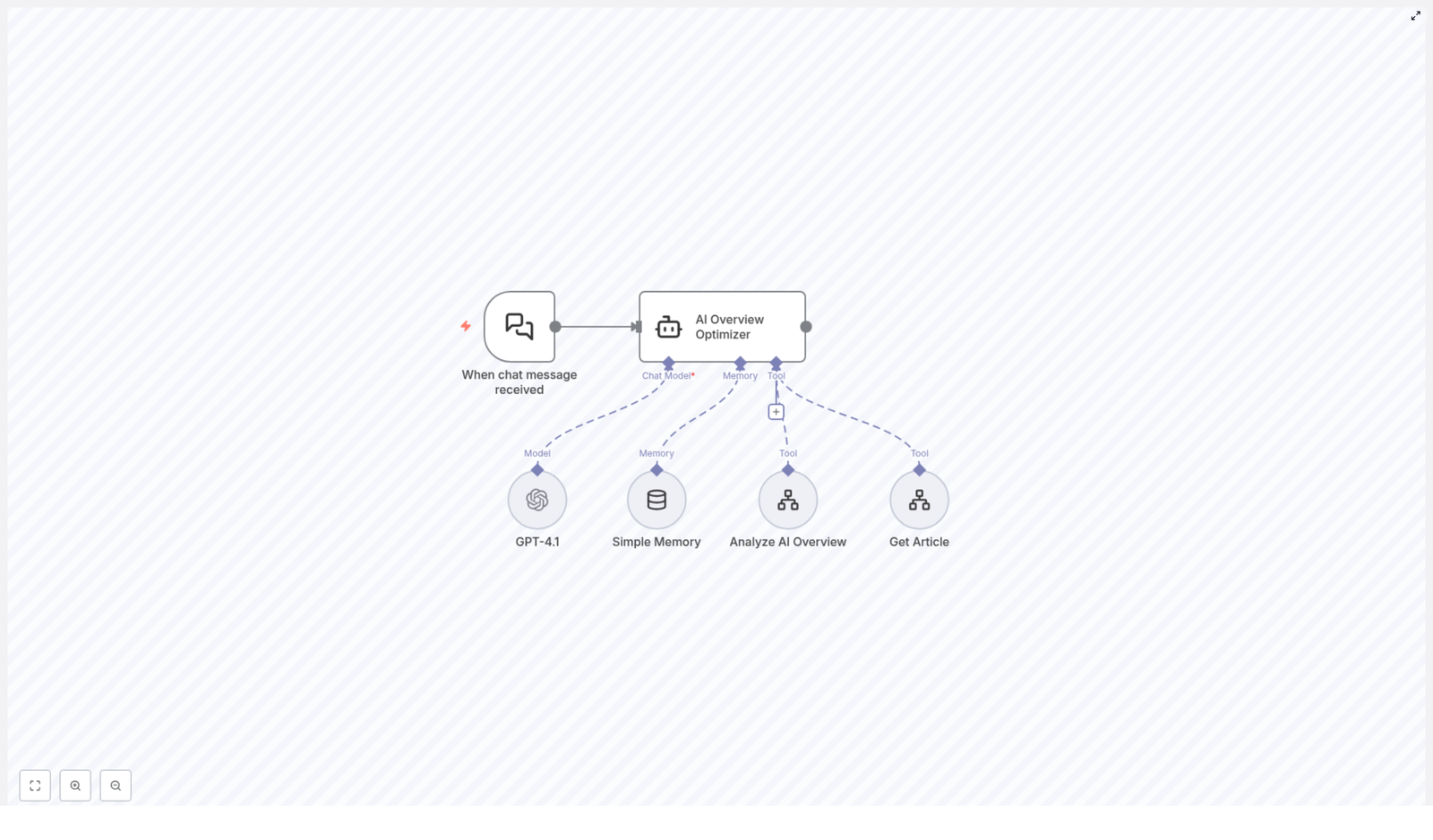
  • When chat message received
    This is the trigger node. Whenever a new user message comes in (typically with a search query and article URL), the workflow wakes up and gets to work.
  • AI Overview Optimizer
    This is the main agent, powered by GPT-4.1. Think of it as your AI SEO strategist. It coordinates the tools, processes the data, and produces the final recommendations.
  • GPT-4.1
    The large language model that understands your inputs and generates human-like, detailed outputs. It is responsible for turning raw data into a clear, structured SEO improvement report.
  • Simple Memory
    A memory component that keeps track of the conversation context. This helps with multi-turn chats so the optimizer does not forget what you just said two messages ago.
  • Analyze AI Overview Tool
    This tool fetches and analyzes Google’s AI Overview results for the query, country, and language you specify. It essentially figures out what kind of content structure, topics, and semantics Google’s AI is rewarding for that search.
  • Get Article Tool
    This one scrapes the article from the URL you provide. It extracts the key content elements so the workflow can see what is already on your page and what might be missing.

How The Workflow Runs (Without You Lifting A Finger)

Step 1 – The Conversation Starts

You send a message through the chat interface. Typically, this includes:

  • Your target search query.
  • The URL of the article you want to optimize.

The When chat message received node triggers the workflow and passes this information to the AI Overview Optimizer agent.

Step 2 – Studying Google’s AI Overview

The agent first calls the Analyze AI Overview Tool. This tool:

  • Looks up Google’s AI Overview for your query.
  • Uses the specified country and language to localize the results.
  • Extracts what the AI Overview is highlighting, including structure, topics, and key entities.

This gives the workflow a benchmark of what “ideal” content looks like in the eyes of Google’s AI for that specific query.

Step 3 – Auditing Your Article

Next, the agent uses the Get Article Tool to scrape your article content from the URL you provided. It retrieves the main sections and key elements of your page so the workflow can understand:

  • How your article is structured.
  • What topics you cover.
  • What might be missing or underdeveloped.

Step 4 – GPT-4.1 Puts It All Together

Now the fun part. The AI Overview Optimizer agent feeds both data sets into GPT-4.1, with Simple Memory keeping the conversation context intact.

GPT-4.1 compares:

  • The AI Overview benchmark from Google’s AI.
  • Your current article content.

From there, it generates a detailed SEO Improvement Report that includes:

  • Suggested improvements for your title and meta description.
  • Missing content categories, topics, and entities to add.
  • Recommendations for deepening your content where it is too shallow.
  • Guidance on aligning your structure and semantics with what AI Overview favors.

Why This Workflow Is Worth Using

Key Benefits Of The AI Overview Optimizer

  • Data-driven SEO
    Recommendations are based on insights from Google’s AI Overview, not just guesswork or generic best practices.
  • Automated analysis
    No more manually comparing SERPs, AI Overviews, and your article line by line. The workflow does the heavy lifting for you.
  • Better ranking potential
    By aligning your content with the structure and topics Google’s AI is already surfacing, you increase your chances of ranking higher and faster.
  • Clear, actionable steps
    You get a structured report with concrete actions instead of vague advice like “write better content.”

In other words, this workflow is built to remove the guesswork and repetitive grind from SEO content optimization, while still keeping you in control of the final edits.

Quick Setup & Usage Guide

1. Open The Template

Start by loading the AI Overview Optimizer workflow template in n8n.

2. Configure Any Required Credentials

Make sure your environment is set up to use GPT-4.1 and the tools in the workflow. Check that any needed API keys or integrations are correctly configured in n8n so the AI Overview Optimizer agent can call:

  • GPT-4.1
  • Analyze AI Overview Tool
  • Get Article Tool

3. Trigger The Workflow Via Chat

Use the chat interface connected to this workflow. In your message, include:

  • The search query you are targeting.
  • The URL of the article you want to optimize.

Once the When chat message received node picks up your message, the full optimization flow starts automatically.

4. Review Your SEO Improvement Report

When the workflow finishes, you receive a comprehensive SEO Improvement Report generated by GPT-4.1. This report will outline:

  • What your content is doing well.
  • Where it falls short compared to the AI Overview benchmark.
  • Specific edits and expansions you should make.

From there, you can update your article with confidence instead of just hoping your tweaks are enough.

Tips, Next Steps, And How To Get The Most Out Of It

Use It As A Regular SEO Checkup

Run this workflow whenever you publish a new article or significantly update an existing one. Search expectations change, and AI Overview results evolve, so regular checkups help keep your content aligned.

Combine With Your Own Expertise

The workflow gives you a data-backed roadmap, but you still bring the brand voice, nuance, and real-world experience. Use the recommendations as a strong starting point, then tailor them to match your audience and style.

Iterate On High-Value Pages First

Start by optimizing pages that matter most, like revenue-driving posts, landing pages, or cornerstone articles. The improvements suggested by the workflow can have a bigger impact there.

Wrapping Up

The AI Overview Optimizer workflow is a smart, automated way to align your content with what Google’s AI Overview is already prioritizing. By benchmarking against AI Overview, then auditing your article with GPT-4.1 and contextual memory, it delivers a targeted SEO improvement plan that helps your pages rank faster and perform better.

Instead of endlessly tweaking headings and hoping for the best, you can let this n8n template handle the analysis while you focus on writing content worth reading.

Ready to try it? Feed your query and article URL into the chat interface and let the workflow generate a detailed SEO improvement report for you.
Automate Spotify Liked Songs Sync to Playlist

Automate Spotify Liked Songs Sync to Playlist

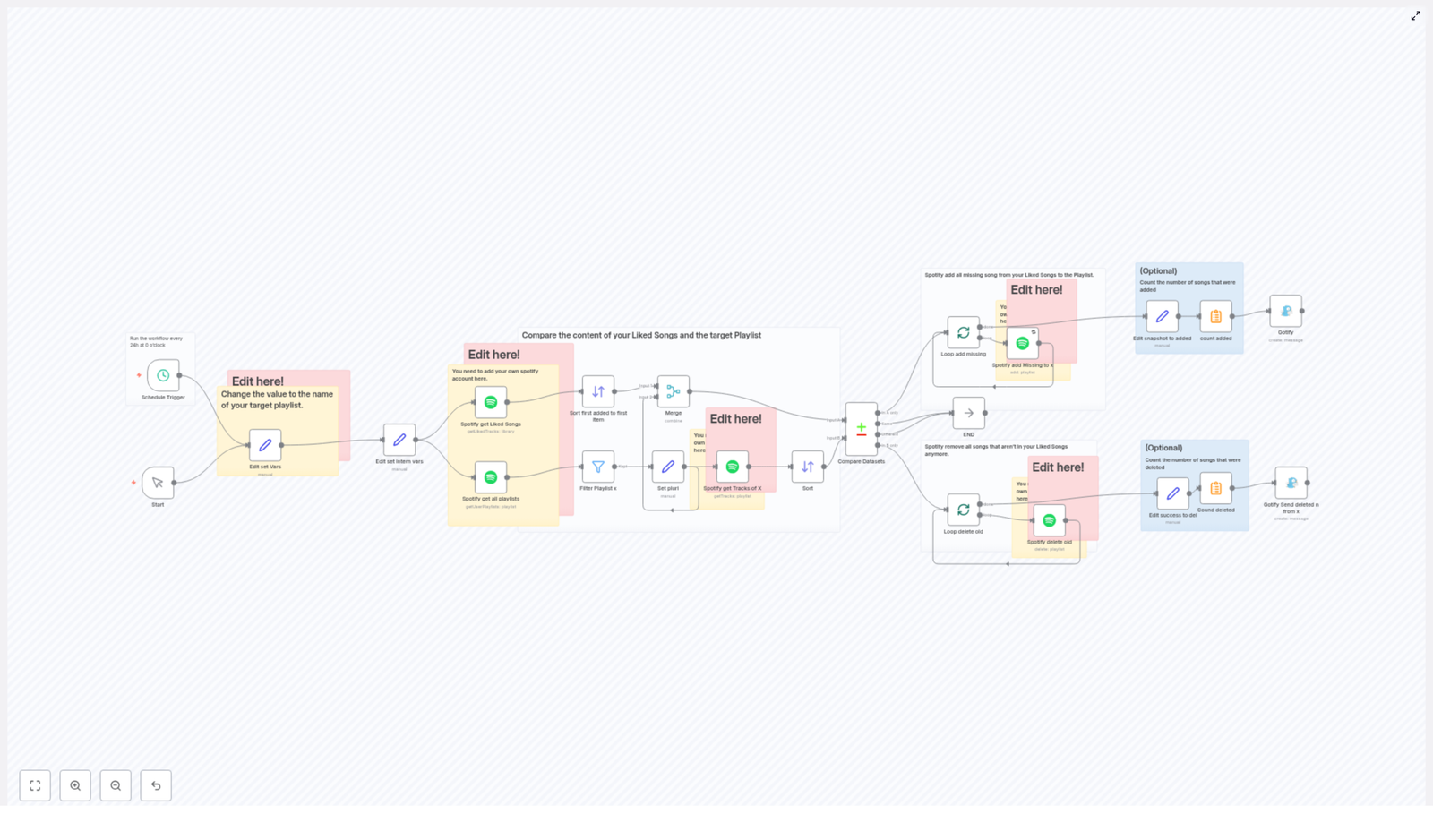
Ever find yourself liking songs on Spotify all the time, but forgetting to add them to your favorite playlist? Then a few weeks later, that playlist no longer reflects what you actually listen to. Frustrating, right?

This is exactly the kind of small but annoying problem that automation solves beautifully. In this guide, we will walk through an n8n workflow template that automatically syncs your Spotify Liked Songs to a specific playlist, keeps it clean, and updates it on a schedule you choose.

We will keep all the technical bits accurate, but explain them in a casual, friendly way so you know exactly what is going on and why it makes your life easier.

What This n8n Workflow Actually Does

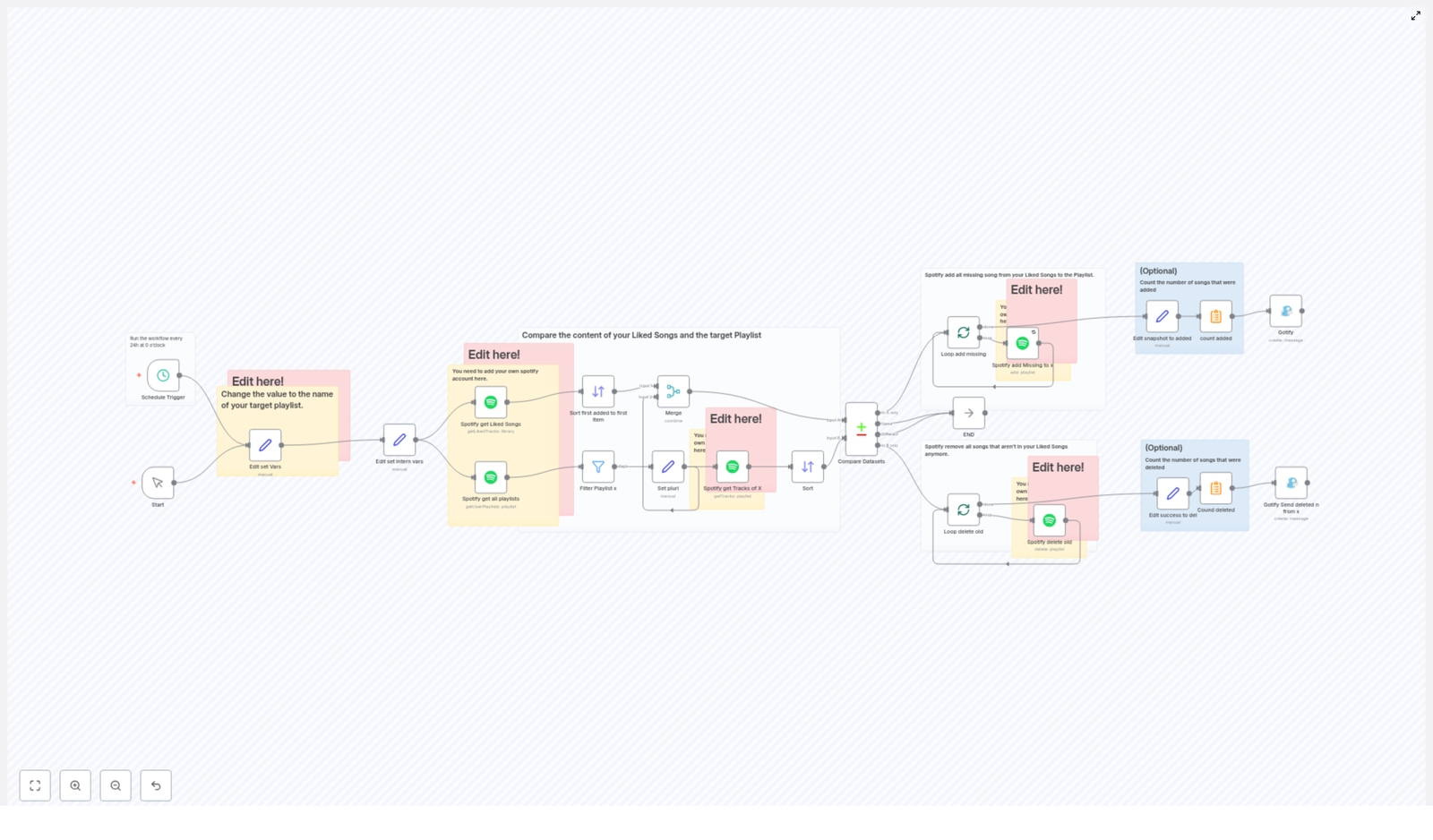
Let us start with the big picture. This n8n workflow connects to your Spotify account and regularly compares two things:

  • Your Spotify Liked Songs
  • A specific playlist that you choose

Every time it runs, it checks for differences and syncs them so the playlist always mirrors your current likes. It does two main jobs for you:

  • Adds songs that you have liked but are not yet in the playlist.
  • Removes songs from the playlist that you have unliked or removed from your Liked Songs.

The workflow is designed to run automatically every 24 hours by default, so your playlist quietly updates in the background. No more dragging tracks around manually or wondering why your “favorites” playlist feels out of date.

When Should You Use This Template?

This workflow is perfect if you:

  • Use Liked Songs as your main way of saving music, but still want a curated playlist that stays in sync.
  • Have a “Favorites”, “Daily Mix”, or “Main Library” playlist you want to always match your current likes.
  • Are tired of manually adding and removing songs from playlists.
  • Want a low-maintenance, set-it-and-forget-it system for playlist management.

If you are already using n8n or looking for a practical first automation to try, this is a great starting point.

How the Workflow Works Behind the Scenes

Let us break down how the template operates from start to finish. You do not need to be an expert to follow this, but it helps to know what each part does so you can customize it later.

1. Scheduled Sync With the Schedule Trigger

The whole process kicks off with a Schedule Trigger node. In the template, it is set to run automatically once a day at midnight.

What this means for you:

  • No manual button pressing.
  • Your playlist updates every 24 hours by default.
  • You can change the timing if daily is not your style.

You can adjust this schedule to run more or less often, depending on how frequently you add new music.

2. Telling the Workflow Which Playlist to Sync

Next up is a Set node that defines a variable called varplaylistto. This is simply the name of the playlist you want to keep in sync with your Liked Songs.

In this node, you:

  • Open the Set node labeled something like “Edit set Vars”.
  • Find the variable varplaylistto.
  • Replace its value with the exact name of your target playlist.

That is how the workflow knows which playlist to read from and update. If you ever want to sync a different playlist, just change this value.

3. Connecting Your Spotify Account

For n8n to read and update your Spotify data, you need to connect your Spotify account in a few nodes. The template uses multiple Spotify nodes, each with a specific job:

  • Spotify get Liked Songs – pulls all the tracks from your Liked Songs library.
  • Spotify get all playlists – fetches all your playlists so the workflow can find the one that matches varplaylistto.
  • Spotify get Tracks of X – retrieves all the tracks currently in the target playlist for comparison.
  • Spotify add Missing to x – adds any liked songs that are not yet in the playlist.
  • Spotify delete old – removes tracks from the playlist that you have unliked or no longer have in Liked Songs.

In each of these nodes, make sure your Spotify credentials are set up correctly. Once that is done, the workflow can safely read and modify your playlists.

4. Sorting, Filtering, and Finding the Right Playlist

To avoid any confusion, the workflow does some sorting and filtering before comparing songs.

Here is what happens:

  • It sorts songs based on the date they were added, from oldest to newest.
  • It filters your playlists to find the one whose name matches the value of varplaylistto.

This makes sure that the comparison is done between the right playlist and the correct set of liked tracks. No accidental updates to the wrong playlist.

5. Comparing Liked Songs With the Playlist

The real magic happens in the Compare Datasets node. This is where the workflow figures out what needs to change.

It compares two lists:

  • All your Liked Songs.
  • All the tracks currently in your chosen playlist.

From that comparison, it identifies:

  • Which liked songs are missing from the playlist.
  • Which songs are in the playlist but no longer liked.

That gives the workflow a clear to-do list: add what is missing, remove what no longer belongs.

6. Updating the Playlist With Batch Loops

Once the workflow knows what needs to change, it updates the playlist in two separate passes:

  • Adding missing tracks: Any liked songs that are not yet in the playlist are added using a batch loop so the updates are handled in manageable chunks.
  • Removing old tracks: Any songs that are in the playlist but not in your Liked Songs anymore are removed, also via a batch loop.

Using batch loops helps the workflow handle larger playlists without hitting limits or timing out, and it keeps everything efficient.

7. Optional Notifications With Gotify

If you like a bit of feedback after automations run, the template includes optional Gotify nodes.

These can send you a short summary notification that includes:

  • How many songs were added.
  • How many songs were deleted.
  • How long the sync took.

This part is optional, so if you prefer silent automation, you can simply leave these nodes disabled or unconfigured.

How to Set It Up Step by Step

Let us quickly recap the setup in a more practical, checklist-style way.

Step 1 – Import the Template

Open n8n, import the Spotify Liked Songs to Playlist template, and make sure all nodes are visible and connected.

Step 2 – Configure the Schedule Trigger

  • Open the Schedule Trigger node.
  • Confirm it is set to run every 24 hours at midnight, or change the timing to whatever fits your listening habits.

Step 3 – Set Your Target Playlist Name

  • Open the Set node where varplaylistto is defined.
  • Replace the existing value with the exact name of your Spotify playlist.

Step 4 – Add Your Spotify Credentials

  • Open each Spotify-related node:
    • Spotify get Liked Songs
    • Spotify get all playlists
    • Spotify get Tracks of X
    • Spotify add Missing to x
    • Spotify delete old
  • Set or select your Spotify credentials in each node.

Step 5 – (Optional) Configure Gotify Notifications

  • If you use Gotify, open the notification nodes.
  • Enter your Gotify server details and configure the message content if needed.

Step 6 – Test the Workflow

  • Run the workflow manually once from n8n.
  • Check your target playlist in Spotify to confirm songs were added and removed correctly.

Step 7 – Enable the Workflow

  • Once you are happy with the test, activate the workflow.
  • From now on, it will run automatically on the schedule you defined.

Customization Tips and Ideas

You can keep things simple or tweak the workflow to fit your style. Here are a few easy customizations:

  • Edit the playlist name: In the “Edit set Vars” varplaylistto node, change the value to any playlist you want synced.
  • Change the sync frequency: Adjust the Schedule Trigger to run hourly, weekly, or at specific times of day.
  • Refine notifications: If using Gotify, customize the message text to show exactly the details you care about.
  • Experiment with different playlists: Duplicate the workflow and sync multiple playlists with different rules if you like.

Why This Automation Makes Your Life Easier

Instead of managing playlists by hand, you let automation do the boring part. You simply like the songs you enjoy, and the workflow quietly keeps your chosen playlist in sync.

The result:

  • Your playlist always reflects your current taste.
  • No more “I thought I added that track already” moments.
  • You save time and mental energy for actually enjoying the music.

Try the Template and Make Spotify Work for You

If you are ready to stop babysitting your playlists, this n8n workflow is an easy win. Set it up once, tweak it to your preferences, and let it handle the repetitive work in the background.

Give it a try, see how it feels to have your Liked Songs and playlist in perfect sync, and then build on it with more automations if you like.

Feel free to share how you are using it or what you would like to improve. Your feedback and ideas can inspire even better workflows.

Wrapping Up

This n8n workflow uses the Spotify API to keep your favorite music organized with almost no effort. Whether you stick with the default daily sync or adjust it to your own schedule, you stay in full control while automation does the heavy lifting.

Like your music, not manual playlist maintenance? Then this setup is for you.

Automate Spotify Liked Songs Sync to Playlist

Automate Spotify Liked Songs Sync to Playlist with n8n

What You Will Learn

In this tutorial-style guide, you will learn how to use an n8n workflow template to automatically sync your Spotify Liked Songs with a specific playlist. By the end, you will understand:

  • How the workflow runs on a schedule to keep your playlist updated
  • How n8n fetches your liked songs and playlists from Spotify
  • How the workflow compares two datasets to find songs to add or remove
  • How to customize the target playlist, schedule, and notifications

This guide is ideal if you want a hands-free way to keep a Spotify playlist perfectly aligned with your Liked Songs.

Concept Overview: How the Workflow Works

Before we jump into the step-by-step instructions, it helps to understand the main idea behind the automation.

Core Idea

The n8n workflow runs at a regular interval (for example, every night at midnight). Each run does the following:

  1. Retrieves your current Liked Songs from Spotify
  2. Retrieves your Spotify playlists and identifies the target playlist
  3. Fetches the tracks currently in that target playlist
  4. Compares the liked songs with the playlist tracks
  5. Adds any liked songs that are missing from the playlist
  6. Removes any songs from the playlist that you no longer like
  7. Optionally sends a notification summarizing what changed

In other words, the playlist becomes a live mirror of your Liked Songs, updated automatically.

Key Components in n8n

The workflow is built from several types of nodes in n8n:

  • Trigger node – starts the workflow on a schedule
  • Set / Variable nodes – store configuration values like playlist name and start time
  • Spotify nodes – interact with your Spotify account (fetch liked songs, playlists, and modify playlists)
  • Filter / Comparison nodes – select the right playlist and compare datasets
  • Loop / Operation nodes – add and remove tracks one by one
  • Optional notification nodes – send a summary via Gotify

Step-by-Step: Inside the n8n Workflow Template

Now let us walk through each part of the workflow in the order it executes, explaining what each node does and how they work together.

Step 1 – Schedule the Workflow

The workflow starts with a Schedule Trigger node.

  • What it does: Triggers the workflow automatically every 24 hours.
  • Configured time: 0 o’clock (midnight), so your playlist is refreshed once per day.

You can change this later if you want a different interval or time of day.

Step 2 – Define the Target Playlist Name

Next, a variable is used to tell the workflow which playlist to sync.

  • The workflow uses a variable called varplaylistto.
  • Your task: Set varplaylistto to the exact name of the Spotify playlist you want to keep in sync with your Liked Songs.

This is usually done in an "Edit set Vars" or similar Set node inside n8n.

Step 3 – Initialize Timing Variables

To track performance, the workflow initializes an internal variable, often named timestart.

  • Purpose: Store the start time of the workflow run.
  • Benefit: Can be used later to measure how long the workflow took to complete.

This step does not affect the logic of syncing but is useful for monitoring and optimization.

Step 4 – Connect to Spotify and Fetch Data

The next group of nodes communicates with your Spotify account.

4.1 Fetch Liked Songs

  • The workflow calls Spotify to retrieve all tracks you have liked.
  • This dataset represents the source of truth for what should be in your synced playlist.

4.2 Fetch User Playlists

  • Another Spotify node fetches all playlists in your account.
  • These results are used to find the specific playlist whose name matches varplaylistto.

Important: You must configure the Spotify nodes with your own Spotify account credentials in n8n so that the workflow can access your data. This is done by setting up a Spotify credential in n8n and selecting it in each Spotify node.

Step 5 – Filter to the Target Playlist

Once all playlists are fetched, the workflow needs to isolate the one you want to sync.

  • A filter step checks each playlist name against the varplaylistto variable.
  • Only the playlist whose name matches your target value continues through the workflow.

This gives the workflow a single, specific playlist to work with.

Step 6 – Get Tracks from the Target Playlist

With the target playlist identified, the workflow then:

  • Uses a Spotify node to retrieve all tracks currently in that playlist.
  • Stores this list so it can be compared to your Liked Songs.

At this point, the workflow has two main datasets:

  1. All your Liked Songs
  2. All tracks in the target playlist

Step 7 – Prepare, Sort, and Merge Data

Before comparing, the workflow prepares the data for accurate matching.

  • Both datasets are sorted, often by the date the songs were added.
  • The workflow may normalize or structure fields so that each track can be matched consistently, typically using identifiers like track IDs.
  • The data is then prepared for the Compare Datasets node, which expects a clear "left side" and "right side" to compare.

This preparation step ensures that the comparison results are reliable.

Step 8 – Compare Liked Songs with Playlist Tracks

The Compare Datasets node is the core logic that decides what to add or remove.

It checks:

  • Tracks in Liked Songs but not in the playlist – these are the songs that need to be added.
  • Tracks in the playlist but not in Liked Songs – these are the songs that should be deleted.

After this step, the workflow has two clean lists:

  1. Tracks to add to the playlist
  2. Tracks to remove from the playlist

Step 9 – Add Missing Songs to the Playlist

The workflow then processes the list of songs that are liked but not yet in the playlist.

  • It loops through each missing track.
  • For each track, a Spotify node calls the "add to playlist" API operation.
  • The track is added to the target playlist automatically.

This loop continues until all missing liked songs have been added to the playlist.

Step 10 – Remove Songs That Are No Longer Liked

Next, the workflow handles the opposite case: songs that are in the playlist but no longer liked.

  • It loops through every track in the "to delete" list.
  • For each one, a Spotify node calls the "delete from playlist" API operation.
  • The track is removed from the target playlist.

After this step, the playlist should match your current Liked Songs list.

Step 11 – Optional Notifications (Gotify)

Finally, the workflow can optionally send you a summary of what changed.

  • Internal nodes count how many tracks were added and how many were deleted.
  • A Gotify node can send a message that includes these counts.

This is useful if you want to keep an eye on the automation without opening n8n or Spotify every time.

How to Customize the n8n Spotify Sync Workflow

The template is ready to use, but you should adjust a few key settings to fit your needs.

1. Set Your Target Playlist Name

  • Open the "Edit set Vars" (or similar) node in n8n.
  • Find the variable varplaylistto.
  • Enter the exact name of the Spotify playlist you want to sync with your Liked Songs.

2. Add Your Spotify Credentials

  • In n8n, create or select a Spotify credential that connects to your account.
  • Open each Spotify node in the workflow.
  • Assign your Spotify credential under the account connection or authentication section.

Without this, the workflow cannot read your liked songs or modify your playlists.

3. Adjust the Schedule

  • Open the Schedule Trigger node.
  • Change the interval if you want the sync to run more or less frequently.
  • You can also change the time of day if midnight is not ideal for you.

For example, you might run it every 6 hours, once a week, or at a specific time each evening.

Why Automate Spotify Playlist Sync with n8n?

Using this n8n workflow template to sync Spotify Liked Songs to a playlist has several advantages:

  • Save time: No more manually adding every new liked song to your favorite playlist.
  • Always up to date: Your chosen playlist stays in sync with your Liked Songs without effort.
  • Full visibility: Optional notifications let you know how many songs were added or removed in each run.
  • Flexible automation: Because it runs in n8n, you can extend it with extra steps, such as logging changes or triggering other workflows.

Quick Recap

Here is a brief summary of what the workflow does:

  1. Runs on a schedule using a Schedule Trigger.
  2. Uses varplaylistto to identify your target playlist.
  3. Initializes timing variables like timestart for performance tracking.
  4. Fetches your Liked Songs and user playlists from Spotify.
  5. Filters playlists to find the one matching varplaylistto.
  6. Gets all tracks from the target playlist.
  7. Sorts and prepares data, then uses Compare Datasets to find:
    • Songs to add (liked but not in the playlist)
    • Songs to delete (in the playlist but not liked)
  8. Adds missing songs with Spotify "add to playlist" operations.
  9. Removes old songs with Spotify "delete from playlist" operations.
  10. Optionally sends Gotify notifications with counts of added and deleted tracks.

FAQ

Do I need coding skills to use this n8n template?

No, you do not need to write code. You mainly configure nodes, fill in variables like varplaylistto, and connect your Spotify credentials. The template handles the logic for you.

Can I sync to more than one playlist?

This particular template focuses on one target playlist defined by varplaylistto. To sync multiple playlists, you could duplicate and adapt the workflow or extend it to handle multiple target playlists, but that would require additional configuration.

Will this delete songs from my Liked Songs?

No. The workflow only adds to or removes from the target playlist. Your Liked Songs remain the master list and are not modified by this automation.

Can I change how often the playlist is updated?

Yes. Open the Schedule Trigger node in n8n and adjust the frequency and time according to your preference.

Start Using the Template

If you want to automate your Spotify playlist management with n8n, this template is a practical starting point. After a brief setup, you will have a fully automated system that keeps your playlist aligned with your Liked Songs, so you can focus on enjoying your music instead of maintaining it.

Give it a try in your n8n instance and feel free to customize it further for your own workflows.

Automate Calendly to Notion with n8n Workflow

Ever Copy-Pasted Calendly Invites Into Notion for the 47th Time?

If you have ever found yourself dragging Calendly details into Notion like a human copy-paste machine, this one is for you. Repetitive admin work is the villain of productivity, and yet it somehow keeps showing up on your calendar.

Enter n8n, your friendly automation sidekick. With a simple workflow, you can connect Calendly to Notion so that every new invitee magically appears in your Notion database as a shiny new page. No more manual entry, no more “I’ll update the CRM later” lies.

What This n8n Workflow Actually Does

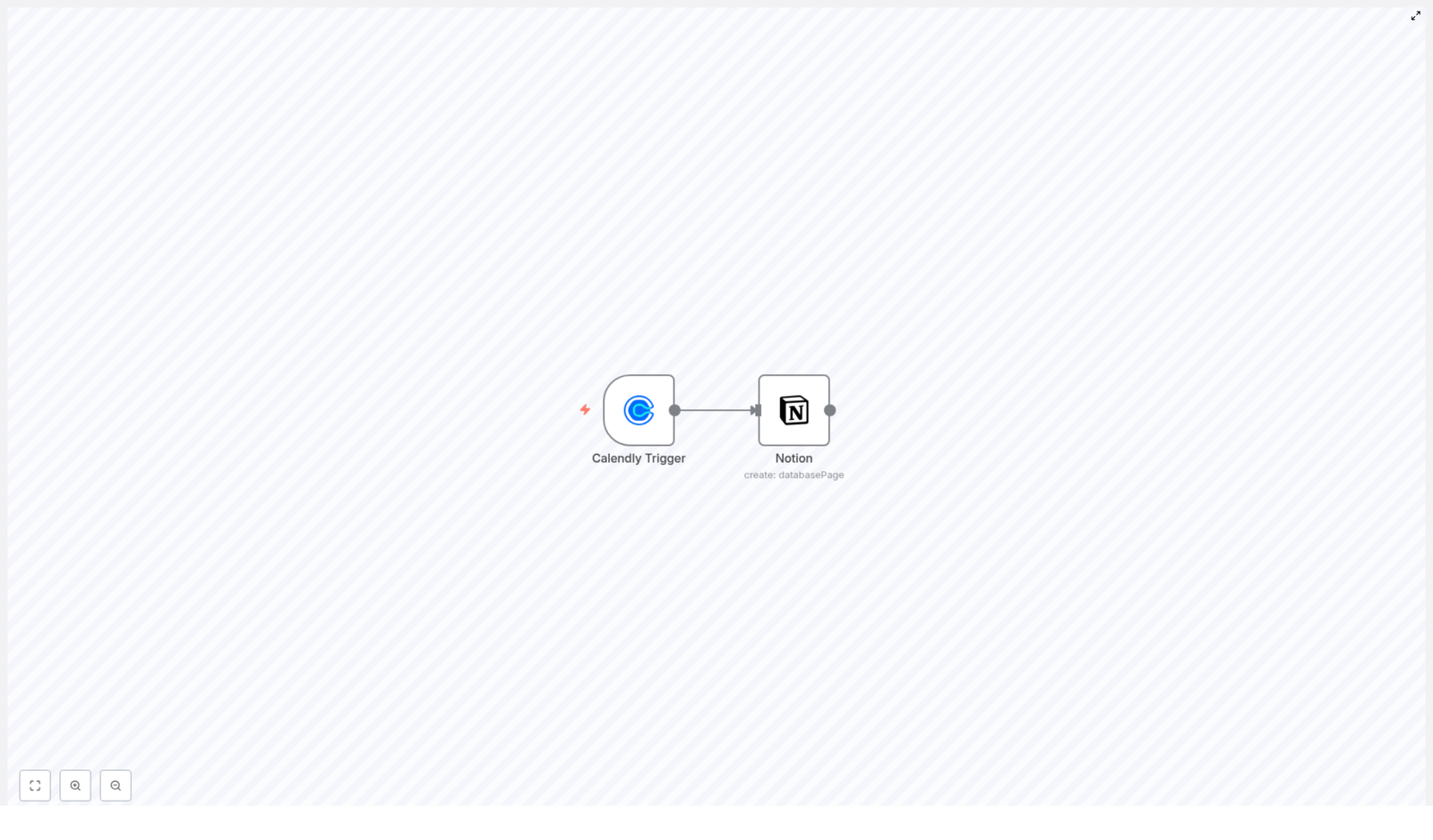
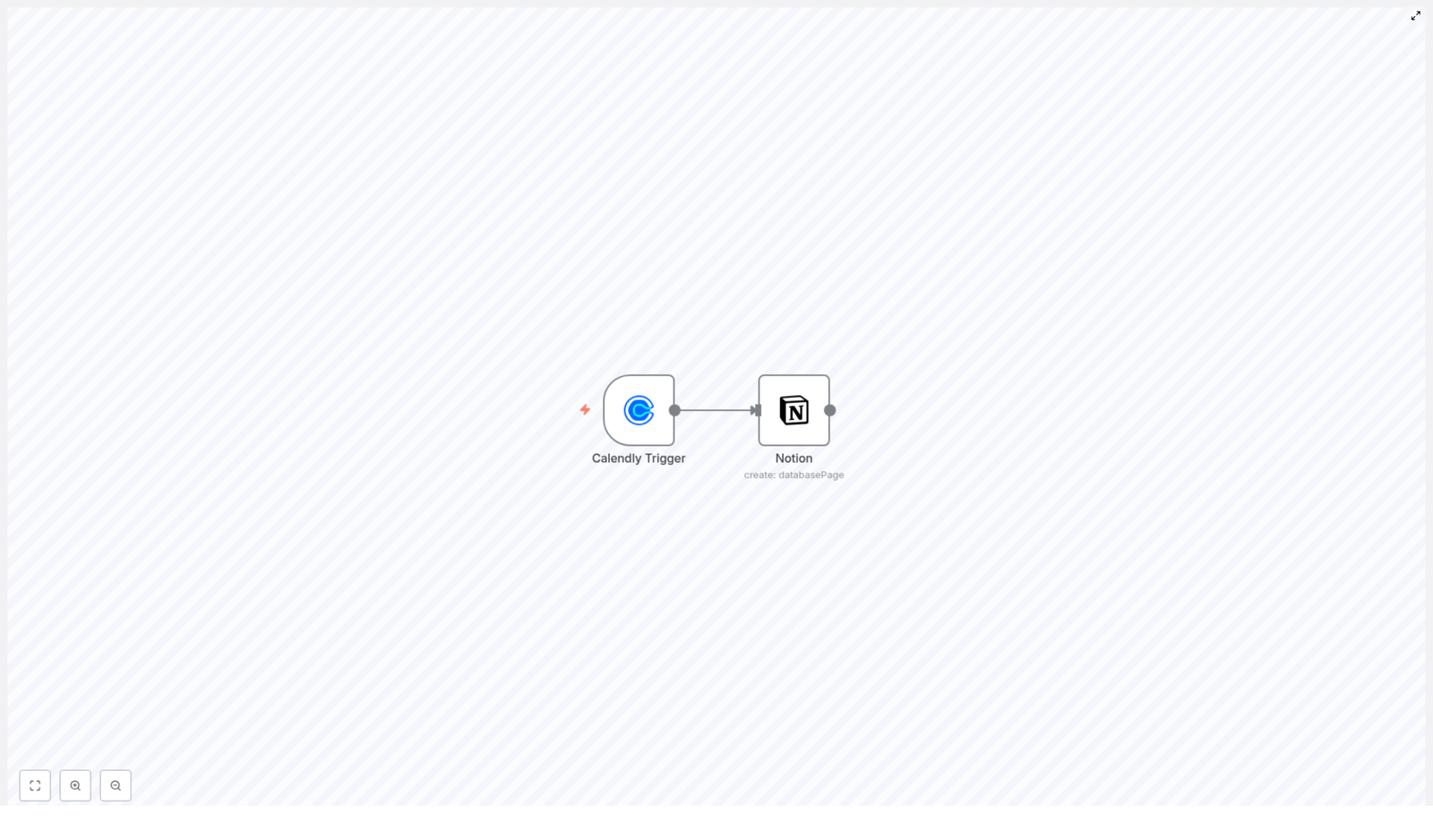
This workflow is all about turning scheduled meetings into structured data in Notion without you lifting a finger.

Here is the basic flow:

  • Calendly Trigger node listens for new invitees.
  • When someone books a meeting, Calendly sends their details to n8n.
  • Notion node takes that info and creates a new page in your chosen Notion database.

The result is a smooth pipeline from scheduling to documentation, so your Notion workspace becomes a simple CRM or meeting hub that stays up to date automatically.

Key Pieces of the Workflow

1. Calendly Trigger Node

Think of this as the watchful gatekeeper that jumps into action whenever a new person books time with you.

  • Purpose: Listen for new scheduling events from Calendly.
  • Event configuration:
    • events: ["invitee.created"] – this fires whenever a new invitee is created.
  • Authentication:
    • Uses your Calendly API credentials so n8n can securely talk to your Calendly account.

2. Notion Node

Once Calendly shouts “New invitee!”, the Notion node politely creates a new page for that person in your database.

  • Purpose: Create a new page in a Notion database with the invitee’s details.
  • Main configuration:
    • resource: databasePage – tells Notion we are working with database pages.
    • databaseId: Set this to the ID of the Notion database where you want your invitees stored.
    • propertiesUi.propertyValues: Map Calendly fields to Notion properties:
      • Name|title: Uses the invitee’s name as the Notion page title.
      • Email|email: Fills in the email property with the invitee’s email address.
      • Status|select: Sets a default status value using a select option ID, for example “New”, “Pending”, or whatever your system uses.
    • Requires Notion API credentials to authenticate and access your workspace.

Why Bother Automating Calendly to Notion?

Besides saving your sanity, this automation comes with some very practical benefits.

  • Time-saving: No more manually creating Notion pages for every meeting. The workflow tracks appointments for you, every time a Calendly invitee is created.
  • Centralized information: All invitee details live in one Notion database, ready for follow-ups, notes, and action items.
  • Better organization: Use Notion’s filters, sorts, relations, and views to turn raw meeting data into an actual system instead of a pile of scattered notes.

Quick Setup Guide: From Zero to Automated in a Few Steps

Let’s walk through how to get this n8n Calendly to Notion workflow running. You only have to do this once, then automation does the boring part forever.

Step 1 – Create Calendly API Credentials

First, give n8n a way to talk to Calendly.

  • In your Calendly account, generate an API key.
  • Keep it handy, you will plug it into n8n as your Calendly API credentials.

Step 2 – Set Up Notion API Access

Next, allow n8n to create pages in your Notion workspace.

  • Create a Notion integration with permissions to access and modify the target database.
  • Connect that integration to your database in Notion so it can read and write data.

Step 3 – Build Your Notion Database

Now prepare the place where all your invitees will live.

  • Create a Notion database (table, board, or list view is fine).
  • Add these properties:
    • Name – type: title
    • Email – type: email
    • Status – type: select (for example “New”, “Contacted”, “Completed”).
  • Copy the database ID, you will use it in the Notion node configuration.

Step 4 – Import the n8n Workflow Template

Instead of building everything from scratch, use the ready-made workflow template.

  • In n8n, import the provided workflow JSON.
  • This will create a workflow with the Calendly Trigger node and the Notion node already in place.

Step 5 – Add Your Credentials in n8n

Now connect all the dots.

  • In n8n, configure your Calendly API credentials using the API key you created earlier.
  • Set up your Notion API credentials with the integration token.
  • Optionally, use environment variables for API keys if you prefer a cleaner and more secure setup.

Step 6 – Configure the Notion Node

Double check that the data from Calendly lands in the right place in Notion.

  • Set resource to databasePage.
  • Paste your databaseId from Notion.
  • Map the properties:
    • Name|title → invitee’s name.
    • Email|email → invitee’s email.
    • Status|select → default status (using the correct select option ID).

Step 7 – Activate and Test the Workflow

Time for the fun part.

  • Turn the workflow on in n8n.
  • Book a test meeting in Calendly using a different email address.
  • Check your Notion database and confirm that a new page appears with the correct Name, Email, and Status.

If everything looks right, you have officially retired from manual invitee logging.

Ideas to Take This Automation Even Further

This Calendly to Notion workflow is a solid foundation, but you do not have to stop here.

  • Add more Calendly fields: Map extra invitee details into additional Notion properties, such as event type, time, or custom questions.
  • Trigger notifications: After creating the Notion page, add another node to send yourself an email or Slack message when a new invitee is added.
  • Connect other tools: Use the same workflow to sync data with other apps in your stack, or chain it into larger automations.

Start Automating Your Scheduling Workflow

This n8n workflow template makes it easy to integrate Calendly with Notion so your scheduling and productivity systems stay in sync without extra effort. Once it is running, every new invitee becomes a neatly structured entry in Notion, ready for tracking, follow-up, and whatever workflows you build on top.

If you are ready to stop manually copying data and let automation do the boring work, try the template, customize it to your setup, and enjoy the extra free time.

Ready to build your automated Calendly to Notion workflow? Grab the n8n template below and make repetitive data entry a thing of the past.

Automate Notion Entries from Calendly with N8N

Automate Notion Entries from Calendly with n8n

Why bother automating Calendly to Notion in the first place?

You know that feeling when someone books a call with you and you think, “I’ll add their details to Notion later,” and then… you never do? Or you copy-paste the same info over and over again? That’s exactly the kind of tiny but constant task that slowly drains your time and attention.

This workflow template fixes that. Every time an invitee schedules a meeting in Calendly, n8n automatically creates a matching entry in your Notion database. No manual data entry, no missed leads, no “I swear I wrote that down somewhere.”

In this guide, we’ll walk through what the template does, when you’ll actually want to use it, and how to set it up step by step inside n8n.

What this n8n workflow template actually does

Let’s start with the big picture. This automation is very simple, but very effective:

  • Trigger: A new Calendly invitee is created (invitee.created event).
  • Action: A new page is added to a specific Notion database with that invitee’s details.

So every time someone books via your Calendly link, you instantly get a new row or page in Notion with their name, email, and a status you define. You can treat that Notion database as your lightweight CRM, a client list, a sales pipeline, or a meeting notes tracker.

When this workflow is a perfect fit

This template is ideal if:

  • You use Calendly for scheduling calls, demos, interviews, or coaching sessions.
  • You keep track of contacts, leads, or meetings inside a Notion database.
  • You want invitees to appear in Notion automatically without copying data by hand.
  • You prefer to keep everything centralized in Notion for follow-ups, notes, and status updates.

If that sounds like your setup, this n8n workflow will quietly keep everything in sync for you in the background.

How the automation is structured in n8n

The workflow uses just two nodes, which keeps things easy to understand and maintain:

  1. Calendly Trigger node – listens for new invitees created in your Calendly account.
  2. Notion node – creates a new page in your chosen Notion database using the invitee data.

Once connected, the Calendly trigger sends the invitee information directly into the Notion node, which then writes it into your database.

Step 1 – Configure the Calendly Trigger node

We’ll start with the part that listens for new bookings. In n8n, add a Calendly Trigger node to your workflow. This node is responsible for reacting whenever someone books an appointment with you.

Here’s what you need to set up inside the node:

  • Event: Choose invitee.created.
    This tells n8n to run the workflow every time a new invitee is created in Calendly, which basically means whenever someone finishes booking a time with you.
  • Credentials: Connect your Calendly API credentials.
    Make sure you use valid Calendly API keys so n8n can securely listen to events from your account.

Once this node is configured, n8n will be ready to pick up every new booking automatically.

Step 2 – Set up the Notion node to create database pages

Next up is telling n8n what to do with the Calendly data. That’s where the Notion node comes in. This node will create a new page in your chosen Notion database whenever the Calendly trigger fires.

Basic configuration

  • Resource: Set this to databasePage.
    This tells n8n that you want to create a new page inside a Notion database, not just a standalone page.
  • Database ID: Paste the ID of the Notion database where you want the entries to go.
    This is your main “destination” for all new invitee records.
  • Credentials: Connect your Notion API credentials.
    Make sure your integration has access to the specific database you plan to use.

Map Calendly invitee data to Notion properties

Now for the fun part: mapping the data. You want the information from Calendly to land in the right columns or properties in Notion. In the Notion node, configure the properties so they pull values from the Calendly trigger payload:

  • Name: Map this to the invitee’s name from Calendly.
  • Email: Map this to the invitee’s email address.
  • Status: Set a default select status using the status identifier in your Notion database.
    For example, you might use something like “New,” “Scheduled,” or “Pending follow-up” as the default.

This mapping makes sure each new Notion page is properly structured and ready for you to work with, instead of just being a blank page with random text.

Step 3 – Connect the nodes so data flows automatically

With both nodes configured, you just need to connect them inside n8n:

  • Link the output of the Calendly Trigger node to the input of the Notion node.

That connection tells n8n: “Whenever a new invitee is created in Calendly, send their data over here and create a Notion page from it.” Once you save and activate the workflow, your automation is live.

Why this simple automation makes life easier

It might look like a small workflow, but it solves a very real daily annoyance. Here is what you gain once it is running:

  • No more manual data entry Every new Calendly booking instantly appears in Notion. You do not have to copy names and emails into your database ever again.
  • An always up to date Notion CRM or meeting tracker If you use Notion as a CRM, lead tracker, or meeting log, this workflow keeps it current without you touching it.
  • Lower risk of missing opportunities Since every invitee is automatically logged, you are far less likely to forget a follow-up or lose track of who booked what and when.

In short, n8n handles the repetitive part so you can focus on the conversation with the person who booked, not the admin around it.

Wrapping up

By connecting Calendly and Notion through n8n, you get a lightweight but powerful automation that quietly keeps your records clean and organized. It is easy to customize, so you can extend it later with more fields, additional steps, or extra tools if you want to build a more advanced workflow around your meetings.

Ready to try it yourself?

If you are using Calendly and Notion already, this is one of those “set it up once and forget about it” automations that pays off every single day. Connect your accounts, follow the steps above in n8n, and let the workflow take over the busywork.

Want to skip the manual setup and start faster? Use the ready made template below and tweak it to fit your own Notion database and Calendly setup.

Automated Faceless AI Videos Workflow Explained

Automated Faceless AI Videos Workflow Explained

Why this n8n workflow is a game changer

Imagine waking up, checking your phone, and seeing fresh short-form videos already posted to your socials… that you didn’t have to write, edit, or upload yourself. That’s exactly what this Automated Faceless AI Videos workflow in n8n is built to do.

It pulls together AI brainstorming, scriptwriting, video generation, and automatic publishing through the Blotato API, so you can consistently push out viral-style faceless videos across multiple platforms with almost no manual effort.

If you’re trying to grow on Instagram, Facebook, LinkedIn, Threads, or other platforms, but content creation keeps eating your time, this workflow lets you hand off the repetitive parts to automation and focus on strategy instead.

What this workflow actually does

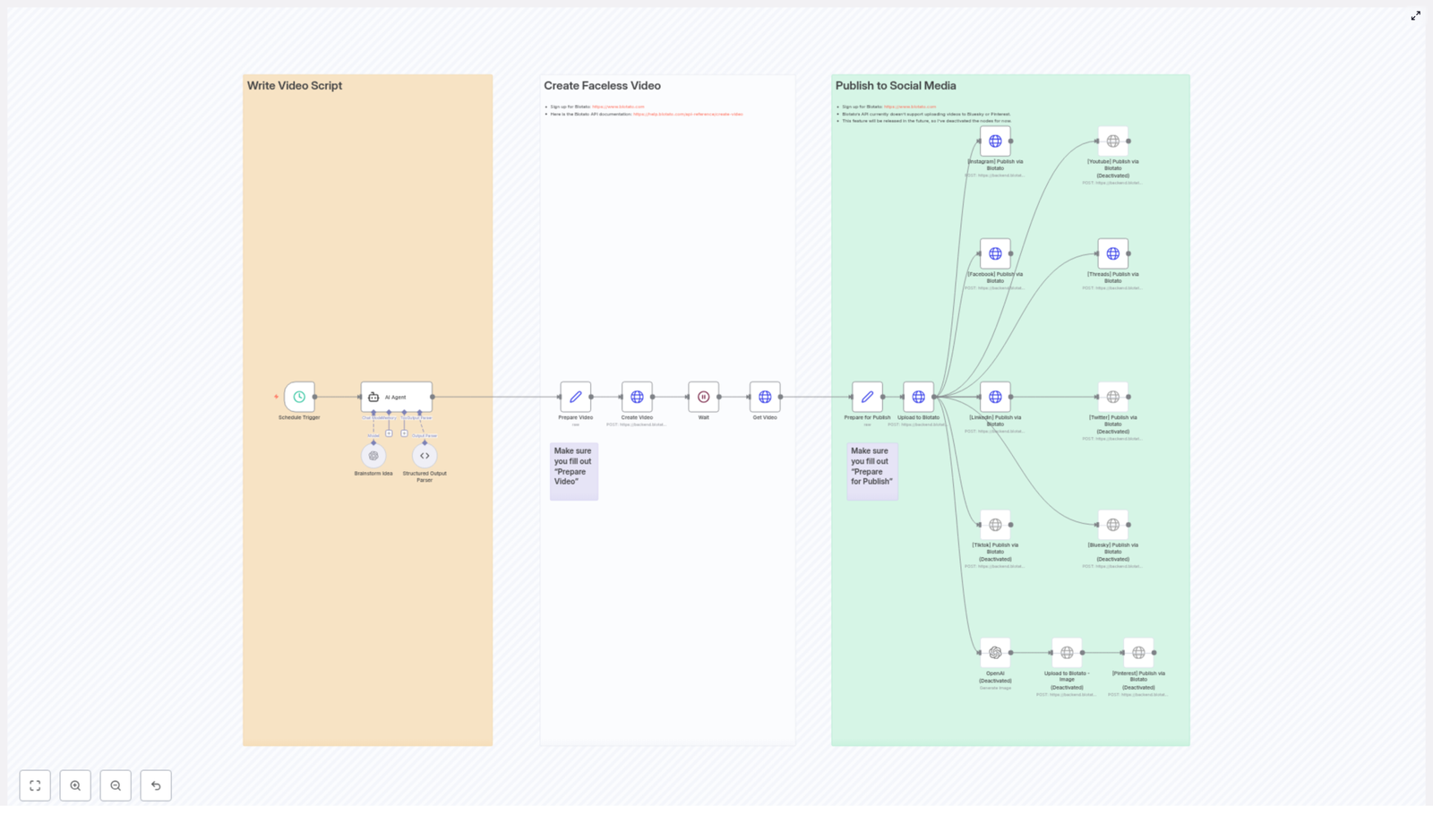
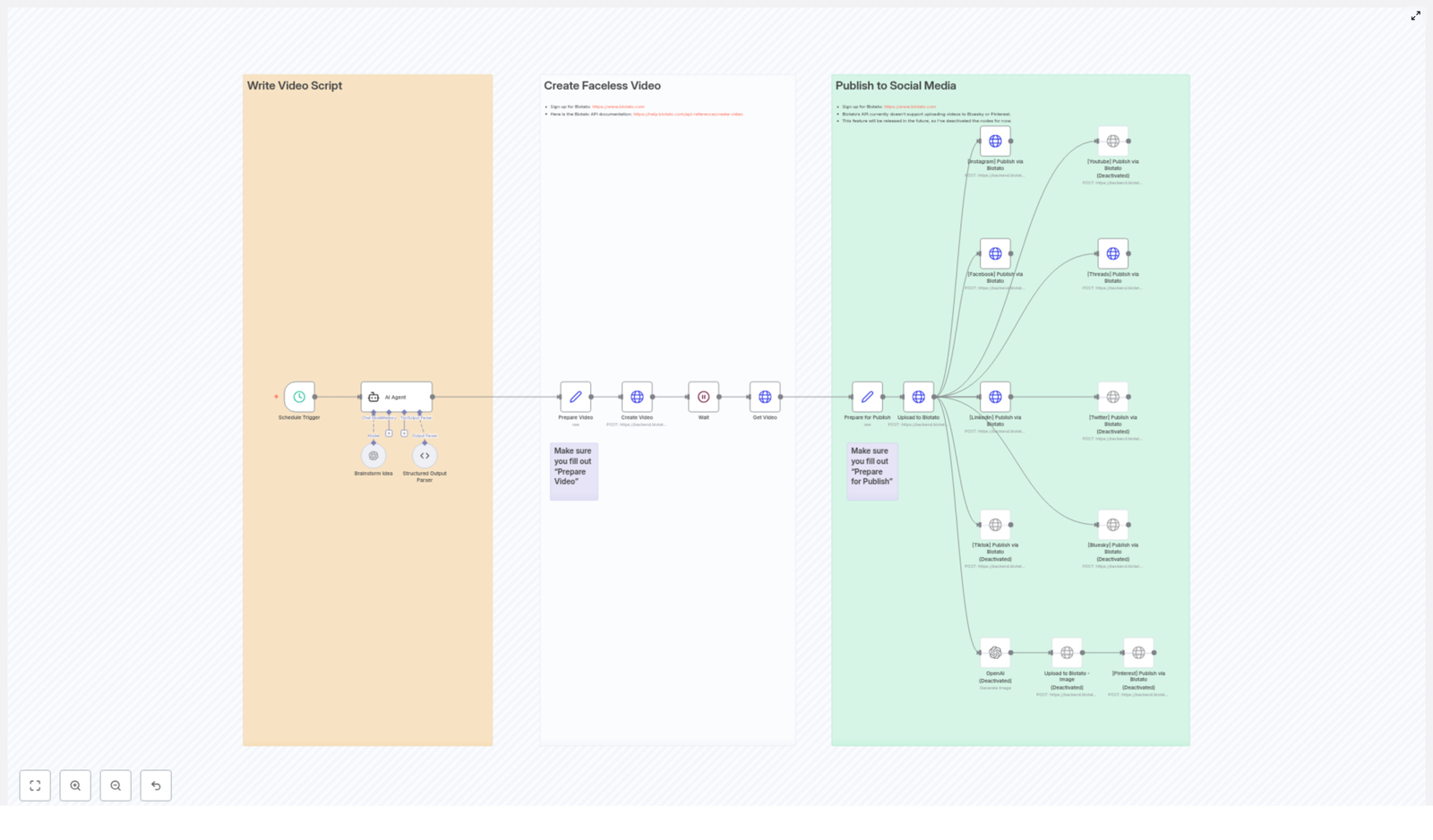
At a high level, the workflow moves through three big stages:

  • Brainstorms and writes a short video script using GPT-4o
  • Creates a faceless video using Blotato with your chosen style and voice
  • Publishes the video to your connected social media accounts automatically

All of that runs on a schedule you define, so you can have new videos going out every day, a few times a week, or whatever rhythm fits your content plan.

When should you use this template?

This n8n template is perfect if you:

  • Want to post short, faceless AI videos without being on camera
  • Need a repeatable content engine that runs on autopilot
  • Like the idea of testing viral-style hooks and ideas at scale
  • Are already using or open to using Blotato for video generation

If you enjoy being in front of the camera and editing everything manually, you might not need this. But if you’re thinking, “I just want regular, quality content going out without babysitting the process,” then this workflow will feel like a huge relief.

Step 1 – Automated scriptwriting with GPT-4o

The first part of the workflow focuses on coming up with the idea and writing the script for your faceless video.

Schedule Trigger

Everything starts with a Schedule Trigger. You set this to run at a specific time, for example, every day at 10 AM. Once that time hits, n8n wakes up the workflow and kicks things off automatically.

Brainstorm Idea

Next, the workflow uses the GPT-4o language model to brainstorm a batch of potential video ideas. By default, it can generate 50 viral faceless video ideas around a theme you define, such as:

“Little known history facts about [famous person]”

You can tweak that theme to match your niche, whether it’s finance tips, productivity hacks, relationship advice, or anything else your audience loves.

AI Agent

Once those 50 ideas are generated, the AI Agent steps in. It:

  • Randomly selects one idea from the list so each run feels fresh and unpredictable
  • Researches relevant facts and statistics related to that idea
  • Writes a short script for a roughly 15-second video with a strong hook at the beginning
  • Creates a short 2-sentence caption that includes the hashtag #ai

The result is a tight, punchy script that is ideal for Reels, Shorts, and other vertical short-form content.

Structured Output Parser

To keep everything clean and predictable for the rest of the workflow, a Structured Output Parser checks that the AI Agent returns data in proper JSON format. It makes sure the required fields are there, typically:

  • script – the spoken text for the video
  • caption – the short text that will be posted with the video

This step is what lets the next nodes plug that content straight into video creation without you having to manually copy and paste anything.

Step 2 – Turn the script into a faceless video

Once the script and caption are ready, the workflow moves into production mode and uses Blotato to create the actual video.

Prepare Video Node

The Prepare Video node is where you define how your video should look and sound. Here you can configure things like:

  • Which Blotato template to use
  • The voice that reads the script
  • Caption position on screen
  • Visual style and animation preferences

This node also injects the script and caption generated by the AI Agent so the video content matches what was just written.

Create Video Node

With everything prepared, the workflow sends a POST request to the Blotato API using the Create Video node. This tells Blotato to:

  • Use your chosen template and settings
  • Render the video based on the script
  • Apply your selected style, voice, and animations

At this point, Blotato starts generating the video in the background.

Wait Node

Video rendering is not instant, so the workflow includes a Wait node. This simply pauses the workflow for a short period so Blotato has time to process and render the video. Without this delay, the next step might try to fetch the video before it is ready.

Get Video Node

After the wait period, the Get Video node checks in with the Blotato API to retrieve the final result. When the video is finished, this node pulls back the video URL that will be used for hosting and publishing.

Step 3 – Publish to social media automatically

Once the video URL is available, the workflow shifts to distribution and handles publishing across your chosen platforms.

Prepare for Publish

The Prepare for Publish node gathers everything needed for posting, including:

  • Your social media account IDs
  • The final video URL
  • Both long and short versions of the caption if you are using different formats per platform

This is also where you make sure your configuration is correct so each platform knows which account to post to.

Upload to Blotato

Next, the workflow uses an Upload to Blotato step to host the created video. The video URL from the previous node is uploaded to Blotato, which then serves as the media hosting location for the social posts.

Social Media Publishing Nodes

Finally, the workflow uses specific social media publishing nodes to push the video live. It can automatically publish your content, along with the caption, to platforms such as:

  • Instagram
  • Facebook
  • LinkedIn
  • Threads
  • Optionally TikTok, YouTube, Twitter, Bluesky (some of these may be deactivated depending on current API support)

Once set up, this means your video goes from idea to live post across multiple platforms without you logging into each account separately.

Image Generation Nodes (currently deactivated)

The template also includes Image Generation nodes that can:

  • Create images from text
  • Upload those images to Pinterest

Right now, these nodes are disabled, but they are there if you want to experiment later or expand beyond video content once relevant support is available.

Important setup details you should not skip

Before you hit run and expect magic, there are a couple of critical configuration steps:

  • You must add your Blotato API key in the relevant node so the workflow can talk to Blotato.
  • Your social media account IDs need to be correctly set inside the “Prepare for Publish” node. Without these, the workflow will not know where to post.
  • Some platform integrations are currently disabled while they wait for stable API support. You can enable or adjust these as the APIs evolve.

The template also uses sticky notes inside the workflow as visual reminders so you do not miss key configuration steps, especially in:

  • “Prepare Video”
  • “Prepare for Publish”

Make sure to review and complete those nodes before running the workflow in production.

Why this workflow makes your life easier

Instead of spending hours every week brainstorming ideas, writing scripts, creating videos, and uploading them one by one, this n8n workflow turns the whole process into a hands-off system.

It helps you:

  • Scale your content output without burning out
  • Stay consistent across multiple platforms
  • Experiment with viral-style faceless content using AI
  • Free up time for strategy, engagement, and higher-level creative work

If you have been wanting to show up more often online but the manual work kept getting in the way, this is a practical way to let automation handle the heavy lifting.

Ready to try the Automated Faceless AI Videos template?

This workflow brings together scheduling, GPT-4o scriptwriting, Blotato video generation, and multi-platform publishing in one smooth pipeline. Once configured, it quietly works in the background, helping you grow your audience with regular, engaging faceless AI videos.

Set it up once, let it run, and watch your social presence scale with far less effort.

Automated Faceless AI Video Workflow Explained

Automated Faceless AI Video Workflow Explained – As a Real Story

The Marketer Who Could Not Be Everywhere At Once

On a quiet Tuesday night, Mia stared at her content calendar and felt that familiar knot in her stomach. She was a solo marketer for a fast-growing personal brand, and her founder wanted one thing:

“Short, viral faceless videos on every platform, every day.”

Instagram, Facebook, LinkedIn, Threads, TikTok, YouTube, Twitter, Pinterest – the list kept getting longer. Mia knew faceless AI videos were performing incredibly well, but creating them manually was a nightmare. She had to:

  • Brainstorm ideas that might actually go viral
  • Write scripts that fit 15 seconds without sounding robotic
  • Generate videos with a consistent style and voice
  • Upload and publish to every social media platform individually

By the time she finished one video, the day was gone. Consistency was slipping, and so was reach.

That night, while searching for a way to automate faceless AI video creation, she stumbled across an n8n workflow template built around Blotato’s API and AI agents. It promised something that sounded almost too good to be true:

From idea to published faceless AI video across multiple platforms, all on autopilot.

Discovering the n8n Faceless AI Video Template

Mia opened the n8n template, and at first glance, it looked like a colorful map of her dream workflow. The nodes were visually grouped and color-coded into three main sections:

  • Orange – Write Video Script
  • White – Create Faceless Video
  • Green – Publish to Social Media

Instead of a messy collection of automations, this template was built like a clear story of its own. It walked from brainstorming and scripting, to generating the video with Blotato’s API, then finally to publishing across social media.

For Mia, it felt like finding a production team hidden inside her browser.

Rising Pressure, Rising Automation

The next week was critical. Her founder had a campaign planned around “little known history facts about famous people.” They wanted daily short-form videos, all faceless, all on multiple platforms.

Mia decided to bet on the n8n workflow template.

Step 1 – Letting the Workflow Think for Her

The first thing she noticed was the scheduled trigger node.

Instead of manually starting anything, the workflow could be set to run at a specific time every day. Mia scheduled it for early morning, long before she even opened her laptop.

At the scheduled time, the workflow would wake up and move into the orange section: Write Video Script.

Step 2 – Brainstorming at Scale With an AI Agent

Inside the orange group, the magic began. The template used OpenAI’s GPT-4o model combined with an AI Agent to do exactly what Mia used to spend hours on.

The agent was configured to:

  • Generate 50 viral faceless video ideas around a themed topic, in this case: “Little known history facts about [famous person]”
  • Randomly select one of those ideas so every day felt fresh and unpredictable
  • Research relevant data about that idea
  • Write a concise 15-second video script and an accompanying caption

Instead of Mia sweating over ideas and word counts, the workflow handled it. On top of that, the template used structured output parsing so the AI’s response was clean, predictable, and ready for automation. No messy copy-paste, no manual formatting.

Step 3 – Getting Ready For Video Creation

Once the script and caption were generated, the workflow shifted toward production.

In the preparation step, the template bundled together:

  • The final script
  • Caption text
  • Voice settings
  • Style and animation preferences

All of this was packaged for Blotato’s video creation API. Mia only needed to configure these options once in the “Prepare Video” node. After that, every run would follow the same brand-consistent style.

The Turning Point – Letting Blotato Do the Heavy Lifting

The real turning point in Mia’s workflow came when she looked at the white section: Create Faceless Video.

Step 4 – Generating the Faceless Video With Blotato

The scripted content and settings were handed off to Blotato’s video creation API. Instead of Mia opening an editor, choosing assets, and aligning audio with visuals, the API handled everything autonomously.

The n8n workflow did not just send the request and hope for the best. It also:

  • Waited for Blotato to finish generating the video
  • Checked the status so it did not move ahead too early
  • Fetched the final video URL once the video was ready

In practical terms, this meant Mia could be in a meeting, asleep, or working on strategy while a fully produced faceless AI video was being created in the background.

Step 5 – Preparing to Publish Everywhere

With the video URL in hand, the workflow moved into the green section: Publish to Social Media.

Before posting, the template prepared all the data needed for publishing:

  • Social media account IDs
  • The final caption text
  • Any additional metadata required by the platforms

This happened in the “Prepare for Publish” node, where Mia had to fill in key fields like:

  • Her Blotato API key
  • Account IDs for Instagram, Facebook pages, LinkedIn profiles, and more

The template clearly marked where these values needed to go, so she did not have to guess. Sticky notes in the workflow even pointed to helpful resources, such as where to sign up for Blotato and how to manage usage.

From One Upload to Many Platforms

Step 6 – Upload & Publish With a Single Flow

Once everything was prepared, the final steps felt almost unfairly simple.

The workflow:

  • Uploaded the video URL to the Blotato media endpoint
  • Triggered simultaneous posts across multiple social media platforms supported by Blotato’s API

Instead of Mia manually logging into each platform, resizing, re-uploading, and rewriting captions, the workflow handled everything in a single automated motion.

Supported Platforms in Mia’s New Workflow

Within this template, Mia saw support for:

  • Instagram
  • Facebook (with page ID)
  • LinkedIn
  • Threads
  • TikTok (currently disabled)
  • YouTube (currently disabled)
  • Twitter (currently disabled)
  • Bluesky (currently disabled)
  • Pinterest (currently disabled, for image posts)

The disabled nodes were not dead ends. They were hints of what was coming. As Blotato’s API evolved, Mia knew she could easily expand her reach by enabling more platforms without rebuilding her automation from scratch.

For image-based content on Pinterest, the template even allowed for optional AI-generated images, so her faceless video strategy could extend into static visual posts later.

Resolution – What Changed For Mia

Within a few days of setting up the n8n faceless AI video template, Mia’s daily routine changed dramatically.

Instead of:

  • Spending hours on ideation and scripting
  • Manually producing faceless videos
  • Uploading and publishing to each network one by one

She now:

  • Configured the workflow once with her API keys, account IDs, and style preferences
  • Let the schedule trigger start the process automatically
  • Reviewed results and performance while the system kept producing new content

Every morning, a new faceless AI video, built around “little known history facts about [famous person],” appeared on her brand’s social channels. The AI agent handled the research and script, Blotato’s API handled the video, and n8n orchestrated the entire journey from idea to multi-platform publication.

The tension that used to come from staring at an empty content calendar was replaced by something else entirely: a reliable, automated content engine.

How You Can Follow the Same Path

If you are a marketer, founder, or creator who wants to scale content without burning out, Mia’s story can be yours too. This n8n workflow template is built specifically for:

  • Automated faceless AI video creation
  • AI-powered brainstorming and scripting
  • Cross-platform social media publishing

To get it running smoothly, you will need to:

  • Fill in your API keys and account IDs in the “Prepare for Publish” and “Prepare Video” nodes
  • Connect your Blotato account and social profiles
  • Review the sticky notes for helpful links, signup info, and usage tips

From there, the template handles the rest, from idea generation with GPT-4o and AI agents, to video creation with Blotato’s API, to automated posting on your chosen social media platforms.

Start Your Own Automated Faceless Video Story

If you are ready to turn your content workflow into a story of automation and scale, now is the time to act.

Streamline your content production, automate faceless AI video creation, and maximize your social reach with Blotato and n8n.

Sign up at Blotato, connect your accounts, and customize this workflow template to fit your brand and voice.

Then plug it into your n8n instance and let the system generate and publish viral-ready faceless videos while you focus on strategy, creativity, and growth.

Automate ISS Position Alerts with n8n Workflow

Automate ISS Position Alerts with n8n Workflow

Why automate ISS tracking in the first place?

If you like space, data, or just clever automations, keeping an eye on the International Space Station (ISS) is surprisingly fun. But doing it manually, refreshing a website or running a script every few minutes, gets old fast.

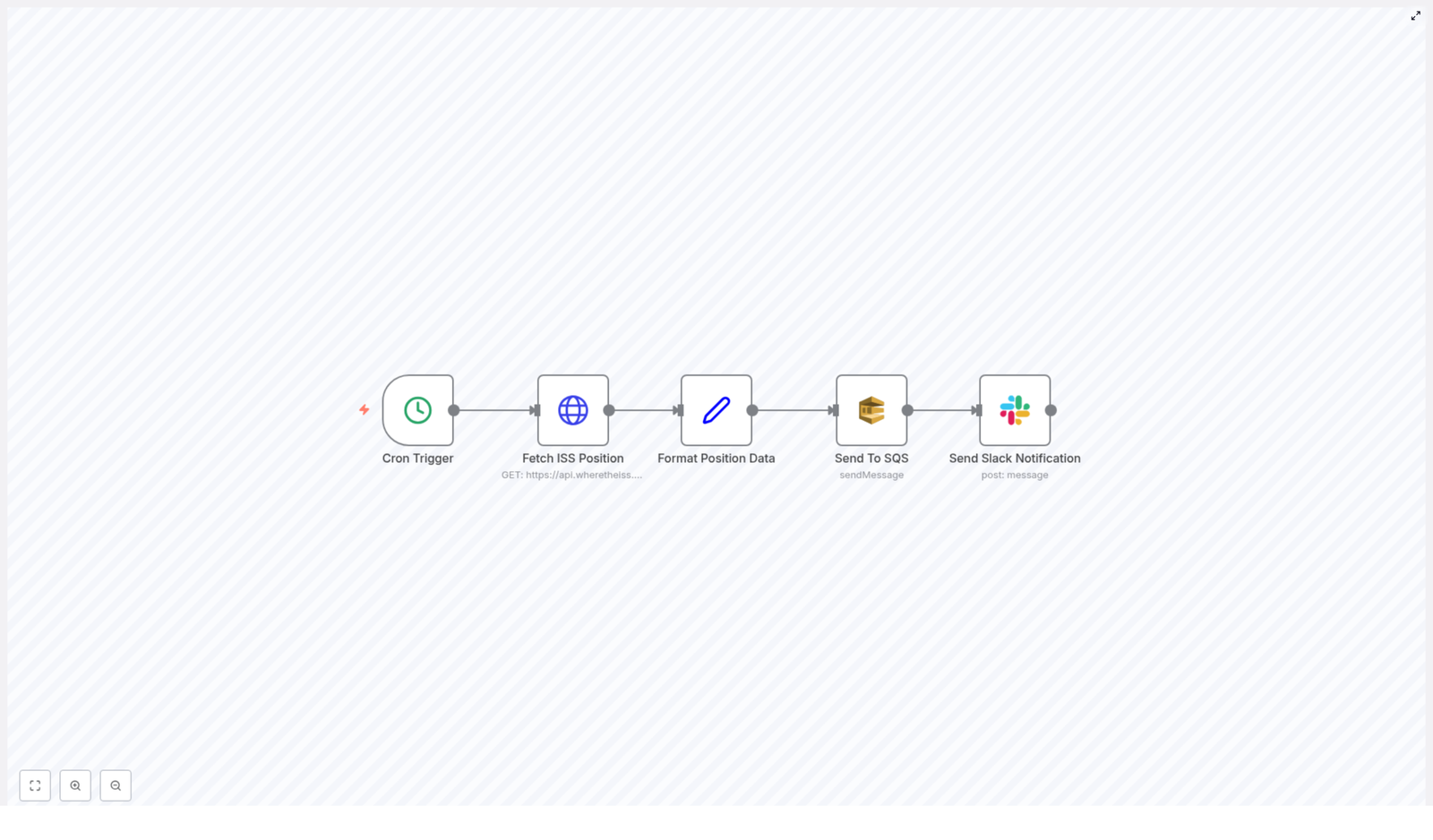
That is where this n8n workflow template comes in. It automatically:

  • Grabs the ISS current position from a public API
  • Formats the data into a clean JSON payload
  • Sends it to an AWS SQS queue
  • Notifies your team in Slack that new ISS data is available

So instead of asking “Where is the ISS right now?” every few minutes, you can let n8n quietly handle it in the background and push updates wherever you need them.

What this n8n ISS workflow actually does

At a high level, this workflow keeps a steady stream of ISS position data flowing through your stack. Every minute, it:

  1. Triggers automatically on a schedule
  2. Calls a public API to get the ISS current position
  3. Extracts key fields like latitude, longitude, timestamp, and name
  4. Publishes that data to an AWS SQS queue
  5. Sends a Slack alert to let your team know new data has been sent

It is a simple chain of five nodes, but together they give you a neat, production-ready automation that plugs into both AWS and Slack.

When should you use this ISS position template?

This workflow is great if you:

  • Are building a dashboard or internal tool that visualizes satellite or ISS data
  • Want to teach automation, APIs, or event-driven systems in a classroom or workshop
  • Need a real-time-ish data stream to test your AWS SQS consumers
  • Just enjoy space-related side projects and want automated ISS alerts

Because it uses standard pieces like HTTP APIs, AWS SQS, and Slack, you can also treat it as a learning template for building other n8n automations that follow the same pattern.

Workflow overview: the 5-node setup

The workflow is built from five key n8n nodes connected in sequence:

  • Cron Trigger – kicks off the workflow every minute
  • Fetch ISS Position – calls the public ISS position API
  • Format Position Data – cleans up and restructures the response
  • Send To SQS – pushes the formatted JSON into an AWS SQS queue
  • Send Slack Notification – posts a message to a Slack channel

Let us walk through each piece so you know exactly what is happening and where you can tweak it.

Step-by-step breakdown of the n8n ISS workflow

1. Cron Trigger – keeping your data fresh

Everything starts with the Cron Trigger node. It is configured to run every minute, which means:

  • You always fetch near real-time ISS position data
  • You do not have to think about manually starting the workflow
  • Your downstream systems get a steady, predictable stream of messages

If every minute feels too frequent for your use case, you can easily adjust the schedule in the Cron node settings. For example, you might set it to every 5 or 10 minutes if you want fewer updates.

2. Fetch ISS Position – calling the public API

Next up is the node that actually talks to the ISS API. This node sends a request to:

https://api.wheretheiss.at/v1/satellites/25544/positions

The workflow uses the current timestamp so that each call returns the most recent position of the ISS. The API responds with data that includes things like latitude, longitude, timestamp, and the object name.

In n8n, this is typically done with an HTTP Request node configured to hit that endpoint and pass along the current time. The result is a raw response that we will clean up in the next step.

3. Format Position Data – preparing clean JSON

The API response contains more fields than you might need. To keep things tidy and easy to consume, the workflow uses a Set node to extract just the important bits:

  • latitude
  • longitude
  • timestamp
  • name

This node restructures the response into a simplified JSON object. That makes it perfect for queuing, logging, or feeding into other automations. By the time the data leaves this node, it is clean, compact, and ready for AWS SQS or any other service you might want to plug in later.

4. Send To SQS – handing data off to AWS

Once the data is nicely formatted, the workflow sends it to an AWS Simple Queue Service (SQS) queue. This is where the automation becomes really powerful.

By pushing ISS position updates into SQS, you can:

  • Trigger downstream processing, like storing records in a database
  • Feed analytics pipelines or visualization tools
  • Integrate with any microservice that consumes messages from SQS

The node is configured with your AWS SQS credentials and the queue you want to use. From there, every run of the workflow adds a new message to that queue, which your other systems can handle at their own pace.

5. Send Slack Notification – keeping the team in the loop

To round things off, the final node sends a Slack message whenever new ISS data is successfully queued.

This node posts to a designated channel, for example #alerts, and includes details like:

  • The ISS name
  • The timestamp associated with the position data

That way your team knows the automation is running, data is being sent to SQS, and everything is working as expected. You can also customize the Slack message to include the coordinates if you want to make it more informative or fun.

Why this n8n ISS workflow makes life easier

So what are the real benefits of setting this up instead of doing everything manually?

  • Efficiency – No more copy-pasting from API responses or refreshing websites. n8n handles the entire flow from fetching data to sending notifications.
  • Integration – You tie together a public API, AWS SQS, and Slack in a single, visual workflow. It is a great pattern you can reuse for other automations.
  • Real-time style updates – With a Cron schedule of every minute, your systems and your team get timely ISS position data without any extra effort.
  • Scalability – SQS is built for scaling. As you add more consumers or more processing steps, the queue can handle the load without changing this workflow.

In short, you get a lightweight, real-time ISS tracking pipeline that fits neatly into modern, event-driven architectures.

How to start using this ISS automation template in n8n

Ready to try it out in your own n8n instance? Here is the basic setup flow:

  1. Open your n8n instance and import the workflow template.
  2. Configure your AWS SQS credentials in n8n and select the queue you want to use.
  3. Set up your Slack credentials or bot token and choose the channel where alerts should be posted, such as #alerts.
  4. Review the Cron Trigger schedule and adjust the frequency if needed.
  5. Activate the workflow and watch the messages start flowing.

From there, you can customize it as much as you like, for example by changing the message format, adding logging, or sending the data to additional services.

Want to tweak or extend the workflow?

If you are curious about more automation ideas, you can build on this template by:

  • Storing ISS positions in a database for historical tracking
  • Visualizing the ISS path on a map in a dashboard
  • Triggering alerts only when the ISS is above a certain region

If you get stuck or want to share what you have built, the n8n community is a great place to ask questions and swap ideas.

Try the ISS position workflow template

Give this workflow a spin in your own setup and see how easy it is to automate ISS position tracking with n8n, AWS SQS, and Slack working together.

Have questions or want to customize the template further? Drop a comment or connect with the n8n community to explore even more automation possibilities.

SEO Analysis and Content Strategy for AI Overview

SEO Analysis and Content Strategy for AI Overview

Ever look at Google’s AI Overview and think, “How on earth do I create content that actually fits into this?” You are not alone. The good news is that there is a clear pattern in how Google structures AI-related information, and you can absolutely use that to your advantage when planning your SEO content and strategy.

In this guide, we will walk through what Google’s AI Overview is really doing, how to mirror its structure in your own articles, and how to turn that into a practical, repeatable SEO workflow. Think of this as your friendly blueprint for ranking better on AI-related queries.

What Google’s AI Overview Is Really Telling You

When you run a typical AI-related search, Google’s AI Overview is not just spitting out random text. It is giving you a sneak peek into how Google understands the topic, what users want to know, and how information should be organized for maximum clarity.

Here is what is happening behind the scenes:

  • Clear structure: Google breaks topics into distinct sections so users can quickly grasp the big picture.
  • Entity-focused: Specific tools, concepts, and subtopics (called entities) are highlighted and explained in context.
  • Depth plus organization: Users are not just looking for a definition of AI. They want definitions, applications, comparisons, and recent developments, all laid out in a way that is easy to follow.

Those first AI Overview paragraphs usually read like a thesis statement. They summarize the heart of the query in a couple of lines, then branch out into related angles. That is your first big clue about how your own content should be structured.

Understanding User Intent Through Categories

Google’s AI Overview tends to group information into what you can think of as “sub-intents” or mini-goals within the main query. These show you what users really want to accomplish when they search.

Typically, those sub-intents fall into three main categories:

1. Topic Understanding and Definitions

This is where users are asking things like “What is this?” or “How does it work?” For AI-related queries, that might be definitions of models, techniques, tools, or general concepts.

2. Applications and Implications

Once users understand the basics, they want to know what they can do with it. Here, the focus is on use cases, real-world applications, and the broader impact on industries or daily workflows.

3. Comparative Analysis or Recent Developments

Finally, users often want to compare options or stay updated. This includes “X vs Y” comparisons, pros and cons, and the latest news, trends, or updates in the AI space.

When you see these categories appear in an AI Overview, treat them like a roadmap for your own article. They tell you exactly which angles to cover if you want to fully satisfy search intent.

How To Structure Content That Ranks With AI Overview

So how do you turn all of this into a content strategy that actually ranks? The trick is to align your article structure with those AI Overview categories, while still sounding like a real human and not a robot.

Use Categories As Your Main Headings

Start by turning those sub-intents into your primary headings (your <h2>s). For example, your article could be broken into sections like:

  • What [AI Topic] Is and How It Works
  • Key Use Cases and Applications of [AI Topic]
  • [AI Topic] vs Alternatives and Recent Developments

Each section should dive deep into that specific angle, not just skim the surface. You want your content to feel like a complete resource, not a quick overview.

Cover All Mentioned Entities in Detail

When Google’s AI Overview mentions specific tools, models, companies, or subtopics, that is a signal. Those entities matter for the query. Make sure you:

  • Explain each entity clearly
  • Show how it connects to the main topic
  • Use examples or scenarios where relevant

You can even borrow some of the phrasing or angles from the AI Overview snippets. You are not copying, you are aligning your language with what Google already recognizes as helpful and relevant.

Match the Tone and Depth Google Prefers

Look at how the AI Overview talks: it is usually clear, neutral, and user-focused. Use that as a model. Aim for:

  • Short, readable paragraphs
  • Direct answers to common questions
  • Logical flow from basics to advanced details

By mirroring this style and structure, you are making it easier for Google to see your content as a strong candidate to satisfy the same user intent.

Learning From the Competitive Landscape

Now let us talk about the other big piece of the puzzle: the websites that already dominate those AI-related results. Google often leans on a handful of authoritative sources, and those sites share some patterns too.

Why Top Sources Rank So Well

The top 3 to 5 sources that Google frequently cites tend to have:

  • Strong topical relevance in AI and related fields
  • A history of being referenced, linked, or quoted
  • Content formats that users clearly respond well to

When you look at their article titles, you will probably notice some familiar formulas.

Proven Content Formats That Work

Many high-ranking AI articles use tried and tested structures, such as:

  • Top 10 lists – for tools, techniques, or use cases
  • Ultimate guides – for deep, evergreen explanations
  • Comparisons – like “X vs Y” or “Best tools for [use case]”

These formats align nicely with what users are already looking for: clarity, options, and guidance. Adding a current year to titles where appropriate can also signal freshness, which can help with click-through and SEO performance.

Building an Actionable SEO Strategy Around AI Overview

Let us pull it all together. How do you turn these insights into a practical SEO strategy you can use again and again for AI-related topics?

1. Use AI Overview as Your Structural Guide

Start with the AI Overview for your target query and treat it like a content outline. Ask:

  • What main categories or sub-intents are present?
  • Which entities are mentioned repeatedly?
  • How does the overview move from one idea to the next?

Then design your article to match that structure, while expanding and enriching it with your own expertise and examples.

2. Go Deeper Than the AI Overview

Your goal is not to copy the AI Overview. It is to beat it. To do that, you need to:

  • Cover every category the overview touches on
  • Explain all the mentioned entities in more depth
  • Add practical advice, context, or frameworks users can act on

Think of the AI Overview as the table of contents and your article as the full book.

3. Align With Authoritative Sources Without Cloning Them

Use the top authoritative websites as benchmarks. Look at:

  • How they structure their guides and comparisons
  • The level of detail they offer
  • The questions they answer that others ignore

Then aim to be more helpful, more up to date, and more user-focused. Reference these sites when appropriate to build trust, but always bring your own angle and clarity.

Make Your Content Authoritative, Actionable, and Human

At the end of the day, Google wants what users want: content that feels trustworthy, useful, and easy to understand. When you combine the structure of AI Overview with proven content formats and your own expertise, you get exactly that.

So here is your friendly nudge:

Start your SEO journey now by crafting a detailed guide based on these insights. Use the categories you see in AI Overview as your framework, cover every key entity thoroughly, and weave in the language and structure that Google already favors for AI-related queries.

Do that consistently and you will not just be chasing rankings. You will be building a strong, sustainable presence in AI search results that actually helps people make sense of a complex topic.

How to Get DNS Entries Using n8n Workflow

How a Stressed DevOps Engineer Stopped Copy-Pasting DNS Checks With One n8n Workflow

The Night Everything Broke

At 11:47 p.m., Alex stared at the screen for what felt like the hundredth time that week. Another domain migration, another round of DNS checks, and the same old ritual of opening a browser, running manual lookups, copy-pasting records into tickets, and hoping nothing slipped through the cracks.

Managing DNS records was part of Alex’s job as a DevOps engineer, but it was also the part that kept piling up. Every new domain meant checking A, AAAA, MX, TXT records, sometimes repeatedly, and always under time pressure. It was tedious, error prone, and worst of all, completely manual.

Alex knew there had to be a better way to manage DNS entries. Something automated, repeatable, and fast. That search is how Alex stumbled on an n8n workflow template that promised exactly what was needed: a way to automatically get DNS records for any domain.

Discovering n8n and a Different Way to Work

Alex had heard of n8n before, but only in passing. This time, the description caught attention.

n8n is an extendable workflow automation tool that lets you connect apps and APIs and automate tasks without writing a full application. You build workflows visually, link nodes together, and let n8n handle the execution.

For someone drowning in repetitive DNS lookups, that sounded like a lifeline.

As Alex read further, a specific template stood out – an n8n workflow that retrieves DNS entries for a domain using the Uproc API. It was simple, focused, and exactly aligned with the problem at hand.

From Manual Chaos to a Simple Automated Plan

Alex sketched out the current process on a notepad:

  • Type domain into a DNS lookup tool
  • Wait for results
  • Copy A, AAAA, MX, TXT records into a document
  • Repeat for the next domain

It was embarrassingly manual.

The n8n template, on the other hand, broke the job into three clear automated steps:

  • Manual Trigger – start the workflow when needed
  • Create Domain Item – define the domain to query
  • Get DNS Records – call the Uproc API and fetch all DNS entries

Instead of juggling browser tabs and tools, Alex could click one button and get structured DNS data instantly. That was the moment the decision was made: this workflow had to be tested.

Setting Up the Workflow: The Turning Point

Step 1 – A Trigger That Replaces the Old Routine

Alex opened n8n, imported the DNS template, and saw the first node: Manual Trigger.

This node did one simple but powerful thing. It initiated the workflow whenever Alex clicked execute. No scheduling needed, no complex conditions. Just a clean way to say “I want DNS records for a domain right now.”

That alone felt more controlled than the old browser-based chaos.

Step 2 – Teaching the Workflow Which Domain to Check

Next was the Create Domain Item node, implemented as a FunctionItem node. This was where the domain name was prepared as input for the DNS lookup.

Inside the node, Alex found a tiny piece of JavaScript that suddenly made the whole workflow click:

item.domain = "n8n.io";
return item;

This line added a JSON key called domain with the value "n8n.io". In other words, it told the workflow, “Here is the domain you are going to query.”

Alex realized how flexible this could be. Today it might be n8n.io, but tomorrow it could be any domain, supplied dynamically from another node, a form submission, or even a CSV file. For now, though, keeping it simple was enough.

Step 3 – Letting Uproc Handle the Heavy Lifting

The final node was where the magic happened: Get DNS Records.

This node used the getDomainRecords tool from the Uproc API to actually fetch the DNS entries. The domain value did not need to be typed again. It was dynamically taken from the output of the Create Domain Item node, which meant the workflow passed data cleanly from one step to the next.

There was one important requirement though. Alex needed to have Uproc API credentials configured in n8n before this node could work. That setup took just a few minutes, and once the credentials were in place, the node was ready.

With all three nodes connected and configured, the workflow was complete. It was time to test.

The First Run: From Click to Complete DNS Overview

Alex took a breath, clicked Execute Workflow, and watched the nodes light up one after another.

The Manual Trigger fired. The FunctionItem node prepared the domain n8n.io. The Uproc node called getDomainRecords and returned a structured response.

On the screen, n8n displayed exactly what used to take Alex several minutes per domain:

  • A records
  • AAAA records
  • MX records
  • TXT records
  • And other relevant DNS entries

All in a single, organized output.

No more jumping between tools, no more copy-paste glitches, no more missed records because of late night fatigue. The workflow had turned a messy, manual task into a repeatable, reliable automation.

Why This Simple n8n Template Changed Alex’s Workflow

As the next week rolled in, Alex started using the DNS retrieval workflow for every new domain, and the benefits became obvious.

1. Manual Work Vanished

Instead of running separate DNS lookups by hand, Alex could trigger the workflow and get complete DNS records in one go. The time saved added up quickly, especially during migrations and audits.

2. Dynamic Domain Queries Became Easy

Because the workflow relied on a domain field in JSON, it was naturally ready for dynamic input. Alex started imagining future improvements:

  • Pull domains from a database
  • Read them from a spreadsheet
  • Trigger DNS checks after a deployment completes

The core structure was already in place. Only the input needed to change.

3. The Workflow Was Simple to Extend

n8n’s node based design meant Alex could easily chain additional steps after the DNS lookup:

  • Send DNS results to Slack for the team
  • Store records in a monitoring system
  • Log them in a database for audits

The original template was small, but it became a foundation for a richer automation system.

From One Template to a Better Way of Working

Looking back, Alex realized that the biggest win was not just getting DNS records faster. It was the shift in mindset. Tasks that once felt like unavoidable manual chores were now seen as automation opportunities.

With n8n and Uproc, DNS record retrieval turned into a simple, efficient workflow instead of a late night headache. The same pattern could be applied to other repetitive parts of network and domain management.

Ready to Automate Your DNS Checks Too?

If you find yourself repeating the same DNS lookups, copying the same records into tickets, or double checking domains by hand, you are in the same place Alex was before discovering this template.

Using n8n, you can:

  • Automate DNS queries for any domain
  • Retrieve A, AAAA, MX, TXT, and other DNS records in one execution
  • Extend the workflow with notifications, logging, or integrations

All it takes is a simple three node workflow and configured Uproc API credentials.

Call to Action: Try this n8n DNS entry retrieval workflow yourself and start turning your repetitive DNS checks into a smooth, automated process.