Enrich HubSpot Contacts with ExactBuyer & n8n

Enrich HubSpot Contacts with ExactBuyer & n8n: A Workflow Story

By the time Emma opened her laptop that Monday morning, her sales team had already sent three frantic messages.

“This lead has no job title.”

“Is this company even real?”

“Can someone please find a phone number before my call?”

Emma was the marketing operations manager at a fast-growing SaaS company, and HubSpot was her team’s lifeline. But every week the same problem returned: new contacts were flooding in with half-empty records. Missing company names, no job titles, no phone numbers, barely any location data. The sales team was wasting hours researching LinkedIn and company websites, and marketing could not segment properly for campaigns.

Emma knew one thing for sure. If she did not fix their contact enrichment problem, their funnel would stay leaky and their revenue would suffer.

The Pain Of Incomplete HubSpot Contacts

Emma’s dashboards looked promising at first: lead volume was up, form submissions were steady, and HubSpot was capturing emails reliably. But when she drilled into individual contacts, the reality was obvious.

  • Leads were missing job titles, so lead scoring was guesswork.
  • Company information was sparse or inconsistent, which broke account-based campaigns.
  • Phone numbers and locations were often blank, making outbound outreach slow and clumsy.

Her team tried manual research, spreadsheets, and one-off enrichment uploads, but it never kept up with the pace of new leads. The more the company grew, the more obvious the gap became.

Emma needed a way to automatically enrich every new HubSpot contact with reliable company and person data, right when they entered the system, without adding more tools for her team to babysit.

Discovering n8n And ExactBuyer

One afternoon, while searching for “automate HubSpot contact enrichment,” Emma stumbled on an n8n workflow template that promised exactly what she needed: a way to enrich HubSpot contacts with ExactBuyer using a fully automated flow.

The idea was simple but powerful:

  • Listen for new HubSpot contacts with an n8n trigger.
  • Fetch the full contact record from HubSpot.
  • Use the contact’s email to call ExactBuyer’s enrichment API.
  • Write the enriched fields back into HubSpot.
  • Alert the team in Slack if enrichment failed or returned nothing.

This was more than a script. It was a reusable n8n workflow template designed to keep HubSpot contact records rich, accurate, and always up to date. Exactly what her sales and marketing teams had been begging for.

Setting The Stage: What Emma Needed First

Before she could turn the template into a working automation, Emma gathered the essentials.

  • An n8n instance, either cloud-hosted or running on her company’s own infrastructure.
  • A HubSpot account with a developer app and OAuth credentials, configured with the correct scopes.
  • An ExactBuyer API key for the enrichment endpoint.
  • A Slack webhook or Slack API credential for sending alerts to her team (optional but highly recommended).
  • Basic familiarity with how n8n nodes and expressions work.

She also took a moment to read n8n’s HubSpot documentation. One important detail stood out: the HubSpot trigger and the HubSpot get/update nodes might require different scopes or even separate OAuth credentials, depending on how the HubSpot app is set up. She made a note to handle those as separate credentials if needed.

Rising Action: Building The Automated Enrichment Flow

Emma opened n8n, imported the template, and began walking through each node. Instead of feeling like she was wiring up a random collection of steps, she started to see a clear story in the workflow itself.

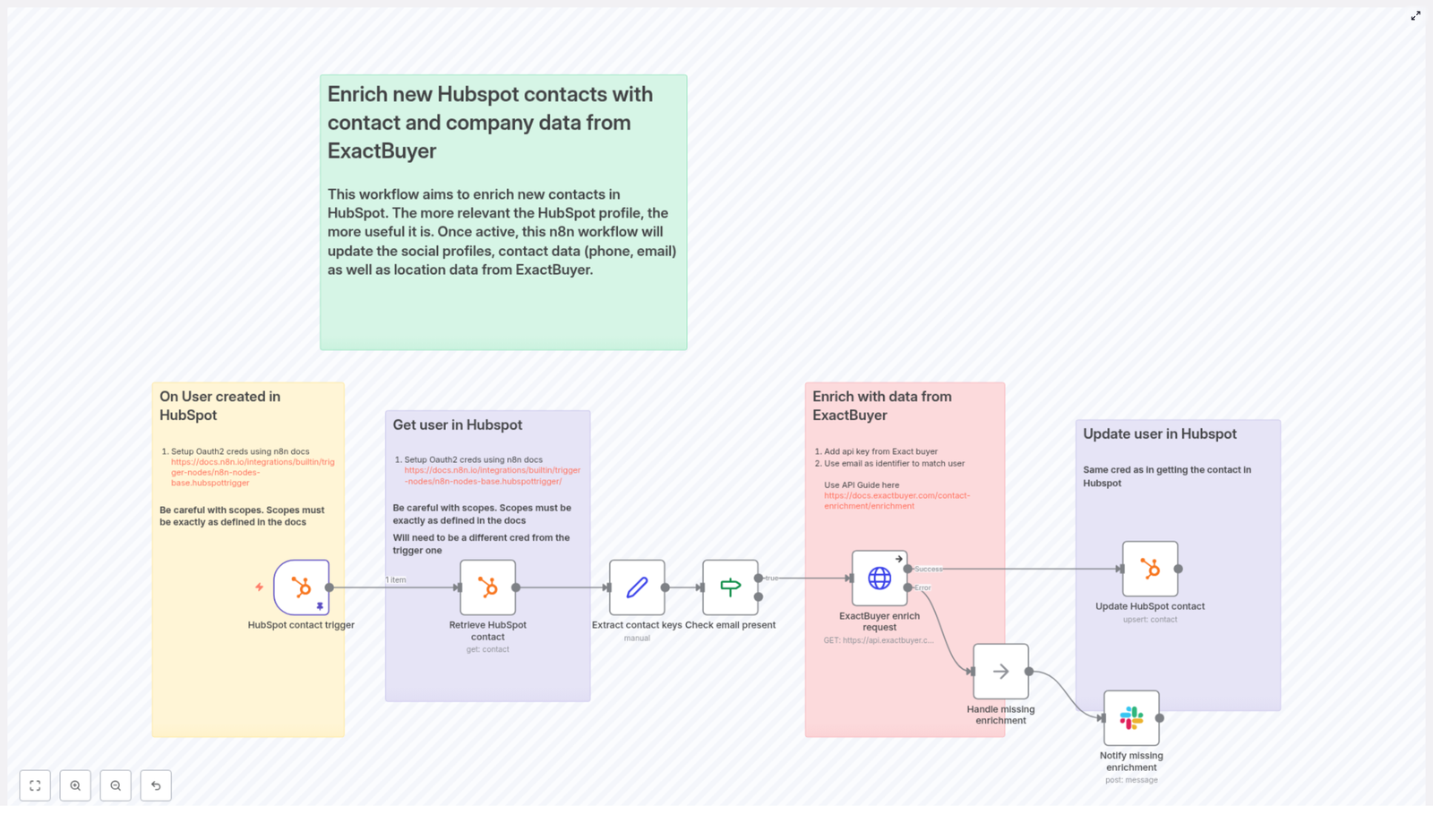
1. The Moment A Lead Enters: HubSpot Contact Trigger

Everything began with the HubSpot Trigger node. Emma configured it to fire on the contact creation event. Whenever a new contact was created in HubSpot, HubSpot would send a webhook payload to n8n.

She connected her OAuth2 credential to the trigger and configured the webhook in her HubSpot developer settings. Now, n8n would “hear” every new lead entering their CRM in real time.

2. Getting The Full Picture: Retrieve HubSpot Contact

The next step in the workflow was a standard HubSpot node set to the get operation. It used the contactId from the trigger payload to fetch the full contact record from HubSpot.

In the example template, the contactId was pinned in the workflow so Emma could test against a known contact. That helped her validate the flow before she pointed it at live traffic. Once it was working, the node would always pull the latest properties for each new contact.

3. Preparing The Data: Extract Contact Keys

Next came a Set node, which Emma realized was the bridge between HubSpot and ExactBuyer. This node was responsible for extracting the key pieces of data that downstream nodes would depend on, especially the HubSpot internal id and the contact email.

Inside the Set node, the template used n8n expressions like:

user_id = {{$json.vid}}
email = {{$json.properties.email?.value}}

By isolating user_id and email early, Emma could keep the rest of the workflow cleaner and avoid repeating complex property paths later.

4. A Critical Gate: Check Email Present

Emma knew that ExactBuyer’s enrichment depended on having an email. So the workflow included a guardrail: an If node that checked whether the email field was present and not empty.

If the email existed, the flow continued to the enrichment step. If not, the workflow could either stop or send a notification for manual review. That meant no wasted API calls and no mysterious failures caused by missing primary identifiers.

5. The Turning Point: ExactBuyer Enrichment Request

This was the moment Emma had been waiting for. The HTTP Request node called ExactBuyer’s enrichment endpoint using the email that had just been extracted.

She configured the node with a generic HTTP header credential to pass her ExactBuyer API key, then set the URL to the enrichment endpoint, for example:

https://api.exactbuyer.com/v1/enrich

The workflow used query parameters like:

?email={{ $json.email }}&required=work_email,personal_email,email

One detail in the template made Emma breathe easier: the node was set to continue on error. In n8n terms, that meant using onError: continueErrorOutput. Instead of crashing the workflow when ExactBuyer returned no result or a non-2xx response, the flow would keep going and handle the situation gracefully.

This was the turning point in her story. For the first time, new HubSpot contacts would automatically get enriched with company and person data, or if something went wrong, her team would be notified instead of being left in the dark.

6. Writing Back Rich Profiles: Update HubSpot Contact

When ExactBuyer responded with enrichment data, the workflow moved to another HubSpot node configured for upsert or update. Here, Emma mapped ExactBuyer’s fields into HubSpot properties using n8n expressions that referenced the HTTP Request result.

Examples from the template looked like this:

gender = {{$json.result.gender}}
school = {{$json.result.education?.[0]?.school?.name}}
country = {{$json.result.location?.country}}
jobTitle = {{$json.result.employment?.job?.title}}
lastName = {{$json.result.last_name}}
firstName = {{$json.result.first_name}}
companyName = {{$json.result.employment?.name}}
companySize = {{$json.result.employment.size}}
phoneNumber = {{$json.result.phone_numbers?.[0]?.E164}}

She also made sure that HubSpot knew exactly which contact to update. Instead of relying on a fresh lookup, she reused the email captured earlier from the “Extract contact keys” node:

{{$('Extract contact keys').item.json.email}}

With this mapping in place, every successful ExactBuyer response would instantly transform a barebones HubSpot record into a detailed, sales-ready profile.

7. When Things Go Wrong: Handling Missing Enrichment & Notifications

Of course, Emma knew that not every contact would match in ExactBuyer. Some emails would be too new, too obscure, or simply not present in the enrichment database.

The template handled that reality head-on. If ExactBuyer returned an error or an empty result, the workflow routed to a NoOp (or similar handling node) and then into a Slack node.

In Slack, the message would land in a channel like #alerts with key details such as:

  • The contact’s email address.
  • The HubSpot contact id.
  • Any relevant error information.

That way, her team could quickly review edge cases, decide whether to enrich manually, or adjust their data strategy. No more silent failures, and no more wondering why a contact looked incomplete.

Staying Safe And Stable: Error Handling & Best Practices

Before Emma flipped the switch to production, she hardened the workflow using a few best practices that the template recommended.

  • Fail-safe behavior: She kept the HTTP Request node set to continue on error, so failed ExactBuyer calls would not crash the entire flow. Instead, they would be logged and optionally sent to Slack for review.
  • Rate limits: She checked ExactBuyer’s API rate limits and made a plan to implement batching or queuing if lead volume spiked. n8n’s flexibility made it easy to add rate-limit handling later.
  • Retry logic: For transient 5xx errors, she added a small Retry or Wait pattern so the workflow would reattempt the request a few times before escalating to her team.
  • Separate HubSpot credentials: To avoid scope issues, she used distinct OAuth credentials for the webhook trigger and for the HubSpot get/update operations, aligned with her HubSpot app’s configuration.
  • Logging: She configured logging of response payloads and status codes into an audit store, which helped with debugging, reporting, and compliance reviews.

Respecting Privacy: Compliance In The Enrichment Flow

As the person responsible for marketing operations, Emma also had to think about data protection. Enriching personal data is powerful, but it comes with obligations.

She documented how the workflow aligned with GDPR, CCPA, and other relevant regulations, making sure they only enriched and stored data for which they had a lawful basis.

  • Recording consent where required, especially for EU contacts.
  • Maintaining an audit log of enrichment events and their purpose.
  • Limiting the storage of sensitive personal data and focusing on fields that were necessary for sales and marketing operations.

By building these considerations into the workflow design, Emma avoided future headaches with compliance and internal reviews.

Testing The Flow Before Going Live

Emma refused to let a half-tested automation touch production contacts. She followed a structured testing path before flipping the final switch.

  1. She used a staging HubSpot app and a test ExactBuyer key where possible, isolating experiments from real customer data.
  2. She manually created test contacts in HubSpot to trigger the webhook and watched each run in n8n’s execution log.
  3. She inspected the HTTP Request node’s response to ensure the field mappings were correct and that the right data was flowing into HubSpot.
  4. She enabled a “dry run” mode by temporarily routing enriched data to a log or test node instead of updating live HubSpot contacts, until she was completely confident.

Only after several successful test runs did she connect the workflow to the production HubSpot app and ExactBuyer credentials.

Leveling Up: Advanced Improvements Emma Considered

Once the basic enrichment workflow was running smoothly, Emma started thinking about how to make it even smarter.

  • Multiple emails: Some of their contacts had both personal and work emails. She planned to add logic to choose the best email for enrichment, prioritizing work over personal when available.
  • Caching enrichments: For stable attributes like company and job, she considered adding a cache layer. If ExactBuyer had already enriched a particular email recently, the workflow could reuse stored results and avoid extra API calls.
  • Triggering on updates: Instead of enriching only on contact creation, she thought about adding a trigger for key property changes, such as email updates, to keep profiles fresh.
  • Standardized field mappings: Before rolling out to more teams, she worked with RevOps to standardize HubSpot custom properties so that every enrichment field had a clear and consistent destination.

With these enhancements, the workflow would grow from a simple enrichment tool into a core part of their customer data foundation.

The Resolution: What Changed For Emma’s Team

A few weeks after deploying the n8n workflow template, the tone in Emma’s Slack channels changed.

Instead of complaints about missing data, sales reps were sharing screenshots of perfectly enriched contact records. Marketing campaigns were segmented by job title, company size, and country with confidence. SDRs had phone numbers and locations ready before the first outreach.

The once chaotic “Who owns this lead?” conversations were replaced by focused strategy discussions. Manual research time dropped sharply, and the team’s conversion rates began to climb.

All of that came from a workflow that quietly listened for new HubSpot contacts, enriched them with ExactBuyer, and kept everyone informed when something needed attention.

Put This Story To Work In Your Own Stack

This n8n workflow template is more than a technical example. It is a dependable, automated bridge between HubSpot and ExactBuyer that keeps your contact profiles rich, accurate, and ready for action.

By adopting it, you can:

  • Reduce manual enrichment work for sales and marketing teams.
  • Improve segmentation, personalization, and lead qualification.
  • Catch enrichment failures early with Slack alerts instead of hidden errors.
  • Maintain data quality and compliance as your lead volume grows.

Ready to follow Emma’s path? Import the n8n workflow template into your own instance, add your HubSpot OAuth credentials and ExactBuyer API key, and start by testing in a staging HubSpot portal.

If you want help customizing the flow, you can extend it with retries, batched enrichment, advanced rate limiting, or additional GDPR controls tailored to your organization.

Further reading: ExactBuyer enrichment docs · n8n HubSpot Trigger docs

Call to action: Import this template into n8n and start enriching your HubSpot contacts today, or subscribe to our newsletter for more automation recipes and workflow templates.
Enrich HubSpot Contacts with ExactBuyer & n8n

Enrich HubSpot Contacts with ExactBuyer & n8n

Ever created a new contact in HubSpot, stared at their lonely little email address, and thought, “Cool, but who are you?” If you are tired of copy-pasting names, job titles, and company info from LinkedIn or email signatures, this workflow is your new best friend.

In this guide, you will learn how to use a ready-to-go n8n workflow template that automatically enriches new HubSpot contacts using ExactBuyer’s contact enrichment API. No more manual data entry, no more detective work, just clean, useful CRM data delivered on autopilot.

We will walk through what the workflow does, how to set it up, how each node is configured, and how to handle errors without losing your sanity. You will also get tips for testing, monitoring, and customizing the automation for your own CRM setup.


What this n8n + HubSpot + ExactBuyer workflow actually does

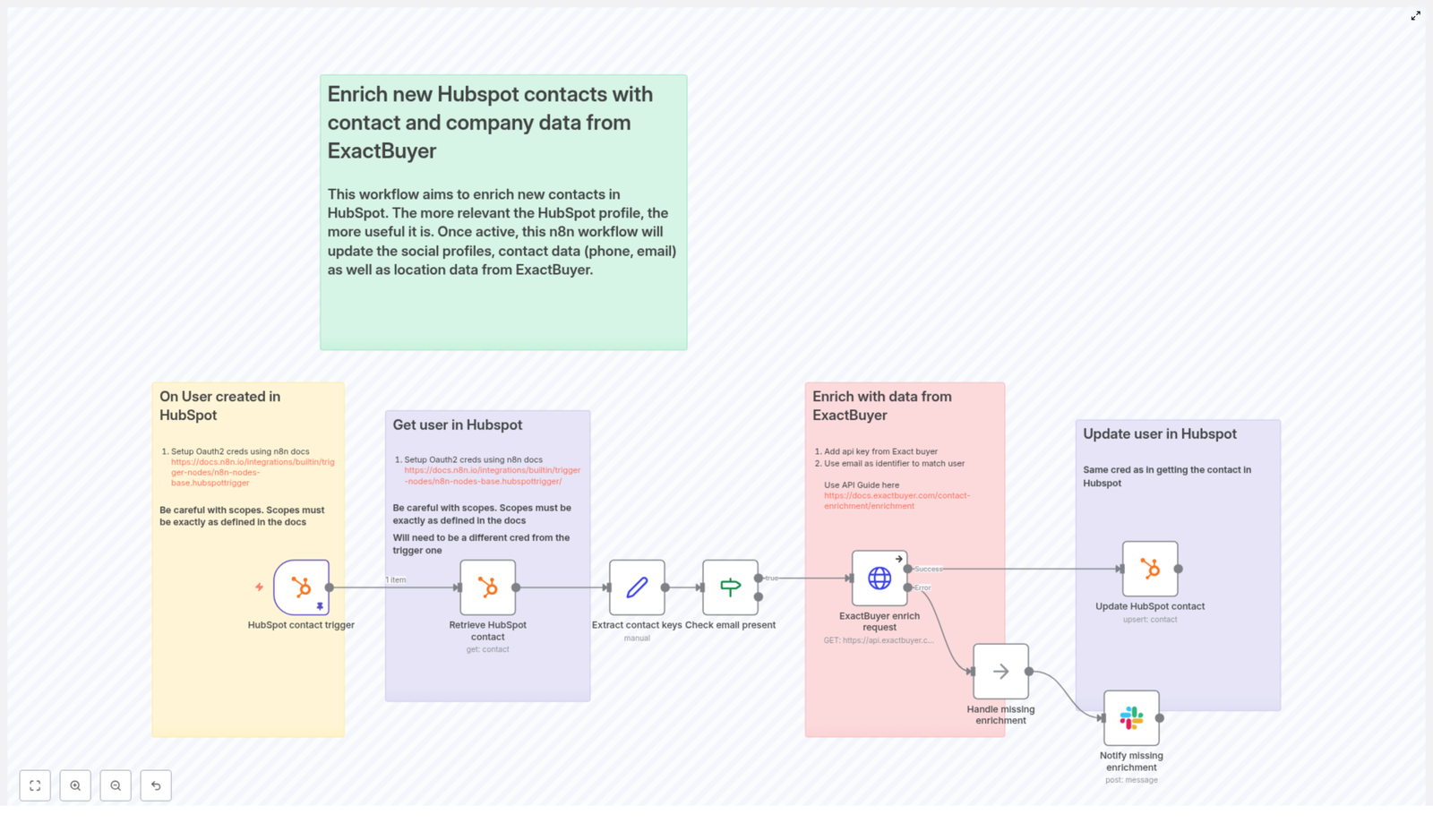
Here is the big picture: every time a new contact appears in HubSpot, this n8n template quietly springs into action.

  • It listens for new HubSpot contacts using a HubSpot Trigger node.
  • It grabs the full contact data using a standard HubSpot node.
  • It extracts the contact’s ID and primary email with a Set node.
  • It checks if an email exists and only continues if it does, using an If node.
  • If there is an email, it calls ExactBuyer’s enrichment endpoint via an HTTP Request node.
  • It then maps the enriched data back into HubSpot contact properties and updates the record.
  • If ExactBuyer returns no enrichment data, it can notify a Slack channel and follow a no-op or error branch.

The end result: your HubSpot contacts get automatically filled in with useful details like job title, company name, phone number, and more, without you doing any repetitive copy-paste gymnastics.


Why bother enriching HubSpot contacts at all?

Because “email only” contacts are not very helpful, and your sales and marketing teams deserve better.

Contact enrichment adds missing attributes such as:

  • Job title
  • Company name and size
  • Phone numbers
  • Location
  • Education, gender, and other profile details

Using n8n automation with ExactBuyer means:

  • Less manual data entry and fewer boring admin tasks.
  • Faster time-to-value for new leads, since you get context immediately.
  • Better segmentation, lead scoring, and personalization in your CRM workflows.
  • More accurate and complete HubSpot data that powers reliable automation.

In short, this workflow trades repetitive work for a one-time setup and ongoing peace of mind.


Before you start: what you need in place

To use this n8n template without frustration, make sure you have the following:

  • n8n running, either cloud or self-hosted.
  • A HubSpot account with developer OAuth credentials and the right webhook scopes.
  • An ExactBuyer API key that can access the enrichment endpoint.
  • Optional but recommended: a Slack webhook or API credential for notifications when enrichment fails.

HubSpot OAuth scopes to pay attention to

HubSpot can be picky about scopes, so make sure they match what n8n expects. This workflow typically needs:

  • Read permissions for contacts.
  • Write permissions for contacts.

In many setups, one credential is used for the webhook trigger and a separate OAuth credential is used for the HubSpot nodes that read or update contacts. The template calls this out as a best practice for security and operational separation. Just make sure both sets of credentials are correctly configured in n8n.


Quick setup walkthrough: from template to working automation

Here is a simplified flow of how to get this template running. After this overview, we will go node by node with configuration tips.

  1. Import the provided n8n workflow template into your n8n instance.
  2. Configure HubSpot OAuth credentials for both the trigger and the contact operations.
  3. Add your ExactBuyer API key in n8n credentials and connect it to the HTTP Request node.
  4. Optionally, plug in Slack credentials or a webhook URL for enrichment failure alerts.
  5. Run through the testing checklist to confirm everything works end to end.

Once that is done, you can lean back and let the workflow clean up your contact data for you.


Node-by-node configuration guide

1. HubSpot Trigger – listen for new contacts

Start with the HubSpot Trigger node. This is what wakes your workflow up when a new contact appears in HubSpot.

  • Subscribe to contact.creation events.
  • Use your developer credentials for the webhook subscription.
  • Double check that:
    • The webhook is marked as active in HubSpot.
    • The portalId and subscription details are valid.

Once this is set, every new contact will automatically trigger the workflow, so no more “did I remember to run that script?” moments.

2. Retrieve HubSpot contact details

Next, use a standard HubSpot node to fetch the full contact data that the trigger event refers to.

  • Set the operation to get.
  • Pass in the contactId from the webhook payload.
  • Use the separate OAuth2 credential mentioned in the template, not the same one as the trigger, if you are following the security separation pattern.

This gives you the complete contact record so you can extract the email and other keys needed for enrichment.

3. Extract contact ID and email with a Set node

Now it is time to create clean variables for the values you care about. Use a Set node to pull out the contact ID and email.

Example expressions from the template:

  • user_id = {{ $json.vid }}
  • email = {{ $json.properties.email?.value }}

These variables are then used when calling the ExactBuyer enrichment endpoint.

4. Check that an email exists (If node)

Enriching a contact without an email is like trying to look someone up with only their favorite color. So the workflow uses an If node to verify that an email is present before calling the API.

  • Perform a simple notEmpty string validation on the email field.
  • If the email is missing, the workflow skips the enrichment call and can follow a different branch.

This keeps you from wasting API calls and avoids unnecessary errors.

5. Call ExactBuyer’s enrichment endpoint (HTTP Request node)

Now for the fun part: enriching the contact. Use an HTTP Request node to call the ExactBuyer API.

Endpoint:

https://api.exactbuyer.com/v1/enrich

Configuration tips:

  • Use HTTP header auth with your ExactBuyer API key stored in n8n credentials.
  • Send the email as a query parameter.
  • Include required fields to narrow results. Example from the template:
?email={{ $json.email }}&required=work_email,personal_email,email

To handle failures gracefully, configure the node to:

  • Continue on error using onError: continueErrorOutput.

This lets you branch into a “no enrichment found” path or send alerts instead of crashing the whole workflow.

6. Update the HubSpot contact with enriched data

Once ExactBuyer responds, the workflow uses another HubSpot node to update the contact record with the new information.

Example mappings from the template:

  • firstName: {{ $json.result.first_name }}
  • lastName: {{ $json.result.last_name }}
  • jobTitle: {{ $json.result.employment?.job?.title }}
  • companyName: {{ $json.result.employment?.name }}
  • companySize: {{ $json.result.employment.size }}
  • phoneNumber: {{ $json.result.phone_numbers?.[0]?.E164 }}
  • country: {{ $json.result.location?.country }}
  • gender: {{ $json.result.gender }}
  • school: {{ $json.result.education?.[0]?.school?.name }}

Important: only update fields that are actually present in the response. Make sure your mapping logic avoids overwriting existing HubSpot values with null or empty values. That way, enrichment adds value instead of accidentally deleting useful data.


Error handling, Slack alerts, and staying sane

Even the best APIs sometimes come back with “sorry, nothing found” or temporary errors. The template includes a simple but effective error handling pattern so you know what is going on.

There is a no-op branch labeled something like “Handle missing enrichment,” which connects to a Slack node that sends a notification when ExactBuyer returns no data.

Recommended best practices:

  • Send a Slack message with:
    • The contact’s email.
    • The HubSpot contact ID.
    • Optionally, a short note that enrichment data was missing.
  • Log failures in a persistent store (like a database or log index) for later analysis.
  • Implement retries with exponential backoff for transient HTTP 5xx or 429 rate limit errors.
  • Respect ExactBuyer API rate limits and consider batching or queueing enrichment if you are processing large volumes.

This keeps your automation robust and gives you visibility when enrichment is not available instead of quietly failing in the background.


Testing checklist before going live

Before you unleash this workflow on your production HubSpot portal, walk through this quick testing list:

  • In HubSpot, confirm the webhook subscriptions show delivered events for contact.creation.
  • Create a test contact in HubSpot using an email that you expect ExactBuyer to resolve.
  • In n8n, verify that the HTTP Request node returns a result object with the expected fields.
  • Check in HubSpot that the contact properties are:
    • Correctly updated with enriched values.
    • Not overwritten with nulls where enrichment did not provide data.
  • Test the missing-enrichment path by creating a contact with an unknown email and confirming that:
    • The Slack notification is sent.
    • The workflow behaves as expected without breaking.

Once everything looks good, you can safely move from test contacts to real leads.


Security and compliance: handling PII responsibly

Since this workflow deals with personally identifiable information (PII), it is important to keep security and compliance in mind.

  • Store all API keys and OAuth tokens in n8n credentials, which are encrypted at rest.
  • Limit HubSpot and ExactBuyer credentials to the minimum scopes necessary.
  • Maintain data retention and deletion processes in HubSpot to satisfy GDPR and CCPA requests.
  • Document consent sources for enriched contacts where required by your legal or compliance team.

This way you get the benefits of enrichment without creating headaches for your legal department.


Customization ideas to level up your automation

Once the basic contact enrichment flow is running, you can extend it in several useful ways.

  • Company enrichment: call ExactBuyer’s company endpoints and update HubSpot Company records alongside contacts.
  • Selective enrichment: only enrich high-value leads, for example based on:
    • Lead source.
    • Lifecycle stage.
    • Company size.
  • Audit trail: store raw ExactBuyer responses in a separate table or store for data quality checks and historical snapshots.
  • Workflow segmentation: use enrichment confidence scores or specific enriched attributes to drive branching logic in HubSpot workflows.

n8n’s modular design makes it easy to add new branches, filters, or additional integrations as your process matures.


Monitoring and maintenance tips

Even automated workflows need a bit of occasional care. To keep this integration healthy in the long run:

  • Track enrichment success rate and the volume of Slack alerts related to missing data.
  • Monitor ExactBuyer API usage and costs so you do not accidentally surprise your finance team.
  • Rotate API keys periodically and verify that new credentials are working.
  • Review your field mappings every quarter or whenever HubSpot properties change.

A bit of monitoring now saves you from mysterious “why is nothing updating?” moments later.


Wrapping up: from manual busywork to automated enrichment

Using this n8n workflow template to enrich HubSpot contacts with ExactBuyer gives you richer lead profiles, better personalization, and fewer repetitive tasks clogging up your day.

The workflow is modular and easy to extend. You can add rate limiting, extra validation, company enrichment, or more advanced branching logic with minimal changes. With proper credential management, testing, and monitoring, it will run reliably in production and quietly keep your CRM in good shape.

Next steps:

  • Import the workflow template into your n8n instance.
  • Configure your HubSpot OAuth credentials and ExactBuyer API key.
  • Run through the testing checklist and then let the automation handle new contacts for you.

Get the n8n template or contact us if you want help adapting it to your specific CRM processes.

Call-to-action: Import this workflow into n8n, connect your HubSpot and ExactBuyer credentials, and start enriching new contacts so your sales outreach feels smart instead of guessy.

Automate Cold Email Reply Qualification with n8n

Automate Cold Email Reply Qualification with n8n

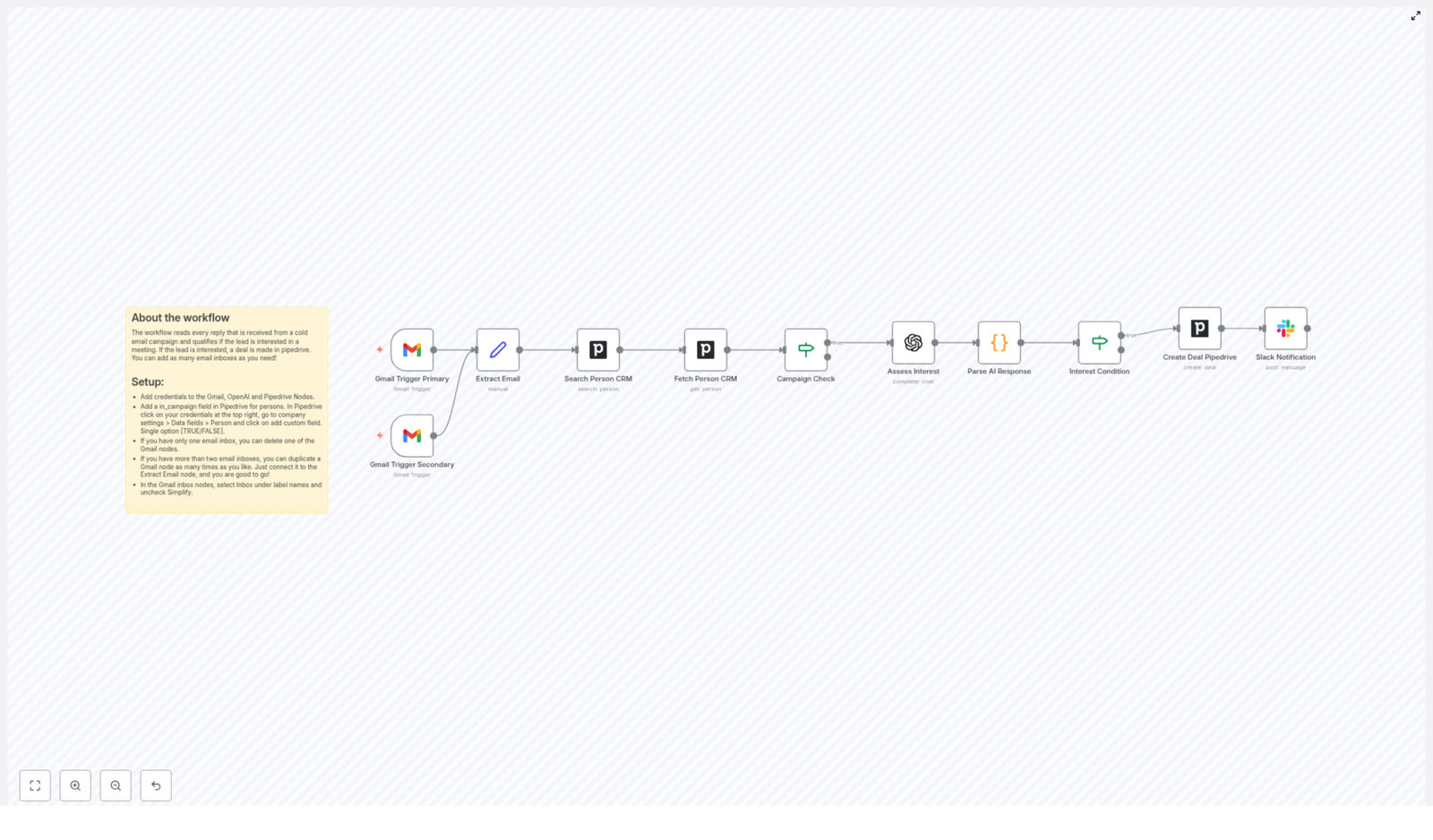
Qualifying cold email replies by hand slows down your sales team. With this n8n workflow template, you can automatically read replies from Gmail, check matching contacts in Pipedrive, use OpenAI to assess interest, and create deals for qualified leads. The result is a repeatable system that saves SDRs hours every week and makes sure no valuable reply is missed.

What you will learn in this guide

In this step-by-step tutorial, you will learn how to:

  • Understand the full cold email reply qualification workflow in n8n
  • Connect Gmail, Pipedrive, OpenAI, and Slack in a single automation
  • Configure each node so replies are qualified and turned into deals automatically
  • Write and improve an OpenAI prompt that returns clean JSON
  • Test, debug, and safely customize the template for your sales process

Why automate cold email reply qualification?

When you run outbound campaigns, your team often spends a lot of time:

  • Opening each reply manually
  • Deciding whether it is positive, negative, or neutral
  • Checking if the sender is in your CRM and in the right campaign
  • Creating deals and notifying the right SDR

This manual triage is slow, inconsistent, and expensive. Automation with n8n lets you:

  • Qualify replies consistently using clear rules and AI
  • Focus human effort on high-value conversations instead of inbox sorting
  • Create Pipedrive deals and notify sales in real time
  • Reduce errors from missed or misclassified replies

The workflow described below combines Gmail, Pipedrive, and OpenAI so that every relevant reply is checked, scored, and turned into an actionable next step.

How the n8n cold email reply workflow works

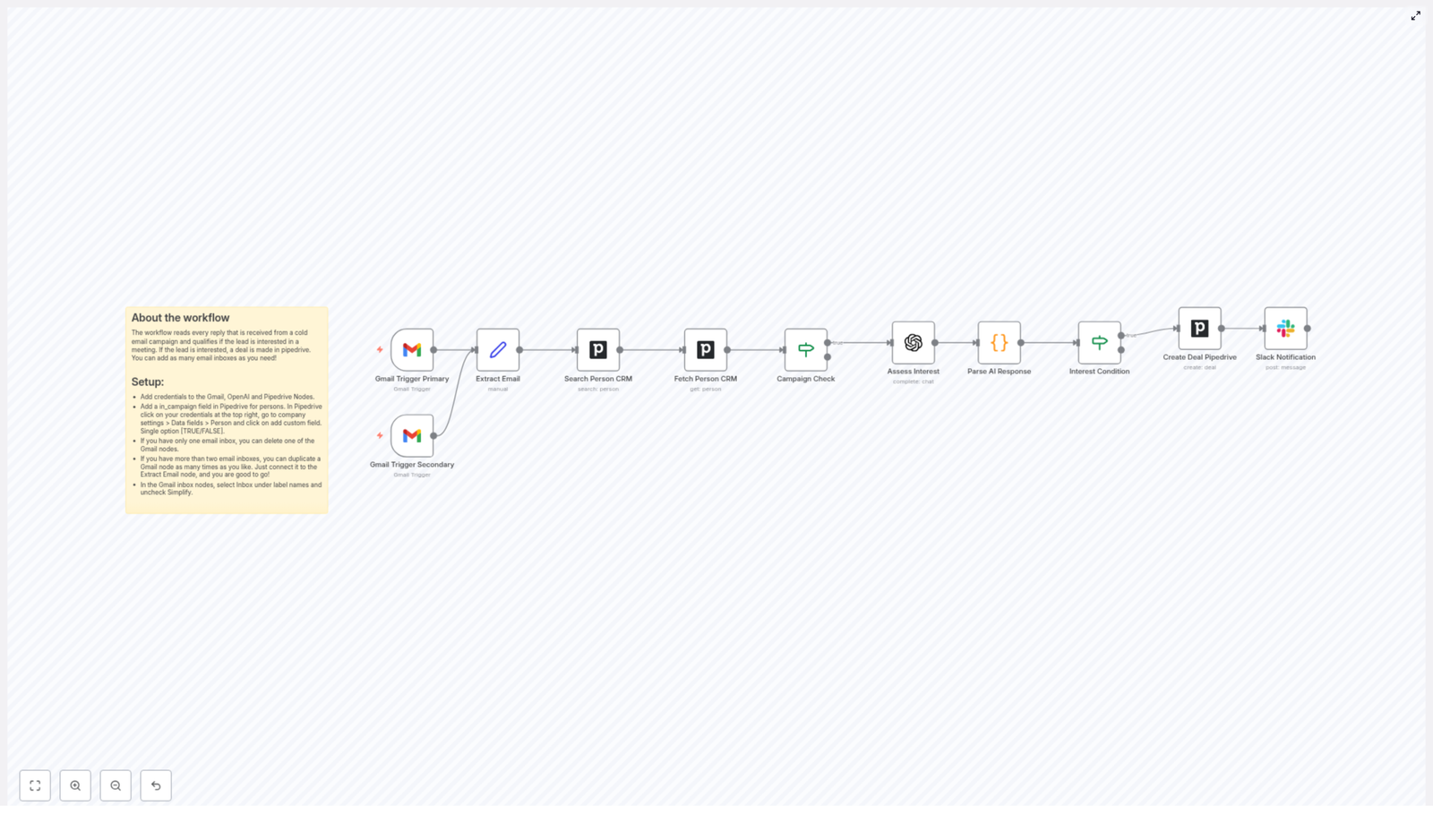
At a high level, the workflow follows this logic:

  1. Watch one or more Gmail inboxes for new replies.
  2. Extract and normalize the email content into a consistent field.
  3. Look up the sender in Pipedrive and fetch their details.
  4. Check if the person is part of the outbound campaign.
  5. Send the reply text to OpenAI to assess interest.
  6. Parse the AI response into structured data.
  7. If the lead is interested, create a Pipedrive deal.
  8. Optionally send a Slack notification to your sales channel.

Main components used in the template

  • Gmail Trigger (primary and secondary) – watches inboxes for incoming replies
  • Set node (Extract Email) – standardizes the email body into a named field
  • Pipedrive Search & Fetch – finds the person and retrieves custom fields
  • If node (Campaign Check) – filters to people in your outbound campaign
  • OpenAI (Assess Interest) – analyzes the reply text
  • Code node (Parse AI Response) – converts AI output into clean JSON fields
  • If node (Interest Condition) – checks if the lead is interested
  • Pipedrive Create Deal – opens a new deal for qualified leads
  • Slack node – notifies your sales team when a new deal is created

Before you start: setup checklist

Make sure you have the following ready before configuring the workflow:

  • n8n instance with access to:
    • Gmail credentials
    • Pipedrive credentials
    • OpenAI credentials
    • (Optional) Slack credentials
  • A Pipedrive person custom field, for example in_campaign, that indicates if a contact is in your outbound campaign (TRUE/FALSE or similar)
  • At least one Gmail inbox used for outbound campaigns and replies

Later, you will also:

  • Adjust Pipedrive deal fields (title, owner, stage) to match your pipeline
  • Test and refine the OpenAI prompt so it returns valid JSON consistently

Step-by-step: building the workflow in n8n

Step 1 – Watch replies with Gmail Trigger

The Gmail Trigger node starts the workflow every time a new email that matches your criteria arrives.

Configuration tips:

  • Add one or more Gmail Trigger nodes if you monitor multiple inboxes (for example, primary SDR inbox and a shared team inbox).
  • Set a reasonable polling interval, such as every minute, while keeping Gmail API quotas in mind.
  • In the node settings:
    • Uncheck the “Simplify” option so you get the full raw message data.
    • Select the Inbox label (or another label you use for campaign replies) so only relevant messages trigger the workflow.

With “Simplify” disabled, you preserve rich context and ensure that later nodes can extract the email body reliably.

Step 2 – Normalize the email content (Set node)

Different Gmail messages may store the body text in slightly different fields. To make the rest of the workflow easier, you standardize this into a single field.

Use a Set node (often named Extract Email) right after the Gmail Trigger and:

  • Create a new field, for example email or text.
  • Map this field from the correct part of the Gmail payload that holds the email content.

This step ensures that every downstream node can simply reference something like {{$json.email}} instead of dealing with Gmail-specific structure.

Step 3 – Find the sender in Pipedrive (Search & Fetch)

Next, you connect the reply to the right person in your CRM.

Use two Pipedrive nodes:

  1. Search Person CRM
    • Search for the person by email address from the reply.
    • This node returns the matching person if they exist in Pipedrive.
  2. Fetch Person CRM
    • Once a person is found, fetch their full details.
    • Include any custom fields, such as in_campaign or qualification flags.

By the end of this step, your workflow knows exactly which Pipedrive contact sent the reply and what campaign or status they belong to.

Step 4 – Filter by campaign (If node)

Not every reply in your inbox belongs to your current outbound campaign. You likely want to qualify only those that are part of a specific sequence.

Use an If node, often named Campaign Check, to:

  • Inspect the in_campaign custom field (or your equivalent field) on the Pipedrive person.
  • Continue the workflow only if this field is set to TRUE or the value you use for “in campaign”.

Replies from people who are not part of the campaign can be ignored or routed to a different branch for manual review. This avoids clutter and keeps the AI analysis focused on the right audience.

Step 5 – Assess interest with OpenAI

Now you pass the reply text to OpenAI so it can determine whether the lead is interested.

Add an OpenAI node (or a dedicated “Assess Interest” node configured with OpenAI) and:

  • Use the standardized email field from the Set node as the input text, for example {{ $json.email }} or {{ $json.text }}.
  • Provide a clear prompt that:
    • Explains the task: classify whether the reply shows interest.
    • Instructs the model to return only JSON.
    • Defines the exact JSON structure expected.

Example prompt snippet for the Assess Interest node:

Analyze the following email reply and return only JSON:
{"interested":"yes" or "no","reason":"one-sentence justification"}

Reply:
"{{email_text}}"

Replace {{email_text}} with the field that contains your extracted email body. Keeping the format strict reduces parsing errors later.

Step 6 – Parse the AI response (Code node)

The OpenAI node returns text that should be valid JSON. To safely use it in conditions and deal creation, you convert it into structured fields.

Add a Code node, often named Parse AI Response, and:

  • Write a small JavaScript snippet that:
    • Reads the raw response from OpenAI.
    • Parses it with JSON.parse() into an object.
    • Exposes fields like interested and reason on $json.
  • The workflow expects something like: {"interested":"yes"|"no","reason":"..."}

You can also add simple trimming or cleanup here if the AI occasionally includes extra whitespace around the JSON.

Step 7 – Check interest and create a Pipedrive deal

Once the AI output is parsed, you can decide what to do based on the interested value.

Interest Condition (If node)

  • Add another If node, usually called Interest Condition.
  • Configure it to check if interested equals "yes".

Create Deal in Pipedrive

For replies where the lead is interested:

  • Add a Create Deal Pipedrive node after the “yes” branch.
  • Set a clear deal title, for example:
    • {{ $json.person_name }} - Reply from outbound campaign
  • Configure:
    • Pipeline and stage
    • Owner (SDR or team member)
    • Priority or other custom fields relevant to your process

This step turns qualified replies into actionable deals without any manual data entry.

Step 8 – Notify the team on Slack (optional)

To ensure fast follow up, you can notify your sales team as soon as a new deal is created.

Add a Slack node after the Pipedrive Create Deal node and:

  • Send a message to a dedicated sales or SDR channel.
  • Include key information, for example:
    • Contact name and email
    • Deal link in Pipedrive
    • Short summary of the AI “reason” field

This keeps everyone aligned and reduces response times to hot leads.

Improving your OpenAI prompt for better results

A strong prompt is critical for reliable automation. To reduce JSON errors and improve accuracy:

  • Be explicit about the output format. Clearly state that only JSON should be returned, and show the exact structure.
  • Provide examples. Include short examples of positive, neutral, and negative replies and how they should be classified.
  • Limit the response length. Ask for a short answer to minimize the chance of extra commentary or hallucinations.

You can start with the example snippet above and gradually refine it using real replies from your campaigns.

Testing and debugging the workflow

Before going live, it is important to test each part of the workflow with realistic data.

  • Use a test inbox. Send yourself sample replies (interested, not interested, out of office, etc.) and verify how the workflow behaves.
  • Check execution logs in n8n. Inspect the output of each node, especially the OpenAI node and the Parse AI Response node, to confirm the JSON structure is correct.
  • Handle malformed JSON. If the AI occasionally returns invalid JSON, enhance the Code node with:
    • Trimming of leading or trailing text
    • Basic validation before parsing

Security, privacy, and compliance considerations

Because this workflow sends email content to third party services, you should review your data handling practices.

  • Review OpenAI data policies. Check how data is stored and processed, and opt out of data logging if your compliance requires it.
  • Redact sensitive data when possible. If replies contain personal or confidential information, consider masking or removing it before sending it to OpenAI.
  • Minimize stored data in Pipedrive. Only keep fields that are necessary for your sales process and remove test data regularly.

Customization ideas for advanced workflows

Once the basic template is running, you can extend it to match your exact sales motion.

  • Interest scoring. Instead of a simple yes/no, ask OpenAI to return a score from 0 to 100 and route high scoring leads differently.
  • Automatic meeting scheduling. When the reply suggests times, integrate with a calendar API to propose or book meetings automatically.
  • Follow up sequences for “maybe” replies. For ambiguous or “not now” responses, automatically send a personalized follow up email from n8n.

Common issues and how to fix them

AI returns invalid JSON

If the OpenAI node sometimes returns extra text or malformed JSON:

  • Tighten the prompt to say “return only JSON, no explanation”.
  • Add trimming and validation logic in the Parse AI Response Code node.
  • Include concrete examples of correct JSON in the prompt.

Pipedrive person not found

If the workflow cannot match the sender to a Pipedrive contact:

  • Confirm that the Search Person CRM node is using the correct email field.
  • Check that the inbound reply includes the original outbound email address you used for the campaign.
  • Consider adding secondary matching, such as name or company, if email addresses differ.

Recap and next steps

This n8n workflow template transforms cold email reply handling from a manual process into a consistent, automated system. By watching Gmail, checking Pipedrive, using OpenAI to assess interest, and creating deals plus Slack notifications, your SDRs can focus on conversations instead of inbox triage.

To put this into practice:

  1. Import the workflow into n8n.
  2. Connect your Gmail, Pipedrive, OpenAI, and optional Slack credentials.
  3. Verify the in_campaign field or equivalent is set up in Pipedrive.
  4. Test with a small batch of real replies and refine your OpenAI prompt.
  5. Roll out gradually and iterate on deal creation rules and routing.

Ready to automate your reply qualification? Set up the template, run a controlled test, and then adapt it to your specific CRM fields and sales cadence. For deeper customization, work with your automation specialist or consult the n8n community for best practices.

Call to action: Import the workflow now

Automate Cold Email Replies with n8n & OpenAI

Automate Cold Email Replies with n8n & OpenAI

Cold email campaigns generate valuable replies, but manually reading and qualifying each response is slow and inconsistent. This n8n workflow template converts every inbound reply into a structured qualification event. It listens to Gmail, looks up and updates people in Pipedrive, sends the reply content to OpenAI for intent classification, creates Pipedrive deals for interested leads, and notifies your sales team on Slack.

This reference-style guide explains how the workflow operates, how data flows between nodes, how to configure each integration, and how to adapt the template for more advanced use cases without changing its core behavior.


1. Workflow overview

1.1 Purpose

The workflow automates cold email reply qualification using n8n. It is designed for teams that:

  • Send outbound emails via Gmail
  • Track contacts and deals in Pipedrive
  • Use Slack for sales notifications
  • Want OpenAI to classify replies as interested or not interested

Instead of manually reading each reply, the workflow:

  1. Detects new replies in one or more Gmail inboxes
  2. Extracts the message body
  3. Finds the corresponding person in Pipedrive
  4. Checks whether that person is part of an active outreach campaign
  5. Sends the reply text to OpenAI for interest assessment
  6. Parses the OpenAI response into structured fields
  7. Creates a Pipedrive deal if the lead is interested
  8. Sends a Slack notification with the deal and context

1.2 High-level architecture

The template is built as a linear but conditional pipeline. At a high level, the node sequence is:

  • Gmail Trigger (Primary & Secondary) – watches inboxes for replies
  • Extract Email (Set node) – normalizes and exposes the email body
  • Search Person CRM (Pipedrive) – locates the person by email address
  • Fetch Person CRM (Pipedrive) – retrieves full person details
  • Campaign Check (IF node) – verifies the person is in an active campaign
  • Assess Interest (OpenAI) – evaluates the reply content for intent
  • Parse AI Response (Code node) – parses the JSON-like result into fields
  • Interest Condition (IF node) – branches based on the interest flag
  • Create Deal Pipedrive – opens a new deal in Pipedrive for interested leads
  • Slack Notification – posts a message to a Slack channel about the new deal

Execution is event-driven by the Gmail Trigger nodes. Subsequent nodes run only for new messages that satisfy the trigger configuration.


2. Node-by-node breakdown

2.1 Gmail Trigger nodes (Primary & Secondary)

Role: Entry point for the workflow. These nodes poll specific Gmail inboxes for new replies.

  • Type: Gmail Trigger
  • Credentials: Gmail (OAuth or service-based, depending on your n8n setup)
  • Label Names: Set to Inbox
  • Simplify: Disabled (unchecked) to preserve full raw email structure
  • Polling Interval: Typically every 1 minute in the template

The template includes two separate Gmail Trigger nodes labeled “Primary” and “Secondary” so you can monitor multiple inboxes (for example, separate SDR mailboxes). You can:

  • Remove one if you only use a single inbox
  • Duplicate the node to monitor additional inboxes
  • Adjust each node’s polling interval to manage API usage and responsiveness

Data output: Each trigger emits a message object that includes headers, subject, sender, and raw body content. Since Simplify is disabled, you retain full control over how you parse and interpret the message downstream.

2.2 Extract Email node (Set)

Role: Normalize and expose the email body for downstream processing.

  • Type: Set node
  • Input: Message data from the Gmail Trigger
  • Output: Fields such as body or text that will be passed to OpenAI

This node typically selects or renames properties from the Gmail Trigger output so that later nodes have a consistent field name for the email content. For example, it might map the raw Gmail field to email_body or similar.

At this stage you can also implement basic preprocessing such as trimming whitespace or removing obvious boilerplate, although the template focuses primarily on extraction rather than heavy cleaning.

2.3 Search Person CRM node (Pipedrive)

Role: Match the email sender to an existing person record in Pipedrive.

  • Type: Pipedrive node
  • Operation: Search for a person by email
  • Credentials: Pipedrive API key or OAuth credentials configured in n8n
  • Input: Email address from the Gmail Trigger output

The node queries Pipedrive using the email address from the incoming message. If a matching person exists, the node outputs that person record. If no match is found, the output will be empty or contain no items for subsequent nodes.

Downstream handling of “no person found” is covered in the troubleshooting section. By default, the template assumes the person exists and will not automatically create a new record.

2.4 Fetch Person CRM node (Pipedrive)

Role: Retrieve full person details, including custom fields, from Pipedrive.

  • Type: Pipedrive node
  • Operation: Get person by ID
  • Input: Person ID from the Search Person CRM node

This node loads the complete person object from Pipedrive. The workflow relies on this step to access the custom field that indicates whether the contact is part of an active campaign.

Without this full fetch, the IF node that checks campaign membership would not have access to the in_campaign flag described later.

2.5 Campaign Check node (IF)

Role: Filter out replies from contacts who are not part of your current outreach campaign.

  • Type: IF node
  • Condition: Custom person field in_campaign is set to TRUE
  • Input: Full person object from the Fetch Person CRM node

The IF node branches workflow execution into two paths:

  • True branch: Person is in an active campaign. Processing continues and the reply is evaluated by OpenAI.
  • False branch: Person is not in an active campaign. The workflow typically stops processing for this item, avoiding unnecessary API calls and deal creation.

For this check to work correctly, you must configure the custom field in Pipedrive as described in the configuration section below.

2.6 Assess Interest node (OpenAI)

Role: Use OpenAI to classify the reply as interested or not interested and capture a short reasoning string.

  • Type: OpenAI node
  • Model: GPT-4 by default in the template
  • Input: Extracted email body from the Extract Email node
  • Output: A short JSON-like string with fields interested and reason

The node sends a prompt that instructs GPT-4 to return a minimal JSON object in the following format:

{  "interested": "yes" | "no",  "reason": "..."
}

For example:

{  "interested": "yes",  "reason": "They asked to schedule a call next week."
}

The prompt is crafted so that the output is deterministic and easy to parse. Temperature is typically kept low to reduce variability and avoid malformed JSON, as discussed later.

2.7 Parse AI Response node (Code)

Role: Convert the OpenAI text output into structured fields that can be used by IF and Pipedrive nodes.

  • Type: Code node
  • Language: JavaScript
  • Input: Raw text string from the OpenAI node
  • Output: Fields such as interested and reason

The Code node typically:

  1. Reads the text returned by OpenAI
  2. Parses it as JSON using JSON.parse or a similar approach
  3. Exposes the interested flag and reason as top-level properties in the item

If OpenAI returns invalid JSON, this node is where parsing errors will surface. Handling those cases is described in the troubleshooting section.

2.8 Interest Condition node (IF)

Role: Decide whether to create a deal and send a Slack notification based on the AI classification.

  • Type: IF node
  • Condition: Parsed field interested equals "yes"
  • Input: Parsed AI response from the Code node

The node routes items as follows:

  • True branch: AI marked the lead as interested. The workflow proceeds to Pipedrive deal creation and Slack notification.
  • False branch: AI marked the lead as not interested. The workflow usually ends for this reply, although you can extend this branch for nurturing or logging.

2.9 Create Deal Pipedrive node

Role: Automatically create a new deal in Pipedrive when a lead is classified as interested.

  • Type: Pipedrive node
  • Operation: Create deal
  • Input: Person ID from earlier Pipedrive nodes, plus any contextual information

This node typically sets fields such as:

  • Deal title (for example, based on the contact name or email subject)
  • Associated person
  • Pipeline or stage (depending on your Pipedrive configuration)

To avoid duplicate deals, you can add idempotency checks before this node, as described in the troubleshooting section.

2.10 Slack Notification node

Role: Notify the sales team in real time when a new interested lead is detected and a deal is created.

  • Type: Slack node
  • Operation: Send message to channel
  • Input: Deal details, person information, and AI reason text

The Slack message usually includes:

  • Contact name and email
  • Link to the Pipedrive deal
  • Brief summary of the AI reason, such as “Asked to schedule a call next week”

This immediate notification allows SDRs or AEs to follow up quickly, which can significantly improve conversion rates.


3. Configuration and setup

3.1 Credentials configuration

Before running the template, configure the required credentials in your n8n instance:

  • Gmail credentials: Used by the Gmail Trigger nodes to read new messages from your inboxes.
  • OpenAI credentials: API key for GPT-4, used by the Assess Interest node.
  • Pipedrive credentials: API key or OAuth credentials, used by all Pipedrive nodes.

In n8n:

  1. Navigate to Credentials
  2. Create or configure entries for Gmail, OpenAI, and Pipedrive
  3. Assign each credential to the corresponding nodes in the workflow

The template includes two Gmail Trigger nodes. You can use the same Gmail credential for both, or different credentials if monitoring separate accounts.

3.2 Pipedrive custom field: in_campaign

To ensure that only relevant contacts are processed, the workflow relies on a custom field in Pipedrive:

  • Field name: in_campaign
  • Level: Person-level field
  • Type: Single option with values TRUE / FALSE (or equivalent boolean representation)

Steps in Pipedrive:

  1. Create a new custom field on the Person entity
  2. Name it in_campaign (or a name that you then reference consistently in n8n)
  3. Configure the field as a TRUE/FALSE style flag
  4. Set this field to TRUE for contacts who are part of your active cold email campaigns

The Campaign Check IF node reads this field to decide whether to continue processing a reply.

3.3 Gmail Trigger configuration

For each Gmail Trigger node:

  • Label Names: Select Inbox so that only messages in the Inbox are considered.
  • Simplify: Uncheck this option. Disabling simplification preserves the raw email payload, which is useful for custom parsing and robust integration with OpenAI.
  • Polling Interval: The template uses “Every minute” as a starting point. You can increase this interval to reduce API calls or decrease it for faster reaction time, depending on your Gmail API limits and workload.

Make sure that the inboxes are receiving the cold email replies you want to process. If you use labels or filters in Gmail, adjust the trigger configuration accordingly.

3.4 OpenAI prompt tuning

The Assess Interest node sends the email body to OpenAI with a prompt that:

  • Asks the model to determine if the sender is interested in your offer
  • Requires a structured JSON response with interested and reason keys
  • Specifies allowed values for interested (for example, "yes" or "no")

Example expected response:

{  "interested": "yes",  "reason": "They asked to schedule a call next week."
}

To keep outputs consistent and easier to parse:

  • Use a low temperature (for example, 0.0 to 0.4) for deterministic behavior
  • Be explicit in the prompt about the JSON structure and field types
  • Include brief examples of both positive and negative replies in the prompt, if needed

4. Best practices for OpenAI classification

4.1 Prompt design guidelines

To achieve reliable JSON output from OpenAI in n8n:

  • Define a strict schema: Clearly describe the JSON keys (interested, reason) and allowed values.
  • Require JSON only: Include an instruction such as Respond with only

GDPR Data Deletion Workflow with n8n

GDPR Data Deletion Workflow with n8n

Imagine this: it is 4:59 p.m., you are mentally halfway out the door, and a GDPR data deletion request pops into your inbox. You sigh, open five different tools, copy-paste the same email over and over, hope you do not miss anything, and silently pray no regulator ever asks for an audit trail.

Now imagine instead that you type a simple command, walk away, and an automated n8n workflow quietly does all the boring stuff for you. It deletes data across Paddle, CustomerIO, and Zendesk, logs everything neatly in Airtable, and even posts a friendly update in Slack. That is what this GDPR data deletion workflow template is built to do.

In this guide, we will walk through how the n8n workflow works, how it keeps you compliant and sane, and how you can plug it into your own setup without needing a week-long automation retreat.

Why bother automating GDPR data deletion?

Under GDPR, data subject requests are not “nice-to-have” tasks, they are legal obligations. Every time a user asks you to delete their data, you have to:

  • Find that user across multiple tools and services
  • Delete or anonymize their data correctly
  • Make sure you did not miss a system
  • Be able to prove you did it, later, if needed

Doing this manually is slow, repetitive, and extremely easy to mess up. It is also painful to audit later. An automated GDPR data deletion workflow in n8n helps you:

  • Reduce human error by standardizing the process
  • Respond faster to deletion requests
  • Keep a clear, auditable log of what happened and when
  • Respect privacy by only storing hashed identifiers instead of raw emails

In short, the workflow does the boring bits on repeat so you do not have to.

What this n8n GDPR deletion workflow actually does

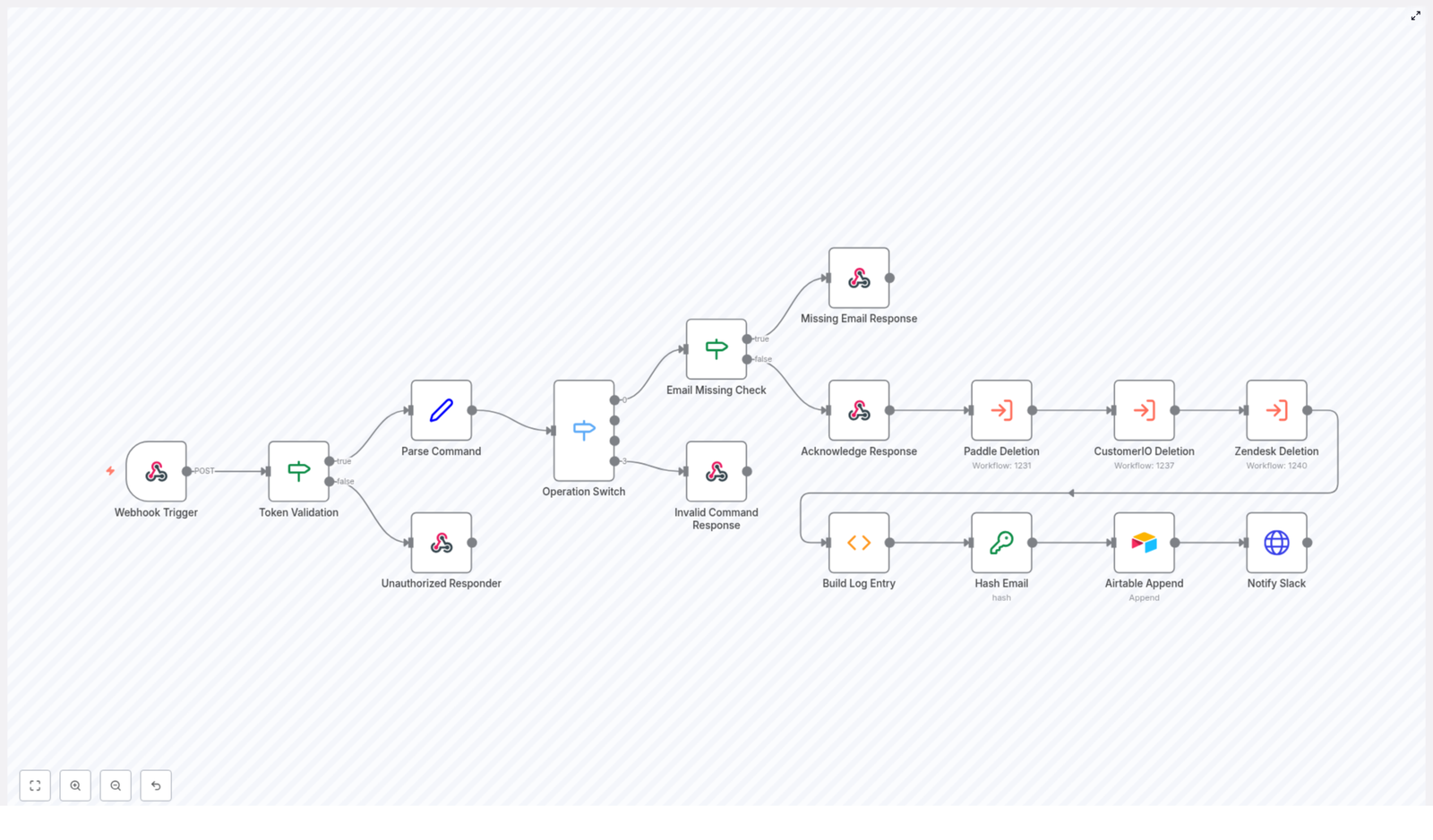
This template is a complete, end-to-end GDPR data deletion workflow built with n8n nodes wired together for security, automation, and auditability. At a high level, it:

  • Accepts deletion requests through a Webhook Trigger (for example, from Slack or an internal admin UI)
  • Validates that the request is authorized using a Token Validation step
  • Parses the incoming command to extract the operation and email address
  • Routes the request based on the operation using an Operation Switch
  • Runs deletion sub-workflows for Paddle, CustomerIO, and Zendesk
  • Builds an audit log entry summarizing what happened
  • Hashes the email with SHA256 so you do not store plaintext personal data
  • Appends the hashed record to Airtable for your compliance trail
  • Sends a Slack notification back to the requester with the result and a link to the log

The design balances three things that do not usually like each other: automation, auditability, and privacy.

The journey of a GDPR deletion request

Let us walk through what happens from the moment someone types a command like:

/gdpr delete user@example.com

All the way to “OK, this is logged and done.”

1. Webhook receives the request and checks the token

Everything starts with the Webhook Trigger node. It accepts POST requests, for example from Slack, and receives a payload that looks roughly like this:

{  "token": "foo",  "text": "delete user@example.com",  "response_url": "https://hooks.slack.com/..."
}

Right after that, the workflow runs a Token Validation step. It checks whether the token in the payload matches your expected secret. If it does not match, the workflow does not even try to delete anything.

Instead, it returns a 403 via an Unauthorized Responder node and stops there. No valid token, no deletion. This keeps random internet strangers from “helping” you clean your database.

2. Parse the command into operation and email

Once the token is confirmed, the workflow moves on to the Parse Command node. This node:

  • Splits the text field into two parts: the operation and the email
  • Normalizes the operation to lowercase, for example delete
  • Checks that an email address is actually present

If the token was invalid earlier, you already got a 403 and nothing else happens. If the token is fine but the command is malformed, the workflow will handle that in the next steps.

3. Route the operation and handle bad commands

Next up is the Operation Switch node. This is where the workflow asks: “What are we trying to do here?”

If the operation is not recognized, for example it is not delete, the workflow triggers an Invalid Command Response node. That node sends a friendly message like:

“Sorry, I did not understand your command. You can request data deletion like so: /gdpr delete <email>.”

So instead of silently failing or doing something weird, it guides the user back to the right format.

4. Check for an email and acknowledge the request

Even if the operation is valid, the workflow still needs a target. If no email is provided, it sends back a Missing Email Response with clear instructions on how to fix the command.

If an email is present, the workflow immediately sends an Acknowledge Response to the requester. This is a short confirmation like “On it!” sent via the original response_url.

The key idea is that this acknowledgment happens before any long-running deletion tasks finish. The user gets instant feedback, and your workflow can take its time doing the actual cleanup behind the scenes.

5. Run the actual deletions in Paddle, CustomerIO, and Zendesk

Once the request is validated and acknowledged, the workflow triggers three Execute Workflow nodes, one after another:

  • Paddle Deletion
  • CustomerIO Deletion
  • Zendesk Deletion

Each of these executes a focused sub-workflow that:

  • Finds the user by their email address in the respective service
  • Issues the relevant delete or anonymize API calls

Some services do not truly delete accounts and instead only allow suspension or anonymization. In those cases, you can standardize what “deletion” means in your policy and have the sub-workflow map to that action.

Design tip: Make each sub-workflow idempotent. That means if you run the same deletion request multiple times, it does not break anything or perform duplicate work. If the user is already deleted or anonymized, the workflow should simply confirm that state instead of throwing errors.

6. Build a structured audit record

Once all the service-specific deletions are done, the workflow uses a Build Log Entry function node to summarize what happened. It collects the results from Paddle, CustomerIO, and Zendesk, then produces fields such as:

  • Result – for example Done or Error
  • Notes – service messages concatenated into a readable summary
  • Processed – an ISO timestamp of when the deletion completed

This gives you a clean, standardized record for every deletion request, instead of scattered logs and guesswork.

7. Hash the email for privacy-first logging

Before anything gets stored, the workflow passes through a Hash Email node. This node takes the user’s email and applies SHA256 hashing, then stores only the hash, not the plaintext email.

Why this matters:

  • You can still link multiple audit records for the same user by matching the hash
  • You avoid keeping raw personal data sitting in your logging system
  • You maintain traceability without building an accidental side-database of user emails

It is a neat way to keep your logs useful and your legal team less nervous.

8. Append the record to Airtable for your audit trail

With the hash and summary ready, the workflow uses an Airtable Append node to store the log entry in a dedicated Log table. The record typically includes:

  • The hashed email identifier
  • The deletion outcome (Done or Error)
  • The timestamp of processing
  • Any service-specific messages or notes

Because the email is hashed, the Airtable log provides traceability while minimizing stored PII. If you ever need to demonstrate compliance, you can show exactly what happened and when, without revealing user emails in your audit table.

9. Notify the requester in Slack

Finally, the workflow sends a status update through a Notify Slack HTTP Request node. It posts a concise message back to the original response_url that includes:

  • The overall status, for example OK or Error
  • A link to the Airtable audit record

The requester gets a clear “this is done” message, along with a direct path to the log if they need more detail. No one has to wonder whether the deletion actually happened.

Error handling and monitoring so nothing slips through

GDPR deletion workflows are not a place for silent failures. This template includes patterns you should keep and extend:

  • Fail fast on bad inputs Return early with clear responses for:
    • Invalid tokens
    • Missing emails
    • Unrecognized commands
  • Log per-service responses Collect the outcome of each third-party deletion (Paddle, CustomerIO, Zendesk) and include that in the audit record so you can see exactly which services succeeded or failed.
  • Use retries for flaky APIs When talking to third-party APIs, implement retries and exponential backoff for transient errors. Internet hiccups should not derail your compliance.
  • Alert humans when things go wrong If a deletion fails repeatedly, alert a human operator or a support channel so someone can step in and resolve the issue.

Best practices for a safe, privacy-friendly workflow

Security tips

  • Keep your webhook token secret and rotate it periodically
  • Expose the webhook over HTTPS-only endpoints
  • Restrict inbound IPs where possible
  • Limit who can trigger deletions, for example with Slack app scopes, admin UI roles, or mTLS

Privacy tips

  • Hash emails with SHA256 or otherwise pseudonymize identifiers before storing them in logs
  • Record only what you need for compliance: timestamps, actions taken, and outcomes

Operational tips

  • Make deletion workflows idempotent so repeated requests are safe and do not cause errors
  • Have a human review path for tricky edge cases or contested deletions
  • Log request and response payloads temporarily for debugging, then rotate or redact them on a schedule

How to test and deploy this n8n GDPR template

Before you unleash this workflow on real users, run it through a proper test cycle.

Testing checklist

  • Use a staging environment for n8n
  • Set up test accounts in Paddle, CustomerIO, and Zendesk
  • Confirm that:
    • Token mismatches return a 403 and do not run any deletions
    • Malformed commands return helpful guidance instead of cryptic errors
    • Successful delete flows create a hashed audit record in Airtable
    • Slack receives both the initial acknowledgment and the final status message

Deployment tips

When everything looks good in staging:

  • Deploy the workflow on a secure n8n instance
  • Keep an eye on logs for early failures or misconfigurations
  • Optionally, add a scheduled job that periodically checks that your Airtable audit records match the actual account states in your services

Wrapping up: less manual work, more reliable compliance

Automating GDPR data deletion with n8n turns a messy, manual chore into a repeatable, auditable process. By:

  • Validating every request
  • Coordinating deletions across Paddle, CustomerIO, and Zendesk
  • Hashing email addresses before logging anything
  • Storing outcomes in Airtable with timestamps and notes
  • Notifying requesters through Slack

You get both speed and clear evidence of compliance, without living in constant fear of the next deletion request.

Want to skip the “build from scratch” phase? Grab the n8n template, plug in your credentials, customize the service deletion sub-workflows to match your own stack, and test everything in staging before going live.

Next steps and how to get help

If you would like help adapting this GDPR data deletion workflow for your specific tools, adding extra compliance controls, or wiring in RBAC, reach out to our team or drop a comment. We are happy to help you spend less time on repetitive deletion tasks and more time on work that is actually interesting.

Happy automating!

Automate Email Campaigns from LinkedIn Interactions

Automate Email Campaigns from LinkedIn Interactions with n8n

Using LinkedIn engagement as a source of leads is powerful, but doing it by hand is slow and inconsistent. With n8n, you can turn every like and comment on your LinkedIn posts into a structured, scalable email outreach pipeline.

This guide walks you through an n8n workflow template that:

  • Collects LinkedIn likers and commenters with Phantombuster
  • Enriches their contact data with Dropcontact
  • Deduplicates and stores contacts in Airtable
  • Triggers email campaigns in Lemlist and updates HubSpot
  • Notifies your team in Slack as contacts are processed

You will learn how each part of the automation works, how to configure it in your own n8n instance, and how to keep it reliable and compliant.


Learning goals

By the end of this tutorial, you should be able to:

  • Explain the full LinkedIn-to-email automation flow in n8n
  • Configure Phantombuster, Dropcontact, Airtable, Lemlist, HubSpot, and Slack inside one workflow
  • Map and enrich contact data for better personalization and deliverability
  • Set up deduplication so you do not repeatedly message the same person
  • Troubleshoot common errors and stay compliant with data privacy rules

Why automate LinkedIn interactions?

When a LinkedIn user likes or comments on your post, they are signaling interest. The challenge is capturing that interest before it goes cold.

Manual workflows usually look like this:

  • Copy profile URLs from LinkedIn
  • Search for emails and company details
  • Paste data into a spreadsheet or CRM
  • Hand off to a sales or marketing tool

This approach is slow, error-prone, and almost impossible to scale.

Automating the process with n8n lets you:

  • Respond quickly to engaged prospects while the interaction is still fresh
  • Keep a single, reliable source of truth in Airtable or your CRM
  • Automatically enrich contacts for better personalization and higher deliverability
  • Trigger email campaigns at scale without any copy-paste work

Conceptual overview of the workflow

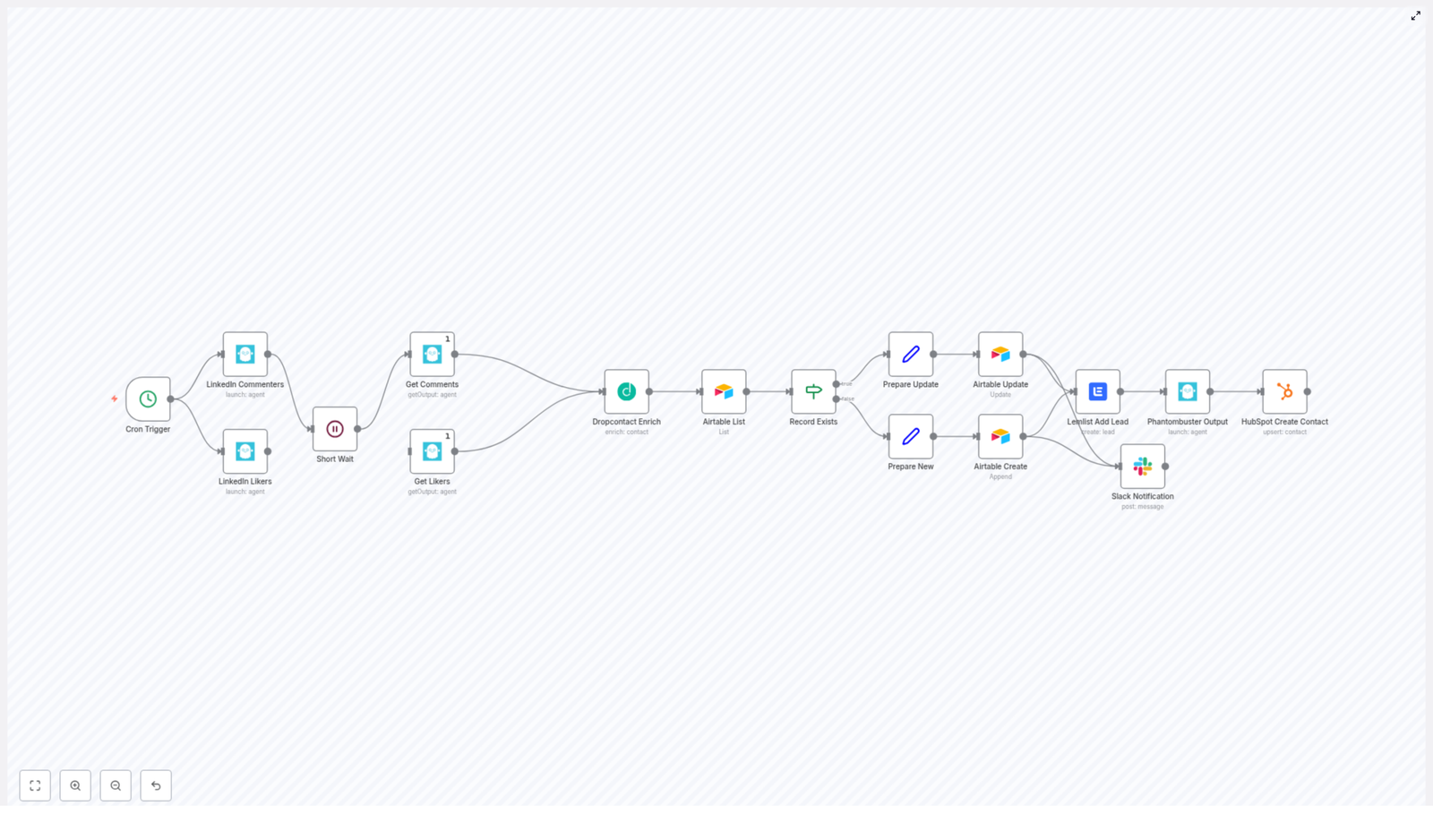
Before diving into configuration, it helps to understand the overall flow. At a high level, the n8n template runs in this sequence:

  1. Cron Trigger starts the workflow on a schedule.
  2. Phantombuster agents scrape LinkedIn likers and commenters.
  3. A Short Wait node gives Phantombuster time to complete.
  4. Phantombuster Get Output nodes pull the scraped profile data.
  5. Dropcontact enriches each profile with email and other fields.
  6. Airtable checks if the email already exists.
  7. Update or create the contact in Airtable.
  8. Lemlist and HubSpot receive the contact for campaigns and CRM.
  9. Slack sends a notification for each processed contact.

Think of it as a pipeline:

LinkedIn engagement → Scraping → Enrichment → Deduplication → Storage → Outreach → Notification


Key n8n nodes and what they do

Now let us break down the main building blocks of the template. Understanding these will make the setup steps much easier.

Cron Trigger – schedule the automation

The Cron node starts the workflow automatically on a regular schedule, for example every hour or a few times per day. This ensures you continuously capture new likers and commenters without manual intervention.

Phantombuster: LinkedIn Commenters & LinkedIn Likers

Two Phantombuster agents are used:

  • LinkedIn Likers – collects profiles of people who liked a given post
  • LinkedIn Commenters – collects profiles of people who commented

In the n8n workflow, you trigger these agents via Phantombuster nodes. After triggering them, the workflow uses a Short Wait node so the agents have time to run and upload their output.

Phantombuster Get Output – retrieve scraped profiles

Once Phantombuster finishes, dedicated Get Output nodes fetch the result files. These nodes return lists of LinkedIn profiles, which are then passed downstream to enrichment.

Dropcontact Enrich – add emails and firmographic data

Dropcontact receives each profile (typically name and LinkedIn URL) and attempts to find:

  • Professional email addresses
  • Phone numbers
  • Company name
  • Website and related company data

The workflow then maps Dropcontact fields into Airtable and CRM entries. A typical expression used in n8n to access the primary email looks like:

={{$node["Dropcontact Enrich"].json["data"][0]["email"][0]["email"]}}

It is important to check the actual JSON structure returned by your Dropcontact account, since APIs can change over time. If the structure differs, you will need to adjust the expressions accordingly.

Airtable List & Record Exists (If) – deduplicate contacts

To avoid sending multiple campaigns to the same person, the workflow uses Airtable as a central database:

  • Airtable List retrieves existing contacts from your Contacts table.
  • A downstream If node (often named Record Exists) compares the enriched email from Dropcontact with existing emails in Airtable.

Depending on the result, the flow decides whether to update an existing record or create a new one.

Prepare Update / Prepare New – map data into Airtable fields

Two Set nodes (commonly labeled Prepare Update and Prepare New) handle the data mapping:

  • Prepare New builds a complete record for new contacts, including fields like Name, Account, Company website, Email, Phone, and LinkedIn URL.
  • Prepare Update formats only the fields you want to refresh for existing contacts.

This is where you align the output from Dropcontact and Phantombuster with your Airtable column names.

Airtable Create & Airtable Update – store contacts

After data is prepared:

  • Airtable Create appends a new row when the contact does not yet exist.
  • Airtable Update modifies an existing row using the Airtable record ID captured earlier in the flow.

Both nodes can be configured to use typecast so that Airtable correctly interprets the data types for linked records, select fields, etc.

Lemlist Add Lead & HubSpot Create Contact

Once a contact is stored in Airtable, the workflow hands it off to your sales and marketing tools:

  • Lemlist Add Lead adds the email address to your Lemlist account so you can enroll them in email campaigns.
  • HubSpot Create Contact creates or upserts the contact in HubSpot CRM, keeping your pipeline updated.

The Lemlist node is configured with continueOnFail=true, which means that if Lemlist is rate-limited or returns an error, the rest of the workflow continues instead of stopping completely.

Slack Notification – keep your team in the loop

Finally, a Slack node posts a message to a chosen channel for each new or updated contact. This can include key details like name, email, company, and whether the record was created or updated.


Step-by-step setup in n8n

The sections below guide you through turning the template into a working automation in your own environment.

Step 1: Import the workflow template

  1. Download or copy the provided n8n JSON template.
  2. Open your n8n instance and go to the Workflows area.
  3. Use the Import option and paste or upload the JSON.
  4. Save the workflow and give it a descriptive name, for example, LinkedIn Engagement to Email Campaign.

Before running the workflow, make sure you have access to all needed services:

  • Airtable
  • Phantombuster
  • Dropcontact
  • Lemlist
  • HubSpot
  • Slack

Step 2: Configure Phantombuster agents for LinkedIn

In your Phantombuster account, you will need two agents targeting the same LinkedIn post:

  • LinkedIn Post Likers Scraper (or equivalent)
  • LinkedIn Post Commenters Scraper

For each agent:

  1. Set the target LinkedIn post URL.
  2. Configure the agent to output data through the Phantombuster API (not only CSV or Google Sheets).
  3. Note the agent ID and confirm that the API key you will use in n8n has access.
  4. Run a manual test in Phantombuster to confirm you get a clean list of profiles.

Back in n8n, open the Phantombuster nodes that trigger these agents and:

  • Select your Phantombuster credentials.
  • Enter the correct agent IDs.
  • Verify that the output format matches what the template expects (profile URLs, names, etc.).

Step 3: Add and connect API credentials in n8n

In n8n, go to Settings > Credentials and create entries for each service used in the workflow.

  • Airtable – API key (or personal access token), base ID, and table name for your Contacts table.
  • Phantombuster – API key associated with your agents.
  • Dropcontact – API key for enrichment.
  • Lemlist – API key for your Lemlist account.
  • HubSpot – API key or OAuth app connection.
  • Slack – Bot token with permission to post to the target channel.

After creating each credential, open the corresponding nodes in the workflow and select the right credential from the dropdown. Run a quick test on a single node (for example, Airtable List) to confirm connectivity.

Step 4: Map and validate fields for Airtable and CRMs

Field mapping is where you adapt the template to your specific schema.

Focus on these nodes:

  • Prepare New (Set node)
  • Prepare Update (Set node)
  • Airtable Create
  • Airtable Update
  • Lemlist Add Lead
  • HubSpot Create Contact

For each Set node:

  1. Open the node and review each field being set (Name, Email, Company, Website, Phone, LinkedIn URL, etc.).
  2. Update the field names to match the column names in your Airtable base or CRM properties.
  3. Check the expressions that pull data from Dropcontact and Phantombuster. For example:
    ={{$node["Dropcontact Enrich"].json["data"][0]["email"][0]["email"]}}

    Adjust these if your Dropcontact JSON structure is different.

For Lemlist and HubSpot nodes, make sure you:

  • Map the contact email correctly.
  • Optionally map additional fields such as first name, last name, company, or LinkedIn URL to custom properties.

Step 5: Tune timing and rate limits

The workflow relies on external services that may take time to respond or may impose rate limits.

Key considerations:

  • Short Wait node after triggering Phantombuster:
    • The template uses a default of around 30 seconds.
    • If your posts get a lot of engagement or your Phantombuster plan is slower, increase this delay.
    • Alternatively, you can implement a polling loop that checks for output readiness instead of a fixed delay.
  • Cron Trigger frequency:
    • Do not run the workflow too frequently, or you may hit API rate limits on Phantombuster, Dropcontact, Lemlist, or HubSpot.
    • Start with a modest schedule, such as once per hour or a few times per day, and adjust based on volume.
  • Lemlist continueOnFail:
    • The Lemlist node is set to continueOnFail=true so that temporary Lemlist issues do not block the entire pipeline.

After you adjust timing, run a small test with a few contacts before moving to production volume.


Best practices for a stable and effective workflow

  • Respect platform rules – Follow LinkedIn terms of service and Phantombuster usage limits. Avoid aggressive schedules that might flag your account.
  • Use deduplication – Rely on Airtable and the Record Exists logic to avoid adding the same email repeatedly to Lemlist or HubSpot.
  • Validate emails – If possible, add an email verification step before sending campaigns to protect your sender reputation.
  • Control Cron frequency – Balance responsiveness with rate limits and data volume.
  • Enable logging and alerts – Use n8n’s Execution List and consider adding Slack or email alerts for errors so you can react quickly.

Troubleshooting common issues

If something does not work as expected, use n8n’s execution logs to inspect each node’s input and output JSON. Here are some typical problems and checks:

  • No emails from Dropcontact
    • Confirm that LinkedIn profile URLs or names are being passed correctly to Dropcontact.
    • Check the Dropcontact dashboard or API logs for any rate limit or quota issues.
  • Airtable records not updating
    • Verify that the Airtable record ID is correctly passed into the Airtable Update node.
    • Ensure the field names in the Update node match Airtable column names exactly.
  • Lemlist node fails
    • Keep continueOnFail=true so the workflow continues for other contacts.
    • Check Lemlist rate limits or API key validity and retry later.
  • Unexpected data structure errors
    • Inspect the raw JSON output of Phantombuster and Dropcontact nodes.
    • Update your expressions in Set nodes if the API responses have changed.

Security, privacy and compliance

Automate: Replace Images in Google Slides (n8n)

Automate: Replace Images in Google Slides with n8n (So You Never Manually Swap Logos Again)

Picture this: it is 5 minutes before a client meeting, you suddenly realize the logo in your 30-slide deck is the old one, and you start the frantic click-delete-insert dance across every slide. Again.

If that feels painfully familiar, this n8n workflow template is about to be your new favorite coworker. It automatically replaces images in Google Slides based on alt text, so you can swap logos, hero images, or screenshots across entire decks with a single request instead of a full-on copy-paste workout.

In this guide, you will see how to use an n8n workflow that talks to the Google Slides API, finds images by alt text, replaces them in bulk, updates the alt text, and even pings you in Slack to say, “All done, human.”


What this n8n workflow actually does (in plain language)

At its core, this is an image replacement bot for Google Slides. You send it a POST request, it hunts down images that match a specific alt-text key, then swaps them out with a new image URL.

More technically, the n8n workflow:

  • Exposes a POST webhook endpoint that accepts a JSON payload
  • Validates the incoming parameters so you do not break anything accidentally
  • Retrieves the Google Slides presentation via the Google Slides API
  • Searches through slides for page elements (images) whose alt text matches your provided image_key
  • Uses the Slides API replaceImage request to:
    • Swap the image URL
    • Update the alt text with your key
  • Returns a JSON response to the caller so you know what happened
  • Optionally sends a Slack notification confirming the change

Result: you update one JSON payload instead of 47 slides. Your future self will be grateful.


Why automate Google Slides image replacement?

Manually updating images in a deck is the digital version of refilling the office printer: boring, repetitive, and surprisingly easy to mess up.

Automating it with n8n and Google Slides API gives you:

  • Speed – refresh logos, hero images, or screenshots across many slides or even multiple decks in seconds
  • Consistency – keep image positions, cropping, and layout exactly the same while only swapping the content
  • Scalability – plug this into your CMS, CRM, or marketing automation so slide updates just happen in the background

Once it is set up, you can treat your slides like a mini design system instead of a manual editing project.


Before you start: what you need in place

To use this n8n workflow template, make sure you have:

  • n8n instance – either n8n cloud or self-hosted
  • Google Slides API credentials configured in n8n using OAuth2
  • A Google Slides presentation where images have unique alt-text identifiers (for example client_logo, hero_background)
  • Optional: a Slack workspace and channel if you want notifications when images are replaced

Quick tour of the workflow: n8n nodes involved

Here is the cast of characters in this automation:

  • Webhook Trigger – listens for incoming POST requests with your JSON payload
  • IF (Validate Parameters) – checks that presentation_id, image_key, and image_url are present
  • HTTP Request (Get Presentation Slides) – calls the Google Slides API to fetch the presentation JSON
  • Code (Find Image ObjectIds) – scans slides and finds images whose alt text matches your image_key
  • HTTP Request (Replace Image) – sends a batchUpdate request to replace the image and update the alt text
  • Respond to Webhook – returns a success or error JSON response
  • Slack (optional) – posts a message to a channel to confirm the update

You do not have to be a Slides API wizard to use this template, but it helps to know what each node is doing behind the scenes.


Step 1 – Tag your images with unique alt text in Google Slides

Automation only works if it knows what to target. In this workflow, that targeting happens via alt text.

In your Google Slides deck:

  1. Open the presentation
  2. Click on the image you want to automate
  3. Go to Format options > Alt text
  4. In the description, enter a unique key, for example:
    • client_logo
    • hero_background
    • footer_badge

The workflow will later search for this exact alt-text value and replace all matching images in the presentation. Think of it as giving each image a secret code name.


Step 2 – Create the webhook trigger in n8n

Next, you need a way to tell n8n, “Hey, time to swap that image.” That is what the Webhook Trigger node is for.

In n8n:

  1. Add a Webhook Trigger node
  2. Set the HTTP method to POST
  3. Choose a path, for example: /replace-image-in-slide
  4. Set the response mode to responseNode so that you can return structured JSON from a later node

This gives you a URL that other systems (or you, via tools like Postman) can call to trigger image replacement.


Step 3 – Validate the incoming parameters with an IF node

To avoid mysterious failures and half-updated decks, the workflow checks that the request body contains all the required fields.

Use an IF node to ensure the JSON body includes:

  • presentation_id – the presentation ID from the Google Slides URL
  • image_key – the exact alt-text key you set on the image, for example client_logo
  • image_url – a publicly accessible URL for the new image

If any of these are missing, the workflow can immediately return an error response instead of failing in the middle of the Slides API call.


Step 4 – Retrieve the Google Slides presentation via the API

Now that the request is validated, the workflow needs to read the deck and see what is inside.

Use an HTTP Request node configured for the Google Slides API to GET the presentation JSON:

{  "url": "https://slides.googleapis.com/v1/presentations/{{ $json.body.presentation_id }}",  "method": "GET"
}

This returns the full structure of the presentation, including slides, page elements, and their objectId values. The next step is to find which of those elements are images with your target alt text.


Step 5 – Find image objectIds with a Code node

Now comes the detective work. You need to scan the presentation JSON and pick out only the images that match your image_key.

In a Code node, you will:

  • Loop through each slide and its pageElements
  • Filter elements where:
    • an image property exists
    • the element’s description (alt text) matches the incoming image_key
  • Return an array of objects that contain the matching objectId values

These objectIds are the handles you will pass to the Slides API so it knows which elements to replace.


Step 6 – Replace the image and update the alt text

With the objectIds in hand, it is time for the actual swap. This happens via a batchUpdate request to the Google Slides API from another HTTP Request node.

For each objectId that matched your image_key, send a payload similar to this:

{  "requests": [  {  "replaceImage": {  "imageObjectId": "OBJECT_ID_HERE",  "url": "https://example.com/new-image.jpg",  "imageReplaceMethod": "CENTER_CROP"  }  },  {  "updatePageElementAltText": {  "objectId": "OBJECT_ID_HERE",  "description": "your_image_key"  }  }  ]
}

A couple of important notes so nothing gets weird visually:

  • imageReplaceMethod controls how the new image fits into the existing frame. Common options include:
    • CENTER_CROP – keeps the aspect ratio and crops from the center
    • STRETCH – stretches the image to fit the shape
    • Other methods are available depending on your layout needs
  • Use the same objectId for both the replaceImage and updatePageElementAltText requests so they target the exact same element

After this step, your slides will look the same structurally, but with shiny new images.


Handling errors and sending responses

Things do not always go perfectly, so the workflow is set up to respond clearly when something is off.

If a required field is missing in the request body, the workflow returns a 500 JSON response similar to:

{ "error": "Missing fields." }

On success, it returns a JSON response like:

{ "message": "Image replaced." }

If you connected Slack, the workflow can also send a message to your chosen channel confirming that the image replacement finished. This is especially useful when other systems call the webhook automatically and you want a visible audit trail.


Security and best practices for this automation

Even though this is “just” replacing images, it still touches live presentations, so a few precautions are smart:

  • Make sure the image URL is reachable by Google. It should be publicly accessible or hosted somewhere Google can fetch from.
  • Protect your webhook from random callers. Use an API key, IP allowlists, or n8n’s built-in authentication options so only trusted systems can trigger replacements.
  • Test on a copy first. Run the workflow on a duplicate of your deck before pointing it at your production presentation.
  • Use descriptive alt-text keys. Names like client_logo or product_hero reduce the risk of accidentally replacing the wrong image.

A few minutes of setup here can save you from the “why is the footer logo now a cat meme” kind of surprises.


Example JSON payload for the webhook

When you call the webhook, the request body should look something like this:

{  "presentation_id": "1A2b3C4d5Ef6G7h8I9J0k",  "image_key": "client_logo",  "image_url": "https://assets.example.com/logos/new-logo.png"
}

Swap in your own presentation ID, alt-text key, and image URL, and you are good to go.


Troubleshooting: when things do not go as planned

If the workflow is not behaving, here are some common issues to check before blaming the robots:

  • No objectIds found?
    Confirm that the image’s Alt text in Google Slides exactly matches the image_key you send in the JSON. Even small typos will prevent a match.
  • Permission or access errors from Google?
    Check the OAuth scopes for the Slides API in your Google Cloud Console and make sure the n8n credentials are configured with the correct permissions.
  • Image looks distorted after replacement?
    Try a different imageReplaceMethod, for example STRETCH instead of CENTER_CROP, or use an image with proportions closer to the original frame.

Once you get the first run working, it is usually smooth sailing from there.


Ideas for next steps and integrations

Replacing a logo on demand is nice. Turning this into a fully automated content pipeline is even better.

You can extend this n8n workflow to:

  • Pull fresh images from a CMS when content is updated
  • Generate images dynamically via a design API or image generation service
  • Trigger replacements from CRM events, for example when a new customer is added or a campaign changes
  • Combine with version control or audit logging to track who changed which presentation and when

Once the basics are in place, your slides can quietly keep themselves up to date while you focus on more interesting work than “replace logo v5-final-final.png”.


Try the template and stop doing slide surgery by hand

If you are ready to retire the “click every slide and swap the image” routine, you can import this workflow into n8n, connect your Google Slides credentials, and test it on a sample presentation in just a few minutes.

Next steps:

  • Import the template into your n8n instance
  • Connect your Google Slides OAuth2 credentials
  • Tag a few images with alt text in a test deck
  • Send a sample JSON payload to the webhook and watch the magic happen

Want to go further? Subscribe for more n8n automation tutorials and get additional workflow templates straight to your inbox.

If you would like a downloadable n8n workflow JSON tailored to your setup, I can help adapt it to your exact use case. Tell me whether you want Slack notifications enabled and which imageReplaceMethod you prefer, and we can shape the workflow around that.

Auto-Post YouTube Videos to X with n8n

Auto-Post YouTube Videos to X with n8n

Every time you upload a new YouTube video, you are investing energy, creativity, and time. The last thing you want is for that work to disappear quietly because you were too busy to promote it. Automation can change that story.

In this guide, you will walk through a simple but powerful n8n workflow that automatically:

  • Detects new YouTube videos on your channel
  • Uses OpenAI to write an engaging post for X (Twitter)
  • Publishes the post to X with your video link
  • Sends a Slack notification to keep your team in the loop

Think of this template as a stepping stone toward a more focused, automated workflow. Once it is running, you reclaim time and mental space to create better content, serve your audience, and grow your channel or business.

From manual posting to an automated growth engine

For many creators and teams, the process looks like this: upload a video, write a caption, open X, paste the link, think about hashtags, hit post, then notify the team in Slack. It works, but it is repetitive, easy to forget, and often delayed.

Automation with n8n transforms that routine into a background system that works for you. By connecting YouTube, X, OpenAI, and Slack, you create a small but mighty engine that:

  • Posts to X as soon as a video goes live, even when you are busy
  • Keeps your messaging consistent with AI-generated copy
  • Frees you from repetitive tasks so you can focus on higher value work
  • Alerts your team automatically so everyone stays aligned

This is not just about saving a few minutes. It is about building habits and systems that support sustainable growth. Once you see how easy this workflow is, you will start spotting more processes you can automate.

Adopting an automation mindset

Before jumping into the template, it helps to shift how you think about your work. Instead of asking, “How do I do this faster?” start asking, “How can I set this up once so it runs without me?”

n8n makes this possible by letting you connect tools you already use. This workflow is a perfect example: you keep using YouTube, X, Slack, and OpenAI, but n8n ties them together into one seamless flow.

As you follow this guide, treat it as a starting point. You can:

  • Experiment with different prompts and tones for your social posts
  • Add approval steps if you want to review content before it goes live
  • Extend the workflow to other platforms or data stores

The goal is not perfection on the first run. The goal is to get a working system in place, then refine it over time as your needs evolve.

The n8n workflow at a glance

The template you will use follows a clear, five-step journey from new video to published post:

  1. Schedule Trigger – checks for new videos at regular intervals
  2. Fetch YouTube Videos – calls the YouTube API to find recent uploads
  3. Generate Social Post – uses OpenAI to write an X-ready post
  4. Publish to X – sends the generated message to X using OAuth2
  5. Slack Notification – notifies your team that the video is live

Each of these steps is configurable, so you can adapt the template to your channel size, posting style, and team workflow.

What you need before you start

To bring this automation to life, make sure you have access to the following:

  • YouTube OAuth2 account to call the YouTube Data API
  • X (Twitter) OAuth2 credentials with create/tweet access
  • OpenAI API key to generate social copy
  • Slack token with permission to post to your chosen channel
  • n8n instance (cloud or self-hosted) with these credentials configured

Once these are ready, you are set to turn your YouTube uploads into automatic social promotion.

Step-by-step: building your YouTube to X automation

1. Schedule Trigger – let n8n watch for you

Start by adding a Schedule Trigger node. This is the heartbeat of your workflow, the part that regularly checks for new content so you do not have to.

Configure it with an interval that fits your needs. The template uses every 30 minutes, which is a good starting point, but you can adjust based on:

  • How often you upload videos
  • Your YouTube API quota
  • How quickly you want posts to appear on X

Once this trigger is active, n8n will quietly monitor your channel in the background.

2. Fetch YouTube Videos – identify your latest upload

Next, add the YouTube node to pull in your most recent videos. Configure it with these key settings:

  • Resource: video
  • Limit: 1 (or increase if you want to handle a batch of recent uploads)
  • Channel ID: your YouTube channel ID
  • Published After: a dynamic value so you only fetch newly published videos, for example now - 30 minutes

You can find your Channel ID at youtube.com/account_advanced or in YouTube Studio under Settings → Channel.

Important: setting the Channel ID correctly is essential. The template even includes a sticky note reminding you to insert your own ID. If this field is wrong or empty, the node will not return your uploads and the automation will appear to do nothing.

3. Generate Social Post with OpenAI – craft engaging copy automatically

Now it is time to hand off the writing to AI. Add a LangChain/OpenAI node, or use an HTTP Request node if you prefer to call the OpenAI API directly.

The template uses a prompt similar to this:

=Write an engaging post about my latest YouTube video for X (Twitter) of no more than 140 characters in length. Link to the video at https://youtu.be/{{ $json.id.videoId }} use this title and description:  {{ $json.snippet.title }}  {{ $json.snippet.description }}

To get the most out of this step, keep a few prompt guidelines in mind:

  • Be explicit about constraints such as maximum length and including the link
  • Decide whether you want hashtags and mention that in the prompt
  • Specify tone, target audience, or style if you want a consistent voice
  • Watch the output length and, if needed, add a follow-up function node to safely truncate to X’s character limit

This is a great place to experiment. Try different hooks, tones, or CTA styles and see what resonates with your audience. Over time, you can refine the prompt to match your brand voice perfectly.

4. Publish to X – share your video with your audience

With your message generated, you are ready to publish. Add the X/Twitter node and configure it with your OAuth2 credentials.

Map the text field of this node to the output of the OpenAI node. For example:

{{ $json.message.content }}

(Adjust this depending on how your OpenAI node returns the text.)

Keep in mind:

  • X’s API and policies change from time to time
  • You need developer access and scopes that include create/tweet privileges
  • You should respect platform rate limits and posting guidelines

Once configured, this node becomes your automatic “publish” button that n8n presses for you every time a new video is detected.

5. Slack Notification – keep your team aligned

The final step closes the loop internally. Add a Slack node to send a short message to a channel whenever a new video is posted.

The template uses a simple message like:

New YouTube video posted: {{ $json.snippet.title }} https://youtu.be/{{ $json.id.videoId }}

You can customize this to include mentions, emojis, or additional context. The key benefit is that your team no longer has to ask, “Did the new video go out yet?” Everyone sees it in Slack right away.

Leveling up your workflow: enhancements and best practices

Once the basic automation is running, you can start improving and extending it. Here are some ideas that keep your system reliable and scalable.

Prevent duplicate posts

Because the workflow runs on a schedule, you want to ensure you do not post the same video multiple times. You can prevent duplicates by:

  • Storing the last posted video ID in a database or file, such as Google Sheets, Airtable, n8n credentials, or an external database
  • Using a Set or If node to compare the latest video ID with the stored value before continuing
  • Writing the video ID back to your data store after posting to mark it as processed

This simple check helps you maintain a clean, professional feed.

Respect rate limits and quotas

APIs give you power, but they also come with limits. To keep your workflow healthy:

  • Monitor your YouTube API quota, especially calls per day
  • Stay aware of X API rate limits and adjust if you see errors
  • Increase the schedule interval or batch checks if you run into restrictions

Balancing frequency with reliability ensures your automation keeps running over the long term.

Fine-tune message formatting and hashtags

Your social posts are part of your brand, so it pays to define a clear style. Consider:

  • Using a strong one-line hook that highlights the value of the video
  • Including 1-2 relevant hashtags for discoverability
  • Using the short youtu.be link format
  • Adding a call to action such as “Watch now” or “New video out today”

You can bake this into your OpenAI prompt so every post follows your chosen structure.

Testing and safety before going live

To build confidence in your automation, invest a little time in testing:

  • Test the workflow with a private or unlisted video, or use a sandbox account
  • Add an approval step if you want human review before posting, for example via a Slack message with action buttons or a manual webhook trigger
  • Use n8n’s error workflows or a dedicated Slack alert channel to log failures and retries

This gives you peace of mind while your workflow does the heavy lifting.

Prompt ideas to inspire your social copy

To help you experiment, here are a couple of sample prompt formats you can adapt inside your OpenAI node or use as static templates.

Short hook (140 characters):

New video: {{ $json.snippet.title }} - watch now: https://youtu.be/{{ $json.id.videoId }} #YouTube #NewVideo

Conversational tone:

Just dropped a new video: "{{ $json.snippet.title }}" - quick tips and demo inside. Watch now: https://youtu.be/{{ $json.id.videoId }}

Use these as inspiration, then refine your own version that fits your brand voice.

Troubleshooting: keep your automation running smoothly

If something does not work as expected, walk through this quick checklist:

  • If the YouTube node returns no items, double-check your Channel ID and the Published After setting
  • If OpenAI outputs text that is too long, tighten your prompt or add a truncate step or max tokens setting
  • If publishing to X fails, confirm OAuth scopes, API keys, and rate limits
  • If Slack messages do not arrive, verify the Slack token, channel name, and permissions

Most issues come down to configuration details, and once fixed, your workflow will run reliably in the background.

Security and compliance: protect your accounts

Automation is powerful, so it is important to handle credentials with care:

  • Store API keys and OAuth tokens as n8n credentials, not hardcoded in nodes
  • Limit who has access to sensitive credentials in your n8n instance
  • Respect each platform’s policies and terms of service when automating posting
  • Ensure you have the right to publish and republish content on connected accounts

Taking security seriously helps you build automations you can trust.

Bringing it all together

With this n8n workflow template, every new YouTube upload can automatically:

  • Trigger a fresh, AI-written X post
  • Share your video link with your audience right away
  • Notify your team on Slack so everyone is aligned

This is a small but meaningful step toward a more automated, focused way of working. You are not just saving time. You are building systems that support your creativity and your growth.

Ready to try it? Import the workflow template into n8n, add your Channel ID and credentials, and enable the workflow. Watch the first few runs, adjust the schedule, and refine your OpenAI prompt until the posts sound exactly like you.

Once this is in place, you can keep extending it: add deduplication logic, approvals, multiple social networks, or logging to your favorite database. Each improvement moves you closer to a workflow that runs smoothly in the background while you focus on what matters most.

Next step: make this template your own

If you would like a copy of this template or help tailoring it to your channel, reach out to us or subscribe to our newsletter. You will get more n8n automation templates, practical tutorials, and ideas for turning repetitive tasks into reliable workflows.

Start automating your social promotion today, and give your content the consistent visibility it deserves.


Template reference: Schedule Trigger → Fetch YouTube Videos → Generate Social Post (OpenAI) → Publish to X → Slack Notification.

Arabic Kids Story Workflow Template (n8n)

Arabic Kids Story Workflow Template: Let n8n Do Storytime For You

Imagine this: it is 9 PM, a small human is demanding a new bedtime story, and your brain is serving nothing but error messages. You have told the “clever rabbit” story 47 times this month. You are out of ideas, out of energy, and dangerously close to inventing a plot hole that will haunt you forever.

Now imagine instead that fresh, kid-friendly Arabic stories magically appear on your Telegram channel, complete with cute illustrations and audio narration, all on autopilot. No last-minute scrambling, no creative burnout, and no “Baba, that is the same story but with a different cat.”

That is exactly what the Arabic Kids Story Workflow template for n8n does. It combines n8n automation with OpenAI text and image generation plus Telegram delivery to create charming, educational stories in Arabic, with visuals and audio, on a schedule you choose.

Below, you will find what this workflow actually does, how the pieces fit together, a simple setup guide, and some tips to keep your content safe, fun, and parent-approved.


What This n8n Template Actually Does

This workflow is like a tiny production team living inside n8n. Each node plays a specific role so that by the end you have a full story “package” ready to publish: text in Arabic, matching images, and audio narration, all sent straight to Telegram.

Key Outcomes You Get

  • Original short stories for kids generated with GPT-4-style models.
  • Simple, child-friendly Arabic that is easy to read and listen to.
  • Illustrations created from DALL·E-style prompts, without any on-image text.
  • Audio narration files for accessibility and multi-sensory learning.
  • Automatic publishing to Telegram channels, plus optional Slack notifications for your team.

In other words, it takes what would normally be a long, repetitive process and turns it into a workflow you can forget about while it quietly does the work for you.


Meet the Workflow Cast: Node-by-Node Tour

Here is how the template is structured behind the scenes. Think of it as your automated story factory.

1. Schedule Trigger – The Story Alarm Clock

The Schedule Trigger starts everything off. You can configure it to run, for example, every 12 hours, every morning, or whatever rhythm fits your audience. Once it fires, the whole workflow kicks into action and a new story begins its journey.

2. Story Creator – The Imagination Engine

The Story Creator node uses an OpenAI summarization/chain setup to write a short, imaginative story of around 900 characters. The prompts are tuned for:

  • Kid-friendly language and concepts
  • Playful, gentle tone
  • A clear moral or learning point at the end

This is your basic “once upon a time” generator, but with guardrails so it stays suitable for children.

3. Arabic Translator – The Kid-Friendly Rewriter

Next, the story goes to the Arabic Translator node. This is not just a literal translation step. The prompt tells the model to:

  • Use easy Arabic words
  • Keep sentences short and clear
  • Highlight the moral lesson in a way kids can understand

The result is Arabic text that is both accurate and genuinely accessible for young readers and listeners.

4. Character Text Splitter – The Story Chopper

Long text and some services do not always get along. The Character Text Splitter solves that by breaking the story into smaller chunks. These chunks are easier to handle for:

  • Audio generation
  • Additional translation or localization steps
  • Creating multiple image prompts for different scenes

Think of it as politely cutting the story into bite-sized pieces for downstream nodes.

5. Dalle Prompt Creator + Image Generator – The Art Department

Now we move into visuals. The workflow uses a Dalle Prompt Creator node to summarize the characters and scenes into short, non-text prompts. These prompts focus on:

  • Physical descriptions (colors, clothing, animal vs human, mood)
  • Clear scene descriptions
  • Explicit instructions like “no text in the image”

Those prompts are then passed to the Image Generator node, which creates illustrations that match the story. Because you are asking for no text in the images, the visuals stay universal and clean, perfect for kids and for different reading levels.

6. Audio Generator – The Narrator

The Audio Generator node takes the Arabic text and turns it into audio narration files. Depending on your TTS provider, you can aim for traits like:

  • Gender-neutral voice
  • Calm, steady pace
  • Warm, friendly tone

The final audio can be uploaded to Telegram or stored for later use, which is great for kids who prefer listening or for parents who want hands-free storytime.

7. Telegram Senders – The Delivery Crew

Once you have text, images, and audio, the workflow uses several Telegram sender nodes to deliver everything to your chosen channel:

  • Story text in Arabic
  • Generated images
  • Audio narration files

Your subscribers or parents see a neat, complete story package without knowing there is an army of nodes working in the background.

8. Optional Slack Notification – The Editorial Ping

If you work with a team, you can enable an optional Slack notification node. Every time a new story is published, a message appears in your chosen Slack channel. It is perfect for editors, educators, or anyone who likes to know what the robots are doing.


How To Set It Up (Without Losing Your Mind)

The good news is that this is a ready-made n8n template. You do not need to rebuild everything from scratch, just plug in your credentials and adjust a few prompts.

Basic Setup Steps

  1. Install n8n
    Make sure you have n8n running in your environment (self-hosted or cloud). Then import the template JSON into the n8n editor.
  2. Add OpenAI credentials
    In the relevant nodes, provide your OpenAI API key, including access to GPT-4 Turbo (or similar) and the image generation endpoint.
  3. Configure Telegram
    Set your Telegram bot credentials and the destination chat ID for the channel or group where you want stories to appear.
  4. Tune the Schedule Trigger
    Decide how often you want new stories to go out. Update the Schedule Trigger to match your preferred publishing frequency (for example, every 12 hours).
  5. Review and customize prompts
    Adjust the prompts in the story generator and Arabic translator nodes to match:
    • Target age group
    • Tone (playful, educational, calming, etc.)
    • Cultural context and sensitivity
  6. Run a full test
    Use the Manual Trigger in n8n to test the entire flow. Confirm that:
    • Stories are generated correctly
    • Images match the story and contain no text
    • Audio sounds natural enough
    • Everything arrives properly in Telegram

Once the test looks good, you can let the schedule run automatically and enjoy your new robot storyteller.


Prompt & Content Tips For Better Stories

Automation is powerful, but prompts are where the magic really happens. A few tweaks can turn “ok” stories into “please read it again” stories.

Tuning Story Prompts

  • Be explicit about length, tone, and moral.
    For example: “Write a short, gentle, playful story for young children, about 900 characters, with a clear lesson about sharing.”
  • Mention the age range you are targeting so the language and themes stay appropriate.

Simplifying Arabic Output

  • In the translator prompt, ask for “easy words” and short sentences.
  • Request an explicit moral sentence at the end, such as: “The lesson is that kindness is important.”
  • Encourage localization, not robotic translation, by saying “localize and simplify” instead of “translate word-for-word.”

Designing Better Image Prompts

  • Always include “no text in the image” to avoid random labels or signs.
  • Describe colors, clothing, species, and mood (for example, “happy brown cat wearing a blue scarf in a sunny park”).
  • Keep prompts short and focused so the model does not get confused.

Improving Audio Narration

  • If your TTS service allows it, specify traits like gender-neutral voice and calm pace.
  • For longer stories, consider chunking the text, which can improve pacing and reduce glitches.

Customization Ideas To Make It Yours

The template works out of the box, but you can easily adapt it to your brand, curriculum, or audience.

  • Change the story focus
    Adjust the story generator prompt to emphasize:
    • Cultural folktales and legends
    • Science or nature concepts
    • Vocabulary-building themes for language learners
  • Store and archive assets
    Integrate a CMS, Google Drive, or another storage service to save:
    • Story text
    • Generated images
    • Audio files

    This creates a reusable library of stories.

  • Add more languages or dialects
    Insert extra translation nodes to support:
    • Different Arabic dialects
    • Other languages for bilingual stories
  • Include moderation checks
    Add safety filters or review steps before publishing, to make sure every story is appropriate for kids and aligns with your guidelines.

Best Practices For Child-Friendly Automation

Even with automation, you are still responsible for what reaches young readers. A few simple rules go a long way.

  • Keep the language simple and sentences short, especially for younger children.
  • Avoid complex or sensitive topics. Focus on universal lessons like kindness, curiosity, honesty, and sharing.
  • Include authorship and contact details in your Telegram channel or platform so parents and educators know who is behind the content.
  • Regularly review story samples to catch any odd AI artifacts or phrasing that needs adjusting.

Troubleshooting & Quick Fixes

Sometimes the robots get a bit too creative. Here is how to nudge them back in line.

If images contain unwanted text:

  • Update your image prompts to clearly say “no text in the image”.
  • Refine the Dalle Prompt Creator instructions and re-run that part of the workflow.

If audio sounds strange or robotic:

  • Try different TTS voices or settings, if available.
  • Split the story into smaller segments so the TTS engine handles pacing more naturally.

If Arabic translations feel stiff or too literal:

  • Update the translator prompt to say “localize and simplify for children” instead of “translate literally.”
  • Ask for a natural storytelling style rather than direct translation.

Privacy & Compliance Considerations

Because this workflow is geared toward children’s content, it is important to handle data responsibly.

  • Avoid collecting unnecessary personal data (PII) from users or subscribers.
  • Store and use API credentials securely in n8n.
  • Follow relevant local laws and regulations for child-directed services and online content.

Where This Template Really Shines

The Arabic Kids Story Workflow template is useful in many settings where regular, engaging stories are needed without constant manual effort.

  • Educational platforms that share short moral tales for Arabic learners.
  • Children’s libraries and cultural organizations that want scheduled, illustrated story posts.
  • Language learning apps that supplement lessons with audio stories and visuals.

Try It Out: Let Automation Handle Storytime

This n8n template pulls together generation, translation, illustration, audio, and distribution into a single automated workflow. You can run it on a schedule or trigger it on demand whenever you need fresh content.

Next step: Import the template into your n8n instance, connect your OpenAI and Telegram credentials, and run a test story today. See how it feels to have storytime handled for you, then tweak the prompts until it matches your tone and audience perfectly.

If you want help with prompt engineering, moderation rules, or custom integrations, you can reach out for professional setup and fine-tuning so the workflow fits your brand and educational goals.

Bonus tip: Keep a simple log of generated stories and review them regularly. This makes it easy to refine prompts, maintain consistency, and build a safe, delightful library of Arabic stories for kids.

Automate Arabic Kids’ Stories with n8n Template

Automate Arabic Kids’ Stories with the n8n Template

With the Arabic Kids Story Workflow in n8n, you can turn children’s stories into a fully automated experience that includes text, images, and audio in Arabic. This guide walks you through how the template works, what each node does, and how to customize it so you can publish engaging stories to Telegram, Slack, or other channels on a regular schedule.


What you will learn

By the end of this tutorial-style guide, you will understand how to:

  • Set up a scheduled workflow in n8n to publish kids’ stories automatically
  • Use OpenAI to generate short, moral-focused stories for children
  • Translate and simplify stories into Arabic using a child-friendly style
  • Create image prompts and generate illustrations with OpenAI images (DALL·E style)
  • Convert Arabic text to narrated audio suitable for kids
  • Send story text, images, and audio to Telegram and send notifications to Slack
  • Customize prompts, visual style, and schedule for your own use case

Why automate Arabic kids’ stories?

Manually creating and distributing children’s stories in Arabic can be time consuming, especially if you want to publish frequently and on multiple platforms. Automation with n8n helps you:

  • Save time: Generate stories, images, and audio in one automated flow instead of doing each step by hand.
  • Stay consistent: Use fixed prompts, styles, and morals so every story feels part of the same series.
  • Scale up: Publish to Telegram, Slack, and other channels on a schedule without extra work.
  • Support learning: Provide children with regular Arabic stories that combine reading, listening, and visuals.

The template uses OpenAI text generation, translation, image creation, and text-to-speech inside an n8n workflow so that each new run produces a complete multimedia story in Arabic.


How the n8n Arabic Kids Story Workflow works

Before we go node by node, it helps to see the whole process as a single pipeline.

High-level workflow overview

  1. Schedule Trigger starts the workflow at a chosen interval, for example every 12 hours.
  2. Story Creator (OpenAI) generates a short, moral-driven story in English or another source language.
  3. Arabic Translator rewrites the story in simple Arabic suitable for children.
  4. Character Text Splitter divides long text into chunks to prepare for image prompt creation.
  5. Dalle Prompt Creator summarizes characters and scenes into concise prompts for illustration.
  6. Image Generator uses OpenAI images (DALL·E style) to create story illustrations without text.
  7. Audio Generator converts the Arabic story into narrated audio.
  8. Telegram and Slack nodes publish the story text, images, and audio, and send notifications.

Next, we will walk through each part of the workflow in a teaching-friendly, step-by-step way so you can understand and customize it.


Step 1 – Control timing with the Schedule Trigger node

The Schedule Trigger node is the entry point of the workflow. It tells n8n when to run the entire story pipeline.

  • Use it to run the workflow every few hours, daily, or weekly.
  • A common configuration is every 12 hours so children receive new stories twice a day.
  • This is ideal if you are running a Telegram channel, podcast-style feed, or educational series.

Once the schedule condition is met, the node fires and passes control to the Story Creator node.


Step 2 – Generate the story with the Story Creator (OpenAI) node

The Story Creator node uses an OpenAI chat model, such as GPT-4-turbo, to write the initial story. This story is usually written in English or another base language before translation.

How the story prompt works

The template uses a prompt that instructs the model to create a short, engaging, moral-focused tale for kids. A typical pattern looks like this:

Create a captivating short tale for kids, whisking them away to magical lands with a clear moral. Keep language simple and vivid. (Approx 900 characters)

"{text}"

CONCISE SUMMARY:

Key ideas for prompt design:

  • Length: Aim for around 700-900 characters so the story is short enough for children but still meaningful.
  • Tone: Specify that the story should be gentle, imaginative, and suitable for kids.
  • Moral: Ask clearly for a moral lesson to be included.
  • Details: You can add constraints such as character age, cultural context, or setting (for example, desert, village, or city).

Tip: Keep a small library of 5-10 prompts that you like and test them against each other to see which produce the best stories.


Step 3 – Translate and simplify with the Arabic Translator node

After the story is created, the Arabic Translator node adapts it into Arabic that is easy for children to understand.

What the translator prompt should include

The prompt usually looks like this:

Translate this story text to Arabic and make it easy to understand for kids with simple words and a clear moral lesson.

To improve quality for young readers, you can add more constraints such as:

  • Target age: For example, “use words for kids aged 6-9”.
  • Sentence structure: Ask for short sentences and clear transitions.
  • Moral clarity: Request that the moral be made explicit at the end of the story.
  • Localization: Mention cultural references or idioms that fit your audience.

This node is not only translating; it is also simplifying and localizing the story for Arabic-speaking children.


Step 4 – Prepare text chunks with the Character Text Splitter node

Some stories have multiple scenes or many characters. To generate accurate images, the template uses a Character Text Splitter to break the story into manageable parts before creating image prompts.

Why splitting text helps

  • Image prompt models work better with focused descriptions rather than very long text.
  • Splitting allows each chunk to represent a specific scene or group of characters.

Typical splitter settings

The template often uses a recursive character text splitter with values such as:

  • chunkSize = 500
  • overlap = 300

This keeps enough context while still forcing the text into smaller pieces that downstream nodes can handle effectively.


Step 5 – Build illustration prompts with the Dalle Prompt Creator node

Next, the Dalle Prompt Creator node reads each text chunk and turns it into a concise prompt for the image generator. The goal is to describe what should appear in the picture and to avoid any text in the final image.

Example image prompt pattern

Summarize the characters in this story by appearance and describe whether they are humans or animals and their key visual traits. The prompt must result in no text inside the picture.

"{text}"

CONCISE SUMMARY:

Good prompts include:

  • Whether characters are humans or animals
  • Key visual traits like colors, clothing, or facial expressions
  • The setting, such as desert, village, or night sky
  • A clear instruction like “no text inside the picture”

This node is crucial for turning narrative text into structured visual descriptions that DALL·E-style models can understand.


Step 6 – Generate illustrations with the Image Generator node

The Image Generator node takes the concise prompts created in the previous step and sends them to the OpenAI image resource (often referred to as DALL·E).

Best practices for image generation

  • Enforce no text: Repeat instructions like “no text, no words” in the prompt to avoid unwanted writing on images.
  • Choose a consistent style: For a series of stories, specify a style such as:
    • “soft watercolor, bright colors, children’s book style”
    • “flat vector illustration, pastel colors”
    • “storybook style with friendly characters”
  • Keep it child-friendly: Avoid dark or frightening imagery and focus on warm, inviting scenes.

Using the same style description in every run helps your stories look like they belong to the same collection.


Step 7 – Create narrated audio with the Audio Generator node

To complete the multimedia experience, the Audio Generator node converts the Arabic story into text-to-speech audio.

Key configuration points

  • Feed the Arabic-translated text from the translator node into the audio node.
  • Select a voice that sounds friendly, clear, and suitable for children.
  • Adjust speed and pitch so that young listeners can follow comfortably.
  • Make sure the audio file is properly encoded and compatible with Telegram’s audio upload requirements.

The resulting audio file is later attached to the Telegram Audio Sender node for distribution.


Step 8 – Publish to Telegram and notify via Slack

The final step in the workflow is distribution. The template uses multiple nodes to send different parts of the story to your chosen channels.

Telegram sender nodes

  • Telegram Story Sender: Posts the story text (Arabic version) to your Telegram channel or group.
  • Telegram Image Sender: Uploads and sends the generated illustrations.
  • Telegram Audio Sender: Uploads the narration audio file created by the Audio Generator.

Slack sender node

  • A Slack node can send a message to your team each time a new story is published.
  • Use it for moderation, review, or internal tracking before or after public posting.

You can extend this pattern to other platforms by adding more nodes, such as email, RSS feeds, or other messaging apps supported by n8n.


Deployment and customization tips

1. Prompt tuning for better stories

  • Small changes in wording can significantly affect story quality, tone, and moral clarity.
  • Maintain a small prompt library and regularly test which prompts produce the best results.
  • Specify details like age range, moral themes, and cultural elements to keep outputs aligned with your goals.

2. Visual style consistency

  • Decide on a for all stories, for example:
    • “soft watercolor, bright colors, children’s book style”
    • “simple flat vector, bold colors, friendly characters”
  • Repeat the same style description in every image prompt so your content looks like one coherent series.

3. Safety and moderation

  • If you publish widely, consider adding a content moderation step.
  • You can use:
    • OpenAI moderation models
    • Simple keyword filters in n8n
  • Review both text and images before they reach children, especially in public channels.

4. Localization for specific audiences

  • Arabic is used across many countries with different cultural norms.
  • Adjust the translator prompt to:
    • Use local expressions or idioms
    • Reflect local holidays, settings, and names
    • Avoid references that may not be understood by your target group

5. Audio quality for young listeners

  • Choose a TTS voice that is gentle and expressive.
  • Test different speeds and pitches until you find a combination that children can follow easily.
  • Listen to sample outputs regularly and adjust settings if the narration feels too fast or too flat.

Ready-to-use example prompts

Story Creator prompt (English)

Create a short, imaginative children's story about a brave little camel who learns the value of sharing. Keep the language simple, include a clear moral, and aim for 700-900 characters. End with a gentle uplifting line.

Arabic Translator prompt

Translate the story into Arabic for children. Use easy words, short sentences, and make the moral explicit at the end.

Dalle Prompt Creator (image) prompt

Describe the main characters visually without including any text elements in the image. Include colors, clothing, age of characters (child/animal), and background setting (desert oasis, night sky, village). Keep the description concise.

You can use these prompts directly in your nodes, then iterate based on your audience’s feedback.


Monitoring, analytics, and performance

Once your workflow is live, it is useful to track which stories are most engaging.

  • Monitor Telegram channel statistics such as views, forwards, and reactions.
  • Use Slack notifications to keep your team informed of new posts and any issues.
  • Optionally, add analytics nodes in n8n to:
    • Log story metadata into a Google Sheet
    • Store data in a database for long-term analysis

This helps you understand which topics, characters, or visuals resonate best with children.


Common troubleshooting questions

1. Why do some images contain unwanted text?

Issue: The generated illustrations sometimes include words or letters.

Fix:

  • Strengthen the prompt with phrases like “no text, no words, no letters”.
  • Test several prompt variations and keep the ones that reliably avoid text.

2. The Arabic translation feels too literal or complex. What should I change?

Issue: The story is technically correct but not child-friendly.

Fix:

  • Add constraints such as “use words for kids aged 6-9” and “short simple sentences”.