


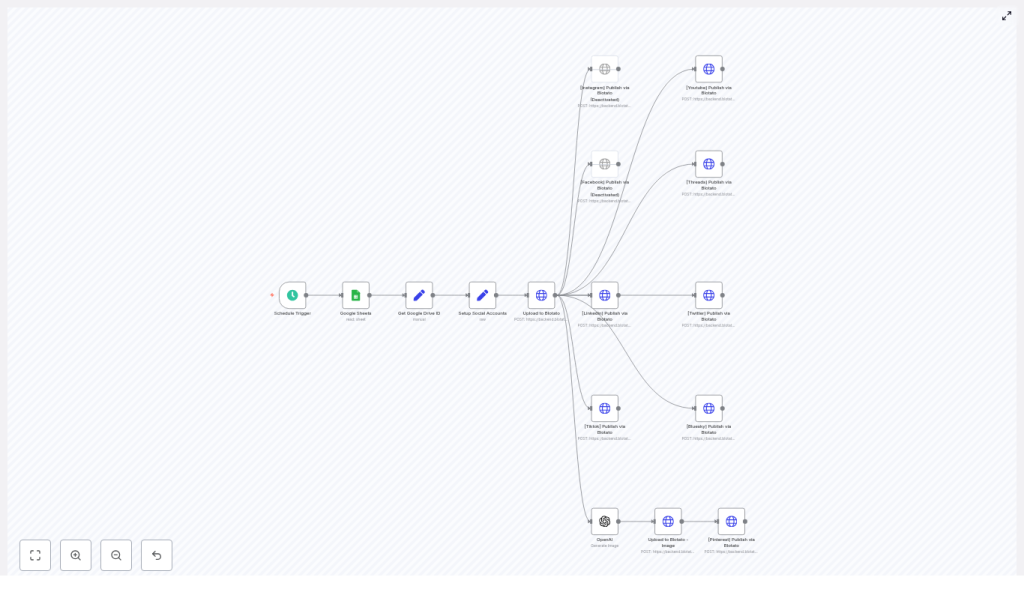
Automate Posts to 9 Platforms with n8n
Publishing the same content manually to multiple social platforms is slow, error-prone, and hard to scale. This reference-style guide documents an n8n workflow template that automates distribution of a single video and image to nine social networks using Google Sheets, Google Drive, the Blotato API, and OpenAI.
The goal is to provide a technical, implementation-focused overview of how the template works, how data flows through each node, and how to customize or extend it for your own automation stack.
1. Workflow Overview
This n8n workflow template automates end-to-end social publishing for a single row in a Google Sheet. It is designed for recurring, scheduled execution and uses Blotato as the posting gateway to multiple platforms.
1.1 High-level capabilities
- Triggers on a schedule using the Schedule Trigger node.
- Reads a single row from Google Sheets where
Status = "Ready to Post". - Extracts a Google Drive file ID from a URL and constructs a direct download link.
- Uploads media (video or image) to Blotato and obtains a Blotato media URL.
- Publishes the media and caption to:
- TikTok
- YouTube
- Threads
- Twitter/X
- Bluesky
- Optionally generates a new image with OpenAI for Pinterest, uploads that image to Blotato, and uses it as platform-specific media.
All posting is executed via Blotato’s API. n8n handles orchestration, credential management, and data transformation between Google Sheets, Google Drive, OpenAI, and Blotato.
2. Architecture & Data Flow
2.1 Logical architecture
- Trigger layer
- Schedule Trigger starts the workflow at a defined interval (for example, hourly or daily).
- Content selection layer
- Google Sheets node queries the content planning sheet and returns the first row marked as
Ready to Post. - The row is assumed to contain at least:
- Video URL (google drive)
- Caption
- Status
- Google Sheets node queries the content planning sheet and returns the first row marked as
- Media preparation layer
- Set node extracts the Drive file ID via regex.
- The Drive ID is converted into a direct download URL that Blotato can fetch.
- Account & credential setup layer
- A Set node centralizes API keys, Blotato account IDs, and platform-specific identifiers (for example, page IDs).
- Media upload layer
- An HTTP Request node uploads the media to Blotato’s
/v2/mediaendpoint. - Blotato returns a media URL used in all subsequent post creation requests.
- An HTTP Request node uploads the media to Blotato’s
- Publishing layer
- One HTTP Request node per platform calls
/v2/postson Blotato. - Each node sends a JSON body that defines:
target(platform and platform-specific parameters)content(caption andmediaUrls)accountId(Blotato account identifier)
- Some nodes apply character limits or formatting adjustments to the caption per platform.
- One HTTP Request node per platform calls
- Optional image generation layer
- An OpenAI node generates an image from a prompt.
- The generated image is uploaded to Blotato using the same
/v2/mediamechanism. - Pinterest uses this generated image instead of the original video if configured that way in the template.
2.2 Data dependencies
- The Google Sheets node must output a valid Drive URL and caption for the rest of the workflow to function.
- The regex-based Set node must match the Drive URL format to successfully extract a file ID.
- Blotato media upload depends on the constructed direct download URL returning a 200 status and accessible content.
- All platform posting nodes depend on the media upload node’s response, typically the returned
mediaUrlfield.
3. Node-by-Node Breakdown
3.1 Schedule Trigger
Node type: Schedule Trigger
This node starts the workflow automatically at a fixed cadence. Typical use cases:
- Hourly checks for new content to publish.
- Daily publishing windows (for example, at 09:00 local time).
Key configuration points:
- Use simple intervals (e.g., every 1 hour) for basic automation.
- Use cron expressions for precise timing (for example, specific days and times for campaigns).
Changing the schedule does not affect the downstream logic, only when the workflow is invoked.
3.2 Google Sheets – Content Filter
Node type: Google Sheets
This node reads from your content planning spreadsheet and returns the first row where Status = "Ready to Post". The template expects certain column names to exist.
Expected columns:
Video URL (google drive)– A shareable Google Drive link to the source media.Caption– The text caption that will be used across platforms, with later modifications for character limits if needed.Status– Used to mark rows asReady to Post,Draft,Posted, etc.
Key configuration parameters:
documentId– The ID of your Google Sheet.sheetName– The name of the sheet/tab that contains the content rows.- Filter condition – Ensure the node is configured to return only rows where
Status = "Ready to Post".
If no rows match the filter, the node will not output any items. In that case, the rest of the workflow will not execute unless you explicitly add logic to handle empty results.
3.3 Get Google Drive ID (Set node)
Node type: Set
This node extracts the Google Drive file ID from the URL provided in the sheet. The file ID is required to construct a direct download link compatible with Blotato.
Example expression:
= {{ $('Google Sheets').item.json['Video URL (google drive)'].match(/\/d\/([A-Za-z0-9]+-[A-Za-z0-9]+)/i)[1] }}Behavior and assumptions:
- The regex assumes a URL pattern that includes
/d/<FILE_ID>/. - The capturing group
([A-Za-z0-9]+-[A-Za-z0-9]+)matches typical Drive IDs that contain alphanumeric characters and hyphens. - If the URL format differs (for example, a different sharing pattern or query-based ID), the regex must be updated accordingly.
Edge cases:
- If the regex does not match, the expression will throw an error when attempting to access index
[1]. - To make this more robust, you can wrap the extraction in a Function or add validation before using the result.
3.4 Setup Social Accounts (Set node)
Node type: Set
This configuration node centralizes account-related values for Blotato and each connected social platform. It does not perform API calls itself, but subsequent HTTP Request nodes reference its fields.
Typical data stored:
- Blotato API key or token.
- Blotato account ID.
- Platform-specific identifiers, for example:
- Facebook
pageId - YouTube channel-related parameters such as title or privacy settings (passed later in the request body)
- Other platform account IDs as required by Blotato.
- Facebook
Security note:
- Do not hard-code secrets directly into the Set node in production.
- Use n8n credentials or environment variables and reference them in expressions inside this node.
3.5 Upload to Blotato (HTTP Request)
Node type: HTTP Request
This node uploads the media from Google Drive to Blotato. It constructs a direct download URL from the Drive file ID and sends it to the Blotato API.
Endpoint: POST https://backend.blotato.com/v2/media
Direct download URL pattern:
https://drive.google.com/uc?export=download&id=DRIVE_IDWhere DRIVE_ID is the value extracted in the previous Set node.
Typical request body (conceptual):
- Contains the direct download URL so Blotato can fetch the media.
- May include additional metadata as required by Blotato (not detailed in the template description).
Response:
- Blotato returns a JSON object that includes a media URL.
- This media URL is referenced by all subsequent
/v2/postsrequests in the workflow.
Failure scenarios:
- If the Drive link is not publicly accessible or not shared correctly, Blotato may return an error.
- If the constructed URL is invalid (incorrect ID or URL format), the upload will fail.
- Always inspect the response body for error messages and status codes when troubleshooting.
3.6 Publish to Platforms via Blotato (HTTP Request nodes)
Node type: HTTP Request (multiple instances, one per platform)
Each social platform is handled by a dedicated HTTP Request node that calls Blotato’s post creation endpoint.
Endpoint: POST /v2/posts (hosted on https://backend.blotato.com)
Core JSON structure:
target– Specifies the platform and platform-specific fields such as:- Platform identifier (for example, Instagram, Facebook, LinkedIn, etc.).
- Optional parameters like:
pageIdfor Facebook pages.titleandprivacyStatusfor YouTube uploads.
content– Contains:captionor equivalent text field.mediaUrls– An array that includes the media URL returned from the Blotato upload node.
accountId– Refers to the Blotato account used for posting.
Caption handling:
- Some nodes apply length constraints:
- Twitter/X: truncated to 280 characters.
- Threads: truncated to 500 characters.
- These truncations are typically implemented via JavaScript slices in expressions or intermediate Set/Function nodes.
- You should adjust these limits if platform policies change.
Platform list in this template:
- TikTok
- YouTube
- Threads
- Twitter/X
- Bluesky
Each platform node can be independently enabled, disabled, duplicated, or removed without affecting the others, as long as the shared dependencies (Blotato media URL and account configuration) remain intact.
3.7 OpenAI Image Generation & Pinterest
Node type: OpenAI (image generation) + HTTP Request (Blotato media upload) + HTTP Request (Pinterest post)
This optional branch generates a new image using OpenAI and posts it specifically to Pinterest via Blotato.
Flow:
- The OpenAI node generates an image from a prompt, for example a creative description derived from the caption or your own static prompt.
- The resulting image URL or binary (depending on configuration) is then uploaded to Blotato using the same
/v2/mediaendpoint used for video uploads. - The Pinterest HTTP Request node uses the newly returned media URL in its
mediaUrlsfield when calling/v2/posts.
Use case:
- Create custom thumbnails or promotional images optimized for Pinterest, independent of the original video asset.
You can disable this branch if you prefer to reuse the main video or image for Pinterest instead of generating a new one.
4. Configuration & Customization
4.1 Adjusting the schedule
To change how often the automation runs:
- Open the Schedule Trigger node.
- Switch between:
- Simple interval mode (for example, every 2 hours).
- Cron mode for specific times or days.
For time-sensitive campaigns, use cron expressions to align publishing with audience peak times.
4.2 Adding or removing platforms
Each platform is represented by a dedicated HTTP Request node that calls /v2/posts. To modify the platform list:
- Add a new platform supported by Blotato:
- Duplicate an existing platform node.
- Update the
targetfields to the new platform’s values (for example,targetTypeor platform name, as required by Blotato). - Set the correct
accountIdand any required platform-specific parameters.
- Remove a platform:
- Disable the corresponding node or delete it.
- Ensure any downstream references to that node are removed or adjusted.
4.3 Modifying caption rules
Caption preparation is typically done via:
