


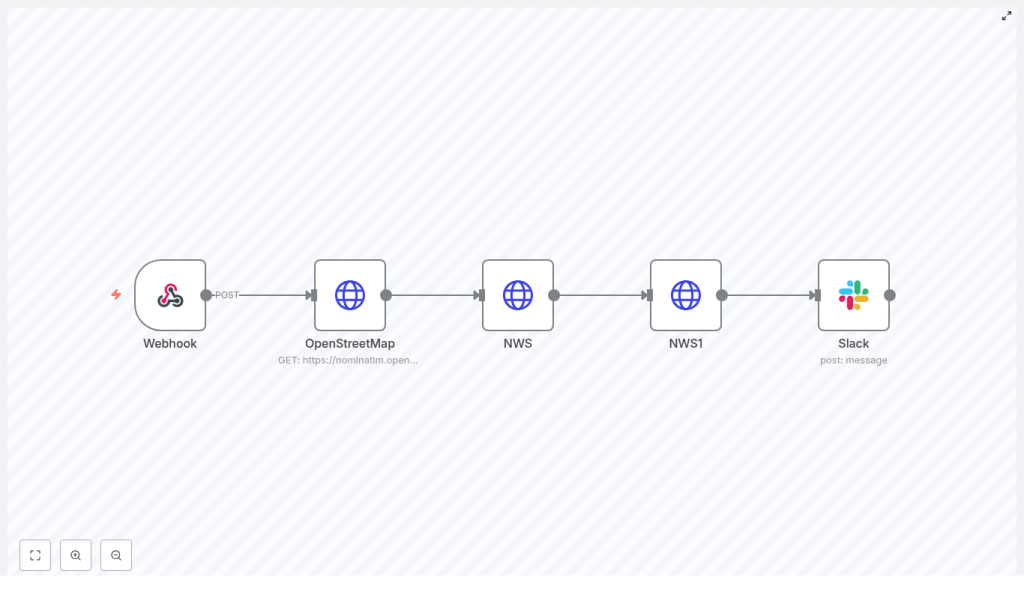
Send Weather to Slack with n8n: Weather via Slack Template
Imagine dropping a simple command into Slack and instantly getting a clean, readable weather forecast for any U.S. location. No extra tabs, no searching, no fuss. That is exactly what this n8n workflow template does for you.
In this guide, we will walk through the “Weather via Slack” n8n template in a friendly, practical way. You will see how it:
- Accepts a location from a webhook (for example, a Slack slash command)
- Turns that location into coordinates with OpenStreetMap (Nominatim)
- Asks the U.S. National Weather Service (NWS) for the forecast
- Formats the results and posts them straight into a Slack channel
We will cover what the template does, when to use it, and how to set it up step by step, plus some ideas to take it further once you have it running.
What this n8n “Weather via Slack” workflow actually does
Let us start with the big picture. This workflow is a small but powerful automation that connects four main things:
- A webhook that receives a location string, like
Seattle, WA. - OpenStreetMap (Nominatim) to convert that text into latitude and longitude.
- The NWS API to grab an accurate forecast for those coordinates.
- Slack to post a nicely formatted forecast into a channel using OAuth2.
In more detail, the workflow:
- Accepts a POST request with a location text field
- Resolves that text to coordinates using Nominatim
- Uses those coordinates to call the NWS
/pointsendpoint - Builds the NWS gridpoints forecast URL from the returned gridId, gridX, and gridY
- Parses the forecast JSON and turns it into a human-friendly Slack message
- Posts the message to a specific Slack channel using a Slack app with OAuth2
So from a user’s perspective, it feels like magic: type a command, get the weather.
Why you might want this template
You will probably love this workflow if any of these sound familiar:
- You are always checking the weather before standups, field work, or travel.
- Your team lives in Slack and you want quick weather lookups without leaving it.
- You want a real-world n8n example that chains together:
- Webhook input
- Geocoding (OpenStreetMap / Nominatim)
- Third-party APIs (NWS)
- Slack posting via OAuth2
- You would like a starting point that you can extend with:
- Daily scheduled forecasts
- Alerts and notifications
- Richer Slack messages using Block Kit
In short, this template is both a handy tool and a great pattern to learn from if you are exploring n8n automations.
What you need before you start
Before you plug this template into your stack, make sure you have:
- An n8n instance Self-hosted or n8n cloud, either is fine.
- A Slack app with OAuth2 The app should have at least the
chat:writepermission and be installed in your workspace. Add its OAuth credentials in the n8n credentials manager. - A respectful User-Agent header Both OpenStreetMap (Nominatim) and NWS expect a descriptive User-Agent. The template uses:
alexk1919 (alex@alexk1919.com) - Basic n8n familiarity You should be comfortable adding nodes, connecting them, and editing node parameters.
How the workflow is structured (node-by-node)
Now let us break down what happens inside the workflow. We will go through it in the order that the data flows.
1. Webhook – receiving the location
Node type: Webhook (POST)
This is the entry point. The Webhook node exposes an HTTP endpoint, which in the template uses the path /slack1. You will typically point a Slack slash command or another tool at this URL.
The expectation is that the incoming POST body includes a text field with the location, for example:
"Portland, OR""New York, NY""Seattle WA"
Once the webhook receives that location text, it passes it to the next node.
2. OpenStreetMap (Nominatim) – turning text into coordinates
Node type: HTTP Request
Next, the workflow needs to figure out where that location actually is on the map. The HTTP Request node calls the Nominatim search endpoint at:
https://nominatim.openstreetmap.org/searchIt sets the query parameter q to the incoming location text from the webhook. Nominatim responds with one or more geocoded results. In this template, the first result is used.
Important detail: you must set a clear User-Agent header when calling Nominatim. The template includes:
alexk1919 (alex@alexk1919.com)From the response, the workflow extracts the latitude and longitude and passes them to the next step.
3. NWS (points) – mapping coordinates to a forecast endpoint
Node type: HTTP Request
With latitude and longitude in hand, the workflow calls the NWS points endpoint to discover which forecast grid to use. The request URL looks like this:
https://api.weather.gov/points/{{lat}},{{lon}}The response from this endpoint includes:
gridIdgridXgridY
These values are exactly what the template needs to construct the gridpoints forecast URL in the next node.
4. NWS1 (gridpoints forecast) – getting the actual forecast
Node type: HTTP Request
Using gridId, gridX, and gridY from the previous step, this node builds the forecast endpoint like:
https://api.weather.gov/gridpoints/{gridId}/{gridX},{gridY}/forecastThe response is a JSON object that contains a properties.periods array. Each item in periods represents a forecast period (typically day and night entries) with useful fields such as:
name(for example, Tonight, Tuesday, Tuesday Night)temperaturetemperatureUnit(usually F)windSpeedwindDirectionshortForecast(a concise description)
That structured data is exactly what the Slack node formats into a message.
5. Slack – posting a readable forecast
Node type: Slack node (chat.postMessage via OAuth2)
The final step takes the NWS forecast and turns it into a human-friendly Slack message. The template uses the Slack node with OAuth2 credentials to post into a chosen channel.
Inside the Slack node, there is an inline JavaScript expression that:
- Parses the JSON from the NWS1 node
- Loops through the forecast periods
- Builds a nicely formatted block of text
The expression looks like this:
={{  JSON.parse($node["NWS1"].json.data).properties.periods  .map(period =>  `*${period.name}*\n` +  `Temp: ${period.temperature}°${period.temperatureUnit}\n` +  `Wind: ${period.windSpeed} ${period.windDirection}\n` +  `Forecast: ${period.shortForecast}`  )  .join("\n\n")
}}
That results in a Slack message similar to:
*Tonight*
Temp: 55°F
Wind: 5 to 10 mph N
Forecast: Mostly Clear

*Tuesday*
Temp: 72°F
Wind: 5 mph SE
Forecast: Sunny
You can customize this formatting later, but this default already reads very nicely for most teams.
How to deploy and test the workflow
Once the nodes are configured, getting it live is pretty straightforward. Here is a simple flow you can follow:
- Deploy and activate the workflow in n8n Save the workflow, then enable it so the Webhook node is reachable.
- Hook up Slack to the webhook In your Slack app settings, configure a slash command (for example
/weather) or another integration to send a POST request to the Webhook URL that n8n shows for this workflow. - Send a test location In Slack, try something like:
/weather Seattle WA
If everything is wired correctly, the workflow will:- Receive the location
- Geocode it with Nominatim
- Fetch the NWS forecast
- Post the forecast into your chosen Slack channel
Ideas to enhance the template and best practices
Once you have the basic version working, you might want to refine it. Here are some practical enhancements and good habits to consider.
Handle tricky or ambiguous locations
- If Nominatim returns multiple matches, you could:
- Ask the user to be more specific, or
- Build a Slack selection menu to let them choose the right place
- Encourage input like
"City, State"for U.S. locations to improve accuracy.
Reduce API calls with caching
- For locations that your team checks often, you can:
- Store recent Nominatim and NWS results in a database
- Use n8n variables or workflow data to cache the last few lookups
- This helps with performance and keeps you polite with external services.
Make Slack messages richer
- Instead of plain text, you can switch to:
- Slack Block Kit for sections, fields, and dividers
- Weather icons or emojis for quick visual scanning
- Buttons for “next days”, “refresh”, or “change location”
Respect rate limits and usage expectations
- Both Nominatim and
api.weather.govhave usage guidelines. - Always:
- Use a descriptive User-Agent header
- Add caching or rate limiting if you expect high traffic
Add solid error handling
- Use additional nodes to:
- Catch HTTP 4xx/5xx errors from Nominatim or NWS
- Send an error message to a Slack channel or a specific user
- Log failures for debugging later
Security considerations you should not skip
Since this workflow exposes a webhook and uses credentials, it is worth tightening up security a bit.
- Protect your webhook endpoint If it is publicly accessible:
- Use validation tokens or signing secrets to verify that requests truly come from Slack
- Reject requests that do not match expected signatures
- Store credentials properly Keep Slack OAuth2 credentials in the n8n credentials manager. Avoid hardcoding any tokens directly inside nodes or expressions.
- Sanitize incoming input Treat the location text as untrusted input:
- Validate or clean it before passing it to external APIs
- Avoid logging raw user input where it is not needed
Where this template really shines: example use cases
Not sure how you would use this in your own workspace? Here are a few real-world scenarios where it fits nicely.
- Team standups Automatically post the morning weather for your team’s city before daily standup. Everyone knows what to expect for the day at a glance.
- On-call or field operations If your team travels or works on-site, a quick
/weathercommand before heading out can be surprisingly helpful. - Public or community Slack workspaces Offer a simple weather lookup command that anyone in the workspace can use, without leaving Slack.
Troubleshooting common issues
If something does not work on the first try, here are some typical problems and how to approach them.
- No geocode results from Nominatim
- Check that the request body actually contains the expected
textfield. - Confirm that Nominatim is reachable from your n8n instance.
- Try a more specific query like
"New York, NY"instead of just"New York".
- Check that the request body actually contains the expected
- NWS 404 or grid-related errors
- Some offshore or unsupported locations may not return valid grid data.
- Add logic to detect these cases and return a friendly message instead of failing silently.
- Slack permission issues
- Make sure your Slack app is installed in the workspace where you are testing.
- Verify that it has
chat:writeor equivalent scopes. - Confirm that you are using the correct OAuth2 credentials in n8n.
Wrapping up
With just a handful of nodes, this n8n template takes a simple location string, turns it into coordinates, fetches a live forecast from NWS, and posts a clean summary into Slack. It is a great example of how you can combine geocoding, government APIs, and Slack integration to solve a real everyday problem with automation.
If you want to go a bit further, you can easily:
- Schedule daily forecasts instead of waiting for slash commands
- Upgrade the message to use Slack Block Kit with icons and action buttons
- Add validation, caching, or a selection step for ambiguous locations
Ready to automate weather in Slack? Grab the template, plug in your credentials, and start sharing forecasts with your team right where they are already chatting.
