


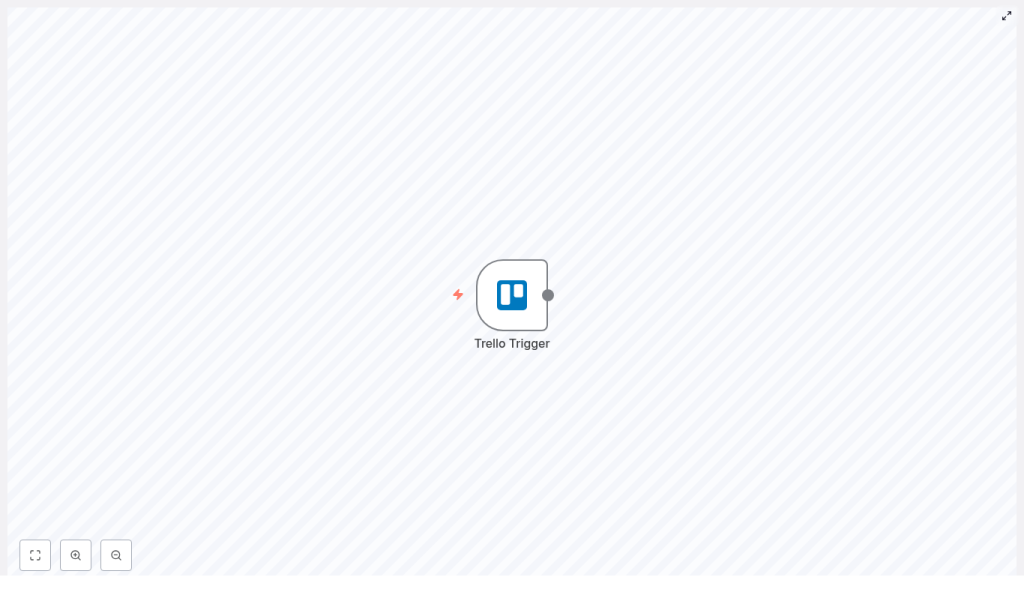
Monitor Trello List Changes with n8n: A Friendly Walkthrough
You know that feeling when you’re constantly refreshing Trello to see if someone moved a card, updated a task, or added something important to a list? Not fun. With n8n and the Trello Trigger node, you can let automation do the watching for you and only tap you on the shoulder when something actually changes.
In this guide, we’ll chat through how to use an n8n workflow template to monitor a specific Trello list for changes, then plug that into whatever you need next, like Slack, email, or a database. No coding, no complicated setup, just a bit of configuration and you’re good to go.
What this n8n + Trello setup actually does
At the heart of this workflow is the Trello Trigger node in n8n. It listens for activity on a Trello board or list and fires your workflow whenever something happens, such as:
- A card is created
- A card is updated
- A card is moved into or out of a list
Once the trigger fires, n8n passes detailed card data to the rest of your workflow. From there, you can:
- Ping a Slack channel when cards change
- Update a Google Sheet or database row with the latest info
- Create a support ticket when cards reach a specific list
- Kick off a CI/CD pipeline when a checklist is completed
So instead of manually checking Trello all day, you set up one workflow and let it keep an eye on things for you.
When should you use this Trello Trigger template?
This template is especially handy if:
- Your team lives in Trello but communicates in Slack, email, or another tool
- You want real-time alerts when cards hit a certain stage in your workflow
- You track work in Trello but report on it somewhere else, like a spreadsheet or BI tool
- You’re tired of “Did anyone move that card?” conversations
In short, if Trello is where the work happens but not where you always want to see updates, this automation is for you.
What we’ll cover in this guide
- What you need before you start (n8n and Trello setup)
- How to get your Trello API Key and Token
- How to find your Trello Board ID and List ID
- How to create Trello credentials in n8n
- How to configure the Trello Trigger node
- How to test that everything works
- Popular use cases and how to connect other nodes
- Troubleshooting tips, best practices, and security notes
- A quick example: sending Slack notifications on card updates
What you need before you start
Before you jump into n8n, make sure you’ve got:
- An n8n instance (cloud, self-hosted, or desktop)
- A Trello account with a board that contains the list you want to monitor
- Your Trello API Key and Token so you can create credentials in n8n
- A bit of basic familiarity with n8n workflows and nodes
Once you’ve got those lined up, the rest is just configuration.
Step 1 – Grab your Trello API Key and Token
First, n8n needs a way to talk to Trello. That’s where your API key and token come in.
- Go to https://trello.com/app-key.
- Copy the API Key you see on that page.
- On the same page, click the link to generate a token.
- When generating the token, make sure it has the right scopes:
- read if you only want to monitor cards
- write as well if your workflows will modify cards
Keep your API key and token somewhere safe. You’ll paste them into n8n in a moment.
Step 2 – Find your Trello Board and List IDs
To monitor a specific list, n8n needs to know exactly which one you mean. That means you’ll need the Board ID (optional but useful) and the List ID (required for this template).
Option A – Using the Trello interface
Sometimes you can grab IDs directly from Trello’s UI or URLs. The list ID is not always clearly visible, but there are a couple of tricks:
- Open a card that lives in the list you care about.
- Use your browser’s developer tools or Trello’s “View in JSON” actions to inspect the response.
- Look for the
idListfield in the JSON. That value is your list ID.
If that feels a bit fiddly or you want a more direct method, the API route below is usually easier.
Option B – Using the Trello API
The Trello API can list all the lists on a board, including their IDs and names. Use this call, replacing the placeholders with your own details:
GET https://api.trello.com/1/boards/{boardId}/lists?key={yourKey}&token={yourToken}This returns a JSON array of lists on that board. Each list will include:
id– the list ID you’ll use in n8nname– the list name as you see it in Trello
Copy the list id for the list you want n8n to monitor. You can also note the board id if you want to limit the trigger to a specific board later.
Step 3 – Create Trello credentials in n8n
Now let’s plug those Trello details into n8n so the workflow can authenticate properly.
- In your n8n editor, go to the Credentials section.
- Click to add a new credential and choose Trello.
- Paste in your API Key and Token.
- Save the credential.
That’s it. n8n can now talk to Trello using your account.
Step 4 – Set up the Trello Trigger node
With credentials ready and your list ID in hand, it’s time to configure the Trello Trigger node in your workflow.
In your n8n workflow:
- Add a new node and select Trello Trigger.
- Configure the key properties:
- Credentials – pick the Trello credential you just created.
- Event – choose what you want to listen for, for example:
- Card created
- Card updated
- Card moved
- Board ID (optional) – set this if you want to scope events to a particular board.
- List ID – paste the list ID you retrieved from the API or UI. This is what tells n8n to monitor that specific list.
If you are using the minimal template JSON, it might look like this:
{  "id":"117",  "name":"Receive updates for changes in the specified list in Trello",  "nodes":[  {  "name":"Trello Trigger",  "type":"n8n-nodes-base.trelloTrigger",  "position":[700,250],  "parameters":{  "id":"your-list-id-here"  },  "credentials":{  "trelloApi":"Your Trello Credentials"  },  "typeVersion":1  }  ],  "active":false,  "settings":{},  "connections":{}
}
Make sure you replace:
your-list-id-herewith your actual list ID"Your Trello Credentials"with the name of the Trello credential you created in n8n
Step 5 – Test your Trello Trigger workflow
Time to see everything in action.
- Save your workflow in n8n.
- Activate it or click Execute workflow so n8n starts listening.
- Go to Trello and perform an action in the monitored list:
- Create a new card
- Update an existing card
- Move a card into that list
- Switch back to n8n and check the execution log.
If everything is set up correctly, you should see a new execution triggered by your Trello action, with the card data passed into the workflow.
Connecting the Trello Trigger to other n8n nodes
Once the Trello Trigger is firing, the fun part is deciding what happens next. The trigger sends a JSON payload that includes useful information such as:
- Card id, name, and description
- List id and list name
- Details about the action and the member who performed it
From there, you can chain almost anything you like. Popular choices include:
- Slack – send messages to a channel or user
- Send Email – notify stakeholders via email
- Google Sheets – log or update rows with card data
- HTTP Request – call external APIs or webhooks
Use n8n’s expression editor to map values from the Trello Trigger into these nodes. For example, you might map:
{{$json["data"]["card"]["name"]}}for the card name{{$json["data"]["card"]["id"]}}for the card ID
This lets you build very tailored automations around your Trello activity.
Common Trello automation use cases with n8n
Not sure what to build first? Here are some tried and tested ideas:
- Slack notifications when cards are updated in a specific list, like “In Review” or “Blocked”.
- Google Sheets sync to keep a live report of tasks, deadlines, or status changes.
- Helpdesk integration where moving a card into a “Support” or “Escalated” list automatically creates a support ticket.
- DevOps workflows that trigger CI/CD pipelines when a Trello checklist is completed or a card reaches a “Ready for Deploy” list.
Once you see how easy it is to connect Trello to other tools, you’ll probably come up with your own use cases pretty quickly.
Troubleshooting tips if the trigger does not fire
If your workflow is not triggering as expected, here are a few things to double check:
- Credentials and token scopes Make sure your Trello API key and token are correct, not expired, and that the token has the required scopes (at least
read, pluswriteif needed). - List ID accuracy Confirm you are using the correct list ID by calling the Trello API again:
GET https://api.trello.com/1/boards/{boardId}/lists?key={yourKey}&token={yourToken} - n8n logs Check n8n’s logs or execution view for any errors related to webhook registration or permissions.
- Network access for self-hosted n8n If you self host n8n behind a firewall or on a private network, Trello’s webhooks must be able to reach your public URL. You may need:
- A reverse proxy
- HTTPS set up
- A tunneling tool like ngrok during testing
Best practices for Trello + n8n workflows
To keep your automations fast, clean, and reliable, it helps to follow a few simple guidelines.
- Scope your triggers Limit triggers to specific boards and lists where possible. This cuts down on noise and unnecessary API calls.
- Filter early Use filtering or conditional nodes near the start of your workflow so you are not doing heavy work for events you do not care about.
- Protect your credentials Store secrets using environment variables where possible and restrict access to credentials in n8n to only those who need them.
- Build in error handling For external services like Slack, email providers, or APIs, use retries and error handling patterns so your workflow can recover gracefully from temporary issues.
Security considerations
Your Trello API key and token are powerful. Treat them like any other sensitive secret:
- Rotate tokens periodically, especially if you suspect they may have been exposed.
- Grant only the minimum scopes your workflows actually need.
- If your n8n instance is publicly accessible:
- Use HTTPS
- Protect the n8n editor with authentication or IP restrictions
This keeps both your Trello boards and your automations safe.
Example: Send a Slack message when a Trello card is updated
To make this a bit more concrete, let’s walk through one of the most common use cases: getting Slack alerts whenever a card in a certain list changes.
- Set up your Trello Trigger node as described above so it monitors your target list.
- Add a Slack node directly after the Trello Trigger.
- Configure the Slack node:
- Connect your Slack credentials.
- Choose the channel or user you want to notify.
- In the message field, use expressions to include Trello data, for example:
- Card name
- Card link
- List name or labels
- Optionally, add conditional logic so you only send notifications when:
- A card moves into a specific list
- Certain labels are applied
Now, the next time your team updates a card in that list, Slack gets a friendly heads up without anyone having to manually post it.
Wrapping up
Using the Trello Trigger node in n8n is a simple but powerful way to keep track of changes in a specific Trello list. Once you
