


Automate CV Screening with n8n & Google Gemini
Hiring at scale quickly becomes overwhelming. Manually reading every resume is slow, inconsistent, and hard to track. With n8n, Google Gemini (PaLM), and common Google tools like Sheets and Gmail, you can build a secure automation that:
- Collects applications through a form
- Extracts text from PDF resumes
- Uses AI to rate candidate fit
- Logs all results in a spreadsheet
- Automatically notifies HR and candidates
This guide walks you step by step through a ready-to-use n8n CV screening workflow template and shows how each node works, so you can understand, adapt, and safely run it in production.
What you will learn
By the end of this tutorial, you will know how to:
- Explain why automated CV screening is useful and where it fits in your hiring process
- Understand the overall n8n + Google Gemini CV screening workflow
- Configure each node in the template, from form input to AI analysis and email notifications
- Customize the workflow for different roles, skills, or data outputs
- Apply best practices for privacy, fairness, security, and reliability
- Test, monitor, and iterate on your automation before going live
Why automate CV screening?
Early-stage resume review is one of the most repetitive parts of hiring. Automating this step with n8n and Google Gemini helps you:
- Save time by automatically filtering out clearly irrelevant applicants
- Standardize evaluations with consistent criteria and prompts
- Speed up communication with automated emails to HR and applicants
- Maintain an audit trail with a structured log of ratings and decisions
Automation does not replace human hiring decisions. Instead, it handles the repetitive screening work so your team can focus on interviewing the most relevant candidates.
How the n8n + Google Gemini CV screening template works
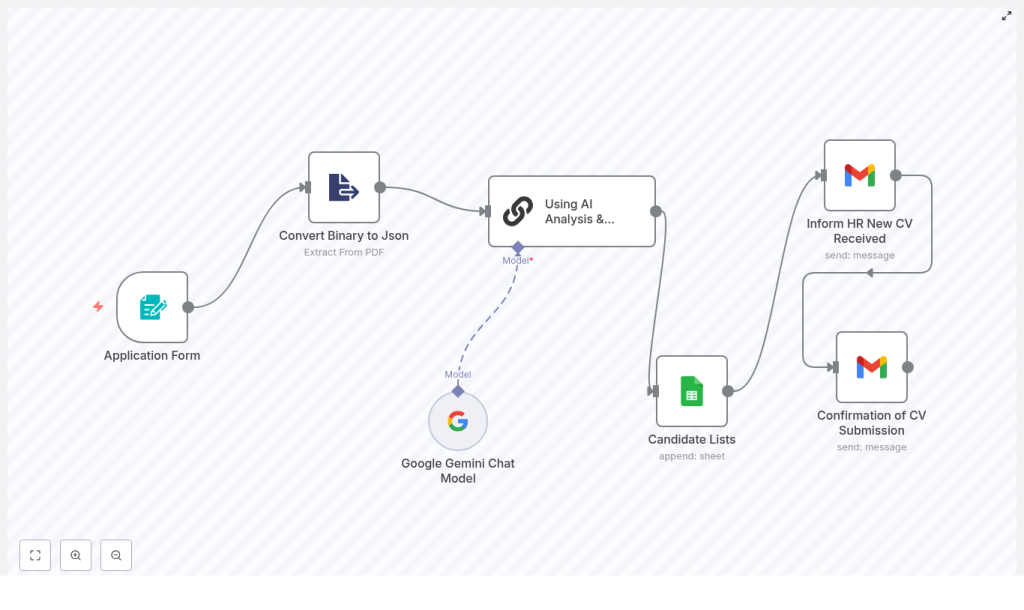
The template is built as an n8n workflow made of several nodes, each responsible for one part of the process. At a high level, it:
- Accepts applications through an Application Form node
- Converts the uploaded PDF resume to text using Extract from PDF
- Sends the resume text and job description to Google Gemini via LangChain for analysis
- Writes candidate details and AI rating into a Google Sheets candidate list
- Notifies HR and the candidate using Gmail nodes
Here are the key building blocks you will work with:
- Application Form (formTrigger) – collects candidate data and a PDF CV
- Convert Binary to JSON (Extract from PDF) – extracts readable text from the uploaded resume
- Using AI Analysis & Rating (LangChain chainLlm) – sends the resume and job description to the LLM prompt
- Google Gemini Chat Model – the underlying language model (PaLM / Gemini) used by LangChain
- Candidate Lists (Google Sheets) – stores candidate metadata and AI rating
- Inform HR New CV Received (Gmail) – emails HR with candidate details and rating
- Confirmation of CV Submission (Gmail) – emails a confirmation to the applicant
Concepts to understand before you start
n8n workflow basics
In n8n, a workflow is a set of connected nodes. Each node performs an action, such as:
- Listening for form submissions
- Transforming data (for example, PDF to text)
- Calling an AI model
- Writing to a spreadsheet
- Sending emails
Data flows from one node to the next. In this template, the CV file starts as binary data, is converted to text, then passed into the AI node, and finally into Google Sheets and Gmail.
Binary vs JSON in n8n
Uploaded files (such as PDFs) arrive as binary data. Most nodes, especially AI and spreadsheet nodes, expect JSON text. The Extract from PDF node bridges this gap by taking the binary file and producing a text field that you can pass into the AI prompt.
Google Gemini and LangChain in n8n
n8n integrates with Google Gemini (PaLM) through LangChain. You configure:
- The LangChain chainLlm node with your prompt, inputs, and output format
- The Google Gemini Chat Model as the model used by LangChain
This separation lets you change model parameters without rewriting your prompt logic.
Step-by-step: building and understanding the workflow
Step 1: Capture applications with the Application Form (formTrigger)
The Application Form node is the public entry point of your automation. It exposes a form that candidates fill in. Configure it to collect at least:
- Full Name
- LinkedIn URL
- Salary Expectation
- Resume / CV (PDF upload)
Teaching tip: treat this form as your input contract. Whatever you collect here is what you can later pass to AI and store in Google Sheets.
Important configuration details:
- Make the resume upload field required
- Validate the file type so only PDFs are accepted
- Mark essential text fields (name, email) as required to avoid incomplete submissions
Step 2: Extract text from the PDF with Convert Binary to JSON (Extract from PDF)
Next, you need to turn the uploaded PDF into text. Use n8n’s Extract from PDF node for this job.
Key configuration:
- Set binaryPropertyName to the resume file field from the form, for example:
Your_Resume_CV
This node reads the PDF from that binary property and outputs the extracted text as JSON. The resulting text field is what you will feed into the AI node.
Step 3: Analyze and rate candidates with Using AI Analysis & Rating (LangChain chainLlm)
The LangChain chainLlm node is where the AI evaluation happens. It takes two main inputs:
- The job description you want to hire for
- The resume text extracted from the PDF
Inside this node, you define the prompt and output rules. In the template, the prompt is designed to:
- Produce a compatibility rating between 1 and 10
- Give a short recommendation about the candidate
- Limit the response to 75 words for easier reading and parsing
Configuration tips:
- Include both the job description and the resume text in the prompt context
- If you need localized output, define a variable such as
${output_language}and reference it in the prompt - Constrain response length (75 words maximum) and use a predictable format so you can later extract the rating or decision if needed
Step 4: Connect Google Gemini Chat Model (PaLM) as the LLM
The LangChain node needs a model to run the prompt. Here you use the Google Gemini Chat Model (PaLM/Gemini).
Setup checklist:
- Store your Google PaLM/Gemini API credentials in n8n’s credential manager
- Configure the LangChain node to use the Gemini model as its backend
- Experiment with parameters like:
- Temperature around
0 - 0.2for more deterministic, repeatable ratings - Model variant if you need a balance between speed and quality
- Temperature around
Lower temperature is especially helpful when you want consistent scoring logic for CV screening.
Step 5: Log candidates and ratings in Candidate Lists (Google Sheets)
Once the AI has produced a rating and recommendation, you need to store it in a structured way. The Google Sheets node creates a simple candidate list that works like a lightweight ATS.
Typical columns to append for each candidate:
- CV filename
- Full Name
- Salary Expectation
- LinkedIn URL
- AI Rating (1 – 10)
- AI Recommendation or summary
Best practices:
- Give HR view or edit access only as needed
- Restrict sharing of the sheet to authorized HR users
- Use filters and conditional formatting to highlight high-rated candidates
Step 6: Notify HR and candidates with Gmail nodes
The final step is communication. The template uses two separate Gmail nodes:
- Inform HR New CV Received:
- Sends an email to HR or the recruiter
- Includes key candidate details (name, email, LinkedIn, salary expectation)
- Includes the AI rating and summary so HR can quickly prioritize
- Optionally links to the Google Sheet or internal hiring system
- Confirmation of CV Submission:
- Sends a polite confirmation email to the applicant
- Thanks them for applying and confirms receipt of their CV
- Avoids sharing detailed AI evaluation or sensitive internal notes
Keep both messages professional, concise, and aligned with your employer brand.
How to customize the CV screening template
Once you understand the default workflow, you can adapt it to your hiring process. Here are some practical ideas:
- Support multiple roles
Instead of a single job description, maintain a set of role templates. Use form fields or routing logic to map each application to the correct role profile before sending it to the AI node. - Extract structured skills and experience
Add a second AI step that focuses only on structured extraction, such as:- Programming languages
- Frameworks or tools
- Years of experience
Write these into separate Google Sheets columns for more advanced filtering.
- Automate interview scheduling
For candidates above a certain rating threshold, integrate calendar nodes to propose or book interview slots automatically. - Improve data security
Store full resumes in a secure storage bucket (for example, Google Drive or S3) and keep only the necessary metadata and extracted text in the sheet to reduce exposure.
Best practices: privacy, fairness, and reliability
Automated CV screening is powerful, but it also comes with legal and ethical responsibilities. Keep the following in mind:
Privacy and legal compliance
- Comply with relevant regulations such as GDPR or CCPA
- Include clear consent text on your application form
- Link to your privacy policy and explain how data and AI are used
- Limit the storage of sensitive personal data when possible
Fairness and bias reduction
- Design prompts that focus on skills and experience, not demographic attributes
- Test AI outputs with a diverse set of resumes to identify potential bias
- Regularly review ratings against human judgments to ensure fairness
Reliability and observability
- Log AI decisions, prompt versions, and scoring criteria to build an audit trail
- Implement error handling and retry logic in n8n, for example:
- Catch failures from PDF extraction
- Handle LLM API timeouts or errors
- Notify an admin if a step fails
Testing, monitoring, and iteration
Before you rely on this workflow for real candidates, treat it like any other production system and test thoroughly.
Pre-production testing
- Run the workflow in a sandbox with a representative set of resumes
- Ask hiring managers to review the AI ratings and summaries
- Record where human reviewers disagree with the AI and adjust prompts or scoring rules
Ongoing monitoring
- Track API usage and costs for Google Gemini
- Set rate limits and budget alerts in your cloud billing console
- Schedule periodic prompt reviews, especially when job requirements change
Security checklist for your n8n CV workflow
To keep your automation secure, follow these guidelines:
- Store all API keys and tokens in n8n’s credential manager, not in node parameters or plaintext
- Restrict Google Sheets and Gmail OAuth scopes to only what the workflow needs
- Use HTTPS for any externally accessible form endpoints
- Enable CAPTCHA or rate limiting on public forms to reduce spam and abuse
Recap: how the template fits together
To summarize, your automated CV screening with n8n and Google Gemini works as follows:
- Candidates submit their details and PDF resume through the Application Form
- The Extract from PDF node converts the binary PDF file into readable text
- The LangChain chainLlm node sends the resume text and job description to Google Gemini for evaluation
- The workflow logs candidate data and AI ratings in a Google Sheets candidate list
- Gmail nodes notify HR and send confirmation emails to applicants
This setup gives you a practical, extensible way to speed up hiring, reduce manual screening work, and maintain a clear record of how candidates were evaluated.
Quick FAQ
Can I change the rating scale or output format?
Yes. Edit the prompt in the LangChain chainLlm node. You can change the rating scale, include additional fields, or adjust the word limit as long as the format remains consistent for downstream processing.
What if I have multiple job openings?
You can route each application to a different job description based on the form input, then pass the appropriate description into the AI node. This lets you reuse the same workflow for multiple roles.
