


Automate WordPress Posts from PDFs with Human Approval
Imagine turning a backlog of dense PDFs into a steady stream of polished, SEO-optimized WordPress posts, without spending your evenings copying, pasting, and reformatting. With the right automation mindset and a powerful n8n workflow, that vision is completely achievable.
This guide walks you through an n8n workflow template that converts PDFs into ready-to-review blog posts using AI, automated image generation, and a human approval step via Gmail. You will see how each node works, but more importantly, you will see how this workflow can free your time, sharpen your focus, and help your content operation grow with confidence.
The Problem: Great Content Stuck in PDFs
Many teams already have gold buried in PDF form: research reports, whitepapers, manuals, training decks, and internal documentation. The challenge is that turning them into blog posts usually means:
- Manual copy-and-paste from PDF to WordPress
- Reformatting headings, quotes, and sections
- Writing SEO-friendly titles and introductions
- Searching for or designing relevant images
- Coordinating review and approval by email or chat
This process is slow, repetitive, and easy to postpone. As a result, valuable insights stay locked away, and your content calendar suffers.
The Possibility: Automation as a Growth Lever
Automation is not about replacing your judgment or creativity. It is about removing friction so you can spend more time thinking and less time clicking. When you automate the mechanical parts of content production, you gain:
- More consistent publishing without extra headcount
- Faster turnaround from research to live article
- Space to focus on strategy, storytelling, and quality
- A repeatable workflow you can refine and scale
n8n gives you a visual way to build that system. The workflow template in this article is a practical starting point. It shows how AI, WordPress, Gmail, and image generation can work together in a single flow, with a human firmly in control of the final outcome.
Mindset Shift: From Manual Tasks to Repeatable Systems
Before diving into the nodes, it helps to approach this workflow as a system you will grow over time, not a one-off trick. Start simple, run a few PDFs, adjust the prompts, tweak the approval steps, and watch your process mature.
Each automation you build is a small investment that pays you back every time it runs. This template is one of those investments. It turns a manual, multi-step process into a guided, semi-automated journey from PDF to published post, with you as the editor-in-chief.
The Workflow Journey: From PDF to Published WordPress Post
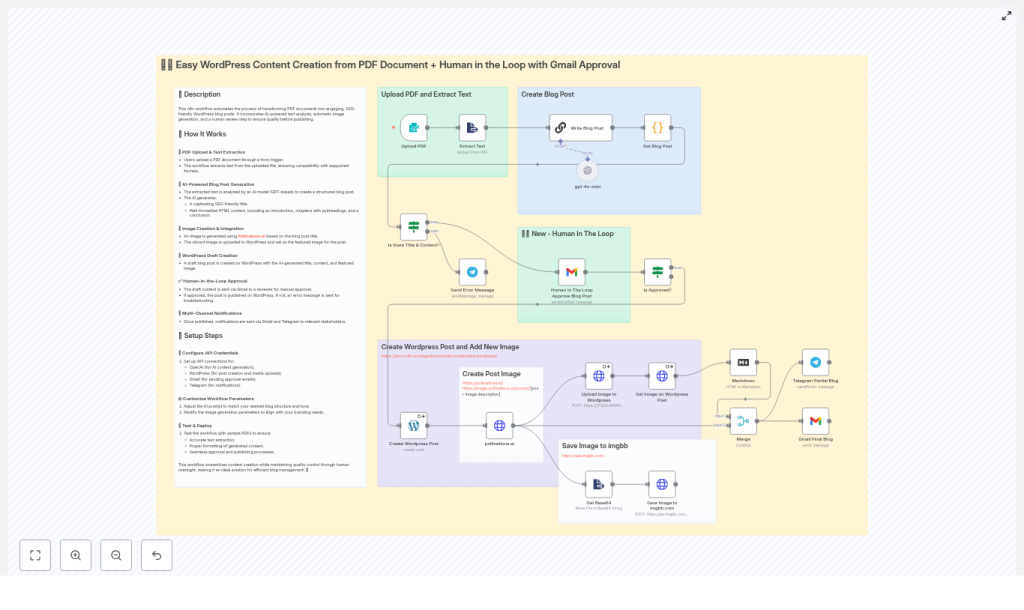
The n8n workflow is organized into a clear path:
- Upload and extract the PDF content
- Use AI to generate a structured, SEO-friendly blog post
- Validate the result and route it to human approval via Gmail
- Generate and upload a featured image
- Create the WordPress draft, publish, and notify stakeholders
Below is a step-by-step breakdown, with an emphasis on how each part supports a smoother, more focused content process.
Step 1: Upload Your PDF and Extract the Text
The journey begins with a simple action: uploading a PDF. Instead of opening it in a viewer and copying text, you let the workflow handle extraction.
Form Trigger (Upload PDF)
The Form Trigger node accepts a single PDF file from a web form. This gives your team an easy entry point: upload any eligible PDF and let the system take over.
ExtractFromFile (Convert PDF to Text/HTML)
The ExtractFromFile node parses the PDF into text or HTML that the AI can understand. It aims to preserve key elements like headings, quotes, and structure, which helps the AI generate a coherent, well-organized blog post.
By automating extraction, you remove a tedious step and ensure a consistent starting point for every article you create from a PDF.
Step 2: Turn Raw PDF Content Into an AI-Generated Blog Post
Once the text is available, the workflow passes it to an AI model to transform it into a structured article. Instead of staring at a blank editor, you get a complete first draft that you can review and refine.
LLM (gpt-4o-mini / Chain LLM)
The extracted text is sent to a GPT-based model, for example gpt-4o-mini in the template. A carefully designed prompt instructs the model to create:
- A short, SEO-optimized H1 title
- A 150-200 word introduction that sets the context
- 6-8 chapters of 300-400 words each, each with an H2 heading
- A 200-250 word conclusion with key takeaways
The output is returned as HTML, including paragraphs and <blockquote> tags for direct citations. This structure is ready to be dropped into WordPress without extra formatting work.
Code Node (Get Blog Post)
The Code node named Get Blog Post extracts the first H1 tag to use as the post title and passes the rest of the HTML content forward. This keeps your data clean and ensures the title and body are clearly separated for the next steps.
At this point, you have taken a static PDF and converted it into a complete, SEO-aware blog draft, all with minimal manual input.
Step 3: Validate, Then Keep Humans in the Loop
Automation works best when it supports your standards instead of bypassing them. This workflow includes a built-in check to ensure the AI produced valid content, followed by a human approval step using Gmail.
If Node (Is there Title & Content?)
The If node verifies that the AI has produced both a title and a body. If either is missing, the workflow does not silently fail. Instead, it triggers an error notification.
Error Handling with Telegram
When content is incomplete, a Telegram node sends an error message so you can quickly investigate. This might mean checking the PDF extraction quality or adjusting the AI prompt. Either way, you stay in control and informed.
Gmail sendAndWait (Human In The Loop)
If the content passes validation, the workflow routes it to a Gmail node configured with sendAndWait. This creates a human-in-the-loop approval flow:
- The draft title and content are emailed to a reviewer
- The reviewer can approve or reject the post directly from Gmail
- The workflow only continues if the approval flag is set to true
This step protects your brand voice, compliance requirements, and editorial standards while still taking full advantage of automation for the heavy lifting.
Step 4: Generate a Featured Image and Handle Media Automatically
A strong article deserves a strong visual. Instead of searching manually for images every time, the workflow uses the post title to generate a custom image and attach it to the WordPress post.
Image Generation with pollinations.ai
After approval, an HTTP Request node calls pollinations.ai to generate an image based on the post title. This turns your content into a prompt, creating a relevant and vibrant visual that matches the theme of the article.
Upload Image to WordPress & Optional External Hosting
The generated image can be:
- Uploaded directly to WordPress using the REST API
- Optionally stored in an external image host like imgbb for further processing or reuse
Once uploaded, another node sets this media item as the featured image for the WordPress post. No more downloading, renaming, and uploading files by hand.
Step 5: Create the WordPress Draft, Publish, and Notify
With content and image ready, the workflow turns everything into a WordPress draft, then notifies your team or subscribers when the post is live.
Create WordPress Post
The Create WordPress Post node creates a draft using the AI-generated title and HTML content. The post status is set to draft so you can still make final edits in WordPress if needed.
Attach Featured Image
Once the image upload is complete, the workflow updates the post to set the generated image as the featured media. This ensures your blog archive and social previews look polished and consistent.
Markdown & Merge Nodes for Previews
A Markdown node, together with merge steps, prepares compact previews of the article. These previews are then used in notifications, giving recipients a quick snapshot of the new content.
Final Notifications (Telegram / Gmail)
Finally, the workflow sends out notifications through:
- Gmail for stakeholders or internal teams
- Telegram for subscribers, team channels, or content ops groups
This closes the loop. From PDF upload to published post and notifications, the workflow delivers a complete, repeatable pipeline.
Node-by-Node Responsibilities at a Glance
Here is a concise overview of what each node does, so you can understand and customize the template with confidence:
- Form Trigger (Upload PDF): Accepts the PDF file from a web form.
- ExtractFromFile: Converts PDF binary into text or HTML for the AI to analyze.
- LLM (gpt-4o-mini / Chain LLM): Generates the SEO-friendly title and full HTML blog post based on a tailored prompt.
- Code node (Get Blog Post): Extracts the first H1 as the post title and passes the remaining content forward.
- If node (Is there Title & Content?): Checks that AI output contains both title and body, then routes to approval or error handling.
- Gmail sendAndWait (Human In The Loop): Sends the draft to a reviewer and waits for explicit approval.
- Create WordPress Post: Creates a draft post in WordPress with the provided title and HTML content.
- Image generation (pollinations.ai): Produces a vibrant image using the post title as an image prompt.
- Upload Image to WordPress & Set featured image: Uploads the image via WordPress media endpoints and sets it as featured media.
- Notifications (Telegram / Gmail Final Blog): Sends previews and links to stakeholders or channels when the post is ready.
- Error handling (Telegram Send Error Message): Alerts you when extraction or AI generation fails so you can respond quickly.
Setup: Credentials You Need Before You Start
To bring this workflow to life in n8n, you will need to configure the following credentials:
- OpenAI API key or another LLM provider key
- WordPress API credentials using Application Passwords or OAuth
- Gmail OAuth2 for the sendAndWait approval step
- Telegram Bot token if you want Telegram notifications
- Optional: imgbb API key if you choose external image hosting
Ensure the WordPress user has permission to create posts and upload media. For media uploads via the REST API, include a proper Content-Disposition header with a filename and use authenticated requests.
Best Practices to Get the Most From This Template
Think of this workflow as a starting point. As you run it, you will discover ways to align it even more closely with your brand and processes.
- Prompt engineering: Adjust the AI prompt to match your tone, audience, and formatting rules. Be explicit about word counts, headings, and use of HTML tags.
- Quality control: Keep the Gmail approval step for compliance-heavy or brand-critical content. For lower-risk content, you can still keep it as a quick check.
- Copyright and licensing: Confirm that your source PDFs can legally be repurposed. Use
<blockquote>tags for direct quotes and cite sources clearly. - Monitor costs and limits: Track your OpenAI and image generation usage so you stay within budget and avoid rate limit surprises.
- Security: Store API keys and credentials securely in n8n. Restrict access to your n8n instance and WordPress application passwords.
- Testing: Try different types of PDFs, including scanned and digital text, to see where extraction might need OCR or additional tuning.
Troubleshooting Common Issues
As you experiment and optimize, you may run into a few predictable issues. Here is how to handle them:
- No title or content generated: Check the ExtractFromFile node output. Scanned PDFs might require OCR or a different extraction tool. Also review the AI prompt for clarity.
- Image upload failures: Verify WordPress REST API permissions, authentication headers, and the
Content-Dispositionheader used when uploading media. - Gmail approval not working: Ensure your Gmail OAuth token has the correct scopes and that sendAndWait is configured and enabled properly.
Each issue you solve makes your workflow stronger and more reliable for the long term.
Benefits and ROI: From One-Off Posts to a Scalable Content Engine
When this workflow is in place, you are not just saving a few minutes on a single post. You are creating a repeatable engine that can:
- Accelerate content production from existing PDFs
- Increase content reuse from research, whitepapers, and internal documents
- Reduce manual errors that come from copying and pasting
- Maintain brand integrity through structured human approval
Over time, the hours you reclaim can be reinvested into deeper research, better storytelling, more experimentation, and higher-impact initiatives. That is the real return on investment of automation.
Your Next Step: Start Small, Then Grow Your Automation
You do not need to automate everything in one day. Start with a single PDF, connect your tools, and watch the workflow run from end to end. Then refine it based on what you learn.
Here is a simple way to begin:
- Import this n8n template into your n8n instance.
- Connect your OpenAI (or other LLM), WordPress, and Gmail credentials.
- Configure Telegram and imgbb if you plan to use notifications or external image hosting.
- Run a test with one PDF to validate extraction, AI prompts, and approval flow.
- Adjust prompts, wording, and approval routing as needed, then scale to more PDFs.
If you want help customizing prompts, adding structured SEO metadata, or adapting the workflow to another CMS instead of WordPress, reach out to your team, community, or automation partners. Small improvements to this template can have a big impact on your long-term workflow.
Try the template now and start transforming your backlog of PDFs into high-quality, reviewable WordPress posts with a reliable human approval safety net. Each run will save you time, sharpen your process, and move you one step closer to a truly automated content pipeline.
