


Build Dynamic n8n Forms for Airtable & Baserow
Static forms in Airtable or Baserow are simple to configure but become difficult to maintain as schemas evolve and logic grows more complex. By moving form generation into n8n, you gain full programmatic control over the form lifecycle, from schema-driven field creation to robust file handling and downstream processing.
This article describes a reusable n8n workflow template that:
- Reads an Airtable or Baserow table schema
- Converts that schema into n8n form JSON
- Renders a dynamic form via the n8n Form node
- Creates new rows in Airtable or Baserow based on submissions
- Processes file uploads and attaches them reliably to the created record
Why build forms with n8n instead of native Airtable or Baserow forms?
Using n8n as the orchestration layer for forms provides a higher degree of flexibility and control than native form builders. For automation professionals and system integrators, the key advantages include:
- Schema-driven dynamic forms – Forms are generated at runtime from the table schema, so when fields are added, removed, or changed in Airtable or Baserow, the form updates automatically without manual configuration.
- Runtime customization and conditional logic – You can apply complex logic in n8n to show or hide fields, adjust options, or modify validation rules depending on user input or external data.
- Centralized file and attachment handling – All file uploads are processed through n8n, which allows you to integrate virus scanning, media processing, or custom storage before attaching files to records.
- Tight integration with broader workflows – The form is just one part of a larger automation. You can enrich data, validate against third-party systems, trigger notifications, or fan out to multiple services using standard n8n nodes.
Architecture overview
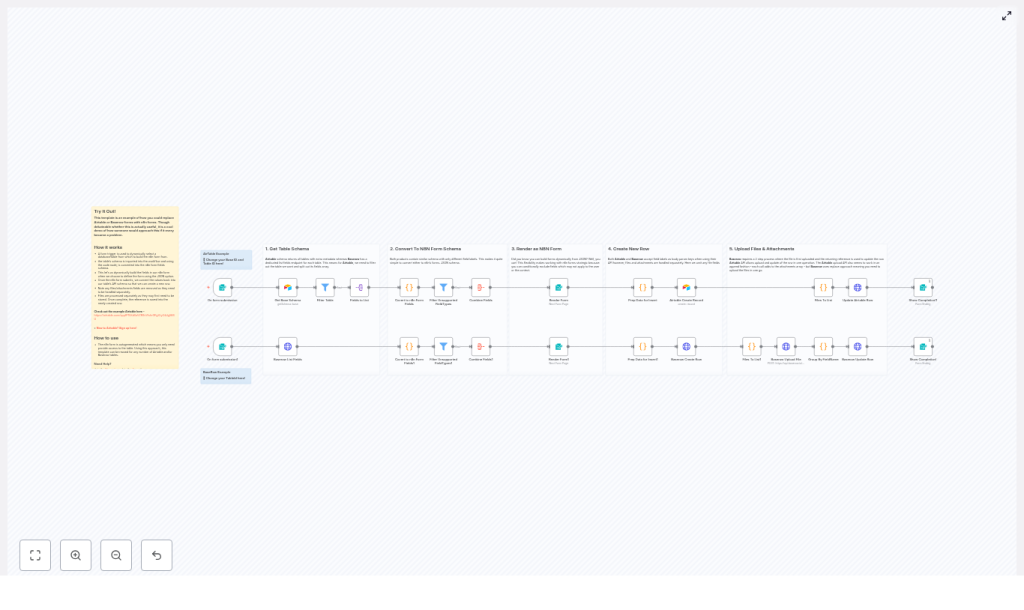
The template implements a structured, five-stage pipeline. Each stage is mapped to a set of n8n nodes and is designed to be reusable across different bases and tables.
- Capture user context and select the target table
- Retrieve and normalize the table schema
- Transform provider-specific fields into n8n form fields
- Render the form, accept submissions, and create the record
- Upload files and link them to the created row
1. Triggering the workflow and selecting a table
Form Trigger configuration
The workflow starts with an n8n Form Trigger. This trigger serves two purposes:
- It exposes a webhook URL that end users can access to start the process.
- It collects the
BaseId(for Airtable) orTableId(for Baserow), ensuring the template can be reused across many tables without hardcoding identifiers.
From a best practice standpoint, keeping the table selection at the trigger level makes the workflow modular and easier to maintain, especially when working with multiple environments or tenants.
2. Retrieving and parsing the table schema
Airtable schema retrieval
For Airtable, the workflow performs the following steps:
- Calls the Airtable base schema endpoint using the selected
BaseId. - Uses nodes to isolate the relevant table:
- Get Base Schema to retrieve the full base definition.
- Filter Table to select the specific table based on user choice.
- Fields to List to extract the
fieldsarray for further processing.
Baserow schema retrieval
For Baserow, the workflow takes a more direct route:
- Invokes the Baserow List Fields endpoint for the selected
TableId. - Receives a list of field definitions that can be mapped directly to n8n form fields.
In both providers, the outcome is a structured set of field metadata that describes names, types, options, and constraints. This metadata is the foundation for dynamic form generation.
3. Converting provider schemas into n8n form fields
Once the raw schema is available, code nodes are used to normalize provider-specific field types into a generic n8n form schema. This is where most of the abstraction happens.
Type mapping strategy
The workflow maps common Airtable and Baserow field types to n8n form field definitions. Typical conversions include:
- Text-like fields:
singleLineText,phoneNumber,url→textmultilineText→textarea
- Numeric and date fields:
number→numberdateTime,date→date(using a consistent date format in the form)
- Contact and identity fields:
email→email
- Select and boolean fields:
singleSelect,multipleSelect→dropdown, with choices mapped to form options.checkbox,boolean→dropdownor a boolean-style UI, depending on your preferred UX.
- Attachment and file fields:
multipleAttachments,file→filein the n8n form schema, withmultipleFilesset when the provider field allows multiple attachments.
Filtering unsupported fields
Not all provider field types can be rendered directly as simple form inputs. Examples include complex formulas, linked records, and certain computed fields. As a best practice, the workflow:
- Marks fields that cannot be safely converted as unsupported.
- Filters these unsupported fields out before passing the schema to the Form node.
This prevents confusing user experiences and avoids inconsistent data submissions.
4. Rendering and handling the n8n form
Form JSON construction
After type mapping, the workflow aggregates all supported fields into a single JSON schema that matches the n8n Form node format. The configuration typically sets:
defineForm = jsonto indicate that the form definition is provided as JSON.- A structured array of field definitions, each with label, name, type, options, and any additional metadata required.
Form rendering and submission
The JSON schema is then passed to the Form node, which renders the dynamic form to the user. The form supports:
- Standard text, number, date, and select inputs
- Binary file uploads for attachment fields
When the user submits the form, the workflow resumes with a payload that includes both structured field values and any uploaded binary files. This submission is then processed to create the corresponding row in Airtable or Baserow.
5. Preparing data and creating the record
Cleaning and shaping the payload
Before calling the provider API to create a row, the workflow separates file data from non-file data. Recommended steps include:
- Remove all file and attachment fields from the initial payload, since these require special handling.
- Normalize data types according to provider expectations:
- Typecast boolean values correctly.
- Convert multi-select values into arrays that match the provider schema.
For Airtable, you can use the dedicated Airtable node or an HTTP Request node to call the create-record endpoint. For Baserow, the workflow typically uses HTTP requests against the table row creation API.
Initial row creation
The workflow creates the record in Airtable or Baserow using only non-file fields. This ensures that:
- The row is created even if file uploads encounter transient issues.
- You have a definitive record identifier that can be used to attach files in a controlled second step.
6. Managing files and attachments
File handling is intentionally decoupled from row creation due to provider-specific behavior and reliability considerations.
Airtable attachment handling
For Airtable, the workflow uses the Airtable content API upload endpoint. The process is:
- Identify all file fields from the form submission that correspond to attachment columns.
- For each file:
- Send the binary file and metadata to the Airtable content upload endpoint.
- Target the record’s
uploadAttachmentroute so that the file is appended to the record’sattachmentsarray.
Airtable supports multiple upload calls that append to the attachment list, which enables incremental file uploads.
Baserow attachment handling
Baserow uses a two-step model with replacement semantics. The workflow follows this pattern:
- For each file field:
- Upload the file using the
/api/user-files/upload-file/endpoint as multipart form data. - Capture the returned file reference for that upload.
- Upload the file using the
- Group uploaded file references by field name into an attachments object.
- Issue a PATCH request to the row endpoint, providing the attachments object to set or replace the field values with the new file references.
Because Baserow replaces attachments rather than appending, the workflow should construct the complete desired state of each attachment field before issuing the PATCH request.
Operational tips, pitfalls, and troubleshooting
- Handle attachments separately Always separate file uploads from the initial row creation call. Attempting to create records and upload files in a single request frequently leads to partial failures and inconsistent state.
- Account for provider-specific behavior Airtable appends attachments with each upload call, while Baserow replaces the attachment set on update. Design your workflow logic accordingly, especially when updating existing records.
- Field identifiers vs display names Some templates and APIs use field display names as keys, others require field IDs. Verify what your specific Airtable base or Baserow table expects and adjust the mapping in your code nodes to avoid mismatches.
- Rate limiting and retries When processing many file uploads or large batches, respect provider rate limits. Implement retry logic, exponential backoff, and possibly batching strategies in n8n to reduce error rates.
- Security and credential management Use n8n’s credential system to store API tokens and authentication headers securely. Avoid placing secrets directly in nodes or exposing them in public workflows or logs.
Practical use cases for dynamic n8n forms
This pattern is particularly valuable in environments where form configurations change frequently or must be tightly integrated into broader automation flows. Typical scenarios include:
- Reusable form generators for multiple tables Operations teams that maintain many similar Airtable or Baserow tables can rely on a single workflow that adapts to any schema dynamically.
- Advanced intake and onboarding flows Complex intake processes that need conditional questions, background data enrichment, or validation against external systems can be orchestrated entirely in n8n before creating records.
- File preprocessing pipelines Workflows that must run virus scans, image transformations, document parsing, or other preprocessing steps before storing attachments benefit from centralized file handling in n8n.
Getting started with the template
To implement this architecture in your own environment:
- Import the n8n workflow template into your n8n instance.
- Configure Airtable and/or Baserow credentials using secure n8n credentials.
- Open the Form Trigger node and note the webhook URL that will render the dynamic form.
- Run a test by selecting a BaseId or TableId, then verify that:
- The schema is fetched correctly.
- The form fields are generated as expected.
- Records are created and attachments are correctly uploaded and linked.
If you need to extend the template with additional validation, conditional logic, or custom integrations, you can insert logic and function nodes between schema conversion, form rendering, and record creation steps.
Next steps and resources
To explore or adapt this template further, you can:
- Join the n8n community to discuss implementation patterns and share improvements.
- Consult the official Airtable documentation for schema and content upload APIs.
- Review the Baserow API documentation for field types, user file uploads, and row updates.
If you would like a ready-to-import n8n workflow tailored to your specific base or table structure, you can provide a description of your schema or share the field definitions. Based on that, a customized template can be generated for your use case.
