


Automate User Sign‑Ups with n8n + Notion
This guide teaches you how to build a reliable sign‑up automation with n8n and Notion. You will learn how to accept webhook requests, find or create users in a Notion database, and automatically link each user to the current semester without losing previous semester relationships.
What you will learn
By the end of this tutorial, you will be able to:
- Set up an n8n webhook to receive sign‑up data from a form or external service.
- Normalize incoming data into predictable fields (name and email).
- Query a Notion Users database to find existing users and avoid duplicates.
- Create new Notion user records or update existing ones.
- Fetch the current semester from a separate Notion database.
- Safely merge semester relations so older semesters are kept and the current one is added.
- Secure and test the workflow for production use.
Why automate sign‑ups with n8n and Notion?
Notion is a flexible database that works well for storing user records, such as students, customers, or members. n8n is an open‑source automation platform that connects webhooks, APIs, and logic without requiring a full custom backend.
Combining n8n with Notion lets you:
- Accept sign‑ups through a webhook from any form or service.
- Prevent duplicate user records by checking Notion for an existing email first.
- Maintain relationships between users and semesters or cohorts.
- Protect your sign‑up endpoint using Basic Auth or other authentication methods.
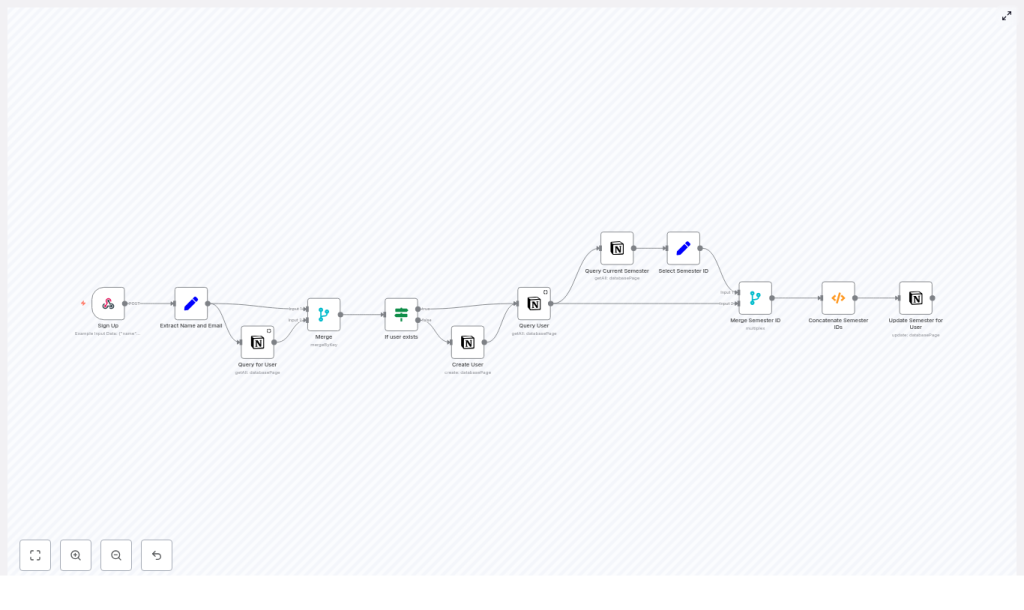
How the n8n + Notion workflow works
At a high level, the workflow follows this logic:
- Receive a sign‑up request via a webhook.
- Extract and standardize the name and email fields.
- Look up the user in the Notion Users database by email.
- Branch:
- If the user exists, fetch their full Notion page.
- If the user does not exist, create a new Notion user page.
- Query a separate Notion database to find the current semester.
- Merge the current semester with any existing semesters for that user.
- Update the user record so the Semesters relation includes the current semester without dropping older ones.
Example webhook payload
Your sign‑up form or external service should send a POST request to the n8n webhook. A minimal example payload looks like this:
{  "name": "John Doe",  "email": "john.doe@example.com"
}
Step‑by‑step: Building the workflow in n8n
1. Create the Sign Up Webhook node
The Sign Up (Webhook) node is the entry point for your workflow.
Recommended configuration:
- HTTP Method: POST
- Path:
/sign-up(or another endpoint you prefer) - Authentication: Basic Auth or another secure method
Protecting the webhook is important because this endpoint will directly trigger user creation or updates in your Notion database.
2. Normalize the input with a Set node
Next, use a Set node (often named Extract Name and Email) to map the incoming data into consistent fields. This makes later nodes simpler and less error‑prone.
Example expressions in the Set node:
Name = {{$json["body"]["name"]}}
Email = {{$json["body"]["email"]}}
After this node, you should have predictable Name and Email properties available in the workflow.
3. Query Notion to check if the user already exists
Use a Notion getAll node (for example, named Query for User) to search your Users database by email. This step prevents duplicate user records.
Key configuration points:
- Select your Users database.
- Set a filter where the Email property equals the incoming
Emailfrom the previous node. - Optionally set returnAll to
trueif you want to handle multiple matches, although in most setups you expect zero or one match.
4. Branch with an If node: user exists or not
Add an If node (for example, named If user exists) to decide whether to create a new user or update an existing one.
A common pattern is to check whether the merged result from the Notion query contains an id field. For example:
Object.keys($json).includes("id")Use this condition as follows:
- True branch (user exists): The workflow continues to a node like Query User that fetches the full Notion page for that user.
- False branch (user does not exist): The workflow goes to a Create User Notion node that creates a new page using
NameandEmail.
5. Get or create the Notion user page
In the True branch, the Query User node retrieves the complete Notion page for the existing user. In the False branch, the Create User node creates a fresh user page in the Users database.
From this point onward, both branches should provide you with a single user page and its pageId. You will use this ID later to update the Semesters relation.
6. Query the current semester in Notion
Now you need to find which semester is currently active. Add another Notion getAll node, often called Query Current Semester.
Configure it to:
- Target your Semester database.
- Filter by a boolean property such as Is Current? set to
true. - Sort by created_time in descending order so the newest matching semester appears first.
The result should give you the page ID for the current semester that you will attach to the user.
7. Merge existing and new semester IDs
To avoid overwriting existing semester relations, you need to combine the current semester with any semesters already linked to the user. This is often done using a small Function node after merging the outputs from the user and semester queries.
The goal is to build an allSemesterIDs array that:
- Always includes the current semester ID.
- Preserves previous semesters.
- Does not duplicate the current semester.
Example function code:
for (item of items) {  const currentSemesterID = item.json["currentSemesterID"]  let allSemesterIDs = [currentSemesterID];  if (item.json["Semesters"]?.length > 0) {  allSemesterIDs = allSemesterIDs.concat(  item.json["Semesters"].filter(semesterID => semesterID !== currentSemesterID)  );  }  item.json["allSemesterIDs"] = allSemesterIDs
}

return items;
This logic ensures that the current semester is included once and that any previously related semesters remain attached to the user.
8. Update the user’s Semesters relation in Notion
Finally, use a Notion update node, often named Update Semester for User, to write the merged semester information back to the user’s page.
Key points for configuration:
- Use the pageId from the Query User or Create User node.
- Set the Semesters relation property using the
allSemesterIDsarray produced by the Function node. - Make sure the relations are formatted as Notion expects, typically an array of relation objects containing IDs or properly structured relation fields.
If you are not sure about the format, use the Notion node UI to create a sample relation manually and inspect how n8n structures the data.
Security and validation best practices
Before using this workflow in production, harden it with a few safeguards:
- Protect the webhook: Use Basic Auth or a secret token header. The example workflow uses HTTP Basic Auth credentials.
- Validate inputs: In a Set or Function node, check that required fields are present and that the email has a valid format.
- Handle repeated requests: Consider rate limiting or debouncing if your form or provider may resend the same payload multiple times.
- Log errors: Send error details to a monitoring service or a dedicated Notion log database so you can review and retry failed runs.
How to test and debug your workflow
Use these steps to safely test the workflow before connecting it to real users:
- Run n8n in a safe or test environment and point it to a test copy of your Notion databases.
- Send sample POST requests to the webhook, including Basic Auth headers, using the example JSON payload shown earlier.
- Inspect each node’s output in n8n’s execution view to verify that:
- Emails are extracted correctly.
- Notion queries return the expected records.
- The merged
allSemesterIDsarray contains the right IDs.
- Check Notion directly:
- New users should be created when no existing record is found.
- Existing users should keep their old Semesters relations and receive the new current semester as well.
Common pitfalls and how to avoid them
- Incorrect Notion filters: Ensure the property key used in the filter exactly matches the Notion field, for example
"Email|email"if that is how it appears in the schema. - Relation formatting: Notion relations must be passed as arrays of properly structured objects. Use the Notion node UI to create a relation once, then copy that structure into your workflow.
- Duplicate records: If multiple pages share the same email, decide how to handle it: merge data, pick the first result, or notify an administrator.
- Time zone issues: When sorting by
created_timeto find the current semester, be aware of time zone differences that might affect which record appears as the most recent.
Scaling and improving the workflow
As your sign‑up volume grows, you can enhance this workflow in several ways:
- Add idempotency keys: Include a unique request ID and ignore repeated requests with the same ID to prevent duplicate processing.
- Introduce a queue: Use a queue system, such as Redis or a dedicated job queue, if you expect high traffic that might hit Notion API rate limits.
- Centralize logging and alerts: Send logs and errors to a central service so you can monitor failures and respond quickly.
- Version your workflow: Keep versions of the workflow so changes to Notion fields or database structures can be rolled out safely.
Quick recap
This n8n + Notion workflow lets you:
- Receive sign‑ups securely via a webhook.
- Check for existing users and avoid duplicate Notion records.
- Create or update user pages in a Notion Users database.
- Automatically associate each user with the current semester without losing past semester links.
The result is a low‑code, maintainable system for user onboarding and record management that can grow with your needs.
FAQ
Can I use a different field instead of email to identify users?
Yes. Email is common and convenient, but you can filter on any unique identifier in your Notion Users database, such as a student ID or username. Just update the Notion filter and the incoming payload accordingly.
What if there are multiple current semesters?
The recommended setup assumes only one semester has Is Current? set to true. If more than one matches, the sort by created_time will pick the newest. If you need different behavior, adjust the filter or add extra logic in n8n.
How do I know the relation format is correct?
Create or edit a relation manually using the Notion node UI, then look at the JSON generated in n8n’s execution view. Use that as a template for how to pass relation IDs in your update node.
Try the template
You can use the existing n8n template as a starting point. To get it running:
- Deploy the webhook node and configure authentication.
- Set your Notion credentials and database IDs for Users and Semesters.
- Send a sample payload to confirm everything works as expected.
If you want a copy of the template or help adapting it to your specific Notion schema, you can request a consultation or subscribe to receive more n8n + Notion automation tutorials.
