


n8n HTTP Request Guide: Split, Scrape & Paginate
Ever copied data from a website into a spreadsheet for 3 hours straight and thought, “There has to be a better way”? You are right, there is. It is called automation, and in n8n that often starts with the HTTP Request node.
This guide walks through a practical n8n workflow template that shows how to:
- Split a big API response into individual items
- Scrape HTML content like titles or links
- Handle paginated API responses without losing your mind
We will keep all the useful tech bits, but explain them in a friendly way so you can actually enjoy setting this up.
Why the HTTP Request node is a big deal
APIs and websites are where most of the interesting data lives now. The HTTP Request node is your “fetch data from the internet” button. It lets you:
- Call APIs
- Download web pages
- Collect data that comes in multiple pages
Once you have the data, n8n’s other nodes can transform it, store it, or send it somewhere else. The workflow in this guide focuses on three real-world patterns that you can reuse, remix, and generally show off to your coworkers as “magic”.
What this n8n workflow template actually does
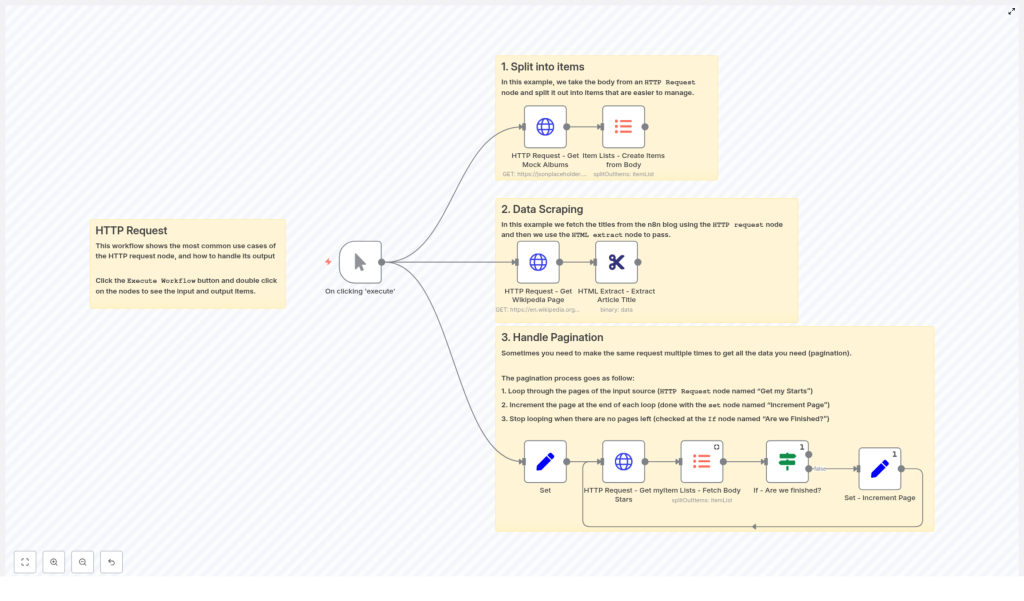
The template is built around a single trigger that kicks off three different use cases:
- Split into items – Take an HTTP response that returns an array and turn each element into its own item.
- Data scraping – Fetch a web page and extract specific HTML elements with the HTML Extract node.
- Handle pagination – Loop through paginated API responses until there are no more results.
The workflow is visually grouped into these sections, so you can run everything from one manual trigger and then inspect each part to see how the data flows.
Quick start: how to use the template
- Open your n8n instance.
- Import the workflow template or recreate it using the nodes described below.
- Run the workflow with a Manual Trigger.
- Open each node, check its input and output, and follow the data as it moves through splitting, scraping, and paginating.
Once you understand the patterns, you can plug in your own API URLs, parameters, or websites and let the automation handle the tedious parts.
Use case 1: Split API responses into individual items
Scenario: an API returns a big array of records, and you want to process each record separately instead of treating them as one giant blob. This is where “split into items” comes in.
Nodes used in this section
- HTTP Request
- Method: GET
- URL:
https://jsonplaceholder.typicode.com/albums - Response format: JSON (default)
- Item Lists – Create Items from Body
How the split works
- Call the JSON API
Configure the HTTP Request node to call a JSON endpoint. In our example, we use:GET https://jsonplaceholder.typicode.com/albumsThe response is an array of album objects, and n8n reads this as JSON by default.
- Convert the array into individual items
Add an Item Lists node and set:fieldToSplitOuttobody(or to the exact path of the array inside the response)
This makes the node emit one item per array element. Each album becomes its own item, which is much easier to filter, map, transform, or send to a database.
You can also use nodes like SplitInBatches or a Function node for more advanced control, but Item Lists is a simple starting point when the response is a clean array.
Result: instead of wrestling with a giant JSON array, you now have individual album objects ready for downstream nodes to process in a clean, predictable way.
Use case 2: Scrape web pages with HTML Extract
Scenario: you want to pull specific information from a web page, like titles, headings, or links, without manually copying and pasting. The combo of HTTP Request plus HTML Extract turns you into a polite, structured web scraper.
Nodes used in this section
- HTTP Request
- Method: GET
- Target: a web page URL
responseFormat:file(binary)
- HTML Extract
- Selectors: CSS selectors
sourceData:binary
How to scrape with HTML Extract
- Fetch the HTML as a file
In the HTTP Request node:- Set the URL to the page you want to scrape.
- Change Response Format to
file.
This stores the HTML as binary data, which is exactly what the HTML Extract node expects.
- Extract specific elements with CSS selectors
Configure the HTML Extract node:- Set sourceData to
binary. - Add your extraction rules using CSS selectors.
Example: to grab the main article title from a Wikipedia page, you can use:
#firstHeading - Set sourceData to
The HTML Extract node lets you pull out exactly what you need, without writing custom parsing code. Use it for things like:
- Blog post titles
- Product information
- Structured elements like lists, headings, or links
Result: you get clean data from messy HTML, ready to push into a database, spreadsheet, or another part of your workflow.
Use case 3: Handle pagination like a pro
Scenario: you call an API and it kindly responds, “Here are your results, but only 15 at a time. Please keep asking for the next page.” Manually clicking through pages is annoying. Automating that loop in n8n is not.
Nodes used in this section
- Set – initialize parameters like
page,perpage, andgithubUser - HTTP Request – call the GitHub API for starred repositories
- Item Lists – Fetch Body and split out results into items
- If – check whether the response is empty
- Set – increment the
pagenumber
Step-by-step pagination loop
- Initialize your pagination variables
Use a Set node to define:page(for example,1)perpage(for example,15)githubUser(the GitHub username you want to query)
- Configure the HTTP Request for a paginated endpoint
In the HTTP Request node, use n8n expressions to build the URL and query parameters dynamically. For GitHub starred repositories, you can use:=https://api.github.com/users/{{$node["Set"].json["githubUser"]}}/starred Query parameters: - per_page = {{$node["Set"].json["perpage"]}} - page = {{$node["Set"].json["page"]}}Each time the loop runs, the
pagevalue will update. - Split the response body into items
Add an Item Lists (or similar) node to create individual items from the response body array. This lets you process each starred repository separately. - Check if you reached the end
Insert an If node to test whether the HTTP response body is empty:- If the body is empty, there are no more results and pagination is done.
- If the body is not empty, you still have more pages to fetch.
- Increment the page and loop
When the response is not empty, send the flow to another Set node that:- Increments
pageby 1
Then route the workflow back to the HTTP Request node so it can request the next page.
- Increments
The loop continues until the If node detects an empty response. At that point, the pagination branch ends and you have collected all pages of data.
Tips for safer, smarter pagination
- Respect rate limits: many APIs limit how often you can call them. Use delays or authenticated requests to stay within allowed limits.
- Use built-in metadata when available: if the API returns total pages, next-page URLs, or similar hints, prefer those over simply checking for an empty response.
- Log progress: store or log the current
pageso you can debug or resume more easily. - Smaller batches: if your downstream processing is heavy, keep
perpagesmaller to avoid huge loads in a single run.
General best practices for n8n HTTP Request workflows
Once you start wiring HTTP Request nodes into everything, a few habits will save you time and headaches.
- Use credentials
Store API keys, tokens, and OAuth details in n8n credentials instead of hardcoding them in nodes. It is safer, easier to update, and more reusable. - Pick the right response format
Choose the correct response type for your use case:- JSON for structured API responses
- file for HTML or binary data you want to pass to HTML Extract or other nodes
- fullResponse if you need headers or status codes for debugging or conditional logic
- Handle errors gracefully
Use error triggers or the Execute Workflow node to retry failed requests or branch into error-handling flows. - Transform early
As soon as you get a response, normalize or split it into a predictable shape. Your downstream nodes will be much simpler and easier to maintain.
Example automation ideas with this template
Once you understand splitting, scraping, and paginating, you can build a surprising amount of real-world automation. For example:
- Export all your GitHub stars across multiple pages into a database or spreadsheet.
- Scrape article titles from a list of URLs for a content audit or SEO review.
- Bulk fetch product listings from an API, split them into individual items, and enrich them with other data sources.
These are all variations on the same patterns you just learned: HTTP Request to get the data, Item Lists or similar nodes to split it, HTML Extract when dealing with HTML, and a simple loop for pagination.
Next steps: put the template to work
The combination of HTTP Request, Set, Item Lists, HTML Extract, and a basic If loop covers a huge portion of everyday automation tasks. Once you get comfortable with these, most APIs and websites start looking very manageable.
To try it out:
- Open n8n.
- Import the example workflow or recreate the nodes described in this guide.
- Click Execute and inspect each node’s input and output to see exactly how the data moves.
If you want, you can also work from the template directly:
Call to action
Give this workflow a spin in your own n8n instance. If you have a specific API or website in mind, share the endpoint or HTML structure and I can help with a tailored workflow or sample expressions to plug into this pattern.
Happy automating, and may your repetitive tasks be handled by workflows while you do literally anything more interesting.
