

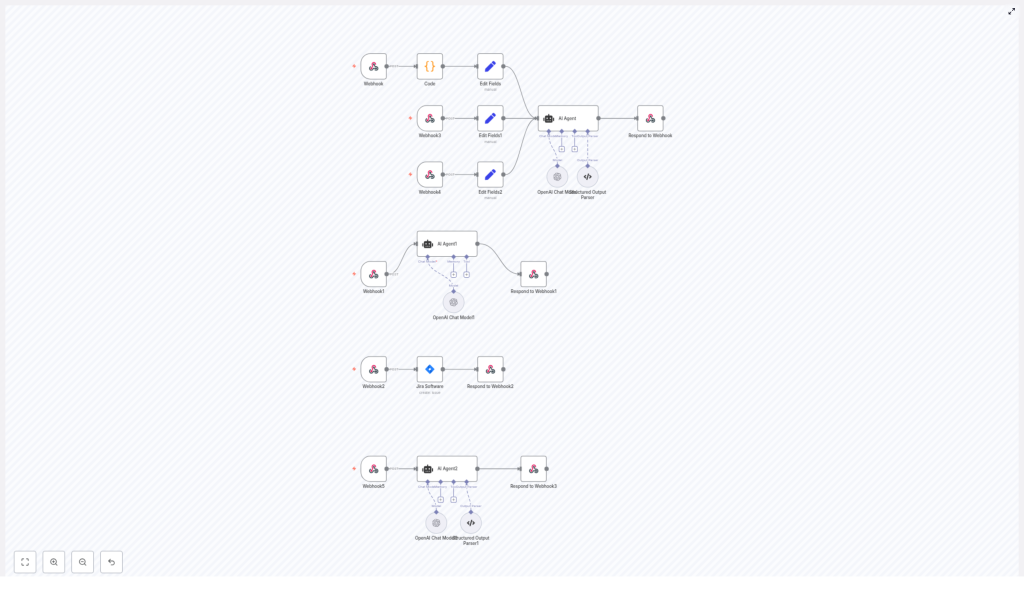
Automate Jira Tickets with n8n: Jira Ticket Handler
Turn raw meeting transcripts, PRD notes, or product manager requests into clear, prioritized Jira tickets with almost no manual work. The Jira Ticket Handler APIs n8n template combines webhooks, an AI agent (LangChain + OpenAI), and the Jira Software node so you can generate, refine, and export multiple Jira-ready tickets from a single input.
What you will learn
This guide walks you through how the template works inside n8n and how to use it in your own workflows. By the end, you will know how to:
- Send transcripts, prompts, or epic descriptions to n8n using webhook endpoints
- Use an AI agent to turn unstructured text into structured Jira ticket ideas
- Automatically apply priorities and story point estimates using consistent rules
- Create Jira issues directly from n8n or keep them in a “review first” mode
- Customize prompts, security, and mappings to fit your Jira setup
Why use this n8n Jira ticket template?
Many teams waste time manually turning discussions into Jira stories or tasks. This template helps you:
- Save hours each week by automating ticket creation from transcripts, PRDs, or PM notes.
- Standardize ticket quality with consistent description structure, acceptance criteria, and requirements.
- Enforce estimation rules using a Fibonacci-based story point system (1, 2, 3, 5, 8, max 8).
- Scale easily by creating multiple tickets from a single long input.
The result is a cleaner backlog, more predictable estimates, and less time spent copy-pasting from meeting notes into Jira.
Key concepts and components
The template is built as a set of webhook-driven workflows in n8n. Each webhook represents a specific use case, such as generating ticket ideas from a transcript or enhancing an existing ticket.
Core building blocks in n8n
- Webhook nodes These act as entry points. They receive HTTP POST requests that contain:
- Meeting transcripts
- Product or epic descriptions
- PM change requests or prompts
- Code node Optionally downloads and normalizes transcript files when you pass a URL instead of raw text. This is useful if your transcripts are stored externally.
- Set nodes Map incoming request fields into a clean context object for the AI agent. Typical fields include:
content(main transcript or text)prdContent(product context or PRD)prdContentFile(additional file text)jiraData(Jira metadata like issue types and priorities)
- AI Agent (LangChain) Uses a carefully designed prompt to:
- Read the transcript or text
- Identify actionable items
- Generate multiple Jira ticket definitions that follow a strict schema
- OpenAI Chat model The underlying language model used by the LangChain agent. It generates the ticket content based on the prompt and context.
- Structured output parser Validates that the AI returns well-formed JSON that matches the expected Jira payload structure. This reduces malformed or incomplete responses.
- Jira Software node Uses your Jira Cloud credentials and the parsed AI output to:
- Create issues in the correct project
- Map issue types, priorities, and reporter IDs
- Respond to Webhook Sends a structured response back to the caller. This can include:
- The generated ticket ideas
- Details of any Jira issues that were created
This makes it easy to plug into Slack, email, CI pipelines, or other tools.
How the Jira Ticket Handler workflow works
Let us walk through the full flow from an incoming transcript to created Jira tickets.
Step 1 – Send a transcript or request to a webhook
You start by making an HTTP POST request to one of the template’s webhook endpoints (listed later). Your request typically includes:
content– the main text, such as a meeting transcript or promptjiraData– Jira configuration, such as issue type and priority IDsprdContentandprdContentFile– optional product contextjiraProjectIdandjiraUserInfo– where and under whom to create tickets
If you send a URL instead of direct text, the Code node can download the file and extract the content before passing it on.
Step 2 – Preprocess and map fields for the AI agent
Next, Set nodes organize the incoming data into a clean structure that the AI can understand. They consolidate fields like:
content– main text to analyzeprdContentandprdContentFile– context that helps the AI understand the product or featurejiraData– mappings between human-readable names and Jira internal IDs
This step is important because it ensures that the AI receives all relevant context in a predictable format.
Step 3 – AI parses the content and generates ticket ideas
The LangChain AI agent uses a prompt that instructs the model to:
- Read the transcript or description
- Identify distinct action items, bugs, or stories
- Produce multiple ticket objects that each contain:
summaryissueTypeandissueTypeIddescriptionwith a specific structure:- Purpose
- Requirements
- Acceptance criteria
priorityandpriorityIdstorypointschosen from the Fibonacci sequence (1, 2, 3, 5, 8, max 8)
The output is a JSON array of tickets that are already formatted to match Jira’s expectations.
Step 4 – Validate and optionally create Jira issues
Before anything is sent to Jira, the Structured Output Parser checks that the AI output:
- Is valid JSON
- Contains all required fields
- Matches the expected schema for Jira issue creation
If validation passes and the workflow is configured to create issues, the Jira Software node then:
- Uses the provided
jiraProjectIdto target the correct project - Maps
issueTypeId,priorityId, andjiraUserInfo.accountIdto Jira fields - Creates each issue in Jira Cloud
You can also configure the workflow to only return ideas without creating issues, so that a human can review and approve them first.
Step 5 – Send a structured response
Finally, the Respond to Webhook node returns a JSON response to the caller. This response typically includes:
- The parsed ticket ideas generated by the AI
- Any Jira API responses for issues that were created
This design makes it easy to integrate with other tools. For example, you can trigger this workflow from Slack, a CI pipeline, or a custom internal tool, then present the results back to users.
Available webhook endpoints and what they do
The template includes several webhook endpoints, each tailored to a different scenario.
/webhook/jiraTicketIdeadsCreatorUse this to create multiple ticket ideas from a transcript. It can download content using the Code node if you supply a file URL./webhook/jiraTicketIdeadsCreatorByPromptUse this when you already have prompt text or free-form content and want ticket ideas without dealing with files./webhook/jiraTicketIdeadsCreatorByEpicDescriptionProvide an epic description and let the workflow generate related child stories./webhook/jiraEnhancerSend a PM change request or additional notes to enhance an existing Jira ticket description, keeping the structure consistent./webhook/getFigmaMakePromptTake a Jira story description and generate a Figma Make prompt that designers can use to produce UI mockups./webhook/jiraTicketCreatorUse this when you already have a validated ticket payload and simply want to create a Jira issue directly.
Example webhook payload
Here is a minimal JSON payload you can send via POST to generate ticket ideas from a transcript:
{  "content": "Here is the meeting transcript text...",  "jiraData": {  "issueTypes": { "Story": "10001", "Bug": "10002" },  "priorities": { "High": "2", "Medium": "3", "Low": "4" }  },  "prdContent": "Short product context or PRD text",  "prdContentFile": "Optional additional file text",  "jiraProjectId": "10000",  "jiraUserInfo": { "accountId": "abcd-1234" }
}
The AI agent returns an array of ticket objects that follow the structured schema. You can then:
- Feed them directly into the Jira Software node for automatic creation
- Store them for review and manual approval
How tickets are structured and prompted
The power of this template comes from a clear, consistent prompt. Every generated ticket description follows the same structure.
Ticket description format
Each ticket description must include:
- Purpose A short paragraph that explains why this ticket exists and what problem it solves.
- Requirements A numbered list of concrete tasks, behaviors, or constraints that must be implemented.
- Acceptance criteria A numbered list of conditions that can be used to verify that the ticket is complete and correct.
This structure makes tickets easier to understand for developers, testers, and product managers, and it improves alignment across the team.
Story point rules
Story points are chosen from the Fibonacci sequence:
- 1, 2, 3, 5, 8
The maximum allowed value is 8. This keeps estimates:
- Bounded and predictable
- Aligned with common agile estimation practices
If you want to change this behavior, you can modify the AI prompt inside the LangChain agent.
Setup and prerequisites
Before you use the Jira Ticket Handler template, make sure the following are in place:
- n8n instance You need n8n running, either self-hosted or on n8n Cloud, with access to LangChain and OpenAI nodes.
- OpenAI credentials Configure your OpenAI API key in n8n credentials so the LangChain agent can call the model.
- Jira Cloud credentials Set up Jira Software node credentials, including:
- Jira site URL
- API token
- Associated user email or account
- Jira configuration data Know the IDs for:
- Jira projects (
jiraProjectId) - Issue types (for example, Story, Bug)
- Priorities (High, Medium, Low, etc.)
These are passed into the workflow via the
jiraDataobject so the AI output can be mapped correctly. - Jira projects (
Security and best practices
Because this template handles potentially sensitive text and connects to external APIs, keep the following in mind:
- Protect webhook endpoints Use secret tokens in headers, IP allowlists, or an API gateway to restrict access.
- Handle sensitive data carefully Avoid sending personally identifiable information (PII) when possible. Consider redacting sensitive content before sending it to OpenAI.
- Respect rate limits Both OpenAI and Jira enforce API quotas. Batch large inputs where possible and avoid unnecessary retries.
- Log minimally Store only the logs you actually need. Rotate logs regularly and align storage with your compliance requirements.
Troubleshooting common issues
If something does not work as expected, here are common problems and how to address them.
- Empty or poor AI output
- Check that
contentis non-empty and contains meaningful text. - Include
prdContentorprdContentFilefor additional context when needed. - Verify that the prompt in the LangChain agent has not been accidentally modified or stripped of key instructions.
- Check that
- Invalid
issueTypeIdorpriorityId- Confirm that the IDs in
jiraDatamatch your Jira instance. - Check that the project you are targeting supports those issue types and priorities.
- Confirm that the IDs in
- Model hallucination or malformed JSON
- Ensure the prompt clearly states the required JSON schema and constraints.
- Use the structured output parser to reject malformed responses and handle errors gracefully.
Example use cases
This template is flexible enough to support different workflows around Jira and automation.
- Post-demo follow-ups After a customer demo, send the transcript to the webhook and automatically generate follow-up tasks and bugs.
- Sprint planning from PRDs Feed a product manager’s PRD and related notes into the workflow to generate user stories with story points and acceptance criteria.
- Design handoff acceleration Use the Figma prompt webhook to convert Jira stories into Figma Make prompts that help designers quickly produce UI mockups.
FAQ
Can I customize the story point limits?
Yes. Open the LangChain agent node in n8n and edit the prompt where the story point rules are defined. You can change the allowed values or the maximum limit to match your team’s estimation approach.
Does this template create issues automatically?

