


Map Typeform to Pipedrive with n8n Automation
Collecting structured responses in Typeform is only the first step. The real value appears when those responses are normalized, enriched, and delivered into your CRM in a predictable way. This documentation-style guide describes an n8n workflow template that transforms Typeform submissions into Pipedrive records, including an Organization, Person, Lead, and Note. It explains how to map human-readable Typeform answers to Pipedrive custom property option IDs, configure webhooks, and test the workflow safely.
1. Workflow overview
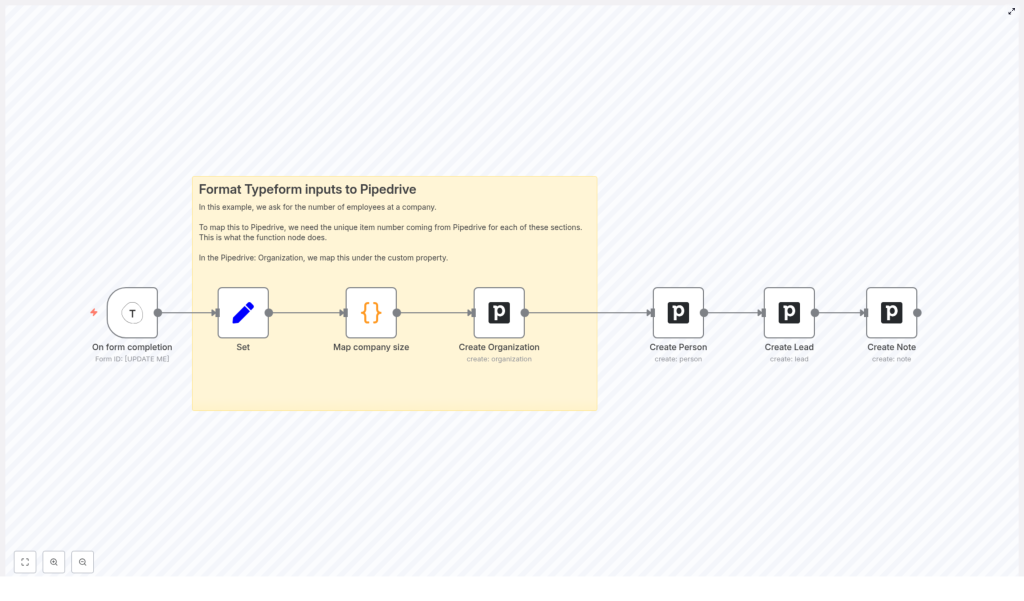
This n8n automation connects Typeform to Pipedrive using a series of nodes that perform field normalization, value mapping, and record creation. At a high level, the workflow:
- Receives completed Typeform submissions via a Typeform Trigger node.
- Normalizes and renames key fields using a Set node.
- Maps a human-readable company size answer to a Pipedrive custom field option ID in a Code node.
- Creates a Pipedrive Organization and sets a custom property for company size.
- Creates a Pipedrive Person linked to the Organization.
- Creates a Pipedrive Lead associated with both the Organization and Person.
- Creates a Pipedrive Note that stores the original form context for sales follow-up.
The workflow is fully visual within n8n and can be extended with additional business logic, enrichment services, or conditional routing as needed.
2. Why automate Typeform to Pipedrive with n8n?
Manually copying data from Typeform into Pipedrive is slow, repetitive, and error-prone. Automating this flow with n8n provides:
- Consistent field mapping between Typeform questions and Pipedrive entities.
- Faster lead routing by creating Organizations, People, Leads, and Notes in real time.
- Configurable logic for mapping options like company size to Pipedrive custom field option IDs.
- Extensibility so you can add enrichment, scoring, or notification steps without rewriting the integration.
Because n8n is node-based and visual, this template is a solid foundation that you can inspect, debug, and modify as your CRM process evolves.
3. Architecture and data flow
The workflow follows a linear, event-driven architecture triggered by Typeform webhooks. The data flow is:
- Inbound webhook from Typeform delivers the raw submission payload to n8n.
- Field normalization maps Typeform question labels to internal keys such as
company,name,email,employees, andquestions. - Value mapping converts the textual
employeesanswer (for example,< 20) into a Pipedrive custom field option ID (pipedriveemployees). - Pipedrive Organization is created using the normalized company name and the mapped company size ID.
- Pipedrive Person is created and linked to the Organization using the returned
org_id. - Pipedrive Lead is created and associated to both the Organization and Person via their IDs.
- Pipedrive Note is created and attached to the Lead to preserve the original questions and answers for context.
Each node receives the output of the previous node, so failures or misconfigurations in one step typically surface immediately in the next. n8n’s execution data view can be used to inspect intermediate payloads during testing.
4. Node-by-node breakdown
4.1 Typeform Trigger node
Purpose: Start the workflow whenever a Typeform response is submitted.
Configuration steps:
- Add a Typeform Trigger node to your n8n canvas.
- Configure the node with:
- Form ID: the Typeform form you want to listen to.
- Webhook ID / URL: n8n will provide a webhook URL. Copy this URL into your Typeform form’s webhook settings.
- In Typeform, enable the webhook for the target form and paste the n8n webhook URL.
Once configured, the node fires each time a respondent fully completes the form. The incoming JSON payload contains all question-answer pairs, metadata, and respondent details that you can reference in downstream nodes.
4.2 Set node – normalize incoming fields
Purpose: Extract specific fields from the Typeform payload, then rename them to stable, internal keys for easier use throughout the workflow.
In the Set node, you define new properties and map them from the Typeform response structure. Example mappings:
company→ Typeform question: “What company are you contacting us from?”name→ Typeform question: “Let’s start with your first and last name.”email→ Typeform question: “What email address can we reach you at?”employees→ Typeform question: “How many employees?”questions→ Typeform question: “Do you have any specific questions?”
Using consistent keys like company, name, and employees simplifies expressions in later nodes and reduces coupling to the exact Typeform question labels.
4.3 Code node – map company size to Pipedrive option IDs
Purpose: Convert the human-readable company size answer from Typeform into a Pipedrive custom field option ID that Pipedrive expects.
Pipedrive stores option-type custom fields (for example, dropdowns or single-selects) internally as numeric option IDs. The Code node acts as a mapping layer between the text values from Typeform and these numeric identifiers.
Execution mode: Configure the Code node to run in runOnceForEachItem mode so each submission is processed independently.
Example JavaScript:
switch ($input.item.json.employees) {  case '< 20':  $input.item.json.pipedriveemployees = '59';  break;  case '20 - 100':  $input.item.json.pipedriveemployees = '60';  break;  case '101 - 500':  $input.item.json.pipedriveemployees = '73';  break;  case '501 - 1000':  $input.item.json.pipedriveemployees = '74';  break;  case '1000+':  $input.item.json.pipedriveemployees = '61';  break;
}
return $input.item;
This script reads the normalized employees value and sets a new property pipedriveemployees that contains the correct Pipedrive option ID.
Important: Replace the numeric IDs (59, 60, etc.) with your own Pipedrive option IDs. You can find these in Pipedrive under custom field settings for the relevant Organization field.
Edge case to consider: If a new answer option is added in Typeform or the text value changes, it will not match any case in the switch statement and pipedriveemployees will remain undefined. This typically results in the custom field not being set in Pipedrive. During testing, inspect the Code node output to verify that every possible answer is mapped correctly.
4.4 Pipedrive node – Create Organization
Purpose: Create a new Organization in Pipedrive and populate the company size custom field using the mapped option ID.
Add a Pipedrive node configured for the Organization resource and the Create operation.
Key parameters:
- name: Use the normalized company field from the Set node or Code node. For example:
{{$node["Map company size"].json["company"]}} - additionalFields → customProperties:
- Set the Organization custom field that holds company size to the
pipedriveemployeesvalue from the Code node.
- Set the Organization custom field that holds company size to the
This ensures that the Organization is created with the correct company-size value in Pipedrive using the internal option ID instead of the human-readable label.
The node output includes the created Organization object, including its id, which is required in the next node to link the Person.
4.5 Pipedrive node – Create Person linked to the Organization
Purpose: Create a Person contact in Pipedrive and associate it with the Organization created in the previous step.
Add another Pipedrive node configured for the Person resource and the Create operation.
Key parameters:
- name: Use the normalized
namefield from the Set node. - email: Use the normalized
emailfield from the Set node. - org_id: Reference the
idreturned from the Create Organization node. This links the Person to the correct Organization.
The Person node output will include the new Person’s id, which is required when creating the Lead.
4.6 Pipedrive node – Create Lead and attach a Note
Purpose: Create a Lead in Pipedrive associated with both the Organization and Person, then store contextual details as a Note.
Lead creation:
- Add a Pipedrive node configured for the Lead resource and the Create operation.
- Set:
- organization_id: Use the Organization
idfrom the Create Organization node. - person_id: Use the Person
idfrom the Create Person node.
- organization_id: Use the Organization
After the Lead is created, the node output includes the Lead id, which you will use for the Note.
Note creation:
- Add another Pipedrive node configured for the Note resource and the Create operation.
- Attach the Note to the Lead using the Lead
idfrom the previous node. - In the Note content, include:
- The original questions and answers from the Typeform submission.
- The interpreted company size or any additional context that is useful for sales teams.
This Note gives sales and account teams immediate context about what the respondent asked and how they described their company.
5. Configuration and testing guidelines
5.1 Pipedrive and Typeform credentials
- Ensure that your Pipedrive credentials in n8n (API token or OAuth) have sufficient permissions to create Organizations, Persons, Leads, and Notes.
- Verify that your Typeform credentials and webhook configuration are correct so that events are reliably delivered to n8n.
5.2 Safe testing strategy
- Use a sandbox or staging Pipedrive account where possible. This prevents cluttering production with test data and avoids hitting production quotas.
- Send test submissions from Typeform and inspect the n8n execution data to confirm:
- All normalized fields (company, name, email, employees, questions) are populated correctly.
- The Code node sets
pipedriveemployeesfor every expected answer. - Pipedrive nodes receive valid IDs and return successful responses.
- Log incoming payloads during early testing using:
- A Debug or similar node to inspect the raw JSON payload.
- Temporary logging to a file or external store if you need to compare multiple runs.
5.3 Field mapping maintenance
- If you change Typeform question labels or add new choices, update:
- The Set node mappings so the correct values are assigned to
company,name,email,employees, andquestions. - The Code node switch cases if you adjust company size ranges or labels.
- The Set node mappings so the correct values are assigned to
- If you modify Pipedrive custom fields, confirm that:
- The internal custom field key in Pipedrive still matches what you configure in the Pipedrive node.
- The option IDs used in the Code node are still valid and correspond to the correct options.
5.4 Error handling and resilience
- Workflow error handling:
- For non-critical steps, you can enable continue on fail in relevant nodes to prevent a single failure from stopping the entire run.
- For critical failures, consider creating a dedicated error workflow in n8n that is triggered when executions fail.
- Notifications:
- Optionally add Slack or email notification nodes to alert your team when a submission cannot be synced to Pipedrive.
- API limits and permissions:
- If you encounter Pipedrive API limits or authentication errors, verify the Pipedrive node credentials and check rate limit or quota information in your Pipedrive account.
5.5 Duplicate detection considerations
This template creates new records for each submission. If your respondents can submit the form multiple times, you may want to add additional logic:
- Check for an existing Organization by name or domain before creating a new one.
- Check for an existing Person by email before creating a new contact.
- Implement deduplication rules in Pipedrive or add n8n logic to skip or merge duplicates.
These enhancements are not part of the base template but are common extensions in production environments.
6. Extending and customizing the workflow
6.1 Data enrichment
To improve lead quality before inserting data into Pipedrive, you can:
- Call enrichment APIs such as Clearbit or similar services between the Code node and the Create Organization node.
- Use the enriched data to populate additional Organization or Person fields in Pipedrive.
6.2 Conditional routing and segmentation
Use n8n’s Switch or If nodes to:
- Route enterprise-sized companies (for example, large
employeesranges) to a specific Pipedrive pipeline. - Trigger immediate notifications to an account executive or sales channel for high-value leads.
6.3 Centralized field mapping configuration
To simplify maintenance of Typeform-to-Pipedrive mappings:
- Store your mapping (for example,
