


Automate Golf Bookings with n8n: A Step-by-Step Guide
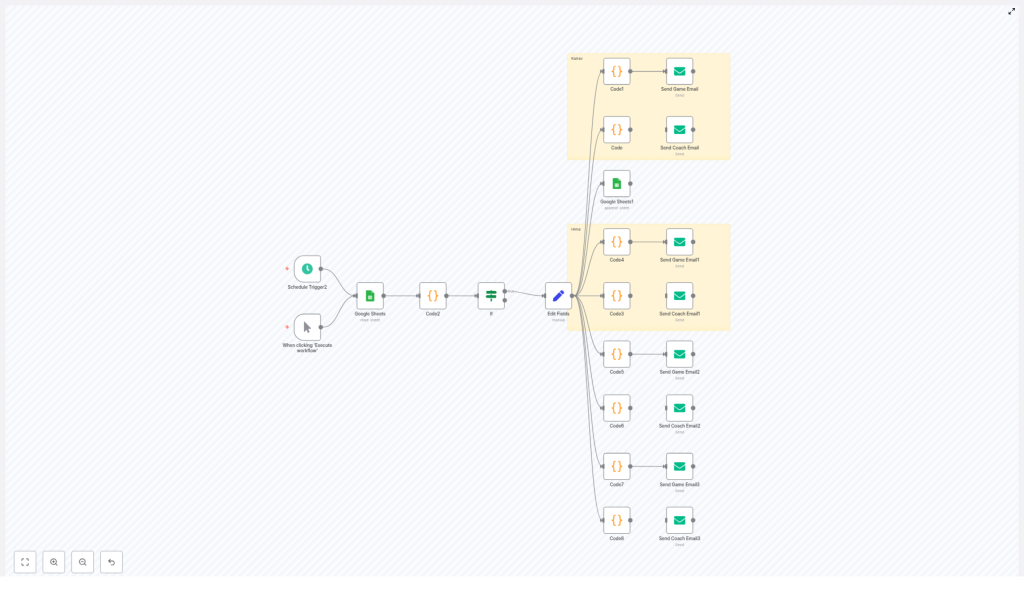
This guide explains how to use an n8n workflow template to fully automate golf coaching and game booking requests. The workflow orchestrates Google Sheets, scheduled triggers, JavaScript Code nodes, and SMTP email delivery, with a strong focus on secure handling of sensitive data. It is intended for automation professionals, n8n power users, and operations teams who want a robust, repeatable booking process.
Overview of the Golf Auto Booking Workflow
The Golf Auto booking template automates the end-to-end process of generating and sending booking requests to a concierge or golf club. Instead of manually checking a spreadsheet and composing emails, the workflow:
- Reads booking entries from a Google Sheet.
- Applies timing logic to determine when a request should be sent.
- Calculates a target booking date, typically the next Sunday or a date 5 days in the future.
- Formats the date into a human-friendly string, for example
25th May 2025. - Builds personalized HTML email bodies for each person or family.
- Sends the email from the relevant sender account via SMTP.
The result is a consistent, auditable, and low-maintenance automation that reduces manual effort and minimizes the risk of errors or missed bookings.
Core Architecture and Key Nodes
The workflow combines several n8n node types to implement scheduling, data access, business logic, and outbound communication. The main components are:
Triggering and Control
- Schedule Trigger – Runs the workflow automatically based on a cron expression, for example every day at a specific time. The template is configured for the Asia/Kolkata timezone by default and can be adapted to any timezone as required.
- Manual Trigger – Allows you to start the workflow on demand, which is useful for initial setup, debugging, and regression testing after changes.
- If node – Evaluates conditions to determine whether a booking entry should be processed, for example whether the row was created on the current day or whether it has already been handled.
Data Storage and Mapping
- Google Sheets (Read / Append) – Acts as the primary data store for booking requests. The workflow reads rows that contain new or pending bookings and can append metadata such as a processed timestamp or status flag.
- Set / Edit Fields – Normalizes and maps fields from Google Sheets into a structure that downstream Code and Email nodes can consume. This is where you define which columns correspond to names, dates, coach fields, or card details (for the last 4 digits only).
Business Logic and Email Generation
- Code nodes (JavaScript) – Implement the core logic:
- Perform date arithmetic and timezone adjustments.
- Calculate the booking date (for example 5 days from now or the next Sunday).
- Format dates with ordinal suffixes (st, nd, rd, th) and readable month names.
- Generate customized HTML email bodies for each individual or family, with variants for coaching sessions and general games.
- Email Send (SMTP) – Sends the generated HTML emails to the concierge or club using the appropriate sender address. Each sender is configured with its own SMTP credential.
Date, Timezone, and Formatting Logic
Accurate date calculation is central to the workflow. The template uses a timestamp that represents a date 5 days in the future, typically stored in a field such as afterFiveDays. Code nodes convert this timestamp to a JavaScript Date object and then derive several values:
- The correctly formatted day number with an ordinal suffix, for example
1st,2nd,3rd,4th. - The full month name using the locale, for example
May. - A final formatted string, for example
25th May 2025, which is embedded in the HTML email.
The workflow also includes logic to handle timezones, particularly to compute reference times such as 8:00 AM IST from UTC-based timestamps. This ensures that booking requests are aligned with the local time expectations of the club or concierge.
Example Date Formatting Function
The following sample function illustrates how the day suffix and month name are calculated in a Code node:
function formatDate(dateObj) {  const day = dateObj.getDate();  const month = dateObj.toLocaleString('default', { month: 'long' });  const j = day % 10, k = day % 100;  let suffix = 'th';  if (j === 1 && k !== 11) suffix = 'st';  else if (j === 2 && k !== 12) suffix = 'nd';  else if (j === 3 && k !== 13) suffix = 'rd';  return `${day}${suffix} ${month}`;
}
In the template, this logic is integrated into broader Code nodes that also compute values such as nextSundayISO and return the final formattedDate string to downstream nodes.
Personalized Email Composition and Delivery
The workflow is designed to handle multiple senders and recipient contexts. For example, it can send booking requests on behalf of different families or individuals such as Kalrav, Hima, Minaben, and Jasubhai. For each of these, there are two main variants:
- Coaching session email – Includes a coach field and structured details relevant to a coaching booking.
- General game email – Focuses on tee times and game details without a coach attribute.
Each relevant Code node returns a structured output that typically includes:
emailBody– The complete HTML body of the email, including the formatted date and any personalized fields such as names, phone numbers, or last 4 digits of a card.formattedDate– The human-readable date string used inside the email.nextSundayISO– An ISO-formatted date for internal use or logging.
The corresponding Email Send (SMTP) nodes then use these fields to send the email to the concierge address from the appropriate sender account. Each sender account is mapped to its own SMTP credential, which is configured in n8n’s credentials manager.
Step-by-Step Configuration Guide
To deploy and adapt the Golf Auto booking template in your own n8n environment, follow these steps.
1. Import and Inspect the Workflow
- Import the provided workflow JSON into your n8n instance.
- Open the workflow and review the high-level structure, including triggers, Google Sheets nodes, Code nodes, and Email Send nodes.
2. Configure Credentials
- Set up a Google Sheets OAuth2 credential with access to the workbook that stores your booking data.
- Configure SMTP credentials for each sender email account that will be used to send booking requests.
- Store all credentials in n8n’s credential manager, not in Code nodes or environment variables that are committed to source control.
3. Connect Google Sheets
- Open each Google Sheets node and specify:
- The spreadsheet ID for your booking workbook.
- The sheet name or
gidwhere booking rows are stored.
- Ensure that column headers in the sheet match the expectations of the workflow, for example:
timestampfor the time the entry was created.- Columns for name, phone, coach, and any other required fields.
- If you plan to track processed bookings, verify that the node responsible for appending or updating rows is configured with the correct columns for status and processed timestamps.
4. Adjust Scheduling and Timezone Settings
- Open the Schedule Trigger node and edit the cron expression to match your operational schedule, for example daily at 7:00 AM local time.
- Review the workflow timezone setting. The template uses Asia/Kolkata by default. Change this to your primary timezone if required, and align any date calculations in Code nodes accordingly.
5. Customize Business Logic and Email Content
- Open the relevant Code nodes and adjust:
- Names, family identifiers, and contact numbers.
- Last 4 digits of the card used for identification (never full card numbers).
- Preferred times, for example 8:00 am or 9:00 am.
- Location text, coach names, and any other contextual information.
- Update the HTML structure in the email templates if you want to match a specific branding or format, while keeping the dynamic placeholders for
formattedDateand other personalized fields.
6. Test and Validate
- Use the Manual Trigger to run the workflow with sample data.
- Inspect node outputs in the n8n execution view to confirm:
- Google Sheets rows are read correctly.
- Date calculations and
formattedDatevalues are accurate. - HTML email bodies are generated as expected.
- Send test emails to a non-production address and verify rendering, personalization, and sender details.
- If you are appending data back to Google Sheets, confirm that processed rows are correctly updated and that duplicate processing is avoided.
Security and Privacy Best Practices
The workflow may handle personal and payment-related data, including cardholder names, last 4 digits of payment cards, and dates of birth. Automation professionals should treat this data carefully and apply security-by-design principles.
- Limit stored card data – Never store full card numbers or CVV codes in Google Sheets or any plain-text system. Restrict storage to the last 4 digits only, and only if needed for identification.
- Restrict access – Use least-privilege access for both the Google Sheets file and the n8n instance. Apply role-based access control so only authorized users can view or modify sensitive workflows and data.
- Use PCI-compliant providers – For any transaction flows that touch payment data, integrate with PCI-compliant gateways or tokenization services. Do not handle full PAN or CVV in this workflow.
- Protect credentials – Store SMTP and Google credentials in n8n’s credential manager or environment variables managed by your infrastructure. Never hard-code credentials in Code nodes or workflow parameters.
- Comply with data protection laws – Review and comply with applicable regulations such as GDPR or regional privacy laws before storing or processing personal data. Define retention and deletion policies for booking data.
Troubleshooting and Operational Monitoring
When running this workflow in production, you will occasionally need to diagnose issues related to email delivery, date logic, or Google Sheets access. The following checks are recommended.
- Email not sending
- Verify that SMTP credentials are valid and active.
- Confirm that the configured sender addresses are allowed by your email provider. Some providers restrict automated or scripted sending.
- Check for rate limits or spam filters that might block outbound messages.
- Incorrect date formatting or timing
- Inspect the value of
afterFiveDaysand other date fields passed into the Code nodes. - Confirm that timezone settings in the workflow and in any date calculations are aligned.
- Use the execution logs to view intermediate values like
formattedDateandnextSundayISO.
- Inspect the value of
- Google Sheets errors
- Check OAuth scopes to ensure the credential has read and write access to the target spreadsheet.
- Verify the spreadsheet ID and sheet
gidor name. - Confirm that the sheet has the expected header row and that column names match the workflow configuration.
- Debugging logic issues
- Use n8n’s execution logs to inspect JSON output at each node.
- Temporarily add
console.log-style debug statements inside Code nodes to surface critical values.
Extending and Scaling the Workflow
Once the base template is stable, you can extend it to support additional channels, approval flows, and monitoring capabilities. Some practical extensions include:
- SMS confirmations – Integrate with Twilio or another SMS provider to send a confirmation message to the player after the email request is sent.
- Approval steps – Add a Webhook-based approval flow or a simple UI step where a concierge or admin can confirm or reject a slot, then update the Google Sheet with a confirmation status.
- Retry and error logging – Implement automatic retries for failed email sends and write failures to a dedicated sheet or logging system for manual review.
- Calendar integration – Connect to Google Calendar or another calendar API to create actual events for each confirmed booking, ensuring end-to-end visibility for players and staff.
Conclusion and Next Steps
The Golf Auto booking template demonstrates how n8n can orchestrate scheduled triggers, Google Sheets, JavaScript logic, and SMTP to automate a real-world booking process. By standardizing date calculations, personalizing email content, and enforcing security best practices, the workflow delivers reliable and repeatable automation for golf clubs, concierges, and private groups.
To get started, import the template into your n8n instance, configure your Google Sheets and SMTP credentials, and run a manual test to validate the end-to-end flow. You can reuse the date-formatting function and HTML email patterns in your own workflows if you prefer to integrate this approach into a broader automation stack.
Need help tailoring this workflow to your club or team? Reach out or leave a comment and we will help you adapt the automation to your specific booking rules, data model, and infrastructure.
