


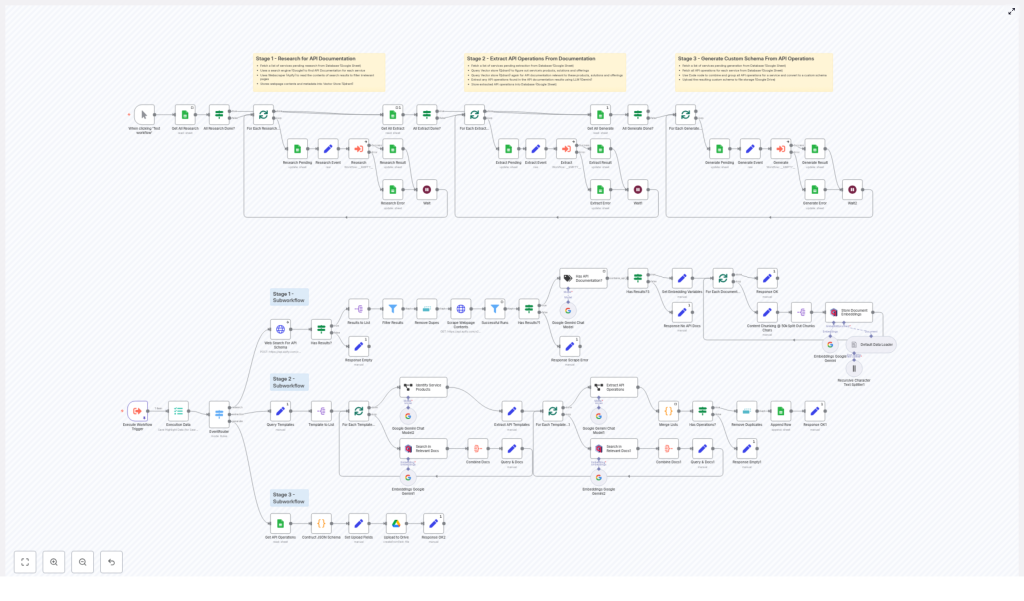
n8n API Schema Crawler & Extractor: Learn How to Automate API Documentation Discovery
Manually searching, scraping, and extracting API operations from documentation is slow, repetitive, and easy to get wrong. This n8n workflow template turns that entire process into an automated pipeline: it starts with web search, scrapes documentation pages, uses LLMs and semantic search to find REST endpoints, then generates a reusable JSON schema.
This guide explains how the template works in n8n, how each node contributes to the flow, and how to configure and scale it in practice. The goal is to help you understand the full architecture so you can run it as-is or adapt it to your own stack.
What you will learn
By the end of this tutorial-style walkthrough, you will be able to:
- Explain why an automated API schema crawler is useful for engineering and security teams
- Understand the three-stage architecture of the n8n workflow
- Configure Stage 1 to discover and scrape API documentation pages
- Use Stage 2 to extract REST endpoints with LLMs and a vector database
- Generate a consolidated JSON schema of all discovered endpoints in Stage 3
- Monitor, debug, and scale the workflow with proper error handling and cost controls
- Apply security and compliance best practices when scraping and storing data
Why automate API schema discovery?
Many teams need a reliable inventory of REST endpoints for:
- Integration projects and SDK generation
- Security reviews and threat modeling
- Maintaining an internal catalog of third-party or internal APIs
Doing this manually usually looks like:
- Searching a vendor site or multiple domains for API docs
- Clicking through pages to find references and examples
- Copying endpoints into a spreadsheet or document
- Trying to normalize naming, URLs, and descriptions by hand
This is time-consuming and hard to keep up to date. With n8n, you can automate this process and generate a structured API schema that you can reuse in code, documentation, or internal tools.
This template uses:
- n8n as the orchestration and automation engine
- Apify for Google search and web scraping
- Google Gemini for classification, extraction, and embeddings
- Qdrant as a vector store for semantic search
- Google Sheets and Google Drive for lightweight storage and tracking
Workflow overview: three main stages
The n8n workflow is organized into three logical stages. Understanding these stages first will make the node-level walkthrough much easier.
- Stage 1 – Research: Find likely API documentation pages and scrape their content.
- Stage 2 – Extraction: Use semantic search and an LLM to identify API docs and extract REST endpoints.
- Stage 3 – Generate: Convert all extracted operations into a consolidated JSON schema and store it.
Each stage uses a combination of n8n nodes, external services, and a shared data model (service name, URLs, metadata) to pass information forward.
Key components used in the n8n workflow
Before we dive into the stages, here is a quick summary of the main tools and services the workflow relies on.
Core services
- n8n: Orchestrates the entire pipeline, controls branching, retries, and data flow between nodes.
- Apify:
- Fast Google search results actor for targeted web search.
- Web scraper actor to fetch page titles and full page bodies.
- Google Gemini:
- Creates embeddings for semantic search in Qdrant.
- Classifies which pages contain API documentation.
- Extracts structured endpoint data from text.
- Qdrant: Stores embeddings of scraped pages and enables semantic queries like “what APIs exist for X”.
- Google Sheets and Google Drive:
- Sheets act as a simple database for services, status flags, and extracted endpoints.
- Drive stores final JSON schema files.
Stage 1 – Research: discover and scrape API documentation
Goal: For each target service, automatically find and scrape pages that are likely to contain API documentation.
1.1 Prepare the list of services in Google Sheets
The workflow typically starts from a Google Sheets table that contains one row per service. At minimum you should have columns such as:
- Service name (for example: “Stripe”)
- Domain (for example: “stripe.com”)
- Status columns for each stage (for example: “Stage 1 Research”, “Stage 2 Extraction”, “Stage 3 Output File”)
In n8n, a Google Sheets node filters this table to select only the services that still need Stage 1 processing. This prevents re-running the research step for services that are already complete.
1.2 Build targeted Google search queries
Next, the workflow constructs a focused search query for each service. The query typically includes:
- The normalized domain (for example:
stripe.cominstead ofhttps://www.stripe.com/) - The service name
- Keywords that suggest developer or API content, such as:
- api
- developer
- reference
- resource
- Optional negative filters to avoid irrelevant pages, such as “help” or “support” sections
Tip: Use a query template in n8n that strips protocol, www, and trailing slashes from the domain. This keeps the search focused on the main site.
1.3 Fetch search results with Apify
The constructed query is sent to the Apify “fast Google search results” actor. In n8n, an HTTP Request node (or dedicated Apify node, if you use one) calls the actor and retrieves a list of search result items.
Typical filters applied at this step include:
- Discarding non-HTML results (for example, images or PDFs if you choose not to process them)
- Removing duplicate URLs
- Keeping only results from the target domain or subdomains
1.4 Scrape candidate pages
For each remaining search result, the workflow triggers an Apify web scraper actor. It is configured to:
- Capture the full HTML body or main text content of the page
- Extract the page title
- Ignore binary or media-only resources such as images and large PDFs to keep the vector store lean
To avoid rate limits and to respect site policies, the workflow can:
- Batch URLs into groups
- Use n8n’s built-in delays
- Limit concurrency on the Apify side
1.5 Store documents in Qdrant
Each scraped page is then stored in Qdrant as a document with:
- The page content (or text version)
- Metadata such as:
- Service name
- URL
- Page title
- An embedding generated by Google Gemini, which is used for semantic search later
At the end of Stage 1, Qdrant contains a collection of documents per service that are likely to include API docs or related technical content.
Stage 2 – Extraction: identify API docs and pull out endpoints
Goal: From the scraped documents, automatically find API documentation and extract REST endpoints with their methods, URLs, and descriptions.
2.1 Run semantic searches in Qdrant
Instead of blindly parsing every document, the workflow uses semantic search in Qdrant to focus on the most relevant pages. Typical queries include:
- “What are the core functionalities of this service?”
- “What REST APIs exist for [service name]?”
- “List the API endpoints or resources for this product.”
Because Qdrant stores embeddings generated by Google Gemini, it can return documents that are semantically related to APIs and developer references, even if the exact keywords differ.
2.2 Classify pages with Google Gemini
For each candidate document returned by Qdrant, the workflow calls Google Gemini to classify whether the page actually contains API schema or documentation. This classification step helps filter out:
- Marketing pages
- High-level product overviews
- Generic help articles that do not define endpoints
The classification prompt can be kept simple, for example: “Does this page contain REST API documentation or endpoint definitions?”
2.3 Extract endpoints from API documentation pages
For documents that the classifier marks as containing API docs, the workflow uses another Google Gemini call configured as an “information extractor.” The prompt instructs the model to:
- Scan the page for REST endpoints
- Extract up to a fixed number of endpoints per page, for example 15
- Return a structured list where each item includes:
resourceoperationdescriptionurlmethoddocumentation_url(the page where the endpoint is documented)
Best practice: Provide the exact JSON output schema and a few example outputs in the prompt. This significantly reduces hallucinations and formatting errors.
To control cost and output size, the workflow sets a per-document cap, such as “maximum 15 endpoints per page.”
2.4 Merge and deduplicate extracted operations
Once extraction is complete for all relevant documents of a service, n8n merges the resulting lists into a single collection of operations. Common deduplication rules include:
- Consider two operations duplicates if they share the same HTTP method and URL
- Prefer the record with a more complete or clearer description
The final deduplicated list of operations is then written to Google Sheets. Each row might contain one endpoint with its metadata, plus the associated service name.
2.5 Handling low-confidence results
To keep data quality high, you can implement a fallback strategy:
- Ask the LLM to return a confidence score or use heuristic checks
- Mark low-confidence extractions in a dedicated column in Sheets
- Review or correct these rows manually before the next stage
Stage 3 – Generate: build and store the JSON schema
Goal: Convert the extracted endpoints for each service into a structured JSON schema file and upload it to storage.
3.1 Load extracted operations from Google Sheets
Stage 3 starts by reading all API operations for a given service from Google Sheets. Typically you filter by:
- Service name
- Stage 2 completion status
At this point, each row in Sheets represents one endpoint with fields like method, URL, description, and documentation URL.
3.2 Group operations by resource
The workflow then groups endpoints by resource. A simple approach is to derive a resource name from the path, for example:
/v1/usersbecomes the Users resource/api/v2/invoicesbecomes the Invoices resource
Each resource is converted into a consistent object structure such as:
{  "resource": "Users",  "operations": [  {  "operation": "List users",  "description": "Retrieve a paginated list of users.",  "ApiUrl": "/v1/users",  "method": "GET",  "method_documentation_url": "https://example.com/docs/api/users#list"  },  ...  ]
}
n8n’s Code or Function nodes are often used here to transform the flat list into this nested structure.
3.3 Serialize and upload the JSON schema
After grouping, the workflow serializes the full schema object to JSON. It then uploads the file to a storage location such as:
- Google Drive (commonly used in this template)
- Or an S3-compatible bucket, if you adapt the workflow
A timestamped filename helps track versions, for example:
stripe-api-schema-2024-03-15.json
3.4 Update status in Google Sheets
Finally, the workflow writes back to Google Sheets to record:
- The output file location or URL
- The completion status of Stage 3
- Any relevant notes (for example, number of endpoints discovered)
This closes the loop for a single service and makes it easy to see which services are fully processed.
Error handling and observability in the workflow
To run this in a production-like environment, you need visibility into what is happening at each step and a way to handle partial failures gracefully.
Use status columns in Sheets
Maintain separate status columns for each stage, for example:
- Stage 1 Research: pending, running, complete, failed
- Stage 2 Extraction: pending, running, complete, failed
- Stage 3 Output File: pending, running, complete, failed
This lets you quickly identify where a service got stuck and rerun only the necessary stage.
Configure retries and “continue on error”
Some nodes are more likely to fail due to network or service issues, such as:
- HTTP calls to Apify
- Requests to Google Gemini
- Writes to Qdrant or Google APIs
For these nodes, configure:
- Retry counts and exponential backoff
- “Continue on error” when safe, so other items can still be processed
Log failures and capture raw content
When scraping or extraction fails, it helps to store:
- The URL that failed
- The error message
- Any raw page content that was retrieved
Some documentation pages rely heavily on JavaScript or require authentication. In those cases, manual inspection of raw content can guide you in adjusting the scraper configuration or adding authentication.
Scaling and cost considerations
As you scale this workflow to more services or larger documentation sites, most of the cost will come from embeddings and LLM calls.
Control document size and chunking
- Limit the size of each document chunk passed to the embedding or extraction models.
- The workflow typically splits content into chunks of about 50k characters or around 4k tokens, depending on the model.
- Chunking keeps requests within model limits and avoids unnecessary token usage.
