

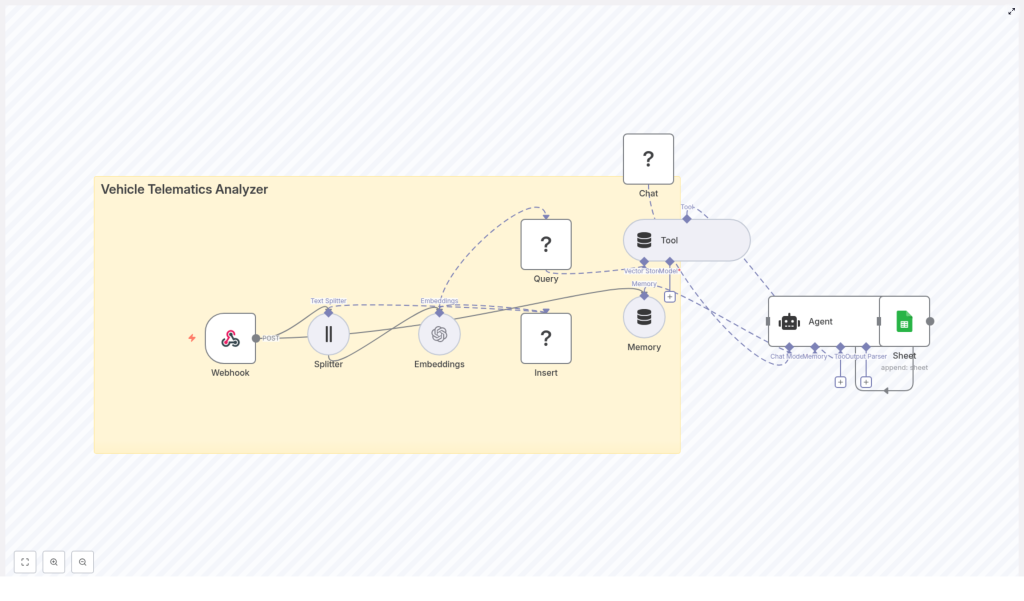
Vehicle Telematics Analyzer with n8n & LangChain
Telematics systems generate a continuous stream of data: GPS traces, CAN bus events, OBD codes, alerts, and detailed driver behavior. On its own, this data is difficult to interpret. With the right automation workflow in n8n, you can turn that raw information into searchable knowledge, clear summaries, and actionable insights.
This guide walks you through a complete Vehicle Telematics Analyzer built with n8n, LangChain components, a Redis vector store, OpenAI embeddings, and Google Sheets logging. You will learn the concepts behind the workflow and how to use the template step by step.
Learning goals
By the end of this tutorial, you will know how to:
- Explain the main components of an n8n-based telematics analyzer
- Ingest telematics data into n8n using a Webhook
- Split and embed text with OpenAI (or similar) to create vector representations
- Store and query embeddings using a Redis vector index
- Use LangChain tools, memory, and an agent to answer questions about your telemetry
- Log analysis results automatically to Google Sheets
- Tune performance, handle security and privacy, and troubleshoot common issues
Why build a telematics analyzer in n8n?
Fleet managers, telematics engineers, and IoT teams often face similar challenges:
- Incident investigation – Quickly surface relevant historical telemetry when something goes wrong.
- Maintenance planning – Detect anomalies and anticipate failures before they cause downtime.
- Driver behavior analysis – Summarize trips and risky events to support coaching and compliance.
- Automated reporting – Store summaries and logs in tools like Google Sheets for easy sharing.
The template described here turns n8n into a telemetry analysis assistant that can:
- Ingest and store large volumes of telematics data
- Perform semantic search over your historical records
- Use an agent-driven language model to explain what happened and why
- Automatically log results for audit and reporting
Concepts and architecture
Before walking through the workflow, it helps to understand the core building blocks used in n8n and LangChain.
Key components in the template
- Webhook – Entry point that receives POST requests from telematics devices or upstream ingestion services.
- Text Splitter – Breaks incoming payloads into manageable chunks to prepare them for embeddings.
- Embeddings node – Uses OpenAI or another embeddings model to convert text chunks into numerical vectors.
- Redis Vector Store (Insert & Query) – Stores and retrieves embeddings in a Redis index named vehicle_telematics_analyzer.
- Tool – Wraps the vector store so the LangChain agent can call it as part of its reasoning process.
- Memory – Keeps a short window of recent conversation or context to support multi-turn interactions.
- Chat (LM) – A language model (for example, from Hugging Face) that generates explanations and summaries.
- Agent – Orchestrates the language model, tools, and memory to answer questions and run analyses.
- Google Sheets node – Appends analysis results and metadata into a spreadsheet for logging and reporting.
High-level data flow
At a high level, the Vehicle Telematics Analyzer works like this:
- Telematics events are sent to n8n through a Webhook.
- The raw payload is split into smaller text chunks.
- Each chunk is converted into an embedding vector and stored in Redis with metadata.
- When a user asks a question, the workflow queries Redis for the most relevant chunks.
- The LangChain agent uses these chunks, plus conversation memory, to produce an answer.
- The result is logged to Google Sheets for auditing and future reference.
Step-by-step: how the n8n workflow operates
Step 1 – Ingest telematics data via Webhook
The workflow starts with a Webhook node in n8n. Your telematics devices or upstream processing service send JSON payloads to this endpoint.
Typical fields might include:
- GPS coordinates and timestamps
- Event codes (for example harsh braking, speeding, idling)
- Sensor readings and CAN bus events
- OBD diagnostic trouble codes
- Vehicle identifiers and driver information
Once the Webhook receives the data, it passes the payload into the rest of the workflow for processing and indexing.
Step 2 – Split the text for embeddings
Telematics events can be long or complex. To improve semantic search, the workflow uses a Text Splitter to break the incoming data into smaller pieces, often corresponding to events or paragraphs.
A recommended starting configuration is:
chunkSize: 400chunkOverlap: 40
This setup helps:
- Prevent truncation of long payloads
- Keep related information together in each chunk
- Improve retrieval accuracy when querying the vector store
Step 3 – Generate embeddings for each chunk
Next, each chunk is sent to an Embeddings node. This node uses an embeddings model such as OpenAI or a compatible alternative to convert text into high-dimensional vectors.
Along with the vector, the workflow stores useful metadata, for example:
vehicle_idtimestampor range of timestampsevent_typeor event code- Source or payload identifiers
This metadata is crucial for filtering and narrowing down search results later.
Step 4 – Insert embeddings into a Redis vector index
The workflow then uses an Insert operation to store these vectors in a Redis-backed vector store. The index is typically named vehicle_telematics_analyzer.
Redis provides:
- Fast approximate nearest neighbor (ANN) search for semantic queries
- Efficient storage of large numbers of vectors
- Support for metadata-based filtering
This makes it ideal for retrieving relevant historical events when you ask questions about vehicle behavior or incidents.
Step 5 – Query the vector store and expose it as a tool
When a user or system sends a question to the workflow, the Query node searches the Redis index for the most semantically similar chunks.
Example query:
Why did vehicle 42 trigger a harsh braking event on May 12?
The Query node returns the closest matching chunks based on embeddings and optional metadata filters such as vehicle_id and time range.
To let the LangChain agent access these results dynamically, the vector store is wrapped in a Tool node. This tool becomes part of the agent’s toolkit so it can decide when to look up additional context from historical telemetry.
Step 6 – Agent reasoning with language model and memory
The core intelligence of the workflow lives in the Agent node. It coordinates three main elements:
- Language model (Chat LM) – A model such as one from Hugging Face, used for natural language reasoning, explanation, and summarization.
- Tools – In particular, the vector store tool that provides access to relevant telemetry chunks.
- Memory – A windowed memory buffer that stores recent conversation turns or troubleshooting context.
The memory component is especially useful when:
- Operators are investigating an incident over multiple questions
- You want the agent to remember previous answers in a short session
- You are iteratively refining a query or analysis
The agent uses the retrieved chunks plus the current question and memory to produce an answer, such as a root cause explanation, a trip summary, or recommended actions.
Step 7 – Log results to Google Sheets
Finally, the workflow uses a Google Sheets node to append a new row with:
- The agent’s analysis or summary
- Relevant timestamps
- Identifiers such as vehicle or driver IDs
- Suggested follow-up actions or notes
This creates a simple but effective audit trail for operators and makes it easy to build reports or dashboards using familiar spreadsheet tools.
Practical use cases for this template
Once your Vehicle Telematics Analyzer is running, you can support many operational scenarios:
- Incident investigations Quickly retrieve historical telemetry that matches an incident pattern and generate a human-readable summary for safety or legal teams.
- Maintenance predictions Combine sensor anomalies, OBD codes, and previous failure notes to flag vehicles that might need attention soon.
- Driver coaching Aggregate harsh braking, acceleration, and cornering events, then turn them into personalized coaching notes for drivers.
- Automated reports Produce daily or weekly summaries that are stored in Google Sheets for distribution to fleet managers and stakeholders.
Implementation tips and recommended settings
To get good results from the beginning, consider these practical recommendations:
- Text splitter configuration Start with
chunkSize = 400andchunkOverlap = 40, then adjust based on your typical event size and verbosity. - Metadata design Store informative metadata like
vehicle_id,ts, andevent_type. This lets you filter queries quickly and narrow search results. - Embeddings model choice Use a stable embeddings model to maintain consistent semantic similarity over time. This is important for reliable search behavior.
- Batching inserts Group multiple chunks into batches before inserting into Redis to reduce network overhead and improve throughput.
- Caching frequent queries Cache common queries with a time-to-live (TTL) to reduce repeated embedding and retrieval costs.
Security, privacy, and compliance considerations
Telematics data often contains sensitive information such as location history and potentially identifiable driver data. Treat it carefully:
- Encryption Use HTTPS for data in transit and enable encryption at rest (for example Redis encryption or disk encryption).
- API key hygiene Rotate API keys regularly for OpenAI, Redis, Google Sheets, Hugging Face, and any other external services.
- Data minimization Limit how long you store personally identifiable information. When possible, keep aggregated or anonymized records instead of raw data.
- Access controls Set role-based access and audit logs in both n8n and Redis so you can track who accessed which data.
- Regulatory compliance Ensure that your practices align with regional regulations such as GDPR or CCPA when handling driver and location data.
Performance tuning and scaling strategies
As your fleet grows, you may need to scale the analyzer. Here are some strategies:
- Sharding Redis indices If you have high write or read throughput, consider sharding Redis indices by fleet, region, or business unit.
- Asynchronous batching for embeddings Send chunks to the embeddings API in batches to smooth out rate spikes and reduce latency.
- Vector store maintenance Monitor memory usage and plan for index compaction or tiered storage for older, less frequently accessed data.
- Multi-stage pipelines Use a near real-time pipeline for alerts and a separate batch pipeline for deeper historical analytics.
Troubleshooting common issues
If the workflow is not behaving as expected, use these checks:
- Irrelevant query results Increase
chunkOverlapor try a higher quality embeddings model. Also verify that metadata filters are set correctly. - High operating costs Cache frequent queries, reduce how often you re-embed data that does not change semantically (for example static vehicle metadata), and batch operations.
- Schema drift in incoming data If device payload formats change, add preprocessing or validation logic at the Webhook node to normalize fields before processing.
Getting started checklist
Use this checklist as a quick start guide to deploying the Vehicle Telematics Analyzer template:
- Deploy n8n and configure credentials for:
- OpenAI (or equivalent embeddings provider)
- Redis (for the vector store)
- Hugging Face or another language model provider
- Google Sheets (for logging)
- Import the Vehicle Telematics Analyzer template into your n8n instance.
- Configure your telematics platform to POST events to the n8n Webhook URL.
- Send a sample event end to end and verify that:
- Embeddings are created and inserted into the Redis index
- The agent can answer a basic query using that data
- A new row is appended to Google Sheets with the analysis
- Iterate on your text chunk sizes, overlap, and embeddings model to optimize retrieval quality for your specific data.
Recap and next steps
This Vehicle Telematics Analyzer template combines n8n orchestration, semantic embeddings, a Redis vector store, and a LangChain agent to turn raw telematics data into a powerful knowledge and automation system.
With this setup you can support use cases such as:
- Rapid incident response and investigation
- Predictive maintenance and anomaly detection
- Driver behavior analysis and coaching
- Automated fleet reporting to Google Sheets
Ready to experiment? Import the template into n8n, connect your OpenAI and Redis keys, configure Google Sheets logging, and send a few sample telematics events. You will see how quickly you can start asking natural language questions about your fleet data and receiving clear, actionable answers.
If you need to adapt this pipeline for large fleets, stricter security requirements, or real-time alerting, you can extend the same architecture with additional n8n nodes and LangChain tools.

