


Scrape Trustpilot Reviews to Google Sheets with n8n
Systematically collecting Trustpilot reviews and centralizing them in Google Sheets provides a robust foundation for customer sentiment analysis, CRM enrichment, and downstream integrations with other tools. This guide explains how to implement a production-ready n8n workflow that automatically scrapes public Trustpilot reviews, parses the embedded JSON, and appends or updates records in Google Sheets with pagination, error handling, and extensibility in mind.
Use case and workflow capabilities
The workflow is designed for automation professionals who want a reliable, configurable integration between Trustpilot and Google Sheets without manual exports. Once deployed, the n8n workflow can:
- Trigger on a schedule or on demand
- Paginate through Trustpilot review pages for a given company
- Extract review data from the
__NEXT_DATA__JSON embedded in the HTML - Normalize and split reviews into individual items
- Map review attributes to structured fields
- Append or update rows in Google Sheets based on a unique
review_id
This architecture makes it straightforward to plug the resulting data into BI tools, dashboards, or additional n8n workflows.
Prerequisites
Before configuring the workflow, ensure you have:
- An n8n instance (cloud or self-hosted)
- A Google Sheets account and an OAuth credential configured in n8n
- Basic familiarity with n8n nodes, particularly Set, Code, and HTTP Request
- The Trustpilot company slug you want to scrape (for example
n8n.io)
High-level workflow architecture
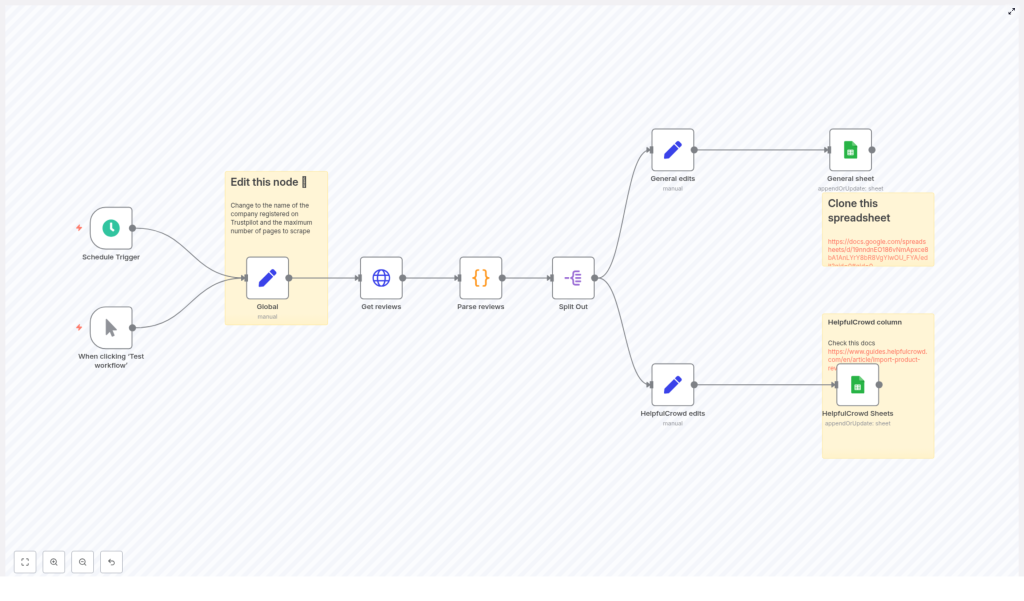
The workflow is composed of several core building blocks, arranged from trigger to data persistence:
- Trigger node (Schedule or Manual) – starts the workflow
- Global configuration (Set node) – stores reusable variables like the Trustpilot company slug and pagination limits
- HTTP Request node – fetches Trustpilot review pages with pagination
- Code node – parses the HTML, extracts the
__NEXT_DATA__JSON, and returns normalized review objects - Split Out node – converts the array of reviews into one n8n item per review
- Mapping Set nodes – prepares fields for different targets (for example general sheet or a specific integration such as HelpfulCrowd)
- Google Sheets node(s) – writes or updates rows in one or more sheets
The following sections walk through each part in more detail, with configuration guidance and best practices.
Configuring global variables
Start by defining reusable configuration values in a Set node, often named something like Global. This makes the workflow easier to maintain and reuse across different Trustpilot accounts.
Recommended global fields
company_id– the Trustpilot company slug, for examplen8n.iomax_page– an upper bound on the number of pages to fetch, which prevents runaway pagination
These values are referenced later in the HTTP Request node using n8n expressions, which keeps the URL and pagination logic clean and configurable.
Fetching Trustpilot pages with HTTP Request
The HTTP Request node retrieves the HTML for each Trustpilot review page. Trustpilot exposes public review pages that include the review data in a client-side JSON structure. The workflow leverages this by:
- Building the base URL using
company_id - Sorting by recency using query parameters
- Paginating through pages until no more reviews are available
Key HTTP Request settings
- URL:
https://trustpilot.com/review/{{ $json.company_id }} - Query parameter:
sort=recency - Pagination:
- Use the built-in pagination to increment a
pageparameter - Stop pagination when a 404 status code is returned, which typically indicates that there are no further pages
- Configure a
requestInterval(for example5000ms) to avoid aggressive scraping and respect rate limits
- Use the built-in pagination to increment a
The max_page variable from the Global Set node should also be considered in your pagination logic to ensure that the workflow does not exceed a predefined number of pages.
Parsing the embedded review JSON
Trustpilot embeds review data inside a script tag with the id __NEXT_DATA__. The Code node is responsible for extracting this payload and transforming it into a clean array of review objects that downstream nodes can consume.
Using Cheerio in the Code node
n8n Code nodes provide access to Cheerio, which makes it simple to parse HTML and select elements. The typical parsing flow is:
- Load the HTML response into Cheerio
- Locate the script tag with id
__NEXT_DATA__ - Parse its contents as JSON
- Extract the reviews from
props.pageProps.reviews(subject to Trustpilot markup changes) - Normalize each review into a consistent structure
Example core logic (simplified for clarity):
const cheerio = require('cheerio');

function parsePage(html) {  const $ = cheerio.load(html);  const script = $('#__NEXT_DATA__');  if (!script.length) return [];  const raw = JSON.parse(script.html());  return raw.props.pageProps.reviews || [];
}

// Then loop over input items, call parsePage(html),
// and push normalized review objects into the output.
Important implementation detail: in some sample workflows, the code constructs a normalized data object per review but mistakenly pushes the original review object into the array. Ensure that you push the normalized object instead. This guarantees that fields referenced later in Set and Google Sheets nodes match the expected property names.
Splitting reviews into individual items
After the Code node returns an array of review objects per page, the Split Out node converts that array into individual n8n items. This step is essential because:
- Each review becomes a discrete item in the workflow
- Mapping logic in Set nodes becomes simpler and more predictable
- Each item corresponds to a single row in Google Sheets
Configure the Split Out node to operate on the array returned by the Code node so that downstream nodes receive one review per execution item.
Field mapping and Google Sheets integration
With individual review items available, the next step is to standardize their fields and write them to Google Sheets. This is typically done with one or more Set nodes followed by a Google Sheets node.
Normalizing review fields
The workflow often uses two Set nodes, for example:
- General edits – a generic mapping suitable for most use cases
- HelpfulCrowd edits – an alternative mapping tailored to a specific target format or integration
Common fields to map include:
Date–review.dates.publishedDateAuthor–review.consumer.displayNameBody–review.textHeading–review.titleRating–review.ratingreview_id–review.id(used as the unique identifier)
Adjust these mappings to align with your sheet structure or downstream systems, but keep the review_id field intact for deduplication and updates.
Configuring the Google Sheets node
Use the Google Sheets node with the appendOrUpdate operation so that new reviews are appended and existing ones are updated in place.
- Operation:
appendOrUpdate - Matching column:
review_id - Credentials: the OAuth credential configured in n8n
- Spreadsheet and sheet: reference your target spreadsheet ID and worksheet
This configuration ensures idempotent writes. Running the workflow multiple times will not create duplicate rows for reviews that already exist in the sheet.
Troubleshooting and best practices
Missing __NEXT_DATA__ or empty results
If the Code node cannot find the __NEXT_DATA__ script tag or returns an empty reviews array:
- Trustpilot may have changed its frontend structure
- The request may be blocked or partially served
Mitigation strategies include:
- Setting a realistic User-Agent header to mimic a browser
- Adding cookies or additional headers if necessary
- Switching to a headless browser-based approach (for example using Playwright or Puppeteer) when the content is rendered only client-side
Rate limiting and polite scraping
Respectful scraping is critical from both a technical and legal perspective. Recommended practices:
- Use a
requestInterval(for example 5000 ms) between requests - Keep
max_pageat a sensible value - Avoid running full historical scrapes repeatedly; cache results and only fetch new pages when needed
Authentication and private data
The workflow targets public review pages that do not require authentication. If you need access to private data or additional fields not present on public pages, you should:
- Use Trustpilot’s official APIs where available
- Configure appropriate API credentials
- Adhere strictly to Trustpilot’s partner and developer terms
Common issues and resolutions
- Google Sheets credentials fail Reauthenticate the OAuth credential in n8n, verify that the service account or user has access to the sheet, and confirm the spreadsheet ID and sheet gid are correct.
- Field mismatches in the sheet Ensure that the property names set in the Code node align with those referenced in the Set nodes and the Google Sheets node. Any discrepancy will result in missing or misaligned data.
- Pagination stops too early Review your pagination configuration. Confirm that
paginationCompleteWhenis set correctly and that the workflow only stops on the intended status code (commonly 404). Also ensure thatmax_pageis not too low.
Security and legal considerations
Scraping public websites that contain personal data can have legal and compliance implications, depending on your jurisdiction and use case. Always:
- Review Trustpilot’s Terms of Service and any relevant developer or API policies
- Respect
robots.txtand rate limits - Prefer official APIs where they meet your requirements
- Assess data protection and privacy obligations before storing or processing personal data
Enhancements and advanced extensions
Once the core workflow is stable, you can extend it to support more advanced automation scenarios.
- Persist raw data for debugging Store raw HTML responses or parsed JSON in a storage node (for example, S3-compatible storage or a database) to facilitate troubleshooting when Trustpilot changes its markup.
- Additional deduplication logic Although
appendOrUpdatewithreview_idis usually sufficient, you can add explicit dedupe steps if reviews might arrive from multiple sources. - Alerting on negative reviews Add conditional logic and notification nodes (Slack, email, etc.) that trigger alerts when new reviews fall below a certain rating threshold.
- Headless browser scraping If Trustpilot increases its reliance on client-side rendering, integrate the Playwright node in n8n to render pages fully and extract the same JSON or DOM content.
End-to-end setup checklist
- Create and configure a Google Sheets OAuth credential in n8n, then share the target sheet with the credential’s email address.
- Clone or create the Google Sheets template that matches your desired schema.
- Update the Global Set node with your Trustpilot
company_idand an appropriatemax_pagevalue. - Run the workflow in Test mode and inspect the Code node output to confirm that reviews are parsed as expected.
- Verify that rows appear in Google Sheets and that the
appendOrUpdateoperation correctly usesreview_idfor matching.
Conclusion and next steps
With a relatively small number of well-configured nodes, n8n can provide a robust Trustpilot-to-Google-Sheets integration that supports continuous customer feedback monitoring and downstream automation. Start with a limited number of pages to validate parsing, field mappings, and sheet updates, then gradually scale the workflow while adhering to Trustpilot’s terms and responsible scraping practices.
To get started quickly, clone the workflow template, set your company_id, connect your Google Sheets account, and execute the workflow. Once you have the basics running, you can iterate on alerting, enrichment, and integration with other systems in your automation stack.
Call to action: Clone the sample sheet, configure your n8n Google Sheets credential, and run the workflow against your own Trustpilot slug. If you share your company slug or target schema, we can suggest concrete node settings and mappings tailored to your environment.
