


Backup n8n Workflows to Gitea: Automated Git-based Backups (So You Can Stop Worrying)
Imagine this: you are happily building workflows in n8n, tweaking, improving, experimenting. Then one day you break something, hit save a few too many times, and suddenly you would trade your lunch for a simple “undo” button.
That is where backing up your n8n workflows to a Git repository like Gitea comes in. Version history, rollbacks, and a nice audit trail, all handled automatically, so you do not have to babysit exports or copy-paste JSON like it is 2005.
This guide walks you through a ready-to-use n8n workflow template that backs up all your n8n workflows into a Gitea repository on a schedule. We will cover what the workflow actually does, how to set it up, and a few tips to keep it secure and efficient.
What this n8n-to-Gitea backup workflow actually does
At a high level, this template is your “set it and forget it” backup robot. It runs on a schedule, grabs all your workflows from n8n, and syncs them to a Gitea repository as JSON files. It only commits changes when something actually changed, so your Git history does not look like someone leaned on the keyboard.
Here is the basic flow:
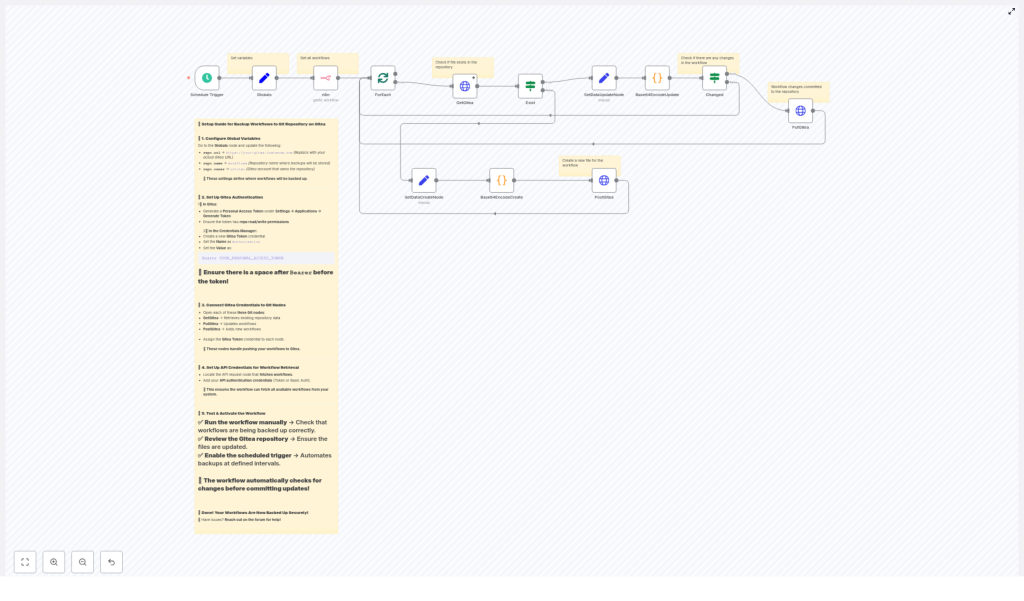
- A Schedule Trigger runs periodically (for example every 45 minutes).
- A Globals node stores Gitea repo details like
repo.url,repo.owner, andrepo.nameso you can configure everything in one place. - The n8n node talks to your own n8n instance and fetches the list of workflows.
- A ForEach / splitInBatches setup loops through those workflows one by one.
- GetGitea checks if a JSON file for that workflow already exists in your Gitea repository.
- An Exist (If) node decides if the workflow should be created as a new file or updated.
- SetDataCreateNode and SetDataUpdateNode prepare the workflow JSON for encoding.
- Base64EncodeCreate and Base64EncodeUpdate (Code nodes) pretty-print the JSON and base64-encode it the way the Gitea API expects.
- A Changed (If) node compares the new encoded content with what is already in the repo.
- PostGitea creates a new file via the Gitea API when needed.
- PutGitea updates an existing file, using the file’s SHA so Gitea knows you are updating the right version.
The result: your workflows live safely in Git, complete with version history and easy rollbacks, without you lifting a finger after the initial setup.
Why bother backing up n8n workflows to Gitea?
If you have ever lost a workflow, overwritten something important, or wanted to see what changed between “it worked” and “it does not work anymore,” you already know the answer.
Using Gitea as Git-backed storage for your n8n workflows gives you:
- Version history so you can see how workflows evolved over time.
- Easy rollbacks when you want to go back to a known good state instead of debugging for hours.
- Access control so only the right people can see and modify sensitive workflows.
- Automated, repeatable backups thanks to n8n scheduling and Gitea’s API.
The workflow is smart enough to check for changes and commit only when the content is different. That keeps your Git history clean and avoids useless commits that say “updated nothing again.”
How the workflow checks for changes (and keeps Git history tidy)
Instead of blindly overwriting files on every run, the workflow behaves like a polite guest: it checks what is there first.
Here is what happens for each workflow:
- The workflow JSON is fetched from n8n.
- A Code node pretty-prints the JSON, encodes it as UTF-8, then base64-encodes the result.
- The GetGitea node reads the existing file content in the repo, if it exists.
- The Changed (If) node compares the encoded content from n8n with the encoded content from Gitea.
- If they differ, a commit is created using PostGitea (for new files) or PutGitea (for updates).
If nothing changed, no commit is made. That saves API calls, keeps your logs readable, and avoids commit spam.
How the workflow talks to Gitea: API details
The HTTP Request nodes in this template use the standard Gitea contents API. You will see three main endpoints in use:
GET  /api/v1/repos/{owner}/{repo}/contents/{path}
POST /api/v1/repos/{owner}/{repo}/contents/{path}
PUT  /api/v1/repos/{owner}/{repo}/contents/{path}
When creating or updating files, the Gitea API expects a JSON payload that includes:
content– the base64 encoded file contentsmessage– the commit message (optional in the template, but highly recommended)sha– required for updates so Gitea knows which revision you are modifying
In the provided template, the HTTP nodes are already configured to send content and, for updates, the sha. You can easily extend them to add a message field so your commit history says something more helpful than “update file.”
Inside the Code nodes: Base64 encoding explained
The Code nodes are the quiet heroes in this setup. They take your workflow JSON and turn it into something Gitea is happy to store.
Conceptually, each Code node does the following:
1) Extract the workflow JSON from the incoming data
2) Pretty-print it with indentation (using something like json.dumps(indent=4))
3) Encode the string as UTF-8
4) Base64-encode the result
5) Return the encoded string as the 'content' field for the HTTP request
Gitea’s create and update content endpoints require this base64 format, so this step is not optional. Without it, Gitea will just stare back at you with error messages.
Step-by-step setup: from template to working backups
Time to go from “nice idea” to “actual working backup.” The template is ready to import into n8n, you just need to plug in your own details.
1. Configure global variables
First, open the Globals node in the workflow. Set these values so the rest of the nodes know where to send your backups:
repo.url– your Gitea base URL, for examplehttps://git.example.comrepo.owner– the Gitea repository owner (user or organization)repo.name– the repository name, for exampleworkflows
Once this is set, you do not have to hardcode URLs or repo names in multiple places. Future you will be grateful.
2. Create a Gitea personal access token
Next, give the workflow permission to talk to your Gitea repo.
- In Gitea, go to Settings → Applications → Generate Token and create a token with repo read/write scope.
- In n8n, open Credentials and create a new HTTP Header credential for Gitea.
- Set the header name to
Authorizationand the value toBearer YOUR_PERSONAL_ACCESS_TOKEN(with a space afterBearer).
Attach this credential to the GetGitea, PostGitea, and PutGitea nodes so they can access your repository without complaint.
3. Provide n8n API access
The n8n node in the workflow needs permission to list your workflows. Configure it using your n8n API token or basic authentication, depending on how your n8n instance is secured.
Make sure it can retrieve the full workflow JSON, not just a summary, otherwise your backups will look very tidy and very empty.
4. Tune the schedule
Open the Schedule Trigger node and choose how often you want backups to run.
- The template example uses every 45 minutes.
- If you have a lot of workflows, consider increasing the interval to avoid hitting API rate limits.
Once the schedule is set, the workflow will quietly handle backups in the background without asking for attention.
Best practices so your backups stay useful (and safe)
Automated backups are great, but a few tweaks can make them even better.
- Keep the repo private if your workflows contain sensitive data or logic. Not everything needs to be public.
- Add a .gitignore or similar rules if you want to avoid committing large attachments or binary blobs.
- Adjust the schedule if you have many workflows to reduce API usage.
- Use informative commit messages. Modify the Post/Put nodes to send a
messageparameter likeBackup: {workflow-name} - {timestamp}. - Monitor failures using n8n’s error workflows or alert emails so you know if backups start failing instead of finding out the hard way.
Troubleshooting common issues
Even automated magic can be picky sometimes. Here are a few common problems and what to check.
401 or 403 errors
If you see 401 or 403 responses from Gitea:
- Verify that your Gitea token has the correct repo read/write permissions.
- Confirm the header is exactly
Authorization: Bearer <token>with a space afterBearer. - Make sure the credential is attached to all relevant HTTP nodes (GetGitea, PostGitea, PutGitea).
404 when checking if a file exists
If the GetGitea node returns 404:
- That usually just means the file does not exist yet, so the workflow will take the “create” branch.
- If you expected the file to exist, double check the path and filename formatting.
- The template uses the workflow name plus
.jsonas the filename, so make sure that matches what you see in the repo.
Workflows missing or empty files in the repo
If files are created but look empty or incomplete:
- Check the n8n node configuration and confirm it returns full workflow JSON.
- Inspect the data going into the Base64 Code nodes and ensure they receive the full workflow object.
- Look at the HTTP request payload to confirm that
contentis being sent correctly.
Security considerations
Backups are only helpful if they are also secure. A few simple habits go a long way:
- Rotate personal access tokens on a regular schedule.
- Use least privilege for your Gitea token. Only grant the repository permissions that are actually needed.
- Restrict access to the backup repository and review commits periodically to catch anything unexpected.
Ideas for extending the workflow
Once you have the basic backup flow running, you can expand it to match your team’s needs.
- Add richer commit messages with author metadata or environment tags.
- Organize files into folders in the repo, for example by team or environment.
- Detect deletions in n8n and remove the corresponding files from the repo if you want a perfect mirror.
- Create tags or a periodic archive branch to keep full snapshot points in time.
Using the ready-made template: what to do next
The good news: you do not have to build any of this from scratch. The workflow template is ready to import into your n8n instance.
- Import the template into n8n.
- Configure the Globals node with your Gitea URL, repo owner, and repo name.
- Set up your Gitea HTTP header credential and attach it to the GetGitea, PostGitea, and PutGitea nodes.
- Configure the n8n node with your n8n API access.
- Run the workflow manually once to confirm that files appear in your Gitea repo as expected.
- Enable the Schedule Trigger so backups start running automatically.
If you want help customizing commit messages, grouping workflows into folders, or adding alerting for failures, you can reach out in the n8n community forum or contact the author. There is no need to suffer through repetitive backup tasks alone.
Call to action: Import the template, hook it up to your Gitea and n8n credentials, run a manual test, then flip on the schedule. Share the setup with your team so everyone can enjoy the peace of mind that comes with automated workflow backups.
Happy automating, and may your backups always be recent and boring.
