


Build a Fuel Price Monitor with n8n and Weaviate
Fuel pricing is highly dynamic and has a direct impact on logistics, fleet operations, retail margins, and end-customer costs. In environments where prices can change multiple times per day, manual monitoring is inefficient and error-prone. This guide explains how to implement a production-grade Fuel Price Monitor using n8n, Weaviate, Hugging Face embeddings, an Anthropic-powered agent, and Google Sheets for logging and auditability.
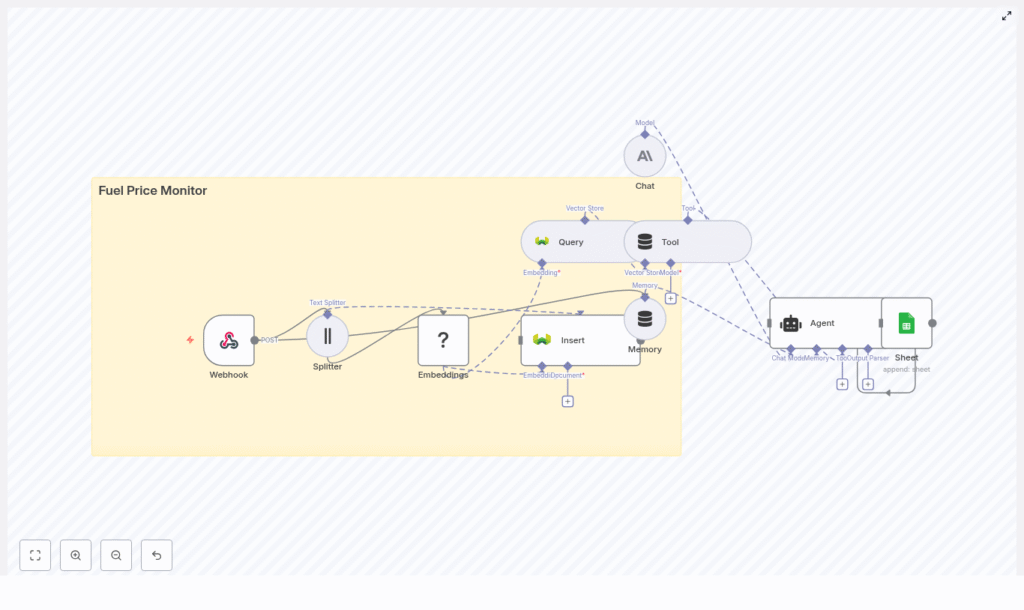
The workflow template described here provides an extensible, AI-driven pipeline that ingests fuel price updates, converts them into vector embeddings, stores them in Weaviate for semantic search, and uses an LLM-based agent to reason over historical data and trigger alerts.
Solution overview
The Fuel Price Monitor workflow in n8n is designed as a modular automation that can be integrated with existing data sources, monitoring tools, and reporting systems. At a high level, it:
- Receives fuel price updates via a secure webhook
- Splits and embeds text data using a Hugging Face model
- Stores vectors and metadata in a Weaviate index for semantic retrieval
- Exposes Weaviate as a tool to an Anthropic agent with memory
- Evaluates price changes and anomalies, then logs outcomes to Google Sheets
This architecture provides a low-code, AI-enabled monitoring system that can be adapted to different fuel providers, geographies, and alerting rules.
Core components of the workflow
The template is built around several key n8n nodes and external services. Understanding their roles will help you customize the workflow for your own environment.
Webhook – ingestion layer
The Webhook node serves as the entry point for all fuel price updates. It is configured to accept POST requests with JSON payloads from scrapers, upstream APIs, or partner systems. A typical request body looks like:
{  "station": "Station A",  "fuel_type": "diesel",  "price": 1.239,  "timestamp": "2025-08-31T09:12:00Z",  "source": "provider-x"
}
Within the workflow, you should validate and normalize incoming fields so that downstream nodes receive consistent data types and formats. For example, standardize timestamps to ISO 8601 and enforce consistent naming for stations and fuel types.
Text Splitter – preparing content for embeddings
The Text Splitter node breaks long textual inputs into manageable chunks that can be embedded efficiently. This is especially useful if your payloads include additional descriptions, notes, or news-like content.
Recommended configuration:
- Splitter type: character-based
- Chunk size: for example, 400 characters
- Chunk overlap: for example, 40 characters
Chunk overlap ensures that semantic context is preserved across boundaries while keeping embedding volumes and costs under control.
Embeddings (Hugging Face) – vectorization
Each text chunk is then passed to a Hugging Face Embeddings node. Using your Hugging Face API key, the node converts text into high-dimensional vectors that capture semantic meaning.
These embeddings are the foundation for semantic search and similarity queries in Weaviate. Choose an embedding model that aligns with your language and domain requirements to maximize retrieval quality.
Weaviate Insert – vector store and metadata
The Insert node writes vectors and associated metadata into a Weaviate index. In this template, the index (class) is named fuel_price_monitor.
For each record, store both the vector and structured attributes such as:
stationfuel_typepricetimestampsource
This metadata enables precise filtering, aggregation, and analytics on top of semantic search results.
Weaviate Query and Tool – contextual retrieval
To support intelligent decision-making, the workflow uses a Query node that searches the Weaviate index and a Tool node that exposes these query capabilities to the agent.
Typical query patterns include:
- Listing recent updates for a specific station and fuel type
- Checking price changes over a defined time window
- Comparing current prices to historical averages or thresholds
Example queries the agent might issue:
- “Show me the last 10 diesel price updates near Station A.”
- “Has diesel price at Station B changed by more than 5% in the last 24 hours?”
Memory and Agent (Anthropic) – reasoning layer
The workflow incorporates a Memory node connected to an Agent node configured with an Anthropic model (or another compatible LLM). The memory buffer stores recent interactions and relevant events, which gives the agent contextual awareness across multiple executions.
The agent uses:
- Tool outputs from Weaviate queries
- Conversation history or event history from the memory buffer
- System and user prompts defining anomaly thresholds and actions
Based on this context, the agent can reason about trends, identify anomalies, and decide whether to trigger alerts or simply log the event.
Google Sheets – logging and audit trail
The final layer uses a Google Sheets node to append log entries to a sheet, for example a sheet named Log. Each row can capture:
- Raw price update data
- Derived metrics or anomaly flags
- Agent decisions and explanations
- Timestamps and identifiers for traceability
This provides a human-readable audit trail and a convenient data source for BI tools, dashboards, or further analysis.
Key benefits for automation professionals
- Near real-time ingestion of fuel price changes via webhook-based integration.
- Semantic search and retrieval using vector embeddings in Weaviate, enabling advanced historical analysis and anomaly detection.
- AI-driven decision-making through an LLM agent with tools and memory, suitable for automated alerts and workflows.
- Transparent logging in Google Sheets for compliance, reporting, and cross-team visibility.
Implementing the workflow in n8n
The sections below outline how to configure the main nodes in sequence and how they interact.
1. Configure the Webhook node
- Create a new workflow in n8n and add a Webhook node.
- Set the HTTP method to
POSTand define a path such asfuel_price_monitor. - Optionally add authentication or IP restrictions to secure the endpoint.
- Implement basic validation or transformation to normalize fields (for example, ensure price is numeric, timestamp is ISO 8601, and source identifiers follow your internal conventions).
2. Add the Text Splitter node
- Connect the Webhook node to a Text Splitter node.
- Choose character-based splitting, with a chunk size near 400 characters and an overlap around 40 characters.
- Map the text field(s) you want to embed, such as combined descriptions or notes attached to the price update.
3. Generate embeddings with Hugging Face
- Add an Embeddings node configured to use a Hugging Face model.
- Provide your Hugging Face API key in the node credentials.
- Feed each chunk from the Text Splitter into the Embeddings node to produce vectors.
4. Insert vectors into Weaviate
- Add a Weaviate Insert node and connect it to the Embeddings node.
- Configure the Weaviate endpoint and authentication.
- Specify the index (class) name, for example
fuel_price_monitor. - Map the vector output from the Embeddings node and attach metadata such as station, fuel_type, price, timestamp, and source.
5. Configure Query and Tool nodes for retrieval
- Add a Weaviate Query node that can search the
fuel_price_monitorindex using filters and similarity search. - Wrap the query in a Tool node so that the agent can invoke it dynamically during reasoning.
- Define parameters the agent can supply, such as station name, fuel type, time range, or maximum number of results.
6. Set up Memory and the Anthropic Agent
- Add a Memory node configured as a buffer for recent events or conversation context.
- Insert an Agent node configured with Anthropic as the LLM provider.
- Connect the Memory node to the Agent so the agent can read prior context.
- Attach the Tool node so the agent can call the Weaviate query as needed.
- Define a clear system prompt specifying:
- What constitutes an anomaly (for example, a price change greater than 3 to 5 percent within 24 hours).
- What actions are allowed (such as logging, alerting, or summarization).
- Any constraints or safeguards, including when to escalate versus silently log.
7. Log outcomes to Google Sheets
- Add a Google Sheets node and connect it after the Agent node.
- Authenticate with your Google account and select the target spreadsheet.
- Use an operation such as “Append” and target a sheet called
Logor similar. - Map fields including the original payload, computed anomaly indicators, agent decisions, and timestamps.
Best practices for a reliable fuel price monitoring pipeline
Normalize and standardize payloads
Consistent data is critical for accurate retrieval and analysis. At ingestion time:
- Normalize currency representation and units.
- Use ISO 8601 timestamps across all sources.
- Standardize station identifiers and fuel type labels to avoid duplicates or mismatches.
Optimize your embedding strategy
Model selection and chunking parameters influence both quality and cost:
- Choose an embeddings model suited to your language and technical domain.
- If your payloads are numeric-heavy, add short human-readable context around key values to improve semantic retrieval.
- Avoid embedding trivial fields individually, and rely on metadata for structured filtering.
Manage vector store growth
Vector databases can grow quickly if every update is stored indefinitely. To manage scale and cost:
- Set sensible chunk sizes and avoid excessive duplication across chunks.
- Use Weaviate metadata filters such as
fuel_typeandstationto narrow queries and reduce compute. - Periodically prune or aggregate older entries, for example keep monthly summaries instead of all raw events.
Design robust agent prompts
Prompt engineering is essential for predictable agent behavior:
- Explicitly define anomaly thresholds and acceptable tolerance ranges.
- List the exact actions the agent can perform, such as logging, alerting, or requesting more data.
- Restrict write operations and always log the agent’s decisions and reasoning to Google Sheets.
Testing and validation
Before deploying the workflow to production, validate each stage end to end:
- Webhook and splitting Send sample payloads to the webhook and confirm that the Text Splitter produces the expected chunks.
- Embeddings and Weaviate storage Verify that embeddings are successfully generated and that records appear in the
fuel_price_monitorindex with correct metadata. - Query relevance Execute sample queries against Weaviate and confirm that results align with the requested station, fuel type, and time frame.
- Agent behavior and logging Test scenarios with both normal and anomalous price changes. Ensure the agent’s decisions are sensible and that all events are logged correctly in Google Sheets.
Scaling and cost control
As ingestion volume grows, embedding and LLM usage can become significant cost drivers. To manage this:
- Batch non-critical updates and process them during off-peak times.
- Implement retention policies to remove low-value vectors or compress historical data into summaries.
- Use cost-effective embedding models for routine indexing and reserve higher quality models for query-time refinement or critical analyses.
Security and compliance considerations
Fuel price data may be sensitive in competitive or regulated environments. To protect your pipeline:
- Secure webhook endpoints with authentication tokens, API keys, or IP allowlists.
- Encrypt sensitive fields before storing them in Weaviate if they could identify individuals or confidential business relationships.
- Define clear audit and retention policies, and use Google Sheets logs as part of your compliance documentation.
Troubleshooting common issues
- No vectors appearing in Weaviate Verify your Hugging Face API credentials, ensure the Embeddings node is producing outputs, and confirm that these outputs are mapped correctly into the Weaviate Insert node.
- Poor or irrelevant search results Increase chunk overlap, experiment with different embedding models, or enrich the text with additional context. Also review your query filters and similarity thresholds.
- Unstable or inconsistent agent decisions Refine the system prompt, add explicit examples of desired behavior, and adjust anomaly rules. Consider tightening the agent’s tool access or limiting its possible actions.
Potential extensions and enhancements
Once the core Fuel Price Monitor is running, you can extend it with additional automation and analytics capabilities:
- Integrate Slack, Microsoft Teams, or SMS providers for real-time alerts to operations teams.
- Incorporate geospatial metadata to identify and surface the nearest stations for a given location.
- Train a lightweight classification model on historical data to flag suspicious entries or potential price manipulation.
Conclusion
By combining n8n, Weaviate, Hugging Face embeddings, and an Anthropic-based agent, you can build a sophisticated Fuel Price Monitor that delivers semantic search, intelligent anomaly detection, and comprehensive audit logs with minimal custom code.
Start from the template, plug in your Hugging Face, Weaviate, and Anthropic credentials, and send a sample payload to the webhook to validate the pipeline. From there, refine thresholds, prompts, and integrations to align with your operational requirements.
Ready to deploy your own Fuel Price Monitor? Clone the template into your n8n instance, connect your services, and begin tracking fuel price changes with an automation-first, AI-enhanced approach.
