


AI Logo-Sheet Extractor to Airtable – Automate Logo Intelligence with n8n
Converting dense logo sheets into a structured, queryable dataset is a classic low-value, high-effort task. This guide presents a production-ready n8n workflow template that uses AI vision and language models to interpret a logo-sheet image, extract tools and attributes, and synchronize the results with Airtable. The article explains the architecture, node responsibilities, Airtable schema design, prompt strategy, and operational best practices so you can implement a reliable “upload-and-forget” automation in your own environment.
Use case and value proposition
This workflow is designed for teams that routinely handle visual catalogs of products or vendors and need to operationalize that information. Typical scenarios include:
- Mapping competitive landscapes from conference slides or analyst reports
- Building and maintaining a product taxonomy or AI tools catalog
- Capturing vendor ecosystems from marketing one-pagers or pitch decks
Instead of manual transcription, the workflow uses an AI agent to interpret a single logo-sheet image and then normalizes, deduplicates, and links that data into Airtable. It is optimized for repeatability and can support scheduled imports as well as on-demand uploads from internal stakeholders.
Solution architecture
The automation is implemented as an n8n workflow that coordinates three primary components:
- n8n workflow engine – orchestrates triggers, AI calls, data transformations, and Airtable operations.
- AI Vision + LLM agent – analyzes the uploaded image, identifies tools or brands, and outputs structured JSON with attributes and competitor suggestions.
- Airtable – acts as the system of record for tools and attributes, using deterministic hashes and record IDs for reliable upserts and relationships.
Logical flow overview
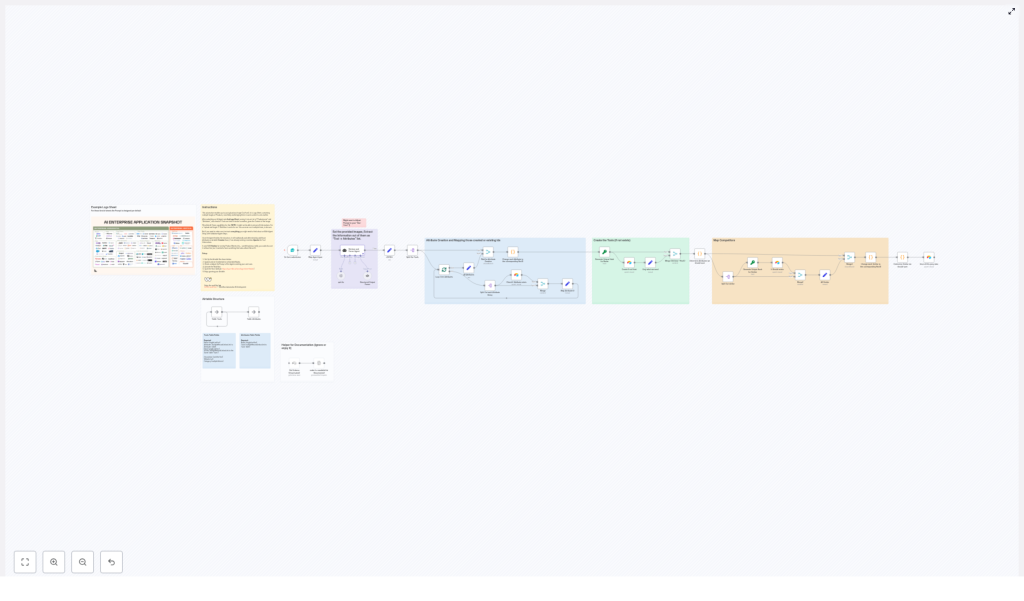
At a high level, the workflow performs the following steps:
- Accepts a logo-sheet image through a form-based trigger.
- Prepares and sends the image plus contextual prompt to an AI vision + LLM agent.
- Parses the agent’s structured output into per-tool and per-attribute items.
- Upserts attributes into Airtable and retrieves their record IDs.
- Upserts tools into Airtable, including relationships to attributes and similar tools.
- Ensures competitor mappings are persisted as linked records in Airtable.
Key n8n node groups and responsibilities
Trigger and input handling
- FormTrigger (On form submission) Receives the uploaded logo-sheet image and an optional text prompt from a public or internal web form. The image should be high enough resolution to capture smaller logos but still within your file size limits. The prompt can include context such as: “This sheet compares enterprise AI infrastructure tools.”
- Map Agent Input Normalizes the form input into a payload suitable for the AI agent. This node is the right place to inject additional hints like expected industries, categories, or naming conventions to improve extraction accuracy.
AI interpretation and structured output
- Retrieve and Parser Agent (AI Vision + LLM) This node is the core of the workflow. It uses a vision-enabled LLM to inspect the image and return a JSON structure containing all detected tools. Each tool includes a name, a list of attributes, and a list of similar or competitor tools. A structured-output parser schema is used to enforce consistent JSON formatting and field names.
The expected JSON structure resembles the following:
{  "tools": [{  "name": "ToolName",  "attributes": ["Category","Feature","Platform"],  "similar": ["CompetitorA","CompetitorB"]  }]
}
Prompt design tip: instruct the agent to be conservative and list only logos it can clearly identify. Ask for short, standardized attribute labels, for example “Agentic Application” or “Browser Infrastructure”, to improve downstream deduplication in Airtable.
Data normalization and splitting
- Split & Normalize After the agent returns the JSON payload, this node (or group of nodes) splits the
toolsarray into individual items so that each tool can be processed independently. It also extracts and normalizes attribute strings into separate items for batch checking and creation in Airtable. This structure enables parallel operations and deterministic mapping back to each originating tool.
Airtable integration and upsert logic
- Attributes upsert (Airtable) For every unique attribute string, the workflow checks the Airtable Attributes table and performs an upsert. At minimum, the table should include a Name field and a linked Tools field. The node returns the Airtable record ID (RecID) for each attribute, which is then used to replace raw attribute names with stable record links.
- Tools upsert (Airtable) Before creating or updating tools, the workflow generates a deterministic hash for each tool name, for example an MD5 hash of the normalized name. This hash is used as a stable key to detect existing tools and avoid duplicates caused by casing or whitespace differences. The Tools table is then upserted with:
- Name
- Attributes (linked attribute RecIDs)
- Similar (linked tool RecIDs)
- Hash (used for matching)
- Map Similar relationships When the AI output includes
similaror competitor names, the workflow ensures that each referenced tool exists in Airtable (creating records if needed) and then links their RecIDs into the Similar field of the origin tool. Depending on your usage pattern, you can maintain these as unidirectional or manage bidirectional links through Airtable views or additional automations.
Recommended Airtable schema
For maintainability, keep the schema minimal yet fully relational. A typical configuration includes two primary tables.
Tools table
- Name – single line text, required
- Attributes – linked records to Attributes table, multiple allowed
- Similar – linked records to Tools table, multiple allowed
- Hash – single line text used for deterministic matching and upsert
- Optional fields – for enrichment, such as:
- Description
- Website
- Category (multi-select)
Attributes table
- Name – single line text, required
- Tools – linked records back to Tools table, typically managed automatically by Airtable when relationships are created
Prompt strategy and accuracy best practices
Prompt quality has a direct impact on the consistency and reliability of your Airtable data. Consider the following guidelines:
- Provide domain context Indicate the domain or vertical in the prompt, for example “enterprise AI applications”, “developer tooling”, or “marketing technology”. This helps the model interpret ambiguous brand names correctly.
- Request conservative extraction Ask the agent to only output tools and attributes it is confident about. This reduces hallucinations and spurious entries.
- Standardize attribute labels Instruct the model to generate short, consistent attribute names, ideally in a normalized format that aligns with your existing taxonomy.
- Improve image quality where needed For sheets with many small or low-contrast logos, provide a higher-resolution image or crop the sheet into segments and run the workflow multiple times.
Handling edge cases and data quality
For production use, it is important to manage failure modes and ambiguity explicitly. Some recommended patterns include:
- False positives If the agent tends to invent tool names, introduce a second validation step that checks extracted names against an allowlist or a curated reference database.
- Partial or ambiguous matches Use fuzzy matching or a human-in-the-loop review process for low-confidence items. n8n can route uncertain cases to a review queue or a notification channel.
- Duplicate attributes Normalize attribute strings before upsert, for example by trimming whitespace and lowercasing, and optionally maintain a canonical attribute mapping table for further consolidation.
- Incomplete similar relationships Periodically run reconciliation jobs that infer additional competitor links from multiple logo sheets or from other data sources.
Security, privacy, and governance
If the logo sheets include internal, confidential, or regulated information, align the implementation with your organization’s data policies:
- Use AI providers that meet your compliance requirements.
- Restrict access to the form trigger, Airtable base, and API keys.
- Store credentials securely within n8n and rotate tokens regularly.
- Monitor workflow executions and API usage for anomalies.
Scaling and performance considerations
When processing large volumes of logo sheets or very large images, consider the following optimization strategies:
- Rate limiting Airtable writes Batch records where possible and introduce short delays between write operations to stay within Airtable’s rate limits.
- Controlled parallelism Parallelize agent calls for multiple images but cap concurrency in n8n to avoid throttling from AI and Airtable APIs.
- Caching attribute mappings Cache known attribute-to-RecID mappings in memory or in a lightweight datastore to reduce repeated Airtable lookups and improve throughput.
Debugging and operational checklist
When troubleshooting or hardening the workflow, use this checklist:
- Verify that the AI agent returns valid, well-formed JSON that matches the expected schema. Use the structured output parser to enforce this.
- Ensure attribute normalization (trimming, casing) occurs before matching or upserting into Airtable to prevent silent duplication.
- Inspect Airtable API responses for rate limit, authentication, or permission errors.
- Review n8n execution history to trace payload transformations and identify where unexpected values are introduced.
Example AI output
The following is a representative example of the structured JSON the agent might produce for a logo sheet:
{  "tools": [  {  "name": "Pinecone",  "attributes": ["Storage Tool","Memory management"],  "similar": ["Chroma","Weaviate"]  },  {  "name": "LangGraph",  "attributes": ["Framework Tool","Graph Management"],  "similar": ["LlamaIndex","Semantic Kernel"]  }  ]
}
This output is then normalized and translated into Airtable records with linked attributes and similar tools as described above.
Extending and customizing the workflow
Once the core pipeline is in place, it is straightforward to extend the workflow for additional business needs:
- Add a secondary validation agent that cross-checks tool names against a domain-specific catalog or internal system.
- Build Airtable dashboards and views to visualize categories, clusters, and competitor networks.
- Integrate Slack or email notifications to alert teams when new tools are discovered or when an extraction run fails.
Conclusion and implementation next steps
This n8n workflow template turns static logo sheets into structured, relational data in Airtable with minimal manual effort. It is particularly valuable for teams building product taxonomies, tracking competitive landscapes, or maintaining up-to-date AI tooling inventories.
To adopt the automation in your environment:
- Import or recreate the n8n workflow in your instance.
- Connect your Airtable credentials and configure the recommended schema.
- Adjust the AI prompt to reflect your domain, naming conventions, and quality thresholds.
- Test with a high-resolution sample logo sheet and review the resulting Airtable records.
Ready to automate your logo sheets into Airtable? Deploy the template, connect your data sources, and start converting visual logo collections into searchable, linked records. If you need to adapt the prompt, schema, or matching logic for your specific industry or scale requirements, refine the workflow nodes accordingly.
Pro tip: For very dense logo sheets, run the workflow multiple times with different crops or slightly varied prompts and then aggregate the results in Airtable to improve overall coverage.
