


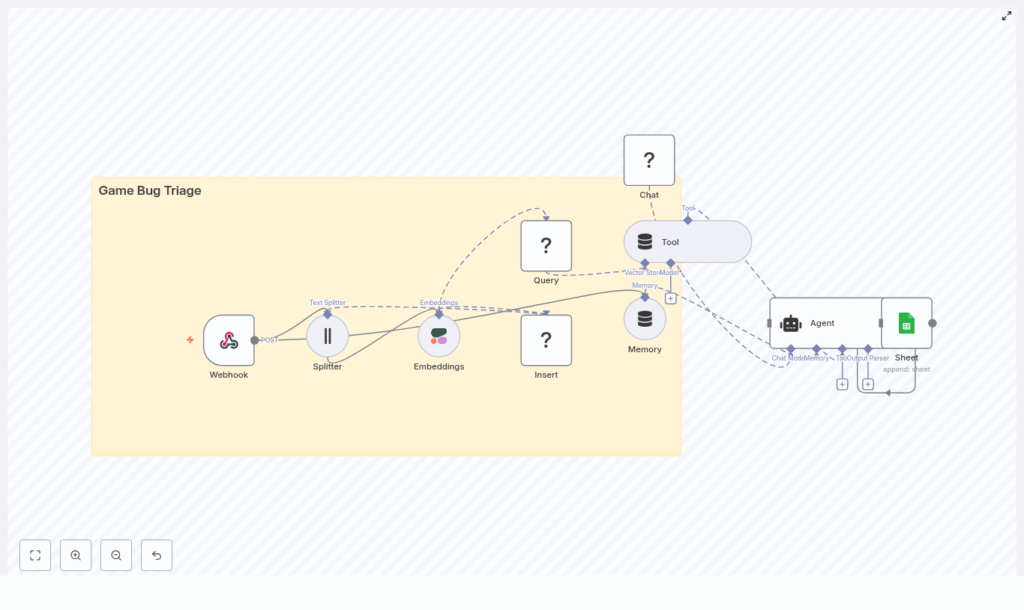
Automating Game Bug Triage with n8n and Vector Embeddings
Keeping up with bug reports in a live game can feel like playing whack-a-mole, right? One report comes in, then ten more, and suddenly you’re juggling duplicates, missing critical issues, and copying things into spreadsheets at 11 pm.
This is where an automated bug triage workflow in n8n really shines. In this guide, we’ll walk through a ready-to-use n8n template that uses:
- Webhooks to ingest bug reports
- Text splitting for long descriptions
- Cohere embeddings to turn text into vectors
- A Redis vector store for semantic search
- An LLM-backed agent to analyze and prioritize bugs
- Google Sheets for simple, shareable logging
The result: a scalable bug triage pipeline that automatically ingests reports, indexes them semantically, retrieves relevant context, and logs everything in a structured way. Less manual triage, more time to actually fix the game.
Why bother automating game bug triage?
If you’ve ever handled bug reports manually, you already know the pain points:
- It’s slow – reports pile up faster than you can read them.
- Duplicates slip through – same bug, different wording, new ticket.
- Important issues get buried – P0 bugs arrive, but they look like just another report.
- Context gets lost – logs, player info, and environment details end up scattered.
This n8n workflow template tackles those problems by:
- Capturing bug reports instantly through a Webhook
- Splitting long descriptions into searchable chunks
- Storing semantic embeddings in Redis for robust similarity search
- Using an Agent + LLM to summarize, prioritize, and label bugs
- Logging everything into Google Sheets so your team has a simple, central source of truth
In short, it helps you find duplicates faster, spot critical issues sooner, and keep a clean log without babysitting every report.
What this n8n workflow template actually does
Let’s look at the high-level architecture first, then we’ll go step by step.
Key components in the workflow
The reference n8n workflow uses the following nodes:
- Webhook – receives bug reports via HTTP POST
- Splitter – breaks long text into smaller chunks (chunkSize 400, overlap 40)
- Embeddings (Cohere) – converts text chunks into vector embeddings
- Insert (Redis vector store) – indexes embeddings in Redis with
indexName=game_bug_triage - Query (Redis) – searches the vector index for similar past reports
- Tool (VectorStore wrapper) – exposes those search results as a tool for the agent
- Memory (buffer window) – keeps recent interactions for context
- Chat (language model, Hugging Face) – provides the LLM processing power
- Agent – coordinates tools, memory, and the LLM, then formats a structured triage output
- Sheet (Google Sheets) – appends a row to your triage log sheet
Now let’s unpack how all of this works together when a new bug report comes in.
Step-by-step: How the bug triage workflow runs
1. Bug reports flow in through a Webhook
First, your game or community tools send bug reports directly into n8n using a Webhook node.
This could be wired up from:
- An in-game feedback form
- A Discord bot collecting bug reports
- A customer support or web form
These systems POST a JSON payload to the webhook URL. A typical payload might include:
titledescriptionplayerIdplatform(PC, console, mobile)buildNumber- Links to screenshots or attachments (files themselves are usually stored elsewhere)
The Webhook node ensures reports are captured in real time, so you don’t have to import or sync anything manually.
2. Clean up and split long descriptions
Bug reports can be messy. Some are short, others are walls of logs and text. To make them usable for embeddings and semantic search, the workflow uses a Splitter node.
In the template, the Splitter is configured with:
- chunkSize: 400 characters
- chunkOverlap: 40 characters
Why those numbers?
- 400 characters is a nice balance between context and precision. It’s big enough to keep related information together, but not so large that embeddings become noisy or expensive.
- 40 characters overlap ensures that context flows from one chunk to the next. That way, semantic search still “understands” the bug even when it spans multiple chunks.
The result: long descriptions and logs are broken into chunks that are easier to index and search, without losing the bigger picture.
3. Turn text into embeddings with Cohere
Once the text is split, each chunk is passed to the Cohere Embeddings node.
Embeddings are dense numeric vectors that capture the meaning of text. Instead of matching exact keywords, you can search by semantic similarity. For example, these can help you find:
- Two reports describing the same crash but in totally different words
- Different players hitting the same UI bug on different platforms
Cohere’s embeddings model converts each chunk into a vector that can be stored and searched efficiently.
4. Index all bug chunks in a Redis vector store
Those embeddings need a home, and that’s where Redis comes in.
The workflow uses an Insert node that writes embeddings into a Redis vector index named game_bug_triage. Along with each vector, you can store metadata, such as:
playerIdbuildNumberplatformtimestamp- Attachment or screenshot URLs
Redis is fast and production-ready, which makes it a solid choice for high-throughput bug triage in a live game environment.
5. Query Redis for related bug reports
When a new bug comes in and you want to triage it, the workflow uses a Query node to search the same Redis index.
This node performs a similarity search over the game_bug_triage index and returns the most relevant chunks. That retrieved context helps you (or rather, the agent) answer questions like:
- Is this bug a duplicate of something we’ve already seen?
- Has this issue been reported in previous builds?
- Does this look like a known crash, UI glitch, or network problem?
The results are wrapped in a Tool node (a VectorStore wrapper) so the agent can call this “search tool” as part of its reasoning process.
6. Agent, Memory, and LLM work together to triage
This is where the magic happens. The Agent node coordinates the logic using:
- The raw bug payload from the Webhook
- Relevant context from Redis via the Tool
- Recent interaction history from the Memory node (buffer window)
- The Chat node, which connects to a Hugging Face language model
The agent then produces a structured triage result. Typically, that includes fields like:
- Priority (P0 – P3)
- Likely cause (Networking, Rendering, UI, etc.)
- Duplicate of (if it matches a known issue)
- Suggested next steps for the team
In the provided workflow, the Agent uses a prompt with promptType="define" and the text set to = {{$json}}. You’ll want to fine-tune this prompt with clear instructions and examples so the model consistently returns the fields you care about.
7. Log everything into Google Sheets
Finally, the structured triage result is appended to a Google Sheet using the Sheet node.
In the template, the sheet name is set to “Log”. Each new bug triage becomes a new row with all the important details.
Why Google Sheets?
- Everyone on the team can view it without extra tooling.
- You can plug it into dashboards or BI tools later.
- It works as an audit trail for how bugs were classified over time.
From there, you can build further automations, like syncing into JIRA, GitHub, or your internal tools.
How to get the most out of this template
Prompt engineering for reliable outputs
The Agent is only as good as the instructions you give it. To make your triage results consistent:
- Define required fields clearly, such as
priority,category,duplicateOf,nextSteps. - Specify allowed values for priority and severity (for example P0 to P3, or Critical / High / Medium / Low).
- Provide example mappings, like “frequent disconnects during matchmaking” → Networking, or “UI elements not clickable” → UI.
- Include a few sample bug reports and the expected structured output in the prompt.
The better your examples, the more predictable your triage results will be.
Fine-tuning chunking and embeddings
Chunking is not one-size-fits-all. You can experiment with:
- chunkSize – larger chunks capture more context but cost more to embed and may be less precise.
- chunkOverlap – more overlap keeps context smoother but increases total embedding volume.
Start with the default 400 / 40 settings, then:
- Check whether similar bugs are being matched correctly.
- Adjust chunk size if your reports are usually much shorter or much longer.
Designing useful metadata
Metadata is your friend when you want to filter or slice your search results. Good candidates for metadata in the Redis index include:
buildNumberplatform(PC, PS, Xbox, Mobile, etc.)region- Attachment or replay URLs
With this, you can filter by platform or build, for example “show similar bugs, but only on the current production build.”
Scaling and performance tips
As your game grows, so will your bug reports. To keep the system snappy:
- Use a production-ready Redis deployment or managed service like Redis Cloud.
- Batch embedding requests where possible to reduce API overhead.
- Monitor the size of your Redis index and periodically:
- Prune very old entries, or
- Archive them to cheaper storage if you still want history.
Security and privacy considerations
Game logs and bug reports can contain sensitive data, so it’s important to handle them carefully:
- Sanitize or remove any personally identifiable information (PII) before indexing.
- If logs contain user tokens, IPs, or emails, redact or hash them.
- Secure your Webhook endpoint with:
- HMAC signatures
- API keys or other authentication
- Restrict access to your Redis instance and Google Sheets credentials.
Testing and monitoring your triage pipeline
Before you roll this out to your entire player base, it’s worth doing a bit of tuning.
- Start with a test dataset of real historical bug reports.
- Use those to refine:
- Your chunking settings
- Your prompts and output schema
- Track key metrics, such as:
- Triage latency – how long it takes from report to logged result.
- Accuracy – how often duplicates are correctly identified.
- False positives – when unrelated bugs are marked as duplicates.
- Regularly sample model-generated outputs for human review and iterate on prompts.
A bit of upfront testing pays off quickly once the system is running on live data.
Popular extensions to this workflow
Once you have the core triage automation running, it’s easy to extend it in n8n. Some common next steps include:
- Auto-create tickets in JIRA or GitHub when a bug hits a certain priority (for example P0 or P1).
- Send alerts to Slack or Discord channels for high-priority issues, including context and a link to the Google Sheet.
- Attach related assets like screenshots or session replays, using URLs stored as metadata in the vector index.
- Build dashboards to visualize trends over time, like bug volume by build or platform.
Because this is all in n8n, you can keep iterating without rebuilding everything from scratch.
Putting it all together
This n8n Game Bug Triage template gives you a practical, AI-assisted pipeline that:
- Ingests bug reports automatically
- Indexes them using semantic embeddings in Redis
- Uses an LLM-driven agent to prioritize and categorize issues
- Logs everything into a simple, shareable Google Sheet
It reduces manual triage work, surfaces critical issues faster, and gives your team a solid foundation to build more automation on top of.
Ready to try it?
Here’s a simple way to get started:
- Import the n8n workflow template.
- Plug in your Cohere and Redis credentials.
- Point your game’s bug reporting system at the Webhook URL.
- Test with a set of sample bug reports and tweak
