

n8n Job Application Parser: Automate Candidate Intake (So You Can Stop Copy-Pasting Resumes)
Picture this: you open your inbox on Monday morning and find 87 new job applications. By 9:15 am you are copy-pasting names into a spreadsheet, skimming resumes for the word “Python,” and wondering if this is really what your career counselor had in mind.
If that sounds familiar, it is time to let automation do the boring part. This n8n workflow template, “New Job Application Parser”, turns your incoming resumes into structured, searchable, and actually-usable data using OpenAI embeddings, Pinecone vector storage, and a RAG (retrieval-augmented generation) agent. In plain English: it reads resumes for you, remembers them, and gives you smart summaries and recommendations.
Below you will find what this n8n job application parser does, how the pieces fit together, and how to get it running with minimal drama. We will also cover customization, troubleshooting, and how not to anger your security team.
Why use n8n to parse job applications?
Traditional resume parsers can feel like a black box: expensive, rigid, and allergic to customization. With n8n, you get a workflow you actually control.
Building a job application parser with n8n gives you:
- Full control over processing logic, data flow, and where everything ends up
- Easy integrations with tools like Google Sheets and Slack so your team sees results where they already work
- Semantic search and retrieval using OpenAI embeddings and Pinecone, so you can search for “5+ years Python and AWS” instead of guessing keywords
- Modular, cost-effective automation that you can tweak, extend, and scale as your hiring grows
In short, you stop doing repetitive parsing by hand and start focusing on the part that actually needs a human brain: deciding who to interview.
What the n8n Job Application Parser workflow actually does
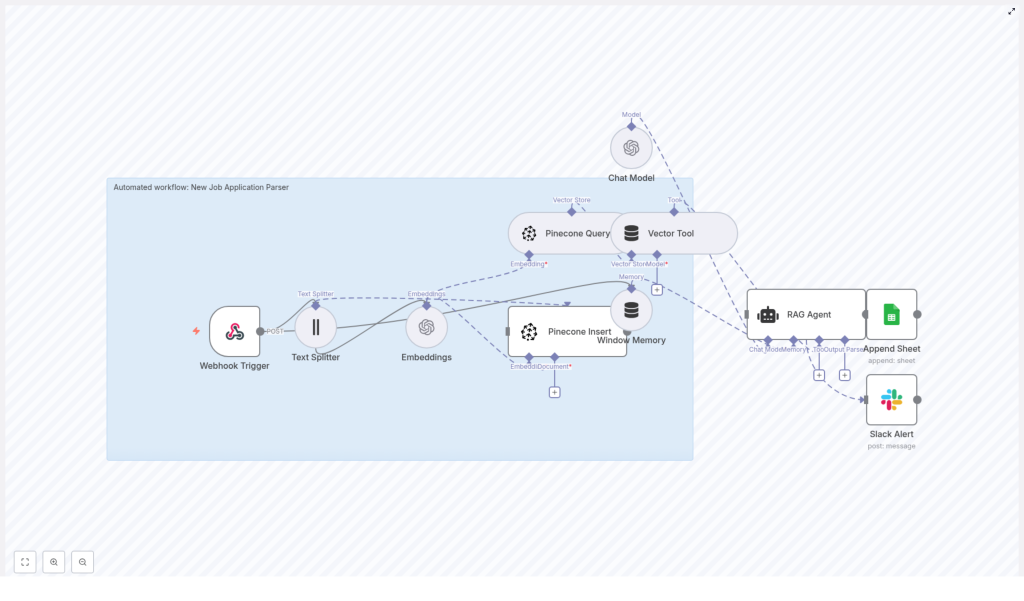
This template sets up an automated pipeline that:
- Accepts new job applications via a Webhook Trigger
- Splits long resumes into smaller text chunks with a Text Splitter
- Turns each chunk into an OpenAI embedding for semantic search
- Stores those embeddings in a Pinecone index with useful metadata
- Uses Pinecone Query and a Vector Tool to feed relevant context to a RAG Agent
- Lets the RAG Agent analyze and summarize the application, including fit and recommended status
- Logs the results into Google Sheets for tracking by your HR or recruiting team
- Sends a Slack Alert if something breaks so you do not find out a week later
Under the hood, it is a neat combination of vector search, prompt engineering, and good old-fashioned spreadsheets.
Quick-start setup: from zero to automated parsing
Here is the simplified flow to get this n8n job application parser working in your environment:
1. Import the template and connect your tools
Start by importing the “New Job Application Parser” template into n8n. Then plug in your credentials for:
- OpenAI (for embeddings and the chat model)
- Pinecone (for vector storage and retrieval)
- Google Sheets (for logging parsed results)
- Slack (for the onError alerts)
2. Configure the webhook that receives applications
The workflow starts with a Webhook Trigger:
- Method:
POST - Endpoint:
/new-job-application-parser
Hook this endpoint up to your career site form, ATS webhook, or any other system that collects applications. You can send things like resume text, OCR output from PDFs, and structured fields such as name, email, and role.
3. Send a test payload
Use a sample request like this to test the webhook:
{  "applicant_id": "12345",  "name": "Jane Doe",  "email": "jane@example.com",  "resume_text": "...full resume text or OCR output...",  "source": "career_site"
}
Once this flows through the pipeline, the workflow will split the text, embed it, store it in Pinecone, analyze it with the RAG Agent, and finally log everything in Google Sheets. You can then refine prompts, chunking strategy, or metadata as needed.
How each node in the workflow pulls its weight
Now let us look at the workflow node by node so you understand what is happening and where to customize things.
Webhook Trigger: your front door for applications
The Webhook Trigger listens at POST /new-job-application-parser. It collects payloads from:
- Career site forms
- ATS webhooks
- Other intake systems that can send JSON
Typical fields include applicant name, email, role applied for, and a resume_text field containing either plain text or OCR output from PDFs. This is the raw material for the rest of the workflow.
Text Splitter: breaking resumes into bite-sized chunks
Resumes can be long, repetitive, and occasionally poetic. To make them easier to embed and search, the Text Splitter node breaks the text into overlapping chunks.
In the template, the default configuration is:
chunkSize = 400chunkOverlap = 40
This keeps enough context in each chunk for meaningful embeddings, while avoiding one giant blob of text that is impossible to search.
Embeddings (OpenAI): turning text into vectors
The Embeddings node uses OpenAI to compute semantic embeddings for each chunk. The template uses:
- Model:
text-embedding-3-small
Each chunk is converted into a vector representation so you can later search for skills, experience, or role-specific content based on meaning, not just keywords. So “Python backend engineer” and “5 years building APIs in Python” actually show up as related.
Pinecone Insert: storing embeddings with useful metadata
Next, the workflow uses Pinecone Insert to store each embedding in a Pinecone index. In the template, the index is named:
new_job_application_parser
Along with the vector itself, the workflow stores metadata such as:
- applicant ID
- source URL or channel
- chunk index
- original text
This metadata makes it easy to reconstruct the original context when Pinecone returns matches later.
Pinecone Query + Vector Tool: retrieving relevant context
When the workflow needs to analyze an application or answer questions about it, it uses Pinecone Query to pull the most relevant chunks. Those results are exposed to the RAG Agent as a Vector Tool.
The idea is simple: instead of sending the entire resume to the model every time, you send only the most relevant pieces. This keeps responses focused and helps control costs.
Window Memory (optional but handy)
The Window Memory node keeps a short history of recent context. This is especially useful if:
- Applicants send follow-up messages
- You process multi-part applications
- You want the RAG Agent to “remember” previous steps in the conversation
It is optional, but it can make the agent feel much more coherent when dealing with ongoing candidate interactions.
RAG Agent: the brain of the operation
The RAG Agent takes:
- The structured data from the webhook
- The relevant chunks retrieved from Pinecone via the Vector Tool
It then runs a prompt template designed to parse and summarize the application using a chat model. Typical outputs include:
- A short summary of the candidate
- Extracted skills
- Recommended status (for example: “Recommend screening”)
- A brief reason, such as:
"Recommend screening - 5+ yrs in Python and AWS."
This is where you can heavily customize prompts to match your hiring criteria and the fields your team cares about.
Append Sheet (Google Sheets): logging everything in one place
Once the RAG Agent has done its analysis, the Append Sheet node writes the results to a Google Sheets log.
You configure:
documentIdfor the spreadsheetsheetNamefor the specific sheet tab
This creates a central log of parsed applications that HR and recruiting teams can filter, sort, and route without touching n8n.
Slack Alert (onError): your early warning system
Things break. APIs time out, quotas get hit, someone renames a Pinecone index. The template includes an onError branch that sends a message to a Slack #alerts channel whenever a node fails.
The alert can contain actionable error messages and stack traces so your ops or recruiting team can fix issues quickly instead of discovering missing candidates later.
Customizing the workflow for your hiring process
Once the basic pipeline is working, you can tune it to match your own hiring style and data requirements.
Adjust the chunking strategy
If your resumes are usually short, you might not need as many chunks. If they resemble mini novels, you might want to tweak the defaults:
- Increase
chunkSizeto keep more context together in each chunk - Adjust
chunkOverlapso important details are not split awkwardly between chunks
Bigger chunks preserve context but can reduce fine-grained search accuracy. Smaller chunks give more granular retrieval but may lose some surrounding information. Experiment based on your typical applicant pool.
Enrich and refine your prompts
The RAG Agent’s prompts are where you define what “good parsing” means for your team. You can:
- Ask for specific fields like education, certifications, or years of experience
- Provide examples of ideal outputs for different candidate types
- Standardize labels for statuses like “Reject,” “Screen,” or “Move to hiring manager”
The more precise your prompts and examples, the more consistent your structured outputs will be.
Integrate with your ATS or CRM
If your team lives in an ATS or CRM, you are not limited to Google Sheets. You can:
- Replace or supplement Google Sheets with API calls to your ATS
- Push candidate objects into your recruiting CRM
- Trigger additional workflows, such as sending automated follow-ups
Google Sheets is a great starting point, but the same parsed data can easily feed more advanced systems.
Troubleshooting: when automation throws a tantrum
If the workflow misbehaves, here are common places to look first:
- Embeddings failing? Check your OpenAI API key, permissions, and quota usage.
- Pinecone insert or query errors? Verify:
- The index name matches your configuration
- The API key is correct
- The vector dimensionality is compatible with the OpenAI embedding model
- No Slack alerts? Confirm the onError branch is connected and Slack credentials are valid.
Use the Slack Alert branch to surface error messages quickly instead of digging through logs after the fact.
Security and compliance: handling applicant data responsibly
This workflow deals with personally identifiable information (PII), so a bit of caution is non-negotiable. Follow these best practices:
- Store API keys as environment credentials in n8n, not hard coded in flows.
- Restrict access to your Pinecone index and limit retention for embeddings that contain PII.
- If your region or company policies require it, add a data retention step that periodically deletes old vectors and Google Sheets entries after a defined window.
- Use HTTPS for webhooks and configure Google Sheets access via OAuth 2.0.
Scaling and cost control for high-volume hiring
If you are processing large volumes of applications, a few tweaks can help keep things smooth and affordable:
- Batch or queue incoming requests to handle traffic spikes more gracefully.
- Use smaller embedding models like
text-embedding-3-smallfor initial indexing, and reserve heavier models for targeted retrieval or complex analysis. - Prune Pinecone vectors related to spam, test submissions, or clear duplicates to control storage costs.
Best practices for accurate parsing
If you want your parser to feel less “random robot” and more “junior recruiter who actually reads,” keep these in mind:
- Preprocess resumes to remove boilerplate sections and repeated headers that add noise to embeddings.
- Use labeled examples and a validation set to test your RAG prompts and adjust them iteratively.
- Monitor false positives and negatives for key fields like skills or years of experience, then tweak prompts or chunking when you see patterns.
Next steps: deploy, test, and iterate
To recap a practical path forward:
- Import the “New Job Application Parser” n8n template.
- Connect your OpenAI, Pinecone, Google Sheets, and Slack credentials.
- Send a few real applications through the webhook.
- Inspect:
- The generated embeddings in Pinecone
- The RAG Agent outputs and summaries
- The rows appended to Google Sheets

