


Automate Recipe Emails with n8n & Edamam
Ever stare at the fridge thinking, “What on earth am I going to cook today?” If you’re nodding, you’re not alone. Instead of scrolling endlessly through recipe sites, you can let n8n and the Edamam Recipe Search API do the work for you.
In this guide, we’ll walk through a ready-to-use n8n workflow template called “What To Eat”. It automatically looks up recipes from Edamam based on your preferences, turns them into a neat HTML email, and sends them to you on a schedule you choose. Think of it as a personal meal planning assistant that quietly does its thing in the background.
What this n8n recipe workflow actually does
Let’s start with the big picture. Once you import and configure the template, the workflow will:
- Run automatically on a schedule you define (for example, every morning at 10:00)
- Use your search criteria like ingredients, diet type, health filters, time, and calories
- Optionally randomize diet and health options so you get some variety
- Call the Edamam Recipe Search API to find matching recipes
- Generate an HTML email with clickable recipe links
- Send that email straight to your inbox
In other words, you wake up, open your email, and you’ve already got a curated list of recipes waiting for you.
Why bother automating recipes at all?
So, why use an automation like this instead of just Googling “quick dinner ideas” every day?
- Less decision fatigue – You don’t have to think about what to search for or where to look.
- Built-in meal inspiration – New ideas land in your inbox without you lifting a finger.
- Diet-friendly suggestions – You can filter for specific diets or health preferences and let the workflow handle the details.
- Perfect for planning – Use it as a daily or weekly nudge to plan meals in advance.
If you’re already using n8n for other automations, this is a fun, practical workflow to add to your toolkit.
How the workflow is structured in n8n
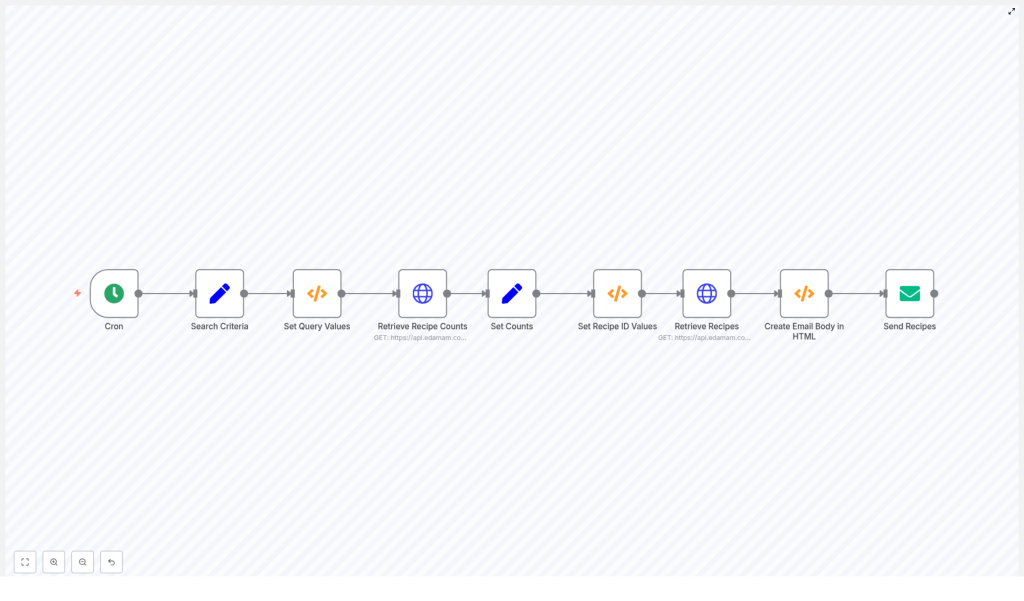
Now let’s peek under the hood. The workflow is built from a series of nodes that pass data along step by step. From left to right, you’ll see:
- Cron – Triggers the workflow on a schedule you set, like every weekday at 10:00.
- Search Criteria (Set) – Stores your default settings such as:
SearchItem(for example, “chicken”)RecipeCountandReturnCountIngredientCountCaloriesMin/CaloriesMaxTimeMin/TimeMaxAppIDandAppKeyfor Edamam
- Set Query Values (Function) – Assembles the calorie and time ranges, and can randomize diet and health filters if you set them to “random”.
- Retrieve Recipe Counts (HTTP Request) – Calls Edamam to find out how many total recipes match your criteria.
- Set Counts (Set) – Stores the total recipe count and sets how many recipes you actually want to receive.
- Set Recipe ID Values (Function) – Picks a random slice of results so you are not seeing the same recipes every time.
- Retrieve Recipes (HTTP Request) – Makes another Edamam API call to fetch the recipes for that slice.
- Create Email Body in HTML (Function) – Loops through the recipes and builds the HTML email content.
- Send Recipes (Email Send) – Sends the HTML email to your chosen recipient address.
Each node has a clear job, and together they handle everything from scheduling to sending the final email.
How the Edamam query works behind the scenes
The workflow relies on the Edamam Recipe Search API. When the HTTP Request nodes run, they send a query with several parameters that control what recipes you get back.
Here are the main query parameters used:
- q – The main search term, such as
"chicken"or"pasta". - app_id and app_key – Your Edamam API credentials.
- ingr – Maximum number of ingredients allowed in a recipe.
- diet – Diet filter, for example:
- balanced
- high-protein
- low-carb
- low-fat
- calories – A range like
"100-500"to control calorie counts. - time – A range in minutes, such as
"0-30"for quick recipes. - from / to – Pagination indices that select which slice of results to return.
The workflow builds these values automatically based on the options you define in the Search Criteria node, so you do not need to craft URLs manually.
Key Function nodes explained in plain language
Two Function nodes provide the “brains” of the workflow. They are written in JavaScript, but you do not have to be a developer to understand what they do.
1. Set Query Values
This Function node takes your min and max values for calories and time and turns them into the range strings that Edamam expects. It also handles the “random” options for diet and health filters.
// Builds calories/time strings and randomizes diet/health when set to "random".
items[0].json.calories = items[0].json.CaloriesMin + "-" + items[0].json.CaloriesMax;
items[0].json.time = items[0].json.TimeMin + "-" + items[0].json.TimeMax;

// If Diet == "random", pick one from a list
// If Health == "random", pick one from a large health list
So if you set CaloriesMin to 300 and CaloriesMax to 700, this node will produce "300-700" for the API. If you set diet to “random”, it will choose one option from a predefined list each time the workflow runs.
2. Set Recipe ID Values
Once the workflow knows how many recipes match your query, this Function node chooses a random starting point in that list. That way, you are not stuck seeing the same top 10 recipes every day.
// Picks a random "from" index so returned recipes vary daily
items[0].json.from = Math.floor(Math.random() * items[0].json.RecipeCount) + 1;
items[0].json.to = items[0].json.from + items[0].json.ReturnCount;
The result is simple but powerful: each run can bring you a different page of recipes, even if your search term stays the same.
Step-by-step: importing and setting up the workflow in n8n
Ready to get this running in your own n8n instance? Here is how to set it up.
- Import the JSON template
Open your n8n instance, go to the workflows area, and import the JSON file for the “What To Eat” template. - Add your Edamam credentials
Open the Search Criteria node.
Replace the placeholder values forAppIDandAppKeywith your real Edamam API credentials. - Choose your default preferences
In the same node, set:- SearchItem – for example “chicken”, “vegan”, or “salad”.
- RecipeCount / ReturnCount – how many recipes you want in total and how many to return at once.
- IngredientCount – to limit how complex the recipes are.
- CaloriesMin / CaloriesMax – your calorie range.
- TimeMin / TimeMax – how long you are willing to spend cooking.
- Optional diet and health filters, or set them to “random” for variety.
- Configure email sending
Open the Send Recipes node and:- Connect a valid SMTP credential (for example Gmail or another email provider).
- Set the “To” address where you want to receive the recipes.
- Use environment variables or n8n credentials for your SMTP login instead of hard-coding them.
- Test the workflow
Run the workflow manually once:- Check the HTTP Request nodes to confirm Edamam is returning data.
- Look at the output of the HTML Function node to see the email body.
- Adjust your search term, time, and calorie ranges if the results are too narrow or too broad.
- Set the schedule
Edit the Cron node to run daily, weekly, or whatever cadence works best for your meal planning.
Sample HTML email structure used in the workflow
The Create Email Body in HTML node loops through all the recipe hits and builds a simple HTML list of links. You can customize it, but a richer example might look like this:
<div>  <h2>Today's Recipes</h2>  <ul>  <li><a href="RECIPE_URL">RECIPE_TITLE</a> <img src="RECIPE_IMAGE" alt="" width="120"/></li>  </ul>
</div>
As you customize, try to:
- Use HTTPS image URLs for better email client support.
- Add inline styles if you want consistent formatting across different email apps.
- Keep the layout simple so it looks good on both desktop and mobile.
Security tips and best practices
Since this workflow touches external APIs and email, it is worth setting things up securely from the start.
- Protect your Edamam keys
Avoid puttingAppIDandAppKeydirectly in public code or repositories. Use n8n credentials or environment variables whenever possible. - Respect API limits
Check your Edamam plan and stay within the rate limits. If needed, run the workflow less frequently or reduce the number of recipes requested. - Send emails responsibly
If you send recipes to other people, include:- A clear subject and from address.
- Unsubscribe instructions for mailing lists.
This helps avoid spam issues.
- Add error handling
Consider using the Error Trigger node or conditional checks after HTTP requests. You can:- Retry failed requests.
- Notify yourself via Slack or email if something breaks.
Ideas to upgrade your recipe automation
Once the basic workflow is working, you can start to get creative. Here are some enhancement ideas:
- Include images in the email
Addrecipe.imageto your HTML email body so each recipe has a thumbnail. - Save your favorites
When you find a recipe you love, extend the workflow to push it into Airtable or Google Sheets for future reference and meal planning. - Send to multiple people
Fork the workflow or loop through a list of recipients so different users can get their own personalized recipe emails with unique preferences. - Use other channels
Instead of email, or in addition to it, post daily recipe suggestions to Slack, Microsoft Teams, or as push notifications. - Let users set their own preferences
Connect an external form, like Typeform, to capture each user’sSearchItem, diet, and health filters, then feed those into the workflow dynamically.
Troubleshooting common issues
If something is not working quite right, here are some quick checks:
- No recipes coming through?
Open the HTTP Request node’s output and look at Edamam’s JSON response. It may include an error message or show that there are zero hits. - Authentication errors?
Double-check yourAppIDandAppKey, and confirm that your Edamam plan covers the Recipe Search API and the rate you are using. - Empty results even with no errors?
Try loosening your filters:- Use a broader search term.
- Increase the time and calorie ranges.
- Remove some diet or health filters to see if more recipes appear.
- Email not arriving?
Check the Send Recipes node for any error messages, verify SMTP settings, and look in your spam folder while you are testing.
Putting it all together
This n8n + Edamam “What To Eat” workflow is a simple way to bring personalized recipe ideas into your daily routine. It:
- Runs on autopilot using a Cron trigger.
- Respects your time, calorie, and ingredient preferences.
- Uses Edamam’s Recipe Search API for high quality results.
- Delivers everything in a clean HTML email that you can open from anywhere.
If you are looking for a practical automation project that actually makes your life easier, this is a great one to start with.
Give it a try:
- Import the workflow into n8n.
- Set your Edamam keys and SMTP credentials.
- Run it once manually to see your first batch of recipes.
From there, you can customize it to save favorites, post to Slack, or share tailored recipes with your team or family.
Ready to automate your meal planning? Import the template, tweak your preferences, and let n8n handle the daily “What should I eat?” question for you.
