

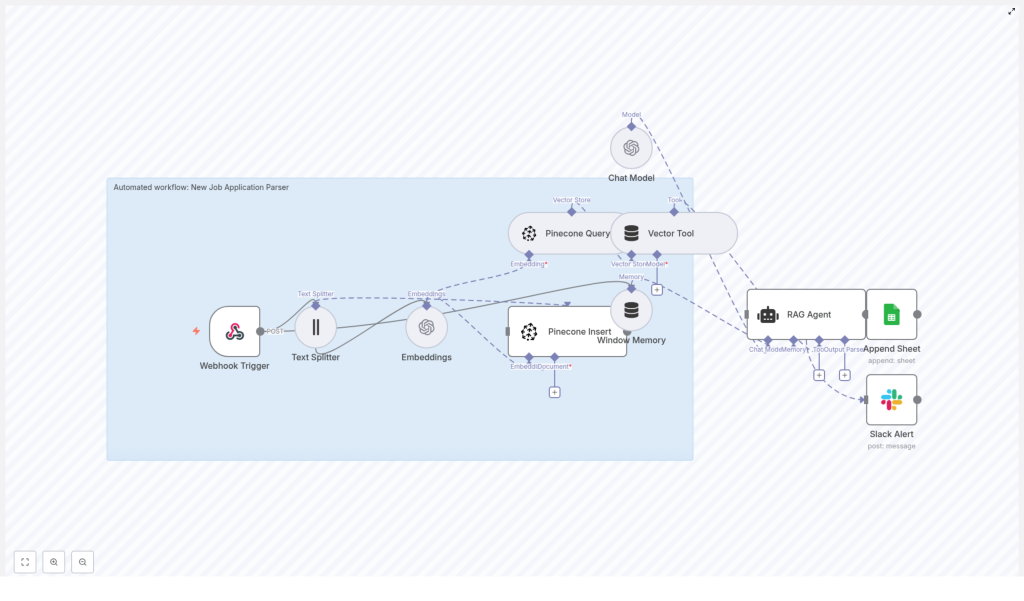
Automated Job Application Parser with n8n & RAG
If you spend a good chunk of your day opening resumes, skimming cover letters, and copy-pasting details into spreadsheets, this n8n workflow template is going to feel like a breath of fresh air.
In this guide, we will walk through a ready-to-use automated job application parser built with n8n, OpenAI embeddings, Pinecone vector search, and a RAG (Retrieval-Augmented Generation) agent. You will see how it:
- Receives job applications via a webhook
- Splits and embeds resume and cover letter text
- Stores everything in a Pinecone vector index for semantic search
- Uses a RAG agent to extract structured candidate data
- Logs results to Google Sheets and pings Slack if something breaks
Think of it as your tireless assistant that never forgets a detail and always keeps your candidate log up to date.
What this n8n template actually does
At a high level, the automated job application parser takes raw applicant data and turns it into clean, structured information you can search, filter, and build workflows on top of.
Here is what happens behind the scenes when a new application comes in:
- A webhook in n8n receives a POST request with the applicant details.
- Resume and cover letter text are split into smaller chunks for better processing.
- Each chunk is turned into an embedding using OpenAI.
- The embeddings are stored in a Pinecone index named
new_job_application_parser. - When needed, the workflow queries Pinecone for relevant chunks.
- A RAG agent, powered by an OpenAI chat model, uses those chunks to extract key fields like name, email, skills, and experience.
- The parsed result is appended to a Google Sheet called
Log. - If anything fails, a Slack alert lets your team know.
So instead of manually parsing every application, you get a repeatable, traceable flow that does the heavy lifting for you.
Why use an automated job application parser?
Recruiting teams often juggle hundreds of applications across different roles and sources. It is easy for details to slip through the cracks, or for your team to get buried in manual tasks.
Automating the parsing and indexing of job applications gives you:
- Faster screening – Quickly scan structured fields instead of reading every line.
- Semantic search – Search across resumes and cover letters by meaning, not just keywords.
- Consistent logging – Every application is logged in the same format in Google Sheets.
- Traceability – Vectors in Pinecone keep a link back to the original text and metadata.
- Easy automation – Parsed data can trigger downstream workflows like interview scheduling or tagging.
If you have ever thought, “There has to be a better way to manage this flood of resumes,” this workflow is exactly that.
When this template is a good fit
This n8n workflow template is especially useful if you:
- Receive applications from multiple sources (job boards, referrals, forms, ATS exports).
- Want to centralize candidate data in one place, like a Google Sheet or ATS.
- Care about semantic search, for example, “find candidates with strong Python and data science experience.”
- Need a flexible foundation you can extend with your own automations.
If you are starting from scratch with automation, this template is a solid base you can customize as your hiring process grows more sophisticated.
Architecture overview: how the pieces fit together
Let us break down the main components of the template so you know what each part is doing:
- Webhook Trigger Accepts incoming POST requests at a path like
new-job-application-parser. The payload includes the applicant’s name, email, resume text, cover letter, and optional metadata like job ID or source. - Text Splitter Splits long documents into smaller chunks to make embeddings more reliable. In this template, the splitter uses:
chunkSize = 400chunkOverlap = 40
This helps preserve context across chunks so important details are not cut off.
- Embeddings Uses OpenAI’s
text-embedding-3-smallmodel to generate vector embeddings for each chunk of text. - Pinecone Insert Stores the embeddings in a Pinecone index called
new_job_application_parser. Metadata like applicant ID, original field (resume or cover letter), and chunk ID are stored with each vector. - Pinecone Query + Vector Tool When the agent needs context, this part queries Pinecone for similar chunks and wraps the results in a format that the RAG agent can consume.
- Window Memory Keeps a short memory buffer so the agent can handle multi-step reasoning or follow-up questions if you extend the workflow later.
- Chat Model An OpenAI chat model that the agent uses for reasoning and extraction based on the retrieved context.
- RAG Agent Combines the chat model, memory, and retrieved vectors to extract structured fields like:
- Name
- Top skills
- Total years of experience
- A short summary
It also produces a status message describing the parsing outcome.
- Append Sheet Writes the parsed result into a Google Sheet, in a tab named
Log, using the Append Sheet node. - Slack Alert If the agent or any connected node errors, a Slack notification is sent so your team can fix the issue quickly.
What you need to configure first
Before you hit “execute” in n8n, make sure you have your credentials and identifiers ready. You can store these as n8n credentials or environment variables:
- OPENAI_API – Your OpenAI API key for embeddings and the chat model.
- PINECONE_API – Pinecone API key and environment.
- SHEETS_API – Google Sheets OAuth2 credential for writing to your spreadsheet.
- SLACK_API – Slack webhook or OAuth token for sending alerts.
- Pinecone index name:
new_job_application_parser - Google Sheet name:
Log(and the document ID configured in the Append Sheet node).
Once those are set, you are ready to walk through the workflow step by step.
Step-by-step: how the workflow runs
1. Receive the application via webhook
The workflow starts with a Webhook Trigger in n8n. You expose a POST endpoint with a path such as new-job-application-parser.
A typical payload might look like this:
{  "applicant": {  "name": "Jane Doe",  "email": "jane.doe@example.com",  "resumeText": "...full resume text...",  "coverLetter": "...cover letter text...",  "metadata": { "jobId": "1234", "source": "LinkedIn" }  }
}
You can adapt this schema to your own system, but keeping a consistent structure makes it easier to maintain and extend.
2. Split long text into chunks
Resumes and cover letters can be quite long. To avoid feeding huge blocks of text into the embeddings model, the Text Splitter node breaks them into smaller pieces.
The template uses:
chunkSize = 400characterschunkOverlap = 40characters
This overlap helps preserve entities that might be split across boundaries, like multi-word skills or sentences that carry important context.
3. Create embeddings and store them in Pinecone
Next, each chunk goes through the Embeddings node. The template uses OpenAI’s text-embedding-3-small model, which is cost-efficient and works well for this type of semantic search use case.
After embeddings are generated, the Pinecone Insert node writes them into the new_job_application_parser index. Alongside each vector, you store metadata, for example:
- Applicant ID
- Which field it came from (resumeText or coverLetter)
- Chunk ID or position
This metadata is important because when you retrieve similar chunks later, you will want to know exactly where they came from.
4. Retrieve relevant chunks with Pinecone
When it is time to actually parse and summarize the application, the workflow calls Pinecone again, this time to query for relevant chunks.
The Pinecone Query node searches the index, then the Vector Tool packages the results into a format that is easy for the RAG agent to consume as context. This is what lets the agent “see” the right parts of the resume and cover letter when extracting structured information.
5. Use the RAG agent and memory for structured extraction
Now comes the fun part. The RAG agent uses:
- The retrieved chunks from Pinecone
- A window of memory (if you extend the workflow into a multi-turn conversation)
- The OpenAI chat model
You configure a system message to set its role, such as:
“You are an assistant for New Job Application Parser”
Based on the context you provide, the agent extracts structured fields like name, email, top skills, total years of experience, and a one-sentence summary. It also returns a short status message that you can log or display elsewhere.
6. Append parsed results to Google Sheets
Once the agent returns its structured output, the Append Sheet node writes everything into a Google Sheet. In this template, the sheet is named Log.
The “Status” column, for example, is mapped like this:
={{$json["RAG Agent"].text}}You can extend the mapping to include other fields the agent extracts, such as:
- Name
- Skills
- Years of experience
- Job ID from the metadata
This turns your Google Sheet into a living log of all parsed candidates that you can filter, sort, or connect to other tools.
7. Handle errors with Slack alerts
Things occasionally go wrong: an API key expires, a payload is malformed, or a node fails. To avoid silent failures, the workflow wires the RAG Agent’s onError connection to a Slack node.
When an error occurs, a Slack alert is sent to your chosen channel with the error message, so your team can investigate and fix the issue before it affects too many applications.
Sample RAG agent prompt template
The quality of your results depends a lot on how you prompt the agent. Here is a simple but effective template you can use or adapt:
System: You are an assistant for New Job Application Parser.
User: Using the context chunks below, extract the applicant's name, email, top 5 skills, total years of experience, and a one-sentence summary. Output valid JSON only.
Context: {{retrieved_chunks}}

Expected JSON:
{  "name": "",  "email": "",  "skills": ["", "", ""],  "years_experience": 0,  "summary": ""
}
You can tweak this to match your hiring taxonomy, add more fields, or tighten the instructions if you notice malformed outputs.
Best practices for a reliable job application parser
To keep your n8n workflow stable, efficient, and trustworthy, keep these tips in mind:
- Use chunk overlap A bit of overlap between chunks helps preserve entities that might be split otherwise.
- Store provenance metadata Include fields like
applicantIdand the source field name with each vector. This makes it easy to reconstruct context later. - Control costs Rate limit embedding calls and batch inserts where possible. This keeps OpenAI and Pinecone usage under control.
- Validate JSON outputs Before writing to Sheets, validate the agent’s JSON against a schema or use an intermediate validation node to catch malformed data.
- Secure your credentials Rotate API keys periodically and restrict access to Pinecone and Google Sheets so only the workflow’s service account can use them.
Costs, scaling, and performance
As you scale up the number of applications, it helps to know where your costs come from and how to optimize.
Costs are mainly from:
- OpenAI – Embedding and chat model usage.
- Pinecone – Vector storage and query operations.
To keep things performant and cost-effective:
- Batch embedding requests when the API and your workload allow it.
- Use smaller embedding models like
text-embedding-3-smallif they meet your quality needs. - Prune old vectors or compress metadata if the index size grows very large.
- Scale n8n horizontally with multiple workers and use a persistent database for state when you reach higher volumes.
Troubleshooting checklist
If something is not working quite right, here is a quick checklist to run through:
- No vectors showing up in Pinecone? Check that the
Pinecone Insertnode actually executed and that the index namenew_job_application_parserexists and matches exactly. - Agent output is malformed or not valid JSON? Strengthen the system message and make the “return JSON only” instruction more explicit. You can also add a validation node to clean up or reject bad outputs.
- Webhook not receiving payloads? Confirm that your n8n instance is publicly accessible. For local development, use a tunneling service like ngrok to expose the webhook URL.
- Running into rate limit errors? Implement retry and backoff logic in n8n, or throttle incoming requests so you stay within API rate limits.
Testing and validating your setup
Before you roll this out to your whole team, it is worth doing a bit of hands-on testing.
- Send a few sample application payloads through the webhook.
- Inspect each node’s output in n8n to confirm data is flowing as expected.
- Query Pinecone manually with a search phrase and check that the returned chunks match the content you expect.
- Review the Google Sheet entries to confirm fields are mapped correctly and the JSON is parsed as intended.
Ideas for next steps and extensions
Once the core parser is working, you can build some nice extras on top of it. For example, you could:
<

