


Automate Notion Updates with n8n & RAG
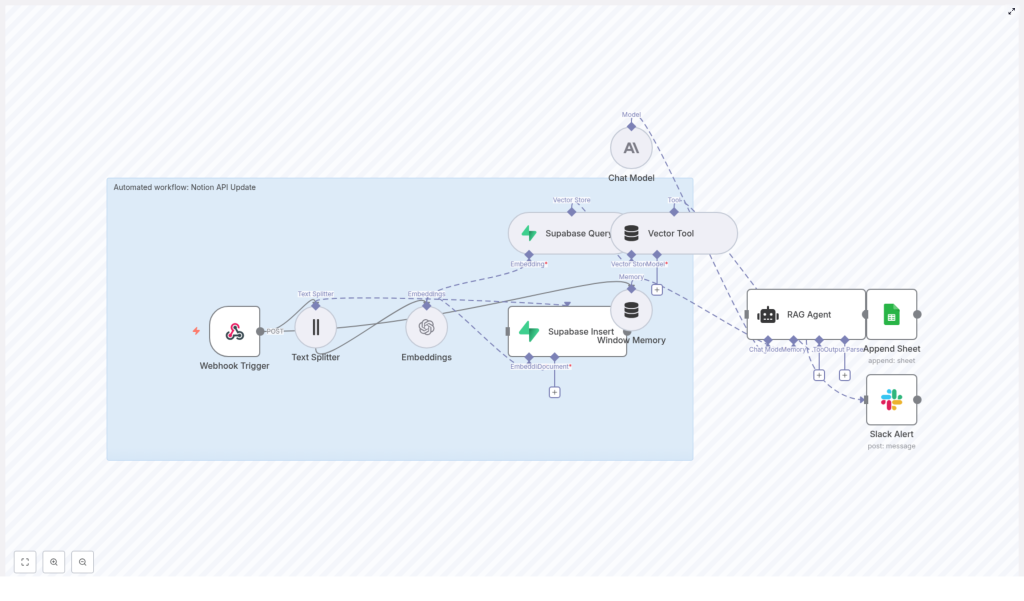
Modern teams increasingly rely on Notion as a central knowledge hub, yet manual updates, summarization, and logging quickly become operational bottlenecks. This workflow template for n8n provides an end-to-end automation pattern that connects webhooks, text chunking, vector embeddings, Supabase, and a retrieval-augmented generation (RAG) agent. The result is a robust pipeline for semantic indexing, contextual processing, and auditable logging of Notion content.
This article explains the full architecture of the template, how to deploy it in n8n, and how to configure each node for production-grade use, including security and observability best practices.
Business value of automating Notion updates
For organizations using Notion as a knowledge base, project workspace, or documentation layer, automation delivers several concrete benefits:
- Automated ingestion – Capture page content or changes from Notion or intermediary systems via webhooks, without manual copy and paste.
- Semantic search readiness – Convert long-form content into vector embeddings that can be stored and queried for advanced retrieval use cases.
- Context-aware processing – Use a RAG agent with memory to generate summaries, enrichment, recommendations, or change logs based on both the new content and historical context.
- Reliable audit trails – Persist outputs to Google Sheets for compliance, reporting, and traceability.
- Operational resilience – Surface runtime issues immediately with Slack alerts to the appropriate incident or alerts channel.
Architecture overview of the n8n workflow
The template is designed as a modular pipeline that can be adapted to different content sources and LLM providers. At a high level, the workflow executes the following sequence:
- Webhook Trigger receives a POST request containing Notion page data or change payloads.
- Text Splitter segments long text into overlapping chunks to optimize embedding and retrieval performance.
- Embeddings node converts each chunk into vector representations using the
text-embedding-3-smallmodel. - Supabase Insert writes vectors and metadata into a Supabase-based vector index (for example,
notion_api_update). - Supabase Query and a Vector Tool provide semantic retrieval capabilities to the RAG layer.
- Window Memory maintains short-term conversational context for the agent.
- Chat Model (Anthropic in the template) generates responses using retrieved context and memory.
- RAG Agent orchestrates retrieval, memory, and generation to produce a final status or enriched output.
- Google Sheets Append logs the RAG result and metadata into a dedicated Log sheet.
- Slack Alert sends error notifications to
#alertswhen failures occur in the agent path.
The sections below walk through the configuration of each stage and how they work together in a production-ready Notion automation pattern.
Trigger and ingestion: configuring the webhook
1. Webhook Trigger setup
Start by creating an entry point for external systems to send Notion-related data into n8n.
- Add a Webhook Trigger node in n8n.
- Set the HTTP method to POST.
- Use a path such as
notion-api-update(for example/webhook/notion-api-updatedepending on your n8n deployment).
Configure your Notion integration or any intermediate service to POST JSON payloads to this endpoint. A typical payload might look like:
{  "page_id": "1234",  "title": "New Meeting Notes",  "content": "Long Notion page text..."
}
In subsequent nodes, you will map the content field to the text processing pipeline and use page_id and title as metadata for indexing and logging.
Preparing content for semantic indexing
2. Text chunking with Text Splitter
Long Notion pages are not ideal for direct embedding as single blocks. To optimize retrieval quality and LLM performance, the template uses a Text Splitter node.
- Connect the Text Splitter node to the Webhook Trigger.
- Map the incoming
contentfield as the text input. - Set chunkSize to 400.
- Set chunkOverlap to 40.
This configuration creates overlapping chunks that preserve context across boundaries. For larger, more narrative content, you can increase the chunk size. For highly granular retrieval, decrease chunk size while preserving some overlap.
3. Generating embeddings
Once the content is chunked, the next step is to convert each chunk into vector embeddings.
- Add an Embeddings node and connect it to the Text Splitter output.
- Select OpenAI as the provider and set the model to
text-embedding-3-small. - Configure your OpenAI API credentials in n8n credentials management rather than hardcoding keys in the node.
The node will output a vector for each text chunk. These vectors are the basis for semantic search and retrieval in the RAG pipeline and will be persisted to Supabase in the next step.
Vector storage and retrieval with Supabase
4. Persisting vectors in Supabase
To support scalable semantic search, the template stores embeddings in a Supabase-hosted vector index.
- Add a Supabase Insert node.
- Configure Supabase credentials using secure n8n credentials or environment variables.
- Specify the target index or table name, for example
notion_api_update.
Along with the embedding vectors, store structured metadata that will be critical for traceability and downstream usage:
page_id(Notion page identifier)title(Notion page title)source_urlor Notion URL, if availabletimestampof ingestion or last update
This metadata ensures that any retrieved chunk can be mapped back to the precise source content in Notion.
5. Enabling retrieval with Supabase Query and Vector Tool
For RAG workflows, retrieval quality is as important as the LLM itself. The template uses Supabase as the vector store and exposes it to the agent through:
- A Supabase Query node to perform similarity search over the vector index.
- A Vector Tool node that wraps the query as a tool usable by the RAG Agent.
Key configuration considerations:
- Set a reasonable top-k value, typically in the range of 3 to 5, so the agent receives focused, relevant context instead of overwhelming noise.
- Ensure the query uses the same embedding model and dimensionality as the stored vectors.
RAG agent, memory, and LLM configuration
6. Window Memory and Chat Model
To enable context-aware reasoning over time, the template uses Window Memory combined with a Chat Model node.
- The Window Memory node maintains a configurable window of recent interactions or prior messages, allowing the agent to reference recent history without re-querying everything.
- The Chat Model node is configured with an Anthropic model in the template, but you may substitute other providers if needed.
This combination allows the RAG Agent to integrate three inputs: the current webhook payload, relevant retrieved context from Supabase, and recent conversational memory.
7. Designing the RAG Agent and prompt
The RAG Agent node orchestrates retrieval, memory, and LLM generation. It uses the Vector Tool to pull relevant chunks from Supabase and then calls the Chat Model with a system prompt and user input.
A representative system prompt for this template is:
You are an assistant for Notion API Update. Process the provided data and return a concise Status describing what was done or recommended actions.
Feed the agent:
- The raw webhook payload (for example, page ID, title, and content summary).
- Retrieved vector context from Supabase.
- Window Memory data where applicable.
The agent output is a concise status or enriched description that can be logged, used for monitoring, or integrated into downstream processes.
Observability and error handling
8. Logging results to Google Sheets
For auditability and reporting, the template appends each successful RAG Agent output to a Google Sheet.
- Add a Google Sheets Append node.
- Connect it to the success path of the RAG Agent.
- Target a Log tab within your chosen spreadsheet.
- Map fields such as:
- Timestamp of processing
- Notion
page_id - Page
title - The agent status text, for example
{{$json["RAG Agent"].text}}
This creates an ongoing audit trail that can be used for compliance, analytics, or operational review.
9. Slack alerts for failures
To avoid silent failures, the template includes proactive error handling.
- On the onError branch of the RAG Agent, add a Slack node.
- Configure it to post to a dedicated channel such as
#alerts. - Include a concise error summary, relevant identifiers (for example
page_id), and optionally a link to the n8n execution log.
This pattern ensures that issues are visible to the operations or platform team as soon as they occur.
Best practices for production deployments
Chunking and embedding strategy
- Use overlap (typically 20 to 40 tokens) to avoid cutting important sentences or paragraphs in half.
- Adjust chunkSize based on content type. Larger chunks are suitable for narrative documents, smaller ones for FAQs or highly structured data.
- Batch embedding requests where possible to stay within provider rate limits and reduce latency.
Metadata and traceability
- Always store identifiers such as
page_id,title, and timestamps alongside vectors. - Include source URLs or Notion links for quick navigation back to the original content.
- Use consistent schemas across environments (dev, staging, prod) to simplify migration and testing.
Security, access control, and compliance
- Store all API keys (OpenAI, Anthropic, Supabase, Google, Slack) in n8n credentials or environment secrets, not directly in nodes.
- Use Supabase service roles carefully. Prefer:
- Read-only keys for retrieval-only nodes.
- Separate write-enabled roles for insert operations.
- Enable and configure Supabase Row-Level Security (RLS) where appropriate.
- Mask, redact, or exclude PII before sending text to third-party embedding providers when required by internal or regulatory policies.
Retention and lifecycle management
- Implement a retention policy for old vectors if your Notion knowledge base grows rapidly.
- Consider periodically re-indexing only current or frequently accessed content.
- Clean up obsolete vectors when pages are archived or deleted in Notion.
Observability and monitoring
- Use the Google Sheets log as a simple operational dashboard for processed events.
- Monitor Slack alerts for repeated or clustered failures that may indicate configuration or provider issues.
- Instrument additional logging within n8n (for example, using additional logging nodes) for deeper troubleshooting.
Troubleshooting common issues
Embeddings node failures
If the embeddings step fails:
- Verify that the OpenAI API key is valid and correctly referenced in n8n credentials.
- Confirm the model name is exactly
text-embedding-3-smallor your chosen alternative. - Check for rate limit errors and consider batching or backoff strategies.
- Test the node with a single small text chunk to rule out malformed payloads.
Supabase insert errors
For issues writing vectors to Supabase:
- Confirm that Supabase credentials are correct and have appropriate permissions.
- Verify that the target table or index (for example
notion_api_update) exists. - Check that the schema matches the insert payload, including the vector column type and dimensions.
- Ensure network egress from your n8n environment to Supabase is allowed.
Low-quality or irrelevant RAG outputs
If the RAG Agent responses are weak or off-topic:
- Adjust the retrieval top-k value to balance relevance and context volume.
- Increase chunk overlap in the Text Splitter to preserve more context across chunks.
- Refine the system prompt to give clearer, more specific instructions about the desired output format and behavior.
- Verify that the correct and up-to-date vectors are present in Supabase by running manual similarity queries.
Typical use cases for this template
- Automated summarization and digests – Generate concise summaries of new or updated Notion pages and log them for daily or weekly digests.
- Knowledge base hygiene – Detect and flag outdated or potentially duplicate content based on semantic similarity.
- Support and triage workflows – Ingest tickets or requests, summarize them, and attach the most relevant Notion documentation snippets.
- Compliance and audit logging – Maintain a structured log of all automated Notion processing actions in Google Sheets for later review.
Security and compliance checklist
- Use n8n vault or credentials management for all secrets, avoiding plain text keys in node parameters.
- Separate read and write roles for Supabase access, and avoid over-privileged service keys.
- Apply RLS policies where needed to constrain data access.
- Redact or anonymize sensitive content before embedding when mandated by internal policies or regulatory frameworks.
Conclusion and next steps
This n8n workflow template offers a comprehensive pattern for automating Notion updates with semantic indexing and RAG-based processing. It is intentionally modular so that you can:
- Swap embedding or chat providers without redesigning the entire pipeline.
- Adjust chunking, retrieval parameters, and prompts to match your domain and quality requirements.
- Add additional outputs such as email notifications, ticketing system integration, or data warehouse ingestion.
To get started, import the template into your n8n instance, configure your OpenAI/Anthropic, Supabase, Google Sheets, and Slack credentials, then send a test POST request to the webhook. From there, iterate on prompts, chunking, and retrieval parameters to align the workflow with your team’s specific Notion automation needs.
