


Backup n8n Workflows to a Gitea Repository and Free Your Focus
Every automation you build in n8n represents hard-won insight, experiments, and time. Losing a workflow or overwriting something that used to work is more than an inconvenience, it is lost momentum.
Imagine instead that every change you make is safely versioned, backed up, and ready to restore with a single click. No more “what did I change last week” anxiety, no more copy-pasting JSON to keep a manual history. Just a calm, reliable safety net that quietly runs in the background.
This is exactly what this n8n workflow template gives you. It automatically backs up each of your n8n workflows as a JSON file to a Gitea repository, checks for changes, and only updates what is different. Once set up, it keeps working for you while you focus on building new automations and growing your business or projects.
The Problem: Manual Backups Limit Your Growth
As your n8n usage grows, so does the risk of mistakes:
- Overwriting a working workflow without a way to roll back
- Manually exporting and storing JSON files in random folders
- Unclear change history when collaborating with teammates
Manual backups are easy to skip, especially when you are moving fast. The result is a fragile setup that makes you hesitant to experiment. That hesitation slows down innovation and keeps you from fully embracing automation.
The Mindset Shift: Let Automation Protect Your Automation
One of the most powerful ways to scale your impact is to let automation protect the very systems that automation depends on. By backing up n8n workflows automatically to Gitea, you:
- Create a versioned, auditable history of every workflow change
- Give yourself instant rollbacks when something breaks
- Make collaboration easier with a central Git-based source of truth
- Reduce mental load, since backups “just happen” on a schedule
This is not just about safety. It is about freedom. When you know your workflows are securely backed up, you feel more confident to try new ideas, refactor old logic, and iterate quickly.
The Vision: A Living Library of Your Automations
With this n8n template, your Gitea repository becomes a living library of your automation logic. Each workflow is stored as a separate JSON file, neatly named and versioned. Over time you build a historical record of how your systems evolved, which is invaluable for learning, audits, and onboarding new team members.
And this template is just a starting point. Once you have reliable backups flowing into Gitea, you can plug that into CI, code reviews, or additional checks. Your automation practice becomes more professional, more robust, and far easier to scale.
How the n8n to Gitea Backup Workflow Operates
Let us look at how this workflow actually works so you can trust and extend it.
High-level flow
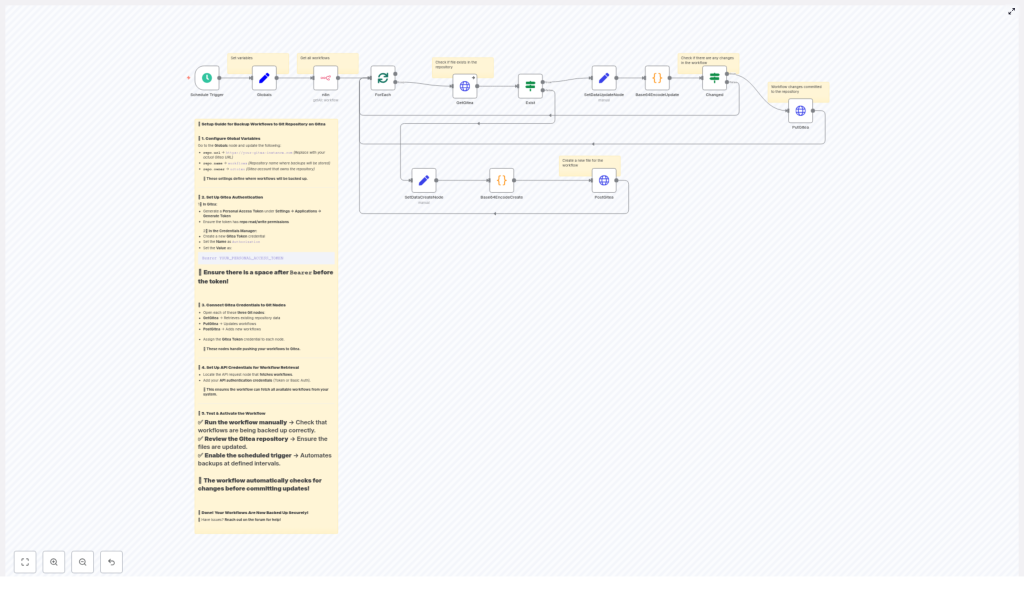
The n8n workflow follows a clear, repeatable sequence:
- A Schedule Trigger starts the workflow at regular intervals (for example, every 45 minutes).
- n8n fetches all workflows from your instance through its API.
- For each workflow, the workflow checks whether a corresponding JSON file already exists in your Gitea repository.
- If the file exists, the workflow encodes the workflow JSON to Base64, compares it to the existing file content, and updates it via PUT only if something changed.
- If the file does not exist, the workflow creates a new file via POST in Gitea.
The result is a lean, efficient backup system that avoids noisy commits and focuses only on real changes.
The Building Blocks: Key n8n Nodes in This Template
Global configuration for easy maintenance
To keep things simple and scalable, the template uses a Globals node where you define all important repository details in one place:
{  "repo.url": "https://git.example.com",  "repo.name": "workflows",  "repo.owner": "n8n"
}
Whenever you want to point backups to another Gitea instance or repository, you only need to update these values. This is a small design choice that makes the workflow easier to reuse and share across environments.
Schedule Trigger: Let backups run while you focus elsewhere
The template uses a Schedule Trigger node configured to run every 45 minutes. You can adjust this interval to match your own rhythm:
- Every hour or few hours for active development environments
- Daily or weekly for more stable, production-like setups
Once enabled, the trigger quietly keeps your workflows backed up without any additional effort from you.
Gitea HTTP Request nodes: Your bridge to Git-based backups
Three HTTP Request nodes interact directly with the Gitea API:
- GetGitea: Performs a
GETrequest on/contents/<workflow-name>.jsonto check if the file exists and retrieve itsshaand content. - PutGitea: Uses
PUTto update an existing file when there are changes, including the requiredshaof the current file. - PostGitea: Uses
POSTto create a new file if none exists yet for that workflow.
These nodes turn your n8n instance into a Git-aware system, giving you all the benefits of Gitea without leaving your automation environment.
ForEach, encoding, and comparison: Only commit what truly changed
The workflow loops through each workflow and does a careful comparison before committing anything:
- It iterates over each workflow item using a loop (ForEach pattern).
- It builds a pretty-printed JSON string of the workflow.
- It encodes that JSON to Base64, since the Gitea content API expects base64-encoded content.
- It compares the newly encoded content with what is already stored in Gitea.
If nothing changed, no commit is made. If there is a difference, an update is sent. This keeps your repository clean and your history meaningful.
Step-by-Step: Turn This Template Into Your Backup Safety Net
Now let us turn this idea into a working part of your stack. Follow these steps and you will have automated n8n workflow backups running in minutes.
1 – Create or choose a Gitea repository
- Create a repository in your Gitea instance, for example
workflows, or choose an existing one. - Plan to store one JSON file per workflow, using a consistent naming pattern such as
{workflow-name}.json.
This structure makes it easy to find and track each workflow over time.
2 – Generate a Gitea personal access token
Next, give n8n a secure way to talk to Gitea:
- In Gitea, go to Settings → Applications → Generate Token.
- Generate a personal access token with repository read/write permissions.
Then, in n8n, create an HTTP header credential with:
Header name: Authorization
Header value: Bearer YOUR_PERSONAL_ACCESS_TOKEN
Make sure you include the space after Bearer. Without that space, authentication will fail.
3 – Connect credentials to the Gitea HTTP nodes
Open each of the Gitea-related HTTP Request nodes in your n8n workflow:
- GetGitea
- PutGitea
- PostGitea
Assign the Gitea Token credential you created. This single step allows all three nodes to authenticate with the Gitea API and carry out the backup operations on your behalf.
4 – Configure the node that fetches n8n workflows
The workflow includes a node that retrieves workflows from your n8n instance through its API. Make sure this node has valid API credentials, via token or basic authentication, so it can access your workflows.
The workflow expects each item in the payload to contain:
- The workflow data (the full JSON)
- The workflow name so it can build a matching file name in the repository
This is what allows the template to create a separate JSON file for each workflow in Gitea.
5 – Test, refine, and then schedule
Before you enable scheduling, run through a simple test cycle:
- Run the workflow manually from within n8n and watch the execution.
- Check your Gitea repository to confirm that JSON files were created or updated as expected.
- If everything looks good, enable the Schedule Trigger so backups happen automatically on your chosen interval.
This is your moment to adjust commit messages, naming conventions, or intervals to match how you like to work.
Crafting the HTTP Body for Gitea’s Content API
Gitea’s content API usually expects at least two fields in the HTTP body:
contentwith base64-encoded JSONmessageas a human-friendly commit message
A typical request body from n8n might look like this:
{  "message": "Backup: update workflow_name",  "content": "BASE64_ENCODED_JSON",  "sha": "existing_file_sha"  // only for updates
}
Always check your specific Gitea server’s API documentation and adjust the HTTP Request body if needed. Different versions or configurations may have small variations.
Troubleshooting: Turning Roadblocks Into Learning
As you wire everything together, you might hit a few bumps. Use them as an opportunity to deepen your understanding of n8n and Gitea.
401 Unauthorized
If you see a 401 response:
- Double-check the token value.
- Confirm that you included
Bearerwith a trailing space before the token. - Verify that the token has the correct repository scopes.
- Recreate the credential in n8n if you changed the token in Gitea.
404 Not Found when checking a file
A 404 from the file endpoint usually means the file does not exist yet. The workflow is designed to handle that case and will create a new file via POST.
If you see unexpected 404s for repository-level endpoints, verify:
- The repo owner and repo name in your Globals node
- That the repository is accessible and visible to the token you are using
Content not updating even when workflows change
If your workflow files are not updating in Gitea:
- Confirm that the JSON is properly encoded to Base64 before sending.
- Make sure comparisons are done between the same formats, for example encoded vs encoded.
- Check that the
shavalue you provide for updates matches the current file’sshain Gitea.
Once these are aligned, updates should flow reliably whenever a workflow changes.
Security and Best Practices: Protect What Matters
Automated backups are powerful, so it is worth setting them up with care.
- Use a least-privilege access token scoped only to the repository used for backups.
- Store all credentials in the n8n credential manager. Avoid hardcoding tokens directly inside nodes.
- Consider removing or encrypting secrets from workflow JSON before committing, especially in shared or public repositories.
- If your backups generate many commits, define a retention strategy. You can use tags, periodic pruning, or dedicated branches.
Advanced Ideas: Turning Backups Into a Growth Engine
Once the basic backup workflow is running, you can build on it and turn your Gitea repository into a powerful automation hub.
- Add more detailed commit messages that include the workflow ID and a timestamp for easier tracking.
- Push backups to a dedicated branch such as
backups/automatedand keep your main branches protected with required reviews. - Use webhooks or external CI pipelines to run checks, validations, or reports whenever new backups are pushed.
Each of these enhancements deepens your automation practice and gives you more confidence to move fast without breaking things permanently.
Your Next Step: Turn This Template Into Your Daily Ally
By putting this n8n to Gitea backup workflow in place, you are not just preventing data loss. You are building a foundation that supports experimentation, collaboration, and long-term growth.
The template already includes:
- Scheduled runs to capture changes regularly
- Per-workflow JSON files for clear organization
- Base64 encoding for Gitea’s content API requirements
- Existence checks and conditional updates to avoid unnecessary commits
From here, you can refine commit messages, adjust the schedule, or extend the workflow with your own ideas. Each improvement you make is another step toward a more automated, focused, and resilient way of working.
Try it now: import the workflow template into n8n, set your Globals, configure your Gitea token, run a manual execution, and watch your workflows appear in your Gitea repository.
If you want support or inspiration, you are not alone. Join the n8n community forum or connect with your internal DevOps team and explore what else you can automate around this foundation.
Call to action: Import the template, run a manual test, enable scheduling, and then keep iterating. Share what you build, ask for help when you need it, and let this backup workflow be the first of many automations that protect your time and amplify your impact.
