


n8n Developer Agent: Build Workflows with AI
Every repetitive task you do is a quiet signal that something could be automated. The n8n Developer Agent template is designed to turn those signals into real, working workflows, using the power of AI to help you build faster and think bigger.
Instead of wrestling with JSON structures or manually wiring every node, you describe what you want in natural language, and the agent generates, validates, and deploys full n8n workflows for you. This guide walks you through that journey: from the frustration of manual setup, to the mindset of automation-first thinking, to a practical, step-by-step walkthrough of this template so you can start creating more time for the work that truly matters.
From manual setup to automated momentum
Most teams reach a point where their ideas for automation grow faster than the time they have to implement them. You might recognize this pattern:
- You keep building similar workflows from scratch.
- Non-technical colleagues have great ideas, but struggle to describe them in a way that becomes a working automation.
- Documentation, conventions, and standards live in scattered places, so every new workflow feels like a new project.
The n8n Developer Agent template is built to break that cycle. It pairs a conversational AI interface with a workflow builder that outputs importable n8n JSON. That means you can:
- Turn natural language prompts into working n8n workflows in minutes.
- Automate repetitive development tasks and boilerplate creation.
- Help non-technical teammates contribute ideas that become real automations.
- Integrate your own documentation and memory so outputs stay consistent over time.
Think of this template as a bridge between your ideas and implementation, letting you move from “I wish this was automated” to “It is automated” much more quickly.
Adopting an automation-first mindset
Before we dive into nodes and configuration, it helps to shift how you think about your work:
- Describe outcomes, not steps. You do not have to know every node in advance. You only need to clearly describe what you want the workflow to achieve.
- Iterate, do not aim for perfection on the first try. Start with a simple prompt, test the result, then refine. The Developer Agent is built for experimentation.
- Capture your standards once, reuse them forever. By connecting documentation and memory, you can teach the agent how your organization prefers to build workflows, then apply that knowledge across every new automation.
With that mindset in place, the template becomes more than a single automation. It becomes a stepping stone toward a more focused, less manual way of working.
How the n8n Developer Agent works behind the scenes
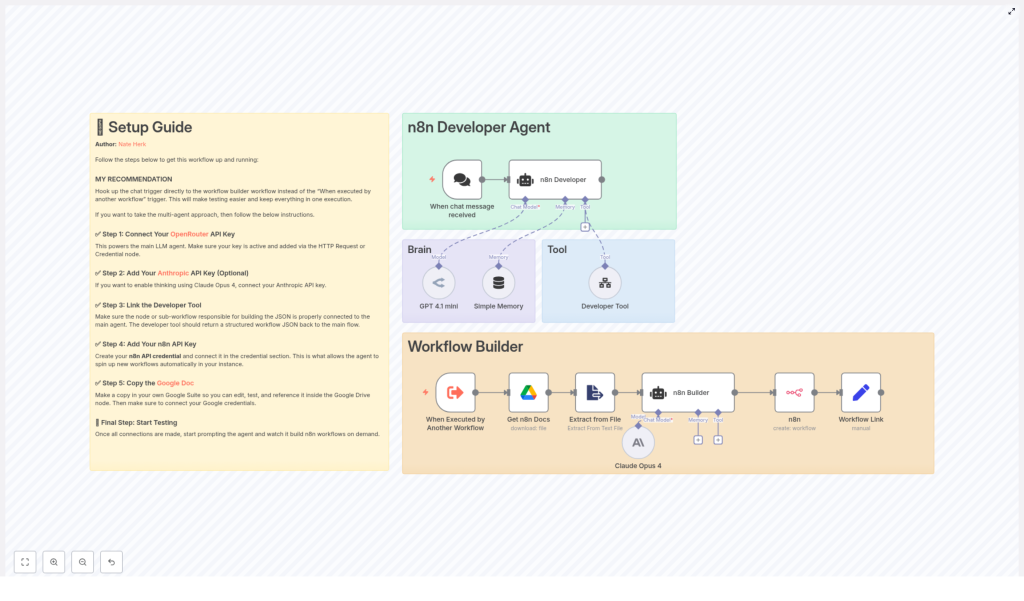
At its core, the template uses a multi-agent flow. It listens to your prompt, gathers context from models and memory, generates n8n workflow JSON using a developer tool, then creates the workflow directly in your n8n instance.
Key building blocks
- Chat Trigger – The entry point. It starts whenever a user submits a request and forwards the natural language prompt into the agent.
- Main Agent (n8n Developer) – The orchestrator. It interprets what you asked for, calls memory, consults AI models, and delegates to the Developer Tool to build the final JSON.
- AI Models – GPT 4.1 mini is the primary model for reasoning and generation. Optionally, you can add Claude Opus 4 for deeper reasoning or verification. You can choose models based on cost and accuracy needs.
- Developer Tool – The specialist. It takes the interpreted prompt and produces complete n8n workflow JSON, including nodes, connections, settings, and staticData, ready for import or direct API usage.
- Google Drive + Extract Node (optional) – A knowledge source. It loads your guidelines or documentation from Google Drive so the agent can align with your standards.
- n8n Create Node – The deployer. It uses your n8n API credentials to create the workflow in your instance and outputs a clickable link.
- Memory – A simple buffer that keeps context between interactions, so the agent can remember preferences and maintain consistency across multiple runs.
Once this pipeline is set up, your main task becomes crafting prompts and refining outcomes, not wiring up every detail by hand.
Step-by-step: setting up your Developer Agent
Let us walk through the setup so you can move from concept to a working automation agent.
1. Connect your LLM provider
First, give the agent its “brain.”
- Add your OpenRouter or OpenAI API key to n8n credentials for the primary LLM, typically GPT 4.1 mini.
- If you want stronger reasoning or cross-checking, connect Claude Opus 4 using an Anthropic API key.
- Configure these credentials in n8n so the agent node can call the models when needed.
2. Add n8n API credentials
Next, empower the template to create workflows on your behalf.
- Create an n8n API credential using an API key or user token.
- Attach this credential to the n8n Create Workflow node in the template.
- This lets the Developer Agent programmatically spin up new workflows in your n8n instance and return a direct link for review.
3. Connect Google Drive for reusable knowledge (optional but powerful)
If you want the agent to follow your internal standards, this step is where that alignment begins.
- Add your Google Drive credentials to n8n.
- Copy your preferred guidelines, style guides, or example workflows into a Google Doc.
- The template includes a node that downloads this document and uses an Extract from File node to pull out plain text.
- The agent can then reference this text to keep generated workflows consistent with your organization’s best practices.
4. Configure the Developer Tool
The Developer Tool is the engine that turns natural language into working JSON. It needs to be precise.
- Ensure the tool (sub-workflow or node) accepts the full natural language prompt from the agent.
- Configure it to return a single, valid JSON object that:
- Begins with
{and ends with}. - Includes the top-level fields:
name,nodes,connections,settings, andstaticData.
- Begins with
- Set it up so that when the Main Agent passes instructions verbatim, the Developer Tool produces JSON that closely matches the user’s request.
5. Test the full flow end-to-end
Now it is time to see the template in action.
- Trigger the workflow with a simple prompt, for example:
“Create a scheduled workflow that fetches a CSV from Google Drive, transforms rows, and posts to Slack.” - Check that the Developer Tool returns valid JSON with all required top-level fields.
- Confirm that the n8n Create Workflow node successfully creates a workflow in your instance.
- Click the generated workflow link from the output to open and inspect the created workflow in n8n.
Once this test passes, you have a repeatable, AI-assisted way to turn ideas into running automations.
Walking through the nodes: what each part contributes
To confidently extend or customize the template, it helps to understand what each node is responsible for.
Chat Trigger: when a message is received
This trigger node listens for incoming chat messages. When a user submits a prompt, the node:
- Receives the natural language request.
- Starts the agent workflow.
- Forwards the content to the n8n Developer agent node.
n8n Developer (agent): the orchestrator
This is the core of the experience. The n8n Developer agent:
- Runs the system message and user prompt together.
- Calls the memory buffer to reuse context from earlier interactions.
- Uses the configured language models for reasoning and generation.
- Delegates to the Developer Tool to build the final workflow JSON.
- Is configured to pass instructions directly to the Developer Tool when needed so the output JSON matches user intent as closely as possible.
GPT 4.1 mini and Claude Opus 4: AI reasoning partners
The template is designed to call AI models where they add the most value:
- GPT 4.1 mini is typically the primary model for generation, prompt interpretation, and drafting workflow structures.
- Claude Opus 4 can be added for longer-form reasoning, complex verification, or more nuanced interpretation where available.
- You can adapt which model is used based on budget, performance, and accuracy requirements.
Get n8n Docs + Extract from File: your embedded playbook
This optional pair of nodes becomes very powerful as your automation library grows.
- The Get n8n Docs node fetches a Google Doc that contains your standards, constraints, or examples.
- The Extract from File node converts that document into plain text.
- The agent then uses this text as reference material, so generated workflows align with your preferred patterns.
Developer Tool: building the workflow JSON
The Developer Tool is where ideas become structured automations.
- It takes the interpreted prompt and any supporting context provided by the agent.
- It builds the final n8n workflow JSON with nodes, connections, settings, and staticData.
- It includes sticky-note annotations within the returned JSON where possible. These annotations:
- Use appropriately colored sticky notes supported by n8n.
- Explain key parts of the workflow.
- Guide future editing and help teammates understand the logic quickly.
n8n Create Workflow: deploying the result
Finally, the template uses the n8n API to bring everything to life.
- The n8n Create Workflow node receives the JSON from the Developer Tool.
- Using your API credentials, it creates a new workflow in your n8n instance.
- A Set node then constructs a clickable link to that workflow, so you can open it directly from the execution output.
From first prompt to live workflow, every piece is designed to save you time and help you stay focused on the bigger picture of what you are building.
Practical prompts to accelerate your automation journey
Once the template is configured, you can start exploring real-world scenarios. Here are examples you can try immediately:
- “Create a webhook-triggered workflow that validates incoming JSON and inserts records into Airtable.”
- “Build a scheduled ETL that downloads Google Sheets to CSV, normalizes columns, and uploads to S3.”
- “Generate a workflow that monitors a Slack channel for messages with attachments and sends new files to Google Drive.”
The n8n Developer Agent can generate complete workflows for these use cases, including authentication nodes and error-handling branches if you instruct the Developer Tool to include them. Start simple, then layer in more detail as you gain confidence.
Troubleshooting as part of the learning process
As you experiment, you will occasionally hit friction. Treat those moments as feedback that helps you refine your prompts and configuration.
Common issues you might encounter
- Developer Tool returns invalid JSON
Use a JSON linter to validate the output and confirm that all required top-level fields exist:name,nodes,connections,settings, andstaticData. - n8n API authentication fails
Double-check your API key or token, the endpoint URL, and that your n8n instance allows API-based workflow creation. - Model outputs feel inconsistent
Provide more detailed system instructions, add examples, and enrich the Google Doc used by the docs node with clear patterns and edge cases.
Quick fixes that keep you moving
- Enable logging or run manual executions in n8n to inspect payloads and error messages.
- Add extra validation steps inside the Developer Tool to confirm required JSON fields are present before returning a response.
- Use the memory buffer to store organizational preferences so that model outputs become more consistent over time.
Each fix you put in place strengthens your automation platform and makes future workflows smoother to generate.
Best practices to scale with confidence
As the Developer Agent becomes part of your daily toolkit, a few habits will help you scale safely and sustainably.
- Maintain a canonical documentation file with examples, constraints, and naming conventions. Store it in Google Drive and wire it into the docs node so every new workflow can reference it.
- Use clear, unambiguous prompts. When moving to production, add an approval step before workflows are automatically created or activated in a live environment.
- Limit model thinking budgets where appropriate and use verification passes to confirm JSON validity before calling the n8n API.
- Isolate credentialed nodes in private workflows and avoid logging secrets in plaintext or in sticky notes.
Security and governance: protecting your automated future
Because this template can create runnable workflows, it is important to wrap it in sensible governance. You can still move quickly while staying secure.
- Require a manual approval step before newly generated workflows are activated in production.
- Restrict who can:
- Trigger the Developer Agent.
- Create or manage API keys for your n8n instance.
- Regularly audit created workflows and log metadata such as creator, timestamp, and purpose to a secure location.
These safeguards let you embrace automation at scale while maintaining trust and control.
From one template to a new way of working
The n8n Developer Agent template is more than a shortcut. It is a catalyst for a more automated, focused way of working. By translating natural language into validated, importable n8n JSON, it helps you:
- Prototype workflows rapidly.
- Reduce friction for developers and non-developers alike.
- Standardize how automations are designed and deployed across your team.
Each prompt you run is an opportunity to reclaim time, reduce manual effort, and build systems that support your growth.
Your next step
Set aside a few minutes to try the template end-to-end:
- Connect your LLM and n8n credentials.
- Run a simple prompt through the Chat Trigger.
- Click the generated workflow link and explore the result in n8n.
Here is a great first prompt to start your journey:
Try this now: “Create a webhook that saves form submissions to Google Sheets and notifies me on Slack.”
