


AI Logo Sheet Extractor to Airtable: A Story About Turning Chaos Into Clean Data
By the time the third “AI tools logo sheet” landed in her inbox that week, Lina had had enough.
Lina was a marketing operations lead at a fast-growing SaaS company. Every quarter, her team ran competitor and partner research. Every quarter, someone would send around a giant image packed with logos and tiny product names: “Here’s the latest AI tools grid,” “Here’s the updated competitor landscape,” “Here’s the new partner logo sheet.”
And every quarter, Lina’s team would zoom, squint, copy, paste, and manually type each tool name into Airtable. They would tag categories, add attributes, and try to keep a clean map of which tools were similar to which. It was slow, repetitive, and riddled with small errors that quietly broke their analysis.
One afternoon, while staring at yet another 40-logo sheet, Lina decided something had to change. That decision led her to an n8n workflow template that used AI vision, a LangChain agent, and deterministic hashing to turn a single uploaded logo sheet into structured Airtable records. What started as a small experiment became the backbone of her team’s research automation.
The problem: Static logo sheets, messy data, and endless manual work
Lina’s challenge was familiar to many marketing, product, and research teams. Their world revolved around static “logo sheets” – images that showed grids of tools, products, or vendors. On the surface, they were simple visuals. Underneath, they hid all the data her team actually needed:
- Product names
- Key attributes, such as category or features
- Relationships between “similar” tools
Translating those images into a structured Airtable database was tedious and error-prone. People misread names, forgot attributes, or tagged tools inconsistently. Every new logo sheet meant repeating the same work from scratch.
Lina wanted something different. She wanted a repeatable automation that could:
- Use AI vision to read product names and context from uploaded images
- Turn the raw AI output into structured JSON
- Create or link attributes in Airtable automatically
- Map similar tools so their competitor analysis stayed up to date
What she found was an n8n workflow template called “AI Logo Sheet Extractor to Airtable.” It promised to do exactly that, and to do it deterministically so her Airtable base would not fill up with duplicates every time she ran the automation.
Discovering the n8n logo sheet workflow
One evening, Lina was browsing n8n templates looking for anything that mentioned “logo,” “Airtable,” or “vision.” That is when she came across a workflow that described itself as:
A way to turn a single uploaded logo-sheet image into structured Airtable records using AI vision, LangChain agent parsing, deterministic hashing, and safe upserts.
It sounded almost too good to be true. But as she dug into the details, she realized it was exactly the kind of system she had been trying to piece together in her head.
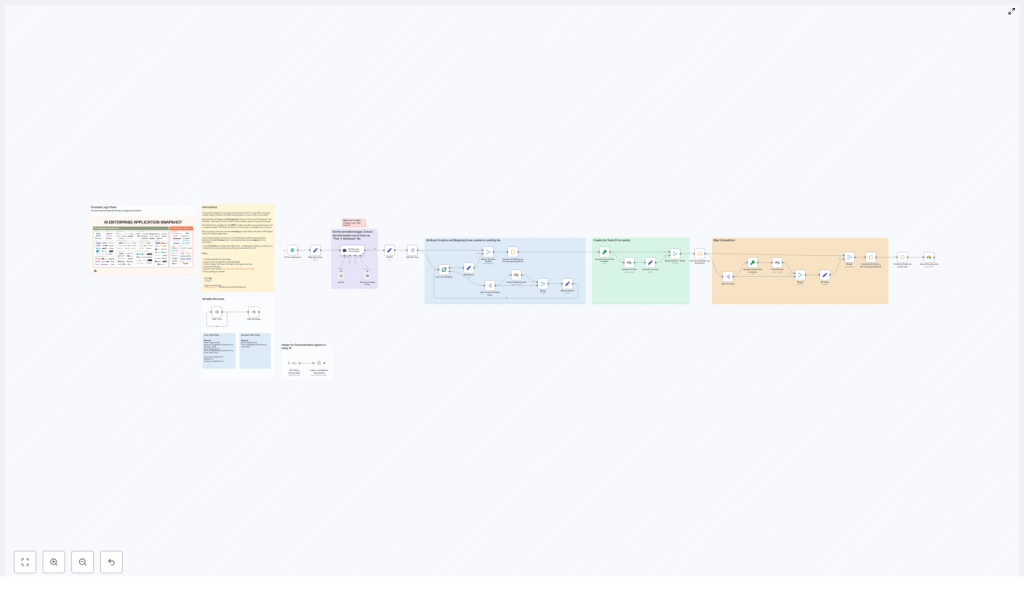
The workflow was designed to be deterministic and idempotent. In practice, that meant Lina could run it multiple times on similar or updated logo sheets without creating duplicate entries in Airtable. The core processing stages were clear:
- Form trigger to accept an uploaded logo-sheet image and an optional prompt
- LangChain agent parsing to combine AI vision and LLM reasoning
- Structured parsing and JSON conversion for predictable downstream processing
- Attribute creation in Airtable, with ID mapping
- Tool creation and upsert using a stable hash per tool name
Instead of a vague promise of “AI magic,” the workflow offered a clear, auditable path from image to data. Lina decided to test it on the very logo sheet that had pushed her over the edge.
Setting the stage: Airtable and the schema that made it work
Before Lina even touched n8n, she needed to make sure her Airtable base could handle the structure this workflow expected. The template recommended two tables. She set them up carefully:
- Tools table with at least:
- Name (single line text)
- Hash (single line text, used for deterministic matching)
- Attributes (link to Attributes table, allow multiple)
- Similar (link to Tools table, allow multiple)
- Description (optional)
- Website (optional)
- Category (optional)
- Attributes table with:
- Name (single line text)
- Tools (link to Tools table, back reference)
It was simple, but powerful enough to capture everything her team needed: which tools existed, what attributes they had, and how they related to similar products.
With the schema ready, she moved on to n8n.
Rising action: From a single form to a fully automated pipeline
Step 1 – The form that started it all
The first node in the n8n workflow was a form trigger. Lina configured a simple public or internal form at the path logo-sheet-feeder. It had two fields:
- A file upload for the logo-sheet image
- An optional prompt field for context
For her first test, she uploaded a grid of AI tools and entered a prompt: “These are AI enterprise tools grouped by category.” She learned quickly that this prompt field would become one of her main levers for improving extraction quality. The more context she gave, the more precise the AI became.
Step 2 – Mapping the agent input
Next, the workflow mapped the form fields into the payload that would be sent to the LangChain agent. This “Map Agent Input” step let Lina adjust how the agent perceived the problem.
Whenever she wanted different parsing behavior, she would tweak the prompt here. For example, she could emphasize categories, ask for specific attributes, or hint at how “similar” tools should be recognized.
Step 3 – The LangChain agent that read the image like a researcher
The heart of the workflow was the “Retrieve and Parser Agent” node. It combined AI vision with LLM reasoning to inspect the uploaded image and extract a structured list of tools.
The agent aimed to produce a JSON array with objects in a predictable format, something like:
[{ "name": "ToolName", "attributes": ["category","feature"], "similar": ["OtherTool"] }]
To make this reliable, the workflow used a carefully designed system message and a structured output parser. Lina learned that it was important to ask the agent explicitly for deterministic JSON, not free-form text. The parser node enforced the schema expectations, so malformed outputs would be caught early instead of silently corrupting her Airtable data.
Step 4 – Turning AI output into native n8n JSON
Once the agent finished, Lina watched as the workflow converted the raw output into native n8n JSON. The “JSON it & Split Out Tools” step took the agent’s array and split each tool into its own item.
This splitting was critical. It allowed the rest of the workflow to process tools and attributes in parallel, which made the whole pipeline faster and easier to reason about. Each tool now moved independently through the automation, but still shared the same original logo sheet context.
Step 5 – Attribute creation and mapping in Airtable
Before any tools were created, the workflow focused on attributes. For each attribute string that the agent returned, n8n checked the Attributes table in Airtable.
If an attribute already existed, it reused the existing record. If it was missing, the workflow upserted it, using the attribute text as the matching key. As it went, the workflow stored the Airtable record IDs and built a map from attribute name to attribute ID.
This meant that later, when tools were created, they could link directly to attribute record IDs instead of raw text. The result was a consistent, relational structure in Airtable instead of a messy list of unconnected tags.
Step 6 – Generating stable hashes and creating tools
Lina had always worried about duplicates. What if one logo sheet called a product “Acme AI” and another called it “AcmeAI”? Would they become two different tools in Airtable?
The workflow solved this with deterministic hashing. For each tool name, it created a hash (using MD5 or a similar algorithm) from the lowercased name. That hash became the unique matching column in the Tools table.
Because the hash was stable for the same name, the workflow could safely upsert tools. Small variations in capitalization would not create new records, and running the workflow multiple times would not pollute the base with duplicates.
Each tool record in Airtable received:
- Name
- Hash
- Attributes (linked record IDs from the earlier map)
- Other optional fields as Lina’s team expanded their schema
Step 7 – Mapping similar tools and final upsert
The last major step was to respect the relationships between tools. The agent had returned a similar list for each tool, containing names of related products. The workflow resolved those names to Airtable IDs, using either newly created records or existing ones.
Then, in a final upsert operation, it wrote the complete tool record to Airtable with:
- Name
- Hash
- Attributes (linked records)
- Similar (linked tool records)
For Lina, this was the turning point. Her Airtable base was no longer just a flat list of tools. It was a graph of products, attributes, and similarities that her analysts could query and explore.
The turning point: From manual drudgery to repeatable AI-powered automation
After the first successful run, Lina did not celebrate immediately. She knew that one good result could be a fluke. So she pushed the workflow harder.
- She tested multiple logo sheets from different sources.
- She varied the prompt, sometimes specifying categories, sometimes listing example tools.
- She checked how the workflow behaved when the image quality was poor or logos were small.
She quickly saw patterns and learned how to tune the system.
Tuning prompts and inputs for better extraction
To make the AI extraction reliable, Lina followed a few practical guidelines:
- Prompt specificity She added short descriptions like “These are AI enterprise tools grouped by category such as ‘Customer Support’ and ‘Analytics’” to reduce hallucinations and improve categorization.
- Image quality She asked her team to provide high-resolution logo sheets. Clearer logos improved OCR and vision performance significantly.
- Agent validation For critical datasets, she considered adding a second “validation agent” or a lightweight human review step in n8n for uncertain predictions, especially before major reports.
- Batching for large sheets When dealing with very large grids of tools, she configured the workflow to process tools in batches. This kept Airtable rate limits in check.
Every iteration made the workflow feel less like an experiment and more like a robust internal product.
Keeping it safe: Error handling and security in the background
As the workflow became central to her team’s research, Lina turned her attention to reliability and security.
She added retry logic for network errors and explicit checks for malformed JSON. If the LangChain agent ever returned something that did not match the expected schema, the workflow would catch it and flag the issue instead of silently failing.
All sensitive credentials stayed inside n8n’s secure credential store:
- Airtable Personal Access Token
- OpenAI or other LLM and vision provider API keys
Nothing was hard-coded. For logo sheets that contained sensitive internal data, she restricted access to the public form and used an internal-only version instead.
How Lina’s team now uses the logo sheet extractor
Within a few weeks, the “AI Logo Sheet Extractor to Airtable” workflow had moved from experiment to everyday tool. Different teams found their own uses for it.
- Marketing asset registry They built a searchable catalog of partner and competitor logos. New logo sheets from conferences or partner decks went straight through the workflow and into Airtable.
- Research and analyst workflows Analysts tracked tools across categories and mapped direct competitors. The “Similar” relationships became a key input for landscape diagrams and strategy docs.
- Product discovery The product team used the extracted tool names to feed discovery boards and roadmapping discussions. They could filter by attributes and explore gaps in the market.
What used to be a week of manual data entry turned into a few minutes of uploading an image and checking the results.
Deployment checklist: How Lina rolled it out to her team
When Lina documented the workflow for the rest of the company, she boiled the rollout down to a simple checklist:
- Configure the Airtable base and create the Tools and Attributes tables as described.
- Set the Airtable credential in n8n and confirm that the token has the right permissions.
- Configure LLM and vision provider credentials in n8n, such as OpenAI or another compatible provider.
- Run tests with multiple sample logo sheets and refine the agent prompt until the extraction quality is acceptable.
- Activate the workflow and monitor the first runs, especially focusing on attribute mapping and duplicate handling.
By the time she shared this checklist, most of the friction had already been removed. New team members could start using the workflow with almost no technical background, as long as they followed these steps.
Resolution: From cluttered visuals to a high-value Airtable asset
Looking back a few months later, Lina could barely remember how her team had lived without this automation. Their Airtable base had grown into a rich, queryable asset that powered marketing campaigns, research reports, and product decisions.
The real win was not just the time saved. It was the confidence that their data was consistent, structured, and easy to extend. The modular design of the n8n workflow made it simple to customize each part:
- Swap or tune the LangChain agent for different types of logo sheets
- Adjust attribute creation rules as new categories emerged
- Modify the upsert logic if their Airtable schema evolved
For teams that needed even higher accuracy, Lina recommended adding a second-pass validation agent or a lightweight human-in-the-loop review step. But even without that, the workflow had transformed a frustrating manual chore into a clean, reliable automation.
Ready to automate your own logo sheets?
Upload a few example images, refine your agent prompt, and watch your Airtable base turn static logo grids into structured, searchable data. If you need help implementing or customizing this n8n workflow, you can reach out to a workflow automation specialist or explore detailed documentation.
Keywords: n8n workflow, Airtable, AI logo sheet extractor, LangChain agent, image parsing, automation, attribute mapping, logo sheet automation, AI vision, structured data
