


Automate SERP Analysis with Serper + Firecrawl
Picture this: you open a new incognito window for the tenth time today, type in the same keyword, scroll through results, copy URLs, paste them into a sheet, and then try to make sense of it all. Again. And again. And again.
If your soul just sighed in recognition, this n8n workflow template is here to rescue you from SERP Groundhog Day.
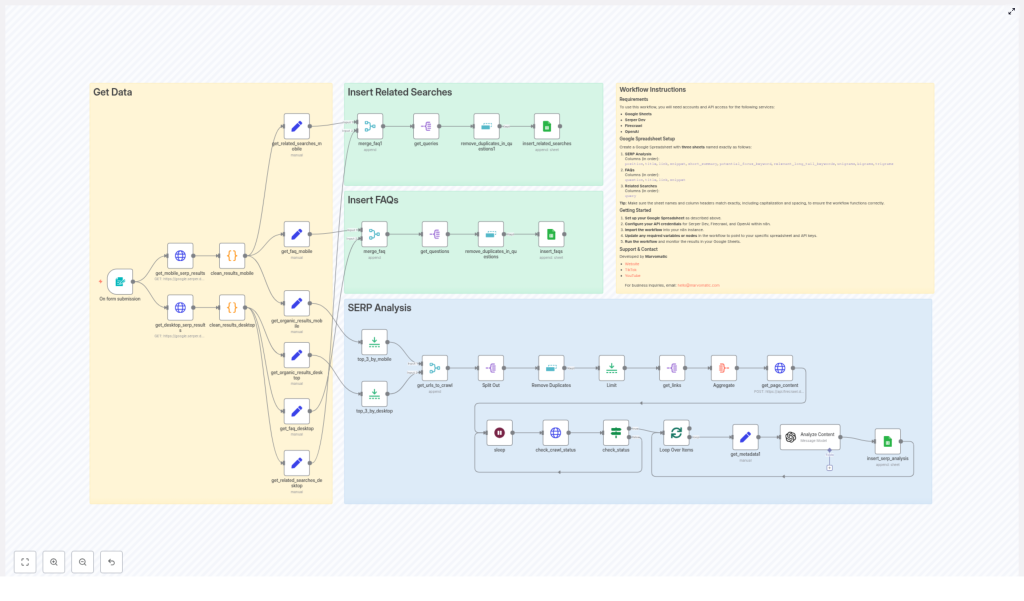
The “Product – SERP Analysis (Serper + Firecrawl)” template automates SERP research, pulls out FAQs and related searches, scrapes competitor pages, runs SEO-focused analysis with OpenAI, and neatly drops everything into Google Sheets. You get structured, reusable insights for SEO and content strategy, without the copy-paste fatigue.
What this n8n SERP analysis template actually does
At a high level, this workflow takes a focus keyword and a country, then:
- Grabs both desktop and mobile SERP results from Serper.dev
- Filters and deduplicates the results so you do not drown in junk
- Scrapes the top URLs with Firecrawl and extracts markdown content
- Runs that content through OpenAI acting as an SEO specialist
- Writes everything into a Google Sheet with three tabs:
- SERP Analysis
- FAQs
- Related Searches
In other words, it turns “I should really do a proper SERP analysis” from a 2-hour chore into “click run, grab coffee, come back to a fully loaded spreadsheet.”
Key capabilities at a glance
- Dual-device SERP fetch – pulls results for both mobile and desktop via Serper
- Cleaning & deduping – removes YouTube links and duplicates so your data is usable
- Top N aggregation – merges and limits top results, then batches them for Firecrawl scraping
- OpenAI SEO analysis – generates summaries, focus keyword ideas, long-tail keywords, and N-gram analysis
- Automatic Google Sheets output – sends SERP data, FAQs, and related searches into their own sheets
Why automate SERP analysis instead of suffering manually?
Manual SERP analysis is like doing leg day without ever seeing results: painful and demotivating. Automation fixes that by giving you:
- Speed – collect organic results across desktop and mobile in minutes, not hours
- Depth – aggregate top-ranking URLs for real content analysis, not just “skim and guess”
- Better content ideas – extract Related Searches and People Also Ask questions to fuel content briefs
- Clean reporting – save everything into Google Sheets so your team can filter, sort, and collaborate without chaos
If you are serious about SEO or content strategy, doing this once is helpful, doing it at scale is where automation becomes non-negotiable.
Before you hit run: the Google Sheets setup
The workflow expects a very specific spreadsheet structure. Set this up once and you are good to go.
Required Google Sheets layout
Create a Google Spreadsheet with three sheets, using these exact names and column headers (capitalization and order matter):
- SERP Analysis
Columns:- position
- title
- link
- snippet
- short_summary
- potential_focus_keyword
- relevant_long_tail_keywords
- unigrams
- bigrams
- trigrams
- FAQs
Columns:- question
- title
- link
- snippet
- Related Searches
Columns:- query
Once that is in place, the workflow can safely write all results into the right tabs without throwing a tantrum.
How the template works, step by step
Now let us walk through the structure of the workflow so you know what each part is doing and where you can customize it.
1. Trigger – start on form submission
The workflow kicks off with a form trigger. The form collects:
- Focus Keyword – the main query you want to analyze
- Country (gl) – for example,
us,uk,de, etc.
These values are used as query parameters for both the desktop and mobile SERP requests that come next.
2. SERP fetch with Serper.dev (mobile + desktop)
Two HTTP Request nodes call Serper.dev:
- One configured for mobile results
- One configured for desktop results
Each request uses:
- The focus keyword from the form
- The country code (
gl) - A device parameter (mobile or desktop)
Serper returns:
- Organic results
- Related searches
- People Also Ask (FAQ) data
This gives you a complete view of what users see across devices.
3. Cleaning, splitting, and writing FAQs & related searches
Next comes the part where the workflow does the data housekeeping you usually do manually:
- Custom code nodes clean the results:
- Remove undesirable results like YouTube links
- Ensure organic results and related searches are tidy and usable
- The workflow then splits out:
- Related searches
- People Also Ask / FAQ items
- Both sets are deduplicated to avoid repeated entries
- Finally, they are appended to Google Sheets:
- FAQs go into the FAQs sheet
- Related searches go into the Related Searches sheet
End result: a growing library of questions and related queries that you can plug straight into content briefs and topic clusters.
4. Selecting top results and sending them to Firecrawl
Now for the juicy part: actually looking at what top competitors are doing.
- The workflow limits the top results for each device (so you are not scraping the entire internet)
- It then merges mobile and desktop results into a single list of URLs
- After another deduplication step and a final limit, this unified list is:
- Sent to Firecrawl in batches
- Each URL is scraped for markdown content
This gives you the full page content for each top result, ready for analysis.
5. Crawl status loop and metadata extraction
Firecrawl works with jobs, so the workflow needs to patiently wait for crawls to finish instead of running off too early.
- Firecrawl returns a job status and the markdown content when ready
- The workflow enters a loop:
- Polls Firecrawl until the crawl is complete
- Handles any delays or slower jobs
- Once done, the workflow extracts key metadata:
- Title
- Description
- URL
- Page markdown content
At this point you have both the SERP context and the actual page content for each top-ranking URL.
6. Content analysis with OpenAI
Now the workflow hands each scraped page to OpenAI, configured to behave like an SEO specialist that does not complain about repetitive analysis.
For every page, OpenAI returns:
- A short summary of the page
- A suggested potential focus keyword
- Relevant long-tail keywords
- N-gram analysis:
- Unigrams
- Bigrams
- Trigrams
The workflow then appends these results into the SERP Analysis sheet, alongside:
- Page metadata
- Position in the SERP
- Snippet from the SERP
You end up with a structured, keyword-rich overview of what each competitor page is doing and how it is positioned.
Setup checklist: from zero to automated SERP hero
Here is the quick setup roadmap so you can get the template running without guesswork.
- Create your Google Sheets document Set up the 3 sheets:
- SERP Analysis
- FAQs
- Related Searches
With the exact columns listed in the layout section above.
- Get your API keys Obtain access and keys for:
- Serper.dev
- Firecrawl
- OpenAI
- Configure credentials in n8n In your n8n instance, set up:
- Serper via HTTP header authentication
- Firecrawl via HTTP header authentication
- OpenAI credentials
- Google Sheets with OAuth2
- Import the template Add the “Product – SERP Analysis (Serper + Firecrawl)” template into n8n, then:
- Update the Google Sheets node to use your spreadsheet ID
- Point it to the correct sheet names
- Run a test Try a simple query, for example:
- Keyword:
best running shoes - Country:
gl=us
Check your Google Sheet to confirm that SERP Analysis, FAQs, and Related Searches are all filling correctly.
- Keyword:
Troubleshooting & best practices
Common issues (and how to un-break things)
- API authentication errors If nodes are failing with auth errors, double-check:
- Header tokens in the HTTP nodes
- Credential IDs used in n8n
- That the right credentials are mapped to the right services
- Empty related searches or FAQs Sometimes the SERP for a keyword is just not very rich. Try:
- Using queries with clearer intent
- Testing different keywords or slightly broader variations
- Firecrawl rate limits or slow jobs If crawls feel sluggish:
- Check that your Firecrawl plan supports batch scraping at your current volume
- Increase sleep or delay between polling attempts in the loop
Best practices for getting real SEO value
- Run a seed list of keywords Use the workflow on multiple related keywords, then aggregate the data to see recurring competitor patterns, content structures, and topics.
- Use N-grams to shape your content Take the unigrams, bigrams, and trigrams and use them to inform:
- Headings and subheadings
- Section titles
- On-page keyword variations
- Leverage FAQs & Related Searches Pull People Also Ask questions and Related Searches into:
- FAQ sections in your articles
- Supporting blog posts
- Content outlines for topical depth
- Use Google Sheets as your brief hub Treat your spreadsheet as the central repository for:
- Content briefs
- Keyword research
- Competitor notes
You can even plug these briefs into downstream content-generation workflows.
Use cases: who this template is perfect for
- SEO teams creating content briefs with solid competitor intelligence
- Agencies doing keyword research and gap analysis at scale without burning out interns
- Product and growth teams tracking top-ranking competitor pages and how they evolve over time
Security & privacy considerations
Automation is great, but keep it safe:
- Do not store sensitive or confidential data in public Google Sheets
- Store all API keys securely in n8n credentials, not hard-coded in nodes
- Rotate API keys regularly
- Respect the terms of service of any websites you crawl with Firecrawl
Next steps: from manual slog to automated SERP system
This n8n template gives you a repeatable, scalable way to automate SERP research, scrape competitor pages, and generate structured SEO insights. With a few credentials and one properly formatted Google Sheet, you can turn “let me manually check the SERP” into a one-click workflow.
Ready to streamline your SERP analysis? Import the template into n8n, connect your Serper, Firecrawl, OpenAI, and Google Sheets credentials, then run a test keyword today.
If you would like help customizing the workflow or building a full content brief pipeline on top of it, reach out anytime.
Developed by Marvomatic – for business inquiries, email hello@marvomatic.com
Visit Marvomatic | hello@marvomatic.com
Call to action
Download the template, connect Serper + Firecrawl + OpenAI, and start automating your SERP analysis instead of doing it by hand.
Need help with
