


Scrape Websites with n8n & Firecrawl: Step-by-Step
If you have ever copied and pasted content from a website into a doc, then done it again for the next page, and again for the next page, you already know what true boredom feels like. Your browser has 27 tabs open, your clipboard is crying, and your patience checked out three pages ago.
Good news: you do not have to live like that. With an n8n workflow template powered by Firecrawl, you can hand that repetitive chaos to a robot, sit back, and let automation do the heavy lifting. This guide walks you through a ready-made n8n template that maps a website, scrapes pages, converts everything to Markdown, and bundles the results into one neat package.
We will cover what the template does, how each node works, how to set it up in n8n, and what to do with your shiny scraped data afterward.
Why n8n + Firecrawl make web scraping less painful
Let us start with the basics so you know what tools you are working with.
n8n is an open-source automation platform where you connect nodes into visual workflows. Think of it as a Lego set for automation. You drag, drop, and wire things together, no full-blown coding required.
Firecrawl is a scraping API that does the hard stuff for you: crawling pages, rendering JavaScript, and extracting page content. It handles the messy details so you do not have to build a custom scraper from scratch.
Put them together and you get:
- A no-code or low-code workflow that is easy to understand and audit
- Reliable scraping that can handle modern, JS-heavy sites
- Structured content in Markdown that you can store, analyze, or feed into other automations
In short, n8n orchestrates the workflow, Firecrawl does the scraping, and you get to stop copying and pasting like it is 2004.
What this n8n + Firecrawl template actually does
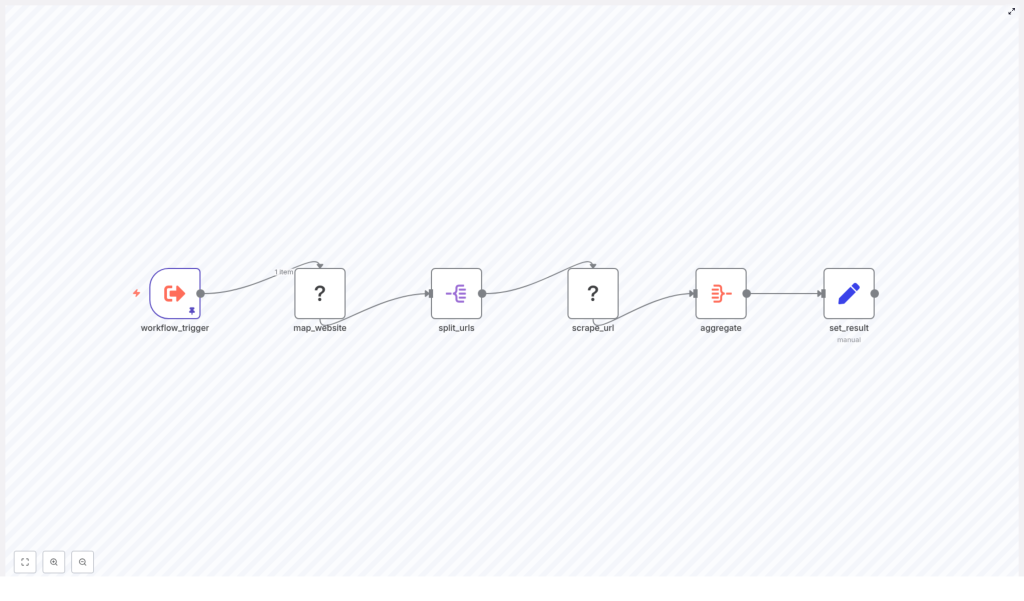
This ready-made n8n workflow uses six nodes in a simple sequence to:
- Accept a starting website URL
- Map the website to discover internal links
- Split those links into individual items
- Scrape each URL and grab the content as Markdown
- Aggregate all scraped pages into one collection
- Format everything into a final, joined Markdown result
You end up with a single output field that contains your scraped website content, separated with handy dividers so you can tell which page is which.
The workflow at a glance
Here is the high-level flow of the six nodes used in the template:
- workflow_trigger – kicks off the workflow and provides the starting website URL.
- map_website (Firecrawl) – crawls the site and collects links, with a configurable limit.
- split_urls – turns the array of links into individual items.
- scrape_url (Firecrawl) – scrapes each URL and returns the content in Markdown.
- aggregate – combines all scraped results into a single array or field.
- set_result – joins everything into one final Markdown string for downstream use.
Let us break down what each piece does and how to configure it without losing your sanity.
Node-by-node breakdown (with plain-language explanations)
1. workflow_trigger – where the journey starts
This node is the entry point of the workflow. It provides the initial data, including the URL you want to scrape.
In the template, the pinned input looks like this:
website_url: "http://mikeweed.com"You can change that to any site you want to scrape. The trigger itself is flexible:
- Run it manually while testing
- Trigger via webhook if you want external systems to start a scrape
- Schedule it to run regularly if you want ongoing monitoring
Think of this as the part where you tell the workflow, “Here is the site, go do your thing.”
2. map_website (Firecrawl – map) – collecting the links
Next up, the map_website node uses Firecrawl to discover internal links from your starting URL. This is your mini crawler.
Key settings in the template:
- url:
={{ $json.website_url }}
This tells Firecrawl to use the URL fromworkflow_triggeras the starting point. - limit:
5
Only discover up to 5 links. Perfect for testing so you do not accidentally crawl an entire 10,000-page site on your first run. - timeout:
30000 ms
Gives Firecrawl up to 30 seconds to do the mapping.
Helpful tips:
- Increase limit when you are ready for a full crawl.
- Use allowedDomains or URL patterns to keep the crawl focused on the right site or section.
- Always respect
robots.txtand the site’s terms of service.
This node is your “map the territory” step. Once it finishes, you have a list of links ready to be scraped.
3. split_urls (SplitOut) – one URL at a time
The split_urls node takes the list of links from map_website and breaks them into individual items. That way, each URL can be processed separately by the scraper.
Conceptually, it turns:
links: [url1, url2, url3]into three separate items, each with a single links value.
This is important because it lets n8n handle each page independently, whether you run them in parallel or sequentially.
4. scrape_url (Firecrawl – scrape) – grabbing the content
Now for the fun part: actually scraping the content.
The scrape_url node uses Firecrawl to fetch each URL and extract the page content. In this template, it targets $json.links from the previous node and is configured to return the content as Markdown.
Key scrape options to consider:
- Rendering: enable headless rendering if the site relies on JavaScript for content. Without it, you might get empty or partial pages.
- Headers: set a custom
User-Agentor cookies if the site behaves differently for bots or logged-in users. - Timeout and retries: increase the timeout for slow sites and add retry logic to handle temporary network hiccups.
The result is structured data, including a Markdown version of the page that is ideal for storage, analysis, or feeding into other automations.
5. aggregate – pulling it all together
After scraping each page, you probably do not want 50 separate results scattered around. That is where the aggregate node comes in.
Its job is to combine all the individual scraped items into a single field. In this template, it aggregates data.markdown into an output field named markdown.
So instead of one Markdown blob per page, you end up with a single collection of Markdown snippets that you can format or export however you like.
6. set_result – final formatting for downstream use
Last step: make the output human and machine friendly.
The set_result node uses a JavaScript expression to join the aggregated Markdown items into a single string and stores it in a field called scraped_website_result:
={{ $json.markdown.map(item => item).join("\n-----\n") }}This adds a ----- divider between each page’s content. You can:
- Change the separator to something else
- Keep it as a list instead of a single string
- Output JSON if that works better for your next integration
At this point, you have a clean, aggregated result that is ready to be stored, indexed, or processed by other tools.
Quick setup guide: from import to first scrape
Here is how to get the template running without a long setup saga.
- Import the template into n8n
Use the template link and bring the workflow into your n8n instance. - Open the
workflow_triggernode
Replace the sample URL (http://mikeweed.com) with the site you want to scrape:website_url: "https://your-target-site.com" - Check the
map_websitesettings
Keeplimit = 5for your first test run so you do not accidentally go on a full-site rampage. - Verify Firecrawl credentials
Make sure your Firecrawl credentials are configured correctly for both the map and scrape nodes. - Run the workflow manually
Execute the workflow from n8n. Once it finishes, inspect the finalscraped_website_resultfield in set_result. - Scale up once it works
When the test looks good, increase the link limit, tweak timeouts, and wire the result to your preferred storage or downstream system.
Practical configuration tips so you do not annoy servers (or yourself)
Before you turn this into a full-blown scraping machine, a few best practices will keep things smooth and polite.
- Start small
Keep thelimitlow, like 5, while testing. It is faster, safer, and easier to debug. - Add delays when needed
Insert a small delay between requests so you do not hammer the target server. Your future self and the site owner will both be grateful. - Use clear User-Agent headers
Set aUser-Agentthat identifies your bot or use a realistic browser UA if necessary. Being transparent is usually a good idea. - Respect robots and legality
Always checkrobots.txtand the site’s Terms of Service. Avoid scraping personal or copyrighted data without permission. - Plan for errors
Add catch nodes or conditionals for HTTP 4xx/5xx responses, and use retries for temporary network issues. - Think about pagination and discovery
For blogs, product lists, or changelogs, extend your mapping logic to follow pagination links so you do not miss half the content.
Scaling and storing your scraped content
Once the basic web scraping pipeline is running smoothly, you can plug the output into other tools or storage systems.
- File storage
Save aggregated Markdown to Google Drive, S3, or any object storage for archiving and backup. - Databases and spreadsheets
Insert structured content into Airtable, PostgreSQL, or Google Sheets for analysis, reporting, or dashboards. - Downstream processing
Feed the scraped content into:- Summary generators or LLM-based tools
- Alerting systems
- Search indexes or internal knowledge bases
The template gives you clean Markdown, which is flexible enough to plug into almost any workflow.
Troubleshooting: when the scraper misbehaves
Even with automation, stuff breaks sometimes. Here is how to handle common issues.
- Empty links or no results
Check the map_website settings. Make sure:- The domain actually allows crawling
- Rendering is enabled if the content is loaded via JavaScript
- Timeouts
Increase the Firecrawl timeout value or reduce concurrency. Some sites are just slow and need extra patience. - 403, Cloudflare, or bot blocks
Consider:- Adding appropriate headers or cookies
- Using a proxy or VPN, but only if it is allowed by the site’s terms
- Malformed Markdown
Inspect the scrape_url response fields. If Firecrawl is returning HTML or JSON instead of Markdown, adjust its configuration or your extraction logic.
Example use cases for this n8n scraping template
Once you have this set up, there are lots of practical ways to use it, as long as you stay within legal and ethical boundaries.
- Archiving blog posts from a site for internal research or knowledge bases (respect copyright)
- Monitoring public changelogs and release notes for product intelligence
- Extracting public event details or press releases to automatically populate a calendar or CRM
If you are repeating the same manual copy-paste task more than twice, this workflow is probably a good candidate.
Security and compliance: scrape responsibly
Automation is powerful, which means it is also easy to misuse. A few non-negotiables:
- Always check
robots.txtand the site’s Terms of Service before scraping. - Respect rate limits and avoid aggressive crawling that could overload the website.
- Do not scrape personal or sensitive data unless you have explicit permission and a valid legal basis.
Responsible scraping keeps you out of trouble and helps maintain a healthier web ecosystem.
Next steps: from test crawl to full workflow
Ready to put this into action?
- Import the template into your n8n instance.
- Update the
workflow_triggernode with your starting URL. - Run a small test with
limit = 5inmap_website. - Validate the
scraped_website_resultoutput. - Scale up, add error handling, and connect the output to storage or other tools.
If you need something more advanced, like scheduled runs, multi-page pagination logic, or direct integration with Airtable or Google Sheets, you can extend this workflow or ask for a custom build.
Want this exact template configured for your site? Click below to request help or a free review of your scraping setup and use cases.
Happy scraping, and may your days of manual copy-paste be officially behind you.
