


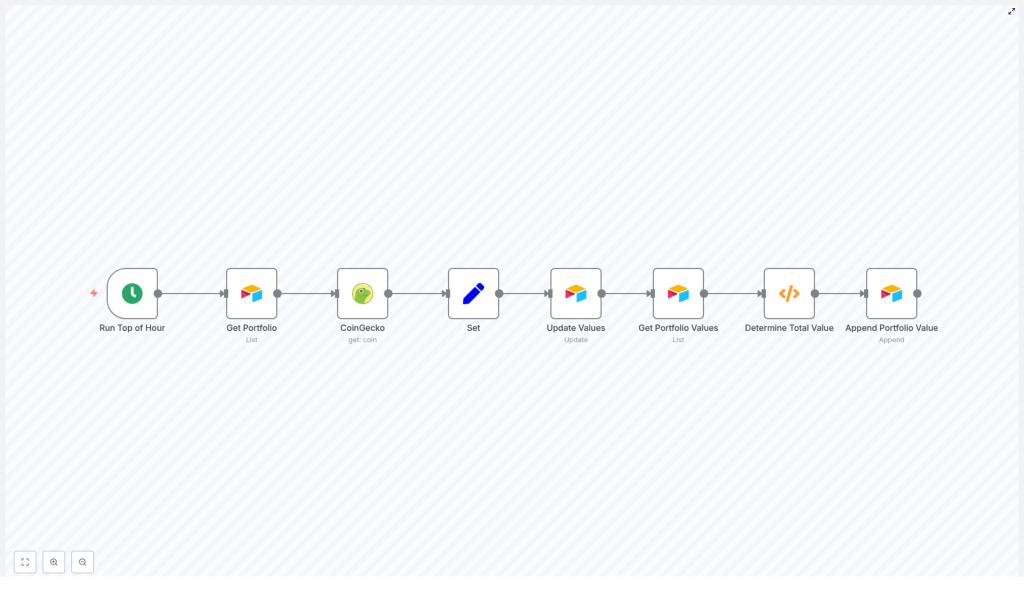
Tracking your crypto portfolio by hand gets old pretty fast, right? Prices move all the time, spreadsheets get messy, and before you know it, your “quick check” turns into a 30-minute chore.
If you are using Airtable to track your coins, there is a much easier way. With n8n, the CoinGecko API, and a simple workflow template, you can have your portfolio prices update automatically every hour and keep a running history of your total portfolio value.
Let’s walk through how this n8n workflow template works, when to use it, and how to set it up, step by step, without any drama.
What this n8n workflow does for you
At a high level, this workflow connects three things you probably already use or at least know about:
- n8n – your automation engine
- Airtable – where your portfolio lives
- CoinGecko – where you get live crypto prices
Every hour, the workflow quietly runs in the background and:
- Reads your list of coins from an Airtable Portfolio table
- Fetches the latest prices from CoinGecko
- Updates each coin row in Airtable with the current price
- Calculates the total value of your portfolio
- Stores that total in a separate Portfolio Value table so you build a history over time
So instead of manually refreshing prices or copying data from websites, you open Airtable and everything is already up to date. Simple.
When this template is a perfect fit
This workflow is ideal if:
- You track your crypto holdings in Airtable already, or you are happy to move them there
- You want hourly price updates without touching anything manually
- You care about historical portfolio values for charts, analytics, or just curiosity
- You are comfortable with basic n8n concepts like nodes and credentials
It is not trying to be a full-blown trading bot. It is a clean, reliable way to keep your portfolio data fresh and ready for reporting, dashboards, or deeper analysis.
What you need before you start
To use this n8n crypto portfolio template, make sure you have these basics covered:
- n8n instance
Either self-hosted or an n8n.cloud account. - Airtable setup
An Airtable base with two tables:- Portfolio – one row per coin
- Portfolio Value – where total portfolio values will be logged over time
- CoinGecko access
You will use the CoinGecko node in n8n. For public endpoints, you do not need an API key. - Basic n8n familiarity
Comfortable with nodes like:- Cron
- Airtable
- HTTP / CoinGecko
- Set
- Function
- SplitInBatches (optional but recommended for larger portfolios)
How the workflow is structured
Let us break down the main building blocks so you know exactly what is happening under the hood.
1. Cron – run every hour on the hour
Node: Run Top of Hour (Cron)
This node is the trigger. It schedules the workflow to run every hour. You can adjust the schedule if you prefer a different frequency, but hourly is a nice balance between freshness and API limits.
2. Get your portfolio from Airtable
Node: Get Portfolio (Airtable – list)
This node reads all rows from your Portfolio table in Airtable. Each row should represent one coin that you hold. Make sure each record includes:
Symbol– matches the CoinGeckocoinId(for examplebitcoin,ethereum)- A field for quantity or a pre-calculated present value
These fields are what the rest of the workflow uses to look up prices and calculate your totals.
3. Handle large portfolios with batches (optional but important)
If you only have a few coins, you can technically call CoinGecko directly for each one. But if your portfolio is bigger, it is safer to process records in chunks so you do not hit API rate limits.
This is where the SplitInBatches node comes in.
- Get Portfolio (list) – fetch all records
- SplitInBatches – process, for example, 10 records at a time
- CoinGecko – get prices for the current batch item
- Update Values (Airtable – update) – update that item in Airtable
- Loop back to SplitInBatches until all items are processed
The provided workflow template assumes you are using SplitInBatches, since the Update Values node references $node["SplitInBatches"].json["id"]. If you skip batching, you will want to adjust that reference to match the actual node that outputs the Airtable record ID (often the Set node described below).
4. Fetch live prices from CoinGecko
Node: CoinGecko (get)
For each coin, the CoinGecko node looks up market data by coinId. Here is how to configure it correctly:
- Set coinId to use the Symbol field from Airtable
- Enable
market_data - Disable localization so you get a clean
market_data.current_price.usdvalue
This gives you the current USD price for each coin, which you will then write back into Airtable.
5. Map the data with a Set node
Node: Set
The Set node acts like a little adapter. It takes the data from CoinGecko and from Airtable, and picks out exactly what the next node needs:
- The Airtable record id
- The current USD price from
market_data.current_price.usd
You will use these values to update the right record in Airtable with the right price.
6. Update each coin row in Airtable
Node: Update Values (Airtable – update)
This node writes the latest price back into your Portfolio table. It updates the Present Price field for the correct record using the ID passed from the previous node.
Once this runs for each coin, your Portfolio table will always show the current price per coin.
7. Read all present values from Airtable
Node: Get Portfolio Values (Airtable – list)
After individual prices are updated, the workflow needs to know the total portfolio value. To do that, it reads all rows again and pulls the Present Value field from each record.
The Present Value field should represent the current value of your position in each coin, usually:
quantity * Present Price
You can calculate this in Airtable itself (for example with a formula field), or pre-populate the values through another process. The workflow just reads whatever is in that field.
8. Sum the portfolio value with a Function node
Node: Determine Total Value (Function)
This node takes all the rows returned by Get Portfolio Values and adds up the Present Value field to get your total portfolio value in USD.
Here is a safe JavaScript snippet you can paste directly into that Function node:
const rows = items;
let total = 0;

for (const row of rows) {  const value = row.json.fields && row.json.fields['Present Value'];  const num = Number(value) || 0;  total += num;
}

return [{ json: { 'Portfolio Value (US$)': total } }];
This code:
- Treats missing or non-numeric values as zero
- Prevents the workflow from failing if one row is messy
- Outputs a single item with a field called
Portfolio Value (US$)
9. Append the total to a historical table
Node: Append Portfolio Value (Airtable – append)
Finally, the workflow writes the computed total into your Portfolio Value table in Airtable. Each run creates a new record, typically with:
- The total Portfolio Value (US$)
- Any timestamp field you add on the Airtable side (highly recommended)
Over time, this builds a neat history of your portfolio value that you can chart, analyze, or send to other tools.
How to structure your Airtable fields
For everything to connect smoothly, field names in Airtable matter. In your Portfolio table, create at least these fields with exactly these names:
- Symbol
Short text, matching the CoinGeckocoinId, for example:bitcoinethereum
- Present Price
Number field that n8n updates with the live price. - Present Value
Number field that holdsquantity * Present Price. This can be:- A formula field in Airtable, or
- A value you fill in via another workflow or manually
In your Portfolio Value table, you will at least want a field to store Portfolio Value (US$), plus any timestamp or metadata fields you find useful.
Staying within CoinGecko and Airtable limits
APIs are powerful, but they also have limits. To keep your workflow healthy:
- Use SplitInBatches if you have many coins, so you do not hammer CoinGecko with too many requests at once.
- Respect CoinGecko rate limits. If multiple rows share the same symbol, you can even cache or reuse results within a run instead of calling the API repeatedly.
- Remember Airtable limits. Airtable also has API rate limits, so batching or pacing updates is a good idea.
- Store credentials securely. Keep your Airtable API key inside n8n Credentials, not in plain text fields in the workflow.
Error handling and retries that save you headaches
Things go wrong sometimes: network blips, API hiccups, temporary rate limits. You can make your workflow much more robust with a bit of error handling:
- Enable retries on nodes that call external services, especially CoinGecko and Airtable.
- Add error branches in the n8n canvas to catch failures and handle them gracefully.
- Log errors to a dedicated Airtable table, or send alerts to Slack or email when something breaks.
That way, you do not silently lose data if one run fails. You will know about it and can fix things quickly.
Test the workflow before turning on Cron
Before you let this run every hour, it is worth doing a quick sanity check with a small sample of your portfolio. Manually trigger the workflow and verify that:
- The CoinGecko node returns a valid
market_data.current_price.usdvalue for each symbol. - Airtable rows in the Portfolio table get updated with the correct Present Price.
- Your Present Value column reflects the correct numbers after the price update.
- The Determine Total Value Function node outputs the right sum.
- The Append Portfolio Value node writes a new record into your Portfolio Value table.
Once everything looks good, enable the Cron node and let it run on its own.
Ideas to extend and improve the workflow
Once you have the basics working, it is very easy to level this up. A few ideas:
- Multi-currency support
Pull additional data from CoinGecko or use a currency conversion API so you can track values in multiple fiat currencies or in BTC/ETH terms. - Alerts for big moves
Calculate percentage changes and trigger Slack, email, or SMS alerts when a coin moves beyond a certain threshold. - Better security
Use a Workflow Credentials vault and secure tokens for Airtable, especially if you are running n8n self-hosted.
Log price and timestamp directly on each Portfolio row or in a related table to build a detailed price history for every coin.
Notes on the sample workflow JSON
If you are starting from an exported workflow JSON, you will probably see all the key building blocks in place already:
- Cron trigger
- Airtable list operations
- CoinGecko lookup
- Set node to map price and record ID
- Airtable update node
- Function node to total values
One important tweak: make sure you have a SplitInBatches node between Get Portfolio and CoinGecko if you expect more than a few records, and confirm that the Update Values Airtable node is using the correct incoming ID field, usually from the Set node or SplitInBatches node, depending on how you wire it.
Why this saves you so much time
Once this is in place, you do not have to:
- Manually check prices on websites
- Copy and paste values into Airtable
- Recalculate totals or track your portfolio history by hand
You just open Airtable and see:
- Up-to-date prices for each coin
- Current value of each position
- A growing history of your portfolio value over time
It is the kind of automation that quietly runs in the background and keeps your data clean, accurate, and ready for whatever you want to build on top of it: dashboards, charts, reports, or further n8n workflows.
Try the template and make it your own
If you like the idea of never manually updating your crypto prices again, this template is a great starting point. You can:
- Import the workflow JSON and plug in your Airtable base
- Adjust the Cron schedule if you want more or less frequent updates
- Add your own logic for alerts, charts, or multi-currency totals
If you want, I can:
- Provide a ready-to-import n8
