

Import Spreadsheet to Postgres with n8n (Automated Workflow)
Picture this: it is 11:58 p.m., your spreadsheet has 4,000 rows, and you are still copy-pasting data into your PostgreSQL table like it is 2005. Your eyes hurt, your coffee is cold, and one wrong paste could ruin tomorrow’s reports.
Or, you could let an n8n workflow quietly wake up at midnight, read your spreadsheet, load everything into Postgres, and politely ping Slack when it is done. No drama, no late-night copy-paste marathons.
In this guide, you will learn how to set up an automated n8n workflow that:
- Runs on a schedule
- Reads an Excel or CSV file
- Parses each row into structured JSON
- Inserts or updates rows in a PostgreSQL
producttable - Notifies a Slack channel when the import finishes
We will walk through what the template does, how to configure it, and some tips to keep your ETL pipeline fast, safe, and pleasantly boring.
Why bother automating spreadsheet imports?
Spreadsheets are still the universal language of “can you please update this by EOD.” Sales, inventory, product data, pricing, you name it, it is probably living in a sheet somewhere.
Turning that into an automated n8n workflow gives you:
- Consistent, repeatable imports on a schedule, no human required
- Fewer manual errors, because robots do not mis-click cells
- Easy integration with analytics, inventory, or ERP systems downstream
- Centralized error handling and notifications so problems do not stay hidden
In short, you trade “Did I import the latest version?” for “n8n has it covered.”
What this n8n workflow template actually does
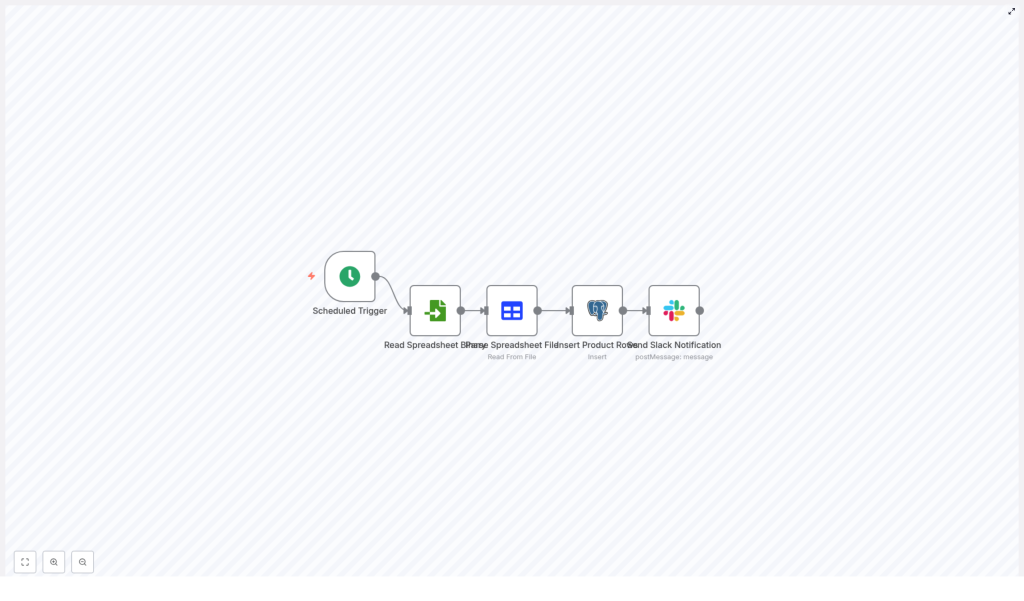
The template is a straightforward ETL-style automation. It pulls data from a spreadsheet and lands it in a Postgres table, then tells Slack about it. The workflow uses five nodes in a simple linear sequence:
- Scheduled Trigger – runs on a cron schedule, for example daily at midnight (
0 0 * * *). - Read Spreadsheet Binary – loads the spreadsheet file from disk or a mounted location.
- Parse Spreadsheet File – converts the file into JSON rows that n8n can work with.
- Insert Product Rows (Postgres) – inserts or updates records in the
producttable. - Send Slack Notification – posts a message in Slack when the import is done.
That is it. No manual imports, no “final_final_v3_really_final.xlsx” confusion. Just a predictable pipeline.
Before you start: prerequisites
You only need a few pieces in place to use this n8n template effectively:
- n8n instance, either self-hosted or n8n cloud, with access to the file and database.
- PostgreSQL database that has a
producttable with columns likenameandean. - Spreadsheet file in Excel or CSV format that n8n can reach, for example via a local path, mounted volume, S3, or another storage provider. The example uses a direct file path.
- Slack workspace and app token with permission to post messages to a channel.
Quick-start: how to set up the template
Let us walk through the workflow step by step so you can tweak it for your own setup. We will follow the actual execution order: trigger, read, parse, insert, notify.
1. Schedule the workflow with a Cron Trigger
First, add a Cron Trigger node. This is what turns “I will run it later” into “it just runs.”
For a daily midnight import, use this cron expression:
0 0 * * *You can change the schedule to match your use case:
- Every hour for more frequent syncs
- Once a week for slower-changing data
- Any custom cron interval your ops team loves to argue about
2. Read the spreadsheet as binary data
Next, add a Read Binary File node. This node grabs the spreadsheet file and passes it along as binary data.
Configure:
- File path to your spreadsheet, for example
spreadsheet.xlsor an absolute path.
If your file lives in cloud storage like S3 or Google Drive, you can swap this node for the matching storage node instead. The key idea is the same: the node outputs the file as binary so the next node can parse it.
Make sure:
- The n8n process can reach that path
- File permissions allow read access
3. Parse the spreadsheet into JSON rows
Now add a Spreadsheet File node. This is where the binary file turns into useful JSON objects, one per row.
Configure the node to:
- Select the correct sheet if your workbook has multiple sheets
- Set the header row if your spreadsheet has column names at the top
A typical output item for a row might look like:
{  "name": "Sample Product",  "ean": "1234567890123"
}
Each of these JSON objects will be passed to the Postgres node so it can map fields to table columns.
4. Insert spreadsheet rows into Postgres
Time to land the data in your database. Add a Postgres node that connects to your PostgreSQL instance and writes to the product table.
In the simple template version, the node is configured with:
{  "table": "product",  "columns": "name,ean"
}
The Postgres node takes incoming JSON rows and maps the fields to the specified columns. So name in the JSON goes into name in the table, and so on.
If you want more control, switch the node to Execute Query mode and use parameterized SQL, for example:
INSERT INTO product (name, ean)
VALUES ($1, $2)
ON CONFLICT (ean) DO UPDATE SET name = EXCLUDED.name;
Then map the incoming fields to the query parameters:
$1→{{$json["name"]}}$2→{{$json["ean"]}}
The ON CONFLICT (ean) clause is your safety net. It prevents duplicate EANs from crashing the import by updating the existing row instead of inserting a new one.
5. Send a Slack notification when the import finishes
Finally, add a Slack node so you and your team know the job is done without having to check logs or dashboards.
A simple message template might look like:
Spreadsheet import completed successfully. Rows inserted: {{$json["insertedRowsCount"]}}You can extend the workflow to calculate:
- Total rows processed
- Number of errors or skipped rows
- File name and timestamp
Then include those details in the Slack message so stakeholders can react quickly if something looks off.
Making the workflow robust: errors, validation, and performance
A basic import is great until the first broken row, missing column, or surprise file format shows up. Here is how to make the workflow resilient without turning it into a monster.
Handling errors and retries in n8n
Automation is only relaxing when you trust it. n8n gives you several tools to manage failures:
- Use an Execute Workflow node on error to route failures to a dedicated recovery workflow. That workflow might log details, send alerts, or attempt a retry.
- Enable Continue On Fail on non-critical nodes when you prefer “import what you can” over “fail the whole job.”
- Add an IF node to inspect responses and, if something looks wrong, trigger a Slack or Email node with a clear error message.
- Log errors to a separate database table for long-term auditing and debugging.
Data validation and transformation before Postgres
Spreadsheets are friendly to humans, not always to databases. Before inserting rows, it is smart to clean and validate the data.
- Trim whitespace and normalize text cases where appropriate.
- Validate EAN or UPC values with a regex or checksum to avoid junk IDs.
- Convert numeric strings to integers or decimals so Postgres does not complain.
- Drop blank or incomplete rows using an IF node or a Function node.
For example, a Function node that filters out rows missing name or ean could look like:
return items.filter(item => item.json.name && item.json.ean);
Performance and scaling tips
If your spreadsheets are small, you can probably skip this section. If they are not, your future self will appreciate some tuning:
- Batch inserts: For thousands of rows, use multi-row INSERTs or COPY-style operations instead of one row at a time.
- Connection pooling: Make sure your Postgres connections are pooled so the workflow does not exhaust database connections under load.
- Heavy transforms outside n8n: If you are doing complex calculations, consider pre-processing with a script or serverless function before n8n handles the import.
- Monitor runtime: Track how long the job takes and set alerts if it suddenly starts running much longer than usual.
Security best practices
Even if this is “just an import,” it still touches your database and Slack, so treat credentials carefully.
- Store Postgres credentials and Slack tokens in n8n Credentials or environment variables, not directly in node fields as plain text.
- Use a database user with only the permissions the workflow needs, for example INSERT and UPDATE on the target table, not superuser.
- Enable TLS for Postgres connections where supported so your data is encrypted in transit.
Concrete example: template configuration at a glance
To recap, here is how the example workflow template is configured:
- Scheduled Trigger –
cronExpression: 0 0 * * *(daily at midnight) - Read Spreadsheet Binary –
filePath: spreadsheet.xls - Parse Spreadsheet File – uses the default sheet and header row configuration
- Insert Product Rows (Postgres) –
table: product,columns: name,ean, with your Postgres credentials - Send Slack Notification – posts to
#generalwith a message like “Spreadsheet import completed successfully.”
Testing, validation, and troubleshooting
Before you trust this workflow with production data, give it a safe test run or two.
Testing checklist
- Run the workflow manually using a small test spreadsheet.
- Verify that the expected rows appear correctly in the Postgres
producttable. - Confirm that the Slack notification arrives with the right context or row counts.
- Try edge cases like an empty file, missing columns, or duplicate EANs and see how the workflow behaves.
Common issues and how to fix them
- File not found: Double-check the file path, make sure n8n is running in the same environment that can see that path, and verify file permissions.
- Parse errors: Confirm that the spreadsheet has a header row or configure explicit column mappings in the Spreadsheet File node.
- Database constraint violations: Inspect the Postgres logs and adjust your INSERT logic, for example by adding an
ON CONFLICTclause as shown above. - Slack authentication errors: Check that the app token and channel ID are correct and that the Slack app is installed in the right workspace with permission to post.
Leveling up: next steps and enhancements
Once the basic import is running smoothly, you can gradually turn this into a more complete ETL setup.
- File versioning and archiving: Move processed files to an archive folder or bucket so you know exactly what was imported and when.
- Import metadata: Store file name, timestamp, and row counts in a separate audit table for reporting and debugging.
- Status dashboard: Build a lightweight dashboard or report that shows last run status, failures, and row counts, so non-technical stakeholders can keep an eye on imports.
- Multi-sheet and multi-format support: Extend the workflow to handle multiple sheets or dynamically choose file formats when your data sources grow more complex.
Conclusion: let n8n do the boring bits
Using n8n to import spreadsheets into PostgreSQL turns a repetitive, error-prone chore into a predictable background job. With just a few nodes – a scheduler, file reader, parser, Postgres inserter, and Slack notifier – you get a reliable ETL pipeline that:
- Runs automatically on a schedule
- Keeps your database in sync with spreadsheet updates
- Provides clear, auditable results and notifications
Your team spends less time wrestling with CSVs and more time using the data.

