

Automate Lemlist Replies with n8n, OpenAI & HubSpot
Every reply to your outreach is a tiny fork in the road. Is it a hot lead, a polite unsubscribe, an out-of-office, or something that needs a human touch? When you are juggling dozens or hundreds of conversations, manually sorting these messages is not just tedious, it quietly drains focus from the work that really grows your business.
This guide is your invitation to step out of that cycle. You will walk through an n8n workflow template that connects Lemlist, OpenAI, HubSpot and Slack, so every inbound reply automatically turns into the right action. Unsubscribe requests are removed, interested leads become deals, out-of-office replies schedule future follow-ups, and everything else gets routed to your team.
Think of this workflow as a foundation. Once it is in place, you can keep building, experimenting and refining until your reply handling is almost entirely self-driving.
The problem: reply chaos and missed opportunities
Manual triage of Lemlist replies might feel manageable at first. You skim your inbox, tag a few leads, copy email addresses into your CRM, and set reminders to follow up. But as campaigns grow, this process becomes fragile.
- Valuable replies get buried under out-of-office messages.
- Unsubscribe requests slip through, hurting your sender reputation.
- Sales reps spend time sorting instead of selling.
- Response latency increases, and warm leads cool off.
This is not a tooling problem, it is a workflow problem. The good news is that workflows can change. With automation, you can turn reply chaos into a predictable, repeatable system that keeps your pipeline clean and your team focused on the highest leverage tasks.
The mindset shift: from inbox firefighter to system builder
Before we dive into nodes and configuration, it helps to approach this template with the right mindset. You are not just “hooking up a few tools”. You are designing a small but powerful system that:
- Protects your time by handling repetitive work automatically.
- Protects your leads by making sure none are forgotten.
- Scales with you as your outreach volume grows.
n8n gives you the flexibility to start small and improve over time. You do not need a perfect setup on day one. You can begin with this template, observe how it behaves, and then iteratively refine prompts, routing rules and CRM mappings as your needs evolve.
The promise: what this n8n Lemlist reply workflow does for you
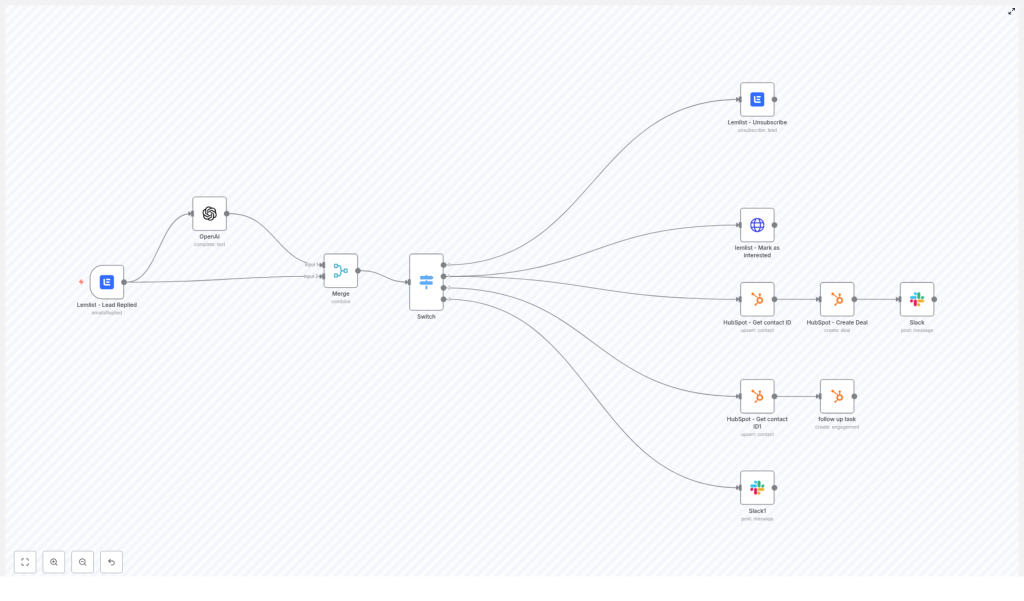
This n8n workflow is designed to turn every Lemlist reply into a clear, automated outcome. At a high level, it:
- Listens for
emailsRepliedevents from Lemlist via webhook. - Sends the reply text to OpenAI to classify it into one of four categories:
- interested
- Out of Office
- unsubscribe
- other
- Merges the classification with the original Lemlist payload.
- Uses a Switch node to route each reply to the correct branch.
- Executes targeted actions in Lemlist, HubSpot and Slack based on the classification.
The result is a repeatable engine: inbound reply in, appropriate action out. You still stay in control, but the heavy lifting happens automatically in the background.
What you need before you start
To follow this journey and deploy the template, make sure you have:
- An n8n instance (cloud or self-hosted).
- A Lemlist account and API key.
- An OpenAI API key (or another compatible LLM endpoint).
- A HubSpot account with OAuth credentials set up.
- A Slack workspace and channel, plus either a Slack app token or an incoming webhook.
With these pieces in place, you are ready to connect everything in n8n and let the workflow start saving you time from the moment the first reply arrives.
Step 1: Capture replies from Lemlist in real time
Lemlist – Lead Replied (Trigger)
Your journey starts at the moment a contact hits “Reply”. You capture that moment using the Lemlist trigger node in n8n.
Configure the node to listen to the emailsReplied event and connect it to the webhook URL that n8n provides. In Lemlist, set up the webhook so that every reply sends a payload to n8n. This payload typically includes:
leadEmailcampaignIdtext(the reply body)teamId- Additional metadata that will be useful downstream
Once this trigger is active, you no longer have to “go check” for replies. n8n listens for you and kicks off the workflow instantly.
Step 2: Let OpenAI classify replies for you
OpenAI (classification)
Instead of manually reading every reply to decide what it means, you can let an LLM do that classification work. In n8n, add an OpenAI node and pass in the cleaned reply text from Lemlist.
Use a completion or chat endpoint with a simple, deterministic prompt. For classification, you want predictable output, not creativity, so keep the configuration tight:
// Example prompt (pseudo)
Categories=["interested","Out of office","unsubscribe","other"]
"""
{{$json["text"].replaceAll(/^\s+|\s+$/g, '').replace(/(\r\n|\n|\r)/gm, "")}}
"""
Category:
Recommended settings:
- max tokens: small, typically 4 to 8.
- temperature: 0 for deterministic behavior.
The goal is a clean, single-word response like "interested" or "unsubscribe". This becomes the key that unlocks the rest of your automation.
Step 3: Merge data and route replies with intention
Merge node
After classification, you want all relevant data in one place so you can make routing decisions easily. Use a Merge node to combine:
- The original Lemlist webhook payload.
- The classification result from OpenAI.
This gives you a single JSON object that contains both the reply context and the AI-generated category. It keeps the workflow tidy and makes it easy to access fields in later nodes.
Switch node (routing)
Next, add a Switch node that inspects the classification value from the merged data. You can map the classification text to specific outputs, for example:
Rules:
- "Unsubscribe" => output 0
- "Interested" => output 1
- "Out of Office" => output 2
- fallback => output 3 (other)
Each output represents a different path in your workflow. This is where you transform a single category label into tailored actions across Lemlist, HubSpot and Slack.
Step 4: Turn each reply type into meaningful action
Branch 1: Unsubscribe and clean up your campaigns
When a reply is classified as unsubscribe, your workflow should respect that request immediately and keep your campaigns healthy.
- Use a Lemlist node with the unsubscribe operation.
- Pass in the
leadEmailandcampaignIdfrom the webhook payload.
This automatic cleanup protects your sender reputation, keeps your lists accurate and shows respect for your contacts without adding any manual work.
Branch 2: Interested leads become HubSpot deals
When a reply is classified as interested, that is your moment of opportunity. The workflow helps you capitalize on it fast.
- Send an HTTP POST to the Lemlist “interested” endpoint, or use the Lemlist node if available, to mark the lead as interested directly in Lemlist.
- In HubSpot, use “Get contact by email” with upsert behavior:
- Map fields such as
email,firstNameandlastName. - Use the returned contact ID or canonical-vid as the anchor for future actions.
- Map fields such as
- Create a HubSpot Deal associated with that contact:
- Set the stage to the appropriate pipeline step for new interested leads.
- Include relevant metadata from the Lemlist campaign if helpful.
- Post a Slack notification to your chosen channel that includes:
- Key lead details.
- A direct link to the HubSpot deal so your team can jump in quickly.
With this branch in place, your team stops chasing inbox threads and starts engaging with qualified, ready-to-talk prospects as soon as they raise their hand.
Branch 3: Out-of-office replies become future follow-ups
Out-of-office messages are often ignored, yet they are a clear signal to try again later. You can turn them into structured follow-ups with a small amount of automation.
- Upsert the contact in HubSpot, again using email and mapping first and last name.
- Create an engagement (task) in HubSpot, for example:
- Task subject:
OOO - Follow up with [first last]. - Assign it to the appropriate owner or team.
- Optionally set a due date based on the OOO message content or your standard cadence.
- Task subject:
Instead of disappearing into your inbox, every out-of-office reply becomes a clear reminder to reconnect, helping you maintain momentum without mental overhead.
Branch 4: “Other” replies get human attention via Slack
Not every reply fits neatly into a category. For anything that lands in the other bucket, you can route it to a human for review.
- Send a Slack message to a dedicated channel for manual triage.
- Include:
- A snippet of the reply text.
- The lead email and campaign information.
- A link to the Lemlist campaign or report so your team can respond quickly.
This branch keeps your automation safe. Ambiguous or nuanced messages still receive human judgment, while routine patterns are handled automatically.
Designing a reliable classifier: tips that keep your system trustworthy
Write deterministic prompts
For automated routing, clarity is everything. Keep your OpenAI prompt short and unambiguous. Use:
- Explicit category lists.
- Temperature 0.
- Small
maxTokensvalues.
If needed, add a few examples inside the prompt to show the model exactly how to respond. Often, a concise instruction is enough, but you can iterate as you see edge cases.
Reduce false positives with real-world testing
Once your classifier is in place, test it with real replies from your own campaigns, such as:
- Clear positive responses.
- Polite declines.
- Meeting requests.
- Different styles of out-of-office messages.
If you notice misclassifications, refine your prompt or even introduce a fifth category for ambiguous replies that should always go to manual triage. The goal is not perfection on day one, it is progressive improvement.
Handle rate limits and retries gracefully
As your automation scales, you will hit API limits sooner or later. Plan for that from the start:
- Respect rate limits for Lemlist, HubSpot and OpenAI.
- Use n8n retry logic where appropriate.
- Send errors or repeated failures to a monitoring Slack channel so you can investigate quickly.
This helps your system stay dependable even under heavy load.
Map data carefully in HubSpot
Accurate CRM data is the foundation for meaningful reporting and follow-up. When upserting to HubSpot:
- Always map
email,firstNameandlastNamewhere available. - Use the returned contact ID or canonical-vid when creating deals and tasks so everything stays linked.
A few extra minutes spent on clean mapping pay off later in smoother reporting and better handoffs between marketing and sales.
Keep credentials secure
Security is part of building a mature automation stack:
- Store all API keys in n8n credentials, never in plain text inside nodes.
- Limit HubSpot and Slack app permissions to only what this workflow actually needs.
This reduces risk while still giving you the power to automate at scale.
Testing your workflow: build confidence before going live
Before you trust the workflow with real leads, walk through each branch and validate the behavior.
- Use Lemlist to send test replies or mock the webhook payload directly in n8n.
- Confirm that:
- Unsubscribe replies remove leads from the correct Lemlist campaigns.
- Interested replies create or update a HubSpot contact, create a Deal and trigger a Slack notification.
- Out-of-office replies create a HubSpot task associated with the right contact.
- Other replies appear in your Slack triage channel with enough context to act.
This testing phase is where you fine-tune prompts, mappings and messages so the workflow feels like a natural extension of your existing process.
Scaling and evolving your automation
Once the basics are stable, you can start turning this simple classifier into a richer automation hub for your sales and outreach operations.
- Add sentiment scoring or intent extraction to enrich HubSpot records.
- Experiment with a dedicated classification model or fine-tuning for higher accuracy on your specific reply patterns.
- Feed workflow data into your BI tool to track:
- Reply-to-deal conversion rates.
- Automation coverage across campaigns.
- Time saved or response time improvements.
Every improvement compounds. As your automation grows, your team’s attention shifts more and more from “sorting” to “closing”.
Example n8n error handling pattern
No system is perfect, and that is fine as long as you see the problems. In n8n, you can add a catch node to capture any failed executions.
- Route failed payloads to:
- A dedicated Slack channel for quick investigation, or
- An S3 bucket or similar storage for later review.
This avoids silent failures and gives you a clear path to debug unexpected payloads or edge cases as they appear.
Bringing it all together
Automating Lemlist reply handling with n8n and OpenAI connects outreach, CRM and team communication into one cohesive system. Instead of hoping you will catch every important reply, you create a workflow that makes sure:
- No lead gets lost.
- Your Lemlist campaigns stay clean and compliant.
- Your sales reps spend more time in conversations and less time in spreadsheets and inboxes.
This template is not the final destination, it is a strong starting point. You can adapt it to your stack, add new categories, integrate other CRMs or expand notifications to more channels as your process matures.
Try it now: Deploy the workflow in your n8n instance, connect your Lemlist, OpenAI, HubSpot and Slack accounts, and start routing replies automatically. Treat it as an experiment, observe how it

