


Customer Feedback Sentiment Workflow: n8n + OpenAI + Google Sheets
Customer feedback is one of the most valuable data sources for product, support, and CX teams, yet it is often underutilized because analysis is manual and time-consuming. This n8n workflow template automates sentiment analysis at scale by sending form submissions to OpenAI, storing structured results in Google Sheets, and notifying teams via Slack.
This article provides a comprehensive, expert-level walkthrough of the workflow: its architecture, the key n8n nodes involved, how to configure each integration, and advanced customization options that align with automation best practices.
Business case: Why automate sentiment analysis in n8n
Collecting feedback is straightforward; operationalizing it is not. Automating sentiment analysis with n8n, OpenAI, and Google Sheets enables teams to:
- Distinguish positive, neutral, and negative feedback at scale without manual tagging
- Identify critical issues quickly and route them to the correct team or channel
- Monitor sentiment trends over time using spreadsheets or downstream BI tools
- Reduce manual classification work and accelerate response times for at-risk customers
By embedding this workflow into your feedback intake process, you create a continuous, low-friction loop from customer input to actionable intelligence.
Workflow overview and architecture
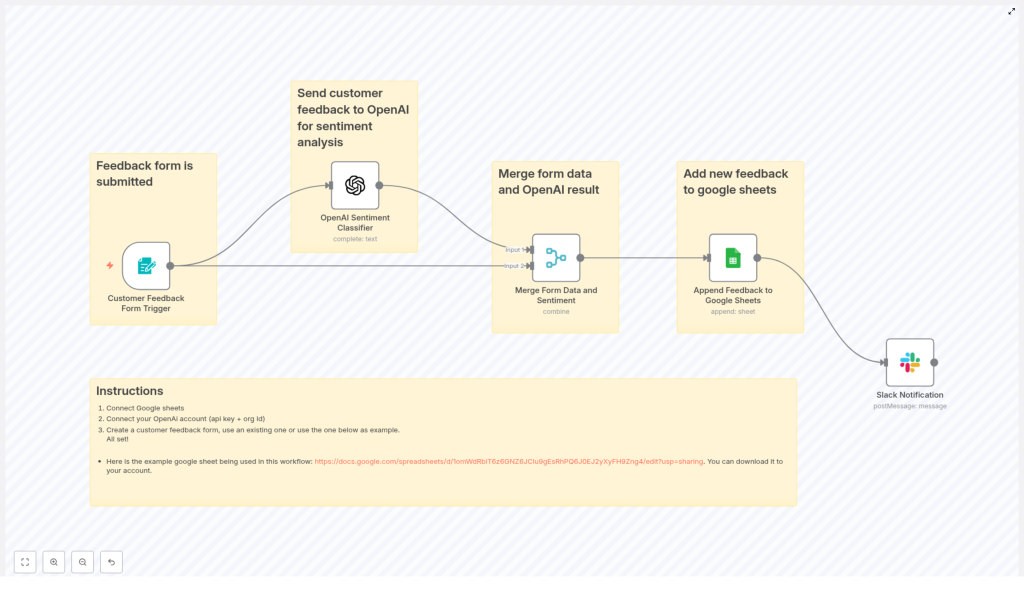
The Customer Feedback Sentiment Workflow template connects a customer feedback form to OpenAI, Google Sheets, and Slack in a single automated pipeline.
High-level flow
The end-to-end architecture follows this sequence:
Form Submission (n8n Form Trigger) → OpenAI Sentiment Classifier → Merge Data → Append to Google Sheets → Slack Notification
Each stage is implemented as an n8n node, which can be extended or replaced based on your stack and governance requirements.
Key nodes in the template
- formTrigger (Customer Feedback Form Trigger) – Captures incoming feedback from a form and initiates the workflow.
- openAi (OpenAI Sentiment Classifier) – Sends the feedback text to OpenAI and receives a sentiment classification.
- merge (Merge Form Data and Sentiment) – Combines the original form payload with the sentiment result into a single item.
- googleSheets (Append Feedback to Google Sheets) – Appends a new row containing all relevant fields to a target spreadsheet.
- slack (Slack Notification) – Publishes a notification to a Slack channel when new feedback is processed.
- StickyNote nodes – Provide in-workflow documentation and implementation notes for easier maintenance.
This modular design allows you to swap destinations (for example, from Google Sheets to a database) or add branching logic with minimal changes.
Step-by-step setup in n8n
The template is designed to be deployed in minutes. The following steps assume you already have an n8n instance running and basic familiarity with credential management.
1. Import the workflow template
- In n8n, open the workflow editor.
- Use Import from JSON and paste the template JSON content for the Customer Feedback Sentiment Workflow.
- Save the workflow with a meaningful name and enable it when configuration is complete.
2. Configure Google Sheets integration
Google Sheets acts as your structured feedback repository and analytics source.
- Create or identify a target spreadsheet that will store feedback records.
- In n8n, add a Google Sheets OAuth2 credential with access to that spreadsheet.
- Open the googleSheets node in the workflow and:
- Assign the OAuth2 credential you created.
- Replace the sample
documentIdwith the ID of your own sheet. - Verify or adjust the
sheetNameas needed.
3. Map columns for structured storage
Ensure the Google Sheets schema matches the fields produced by the workflow. A typical column layout is:
- Timestamp
- Category
- Sentiment
- Entered by
- Customer Name
- Contact
- Customer Feedback
In the googleSheets node, confirm that each mapped field aligns with these columns or your chosen schema. Consistent mapping is critical for downstream reporting and analytics.
4. Add and secure OpenAI credentials
The openAi node is responsible for sentiment classification.
- Create an OpenAI credential in n8n and:
- Provide your OpenAI API key.
- Optionally include an organization ID if required by your account.
- Attach this credential to the openAi node.
- Confirm the model and prompt configuration (details below) meet your accuracy and cost requirements.
5. Customize the customer feedback form
The workflow is triggered by a form submission via the formTrigger node (Customer Feedback Form Trigger). Configure it to match your existing or planned feedback form:
- Define fields such as:
- Name
- Category (for example, Bug, Feature Request, Billing)
- Your feedback (free-text field)
- Contact (email or other preferred channel)
- Adjust webhook settings if you connect an external form tool or embed n8n’s form endpoint.
Any changes to field names should be reflected in the OpenAI prompt and downstream mapping nodes.
6. Configure Slack notifications
To keep teams informed in real time, the slack node sends a message whenever new feedback is processed.
- Set up a Slack credential in n8n with the appropriate scopes.
- In the slack node:
- Specify the target channel name or channel ID.
- Customize the notification text to include key fields such as sentiment, category, and a short excerpt of the feedback.
7. Test the end-to-end workflow
Before enabling the workflow in production:
- Submit a test entry through the form trigger.
- Verify that:
- A new row is appended in Google Sheets with all expected fields.
- A Slack message appears in the configured channel.
- The sentiment output from OpenAI is correctly merged and displayed.
Once validated, enable the workflow and monitor initial runs to confirm stability and performance.
OpenAI prompt design and optimization
The default implementation uses a straightforward prompt to classify sentiment from the feedback text:
Classify the sentiment in the following customer feedback: {{ $json['Your feedback'] }}
While this works as a starting point, production-grade sentiment workflows benefit from more structured outputs and explicit instructions.
Best practices for sentiment prompts
- Return structured JSON – Ask the model to respond with a JSON object, for example:
{"sentiment":"positive|neutral|negative","score":0.92} - Standardize labels – Instruct the model to use consistent single-word labels such as Positive, Neutral, or Negative to simplify routing logic.
- Support multiple languages – If you receive feedback in several languages, include instructions for language detection or clarify that sentiment should be evaluated in the original language.
Example of an improved JSON prompt
Classify the sentiment of the following customer feedback. Return ONLY a JSON object with keys: sentiment (Positive|Neutral|Negative), score (0-1):

Feedback: "{{ $json['Your feedback'] }}"
Using this pattern makes it significantly easier to parse the response in n8n and map fields directly into Google Sheets or decision nodes.
Advanced customizations and extensions
Once the base workflow is operational, automation professionals can extend it to support more complex routing, analytics, and compliance requirements.
1. Urgency detection and routing
For high-impact feedback, route issues to specialized channels or ticketing systems. Common enhancements include:
- Detecting negative sentiment combined with critical keywords such as refund, broken, or unauthorized.
- Branching the workflow so that high-priority items:
- Trigger alerts in a dedicated Slack channel, or
- Create support tickets in tools like Jira or Zendesk.
This approach turns passive feedback collection into an active incident detection mechanism.
2. Embeddings for clustering and trend analysis
Beyond simple sentiment labels, you can use OpenAI embeddings to capture semantic meaning and cluster similar feedback entries. Typical use cases:
- Group related complaints to identify recurring product issues.
- Generate topic clusters for roadmap planning or release retrospectives.
- Feed embeddings into analytics pipelines for large-scale trend detection.
Store embeddings alongside the raw feedback in a database or data warehouse for downstream analysis.
3. Sentiment scoring for granular analytics
Instead of just categorical labels, instruct the model to return a numeric sentiment score, for example:
- Range from -1 to 1, where negative values indicate negative sentiment.
- Range from 0 to 100 for dashboards and executive summaries.
Numeric scores enable more nuanced trend lines and thresholds, such as triggering alerts when average sentiment drops below a defined level.
4. Anonymization and PII handling
If feedback may contain personally identifiable information, integrate privacy controls directly into the workflow:
- Add a preprocessing node that redacts or hashes names, emails, or IDs before writing to Google Sheets or sending data to external APIs.
- Store sensitive data in a restricted system while only non-identifiable context is used for sentiment analysis.
This pattern improves compliance with internal policies and regulatory requirements without sacrificing analytical value.
Operational best practices for this n8n workflow
To run this sentiment analysis pipeline reliably at scale, consider the following operational guidelines.
- Monitor OpenAI costs – High-volume feedback streams can generate significant API usage. Consider:
- Using lower-cost models where appropriate.
- Batching less critical submissions.
- Applying sampling for non-critical channels.
- Validate model outputs – Implement checks that confirm the response matches the expected format and labels. If parsing fails, fall back to a default value like Unknown or re-queue the item.
- Manage data retention – Large spreadsheets degrade over time:
- Archive older entries periodically to a separate sheet or external storage.
- Export long-term data to systems like BigQuery or a data warehouse for advanced analytics.
- Secure credentials – Use n8n’s credential store for all API keys and OAuth details:
- Restrict who can view or modify credentials.
- Avoid embedding keys directly in node parameters or shared templates.
Security and privacy considerations
Sending customer feedback to third-party services such as OpenAI requires careful handling of security and privacy.
- Minimize PII – Remove or mask personally identifiable information when possible before sending text to external APIs.
- Transparency – Update your privacy policy to inform customers that feedback may be processed by third-party services for analytics and quality improvement.
- Credential protection – Store all secrets in encrypted form within n8n and limit edit permissions on production workflows.
Aligning the workflow with your organization’s security standards ensures that automation does not compromise data protection.
Troubleshooting common issues
If the workflow does not behave as expected, start by checking the following areas:
- No rows added to Google Sheets – Confirm:
- Google Sheets credentials are valid and authorized.
- The
documentIdandsheetNameare correct. - Column mappings in the googleSheets node align with your actual sheet structure.
- OpenAI-related errors – Verify:
- The API key and organization ID (if used) are correct.
- The selected model is available and not rate-limited.
- The prompt is properly formatted and interpolated, especially the
{{ $json['Your feedback'] }}reference. - n8n logs for error messages from the OpenAI node.
- Missing Slack notifications – Check:
- Slack credentials and scopes are configured correctly.
- The channel name or ID is valid, and the app is invited to that channel.
- There are no conditional branches preventing the Slack node from executing.
Deploy this sentiment workflow in your stack
Automated sentiment analysis transforms unstructured customer feedback into a reliable operational signal. With this n8n template, you can:
- Capture feedback through a simple form trigger.
- Classify sentiment using OpenAI in real time.
- Persist structured results in Google Sheets for reporting.
- Alert teams via Slack when new feedback arrives.
To get started, import the Customer Feedback Sentiment Workflow into your n8n instance, connect Google Sheets, add your OpenAI API key, and run a few test submissions to validate the pipeline.
Call-to-action: Import the Customer Feedback Sentiment Workflow into n8n now, test it with a sample feedback submission, and subscribe to our newsletter to receive more advanced automation strategies, patterns, and n8n templates.
Template credit: n8nBazar – provided as an editable automation you can adapt to your specific requirements.
