


Icypeas Bulk Email Search with Google Sheets using n8n
The day Clara hit her limit
By 9:30 a.m., Clara already had a headache.
As the growth marketer at a fast‑moving B2B startup, she lived inside Google Sheets. Her sales team expected fresh contact lists every week, perfectly enriched with verified email addresses. Her tools were simple: a spreadsheet, a coffee mug, and a lot of copying and pasting into different email lookup tools.
It was slow, repetitive, and fragile. One wrong paste, one missed column, and a whole campaign could bounce.
On this particular morning, Clara stared at a sheet with hundreds of rows of leads: first names, last names, company names. She needed to run bulk email lookups, keep a record of what she had sent, and notify the team when the job was submitted. Doing this manually would burn her entire day.
There had to be a better way.
Discovering a different path: n8n and Icypeas
Clara had heard about n8n, an automation tool that could connect almost anything with anything. She also had an Icypeas account that she used occasionally for batch email search. What she did not have was a smooth bridge between her Google Sheet and Icypeas.
That changed when she found an n8n workflow template specifically built for Icypeas bulk email search with Google Sheets.
The promise was simple but powerful:
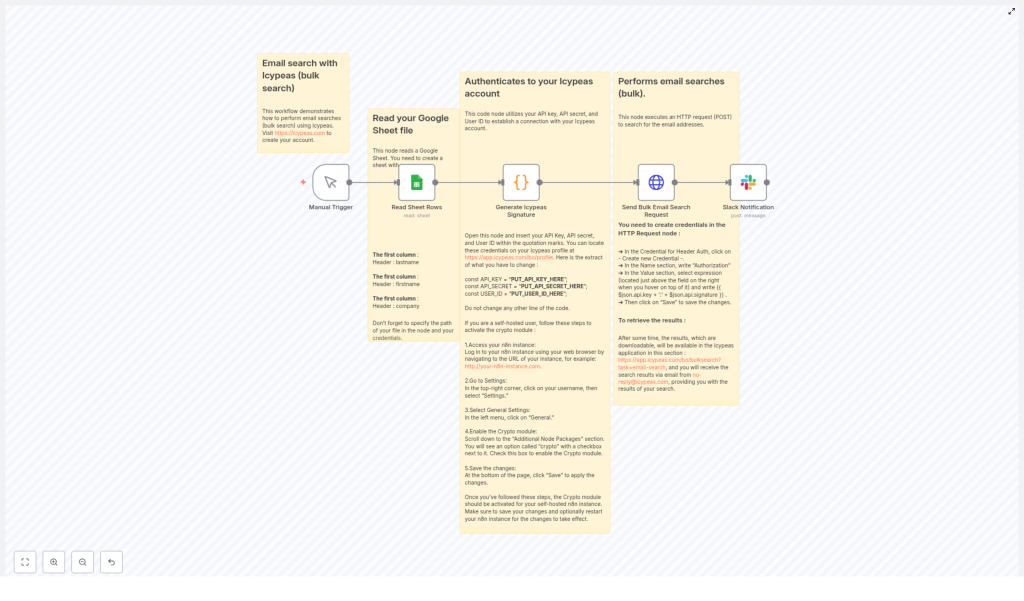
- Read contact rows from a Google Sheet
- Generate a secure HMAC signature for the Icypeas API
- Submit a bulk email search request to Icypeas in a single automated POST
- Send a Slack notification as soon as the job is submitted
- Let Icypeas process the job and deliver downloadable results via dashboard and email
If this worked, Clara could turn a painful, error‑prone routine into a repeatable workflow. So she decided to build the automation into her day.
Setting the stage: what Clara needed before she started
Before she could hit “Execute workflow,” Clara needed a few pieces in place. The template made it clear that she would need:
- An Icypeas account with:
- API Key
- API Secret
- User ID
All of these were available in her Icypeas profile.
- An n8n instance, either cloud or self‑hosted
- If self‑hosted, she would have to enable the
cryptomodule so n8n could generate the HMAC signature properly.
- If self‑hosted, she would have to enable the
- Google account credentials configured in n8n so the Google Sheets node could read her contact list.
- A Slack workspace plus a webhook or credentials in n8n to send notifications to her team when a bulk search job was submitted.
With those boxes checked, she was ready to design the sheet that would feed everything.
Rising action: turning a simple sheet into an automated workflow
Designing the Google Sheet
Clara opened a new spreadsheet and carefully set up the headers. The workflow template was strict about this part. The first row needed to contain exactly these column names:
- firstname
- lastname
- company
Every row below would hold a contact: first name, last name, and company name. No extra formatting, no merged cells. She knew that the Read Sheet Rows node in n8n would pull these fields and pass them directly to the code node that would generate the Icypeas API signature.
Her spreadsheet was now more than just a list. It was about to become the starting point of a fully automated bulk email search pipeline.
Triggering the workflow on her own terms
Inside n8n, Clara dropped in a Manual Trigger node. She liked the idea of being in control at first, running the workflow on demand whenever she had a new batch of leads ready.
The template hinted that she could later swap this for a Cron node if she wanted the process to run nightly or hourly. That would come later. For now, she wanted to see everything that happened.
Teaching n8n to read her contacts
Next, she added a Google Sheets node to read the sheet rows.
She pointed it to the correct document and tab, then made sure the node was configured to read the header row and output JSON objects with the keys:
firstnamelastnamecompany
She ran the node once in test mode and saw the preview: each row from her sheet was now a neat JSON object. That data would soon be transformed into a bulk request payload for Icypeas.
The technical turning point: generating a secure Icypeas signature
The real tension in Clara’s setup came at the point where security met automation. Icypeas required an HMAC signature for each request, which meant she had to generate a signature that matched the exact method, URL, and timestamp that Icypeas expected.
One typo in the signature logic, and the request would fail with an authentication error. This was the part she was most nervous about.
The Code node that holds everything together
She added a Code node in n8n, connected it to the Google Sheets node, and pasted in the template logic. It looked like this:
// Replace these with your Icypeas credentials
const API_KEY = "PUT_API_KEY_HERE";
const API_SECRET = "PUT_API_SECRET_HERE";
const USER_ID = "PUT_USER_ID_HERE";

// HMAC signing helper
const genSignature = (url, method, secret, timestamp = new Date().toISOString()) => {  const Crypto = require('crypto');  const payload = `${method}${url}${timestamp}`.toLowerCase();  return Crypto.createHmac('sha1', secret).update(payload).digest('hex');
};

// Build request payload and signature
const apiUrl = 'https://app.icypeas.com/api/bulk-search';
const data = $input.all().map(x => [x.json.firstname, x.json.lastname, x.json.company]);
$input.first().json.data = data;
$input.first().json.api = {  timestamp: new Date().toISOString(),  secret: API_SECRET,  key: API_KEY,  userId: USER_ID,  url: apiUrl,
};
$input.first().json.api.signature = genSignature(apiUrl, 'POST', API_SECRET, $input.first().json.api.timestamp);
return $input.first();
She paused to internalize what was happening here:
- The code built a data array for batch search, turning each spreadsheet row into a small array of
[firstname, lastname, company]. - It defined the Icypeas bulk search endpoint at
https://app.icypeas.com/api/bulk-search. - It created an
apiobject with:timestampsecretkeyuserIdurl
- Then it used
genSignatureto generate an HMAC SHA‑1 signature based on the method, URL, and timestamp.
One thing the template warned her about was crucial:
- Never share the API secret publicly.
- If running n8n self‑hosted, she needed to enable the
cryptomodule under Settings > General > Additional Node Packages so the code node could userequire('crypto').
To keep things secure, Clara decided not to hard‑code her credentials. Instead, she used n8n credentials and environment variables, then referenced them in the code node. That way, if anyone saw her workflow, her secrets would not be exposed.
Sending the bulk email search to Icypeas
With the signature logic in place, it was time for the moment of truth: sending the bulk request.
Configuring the HTTP Request node
Clara added an HTTP Request node and connected it to the Code node. This node would send the actual bulk email search request to Icypeas.
She configured it carefully:
- Method:
POST - URL: expression
{{$json.api.url}} - Body (form fields):
task=email-searchname= something meaningful likeTestor a campaign nameuser={{$json.api.userId}}data={{$json.data}}
- Headers:
X-ROCK-TIMESTAMP={{$json.api.timestamp}}- Authorization header: she created a Header Auth credential in the HTTP node:
- Name:
Authorization - Value (expression):
{{ $json.api.key + ':' + $json.api.signature }}
- Name:
Using the Header Auth credential meant the Authorization header would always be formatted exactly as Icypeas required. No manual string concatenation, no risk of missing a colon or space.
Adding Slack into the loop
Clara’s sales team lived in Slack, so she wanted them to know the moment a bulk search job was fired off. She added a Slack node after the HTTP Request node.
In the message field, she used the example from the template:
Bulk search request sent. Response: {{ JSON.stringify($json).slice(0,1000) }}She pointed it at the team’s #lead-gen channel and customized the text slightly to match her style. Now, whenever n8n sent a bulk request to Icypeas, the team would see the response snippet directly in Slack, including any useful status or error information.
Resolution: from chaos to a clean pipeline
With everything wired up, Clara took a deep breath and clicked “Execute workflow.”
The Manual Trigger fired. The Google Sheets node read her contacts. The Code node generated the data array and HMAC signature. The HTTP Request node sent the payload to Icypeas. A second later, her Slack channel lit up:
“Bulk search request sent. Response: {…}”
It worked.
How Icypeas delivered the results
The Icypeas bulk job did not finish instantly, and that was expected. The template reminded her that Icypeas runs bulk jobs asynchronously. After processing, she would:
- Receive an email from no-reply@icypeas.com with the results or a link to them.
- Be able to download the result files in her Icypeas dashboard under Bulk Search tasks:
https://app.icypeas.com/bo/bulksearch?task=email-search
For the first time, Clara did not have to babysit a browser tab or manually track which contacts had already been processed. The workflow and the dashboard handled it for her.
When things go wrong: how Clara handled issues
Over the next few weeks, Clara iterated on the workflow and occasionally ran into problems. The troubleshooting guidance built into the template helped her fix them quickly.
- Invalid signature or authentication errors
Whenever she saw these, she double‑checked:- That her API key and secret were correct
- That the signature generation code matched Icypeas expectations for method, URL, and timestamp format
- Empty results
If a job returned no data, she inspected her Google Sheet:- Were the headers exactly
firstname,lastname,company? - Did each row contain valid names and company values?
- Were the headers exactly
- Crypto module errors on self‑hosted n8n
On a colleague’s self‑hosted instance, they had to enable the Crypto package under Settings > General > Additional Node Packages and then restart n8n. After that,require('crypto')worked correctly in the Code node. - HTTP 4xx/5xx responses
Whenever Icypeas responded with a 4xx or 5xx status code, she:- Checked the HTTP Request node’s response body inside n8n
- Looked at the Slack message payload for clues
Security and best practices Clara adopted
As the workflow became part of her daily operations, Clara tightened up security and reliability.
- She stored sensitive values like the API key and API secret in n8n credentials or environment variables instead of hard‑coding them in the Code node.
- She limited access to the Google Sheet and Icypeas account so only the right team members could see or modify them.
- She logged requests and responses where helpful, but always redacted secrets in logs and Slack messages.
- As volumes grew, she kept an eye on Icypeas rate limits and terms of service to avoid pushing the system too hard.
How she improved the workflow over time
Once the core pipeline was stable, Clara started to experiment.
- Scheduling with Cron
She replaced the Manual Trigger with a Cron node so the workflow ran automatically at night, processing any new leads added during the day. - Writing results back to a database or sheet
After downloading results from Icypeas, she added extra n8n steps to parse the files and write enriched contacts back into another Google Sheet or a CRM database. - Splitting large sheets
For very large lists, she built logic to split the sheet into multiple batch requests to avoid timeouts and keep each bulk job manageable.
What began as a simple automation to avoid copy‑paste had become a reusable template that her whole team could rely on.
Why this n8n + Icypeas workflow changed Clara’s workday
Looking back, the benefits were clear:
- She could submit many email lookups in a single request instead of running them one by one.
- She reduced manual copy/paste and the risk of human error.
- Slack notifications gave her a real‑time audit trail of when bulk jobs were sent and what responses came back.
- The workflow fit perfectly into her existing Google Sheets‑based contact process, so she did not have to change how the team collected leads.
Try Clara’s path: your next steps
If you want to recreate Clara’s journey and automate bulk email search with n8n and Icypeas, you can follow the same pattern:
- Prepare a Google Sheet with headers firstname, lastname, company.
- Import the n8
