


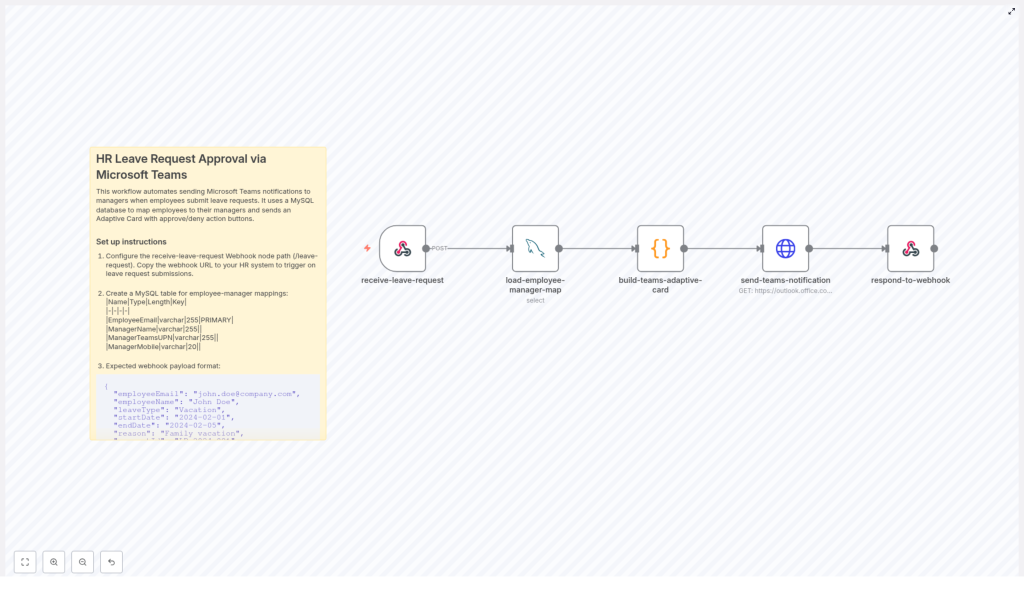
Automate HR Leave Approvals with n8n & Microsoft Teams
Automating leave approvals is one of the fastest ways to modernize HR operations. By combining n8n, MySQL, and Microsoft Teams Adaptive Cards, you can replace manual email chains with a structured, auditable workflow that delivers approval requests directly to managers where they already work.
This guide explains the end-to-end workflow design, how the nodes interact, and how to deploy a production-ready leave approval process using n8n and Teams. It is written for automation professionals, HR IT owners, and architects who want a robust, extensible pattern for HR approvals.
Business case for automating leave approvals
Traditional leave approval processes often rely on email or spreadsheets, which introduces several challenges:
- Slow response times as managers overlook or lose track of requests.
- Poor auditability because decisions and timestamps are scattered across inboxes.
- Inconsistent data when HR systems are updated manually and out of sequence.
By orchestrating approvals through n8n and Microsoft Teams you gain:
- Real-time notifications to managers using Adaptive Cards with clear actions.
- Structured data flows that can be logged, monitored, and audited.
- Consistent routing logic based on an authoritative employee-to-manager mapping stored in MySQL.
The result is a secure, traceable, and scalable leave approval process that fits well into a broader HR automation strategy.
Workflow overview
At a high level, the workflow performs the following steps:
- Receives a leave request as a JSON payload via an n8n Webhook.
- Looks up the corresponding manager details in a MySQL mapping table.
- Builds a Microsoft Teams Adaptive Card that includes all relevant leave details and actions.
- Sends the Adaptive Card to a Teams channel or connector using an HTTP Request node.
- Returns a structured JSON response to the calling HR system using Respond to Webhook.
This pattern is flexible enough to extend to multi-level approvals, calendar integration, and additional notification channels.
Key n8n components in the workflow
The template relies on a small set of core nodes, each with a clear responsibility:
Webhook node
- Acts as the public entry point for your HR system.
- Receives JSON payloads via HTTP POST.
- Triggers the downstream workflow that handles routing and notifications.
MySQL node
- Queries a mapping table that links employees to managers.
- Retrieves fields such as:
EmployeeEmailManagerNameManagerTeamsUPNManagerMobile
- Ensures that routing logic is centralized and easy to maintain.
Code node
- Transforms the inbound request and manager data into Adaptive Card JSON.
- Constructs the card layout, including:
- Employee name and email.
- Leave type and date range.
- Reason for leave.
- Action buttons such as Approve, Deny, and View Details.
- Optionally builds mention entities using the manager’s Teams UPN so Teams can notify the correct user.
HTTP Request node
- Sends the Adaptive Card payload to a Teams Incoming Webhook or connector URL.
- Handles HTTP response codes and bodies so you can log or react to posting errors.
Respond to Webhook node
- Returns a clean JSON response to the calling HR system.
- Confirms that the notification was dispatched.
- Echoes back a
requestIdor correlation ID for tracking.
Input format: sample webhook payload
Your HR system initiates the process by sending a POST request to the n8n webhook endpoint. A typical payload looks like this:
{  "employeeEmail": "john.doe@company.com",  "employeeName": "John Doe",  "leaveType": "Vacation",  "startDate": "2024-02-01",  "endDate": "2024-02-05",  "reason": "Family vacation",  "requestId": "LR-2024-001",  "notifyHrGroup": false
}
You can adapt these fields to match your HRIS schema as long as the workflow is updated accordingly.
Implementation guide: building the workflow in n8n
1. Create and configure the webhook endpoint
Start by adding a Webhook node in n8n:
- Set the HTTP method to POST.
- Define the path as
/leave-requestor another route appropriate for your environment. - Copy the generated URL and configure your HR system or middleware to send leave requests to this endpoint.
For production environments, ensure the webhook is exposed securely, for example behind an API gateway or with appropriate authentication controls.
2. Design the employee-manager mapping in MySQL
Create a dedicated mapping table to keep routing logic externalized from the workflow logic. A typical schema is:
EmployeeEmail(varchar(255), PRIMARY)ManagerName(varchar(255))ManagerTeamsUPN(varchar(255))ManagerMobile(varchar(20))
Name the table, for example, hr_employee_manager_map. The n8n MySQL node will query this table using the employeeEmail from the webhook payload to retrieve the manager’s identity and Teams UPN.
3. Generate the Adaptive Card payload
Next, use a Code node to construct the JSON for the Teams Adaptive Card. Typical best practices include:
- Display key request details prominently:
- Employee name and email.
- Leave type (for example, Vacation, Sick, Unpaid).
- Start and end dates.
- Reason or comments from the employee.
- Request identifier (
requestId).
- Add action buttons, such as:
- Approve
- Deny
- View Details for a link back to your HR portal.
- Optionally include a mention of the manager using
ManagerTeamsUPNso Teams sends a targeted notification.
The Code node can also normalize or validate data, for example formatting dates or truncating long text fields before they are presented in the card.
4. Send the card to Microsoft Teams
Use an HTTP Request node to push the Adaptive Card to Microsoft Teams:
- Set the method to POST.
- Use the Teams Incoming Webhook URL or connector URL as the endpoint.
- Set the content type to
application/json. - Paste or reference the JSON generated by the Code node as the request body.
If you are targeting a specific channel or group, configure the corresponding webhook. When using mentions, ensure that the payload includes the required mention entities and that the ManagerTeamsUPN maps to a valid Azure AD user.
5. Return a response to the calling system
Finally, use the Respond to Webhook node to close the loop with your HR system:
- Return a JSON object that confirms dispatch, for example:
{ "status": "queued", "requestId": "LR-2024-001", "message": "Leave approval notification sent to manager." } - Include the original
requestIdor any correlation key your HR system expects. - Ensure the response is sent quickly to avoid timeouts on the caller.
Security, privacy, and compliance
Because leave data is personal information, treat this workflow as part of your broader HR security posture.
- Access control: Restrict access to the n8n instance and the MySQL database using strong credentials, network segmentation, and least-privilege roles.
- Input validation: Sanitize and validate all incoming webhook payloads to prevent injection, malformed JSON, or unexpected field values.
- Webhook security: Protect your Teams Incoming Webhook URLs, rotate them if there is any suspicion of exposure, and avoid sharing them in code repositories.
- Audit logging: Log key events such as
requestId, timestamps, manager identity, and decision status in a dedicated audit table or external logging system. - Regulatory compliance: If you operate under frameworks such as GDPR or CCPA, ensure data retention, access, and export policies align with your legal obligations.
Extending the workflow: advanced scenarios
The base pattern is intentionally simple, but it can be extended to support more complex HR processes.
Multi-level and conditional approvals
- Implement two-tier approvals where the manager approves first, then HR reviews and confirms.
- Route responses from the Adaptive Card into separate branches in n8n, for example one path for manager approval and another for HR validation.
Calendar and scheduling integration
- On approval, call calendar APIs to create tentative out-of-office events or update team schedules.
- Use additional n8n nodes or HTTP requests to integrate with Microsoft 365 or other calendar systems.
Additional notification channels
- Use the
ManagerMobilefield to send SMS or push notifications to managers who are not active in Teams. - Integrate with other collaboration tools if your organization uses multiple communication channels.
Business rules and validation
- Add auto-reject rules for overlapping leave, insufficient leave balance, or blackout dates.
- Implement these rules in the Code node or delegate to an external rule engine or service.
Localization and UX improvements
- Render Adaptive Cards in the manager’s preferred language based on profile data or configuration.
- Adjust formatting, labels, and date formats to align with local conventions.
Troubleshooting and diagnostics
Issue: No notification appears in Teams
- Inspect the response from the HTTP Request node for HTTP status codes or error messages.
- Verify that the Teams Incoming Webhook URL is valid and has not been rotated.
- Test the webhook with a simple text payload to confirm connectivity, then reintroduce the Adaptive Card payload to isolate formatting issues.
Issue: Manager mention is not working
- Teams mentions require a correct schema and a valid Azure AD identifier or UPN.
- Confirm that
ManagerTeamsUPNmaps to an active user in your tenant. - Check that the Adaptive Card payload includes the correct mention entities structure.
Issue: Webhook returns an error to the HR system
- Review the n8n execution logs for errors in downstream nodes.
- Ensure the Respond to Webhook node is always reached and that it returns a response quickly.
- If the workflow performs long-running operations, consider an asynchronous pattern: acknowledge receipt immediately, then process the request in the background.
Operational best practices
- Validate early: Check incoming payloads at the start of the workflow and return descriptive error messages to the HR system when required fields are missing or invalid.
- Keep mappings in sync: Update the
hr_employee_manager_maptable regularly, for example via a nightly sync job or direct HRIS integration, to avoid routing errors. - Use environment variables: Store secrets such as Teams webhook URLs and database credentials in n8n environment variables instead of hard-coding them in Code nodes.
- Test end-to-end: Validate the full flow in a development environment with realistic sample data before enabling it in production.
Conclusion and next steps
By connecting n8n, MySQL, and Microsoft Teams, you can implement a lightweight but powerful framework for HR leave approvals. Adaptive Cards give managers a clear, actionable interface, while n8n handles routing, logging, and extensibility. The result is faster approvals, better visibility, and a strong foundation for broader HR automation initiatives.
To get started, configure the webhook endpoint, set up the hr_employee_manager_map table, and adapt the Adaptive Card layout to match your HR portal and branding. You can then iterate with advanced features such as multi-level approvals, calendar integration, and custom business rules.
Call to action
Deploy this workflow in your development n8n environment, connect it to your HR system, and validate the full approval loop with test requests. You can then refine the Adaptive Card design and routing logic before moving to production. If required, you can also generate a ready-to-import n8n workflow JSON tailored to your organization’s specific fields and approval policies.
