


Automate YouTube Descriptions with n8n: A Story From Chaos To Clarity
The marketer who dreaded “Update day”
Every quarter, Lena blocked off an entire afternoon for what her team jokingly called “Update day.” She was the marketing lead for a growing YouTube channel with more than 300 videos, and each time they changed a call-to-action, swapped an affiliate link, or added a new resource, she had to open video after video in YouTube Studio and manually edit descriptions.
It always started the same way. A new partnership, a fresh lead magnet, or a rebrand would require updating the footer in every video description. By the third hour, Lena’s eyes blurred, and her notes turned into a maze of half-checked links and “did I already update this one?” questions. She worried about broken CTAs, inconsistent branding, and the very real possibility of missing a video that still pointed to an outdated offer.
One afternoon, after yet another spreadsheet of URLs and half-finished edits, she decided she could not do it again. She needed a way to automate YouTube description updates, keep everything consistent, and stop wasting entire days on tedious work.
Discovering n8n and the YouTube Description Updater
A developer friend listened to her rant and simply asked, “Why are you doing this by hand? Just use n8n with the YouTube API.” He sent her a link to a workflow template called the YouTube Description Updater.
Lena was not a developer, but she understood processes. As she read through the template description, something clicked. Instead of manually editing every description, she could use an n8n workflow to append or replace a templated footer on all of her videos. The idea was simple:
- Use n8n to pull all videos from her channel through the YouTube API
- Automatically rebuild each description with a consistent footer
- Only update the videos that actually needed changes
Automation, consistency, and auditability in one place. The pain of “Update day” suddenly looked optional.
Rising tension: what if automation breaks everything?
Of course, Lena had another fear. “What if this workflow overwrites all my descriptions and I lose everything?” She had spent years crafting intros, timestamps, and copy that performed well. She could not afford for a bad script to wipe them out.
So she decided to walk through the workflow step by step, understand what each node did, and test it on a single video before going all in.
The workflow Lena adopted
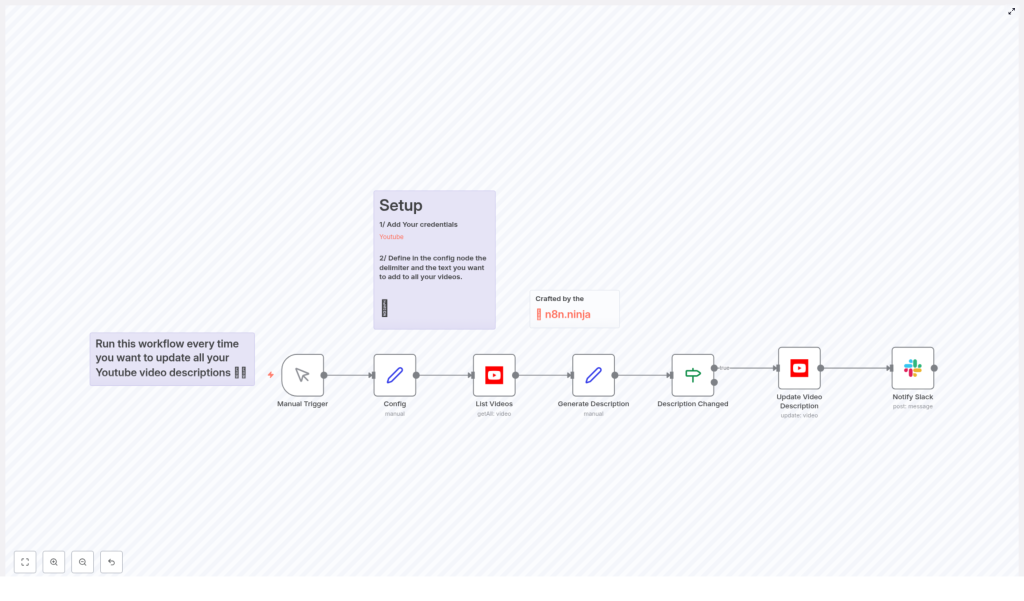
The n8n template she imported followed a clear, linear structure. Once she understood it, the whole thing felt surprisingly approachable.
- Manual Trigger – so she could decide exactly when to run updates
- Config node – where she defined a special delimiter and the footer text she wanted on every video
- List Videos – which fetched all videos from her channel via the YouTube API
- Generate Description – which combined the existing description with her new footer
- Description Changed (IF) – which checked if the new description was actually different
- Update Video Description – which called the YouTube API only when a change was needed
- Notify Slack (optional) – which could ping her team after each update
This was not a mysterious black box. It was a clear pipeline she could read and control.
First step: connecting YouTube to n8n
Lena started with the most technical part: giving n8n permission to update her channel.
Adding YouTube credentials
Inside n8n, she created a new Google/YouTube OAuth2 credential. She made sure the OAuth client had the right YouTube Data API scopes so it could update video metadata, including descriptions.
That single step established the bridge between n8n and her YouTube channel. From this point on, any node configured with that credential could safely talk to the YouTube API.
The Config node that changed everything
The next piece was the Config node. This was where Lena would define how the workflow treated the existing descriptions and what it would add to them.
Choosing a unique delimiter
She learned that the workflow relied on a special string, called a splitter, to separate the main body of the description from the footer. The idea was simple but powerful:
- Everything before the splitter would be her editable description content
- Everything after (and including) the splitter would be the standardized footer
In the Config node, she set:
- splitter – a unique text marker, for example
--- n8ninja ---, that would not appear in normal descriptions - description – the footer template she wanted on every video, including CTAs, links, and social accounts
From now on, she knew that if she ever needed to change her footer, she could just adjust this one Config node and re-run the workflow.
The turning point: understanding the Generate Description magic
The heart of the workflow was the Generate Description node. This was where Lena needed to be absolutely sure her original descriptions would not be destroyed.
Inside, she found a key expression:
=\{\{ $json.snippet.description.split($('Config').item.json.splitter)[0] }\}\{\{ $('Config').item.json.splitter }\}\n\n\{\{ $('Config').item.json["description"] }\}She broke it down line by line:
$json.snippet.description– this was the current description text for the video, coming from the List Videos node..split($('Config').item.json.splitter)[0]– this split the description at her chosen delimiter and kept everything before it. If the delimiter was not found, it simply used the entire description as-is.- Then it reinserted the same splitter, added two newlines, and finally appended the footer from
$('Config').item.json["description"].
In other words, the workflow:
- Preserved her original description body
- Replaced or added a consistent footer block below her delimiter
That was the reassurance she needed. Her carefully written intros, timestamps, and SEO text would remain untouched. Only the footer would be standardized.
Protecting her channel: only update when needed
There was one more safeguard that made Lena comfortable enough to run this on her entire channel: the IF node named “Description Changed.”
This node compared the newly generated description with the one already on YouTube. If they were identical, the workflow did nothing. If they differed, it passed the item to the Update Video Description node, which then called the YouTube API to apply the change.
This meant:
- No unnecessary API calls
- Less risk of hitting YouTube API quotas
- A clear, auditable record of which videos were actually updated
Her cautious first run: a single video test
Before trusting automation with hundreds of videos, Lena decided to run a small experiment.
- She imported the workflow JSON into her n8n instance.
- She attached her YouTube OAuth2 credential to the relevant nodes.
- In the Config node, she set a test splitter and a simple footer with one CTA and a couple of links.
- In the List Videos node, she limited the results so it would only fetch one video from her channel.
- She ran the Manual Trigger and watched the execution preview closely.
Using n8n’s execution preview, she inspected the output of the Generate Description node and confirmed that the new description looked exactly as she expected: original body, her splitter, then the new footer.
Only then did she let the Update Video Description node run. She refreshed the video in YouTube Studio and saw her new footer in place. Nothing else had changed.
Scaling up: from one video to the entire channel
Once the test passed, Lena gradually removed the limit in the List Videos node and let the workflow process more videos at a time. She monitored the execution, watched for any errors, and kept an eye on Slack notifications where each successful update could be reported.
Her quarterly “Update day” was starting to look more like “Update minute.”
How she customized the template for her channel
As Lena became more comfortable with n8n, she started tweaking the workflow to fit her strategy even better.
Dynamic fields in the footer
She realized she could personalize each footer using n8n expressions. For example, she could include the video title:
{{ $json.snippet.title }}And with a bit of additional configuration, she could also insert a direct link to the video itself, using its videoId from the List Videos node.
Conditional footers
Some videos were tutorials, others were product launches, and some were live streams. Using extra logic in n8n, she experimented with:
- Different footers based on playlists or tags
- Alternate CTAs for specific series
Scheduling automatic runs
Once she trusted the system, she replaced the Manual Trigger with a Cron node so the workflow could run weekly or monthly. That way, any new video she published would automatically receive the correct footer without her even thinking about it.
Keeping a backup for peace of mind
For extra safety, Lena added a step that saved the original descriptions to a Google Sheet before any updates were made. This created a simple audit trail and gave her a way to roll back if she ever needed to.
Best practices Lena learned along the way
By the time her workflow was fully in place, Lena had collected a set of rules she wished she had known earlier:
- Always choose a clear, unique delimiter that will never appear in normal text, to avoid accidentally cutting important content.
- Test on a small subset of videos before doing bulk updates.
- Respect YouTube API quotas and rate limits. If needed, batch updates or add small delays.
- Keep a history of changes, for example by saving original descriptions to a Google Sheet or database.
- Limit the OAuth token scope to only what is necessary to update video metadata.
When things went wrong (and how she fixed them)
Not everything went smoothly on the first try. A few common issues popped up, but n8n made them easy to debug.
Common problems she hit
- Authentication errors – sometimes the Google credential would expire or lose permissions. Re-authorizing the OAuth2 credential with the correct YouTube channel fixed it.
- Rate limit or quota issues – when she tried to update too many videos at once, the YouTube API sometimes complained. Adding delays, processing fewer videos per run, or scheduling updates with a Cron node helped.
- Delimiter not found – in older videos that never had the splitter, the workflow treated the entire description as the body. She double-checked this behavior and confirmed she was comfortable with it before bulk updates.
Debugging with n8n
- She used the execution preview to inspect the output of each node, especially the Generate Description node, to verify formatting.
- She temporarily disabled the Update Video Description node and instead logged the new descriptions to a Google Sheet. Once she was happy with the results, she re-enabled the update step.
Advanced dynamic templating in action
As her confidence grew, Lena refined her footer using n8n expressions that pulled in data from each video.
Inside the Config node, she experimented with a simple but powerful template like this:
⭐️ Try n8n for free: https://n8n.io
📌 Watch this video: https://youtu.be/{{ $json.id.videoId }}
Follow me on X: https://twitter.com/yourhandle
Depending on how she structured the Generate Description node, she sometimes needed to reference fields from the List Videos node or use additional Set nodes to pass the videoId into the template context. Once configured, every footer automatically referenced the correct video link and title.
The resolution: no more “Update day”
Several months later, a new affiliate partner came on board. Previously, this would have triggered another dreaded “Update day.” Instead, Lena opened n8n, updated the footer text in the Config node, and ran the workflow.
Within minutes, every relevant video on her channel had the new CTA, correct affiliate links, and updated resources. No spreadsheets, no manual edits, no second-guessing.
Her YouTube descriptions were now:
- Consistent across hundreds of videos
- Up to date with the latest offers and links
- Auditable with backups and clear logic
- Automated so new videos got the right footer without extra work
Your next step: turn your own “Update day” into a one-click workflow
If you recognize yourself in Lena’s story, you do not have to keep suffering through manual updates.
Here is how you can follow her path:
- Import the YouTube Description Updater workflow JSON into your n8n instance.
- Add your YouTube OAuth2 credential with the right scopes to update video metadata.
- Configure the Config node with a unique splitter and your footer template, including CTAs, links, and social handles.
- Test on a single video using the List Videos node limit and the execution preview.
- Run the workflow with the Manual Trigger, then scale up, schedule it with a Cron node, or add conditional logic as needed.
If you want to extend the workflow with dynamic fields, playlist-based footers, or recurring schedules, the same structure Lena used will support it. You can add Set nodes, IF nodes, and additional logic without rewriting the core idea.
Pro tip: Pair this workflow with a simple monitoring routine that periodically checks your descriptions for broken links or outdated affiliate codes. That way, you are not just updating at scale, you are maintaining quality at scale.
Ready to experience the same transformation? Try this workflow in your own n8n instance and stop wasting hours on repetitive YouTube description edits.
