


Groundhogg Address Verification with n8n & Lob
Sending physical mail to your contacts, but not totally sure the address is right? That can get expensive pretty fast. With this n8n workflow template, you can automatically verify mailing addresses for new contacts in Groundhogg CRM using Lob’s address verification API. It quietly checks every new address in the background, catches typos, and helps you avoid printing and mailing to places that don’t exist.
In this guide, we will walk through what the workflow does, when it makes sense to use it, and how to set it up step by step in n8n, Groundhogg, and Lob. Think of it as a friendly co-pilot for your direct mail and address data.
What this n8n template actually does
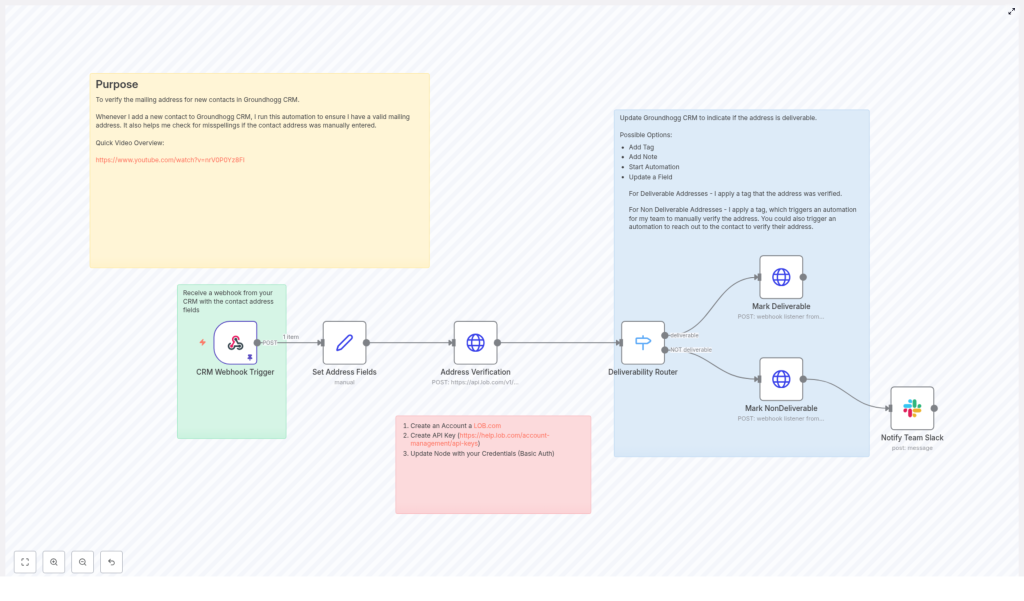
Here is the big picture. Whenever a new contact lands in Groundhogg or an address changes, this automation kicks in:
- Groundhogg sends a webhook with the contact’s address to n8n.
- n8n cleans up and standardizes the address fields.
- Lob’s US address verification API checks if the address is deliverable.
- Based on Lob’s response, n8n updates the contact in Groundhogg as deliverable or not deliverable.
- If the address is not deliverable, your ops team gets a notification, for example in Slack, so they can review it manually.
The result is a Groundhogg CRM that stays tidy, with clear tags or fields telling you which contacts you can safely mail and which ones need attention.
Why you should verify addresses in Groundhogg
Let’s be honest, nobody wants to pay for postage that ends up in the trash or bounced back to your office. Invalid or badly formatted addresses can cause:
- Returned mail that wastes printing, envelopes, and postage
- Failed deliveries that hurt your campaign performance
- Messy data that makes segmentation and personalization harder
By verifying mailing addresses as soon as a contact is added or updated in Groundhogg, you keep your database clean and ready for action. Some practical benefits:
- Less returned mail and fewer wasted campaigns
- More reliable deliverability for direct mail and fulfillment
- Better targeting, since you can filter by verified addresses
- Built-in workflows for manual review when something looks off
If you send physical mail, postcards, welcome kits, or any kind of printed material, this kind of automation pays for itself quickly.
When this workflow is a great fit
You will get the most value from this n8n template if any of these sound familiar:
- You send regular direct mail or swag to Groundhogg contacts.
- Your team spends time cleaning up addresses or chasing down customers for corrections.
- You want a clear “deliverable” flag or tag on contacts for segmentation.
- You are already using n8n or want a low-code way to orchestrate automations across tools.
Even if you are not mailing yet, putting this in place early means your CRM grows with clean, verified address data from day one.
How the n8n workflow is structured
Let’s walk through the key nodes in the workflow so you know what each piece does. You can customize the details, but the core pattern looks like this:
1) CRM Webhook Trigger (Groundhogg → n8n)
The workflow starts with a Webhook node in n8n. Groundhogg calls this webhook whenever a new contact is created or an address changes.
The webhook should send at least these fields:
addressaddress2citystatezip_codeid(the Groundhogg contact ID)
2) Set Address Fields (normalize the data)
Next, a Set node in n8n takes the incoming JSON from Groundhogg and maps it to the field names that Lob expects. This is where you standardize the structure so you can easily plug in other CRMs later if you want.
For example, you might map:
{  "primary_line": "1600 Pennsylvania Avenue NW",  "secondary_line": "",  "city": "Washington",  "state": "DC",  "zip_code": "20500"
}
This mapping step keeps your workflow flexible. If you ever switch CRMs, you only need to update this node instead of rebuilding the entire integration.
3) Address Verification (HTTP Request to Lob)
After the address is normalized, an HTTP Request node sends a POST request to Lob’s US verifications endpoint:
https://api.lob.com/v1/us_verificationsThe request body includes the address fields you just mapped. Lob then responds with a JSON object that contains a deliverability field. That field is your decision point. It tells you whether the address is:
deliverable- or not deliverable (or otherwise problematic)
You will use that value in the next node to decide what happens to the contact in Groundhogg.
4) Deliverability Router (Switch node)
A Switch node in n8n checks the value of $json.deliverability from Lob’s response. This is where the workflow branches:
- If
deliverability === "deliverable", the contact is marked as verified in Groundhogg. - Otherwise, the contact is flagged as not deliverable and sent down a manual review path.
This routing step keeps your team focused on the addresses that actually need attention instead of reviewing everything manually.
5) Mark Deliverable / Mark NonDeliverable (update Groundhogg and notify)
Each branch uses HTTP Request nodes to talk back to Groundhogg. You can:
- Add or remove tags
- Update custom fields like “Address Status”
- Add notes to the contact record
- Trigger Groundhogg funnels or automations
For non-deliverable addresses, you can go a step further and:
- Send a Slack message to your ops or support channel
- Create a task for someone to follow up with the contact
- Kick off a manual verification workflow
This is where the workflow becomes really powerful. You are not just labeling contacts, you are actually guiding your team on what to do next.
Step-by-step setup guide
Let’s go through the actual setup so you can get this running with your own Groundhogg account and Lob API key.
Step 1 – Create your Lob account and API key
First, sign up at Lob.com. Once you are in your account, navigate to Account > API Keys and generate an API key.
In n8n, configure your HTTP Request node for Lob with one of these options:
- Basic Auth – Use your Lob API key as the username and leave the password empty.
- Authorization header – Pass the key as described in the Lob documentation.
Either way works, just make sure the credentials are stored securely using n8n’s credentials or environment variables.
Step 2 – Configure the Groundhogg webhook
Next, you want Groundhogg to notify n8n whenever a new contact is added or an address changes.
- In Groundhogg, create an automation or funnel that triggers on:
- New contact created, and / or
- Mailing address updated
- Add a webhook step that posts to your n8n webhook URL (the one from the Webhook Trigger node).
Make sure the webhook includes the contact’s address fields and ID. A typical payload might look like this:
{  "id": "5551212",  "email": "mr.president@example.com",  "address": "1600 Pennsylvania Avenue NW",  "address2": "",  "city": "Washington",  "state": "DC",  "zip_code": "20500",  "phone": "877-555-1212"
}
Once this is working, every new or updated address will automatically flow into your n8n workflow.
Step 3 – Map fields in the Set node
Back in n8n, open your Set node that follows the webhook. This is where you map Groundhogg’s field names to the ones Lob expects.
For example, you might configure the Set node to output something like:
{  "primary_line": $json["address"],  "secondary_line": $json["address2"],  "city": $json["city"],  "state": $json["state"],  "zip_code": $json["zip_code"]
}
You can also use this step to trim whitespace or clean up weird formatting before sending anything to Lob.
Step 4 – Call Lob’s US verification endpoint
Now configure your HTTP Request node to talk to Lob:
- Method: POST
- URL:
https://api.lob.com/v1/us_verifications - Auth: Use the Lob API key you set up earlier
- Body: The normalized address fields from the Set node
Lob will respond with JSON that includes a deliverability field. That field is what you will check in the Switch node.
Step 5 – Route the result and update Groundhogg
In the Switch node, set the expression to $json.deliverability and define your conditions. For example:
- Case 1:
deliverable– Add a tag likeMailing Address Deliverable, update a custom field, or kick off a follow-up funnel in Groundhogg. - Case 2: anything else – Add a tag like
Mailing Address NOT Deliverable, start a manual verification automation, and notify your team in Slack.
Use HTTP Request nodes to POST back to Groundhogg or trigger Groundhogg funnel webhooks. This keeps all the final status and activity visible right inside your CRM.
Best practices for this address verification workflow
To keep the automation reliable and scalable, here are a few tips:
- Respect Lob’s quotas – Add rate limiting or queueing if you expect large bursts of new contacts.
- Store verification status – Save both the verification result and, if needed, the raw Lob response on the contact record for auditing and debugging.
- Use tags for downstream automations – Tags like “Deliverable” or “NOT Deliverable” can trigger additional Groundhogg automations for outreach or cleanup.
- Sanitize address fields – Trim whitespace, remove obvious junk characters, and normalize casing before sending to Lob to improve match quality.
- Centralize error logging – Log errors or unexpected responses to Slack, email, or an error queue so you do not silently lose verifications.
Troubleshooting and testing
Common issues to watch for
If the workflow is not behaving as expected, here are a few things to check:
- Confirm the address fields in the Set node map correctly to Lob’s expected field names.
- Verify you are using the right Lob API key and that Basic Auth or headers are configured properly.
- If the response from Lob does not contain
deliverability, log the full JSON response to see what is going on.
How to safely test the flow
n8n’s pinData feature is your friend here. You can pin a sample webhook payload to the Webhook node and run tests without having to repeatedly trigger Groundhogg.
Try testing with:
- A clearly valid address, to confirm the “deliverable” branch works.
- An obviously bad or incomplete address, to make sure the “not deliverable” branch triggers correctly and sends notifications.
Once both branches behave as expected, you can connect it to your live Groundhogg automation with confidence.
Security and compliance tips
Since you are working with API keys and personal address data, it is worth being a bit careful:
- Never hard-code API keys into shared workflows or public repositories.
- Use n8n’s credentials store or environment variables to keep secrets safe.
- If you store address and verification data, make sure you comply with privacy regulations and your organization’s data retention policies.
Wrapping it up
By plugging Lob’s address verification into your Groundhogg CRM via n8n, you are essentially adding a smart filter in front of all your mailing efforts. You catch typos, avoid sending to undeliverable addresses, and keep your database clean without a lot of manual work.
The nice part is that this pattern is flexible. You can:
- Swap Lob for another verification provider if your needs change.
- Extend the workflow to handle international addresses.
- Add more logic for special cases or high-value contacts.
Next steps
Ready to try it?
- Download or import the n8n workflow template.
- Create your Lob API key and plug it into the HTTP Request node.
- Connect your Groundhogg webhook to the n8n Webhook Trigger.
From there, you can tweak tags, fields, and notifications to match your existing processes. If you want help adapting this for international verification or more complex automations, reach out to your team, your automation partner, or keep an eye out for more n8n workflow templates and tutorials.
