


Automate Cold Email Replies with n8n & OpenAI
Cold email campaigns generate valuable replies, but manually reading and qualifying each response is slow and inconsistent. This n8n workflow template converts every inbound reply into a structured qualification event. It listens to Gmail, looks up and updates people in Pipedrive, sends the reply content to OpenAI for intent classification, creates Pipedrive deals for interested leads, and notifies your sales team on Slack.
This reference-style guide explains how the workflow operates, how data flows between nodes, how to configure each integration, and how to adapt the template for more advanced use cases without changing its core behavior.
1. Workflow overview
1.1 Purpose
The workflow automates cold email reply qualification using n8n. It is designed for teams that:
- Send outbound emails via Gmail
- Track contacts and deals in Pipedrive
- Use Slack for sales notifications
- Want OpenAI to classify replies as interested or not interested
Instead of manually reading each reply, the workflow:
- Detects new replies in one or more Gmail inboxes
- Extracts the message body
- Finds the corresponding person in Pipedrive
- Checks whether that person is part of an active outreach campaign
- Sends the reply text to OpenAI for interest assessment
- Parses the OpenAI response into structured fields
- Creates a Pipedrive deal if the lead is interested
- Sends a Slack notification with the deal and context
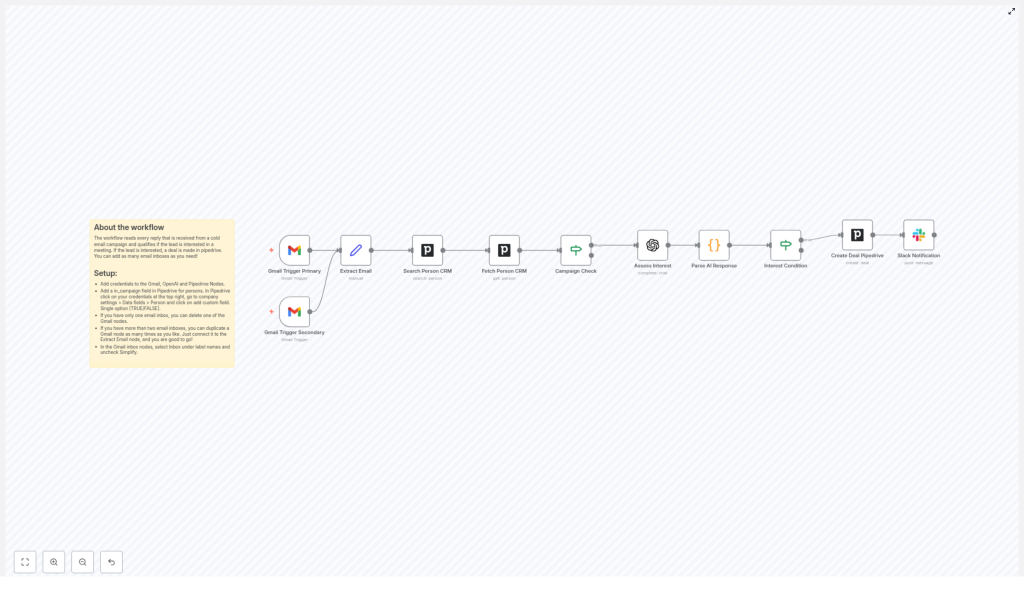
1.2 High-level architecture
The template is built as a linear but conditional pipeline. At a high level, the node sequence is:
- Gmail Trigger (Primary & Secondary) – watches inboxes for replies
- Extract Email (Set node) – normalizes and exposes the email body
- Search Person CRM (Pipedrive) – locates the person by email address
- Fetch Person CRM (Pipedrive) – retrieves full person details
- Campaign Check (IF node) – verifies the person is in an active campaign
- Assess Interest (OpenAI) – evaluates the reply content for intent
- Parse AI Response (Code node) – parses the JSON-like result into fields
- Interest Condition (IF node) – branches based on the interest flag
- Create Deal Pipedrive – opens a new deal in Pipedrive for interested leads
- Slack Notification – posts a message to a Slack channel about the new deal
Execution is event-driven by the Gmail Trigger nodes. Subsequent nodes run only for new messages that satisfy the trigger configuration.
2. Node-by-node breakdown
2.1 Gmail Trigger nodes (Primary & Secondary)
Role: Entry point for the workflow. These nodes poll specific Gmail inboxes for new replies.
- Type: Gmail Trigger
- Credentials: Gmail (OAuth or service-based, depending on your n8n setup)
- Label Names: Set to
Inbox - Simplify: Disabled (unchecked) to preserve full raw email structure
- Polling Interval: Typically every 1 minute in the template
The template includes two separate Gmail Trigger nodes labeled “Primary” and “Secondary” so you can monitor multiple inboxes (for example, separate SDR mailboxes). You can:
- Remove one if you only use a single inbox
- Duplicate the node to monitor additional inboxes
- Adjust each node’s polling interval to manage API usage and responsiveness
Data output: Each trigger emits a message object that includes headers, subject, sender, and raw body content. Since Simplify is disabled, you retain full control over how you parse and interpret the message downstream.
2.2 Extract Email node (Set)
Role: Normalize and expose the email body for downstream processing.
- Type: Set node
- Input: Message data from the Gmail Trigger
- Output: Fields such as
bodyortextthat will be passed to OpenAI
This node typically selects or renames properties from the Gmail Trigger output so that later nodes have a consistent field name for the email content. For example, it might map the raw Gmail field to email_body or similar.
At this stage you can also implement basic preprocessing such as trimming whitespace or removing obvious boilerplate, although the template focuses primarily on extraction rather than heavy cleaning.
2.3 Search Person CRM node (Pipedrive)
Role: Match the email sender to an existing person record in Pipedrive.
- Type: Pipedrive node
- Operation: Search for a person by email
- Credentials: Pipedrive API key or OAuth credentials configured in n8n
- Input: Email address from the Gmail Trigger output
The node queries Pipedrive using the email address from the incoming message. If a matching person exists, the node outputs that person record. If no match is found, the output will be empty or contain no items for subsequent nodes.
Downstream handling of “no person found” is covered in the troubleshooting section. By default, the template assumes the person exists and will not automatically create a new record.
2.4 Fetch Person CRM node (Pipedrive)
Role: Retrieve full person details, including custom fields, from Pipedrive.
- Type: Pipedrive node
- Operation: Get person by ID
- Input: Person ID from the Search Person CRM node
This node loads the complete person object from Pipedrive. The workflow relies on this step to access the custom field that indicates whether the contact is part of an active campaign.
Without this full fetch, the IF node that checks campaign membership would not have access to the in_campaign flag described later.
2.5 Campaign Check node (IF)
Role: Filter out replies from contacts who are not part of your current outreach campaign.
- Type: IF node
- Condition: Custom person field
in_campaignis set to TRUE - Input: Full person object from the Fetch Person CRM node
The IF node branches workflow execution into two paths:
- True branch: Person is in an active campaign. Processing continues and the reply is evaluated by OpenAI.
- False branch: Person is not in an active campaign. The workflow typically stops processing for this item, avoiding unnecessary API calls and deal creation.
For this check to work correctly, you must configure the custom field in Pipedrive as described in the configuration section below.
2.6 Assess Interest node (OpenAI)
Role: Use OpenAI to classify the reply as interested or not interested and capture a short reasoning string.
- Type: OpenAI node
- Model: GPT-4 by default in the template
- Input: Extracted email body from the Extract Email node
- Output: A short JSON-like string with fields
interestedandreason
The node sends a prompt that instructs GPT-4 to return a minimal JSON object in the following format:
{  "interested": "yes" | "no",  "reason": "..."
}
For example:
{  "interested": "yes",  "reason": "They asked to schedule a call next week."
}
The prompt is crafted so that the output is deterministic and easy to parse. Temperature is typically kept low to reduce variability and avoid malformed JSON, as discussed later.
2.7 Parse AI Response node (Code)
Role: Convert the OpenAI text output into structured fields that can be used by IF and Pipedrive nodes.
- Type: Code node
- Language: JavaScript
- Input: Raw text string from the OpenAI node
- Output: Fields such as
interestedandreason
The Code node typically:
- Reads the text returned by OpenAI
- Parses it as JSON using
JSON.parseor a similar approach - Exposes the
interestedflag andreasonas top-level properties in the item
If OpenAI returns invalid JSON, this node is where parsing errors will surface. Handling those cases is described in the troubleshooting section.
2.8 Interest Condition node (IF)
Role: Decide whether to create a deal and send a Slack notification based on the AI classification.
- Type: IF node
- Condition: Parsed field
interestedequals"yes" - Input: Parsed AI response from the Code node
The node routes items as follows:
- True branch: AI marked the lead as interested. The workflow proceeds to Pipedrive deal creation and Slack notification.
- False branch: AI marked the lead as not interested. The workflow usually ends for this reply, although you can extend this branch for nurturing or logging.
2.9 Create Deal Pipedrive node
Role: Automatically create a new deal in Pipedrive when a lead is classified as interested.
- Type: Pipedrive node
- Operation: Create deal
- Input: Person ID from earlier Pipedrive nodes, plus any contextual information
This node typically sets fields such as:
- Deal title (for example, based on the contact name or email subject)
- Associated person
- Pipeline or stage (depending on your Pipedrive configuration)
To avoid duplicate deals, you can add idempotency checks before this node, as described in the troubleshooting section.
2.10 Slack Notification node
Role: Notify the sales team in real time when a new interested lead is detected and a deal is created.
- Type: Slack node
- Operation: Send message to channel
- Input: Deal details, person information, and AI reason text
The Slack message usually includes:
- Contact name and email
- Link to the Pipedrive deal
- Brief summary of the AI reason, such as “Asked to schedule a call next week”
This immediate notification allows SDRs or AEs to follow up quickly, which can significantly improve conversion rates.
3. Configuration and setup
3.1 Credentials configuration
Before running the template, configure the required credentials in your n8n instance:
- Gmail credentials: Used by the Gmail Trigger nodes to read new messages from your inboxes.
- OpenAI credentials: API key for GPT-4, used by the Assess Interest node.
- Pipedrive credentials: API key or OAuth credentials, used by all Pipedrive nodes.
In n8n:
- Navigate to Credentials
- Create or configure entries for Gmail, OpenAI, and Pipedrive
- Assign each credential to the corresponding nodes in the workflow
The template includes two Gmail Trigger nodes. You can use the same Gmail credential for both, or different credentials if monitoring separate accounts.
3.2 Pipedrive custom field: in_campaign
To ensure that only relevant contacts are processed, the workflow relies on a custom field in Pipedrive:
- Field name:
in_campaign - Level: Person-level field
- Type: Single option with values TRUE / FALSE (or equivalent boolean representation)
Steps in Pipedrive:
- Create a new custom field on the Person entity
- Name it
in_campaign(or a name that you then reference consistently in n8n) - Configure the field as a TRUE/FALSE style flag
- Set this field to TRUE for contacts who are part of your active cold email campaigns
The Campaign Check IF node reads this field to decide whether to continue processing a reply.
3.3 Gmail Trigger configuration
For each Gmail Trigger node:
- Label Names: Select
Inboxso that only messages in the Inbox are considered. - Simplify: Uncheck this option. Disabling simplification preserves the raw email payload, which is useful for custom parsing and robust integration with OpenAI.
- Polling Interval: The template uses “Every minute” as a starting point. You can increase this interval to reduce API calls or decrease it for faster reaction time, depending on your Gmail API limits and workload.
Make sure that the inboxes are receiving the cold email replies you want to process. If you use labels or filters in Gmail, adjust the trigger configuration accordingly.
3.4 OpenAI prompt tuning
The Assess Interest node sends the email body to OpenAI with a prompt that:
- Asks the model to determine if the sender is interested in your offer
- Requires a structured JSON response with
interestedandreasonkeys - Specifies allowed values for
interested(for example,"yes"or"no")
Example expected response:
{  "interested": "yes",  "reason": "They asked to schedule a call next week."
}
To keep outputs consistent and easier to parse:
- Use a low temperature (for example, 0.0 to 0.4) for deterministic behavior
- Be explicit in the prompt about the JSON structure and field types
- Include brief examples of both positive and negative replies in the prompt, if needed
4. Best practices for OpenAI classification
4.1 Prompt design guidelines
To achieve reliable JSON output from OpenAI in n8n:
- Define a strict schema: Clearly describe the JSON keys (
interested,reason) and allowed values. - Require JSON only: Include an instruction such as
Respond with only
