


Automate Slack Ideas to Notion with n8n
Every day, your team shares ideas in Slack that could shape your product, improve your processes, or unlock new opportunities. Yet many of those insights disappear into long threads, forgotten by next week. What if every promising idea, no matter how quickly it was typed, automatically landed in a structured Notion database, ready to be refined and acted on?
This is exactly what this n8n workflow template helps you do. With a simple Slack slash command, a webhook, and a Notion integration, you can turn casual suggestions into organized, trackable items. Think of it as a small but powerful step toward a more focused, automated workflow where your tools quietly handle the admin work and your team stays in the flow.
From lost ideas to a reliable system
Slack is where conversations happen fast. Notion is where ideas grow into plans, specs, and documentation. When these two tools stay disconnected, you rely on memory and manual copy-paste to move ideas from chat to a place where they can be tracked.
Connecting Slack to Notion with n8n changes that dynamic. It creates a simple intake system that works in the background, so your team can keep sharing ideas in Slack while n8n does the organizing for you.
Why connect Slack and Notion with n8n?
By linking Slack and Notion through an automated workflow, you unlock several practical benefits that compound over time:
- Centralized idea management – no more digging through channels and threads to recover that great suggestion from last week.
- Faster triage and prioritization – ideas are instantly visible in Notion, ready to be tagged, assigned, and discussed.
- Clearer context – each idea carries the submitter and message text so follow-ups are easy and attribution is obvious.
- Less manual work – confirmations and follow-up prompts in Slack are automated, so nothing depends on someone remembering to respond.
Instead of treating idea capture as a chore, you can turn it into a smooth experience that encourages contribution and keeps your backlog organized with almost no extra effort.
Shifting your mindset: automation as a growth tool
This workflow is more than a convenience. It is a mindset shift. When you automate something as simple as capturing ideas, you begin to build a culture where:
- Everyone knows their suggestions will be seen and tracked.
- Your tools work together instead of in silos.
- You reclaim time that used to be spent on repetitive admin work.
n8n makes this possible without needing to be a developer. You can visually connect Slack and Notion, test your setup, and iterate on it over time. This template can be your starting point, a small experiment that shows how much value you can unlock by automating the “little things.”
How the n8n workflow works behind the scenes
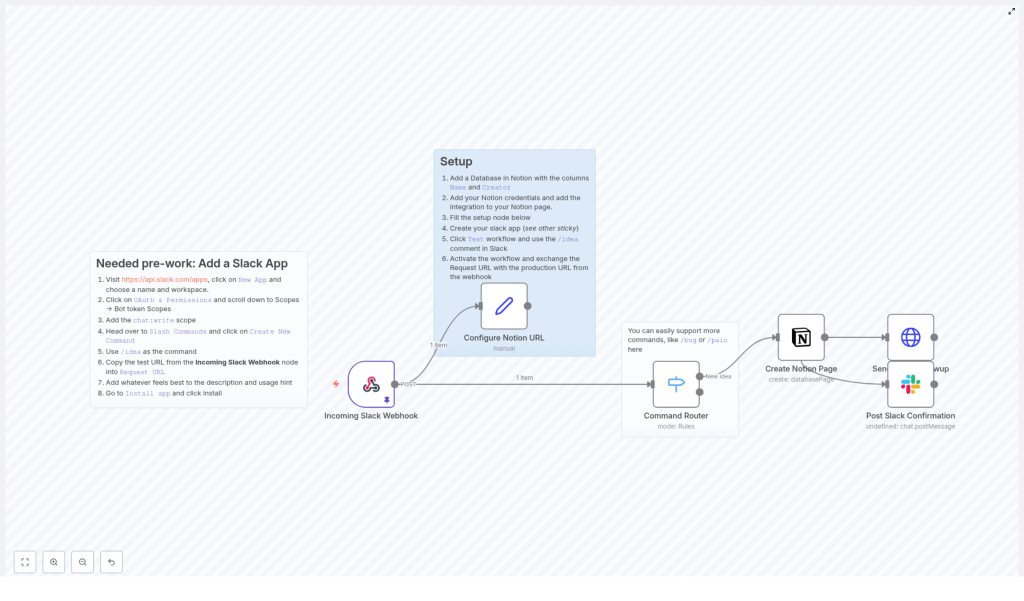
The template is intentionally lightweight, but it covers the full journey from Slack message to Notion page and back to Slack confirmations. At a high level, the workflow:
- Receives a Slack slash command payload via an Incoming Slack Webhook node.
- Stores your target Notion database URL in a Set node so new pages are created in the correct place.
- Uses a Switch node as a Command Router so you can support commands like
/ideaand potentially more in the future. - Creates a Notion database page with the slash command text as the title and the Slack user as the Creator property.
- Sends a follow-up message back to the user in Slack via the
response_url, inviting them to add more details and linking to the Notion page. - Posts a confirmation message in the original Slack channel so the team sees that the idea has been captured.
In practice, this means someone can type something like:
/idea Add a new onboarding checklist
and within seconds, that idea is safely stored in Notion with clear ownership and a path to action.
What you need before you start
Before you dive into the setup, make sure you have these pieces in place. Getting them ready upfront will make the whole process smoother and faster.
- An n8n instance (cloud or self-hosted) with access to the workflow editor.
- A Slack workspace and permission to create a Slack App with slash commands.
- A Notion account with a database where you can add pages.
- A Notion integration that has access to that database.
- Notion API credentials (integration token) added to n8n as credentials for the Notion node.
Your step-by-step journey to automation
Let us walk through the setup as a guided path. You can follow these steps in order, test as you go, and adjust where needed. Once you complete this once, you will find it much easier to build your next automation.
Step 1 – Create a Slack App and slash command
Start by giving your team an easy way to submit ideas directly from Slack.
1. Visit Slack API: Apps and create a new app in your workspace.
2. In the app configuration, go to OAuth & Permissions and add the chat:write scope under bot token scopes so your bot can post messages back to Slack.
3. Open the Slash Commands section and create a new command, such as /idea.
4. In the command’s Request URL field, paste the test webhook URL from the Incoming Slack Webhook node in your n8n workflow.
5. Install the app to your Slack workspace so the command becomes available to your team.
At this point, you have created the front door for ideas. Next, you will connect it to Notion.
Step 2 – Set up the Notion database and integration
Now you will prepare the place where all ideas will live. This is where structure and clarity start to emerge.
1. In Notion, create a database (either a Table or a Database Page) with at least these properties:
- Name (title)
- Creator (person or rich_text)
2. Go to Notion Integrations and create a new integration, then grant it access to the database you just created.
3. Copy the integration token and add it to n8n as credentials for the Notion node. This token is what allows n8n to create pages in your database.
With this in place, you have a dedicated, structured space where every Slack idea can land automatically.
Step 3 – Configure the n8n workflow template
Now you will connect everything inside n8n. This is where the automation comes to life.
1. Import or recreate the template in your n8n instance. Then configure these key nodes:
- Incoming Slack Webhook – verify that the webhook path matches what you used in the Slack slash command’s Request URL. Make sure the node is active when you test.
- Configure Notion URL – update the placeholder Notion URL with your actual database URL. This allows the Create Notion Page node to correctly resolve the
databaseId. - Create Notion Page – map the title to
{{$json.body.text}}so the slash command text becomes the page title, and map the Creator property to{{$json.body.user_name}}so you know who submitted the idea. - Send Slack Followup – configure this HTTP request to post back to the
response_urlfrom Slack. Use it to send a friendly prompt and, if desired, a direct link to the Notion page. To include a public URL, adjust the JSON from the Notion node to surface the page link. - Post Slack Confirmation – keep this node if you want a visible confirmation in the channel using the bot token, mentioning the user and confirming that the idea was captured.
Once these nodes are configured, you have a complete loop: Slack to n8n to Notion and back to Slack.
How the data flows, step by step
To understand the power of this workflow, it helps to visualize the journey of a single idea:
- A team member types
/idea Add a new onboarding checklistin Slack. - Slack sends a POST request with the command payload to the n8n Incoming Slack Webhook node.
- n8n extracts the text and user metadata from the payload and passes it through the Command Router (Switch node). This design also leaves room for future commands.
- The Create Notion Page node uses that data to create a new page in your Notion database, setting the page title to the idea text and the Creator property to the Slack user.
- n8n sends a private follow-up message through the
response_url, inviting the user to add more details or update the Notion page. - Finally, the workflow posts a confirmation message to the original Slack channel, mentioning the user and signaling to the team that the idea is safely stored.
All of this happens in the background, usually in just a few seconds, without anyone needing to copy, paste, or manually log anything.
Customize and extend the workflow for your team
This template is intentionally simple so you can get value quickly, but it is also a foundation. As your needs grow, you can extend it to match your processes and priorities. Here are some ways to build on it:
- Split title and body – let users send commands like
/idea title | details, then use a Function node to separate the title and details and map them to different Notion properties. - Automatic tags or priority – use a Switch or IF node to look for keywords in the idea text and set tags or priority levels in Notion.
- Handle attachments or images – extract file URLs from the Slack payload and add them as blocks or properties on the Notion page.
- Trigger other tools – send notifications or create items in Trello, Jira, or email when certain criteria are met.
- Track analytics – count submissions per user or topic, then populate a Notion dashboard to see which themes or contributors are most active.
Each small improvement saves more time and makes your idea pipeline clearer and more actionable.
Troubleshooting as you iterate
As you experiment and refine the workflow, you might run into configuration issues. That is a natural part of building automations. Use these checks to quickly get back on track:
- Notion node errors – verify that your integration token has access to the target database and that the
databaseIdis correct. - Slack-related issues – if you add signature verification, confirm that the
x-slack-signatureand timestamp are being handled correctly, or rely on Slack’s built-in app verification. - No response from the slash command – confirm that the Incoming Slack Webhook node is active and that the webhook path exactly matches the Request URL in the Slack slash command configuration.
- Inspecting payloads – use n8n’s execution logs and the pinned example payload in the workflow to see exactly how Slack is sending fields.
Each troubleshooting step deepens your understanding of n8n, which pays off as you build more automations.
Security and permissions to keep in mind
As you connect tools, it is important to keep security and access in focus. A few simple practices go a long way:
- Limit your Notion integration to only the databases that need write access.
- Use scoped Slack permissions and only the minimal bot scopes required, such as
chat:writefor posting messages. - If your workflow is accessible from outside your organization, implement verification of incoming requests to ensure they really come from Slack.
With these safeguards in place, you can confidently automate more of your workflows.
Example: splitting idea title and details with a Function node
If you want to give your team more structure without making the command harder to use, you can allow them to send both a title and details in a single line, then split it in n8n before creating the Notion page.
// In a Function node before Create Notion Page
const raw = $json.body.text || '';
const parts = raw.split('|').map(p => p.trim());
const title = parts[0] || 'Untitled idea';
const details = parts.slice(1).join(' | ');

return [{  json: {  body: $json.body,  title,  details  }
}];
After this node, map title to the Notion Name property and details to a Description or Notes property in your database. This small enhancement can make your Notion pages much more useful without changing how people naturally share ideas.
Building momentum with automation
This n8n template is a simple, maintainable way to capture ideas from Slack and turn them into structured Notion entries. It gives you:
- A lightweight setup that you can complete in a short session.
- An easy path to extend and adapt as your team’s needs evolve.
- A reliable system that preserves context and saves time on every idea submitted.
Whether you are collecting product ideas, bug reports, feedback from retrospectives, or internal improvement suggestions, this workflow helps you move from scattered conversations to an organized, actionable backlog.
Ready to take the next step? Treat this as your starting point for a more automated workspace. Import the template into n8n, set up your Slack app and Notion integration, and run your first test with /idea. Notice how quickly an unstructured message becomes a structured item in Notion.
From here, you can keep iterating: add fields, connect more tools, or build dashboards. Each improvement frees up a bit more time and mental energy for the work that really matters.
Call to action: Import the workflow now, test it with /idea in Slack, and share your experience with your team or automation lead so you can roll it out across your workspace and keep building on it.
