


Automate Todoist Daily Tasks from a Template with n8n
Every day you sit down to work, you already know how it starts: opening Todoist, recreating the same routine tasks, setting times, and double checking that nothing slipped through the cracks. It is familiar, but it quietly drains your focus and energy.
What if that part of your day simply took care of itself?
With this n8n workflow template, your daily Todoist tasks can be generated automatically from a single template project. The workflow reads simple scheduling rules from each task description, creates the right tasks for the right days, keeps your Inbox free from duplicates, and sends Slack notifications so you and your team stay aligned. It is a small automation that can open the door to a calmer, more intentional workday.
From repetitive setup to intentional focus
Manual task creation feels harmless, yet it adds up. Each minute you spend recreating “check metrics”, “plan day”, or “follow-up emails” is a minute you are not doing the work that actually moves your goals forward.
Automating Todoist with n8n helps you:
- Stop re-creating the same daily routines over and over.
- Use one Todoist template project as your single source of truth.
- Control due days and times with a simple, readable description format.
- Keep your Inbox clean by avoiding duplicate daily tasks.
- Stay informed with realtime Slack alerts whenever tasks are created.
Instead of starting your day by setting up work, you can start by doing the work that matters.
Shifting your mindset: automation as a growth habit
This workflow is more than a handy shortcut. It is a practical first step toward a more automated, scalable way of working. By investing a few minutes in setup, you create a system that quietly supports you every morning.
Think of it as a foundation you can build on. Once you see how easy it is to turn a recurring routine into an automated flow, you will start noticing other opportunities to simplify your processes with n8n. Today it is daily Todoist tasks, tomorrow it might be client onboarding, reporting, or content publishing.
Let us walk through how this specific template works, then you can adapt it to your own style and needs.
How the n8n Todoist template works behind the scenes
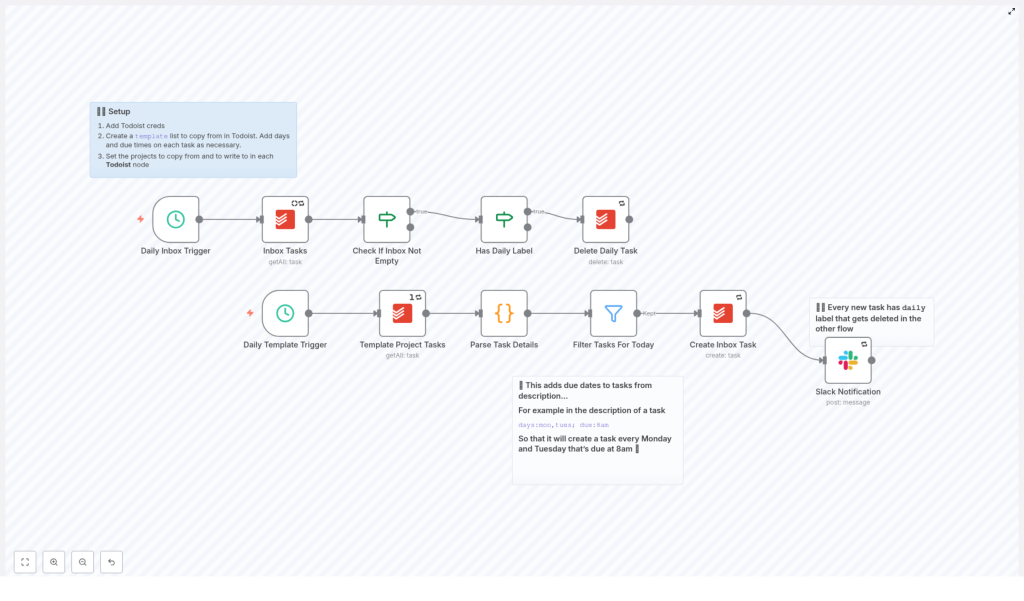
The workflow is built around two coordinated sub-flows that run on a schedule:
- Inbox cleanup flow – Clears out yesterday’s “daily” tasks so your Inbox never fills with old routines.
- Template creation flow – Reads tasks from a Todoist template project, interprets scheduling instructions from the description, and creates fresh tasks in your Inbox for the current day, with Slack notifications for visibility.
Both flows run at the same configured time, for example at 05:10 in the morning. First, the cleanup removes outdated daily tasks. Then the template flow adds new ones, tailored to the current weekday and due time. You wake up to a clean, ready-to-go task list.
Core building blocks of the workflow
Schedule Trigger: your daily automation heartbeat
The automation starts with two Schedule Trigger nodes in n8n, both set to the same run time. One trigger launches the Inbox cleanup, the other launches the task creation from your template project.
By running both on a consistent schedule, you ensure that:
- Old daily tasks are removed first.
- New tasks are created immediately after, without any overlap.
This rhythm keeps your Todoist Inbox lean and predictable every single day.
Todoist getAll: reading from your template project
The Todoist: getAll node pulls in all tasks from your chosen template project. This project is where you design your ideal daily routines once, instead of rebuilding them every day.
Each template task includes simple metadata in its description to tell the workflow when it should appear, for example:
days:mon,tues; due:8amThis line tells n8n to create that task on Monday and Tuesday, due at 8:00 AM. You can list multiple days with commas and keep the format human friendly so it is easy to maintain.
Code node: parsing the task details into something Todoist understands
The heart of the template is a Code node that parses each task’s description and converts it into structured data. It does three key things:
- Extracts the task content and description.
- Splits the description by semicolons into key-value pairs like
daysanddue. - Converts a human-friendly time string (for example
8amor1.30pm) into a UTC timestamp that Todoist accepts asdueDateTime.
Here is the time parsing function used inside the node:
function parseTimeString(timeString) {  const regex = /^(\d{1,2})(\.)?(\d{2})?([ap]m)$/i;  const match = timeString.match(regex);  if (!match) {  throw new Error("Invalid time format");  }  let hours = parseInt(match[1], 10);  let minutes = match[3] ? parseInt(match[3], 10) : 0;  const period = match[4].toLowerCase();  if (hours === 12) {  hours = period === 'am' ? 0 : 12;  } else {  hours = period === 'pm' ? hours + 12 : hours;  }  if (minutes < 0 || minutes >= 60) {  throw new Error("Invalid minutes");  }  const now = DateTime.now().set({ hour: hours, minute: minutes, second: 0, millisecond: 0 });  return now.toUTC();
}
This code uses the Luxon DateTime object that is available in n8n code nodes. It sets the time on today’s date in your server’s local timezone, then converts it to UTC. The result is a clean dueDateTime value that Todoist’s API can use directly.
Filter node: choosing only the tasks for today
Once each task has parsed metadata, a Filter node checks whether the days value includes today’s weekday token, such as mon, tues, wed, and so on.
Only tasks that match the current day move forward in the workflow. Everything else is skipped until its scheduled day comes around. This is how a single template project can power your entire weekly routine without manual intervention.
Todoist create: turning templates into real Inbox tasks
The Todoist: create node is where your templates become real tasks in your Inbox. For each filtered item, it:
- Sets content as the task title.
- Copies the original description (including metadata) into the task.
- Maps dueDateTime to the ISO UTC timestamp from the parsing function.
- Applies a temporary
dailylabel so the cleanup flow can find it later.
The result is a fresh set of daily tasks, correctly timed, labeled, and ready for action, without you lifting a finger each morning.
Slack notification: sharing visibility with your team
To close the loop, a Slack node sends a simple message to a chosen channel after each task is created. You can include the task name, due time, and any context that helps your team know what has been added.
This is especially powerful if your routines affect others, for example daily standups, reporting, or shared checklists. Everyone can see what is scheduled without needing to ask.
How the workflow keeps duplicates out of your Inbox
One of the most satisfying parts of this setup is how clean it keeps your Todoist Inbox. The workflow uses a straightforward two-phase strategy:
- Cleanup phase – The Inbox cleanup flow runs first, finds all tasks that still have the
dailylabel from previous runs, and deletes them. - Creation phase – The template flow then creates new tasks for the current day, each with the
dailylabel applied again.
This pattern prevents duplicates and keeps only the tasks that are relevant for today. If you prefer to keep a history of daily tasks, you can adjust the delete node or change how labels are used, but the core idea remains the same: your Inbox should support your focus, not fight it.
Setting everything up in n8n and Todoist
The workflow is ready to import and customize. Here is how to get it running quickly:
- Import the workflow JSON into your n8n instance.
- Add Todoist credentials in n8n using your API token, then select the correct project IDs in:
- The Todoist: getAll node for your template project.
- The Todoist: create node for your Inbox project.
- Prepare your template project in Todoist. For each template task, add metadata in the description, for example:
days:mon,tues; due:8amYou can include multiple comma separated days in the
daysfield. - Set your schedule triggers to the time you want the workflow to run each day, such as early morning before you start work.
- Connect Slack by adding your credentials and selecting the channel that should receive notifications, if you want alerts.
- Run a test by manually triggering the template flow once, then check your Todoist Inbox and Slack channel to confirm everything looks right.
In just a few minutes, you will have a daily routine that runs itself.
Description metadata format: simple rules that unlock smart scheduling
To keep the parser reliable and easy to maintain, use a consistent description pattern:
days:mon,tues; due:8amSome practical examples:
days:mon,wed,fri; due:7.30am– Create tasks on Monday, Wednesday, and Friday at 7:30 AM.days:tues; due:1pm– Create a task every Tuesday at 1:00 PM.days:mon,tues,wed,thurs,fri; due:9am– Create a weekday morning reminder at 9:00 AM.
Once you get comfortable with this pattern, you can quickly adjust your weekly routines just by editing descriptions in your template project.
Ideas to customize and grow this workflow
This template is intentionally simple, but it is also a powerful base to experiment and learn from. As you get familiar with it, you can extend it in many ways, such as:
- Beyond daily routines – Enhance the parser to support date ranges, weekly or monthly schedules, or even custom recurrence rules.
- Multiple timezones – Map tasks to specific timezone offsets if you coordinate with people in different regions.
- Advanced filters – Only create tasks with certain tags, labels, or priorities from the template project.
- Resilience and error handling – Add error catching nodes and Slack alerts when a task fails to be created.
- Richer metadata – Extend the description format with keys like
project:orpriority:and map those fields in the Todoist create node.
Each small improvement is another step toward a workflow that reflects exactly how you and your team like to operate.
Troubleshooting and refining your setup
Tasks are not being created
If tasks do not appear in your Todoist Inbox, check the following:
- Verify that your Todoist API credential in n8n is valid.
- Confirm that the template project ID is correctly set in the Todoist: getAll node.
- Ensure the description format follows the pattern with
days:anddue:. - Look at the Code node logs for parsing errors, such as invalid time formats.
Task times look incorrect
The parser builds a datetime for the current day in the server’s local timezone, then converts it to UTC. If tasks show at the wrong hour:
- Review the server timezone configuration.
- Adjust the parsing logic to use a specific timezone, for example:
DateTime.now().setZone('America/New_York')
Duplicates are still appearing
If you notice duplicates, focus on the timing of the two sub-flows:
- Confirm the cleanup flow runs before the creation flow.
- Make sure the
dailylabel is applied to all newly created tasks. - Consider adding a short delay between cleanup and creation triggers if needed.
Security and maintenance: keeping your system reliable
As your automation becomes part of your daily rhythm, it is worth treating it like any other important system:
- Store Todoist and Slack credentials securely in n8n’s credential manager.
- Limit access to the template project so only the right people can change routine tasks.
- Monitor n8n execution logs and consider setting up alerts if these tasks are critical for your business.
A little care here ensures your automation remains dependable as your workload and team grow.
Where this template can take you next
With this n8n template, you can:
- Automate the creation of daily Todoist tasks from a single template project.
- Use simple description metadata to schedule tasks by day and time.
- Prevent duplicate clutter in your Inbox with a reliable cleanup and creation pattern.
- Keep everyone informed through Slack notifications.
More importantly, you give yourself permission to step away from repetitive setup work and move toward a more focused, strategic way of working. Each morning, your tasks will already be waiting for you, so you can start with clarity instead of configuration.
Try it now: Import the workflow JSON into n8n, connect your Todoist and Slack credentials, and run a test. Watch your Inbox populate itself, then imagine what else you could automate.
If you would like help customizing the parser, adding timezone support, or extending this into a broader automation system, feel free to reach out or book a consultation. This template is just the beginning.
Want more automation guides like this? Subscribe for weekly tips and ready-to-import n8n templates that help you reclaim time and focus.
