


AI Facebook Ad Spy Tool: How to Automate Facebook Ad Analysis in n8n
What You Will Learn
In this tutorial-style guide, you will learn how to use an AI-powered Facebook Ad Spy Tool built on n8n to automatically:
- Scrape active Facebook ads with the Apify Facebook Ad Library Scraper
- Filter ads by page popularity to focus on strong competitors
- Analyze video, image, and text creatives with Google Gemini and OpenAI models
- Summarize and rewrite ad copy for strategic insights
- Store all results in Google Sheets for easy tracking and comparison
By the end, you will understand how each part of the workflow works, how the branches for different media types are structured, and how to customize the template for your own ad research.
Concept Overview: How the Automation Works
The workflow is an end-to-end automation pipeline that turns raw Facebook ads into structured insights using n8n. It connects several tools and services:
- Apify Facebook Ad Library Scraper to collect active ads
- Google Gemini to deeply analyze video content
- OpenAI GPT-4.1 and GPT-4o to summarize and rewrite ad copy and image descriptions
- Google Drive for stable video hosting during analysis
- Google Sheets as a central database for all processed ads
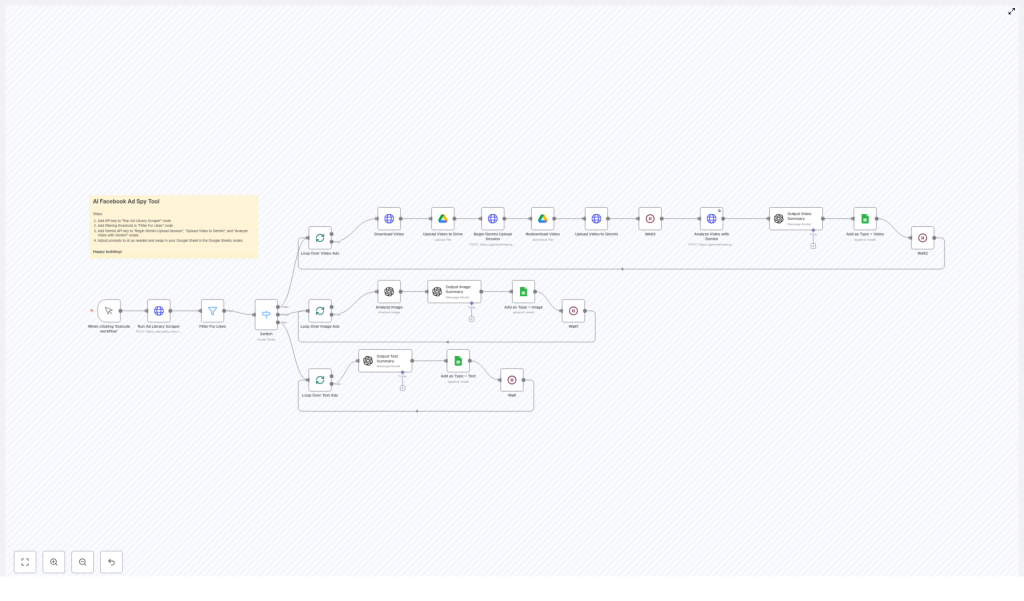
The workflow runs in several stages:
- Trigger & scraping of Facebook ads
- Filtering by page popularity (likes)
- Routing ads based on media type (video, image, text-only)
- Separate processing paths for each media type with AI analysis
- Saving structured outputs into Google Sheets
- Applying wait nodes to respect API rate limits
Step 1 – Triggering the Workflow and Scraping Ads
1.1 Starting the Workflow
The workflow can be started either:
- Manually from the n8n editor, or
- Programmatically through an n8n trigger or external call
Once triggered, the first key node is the “Run Ad Library Scraper” node that connects to Apify.
1.2 Running the Apify Facebook Ad Library Scraper
The “Run Ad Library Scraper” node sends an API request to Apify to fetch active Facebook ads that match your criteria. In the template, it is configured to:
- Search for ads containing the keyword phrase “ai automation”
- Limit the number of ads to up to 200
- Filter by country and date as set in the node parameters
This gives you a batch of current ads related to AI automation that you can then analyze in detail.
Step 2 – Filtering Ads by Page Popularity
Not all ads are equally valuable for competitive research. To focus on more influential advertisers, the workflow includes a filtering step.
2.1 Using the Likes Threshold
After scraping, the ads pass through a node that checks the number of page likes for each advertiser. The template uses a condition such as:
- Include only ads from pages with more than 1000 likes
This helps you concentrate on brands that already have some traction, which usually means more polished and better-tested ad creatives.
Step 3 – Routing by Media Type in n8n
Once the relevant ads are filtered, the workflow needs to handle different creative formats differently. Video ads require a different analysis pipeline than image or text-only ads.
3.1 The Media Type Switch Node
A Switch node in n8n checks the media type of each ad creative and routes it into one of three branches:
- Video ads branch
- Image ads branch
- Text-only ads branch
From this point, each branch has its own set of nodes tailored to that media type, but all of them eventually send structured results to Google Sheets.
Step 4 – Processing Video Ads with Gemini and GPT-4.1
Video ads carry a lot of information: visuals, motion, scenes, and sometimes voiceover or on-screen text. This branch uses Google Drive, Google Gemini, and OpenAI to extract and refine that information.
4.1 Downloading and Uploading the Video
For each video ad:
- The workflow downloads the SD video file from the ad snapshot URL provided by the scraper.
- The file is then uploaded to Google Drive. This creates a stable hosting location that can be used for further processing.
4.2 Preparing the Video for Gemini Analysis
To analyze the video content using Google Gemini, the workflow performs a few technical steps:
- It starts a resumable upload session with Gemini so that the video can be uploaded reliably.
- The video is re-downloaded from Google Drive to verify integrity before sending it to Gemini.
- The verified video data is then uploaded to Gemini for analysis.
4.3 Getting a Detailed Video Description from Gemini
After the upload is complete, the workflow waits for Gemini to finish processing. Once done, Gemini returns an extremely detailed description of the video content, which may include:
- Scenes and visual elements
- On-screen text
- Objects, people, and actions
- Overall context and themes
4.4 Summarizing and Rewriting Video Ads with GPT-4.1
The next step is to combine:
- The original scraper data for the ad, and
- The Gemini video description
These are passed into an OpenAI GPT-4.1 node with a custom prompt. GPT-4.1 is used to:
- Create a structured, human-readable summary of the ad
- Generate a rewritten version of the ad copy that is optimized for strategic analysis and inspiration
4.5 Saving Video Ad Results to Google Sheets
The workflow then writes the processed data to a Google Sheet, including:
- Ad summary
- Rewritten ad copy
- Video-related prompts or descriptions
- Relevant metadata from the scraper
- A label such as “Type = Video” for easy filtering
A short Wait node is included to pace requests and help you stay within API rate limits.
Step 5 – Processing Image Ads with GPT-4o and GPT-4.1
Image ads focus heavily on visual design and layout. This branch uses image analysis and text generation to understand and reframe these creatives.
5.1 Analyzing the Image with GPT-4o
For each image ad:
- The workflow takes the image URL from the ad snapshot.
- An AI model, such as GPT-4o, is used to analyze this image in detail.
The model produces a rich description that can include:
- Visual elements, colors, and layout
- Text shown in the image
- Branding and design style
- Overall message conveyed by the visuals
5.2 Creating a Summary and New Copy with GPT-4.1
The detailed image description, together with the original scraper data, is then sent to another GPT-4.1 node. This node is responsible for:
- Producing a clear, structured summary of the ad
- Generating a more engaging or “spirited” rewritten ad copy for strategic insight
5.3 Storing Image Ad Insights in Google Sheets
As in the video branch, the results are appended to your Google Sheets archive, including:
- Summary
- Rewritten copy
- Image-related outputs
- Metadata from the original ad
- A classification such as “Type = Image”
A wait step is also included to maintain a safe pace and avoid hitting API limits.
Step 6 – Processing Text-Only Ads with GPT-4.1
Some ads contain only text, with no images or videos. These are handled in a simpler, more direct branch.
6.1 Sending Text Ads Directly to GPT-4.1
For text-only creatives:
- The workflow takes the scraped text content from the ad.
- This content is passed directly to a GPT-4.1 node.
The model is prompted to:
- Summarize the core message of the ad
- Rewrite the ad copy in a clear, strategic way
6.2 Logging Text Ad Results
The outputs are then stored in Google Sheets, similar to the other branches, with:
- Summary
- Rewritten text
- Relevant metadata
- A tag such as “Type = Text”
Wait nodes manage the cadence to stay within API quotas.
Step 7 – Configuration and Setup in n8n
To get this n8n template working in your own environment, you need to configure a few keys and IDs.
7.1 Connecting the Scraper (Apify)
- Open the “Run Ad Library Scraper” node in n8n.
- Add your Apify API key so the node can authenticate and perform scraping.
- Adjust the search keyword, country, and date filters if needed.
7.2 Adjusting the Popularity Filter
- Locate the “Filter For Likes” node.
- Set your preferred likes threshold (for example, keep the “more than 1000 likes” condition or set a different value).
7.3 Setting Up Google Gemini for Video
- In the nodes such as “Begin Gemini Upload Session”, “Upload Video to Gemini”, and “Analyze Video with Gemini”, enter your Gemini API keys.
- Confirm that the project and region settings match your Google Cloud configuration.
7.4 Configuring OpenAI Prompts
- Open each OpenAI node that uses GPT-4.1 or GPT-4o.
- Insert your OpenAI API key if required by your n8n credentials setup.
- Customize the prompt text to match your preferred tone, level of detail, or strategic focus.
7.5 Connecting Google Sheets
- In the Google Sheets nodes, replace the default document ID and sheet ID with your own.
- Confirm that the column mapping matches the fields you want to store, such as summary, rewritten copy, media type, and metadata.
7.6 Respecting API Rate Limits
- Keep the built-in Wait nodes in place to avoid hitting rate limits for Apify, Gemini, OpenAI, or Google APIs.
- If you increase the number of ads processed, consider extending the wait durations.
Why Use This AI Facebook Ad Spy Workflow
This automated system provides several practical benefits for marketers, agencies, and growth teams.
- Time savings – It replaces manual competitor ad research with a repeatable n8n workflow.
- High-quality insights – AI-generated summaries and rewrites help you quickly understand what competitors are testing.
- Multi-media coverage – It handles video, image, and text ads using specialized AI models for each format.
- Centralized intelligence – All processed ads are stored in a single Google Sheet that you can sort, filter, and reference later.
Quick Recap
Here is a short recap of how the AI Facebook Ad Spy Tool works in n8n:
- Trigger the workflow and run the Apify Facebook Ad Library Scraper.
- Filter ads by page likes to focus on stronger competitors.
- Use a Switch node to route ads by media type: video, image, or text-only.
- For video ads, download, upload to Google Drive, analyze with Gemini, then summarize and rewrite with GPT-4.1.
- For image ads, analyze the image URL with GPT-4o, then summarize and rewrite with GPT-4.1.
- For text-only ads, send the text directly to GPT-4.1 for summarization and rewriting.
- Store all outputs in Google Sheets with a clear “Type” label and use wait nodes to respect rate limits.
FAQ
Can I change the keyword from “ai automation” to something else?
Yes. In the “Run Ad Library Scraper” node, you can replace the keyword phrase with any term relevant to your niche or industry.
What if I want to track more than 200 ads?
You can increase the limit in the scraper configuration, but you may need to:
- Extend the wait times between requests
- Monitor your API quotas for Apify, Gemini, OpenAI, and Google services
Can I use a different storage system instead of Google Sheets?
The template is built around Google Sheets for simplicity, but in n8n you can easily swap or add other destinations, such as databases, Airtable, or CSV files, by adding or replacing nodes.
Is this tool only for agencies?
No. It is useful for anyone running Facebook ads, including solo marketers, in-house teams, and agencies that want a structured way to track competitor creatives and messaging.
Get Started With the Template
If you manage advertising strategy or run an agency, this AI Facebook Ad Spy Tool can significantly speed up your competitive research. Prepare your API keys, plug them into the nodes, customize the prompts and filters, and you will quickly start building a rich library of analyzed ads from your market.
Happy building and optimizing your digital ad intelligence!
