


Automate Spotify Liked Songs Sync to Playlist
Ever find yourself liking songs on Spotify all the time, but forgetting to add them to your favorite playlist? Then a few weeks later, that playlist no longer reflects what you actually listen to. Frustrating, right?
This is exactly the kind of small but annoying problem that automation solves beautifully. In this guide, we will walk through an n8n workflow template that automatically syncs your Spotify Liked Songs to a specific playlist, keeps it clean, and updates it on a schedule you choose.
We will keep all the technical bits accurate, but explain them in a casual, friendly way so you know exactly what is going on and why it makes your life easier.
What This n8n Workflow Actually Does
Let us start with the big picture. This n8n workflow connects to your Spotify account and regularly compares two things:
- Your Spotify Liked Songs
- A specific playlist that you choose
Every time it runs, it checks for differences and syncs them so the playlist always mirrors your current likes. It does two main jobs for you:
- Adds songs that you have liked but are not yet in the playlist.
- Removes songs from the playlist that you have unliked or removed from your Liked Songs.
The workflow is designed to run automatically every 24 hours by default, so your playlist quietly updates in the background. No more dragging tracks around manually or wondering why your “favorites” playlist feels out of date.
When Should You Use This Template?
This workflow is perfect if you:
- Use Liked Songs as your main way of saving music, but still want a curated playlist that stays in sync.
- Have a “Favorites”, “Daily Mix”, or “Main Library” playlist you want to always match your current likes.
- Are tired of manually adding and removing songs from playlists.
- Want a low-maintenance, set-it-and-forget-it system for playlist management.
If you are already using n8n or looking for a practical first automation to try, this is a great starting point.
How the Workflow Works Behind the Scenes
Let us break down how the template operates from start to finish. You do not need to be an expert to follow this, but it helps to know what each part does so you can customize it later.
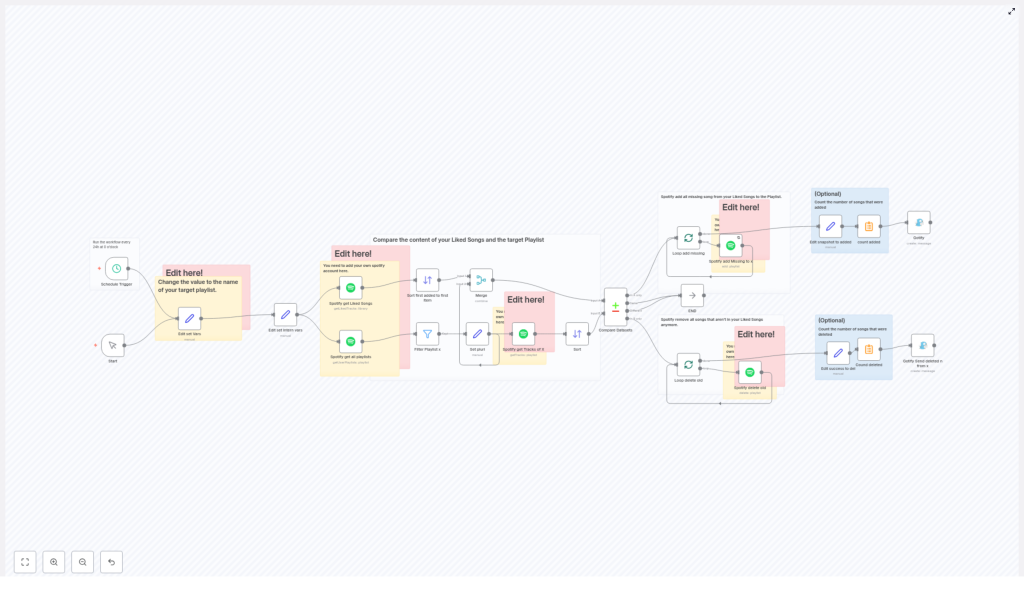
1. Scheduled Sync With the Schedule Trigger
The whole process kicks off with a Schedule Trigger node. In the template, it is set to run automatically once a day at midnight.
What this means for you:
- No manual button pressing.
- Your playlist updates every 24 hours by default.
- You can change the timing if daily is not your style.
You can adjust this schedule to run more or less often, depending on how frequently you add new music.
2. Telling the Workflow Which Playlist to Sync
Next up is a Set node that defines a variable called varplaylistto. This is simply the name of the playlist you want to keep in sync with your Liked Songs.
In this node, you:
- Open the Set node labeled something like “Edit set Vars”.
- Find the variable
varplaylistto. - Replace its value with the exact name of your target playlist.
That is how the workflow knows which playlist to read from and update. If you ever want to sync a different playlist, just change this value.
3. Connecting Your Spotify Account
For n8n to read and update your Spotify data, you need to connect your Spotify account in a few nodes. The template uses multiple Spotify nodes, each with a specific job:
- Spotify get Liked Songs – pulls all the tracks from your Liked Songs library.
- Spotify get all playlists – fetches all your playlists so the workflow can find the one that matches
varplaylistto. - Spotify get Tracks of X – retrieves all the tracks currently in the target playlist for comparison.
- Spotify add Missing to x – adds any liked songs that are not yet in the playlist.
- Spotify delete old – removes tracks from the playlist that you have unliked or no longer have in Liked Songs.
In each of these nodes, make sure your Spotify credentials are set up correctly. Once that is done, the workflow can safely read and modify your playlists.
4. Sorting, Filtering, and Finding the Right Playlist
To avoid any confusion, the workflow does some sorting and filtering before comparing songs.
Here is what happens:
- It sorts songs based on the date they were added, from oldest to newest.
- It filters your playlists to find the one whose name matches the value of
varplaylistto.
This makes sure that the comparison is done between the right playlist and the correct set of liked tracks. No accidental updates to the wrong playlist.
5. Comparing Liked Songs With the Playlist
The real magic happens in the Compare Datasets node. This is where the workflow figures out what needs to change.
It compares two lists:
- All your Liked Songs.
- All the tracks currently in your chosen playlist.
From that comparison, it identifies:
- Which liked songs are missing from the playlist.
- Which songs are in the playlist but no longer liked.
That gives the workflow a clear to-do list: add what is missing, remove what no longer belongs.
6. Updating the Playlist With Batch Loops
Once the workflow knows what needs to change, it updates the playlist in two separate passes:
- Adding missing tracks: Any liked songs that are not yet in the playlist are added using a batch loop so the updates are handled in manageable chunks.
- Removing old tracks: Any songs that are in the playlist but not in your Liked Songs anymore are removed, also via a batch loop.
Using batch loops helps the workflow handle larger playlists without hitting limits or timing out, and it keeps everything efficient.
7. Optional Notifications With Gotify
If you like a bit of feedback after automations run, the template includes optional Gotify nodes.
These can send you a short summary notification that includes:
- How many songs were added.
- How many songs were deleted.
- How long the sync took.
This part is optional, so if you prefer silent automation, you can simply leave these nodes disabled or unconfigured.
How to Set It Up Step by Step
Let us quickly recap the setup in a more practical, checklist-style way.
Step 1 – Import the Template
Open n8n, import the Spotify Liked Songs to Playlist template, and make sure all nodes are visible and connected.
Step 2 – Configure the Schedule Trigger
- Open the Schedule Trigger node.
- Confirm it is set to run every 24 hours at midnight, or change the timing to whatever fits your listening habits.
Step 3 – Set Your Target Playlist Name
- Open the Set node where
varplaylisttois defined. - Replace the existing value with the exact name of your Spotify playlist.
Step 4 – Add Your Spotify Credentials
- Open each Spotify-related node:
- Spotify get Liked Songs
- Spotify get all playlists
- Spotify get Tracks of X
- Spotify add Missing to x
- Spotify delete old
- Set or select your Spotify credentials in each node.
Step 5 – (Optional) Configure Gotify Notifications
- If you use Gotify, open the notification nodes.
- Enter your Gotify server details and configure the message content if needed.
Step 6 – Test the Workflow
- Run the workflow manually once from n8n.
- Check your target playlist in Spotify to confirm songs were added and removed correctly.
Step 7 – Enable the Workflow
- Once you are happy with the test, activate the workflow.
- From now on, it will run automatically on the schedule you defined.
Customization Tips and Ideas
You can keep things simple or tweak the workflow to fit your style. Here are a few easy customizations:
- Edit the playlist name: In the “Edit set Vars”
varplaylisttonode, change the value to any playlist you want synced. - Change the sync frequency: Adjust the Schedule Trigger to run hourly, weekly, or at specific times of day.
- Refine notifications: If using Gotify, customize the message text to show exactly the details you care about.
- Experiment with different playlists: Duplicate the workflow and sync multiple playlists with different rules if you like.
Why This Automation Makes Your Life Easier
Instead of managing playlists by hand, you let automation do the boring part. You simply like the songs you enjoy, and the workflow quietly keeps your chosen playlist in sync.
The result:
- Your playlist always reflects your current taste.
- No more “I thought I added that track already” moments.
- You save time and mental energy for actually enjoying the music.
Try the Template and Make Spotify Work for You
If you are ready to stop babysitting your playlists, this n8n workflow is an easy win. Set it up once, tweak it to your preferences, and let it handle the repetitive work in the background.
Give it a try, see how it feels to have your Liked Songs and playlist in perfect sync, and then build on it with more automations if you like.
Feel free to share how you are using it or what you would like to improve. Your feedback and ideas can inspire even better workflows.
Wrapping Up
This n8n workflow uses the Spotify API to keep your favorite music organized with almost no effort. Whether you stick with the default daily sync or adjust it to your own schedule, you stay in full control while automation does the heavy lifting.
Like your music, not manual playlist maintenance? Then this setup is for you.
