


Automate Calendar to ClickUp with n8n & LangChain
What You Will Learn
In this tutorial, you will learn how to build an automated “Calendar to ClickUp” workflow in n8n that:
- Receives calendar events through a webhook
- Splits and embeds event descriptions using LangChain and OpenAI
- Stores and retrieves context with Pinecone vector storage
- Uses a RAG (Retrieval-Augmented Generation) agent to generate structured ClickUp tasks
- Logs results to Google Sheets and sends Slack alerts when something goes wrong
The goal is to turn raw calendar data into reliable, structured ClickUp tasks with as little manual work as possible.
Why Automate Calendar Events Into ClickUp?
Manually turning meetings and calendar events into ClickUp tasks is:
- Time-consuming
- Prone to copy-paste errors
- Inconsistent across team members
By combining n8n, LangChain, Pinecone, and OpenAI, you can build a workflow that:
- Ingests calendar data via a webhook in real time
- Understands event descriptions using text embeddings
- Retrieves related context from previous meetings
- Generates structured task fields ready for ClickUp
- Logs all activity and alerts you on failures
This approach is especially useful when your event descriptions contain rich notes, action items, or follow-ups that you do not want to lose.
Key Concepts Before You Start
n8n Workflow Basics
n8n is a workflow automation tool where you connect nodes to process data step by step. In this workflow you will use nodes for:
- Webhook Trigger to receive events
- Text processing and embeddings
- Pinecone for vector storage and search
- RAG Agent for task generation
- Google Sheets and Slack for logging and alerts
Text Splitting and Embeddings
Long event descriptions are split into smaller chunks so that:
- Embeddings can capture meaning more accurately
- Vector search can find the most relevant pieces later
Embeddings are numerical representations of text. In this workflow, OpenAI’s text-embedding-3-small model turns chunks of event text into vectors that can be stored and searched in Pinecone.
Pinecone and RAG (Retrieval-Augmented Generation)
Pinecone is a vector database. You will:
- Insert embeddings into a Pinecone index named
calendar_to_clickup - Query that index to retrieve similar or related content for a new event
RAG combines that retrieved context with the current event to guide a chat model. Instead of the model guessing from scratch, it uses relevant past information to generate more accurate ClickUp task details.
Workflow Architecture Overview
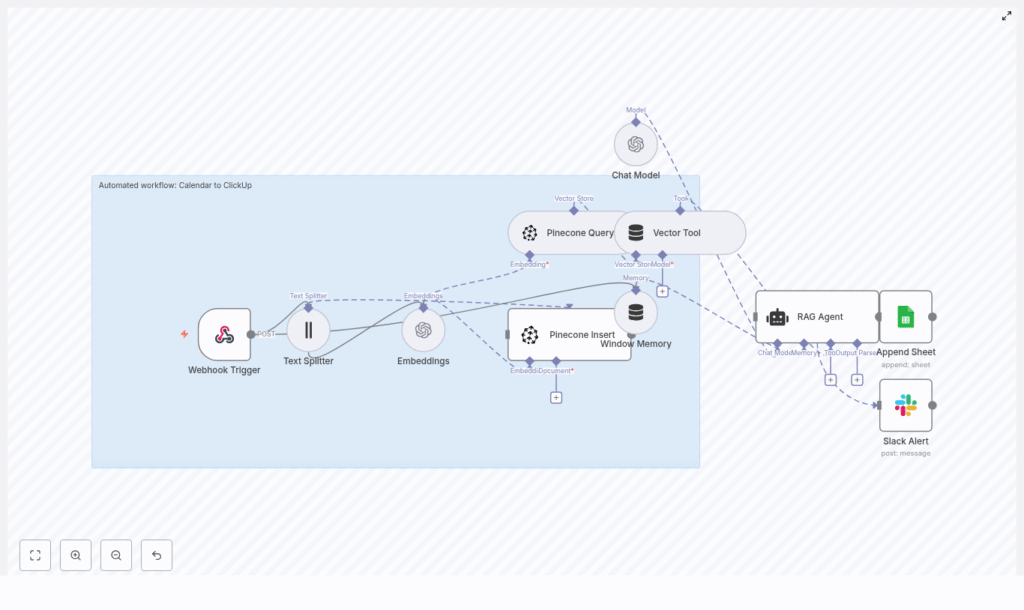
The template workflow in n8n is built from these main components:
- Webhook Trigger: Receives calendar payloads at POST path
calendar-to-clickup - Text Splitter: Splits long descriptions into chunks (size 400, overlap 40)
- OpenAI Embeddings: Uses model
text-embedding-3-small - Pinecone Insert and Pinecone Query: Store and query vectors in index
calendar_to_clickup - Vector Tool and Window Memory: Provide retrieved context to the RAG Agent and maintain conversation context
- Chat Model + RAG Agent: Converts event data into ClickUp-ready task fields
- Google Sheets Append: Logs RAG outputs to a sheet named
Log - Slack Alert: Sends error notifications to a channel (for example,
#alerts) using an onError path
Step-by-Step: Building the Calendar to ClickUp Workflow in n8n
Step 1: Create the Webhook Trigger
- Add a Webhook Trigger node in n8n.
- Set the HTTP method to POST.
- Set the path to
calendar-to-clickup. - Copy the webhook URL and configure your calendar integration or middleware to send event payloads to this URL.
Once configured, every time a calendar event is created or updated (depending on your calendar setup), the payload will be sent to this webhook and will start the n8n workflow.
Step 2: Normalize and Split the Event Description
- Add a Text Splitter node after the Webhook Trigger.
- Use the Character Text Splitter type.
- Configure:
chunkSize: 400chunkOverlap: 40
- Map the calendar event description field from the webhook JSON into the Text Splitter input.
These settings keep enough overlap between chunks so that context is not lost at the boundaries. This improves both embedding quality and later retrieval accuracy.
Step 3: Generate OpenAI Embeddings
- Add a LangChain OpenAI Embeddings node.
- Select the model
text-embedding-3-small. - Feed the text chunks from the Text Splitter node into this embeddings node.
The output of this node will be dense vectors that represent the meaning of each text chunk. These vectors are what you will store in Pinecone.
Step 4: Store Embeddings in Pinecone
- Add a Pinecone Insert node.
- Point it to a Pinecone index named
calendar_to_clickup(create this index in Pinecone if you have not already). - Map the embeddings and any relevant metadata (such as event ID, title, or timestamp) from the previous node into the insert operation.
By indexing embeddings, you can later enrich new events with related historical context, such as previous meetings with the same client or earlier sessions of a recurring project.
Step 5: Retrieve Context with Pinecone Query, Vector Tool, and Window Memory
When a new event is processed, you want to bring in relevant past information.
- Add a Pinecone Query node that:
- Queries the
calendar_to_clickupindex - Uses the embedding of the current event as the query vector
- Queries the
- Add a Vector Tool node to expose the retrieved vectors and their metadata to the RAG Agent.
- Add a Window Memory node so that the agent can keep track of ongoing context across steps in the RAG flow.
Together, these nodes give the RAG Agent both the current event and any similar or related past content to work with.
Step 6: Configure the RAG Agent to Create ClickUp Task Fields
- Add a Chat Model node configured with your OpenAI chat model of choice.
- Add a RAG Agent node and connect:
- The Chat Model
- The Vector Tool output
- The Window Memory
- Set the RAG Agent system message to:
You are an assistant for Calendar to ClickUp.
- Set the prompt type to
define. - Feed both the raw calendar event JSON and the retrieved context into the agent.
The RAG Agent should output a structured representation of the ClickUp task, including fields such as:
- Task title
- Description
- Due date
- Assignees
- Priority
- Tags or custom fields required by your ClickUp workspace
Example Prompt to the RAG Agent
Here is a sample prompt structure you can use for the agent:
{  "system": "You are an assistant for Calendar to ClickUp.",  "user": "Process the following data for task 'Calendar to ClickUp':\n\n{{ $json }}"
}
In n8n, {{ $json }} is typically replaced with the current item’s JSON data from the workflow.
Step 7: Log the Output and Prepare for ClickUp Task Creation
- Add a Google Sheets Append node.
- Connect it after the RAG Agent node.
- Configure it to:
- Use your chosen spreadsheet
- Append to a sheet named
Log
- Map the RAG Agent output fields into columns in the
Logsheet.
This gives you a simple audit trail of what the agent produced for each event.
After logging, you can add a ClickUp API node (or a generic HTTP Request node) to actually create tasks in ClickUp using the structured output from the agent. The template focuses on logging, but it is designed so you can easily add your ClickUp creation logic using your ClickUp API key and workspace configuration.
Error Handling with Slack Alerts
To avoid silent failures, the workflow includes a dedicated error path.
- The RAG Agent node has an onError connection to a Slack Alert node.
- When the agent fails, the Slack node posts a message to a channel such as
#alerts. - The message contains error details, so your team can quickly investigate webhook issues, model errors, or data problems.
Make sure the Slack node is configured with the correct workspace, channel, and authentication so that alerts always reach the right people.
Best Practices for a Reliable Workflow
- Security: Protect your webhook with a secret token, IP allowlist, or other access controls to prevent unauthorized requests.
- Rate limits: Monitor your OpenAI and Pinecone usage. Use batching where possible to reduce the number of requests and avoid throttling.
- Chunking strategy: The default
chunkSizeof 400 andchunkOverlapof 40 work well for many event descriptions, but you can adjust them based on typical description length and complexity. - Schema enforcement: In the RAG Agent prompt, require a strict output format such as JSON or TSV. This makes downstream ClickUp API calls predictable and easier to validate.
- Monitoring: Log both inputs and outputs in Google Sheets or a database. This helps with debugging, audits, and improving your prompts over time.
Testing Checklist
Before using this in production, run through the following tests:
- Send sample calendar events of different sizes and complexity to the webhook.
- Confirm that embeddings are generated and stored correctly in the
calendar_to_clickupPinecone index. - Check that the RAG Agent output strictly follows the expected schema and includes all required ClickUp fields.
- Verify that logs appear in the
Logsheet in Google Sheets. - Ensure Slack alerts only trigger on real errors, not on successful runs.
Cost and Performance Considerations
Several components in this workflow have usage-based costs:
- OpenAI embeddings: Costs depend on the number of tokens you embed. Using
text-embedding-3-smallis cost-effective for bulk ingestion. - Chat model: More powerful models are more expensive but may handle complex reasoning better. You can reserve them for the RAG Agent and keep embeddings on the smaller model.
- Pinecone storage: Costs scale with the number of vectors and the index configuration. Consider deleting or archiving outdated vectors to control storage usage.
Monitoring usage and adjusting chunk size, frequency of ingestion, and retention policies can help optimize both cost and performance.
Ideas for Extending the Pipeline
Once the basic “Calendar to ClickUp” flow is stable, you can build more advanced features:
- Bidirectional sync: Add a ClickUp to Calendar workflow so that changes in tasks (status, due date, etc.) are reflected back in calendar events.
- Advanced matching: Use Pinecone to suggest similar past tasks so you can reuse templates, assignees, or tags.
- Custom field mapping: Map calendar metadata (such as organizer, location, or meeting type) to ClickUp custom fields based on the calendar source.
- Approval UI: Insert a lightweight approval step, for example a Slack message with interactive buttons, before creating high-impact tasks automatically.
Quick FAQ
Do I have to use Pinecone?
Pinecone is used for scalable and efficient vector search. If you want retrieval-augmented generation with historical context, you need some form of vector storage. Pinecone is a good managed option for this template.
Can I change the embedding model?
Yes. The template uses text-embedding-3-small for cost-effective bulk ingestion, but you can choose another OpenAI embedding model if you need different performance or accuracy characteristics.
How do I actually create the ClickUp task?
The template focuses on generating structured task data and logging it. To create tasks, add a ClickUp API node (or HTTP Request node) after the logging step, map the RAG Agent output to ClickUp’s task fields, and authenticate with your ClickUp API key.
Is the RAG Agent output format fixed?
No, but it should be clearly defined. In your system messages and prompts, specify the exact JSON or TSV schema you expect so that downstream nodes can parse it reliably.
Recap and Next Steps
You have seen how to build an n8n workflow that:
- Receives calendar events via a webhook
- Splits and embeds descriptions using LangChain and OpenAI
- Stores and retrieves context with a Pinecone index
- Uses a RAG Agent to transform events into structured ClickUp tasks
- Logs results to Google Sheets and sends Slack alerts on errors
To move forward:
- Deploy the webhook and confirm calendar events are reaching n8n.
- Build and test the embedding and Pinecone indexing steps.
- Iterate on your RAG Agent prompts and output schema until the ClickUp fields are reliable.
- Add and configure the ClickUp API node to create tasks automatically.
- Share the workflow with your team and refine it based on feedback.
Call to action: Try this template in your n8n workspace, experiment with different chunk sizes and prompt formats, and then connect it to ClickUp so tasks are created without manual effort. If you need help customizing the RAG prompts or mapping to your specific ClickUp fields, collaborate with your team or automation specialist
