


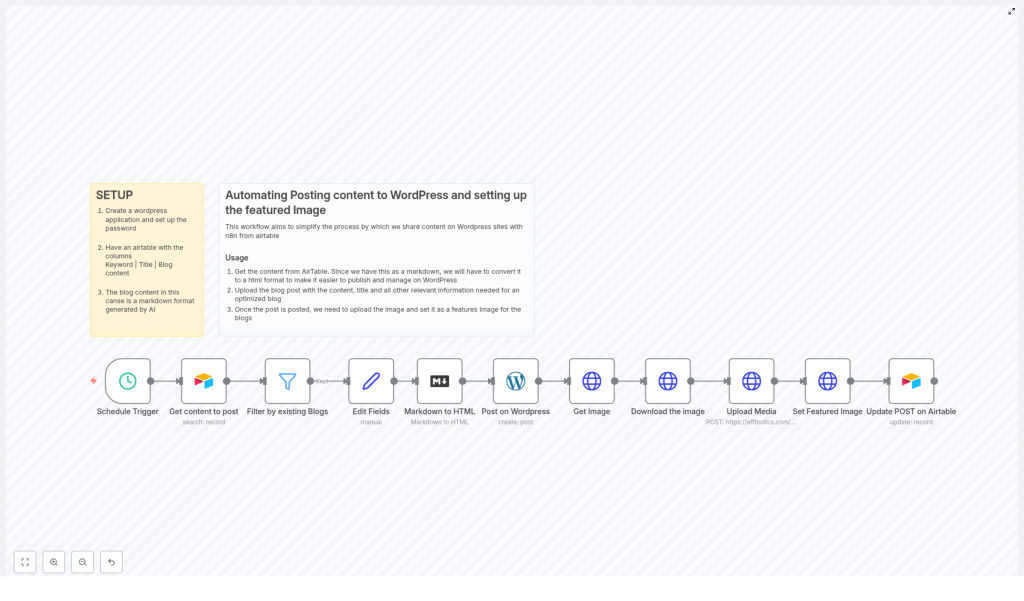
Automate WordPress Posting & Featured Image Setup with n8n and Airtable
1. Overview
This reference guide documents an n8n workflow template that automates publishing blog posts from Airtable to WordPress, including automatic featured image selection. The workflow retrieves Markdown content from Airtable, converts it to HTML, publishes it via the WordPress REST API, uploads an image from Pexels as media, assigns it as the featured image, and then updates the originating Airtable record.
The documentation below is written for users already familiar with n8n concepts such as nodes, triggers, credentials, and data mapping.
2. Prerequisites & External Services
2.1 Required Services and Credentials
- WordPress site with REST API access
You need:- A WordPress user account with permission to create posts and upload media.
- An Application Password generated for that user to authenticate API calls from n8n.
- Airtable base
An Airtable base with at least the following fields:Keyword– used to search for a relevant image.Title– used as the WordPress post title.Blog content– the full blog body in Markdown format.- A status field (for example
Status) that includes values likeTo PostandPostedfor workflow control.
- Pexels API access
An API key for the Pexels image service so the workflow can retrieve a relevant image for each post based on its keyword.
2.2 Content Format Requirements
- Markdown content
TheBlog contentfield in Airtable should contain Markdown-formatted text. This content is later converted to HTML for WordPress compatibility. The Markdown can be authored manually or generated by AI tools.
3. Workflow Architecture
The workflow is designed as a scheduled, batch-oriented automation that pulls pending records from Airtable, processes them one by one, and then updates their status after publishing. At a high level, the workflow performs the following operations:
- Trigger – Start execution on a time-based schedule.
- Fetch records from Airtable – Retrieve all items marked as ready to publish (for example status
To Post). - Filter existing posts – Skip any records that already correspond to a published blog to avoid duplicates.
- Normalize and map fields – Extract and map
Title,Keyword, andBlog contentinto a consistent internal structure. - Convert Markdown to HTML – Transform the post body into HTML for WordPress.
- Create WordPress post – Publish the post using the WordPress REST API with the converted HTML content.
- Retrieve image from Pexels – Use the keyword to request a relevant image via Pexels API.
- Download selected image – Download the chosen image so it can be uploaded to WordPress.
- Upload image to WordPress media library – Create a media item in WordPress.
- Set featured image on the post – Assign the uploaded media as the featured image for the newly created post.
- Update Airtable record – Mark the record as
Postedand optionally store any related metadata to prevent reprocessing.
4. Node-by-Node Breakdown
4.1 Schedule Trigger
Node type: Schedule Trigger
Purpose: Periodically start the workflow to check for new content in Airtable.
Typical configuration:
- Mode: Recurring interval or cron expression, depending on your publishing cadence.
- Example: Run every hour or every day at a specific time.
The Schedule Trigger does not require external credentials. It simply initiates the workflow and passes control to the first data node.
4.2 Retrieve Content from Airtable
Node type: Airtable
Purpose: Fetch all records that are ready to be posted.
Key parameters:
- Credentials: Airtable API key or personal access token configured in n8n.
- Base ID & Table name: The base and table that store blog data.
- Filter / Formula: A filter that returns only records with a status like
To Post. For example, a formula can check aStatusfield equals"To Post". - Fields: At minimum, select:
KeywordTitleBlog content- The status field used for tracking (for example
Status).
The node outputs one item per Airtable record, which subsequent nodes process individually or as a collection, depending on your node configuration.
4.3 Filter by Existing Blogs
Node type: Typically an IF node, Filter node, or similar conditional logic.
Purpose: Ensure that records already published are not processed again.
Typical logic:
- Check whether the record already has:
- A status of
Postedin Airtable, or - Another field that indicates it has been processed (for example a stored WordPress post ID, depending on how your template is configured).
- A status of
- Only pass items that are not yet published to the next steps.
This prevents duplicate WordPress posts and keeps Airtable and WordPress in sync. The exact condition depends on how the template tracks processed items, but the intent is always to avoid reposting the same content.
4.4 Edit Fields (Data Mapping)
Node type: Set / Function / Item Lists (depending on template implementation).
Purpose: Normalize and map Airtable fields into a structure that is easier to consume by later nodes.
Key operations:
- Extract
Titlefrom the Airtable record and map it to a field likepostTitle. - Extract
Keywordand map it to a field likepostKeywordfor use with the Pexels API. - Extract
Blog contentand map it to a field likepostMarkdown.
This step ensures that subsequent nodes reference consistent property names, which simplifies configuration and reduces the risk of misconfigured expressions.
4.5 Markdown to HTML Conversion
Node type: Markdown conversion utility or a Function node that uses a Markdown library, depending on the template.
Purpose: Convert the Markdown-formatted body into HTML suitable for WordPress.
Input: The postMarkdown field from the previous node.
Output: A corresponding postHtml field that contains the fully converted HTML string.
This conversion preserves headings, lists, links, and other Markdown elements in a format that WordPress can render correctly in the post content area.
4.6 Post on WordPress
Node type: WordPress (REST API)
Purpose: Create a new blog post in WordPress using the title and HTML content.
Key parameters:
- Credentials: WordPress credentials configured with an Application Password for the chosen user.
- Operation: Create Post.
- Title: Mapped from
postTitle. - Content: Mapped from
postHtml. - Status: Typically set to
publish, although you can configuredraftor other states if needed.
Output: The node returns the newly created post object, including its post ID. This ID is important for the subsequent step that attaches a featured image.
4.7 Get Relevant Image from Pexels
Node type: HTTP Request or dedicated Pexels node (if available in your n8n version).
Purpose: Retrieve a relevant image based on the post keyword.
Key parameters:
- Method: GET
- Endpoint: Pexels search endpoint.
- Query parameter:
querymapped frompostKeyword. - Headers: Include the Pexels API key in the required authorization header.
Output: A list of images or a single image object, depending on the configuration. The workflow typically selects one image URL from the response to use for download.
Edge case handling: If the Pexels API returns no results for a given keyword, the workflow should either:
- Fail gracefully and skip image assignment for that post, or
- Use a fallback keyword or default image, if you configure such logic.
The template is focused on the normal case where at least one relevant image is returned.
4.8 Download the Image
Node type: HTTP Request (binary data enabled).
Purpose: Download the selected image file from the Pexels URL.
Key parameters:
- Method: GET
- URL: The chosen image URL from the previous node.
- Response format: Binary data, so the image can be passed to the WordPress media upload node.
Output: Binary image data attached to the item, typically stored under a property such as data or a named binary property.
4.9 Upload Media to WordPress
Node type: WordPress (Media / Upload Media operation).
Purpose: Upload the downloaded image to the WordPress Media Library.
Key parameters:
- Credentials: Same WordPress credentials used for post creation.
- Operation: Upload Media.
- Binary property: Reference to the binary image data from the download node.
- File name and MIME type: Either inferred from the response headers or set explicitly in the node configuration.
Output: The created media object, including a media ID. This ID is required to set the featured image on the post.
4.10 Set Featured Image
Node type: WordPress (Update Post operation).
Purpose: Associate the uploaded media item as the featured image for the newly created post.
Key parameters:
- Post ID: The ID returned by the earlier “Post on WordPress” node.
- Featured Media: The media ID returned by the “Upload Media to WordPress” node.
After this step, the WordPress post will display the selected image as its featured image in themes and archives that support featured images.
4.11 Update Airtable Record
Node type: Airtable (Update operation).
Purpose: Mark the Airtable record as processed so it is not reposted.
Key parameters:
- Record ID: The original Airtable record ID from the initial retrieval node.
- Fields to update:
- Set the status field to
Posted. - Optionally store the WordPress post ID or URL for reference and auditing.
- Set the status field to
This step closes the loop between Airtable and WordPress and provides clear tracking of what has been published.
5. Configuration Notes & Integration Details
5.1 WordPress Application Password
- Generate an Application Password in your WordPress user profile.
- Configure it as credentials in n8n under the WordPress node credentials.
- Ensure the user has sufficient capabilities to create posts and upload media.
5.2 Airtable Structure
- Use consistent field names (
Keyword,Title,Blog content, and a status field) to match the template expectations. - Make sure the status field initial value is set to
To Postfor records you want the workflow to process.
5.3 Markdown to HTML Compatibility
- Verify that the Markdown syntax used in your content aligns with the converter used in the workflow.
- Test posts that include headings, lists, links, and images to ensure the HTML renders correctly in your WordPress theme.
5.4 Error Handling Considerations
The template focuses on the core happy path, but during implementation you should consider:
- Airtable connectivity issues: Handle cases where Airtable is unavailable or returns no records.
- WordPress API errors: For example authentication failures, permission issues, or invalid content payloads.
- Pexels rate limits or empty results: Define what should happen if no image is returned for a given keyword.
- Partial failures: For example, post creation succeeds but media upload fails. In such cases, you may want to:
- Still mark the record as posted but without a featured image, or
- Flag the record for manual review instead of setting it to
Posted.
6. Advanced Customization Options
Once the base template is running correctly, you can extend it to better fit your content pipeline:
- Custom post statuses: Create posts as
draftfor editorial review before publishing. - Additional WordPress fields: Map categories, tags, or custom fields from Airtable to WordPress.
- Image selection rules: Add logic to select images based on additional Airtable fields, not only the keyword.
- Multi-language workflows: Use separate Airtable views or fields to manage localized content and publish to different WordPress sites or categories.
7. Benefits of This n8n Workflow Template
- Time savings: Automates manual tasks such as copy and paste, media upload, and featured image assignment.
- Consistent formatting: Standardizes content by converting Markdown to HTML before publishing.
- Automatic visual enhancement: Enriches posts with relevant images fetched from Pexels using the post keyword.
- Clear content tracking: Keeps Airtable in sync with WordPress by updating each record to
Postedafter successful publication.
